Hierarchical View
The Hierarchical View is the default tab of Template Explorer. It presents the full template structure as a collapsible tree, organized from top-level business domains down to individual ASBO attributes and their metadata.

Tree Structure
The hierarchy follows this nesting model:
Business Domain
└── ASBO (Abstract Business Object)
    └── Attribute
        ├── Role (Primary Key, Resource Name, …)
        ├── DB Column mapping
        ├── Data Type (String, Float, Boolean, Timestamp, …)
        └── Constraints (Min, Max, …)
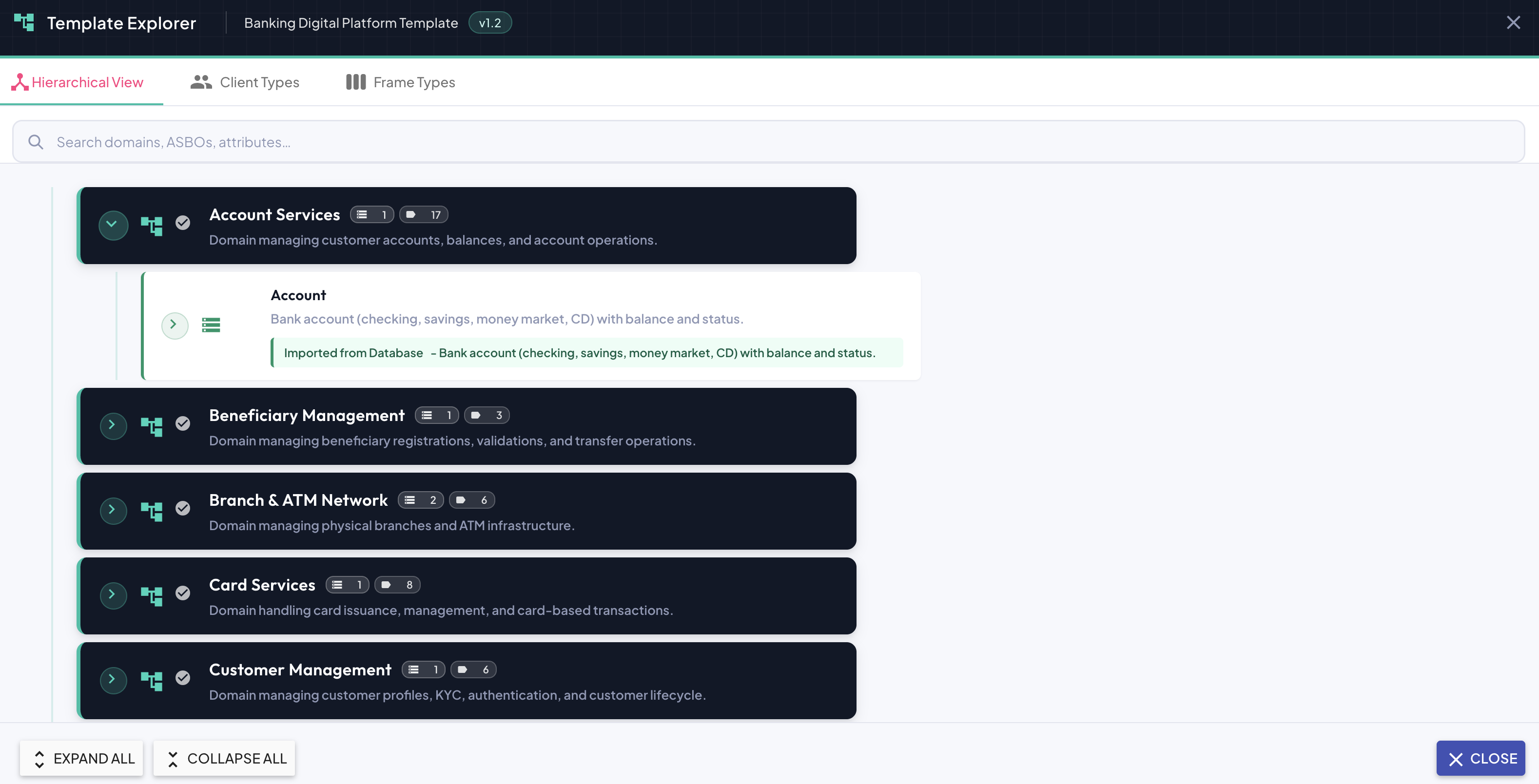
Domain Node
Each domain is represented as a dark header row displaying:
| Element | Description |
|---|---|
| Expand handle (▶ / ▼) | Expands or collapses the domain to show or hide its ASBOs. |
| Domain icon | Visual identifier for the domain type. |
| Validation badge () | Indicates the domain configuration is valid. |
| Domain name | The business domain name (e.g., Account Services). |
| ASBO count badge (≡ N) | Number of ASBOs defined within this domain. |
| Attribute count badge (⏻ N) | Total number of attributes across all ASBOs in this domain. |
| Description | A short description of the domain's business purpose. |

ASBO Node
Clicking the expand handle (▶) on a domain row reveals the list of ASBOs that belong to it. Each ASBO row displays:
| Element | Description |
|---|---|
| Expand handle (▶ / ▼) | Expands or collapses the ASBO to show its attributes. |
| ASBO icon | Visual identifier for the ASBO type. |
| ASBO name | The name of the Abstract Business Object (e.g., Account). |
| Description | A short description of the ASBO's business meaning. |
| Import source | If the ASBO was imported from a database, a green banner displays the source and original description. |
Attribute Node
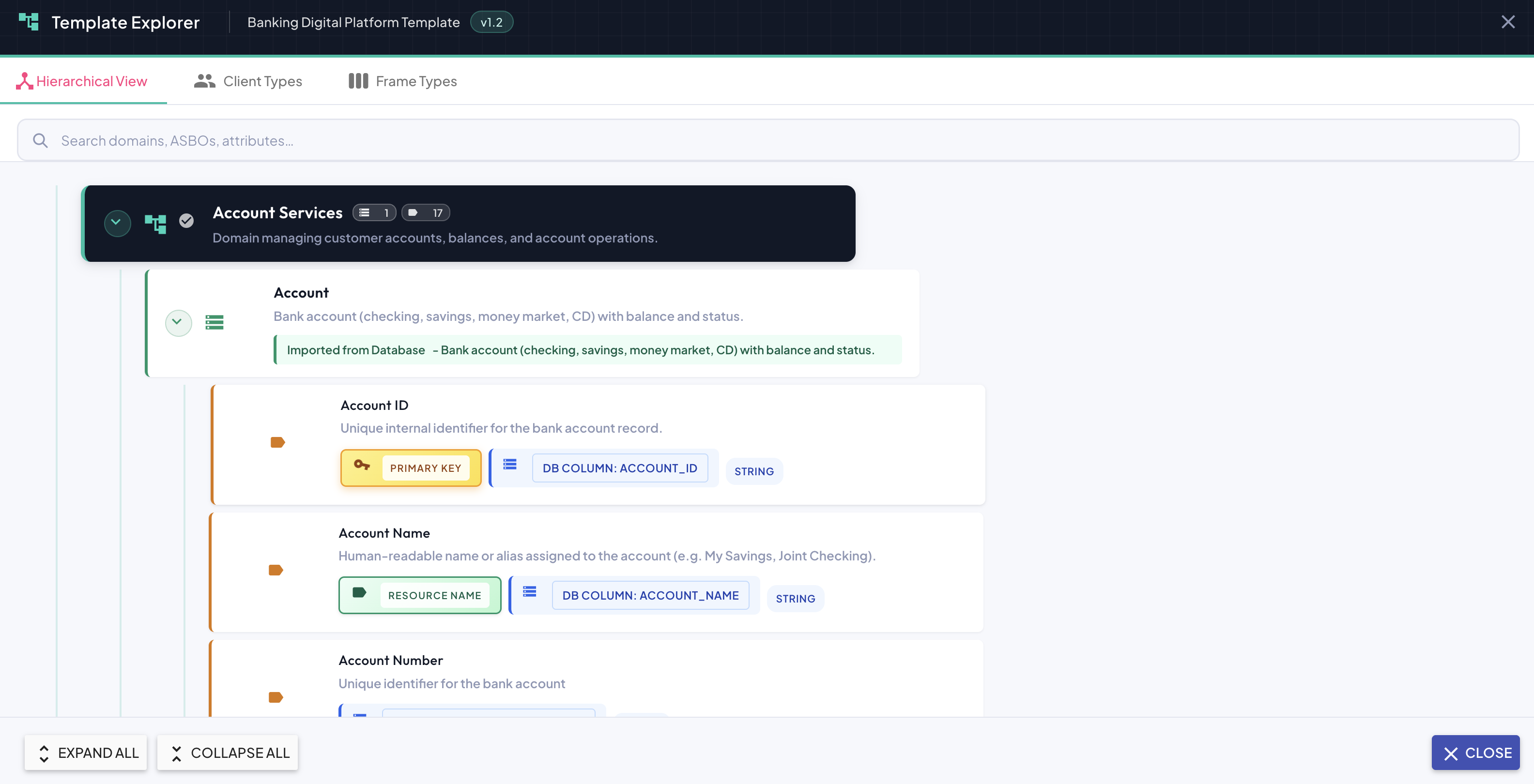
Expanding an ASBO reveals its attributes. Each attribute row displays:
| Element | Description |
|---|---|
| Sequence number | The ordinal position of the attribute within the ASBO. |
| Attribute icon | Visual identifier for the attribute type. |
| Attribute name | The name of the attribute (e.g., Account ID, Account Name). |
| Description | A short human-readable explanation of the attribute's business meaning. |
| Role badge | Indicates a special role if applicable — e.g., PRIMARY KEY (gold), RESOURCE NAME (green). |
| DB Column badge | Shows the mapped database column name (e.g., DB COLUMN: ACCOUNT_ID). |
| Data type badge | The data type of the attribute (e.g., STRING, FLOAT, BOOLEAN, TIMESTAMP). |
| Constraint badges | Numeric constraints where applicable — MIN: N and MAX: N. |
Expand / Collapse Controls
At the bottom-left of the view, two buttons control the global expansion state of the tree:
| Control | Description |
|---|---|
| Expand All | Expands all domain and ASBO nodes simultaneously, making every attribute visible at once. Useful for a full overview of the template. |
| Collapse All | Collapses all nodes back to the top-level domain list, providing a compact summary view. |
Search
A search bar at the top of the Hierarchical View allows you to find any template element by keyword. The search is case-insensitive and uses partial matching — results appear as you type.
Result Classification
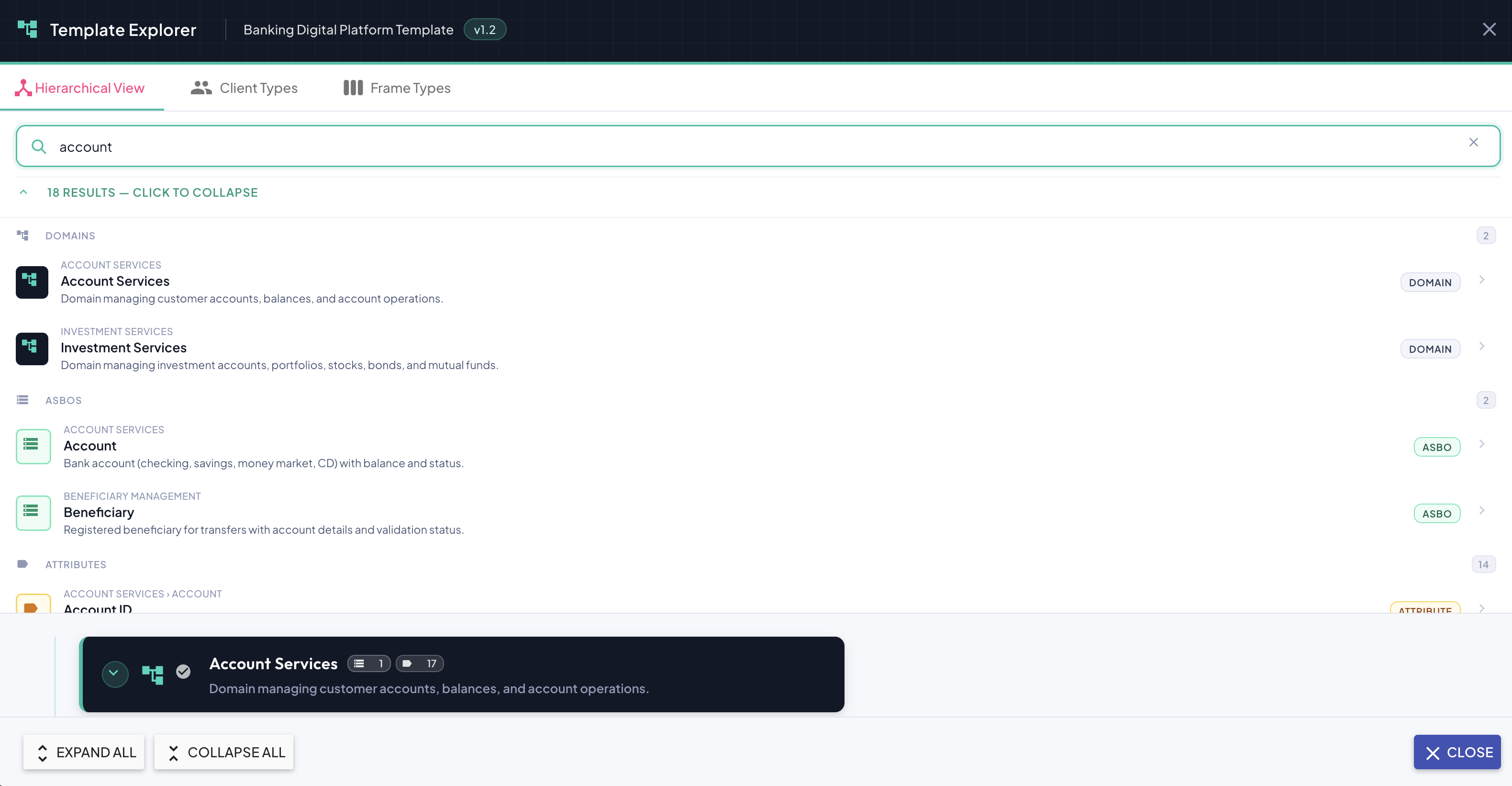
Search results are grouped and labeled by element type:
| Group | Elements matched |
|---|---|
| Domains | Business domains whose name or description matches the query. |
| ASBOs | Abstract Business Objects matching the query, shown with their parent domain. |
| Attributes | Individual attributes matching the query, shown with their parent domain › ASBO path. |
Each result row displays a type badge (DOMAIN, ASBO, ATTRIBUTE) on the right for immediate identification, along with a chevron (›) to navigate directly to that element.
The result list header shows the total match count (e.g., 18 results — click to collapse), and clicking the header toggles the result list open or closed.
Navigating to a Result
Clicking any search result:
- Automatically navigates to the corresponding element in the tree.
- Expands all necessary parent nodes.
- Visually highlights the selected item for quick identification.
This eliminates the need to manually expand multiple levels to locate a specific element.
When Search Is Most Useful
- Verifying whether a specific attribute already exists in the template.
- Confirming the exact domain location of an ASBO.
- Performing impact analysis across a large template.
- Quickly locating elements during functional review or cross-referencing sessions.
Search in large templates
In templates with dozens of domains and hundreds of attributes, search becomes an essential tool for maintaining efficiency. Rather than expanding and scrolling through the full tree, you can navigate directly to any element in seconds.