Frame Types
The Frame Types tab provides a flat list of all frame types defined in the template, along with their associated fields and metadata. Each frame type can be expanded to inspect its field definitions, data types, and constraints.
Overview Panel
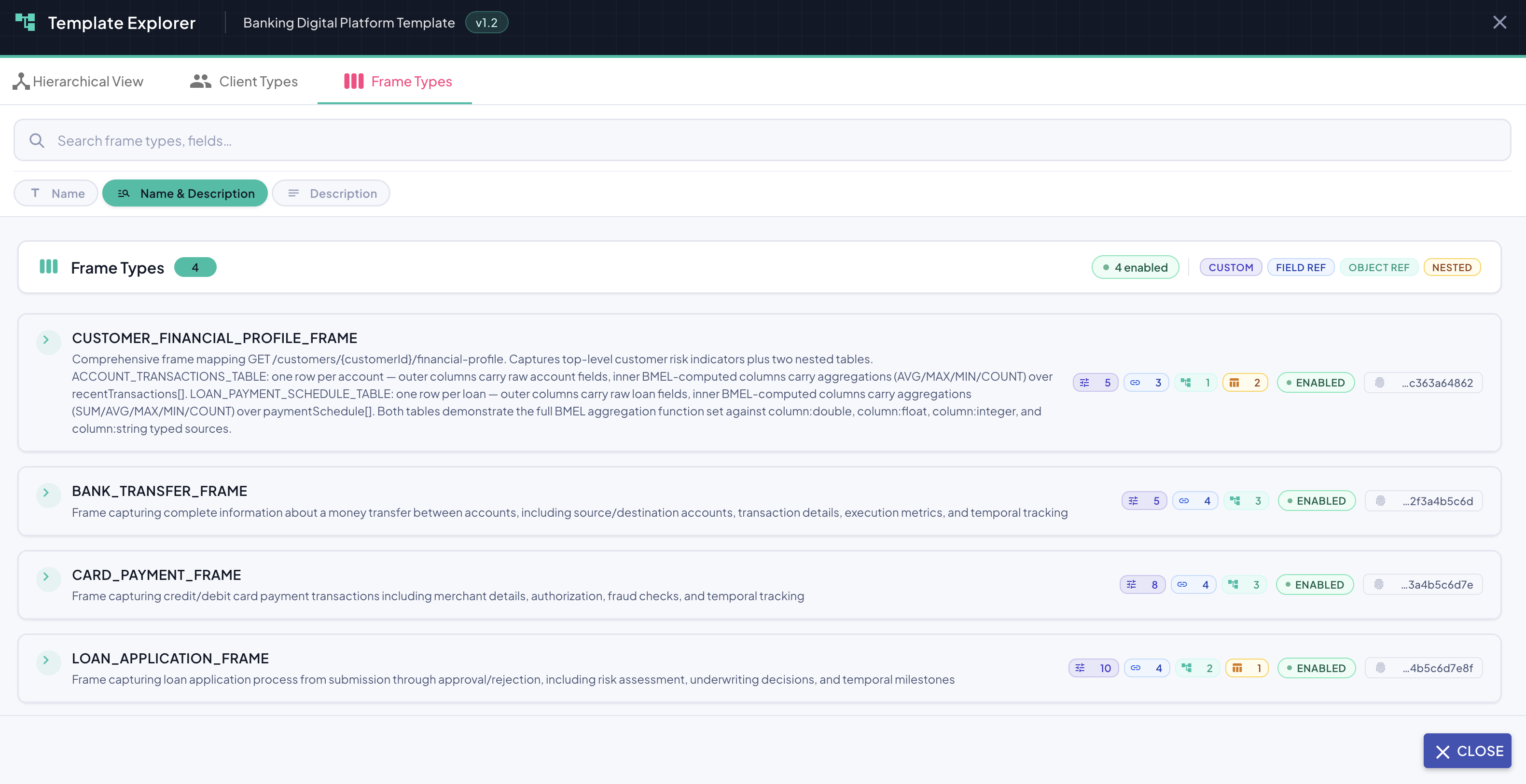
At the top of the tab, a summary header displays:
| Element | Description |
|---|---|
| Frame Types count badge | Total number of frame types defined in this template version (e.g., 4). |
| Enabled count badge | Number of frame types currently in enabled state (e.g., 4 enabled). |
| CUSTOM badge | Indicates that custom field definitions are present across the listed frame types. |
| FIELD REF badge | Indicates that field reference definitions are present. |
| OBJECT REF badge | Indicates that object reference definitions are present. |
| NESTED badge | Indicates that nested structure definitions are present. |
Frame Type Row
Each frame type is displayed as a collapsible row. In its collapsed state, it shows:
| Element | Description |
|---|---|
| Expand handle (▶ / ▼) | Expands or collapses the frame type to reveal its fields. |
| Frame type name | The identifier of the frame type in uppercase (e.g., BANK_TRANSFER_FRAME). |
| Description | A short explanation of the frame type's purpose. |
| Fields count badge (≡ N) | Number of fields defined in this frame type. |
| Object refs badge ( N) | Number of object reference fields. |
| Nested badge (⏚ N) | Number of nested structure fields. |
| Nested tables badge ( N) | Number of nested table definitions, shown in orange when present. |
| Enabled badge | Whether the frame type is currently active (ENABLED). |
| UUID | Truncated unique identifier for the frame type (e.g., …2f3a4b5c6d). |
Expanded Frame Type — Field Detail
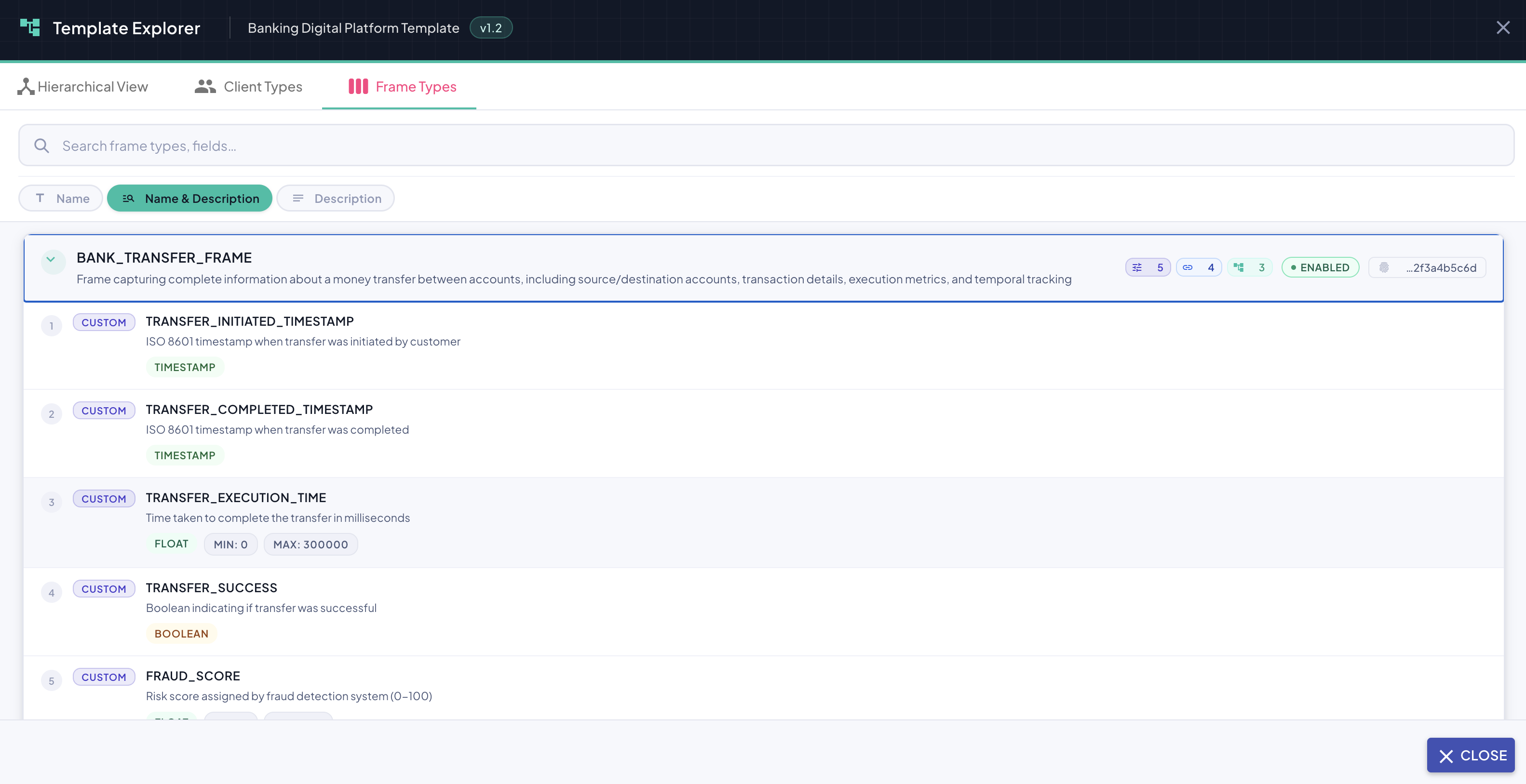
Clicking the expand handle on a frame type reveals its fields. Each field row displays:
| Element | Description |
|---|---|
| Sequence number | The ordinal position of the field within the frame type. |
| CUSTOM badge | Indicates this field is a custom-defined field (as opposed to a system or reference field). |
| Field name | The identifier of the field in uppercase (e.g., TRANSFER_INITIATED_TIMESTAMP). |
| Description | A short human-readable explanation of the field's purpose. |
| Data type badge | The data type of the field — e.g., TIMESTAMP, FLOAT, BOOLEAN, STRING. |
| Constraint badges | Numeric constraints where applicable — MIN: N and MAX: N. |
Search
The Frame Types tab includes a scoped search bar that allows you to find frame types and fields by keyword. The search is case-insensitive and uses partial matching.
Search Scope Selector
Unlike the Hierarchical View search, Frame Types search provides a scope selector to control what fields are matched against:
| Scope | Description |
|---|---|
| Name | Matches only against the frame type or field name. |
| Name & Description | Matches against both the name and the description text. This is the default scope. |
| Description | Matches only against the description text. |
The active scope is highlighted with a filled background. Switching scope immediately re-runs the search with the new criteria.


Result Classification
Search results are grouped into two categories:
| Group | Description |
|---|---|
| Frame Types | Frame types whose name or description matches the query. |
| Fields | Individual fields within frame types that match the query, shown with their parent frame type name. |
Each result displays a type badge (FRAME TYPE or FIELD) on the right, and the total match count is shown in the result list header (e.g., 7 results — click to collapse).
Navigating to a Result
Clicking any search result:
- Scrolls to and highlights the corresponding element in the list.
- If the result is a field, the parent frame type is automatically expanded to reveal it.
The currently highlighted frame type is also shown in a sticky detail panel at the bottom of the screen, displaying its name, description, and summary badges — keeping context visible while scrolling through results.
Choosing the right search scope
Use Name scope when you know the exact identifier you are looking for. Use Name & Description (default) for broader exploration — particularly useful when you remember what a field does but not its exact name. Use Description when searching for conceptual terms that may not appear in identifiers.