API Collections
The API Collections tab shows the API Collection versions linked to the template version, one card per collection, along with the Business Events of this template version that use each one. Use it to see which API contracts a template version works with, without searching for them among every collection registered in the account.
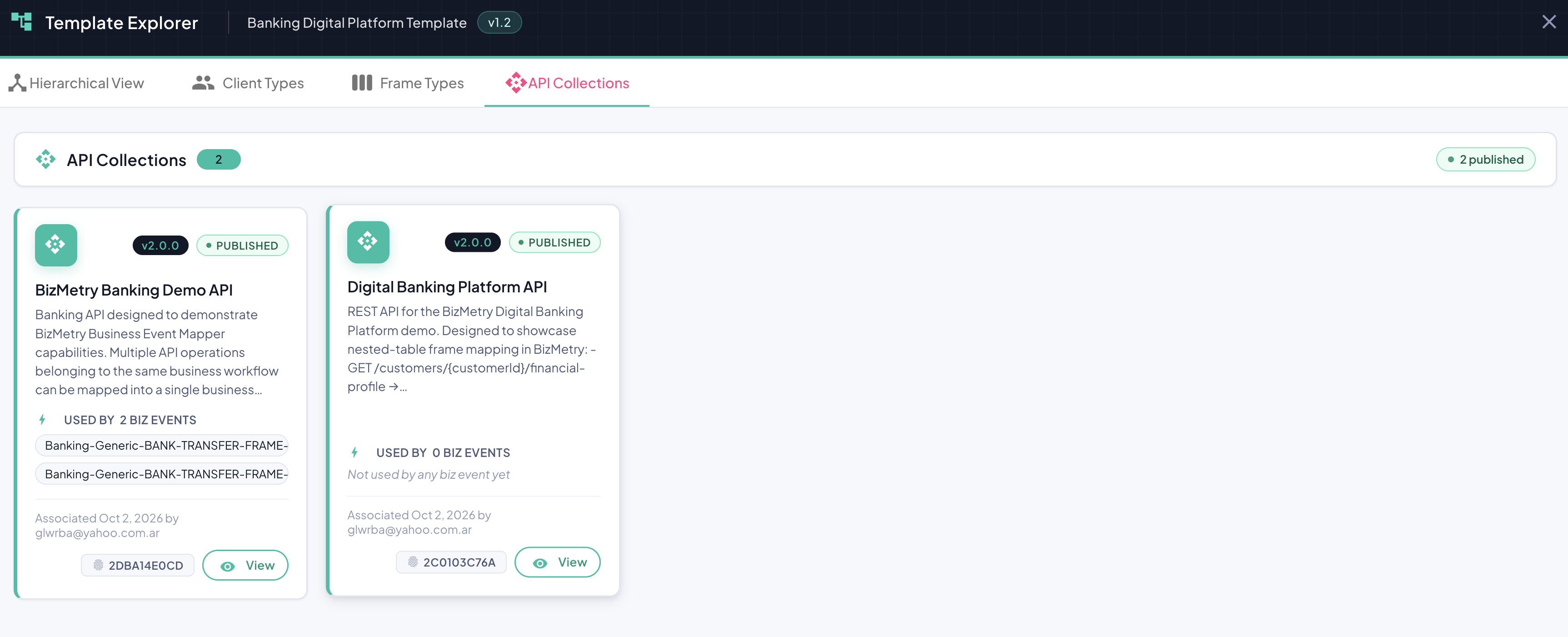
Overview Panel
At the top of the tab, a summary header displays:
| Element | Description |
|---|---|
| API Collections count badge | Number of API Collections linked to this template version (e.g., 2). |
| Published badge | Number of linked versions in PUBLISHED state (e.g., 2 published). |
| Not published badge | Number of linked versions in any other state. Shown only when there's at least one. |
API Collection Card
Each linked collection is shown as a card in a responsive grid. A card displays:
| Element | Description |
|---|---|
| Version badge | The linked version of the collection (e.g., v2.0.0). |
| Status pill | Lifecycle state of the linked version (e.g., PUBLISHED, DRAFT). |
| Name | The name of the API Collection (e.g., Digital Banking Platform API). |
| Description | The collection description, up to five lines. Hover over it to read the full text. |
| Used by | The Business Events of this template version that use the collection, with their version. Not used by any biz event yet when there are none. |
| Associated | When the collection was linked to the template version, and by whom. |
| ID | A truncated identifier of the collection version, shown at the bottom of the card for reference. |
| View | Opens the details of the collection version. See Viewing an API Collection. |
Viewing an API Collection
Click View on a card to open the Collection Details dialog of that version: its name, description and tags, a summary of its Swagger contract (operations, paths and where it was loaded from) and its audit information. From there:
- View Swagger opens the full contract.
- Edit opens the Edit Collection dialog, to change the collection if needed. It's offered for every version except RETIRED ones.
After an edit, the tab reloads. Editing a collection doesn't change which version the template is linked to: if the version is PUBLISHED, saving creates a new DRAFT version (see Version Bump Mechanism), and the template stays linked to the published one. To link the template to another version, use the API Collections tab of the template editor.
Empty Tab
- No API collection versions are associated with this template version: the template version has no linked collections yet. Link them from the API Collections tab of the template editor.
- API collections are associated with a template version once the profile exists: shown when the explorer is opened from the profile creation wizard, before the profile and its template version exist.