Template Explorer
Template Explorer is a read-only visualization tool that allows you to inspect the full structure of a telemetry template in a hierarchical, tree-based view. It provides easy navigation through the template's business domains, Abstract Business Objects (ASBOs), and their associated attributes and metadata.
📋 Accessing Template Explorer
Template Explorer can be accessed from the Template tab of a Profile:
- Open the Profile Dialog and navigate to the Template tab.
- Locate the template version you wish to explore.
- Click the Template Explorer button associated with that version.
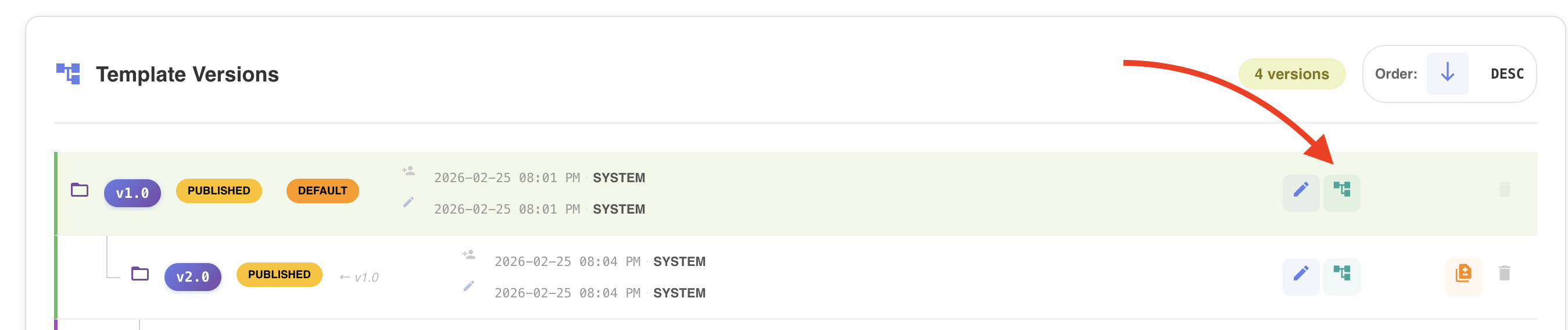
The Template Explorer view is then loaded and displayed on screen.
🗂️ Explorer Tabs
Template Explorer is organized into three tabs:
1. Hierarchical View
Provides a tree-based navigation of the template structure, organized as follows:
Business Domain
└── ASBO (Abstract Business Object)
    └── Attribute
        ├── Data Type
        ├── Length
        ├── Description
        └── Other metadata
This view allows you to drill down from high-level business domains all the way to individual attribute metadata.
🎛️ Navigation Controls
Template Explorer provides two controls to manage the expansion state of the tree:
| Control | Description |
|---|---|
| Expand All | Expands all nodes in the tree simultaneously, making all domains, ASBOs, and attributes visible at once. |
| Collapse All | Collapses all nodes, returning the view to the top-level domain list. |
🧭 Navigating the Tree
Collapsed View — Business Domains
By default, or after clicking Collapse All, the tree displays only the top-level business domains configured in the template.
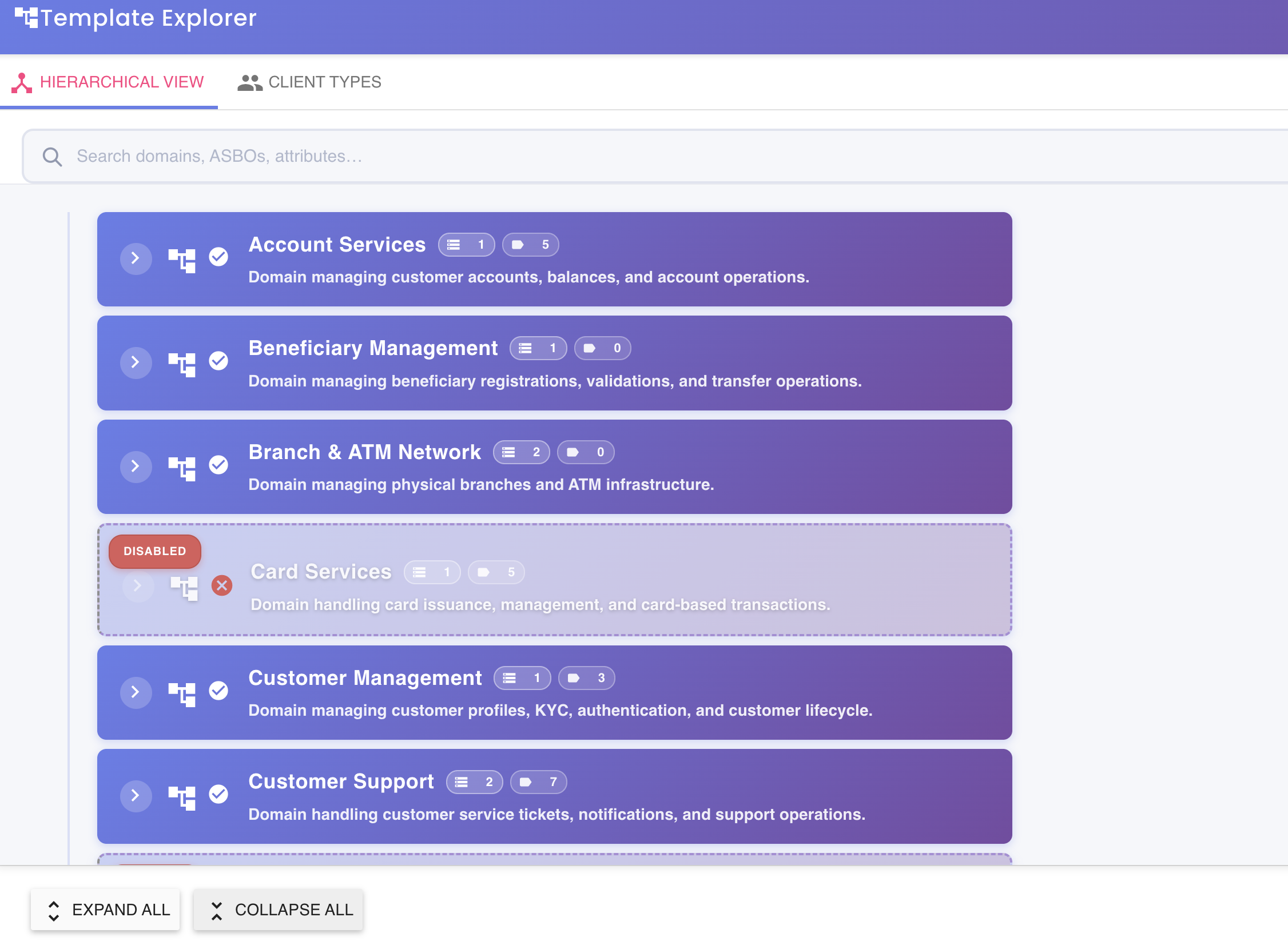
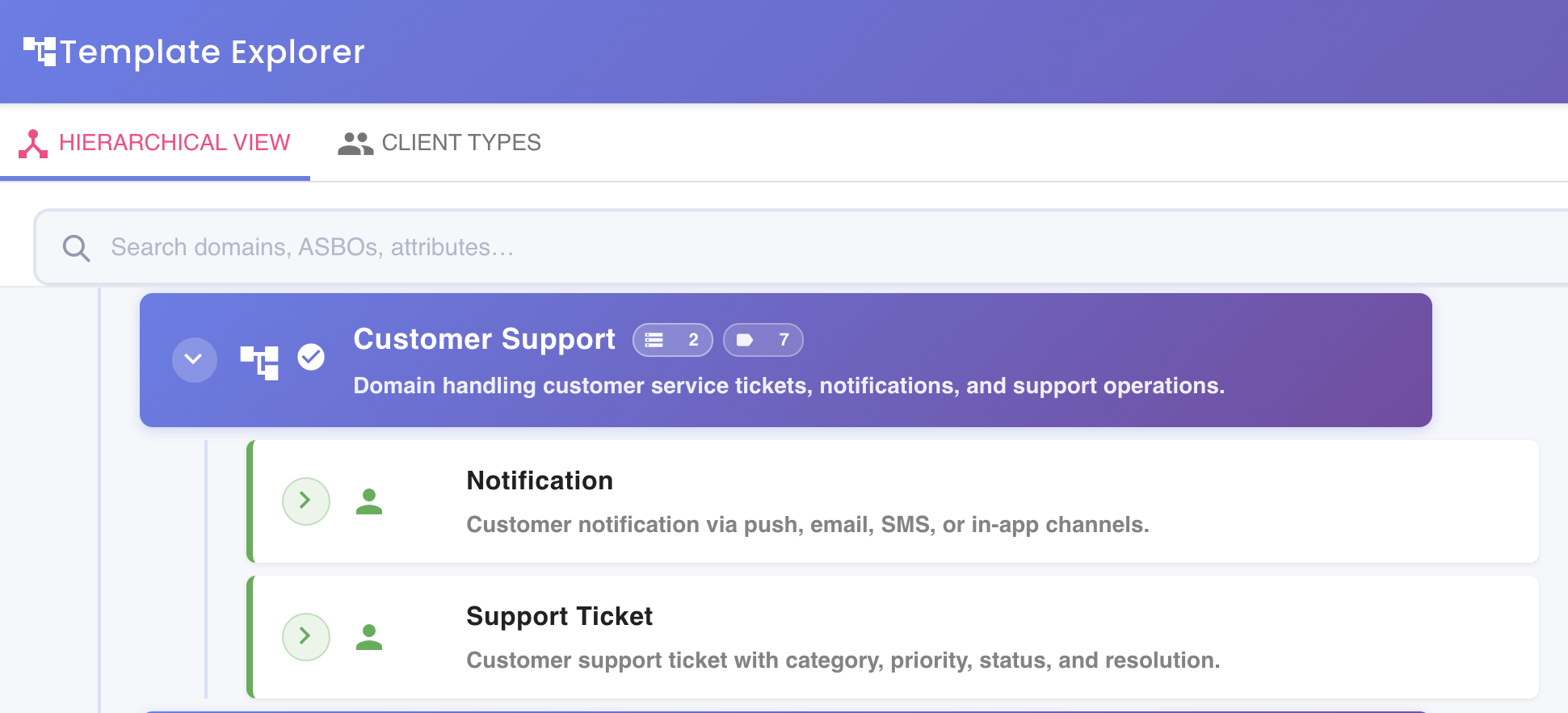
Expanding a Domain — ASBOs
Click the expand handle (▶) to the left of a domain to reveal the list of ASBOs associated with it.
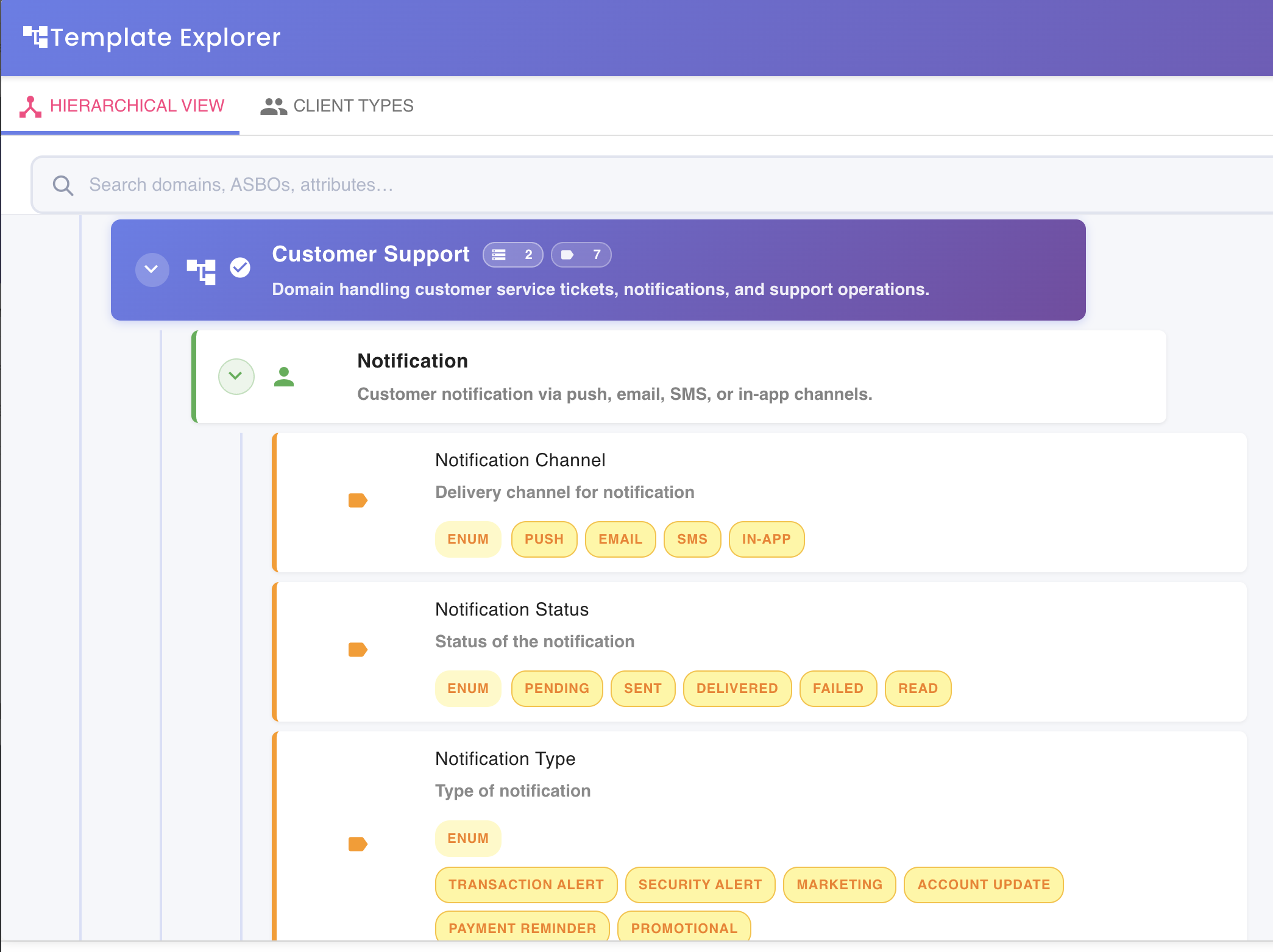
Expanding an ASBO — Attributes & Metadata
Click the expand handle to the left of an ASBO to reveal its full list of attributes, along with the corresponding metadata for each, including:
- Data Type — The type of data the attribute holds (e.g., String, Integer, Boolean, Date).
- Length — The maximum length or precision allowed for the attribute value.
- Description — A human-readable explanation of the attribute's business meaning.
- Additional metadata — Any other characteristics defined for the attribute within the template.
Search Bar
A search conveniently located at the top of the dialog allows you to provide a search term. As you introduce some text, a search is performed across all template items. The search is conducted using case-insensitive, partial-match approach.
The different search matches are shown in a list, classified by domain, ASBO and attribute, and listed according to this classification.
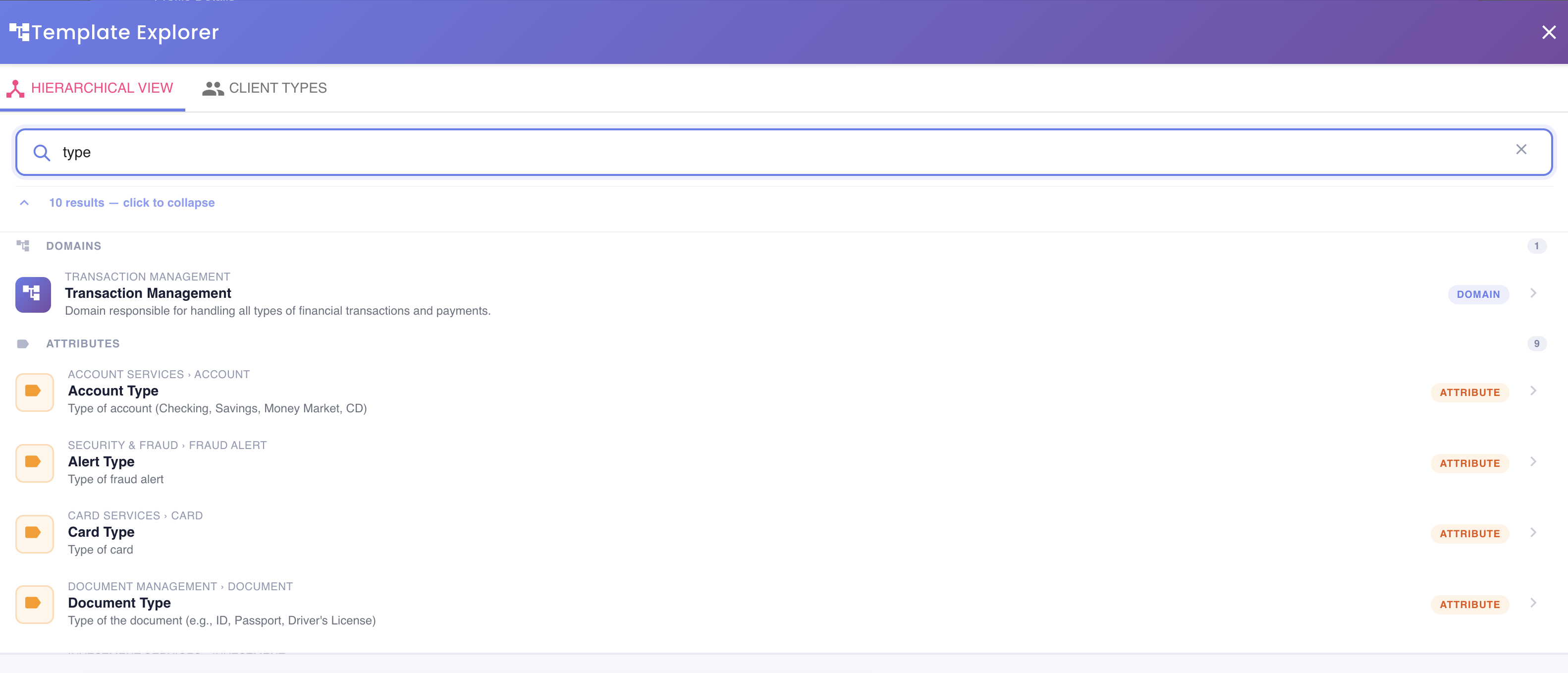
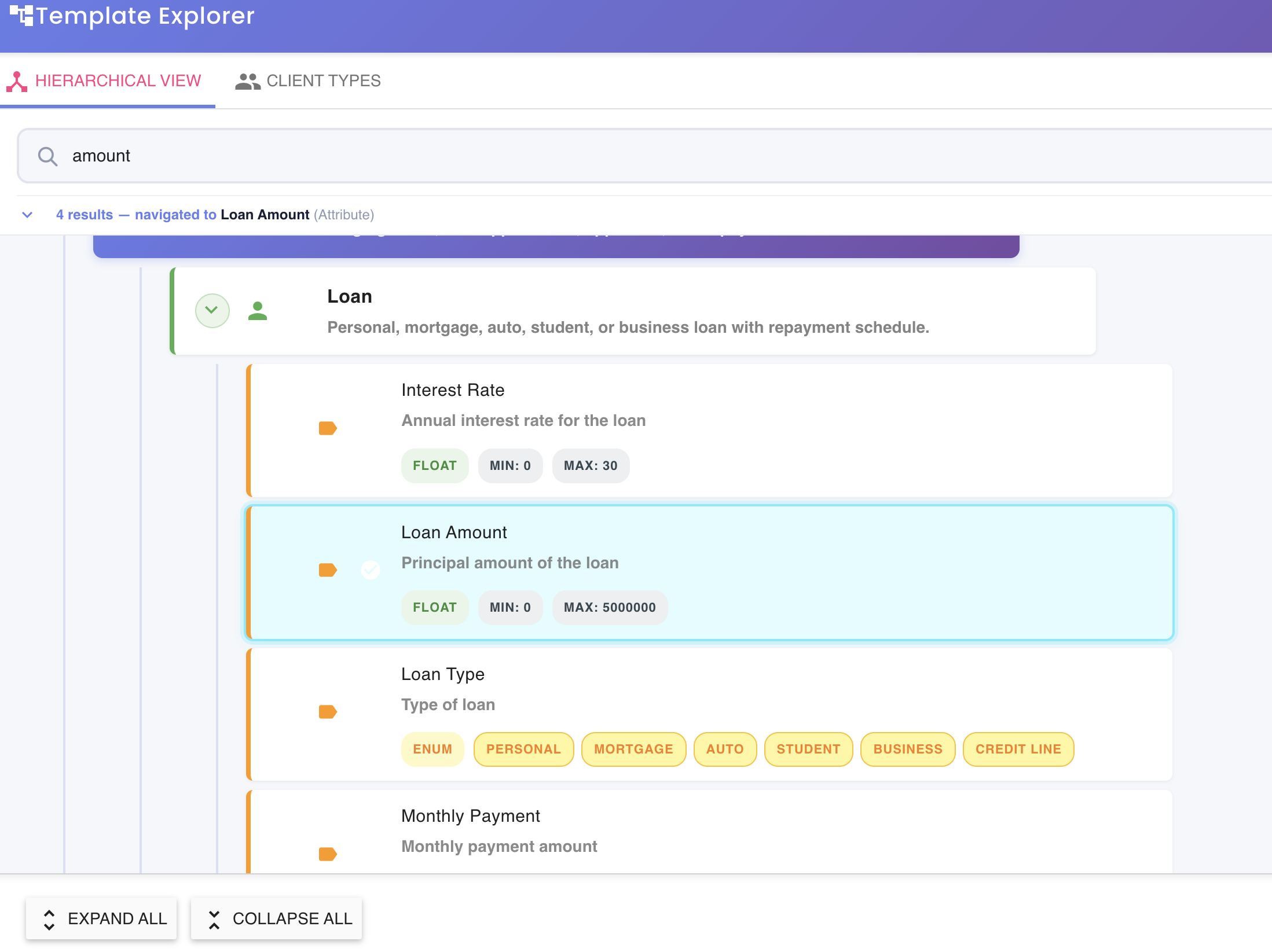
When you click on a search result:
- The system automatically navigates to the corresponding element in the tree view.
- All necessary parent nodes are automatically expanded.
- The selected item is visually highlighted for quick identification.
This eliminates the need to manually expand multiple tree levels.
Key Benefits
- Significantly reduces navigation time.
- Eliminates extensive manual exploration in large trees.
- Improves productivity during validation and review tasks.
- Enables fast lookup of specific attributes during functional or technical analysis.
- Supports audit and cross-verification activities within the template configuration.
Common Use Cases
The search capability is particularly useful when:
- Verifying whether an attribute already exists in the template.
- Confirming the exact location of an ASBO within a domain.
- Performing impact analysis.
- Reviewing configurations in large templates.
- Collaborating with team members and needing quick references to specific elements.
Search Capability
The search capability simplifies navigating and exploring the template configuration , especially for those complex templates involving tenths of domains, ASBOs and attributes conveniently in a single location.
In environments where templates continuously evolve and may contain dozens of domains and hundreds (or even thousands) of attributes, the search functionality becomes an essential tool for maintaining efficiency and accuracy while exploring the configuration.
2. Client Types
Lists all client types associated with the template in a flat, read-only view. This tab is purely informational — no modifications can be made from this view.
🔒 Read-Only Mode
Template Explorer is a read-only tool. No modifications to the template structure, ASBOs, or attributes can be made from this view. To edit the template, use the Edit Template action available on the Template tab.
🧭 Summary
Template Explorer allows you to:
- Visualize the complete hierarchical structure of a telemetry template version.
- Navigate through business domains, ASBOs, and attributes with ease.
- Inspect attribute metadata including data type, length, description, and other characteristics.
- Review client types associated with the template in a dedicated tab.
- Expand or collapse the entire tree with a single click for quick orientation.