Version Tree View
The Template Version Tree View is the main interface of the Template tab. It displays all versions of the telemetry template associated with a profile in a hierarchical, branching structure that reflects the full version lineage over time.
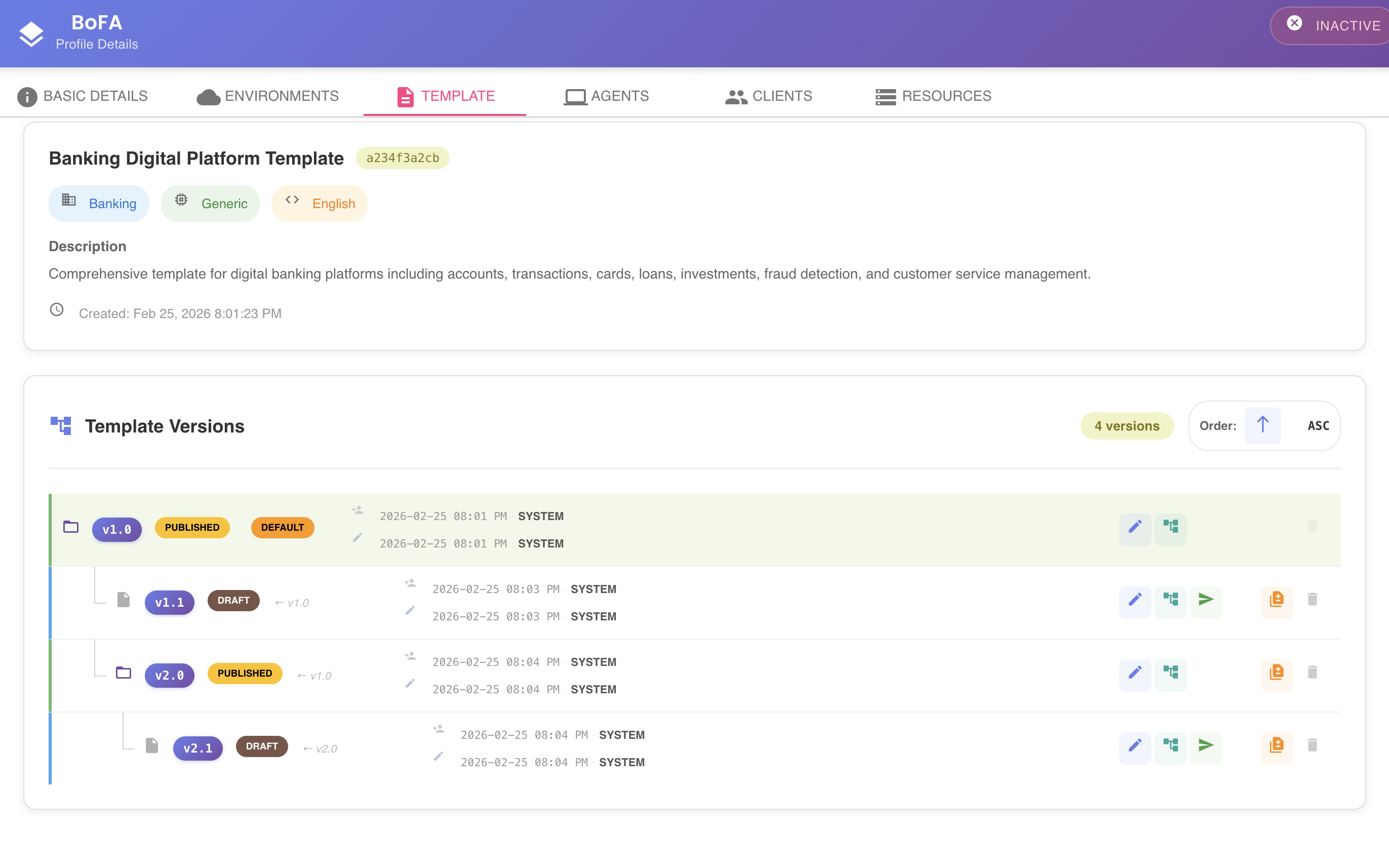
Template Details (Base Template Information)
At the top of the dialog, Bizmetry displays base template information inherited at profile creation time.
All fields are read-only:
| Field | Description |
|---|---|
| Template Name & ID | Unique identifier of the base template. |
| Business Domain | Associated business domain. |
| Tech Stack | Technology stack. |
| Language | Preferred language localization for the template (Spanish, English, etc.). |
| Description | Template purpose. |
| Creation Timestamp | When this version was created. |
Tree Structure
- The parent template version appears at the top of the tree.
- All child versions branch beneath their respective parent.
- Full lineage and version branching can be visually tracked at a glance.
This structure allows you to:
- Visualize version branching over time
- Identify change points
- Track evolution paths
- Detect parallel version streams
- Understand template evolution across lifecycle stages
Summary Controls
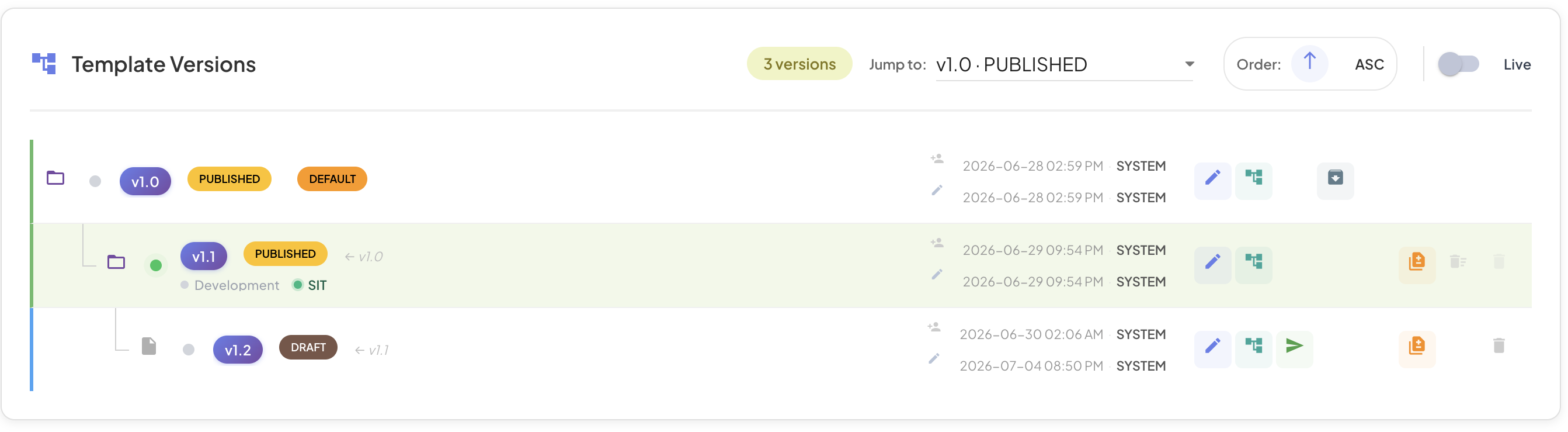
At the top of the version tree, Bizmetry displays a control panel with a set of tools to navigate and filter the version list:

| Control | Description |
|---|---|
| Version count badge | Displays the total number of available template versions in the tree. |
| Jump to dropdown | Quick navigation to a specific version by selecting it from the list. Each entry shows the version number and its current lifecycle state (e.g., v1.0 · PUBLISHED). |
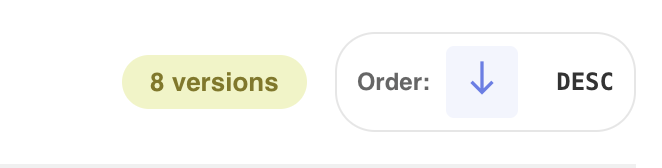
| Order (ASC / DESC) | Sorts the version tree numerically — ascending (lower → higher) or descending (higher → lower). |
| Live toggle | When enabled, filters the tree to show only template versions that are currently live (see Live Status Conditions below). |
Jump To
The Jump to dropdown allows you to quickly navigate to a specific version within the tree without scrolling. Select any version from the list — identified by its version number and lifecycle state — and the tree scrolls to and highlights that node.
Sorting
Versions can be sorted numerically using the Order control:
- Ascending (ASC) → Lower version first → Higher version last
- Descending (DESC) → Higher version first → Lower version last
Live Toggle
The Live toggle filters the version tree to display only those template versions that are currently considered live — i.e., actively running and collecting metrics.
Tip
This is particularly useful in operational contexts where you need to quickly identify which template versions are actively running, without navigating away to the Environments tab.
When the toggle is off, all versions are shown regardless of their live status. When on, only versions whose live status indicator is green are displayed.
Node Structure
Each node in the tree represents a single template version and displays:
| Element | Description |
|---|---|
| Live status indicator | A small circle displayed next to the version pill. Green when the version is considered live (see Live Status Conditions below); grey otherwise. |
| Version number pill | The version identifier (e.g., v1.1). Clicking it opens the Template Explorer for that version. |
| Lifecycle state badge | Current state of the version (e.g., PUBLISHED, DRAFT). |
| DEFAULT badge | Shown only on the base version (v1.0), indicating it is the foundational version of the profile. |
| Parent reference | Shows the parent version this node branched from (e.g., ← v1.0). |
| Environment pills | Indicates which environments currently reference this version (e.g., Development, SIT). |
| Audit row | Displays the last updated timestamp and the user who performed the action. |
| Action buttons | Per-version controls for editing, exploring, submitting, approving, publishing, retiring, deleting, and comparing. |
Live Status Conditions
A template version is considered live — and its status indicator shown in green — only when all of the following conditions are met simultaneously:
| Condition | Requirement |
|---|---|
| Template version state | The version must be in PUBLISHED state. |
| Profile enabled | The profile that owns this template must have its Enabled toggle active. |
| Environment enabled | At least one environment assigned to this version must have its Enabled toggle active. |
| Agent ONLINE | The agent linked to that environment must be in ONLINE status. |
If any one of these conditions is not met, the status indicator shows grey, regardless of the others.
Clicking on a version node
Clicking directly on the version number pill opens the Template Explorer for that specific version. This provides an immediate, in-context structural view without navigating away from the Template tab.