Version Actions
Each template version in the tree exposes a set of action controls. The available actions vary depending on the current lifecycle state of the version and whether it is assigned to any environment.
Action Reference
| Icon | Action | Available When | Description |
|---|---|---|---|
| Edit | Any state | Opens the Template Editor. If the version is Published, a new Draft child version is automatically created. | |
| Template Explorer | Any state | Opens the Template Explorer for visual hierarchical navigation of the template structure. Also accessible by clicking directly on the version node pill. | |
| Submit for Review | Draft | Moves the version from Draft → Ready for Review. | |
| Approve | Ready for Review | Moves the version from Ready for Review → Reviewed. | |
| Reject | Ready for Review | Moves the version from Ready for Review → Rejected, returning it for corrections. | |
| Publish | Reviewed | Moves the version from Reviewed → Published, making it immutable. | |
| Retire | Published, not assigned to any environment | Moves the version from Published → Retired. See Retiring a Version. | |
| Delete | Not assigned to any environment | Deletes a single version. See Deleting Versions. | |
| Delete (Cascade) | Node has children, none assigned to any environment | Deletes the version and all its descendants. See Deleting Versions. | |
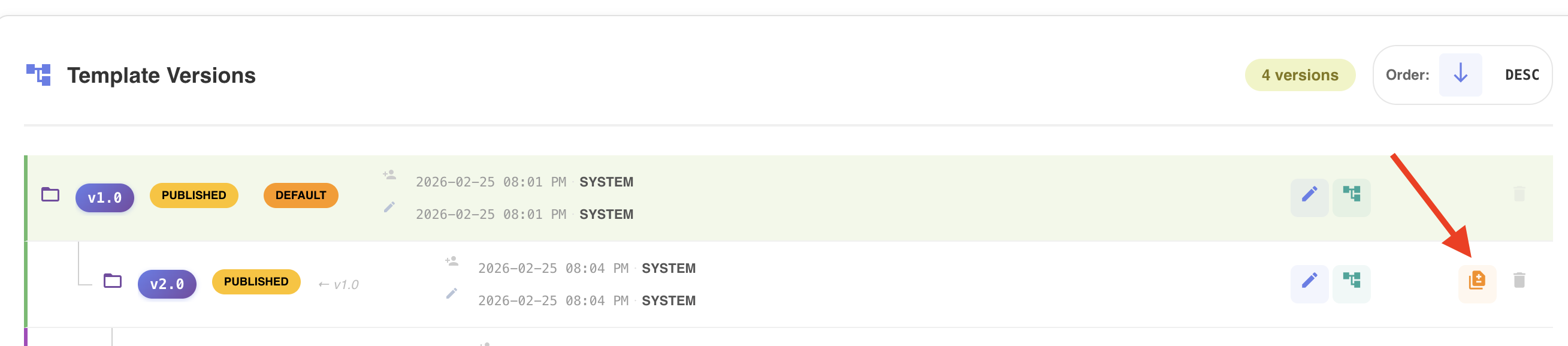
| Change Log | Any version with a parent | Performs a structured diff against the direct parent version. |
Tip
Action buttons that do not apply to the current version state are automatically hidden. Disabled buttons display a tooltip explaining the reason.
Change Log — Version Diff & Change Control
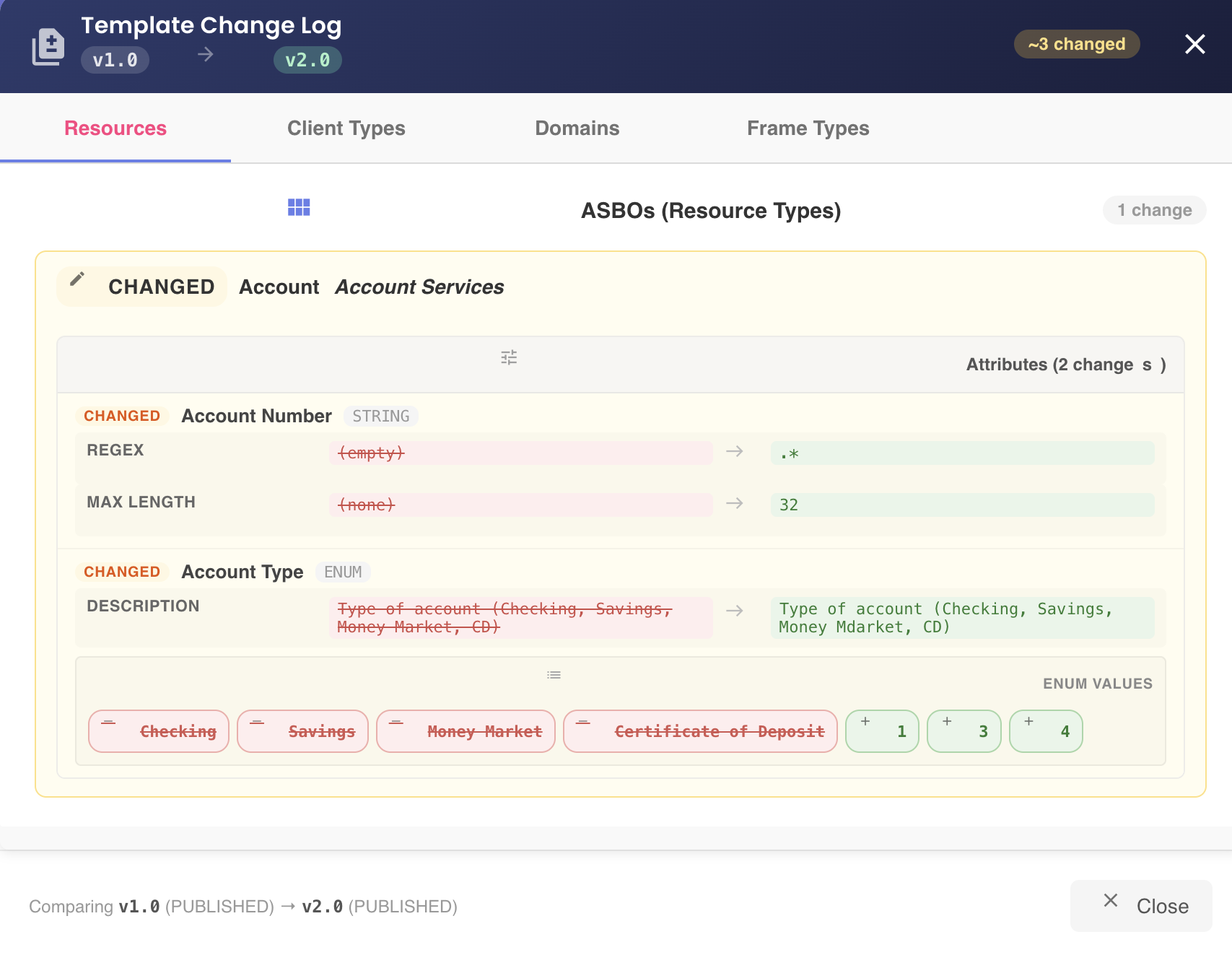
Clicking the Change Log icon performs an automatic diff comparison between the selected template version and its direct parent, visually highlighting all differences introduced since branching.
What the Change Log shows
- All structural and configuration differences between the selected version and its parent
- Changes grouped into categorized sections for rapid impact analysis
- Concise modification summaries per category
This enables:
- Clear visibility of what changed at each branch point
- Safe and informed review before publishing
- Structured, traceable change control
Change Log Categories
| Category | Description |
|---|---|
| Domain-Level Changes | Updates to overall domain definitions. |
| ASBO-Level Changes | Additions, removals, or structural modifications to Application-Specific Business Objects. |
| Attribute-Level Changes | Modifications to attributes, including type, constraint, or enum updates. |
| Client Type Changes | Adjustments to client type definitions. |
| Frame Type Changes | Changes affecting frame type definitions. |
Template Explorer
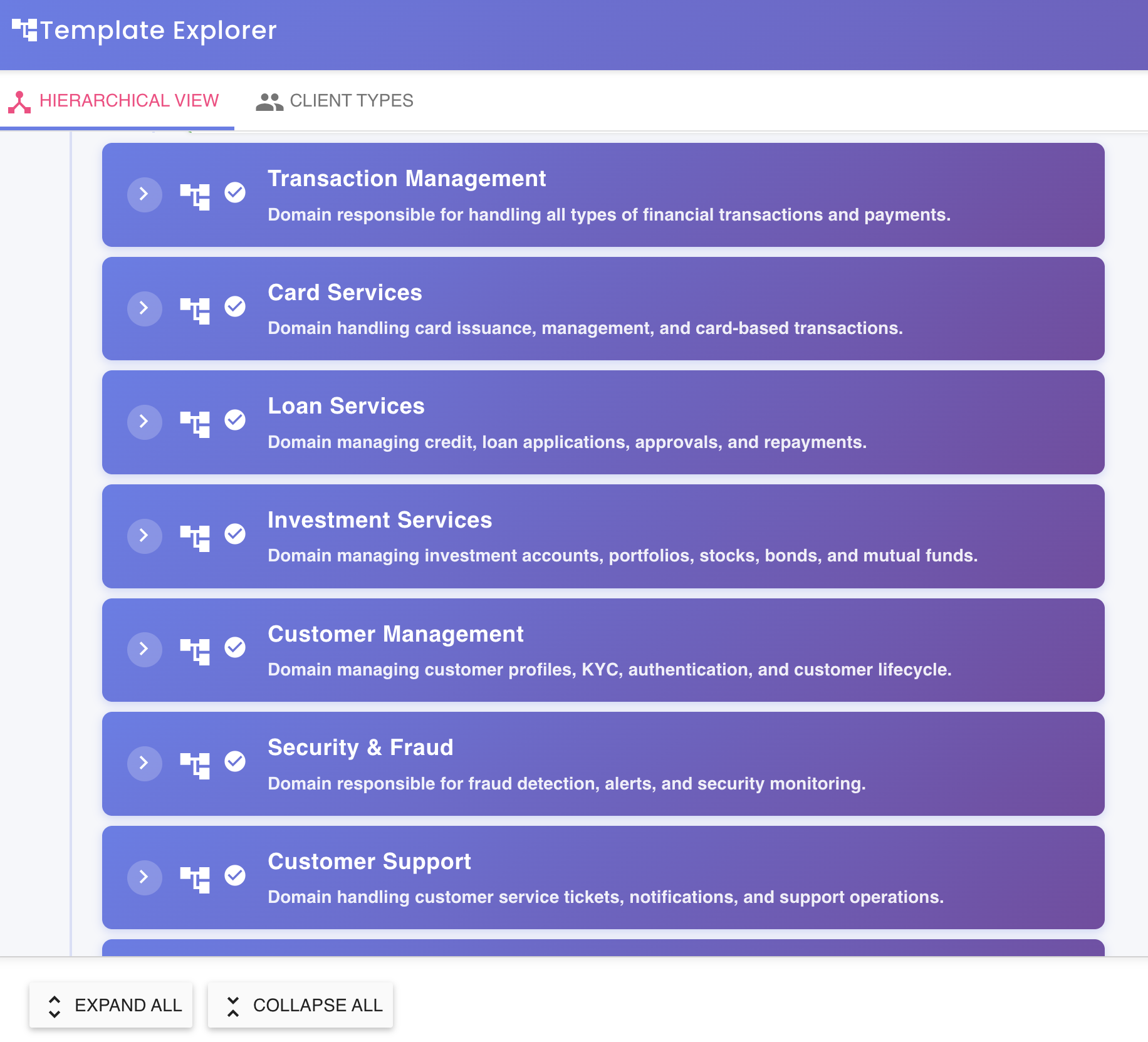
The Template Explorer provides a full hierarchical visualization of the template structure for a specific version, enabling structural navigation and component relationship inspection.
Opening the Template Explorer
There are two equivalent ways to open the Template Explorer for a given version:
- Click the Template Explorer action button on the version row.
- Click directly on the version number pill in the tree node.
Both methods open the Explorer in the context of that specific version, without navigating away from the Template tab.
What the Template Explorer provides
- Full hierarchical visualization of all template components
- Structural navigation across domains, ASBOs, attributes, client types, and frame types
- Component relationship insights
- Search and inspection capabilities