Template Tab – Hierarchical Versioning, Lifecycle & Change Governance
The Template tab within the Profile dialog provides full version visibility, lifecycle control, governance, branching management, and structured change control for the telemetry template associated with a profile.
Bizmetry implements a hierarchical versioning model combined with a controlled lifecycle and version diff mechanism to ensure safe, traceable, and enterprise-ready template evolution.
Accessing the Template Tab
There are two ways to access template information for a profile:
Option 1 — Via the contextual menu
- Locate the profile in the Profile Canvas.
- Click the ellipsis icon (three dots) in the bottom-right corner of the profile tile.
- Select Template from the contextual menu.
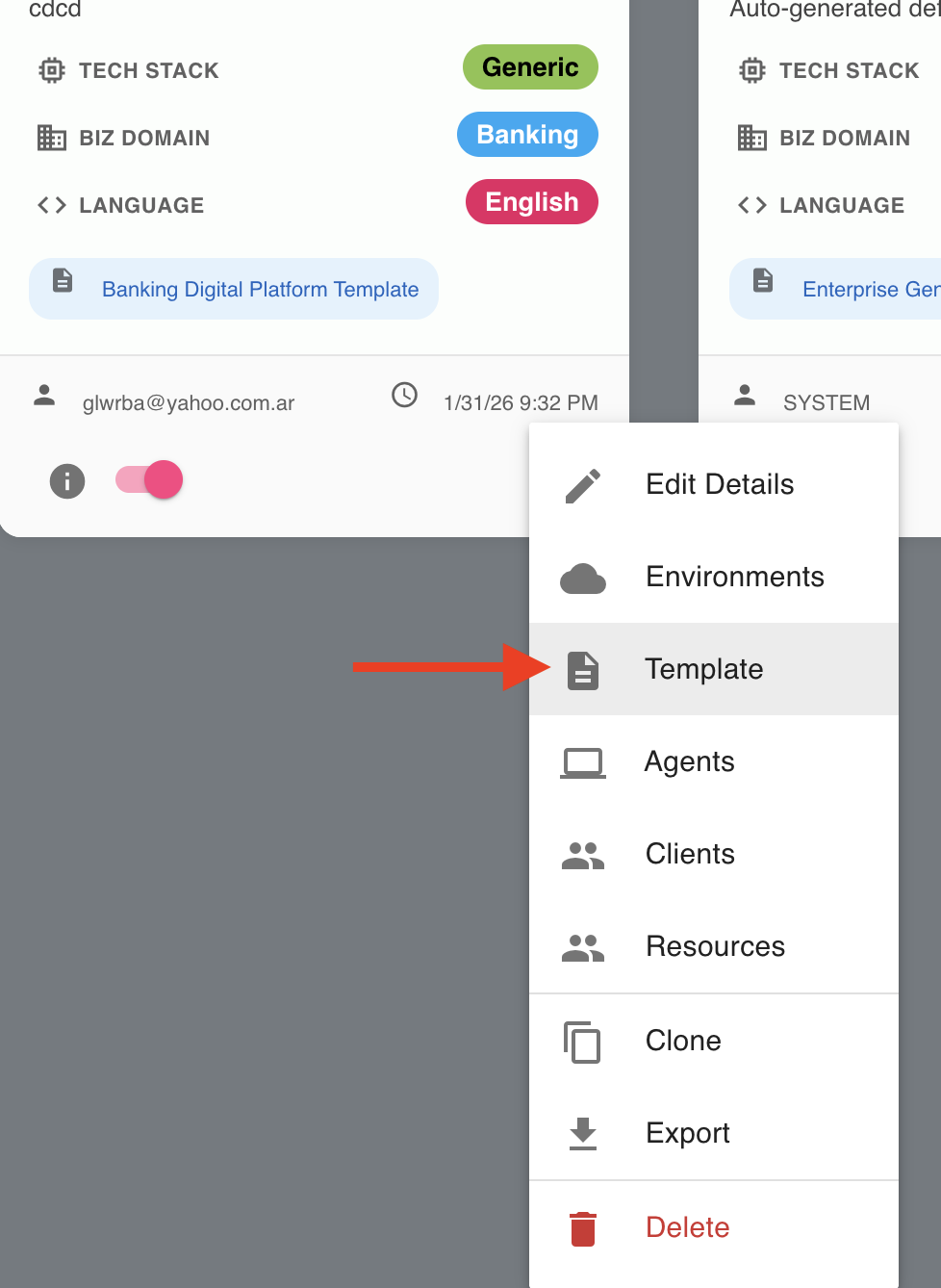
Option 2 — Via the Profile Dialog
- Open the Profile Dialog for the desired profile.
- Click the Template tab in the navigation bar.
In both cases, the Profile Dialog opens directly on the Template tab.
Hierarchical Template Version Tree
When accessing the Template tab, Bizmetry displays a Template Version Tree View of the various template versions available for the currently selected profile.
- The parent template version appears at the top.
- All child versions branch beneath their respective parent.
- Full lineage and version branching can be visually tracked.
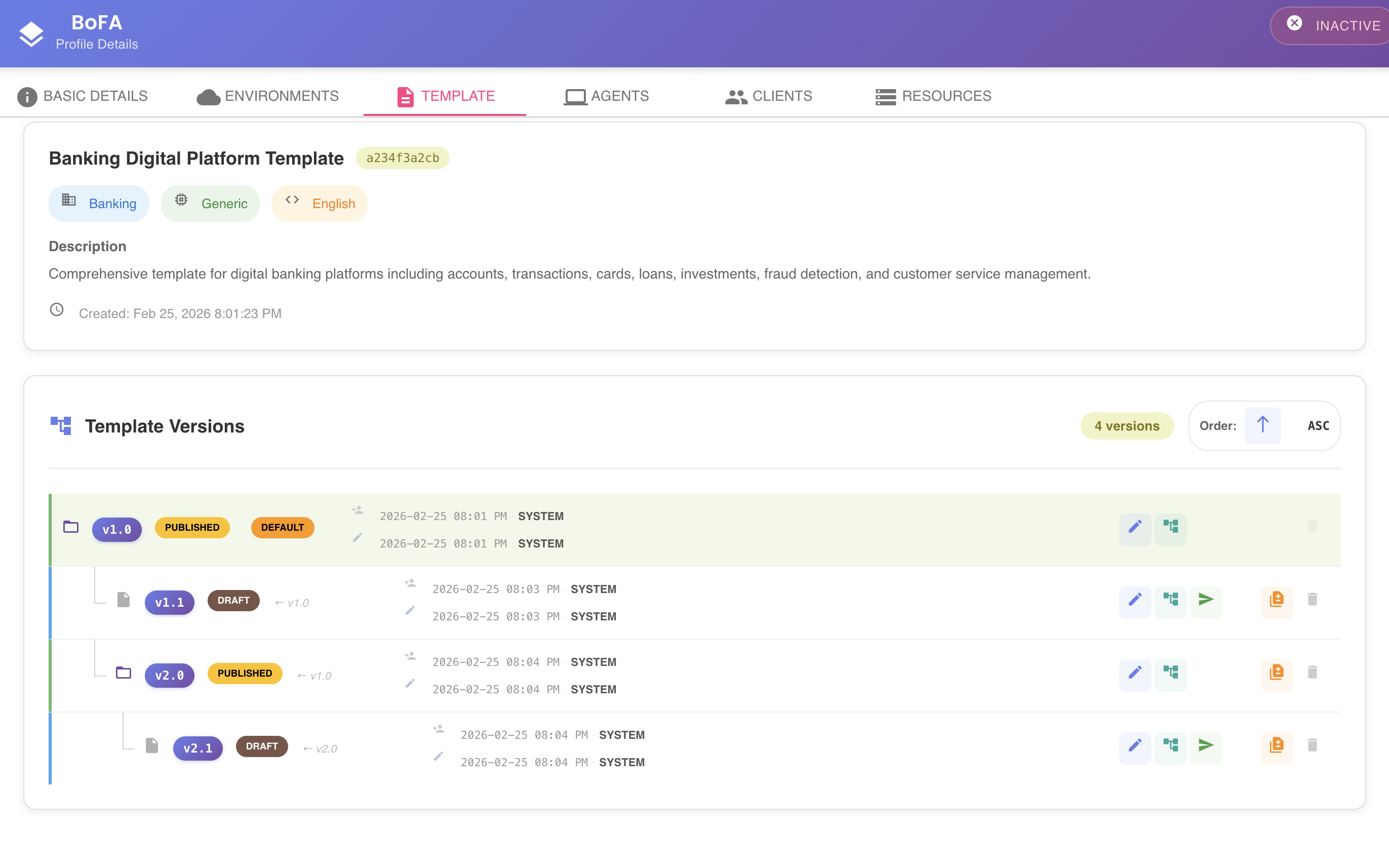
This structure allows users to:
- Visualize version branching over time
- Identify change points
- Track evolution paths
- Detect parallel version streams
- Understand template evolution across lifecycle stages
Template Details (Base Template Information)
At the top of the dialog, Bizmetry displays base template information inherited at profile creation time.
All fields are read-only:
| Field | Description |
|---|---|
| Template Name & ID | Unique identifier of the base template |
| Business Domain | Associated business domain |
| Tech Stack | Technology stack |
| Language | Preferred language localization for template (Spanish, English, etc) |
| Description | Template purpose |
| Creation Timestamp | When this version was created |
Summary Section (Top of Tree View)
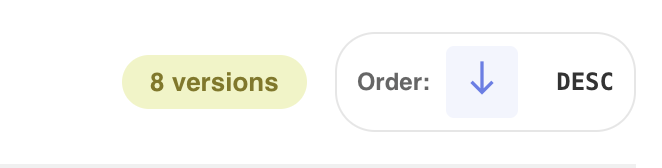
At the top of the hierarchical view, Bizmetry displays a Summary section that includes:
- Total number of available template versions
- A version sorting selector

Sorting Options
Versions can be sorted numerically:
- Ascending → Lower version → Higher version
- Descending → Higher version → Lower version
This allows quick reorganization of the tree for analysis purposes.
Template Node Structure
Each node in the tree represents a single template version and includes:
- Version number
- Current lifecycle state
- Audit information (last updated timestamp and user)
- Action buttons

Automatic Version Branching
A child template version is automatically created when:
- A template in PUBLISHED state is edited
- The edited version is saved
In this case:
- The original published version remains immutable
- A new child version is created, with a version bumped from the original one. Calculation of next version is automatically performed by bizmetry based on the change delta.
- The new version starts in DRAFT state
- It is linked to its parent in the tree
This ensures:
- Stability of production-ready templates
- Safe parallel evolution
- Full lineage traceability
Template Lifecycle & Version States
When a profile is created:
- Template starts in Draft
- Default version is v1.0
State Definitions
| State | Description |
|---|---|
| Draft | Editable configuration state |
| Ready for Review | Submitted for review |
| Rejected | Review failed, corrections required |
| Reviewed | Approved but not yet published |
| Published | Approved and immutable |
| Retired | Final lifecycle state. The template version has been formally decommissioned and is no longer active, assignable, or referenceable within Bizmetry. |
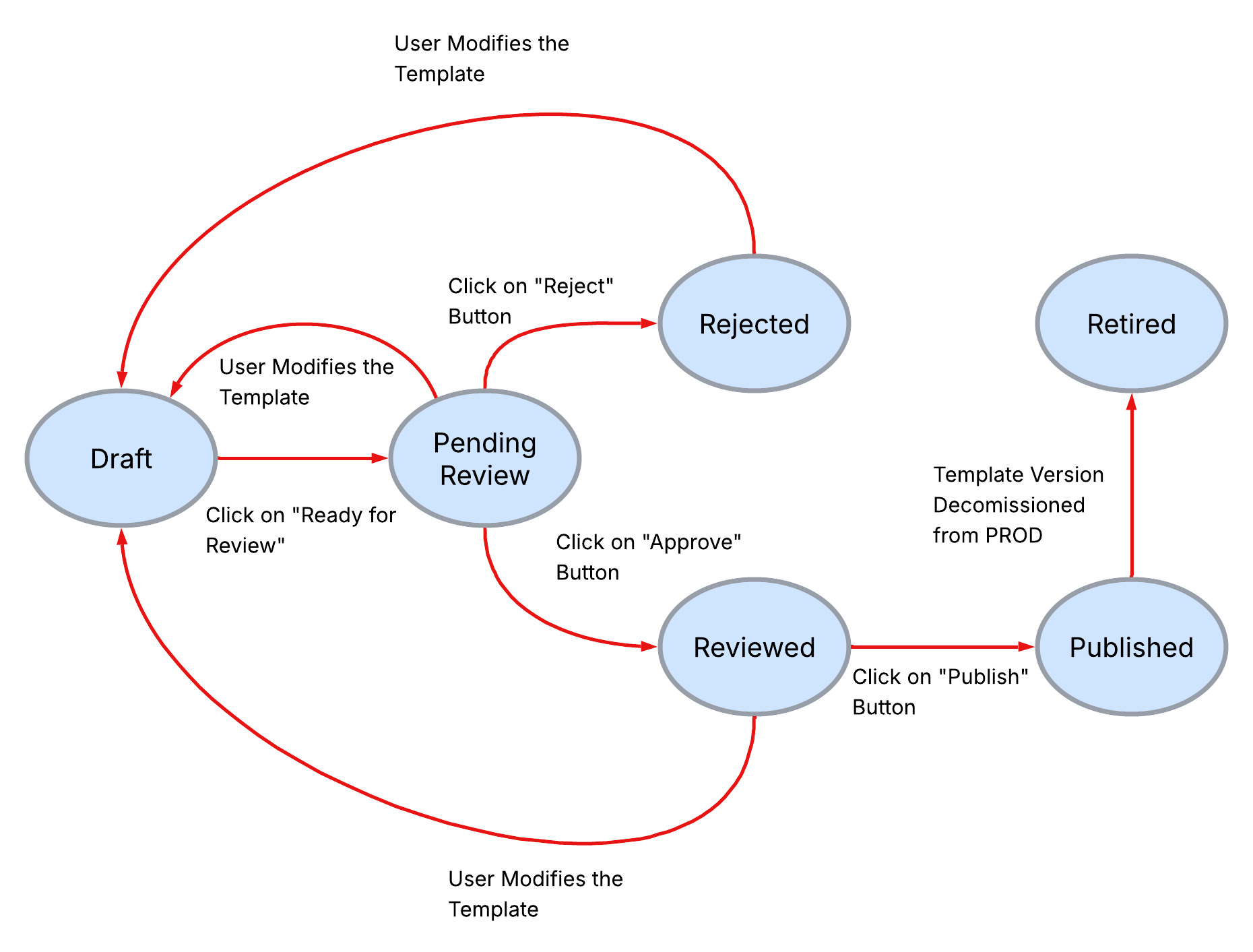
State Transition Flow
The following diagram illustrates lifecycle transitions and triggering actions:
Template & Semantic Versioning
Bizmetry uses a major.minor versioning model to manage template evolution in a structured and controlled manner.
Minor Version Increment
major.minor → major.minor+1
A minor version bump represents a non-breaking change, such as:
- Additions that do not alter structural compatibility
- Attribute refinements
- Non-disruptive configuration updates
- Backward-compatible enhancements
These changes do not require structural revalidation across environments but still follow the standard review lifecycle before publishing.
Major Version Increment
major.minor → major+1.0
A major version bump represents a breaking structural change, such as:
- Modifications to ASBO structure
- Changes affecting relationships between entities
- Removal of structural components
- Incompatible schema adjustments
Major changes require a full review cycle and careful validation before being promoted across environments.
Automatic Version Bump Policy
Bizmetry automatically determines whether a change results in a minor or major version increment.
The version bump is calculated based on:
- The number of changes
- The type of changes involved
- Whether the modifications are structurally breaking or non-breaking
This evaluation is performed automatically by Bizmetry during the save operation.
👉 Version numbers cannot be manually modified.
This automatic policy ensures:
- Consistent semantic versioning
- Objective classification of changes
- Prevention of manual version manipulation
- Reliable governance across template evolution
By enforcing automatic semantic versioning, Bizmetry maintains integrity, traceability, and structured lifecycle management.
Template Version Actions
| Icon | Action | Description |
|---|---|---|
| ✏️ | Edit | Opens Template Editor. If Published, creates Draft child version. |
| 🌳 | Template Explorer | Visual hierarchical navigation. |
| ➡️ | Submit for Review | Moves Draft → Ready for Review. |
| ✔️ / ❌ | Approve / Reject | Review decision. |
| ⬆️ | Publish | Moves Reviewed → Published. |
| 🚫 | Retire | Moves Published → Retired. Only visible when the version is not assigned to any environment. |
| 🗑️ | Delete | Deletes a single version (only when not assigned to any environment). |
| 🗂️ | Delete (Cascade) | Deletes a version and all its descendants in one operation. |
| 📄 | Change Log | Performs diff vs parent version. |
Change Log – Version Diff & Change Control
Clicking the Change Log icon performs an automatic diff comparison between the selected template version and its direct parent template.
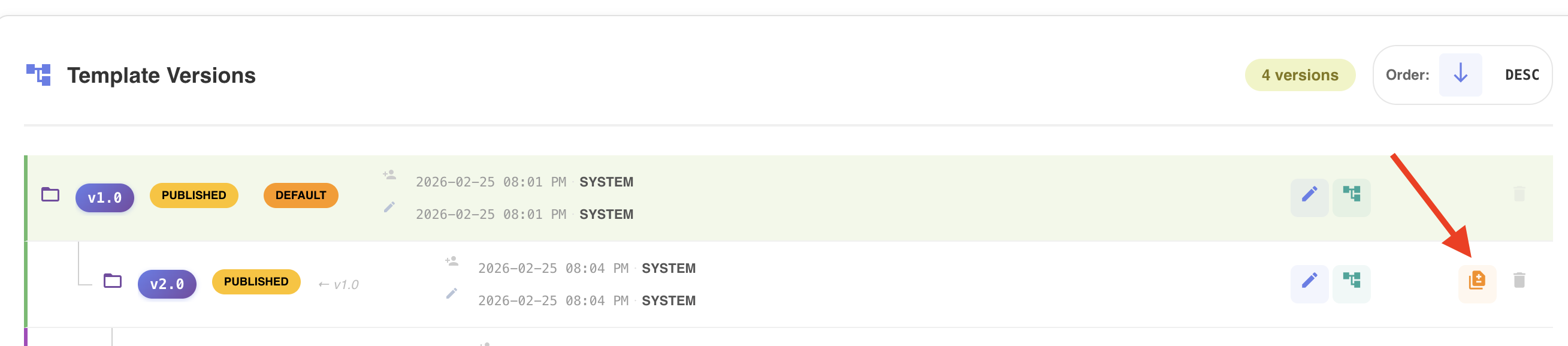
It visually highlights all differences introduced after branching.
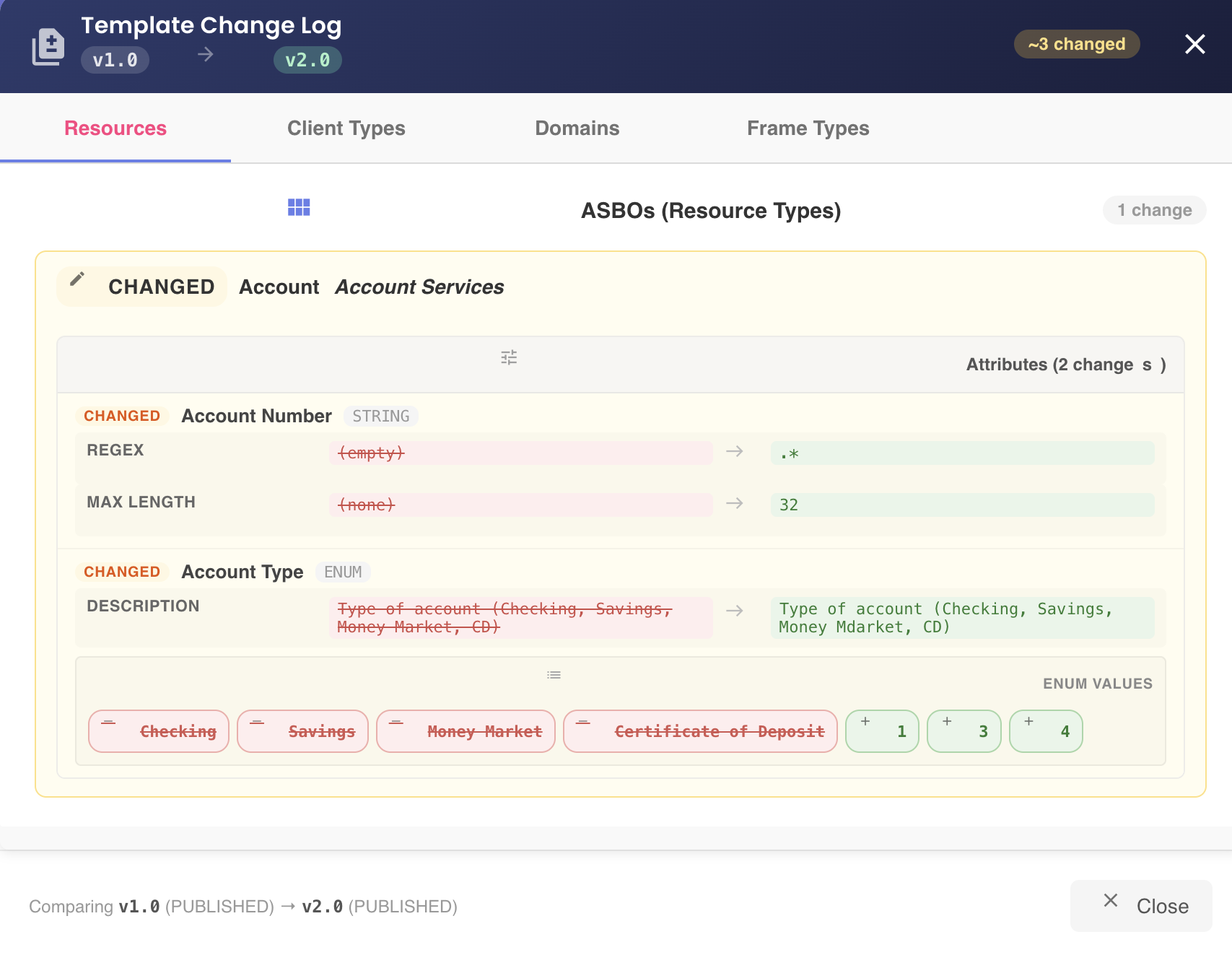
What the Change Log Does
- Compares selected template with its parent
- Identifies structural and configuration differences
- Groups changes into categorized sections
- Displays concise modification summaries
- Enables rapid impact analysis
This allows:
- Clear visibility of branching changes
- Safe review before publishing
- Structured change control
Change Log Sections (Summary)
The Change Log groups detected differences into structured categories to simplify impact analysis, accessible from various tabs for better organization.
- Domain-Level Changes — Updates to overall domain definitions.
- ASBO-Level Changes — Additions, removals, or structural modifications to Application-Specific Business Objects.
- Attribute-Level Changes — Modifications to attributes, including type, constraint, or enum updates.
- Client Type Changes — Adjustments to client type definitions.
- Frame Type Changes — Changes affecting frame type definitions.
This categorization enables rapid identification of where changes occurred within the template structure.
Environment Assignment Restrictions
When configuring the Template Release Pipeline, Bizmetry enforces strict environment assignment rules based on the lifecycle state of each template version. These rules are designed to protect higher environments from instability, enforce governance, and maintain a controlled promotion process.
Non-Published Template Versions
The following lifecycle states are considered non-production-ready:
- Draft
- Ready for Review
- Rejected
- Reviewed
Template versions in any of these states:
👉 Can only be assigned to the DEVELOPMENT environment.
Why?
These versions are still:
- Under active configuration (Draft)
- Awaiting validation (Ready for Review)
- Requiring corrections (Rejected)
- Approved but not yet officially released (Reviewed)
Restricting them to DEVELOPMENT ensures that:
- Work-in-progress configurations remain isolated
- Unvalidated changes do not impact QA, UAT, or Production
- Review and approval processes are respected
- Structural changes are tested safely before promotion
This creates a clear separation between experimentation and controlled deployment.
Published Template Versions
Only templates in the:
- Published
state are eligible for assignment to higher environments, including:
- QA
- UAT
- Production
- Any additional non-development environments configured in the release pipeline
A template must go through the full review cycle before it can be published. Once published:
- The version becomes immutable
- Its configuration is considered validated
- It can be safely promoted across environments
Retired Template Versions
Template versions in Retired state:
👉 Cannot be assigned to any environment — including DEVELOPMENT.
A retired version is fully decommissioned. It cannot be referenced from any environment, business event, or any other area of Bizmetry that relies on an active template version. It exists exclusively as a historical record.
Governance & Risk Control
These environment restrictions enforce:
- Controlled promotion of changes
- Clear separation between draft work and stable releases
- Reduced operational risk
- Strong lifecycle governance
- Compliance with structured change management practices
Importance of this assignment policy
This mechanism is a core part of Bizmetry's enterprise-grade change control model. By aligning lifecycle states with environment eligibility, Bizmetry ensures that only validated, approved, and stable template versions can reach production-level environments. Retired versions are permanently excluded from this pipeline.
Retiring a Template Version
Retiring a template version is the formal act of decommissioning it once it has reached the end of its active lifecycle. It represents the final state a template version can occupy within Bizmetry's lifecycle model.
Transition Rule
The RETIRED state can only be reached from PUBLISHED:
PUBLISHED → RETIRED
No other transition to RETIRED is permitted. A template version must have been fully validated and published before it can be formally retired.
When the Retire Button is Visible
The Retire action is only available when all of the following conditions are met:
| Condition | Requirement |
|---|---|
| Lifecycle state | The version must be in PUBLISHED state |
| Environment assignment | The version must not be currently assigned to any environment |
If the version is still assigned to one or more environments, the Retire button is not visible. You must first unassign the version from all environments before retirement is allowed.
What Happens After Retiring
Once a template version transitions to RETIRED:
- It cannot be assigned to any environment
- It cannot be referenced from business events, agents, or any other Bizmetry component that relies on an active template version
- It cannot be edited or transitioned to any other lifecycle state
- The only remaining action available on a retired version is deletion
RETIRED is a terminal state
Once a template version is retired, it cannot be reactivated or reused under any circumstance. The transition to RETIRED is irreversible.
However, it is often useful to retain a retired version in the system for historical analysis, audit trails, and post-mortem review after the template has completed its lifecycle. Deletion should only be performed when the version is no longer needed for reference purposes.
Deleting Template Versions
Bizmetry offers two deletion modes for template versions: individual delete and cascade delete. Both operations are irreversible and protected by a two-step confirmation mechanism.
The default template version can never be deleted
The default template version (v1.0) is permanently protected and cannot be deleted under any circumstance — neither individually nor via cascade delete. This version represents the foundational baseline of the profile and is required for the profile to function correctly.
If your goal is to remove the profile entirely, you must do so through the Profile Wizard. There is no workaround to delete the default version directly.
Individual Delete
The standard delete action removes a single template version from the tree.
Constraints:
- Versions assigned to any active environment cannot be deleted
- The default template version (v1.0) can never be deleted under any circumstance — to remove the profile entirely, use the Profile Wizard
- Retired versions can be deleted — retirement is a prerequisite for deletion of a previously published version
- The delete icon appears disabled when any constraint applies
Two-Step Confirmation
- First click → icon turns red
- Second click → confirmation dialog appears
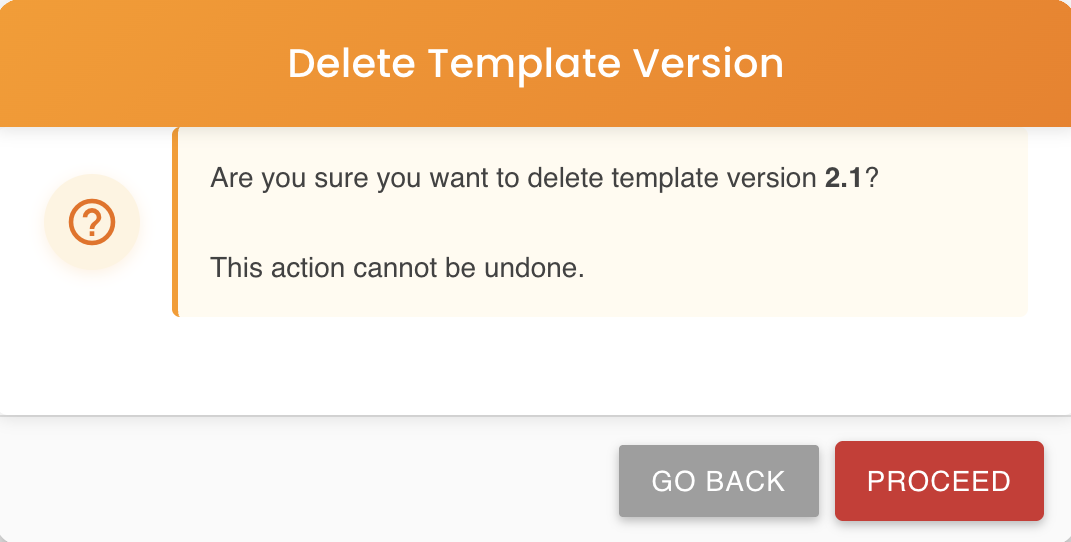
Important
⚠️ Deletion is irreversible. Once you have confirmed the deletion of an individual template version, such version is destroyed and cannot be recovered, so use with caution.
Cascade Delete
The Cascade Delete action removes a parent template version and all of its descendants in a single operation — the entire subtree rooted at that node.
This is designed for scenarios where a branch of the version tree is no longer needed and all related child versions should be cleaned up at once.
How it Works
When a cascade delete is triggered on a version node:
- Bizmetry collects the full subtree rooted at the selected version — the target node, all its children, grandchildren, and any further descendants at any depth.
- The entire subtree is validated against active environment assignments. If any version within the subtree is currently assigned to an environment, the operation is blocked and a detailed error message is shown listing which versions are in conflict and which environments they are assigned to.
- If validation passes, versions are deleted in bottom-up order — leaves first, parent last — to preserve referential integrity throughout the process.
When the Button is Enabled
The Cascade Delete icon is only visible and enabled when all of the following conditions are met:
| Condition | Requirement |
|---|---|
| The node has children | The selected version must have at least one child version in the tree |
| No subtree version is assigned to an environment | None of the versions in the subtree (including the selected node itself) can be currently assigned to any environment |
| The node is not the default version | The default template version (v1.0) can never be deleted — this restriction is absolute and cannot be bypassed |
If any version in the subtree is assigned to an environment, the button is disabled and a tooltip explains the reason.
Example
Given the following version tree:
v1.0  (Published — default)
└── v1.1  (Published)
    ├── v1.2  (Draft)
    └── v2.0  (Draft)
        └── v2.1  (Draft)
Triggering cascade delete on v1.1 would remove: v1.1, v1.2, v2.0, and v2.1 — provided none of those versions are assigned to any environment.
Triggering cascade delete on v2.0 would remove: v2.0 and v2.1.
Default version is protected
The default template version (v1.0) can never be deleted individually or via cascade. To remove the profile entirely, use the Profile Wizard.
Important
⚠️ Cascade deletion is irreversible. All versions in the subtree are permanently destroyed and cannot be recovered. Verify the tree structure carefully before confirming.
Template Explorer
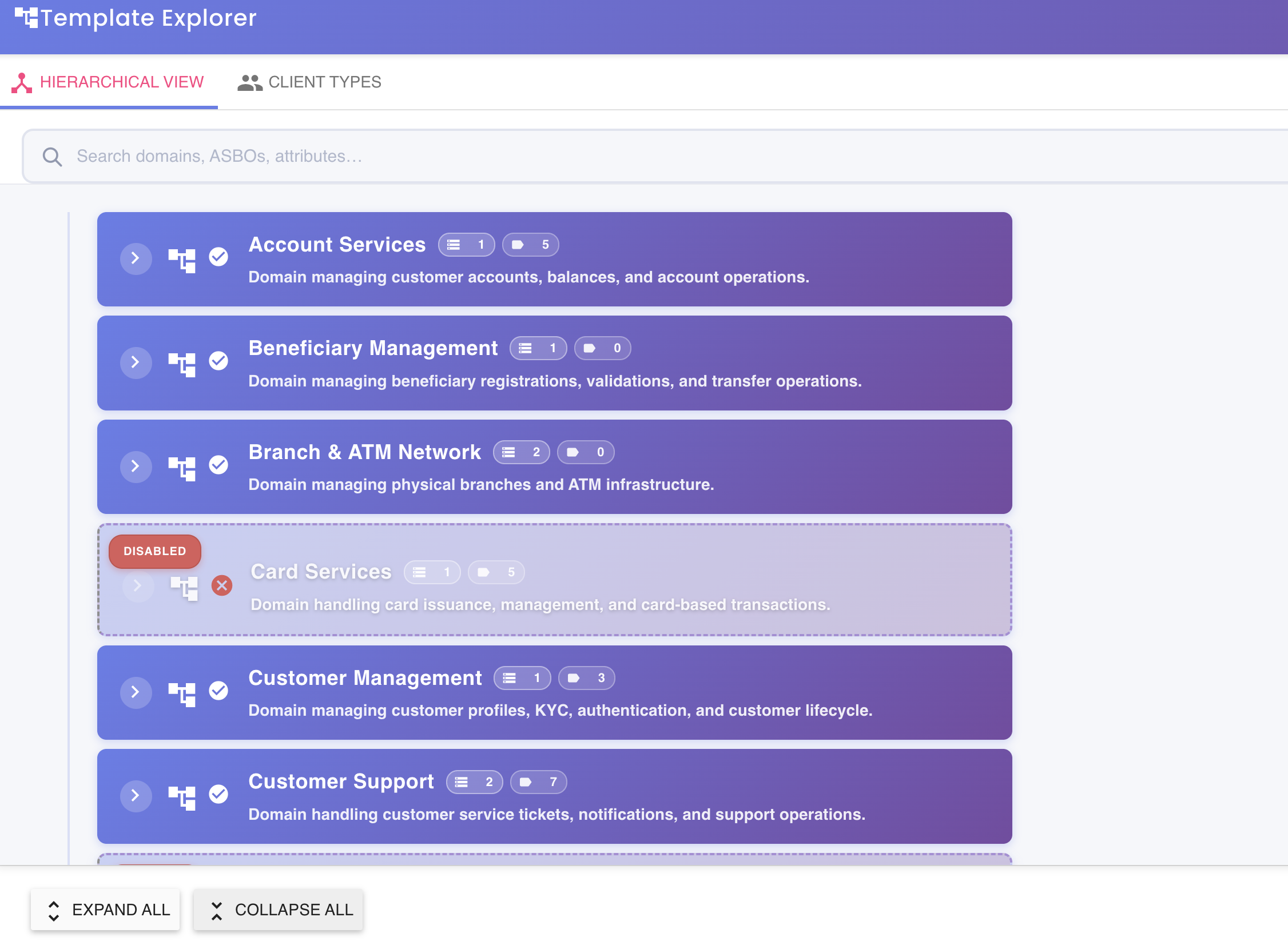
Clicking the Template Explorer opens the template explorer tool. The template explorer is a useful tool that helps to navigate across the template components, inspecting and searching for items.
Provides:
- Full hierarchical visualization
- Structural navigation
- Component relationship insights
Summary
The Template tab allows you to:
- View versions in a hierarchical tree
- Track lifecycle states
- Sort versions numerically
- Branch safely from published versions
- Submit/review/publish under governance
- Retire decommissioned versions once they reach end of lifecycle
- Assign environments based on state
- Compare versions via Change Log
- Delete unused versions safely (individually or in cascade)
- Explore template structure visually