Editing Resource Types
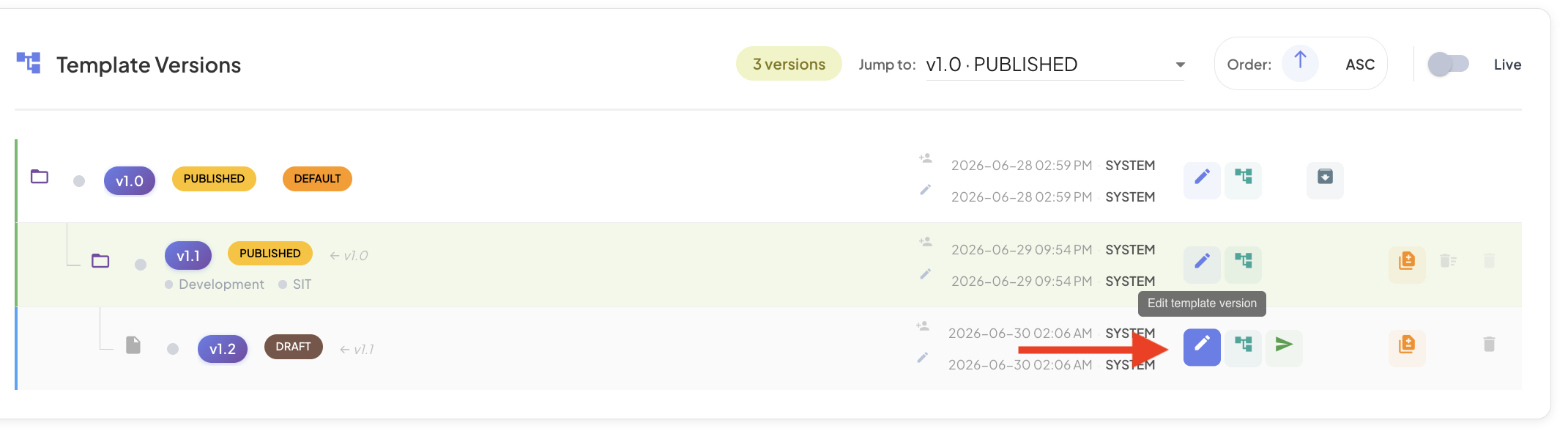
The template editing dialog is accessed from the Template tab of the Profile dialog. Click the Edit (pencil) icon on the version row of the template version you wish to edit. Once the dialog opens, click the Resource Types tab.
Understanding Resource Types
In the BizMetry data model, a resource type is a taxonomic classification under which one or more business assets or ASBOs exist, grouping resource instances under the same name for better administration and management.
Resource Types Tab
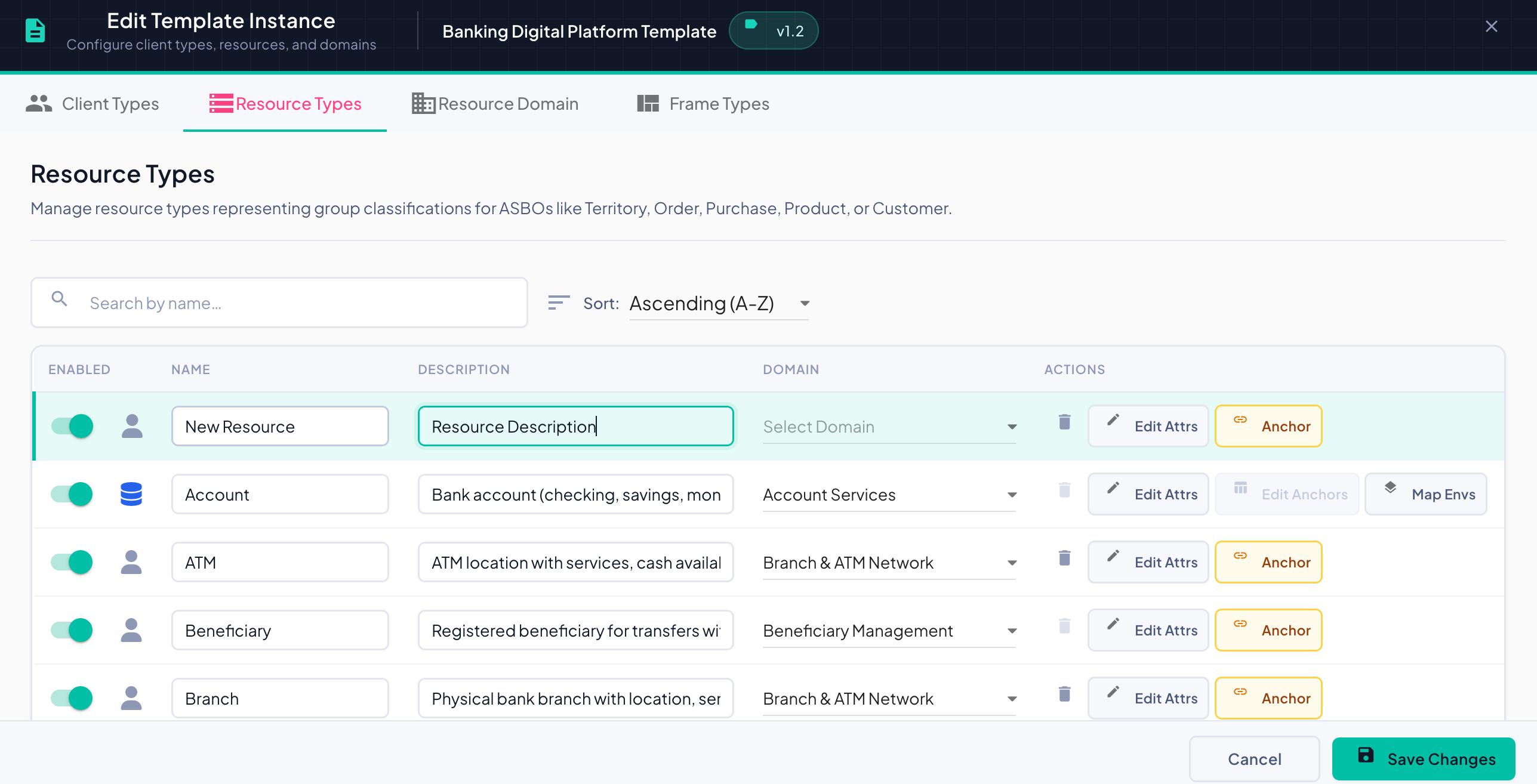
The Resource Types tab lists all resource types configured for this template version.
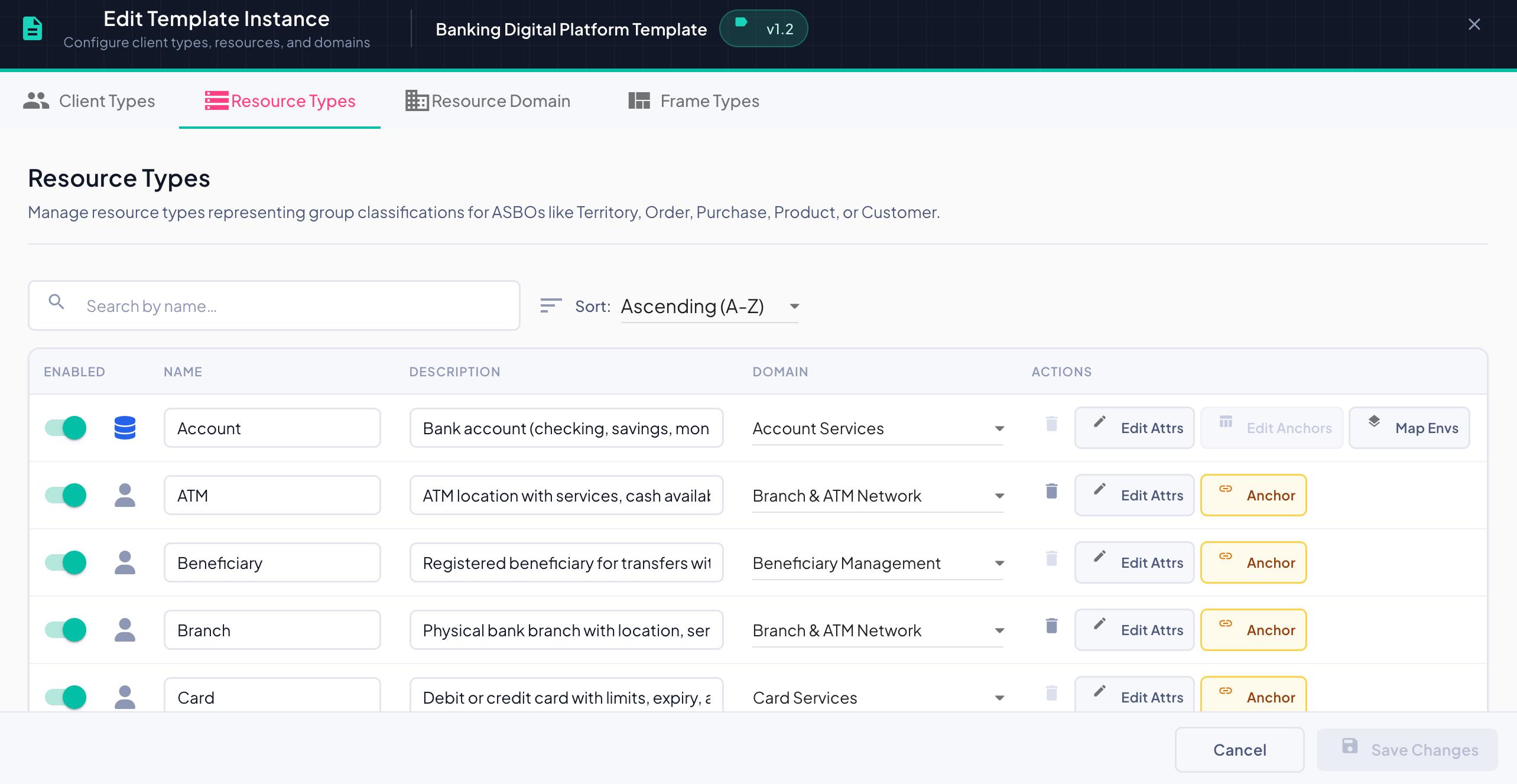
The table has the following columns:
| Column | Description |
|---|---|
| Enabled | Toggle to enable or disable metric collection for all resources belonging to this resource type. |
| Origin icon | Indicates how the resource type was created — a database icon for types imported from a datasource, or a person icon for types created manually. |
| Name | The resource type name. Editable inline. |
| Description | The resource type description. Editable inline. |
| Domain | Dropdown to assign the resource type to a business domain. |
| Actions | Per-row action controls (see below). |
Search and Sort
Search
- The search bar placeholder reads "Search by name..." — filtering is applied against the resource type name as you type.
- No need to press Enter — results update instantly on each keystroke.
- The search is case-insensitive and performs a partial match.
- Click the icon inside the search bar to clear the filter and restore the full list.
Sort
The Sort dropdown controls the ordering of the list by name:
| Option | Behavior |
|---|---|
| Ascending (A-Z) | Sorts alphabetically from A to Z — default |
| Descending (Z-A) | Sorts alphabetically from Z to A |
Tip
Search and sort work together — you can filter by keyword and apply a sort order simultaneously.
Enabled Toggle
Determines whether business metrics will be collected for all resources belonging to this resource type across all environments.
- Toggle ON — Metrics are captured and sent to the BizMetry platform.
- Toggle OFF — Metrics are silenced for all resources under this type.
Multiple Resources per Type
A resource type can encompass multiple resource instances. Toggling a resource type affects all resources linked to it.
Origin Icon
The origin icon indicates how the resource type was created:
| Icon | Origin | Description |
|---|---|---|
| Database icon | Imported | The resource type was imported from a datasource. It has a direct physical mapping to a database table. |
| Person icon | Manual | The resource type was created manually by a user. No physical datasource mapping exists by default. |
The origin determines which action buttons are available in the Actions column.
Actions Column
Each resource type row exposes up to four action controls:
| Action | Label | Description |
|---|---|---|
| (trash icon) | Deletes the resource type. Requires two clicks for safety — first click turns the icon red, second click confirms deletion. Disabled for imported resource types. | |
| Edit Attrs | Opens the attribute editing dialog for this resource type. Always available. | |
| Anchor | Links the resource type to a physical database table for the first time. Shown in amber/gold when the resource type has not yet been anchored to any table. Once anchored, this button is replaced by Edit Anchors. | |
| Edit Anchors | Modifies the existing physical table mapping for an already-anchored resource type. Shown in grey once anchoring has been performed. Replaces the Anchor button. | |
| Map Envs | Opens the environment mapping dialog to configure the physical table mapping per environment. Only available for imported resource types. |
Anchor vs Edit Anchors
The Anchor and Edit Anchors buttons are mutually exclusive — only one is shown at a time per row:
- Anchor (amber) is shown when the resource type has not yet been linked to a physical table. Click it to perform the initial anchoring.
- Edit Anchors (grey) is shown once the resource type has already been anchored. Click it to modify the existing mapping.
Action availability by origin
The set of actions available in a row depends on the resource type's origin:
- Imported resource types → (disabled) · Edit Attrs · Edit Anchors · Map Envs
- Manually created resource types → · Edit Attrs · Anchor (or Edit Anchors once anchored)
Impact of Resource Type Deletion
When a resource type is deleted, all resources created under it are automatically unlinked and transitioned to a disabled state, excluding them from metrics capture. These resources must be reassigned to a different resource type to resume metrics collection, or deleted entirely.
Recommendation: Import-Based Creation
It is always recommended to create resource types through import to guarantee a direct link to the physical entity, which greatly facilitates subsequent automatic resource creation processes.
Adding a New Resource Type
Click the + Add Resource Type button located below the resource types table.
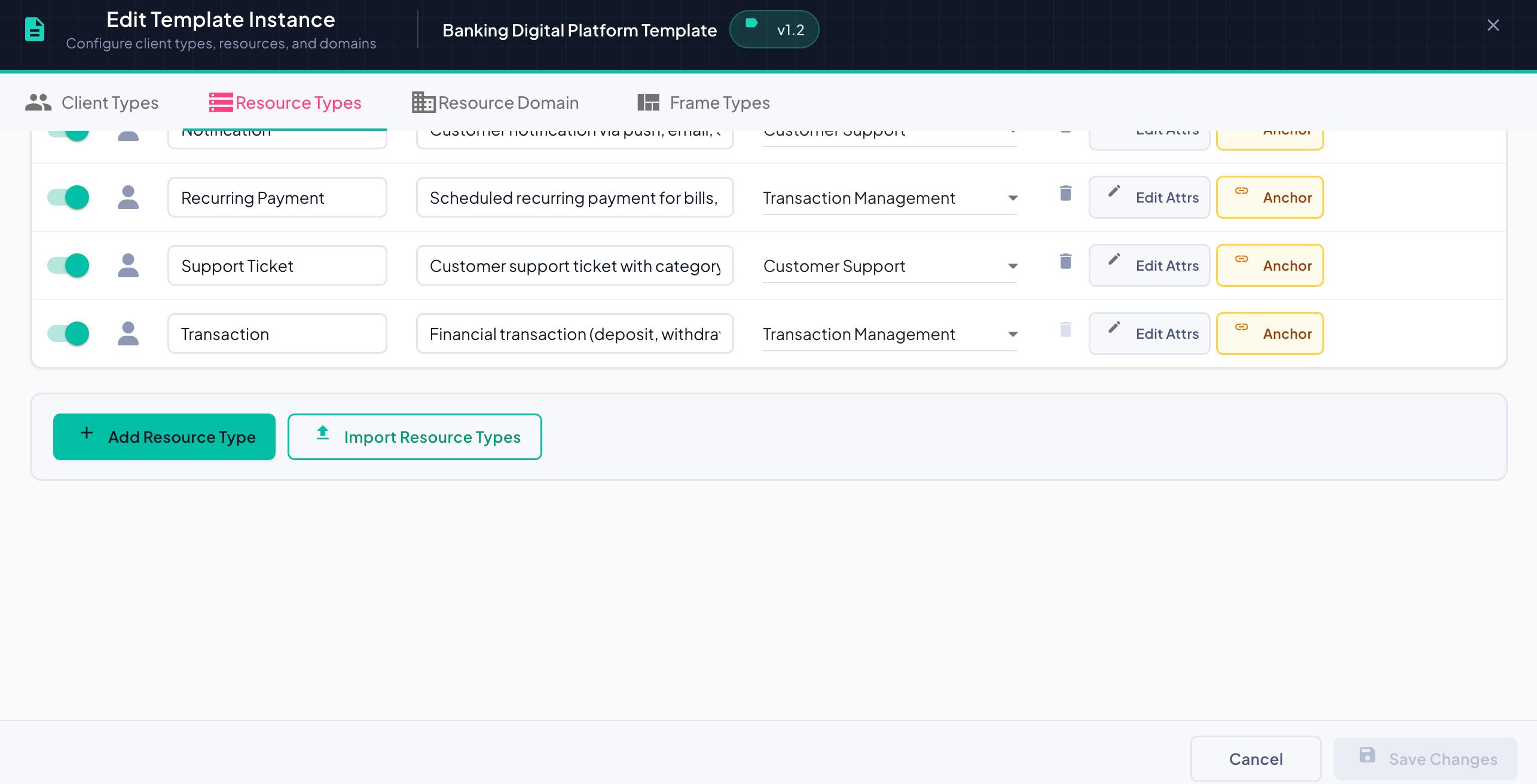
A new blank row is inserted at the top of the list with:
- The Enabled toggle pre-activated.
- A person icon indicating manual origin.
- Empty Name field pre-filled with "New Resource", ready for editing.
- Empty Description field pre-filled with "Resource Description", ready for editing.
- A Select Domain dropdown, unset.
Fill in all fields inline. The new resource type is persisted when you click Save Changes.
Importing Resource Types
Click the Import Resource Types button to import resource types directly from a previously defined datasource. This opens the resource type import dialog.
See Importing Resource Types for the full import flow.
Saving and Cancelling
Save Changes
Persists all changes made across all tabs of the Edit Template Instance dialog.
Configuration Propagation
Upon saving, the updated template configuration is propagated to all active agents across all associated environments. Synchronization may take some time depending on the sync interval configured for each agent. During this window, agents may still operate with the previous configuration.
Resource Instance Updates
Resources already created from a modified resource type are automatically refreshed to reflect the updated name and/or description.
Cancel
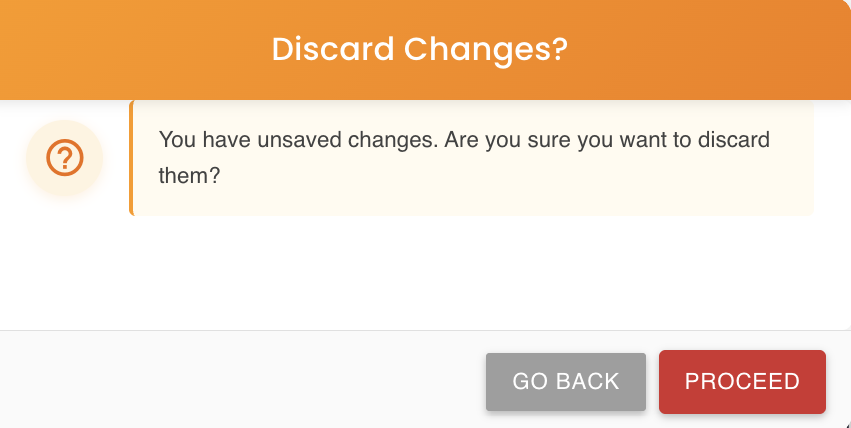
Discards all changes made during the session across all tabs. A confirmation dialog appears allowing you to confirm the discard or return to continue editing.