Editing Client Types
Accessing the Client Types Editor
The template editing dialog is accessed from the Template tab of the Profile dialog. Click the Edit (pencil) icon on the version row of the template version you wish to edit.
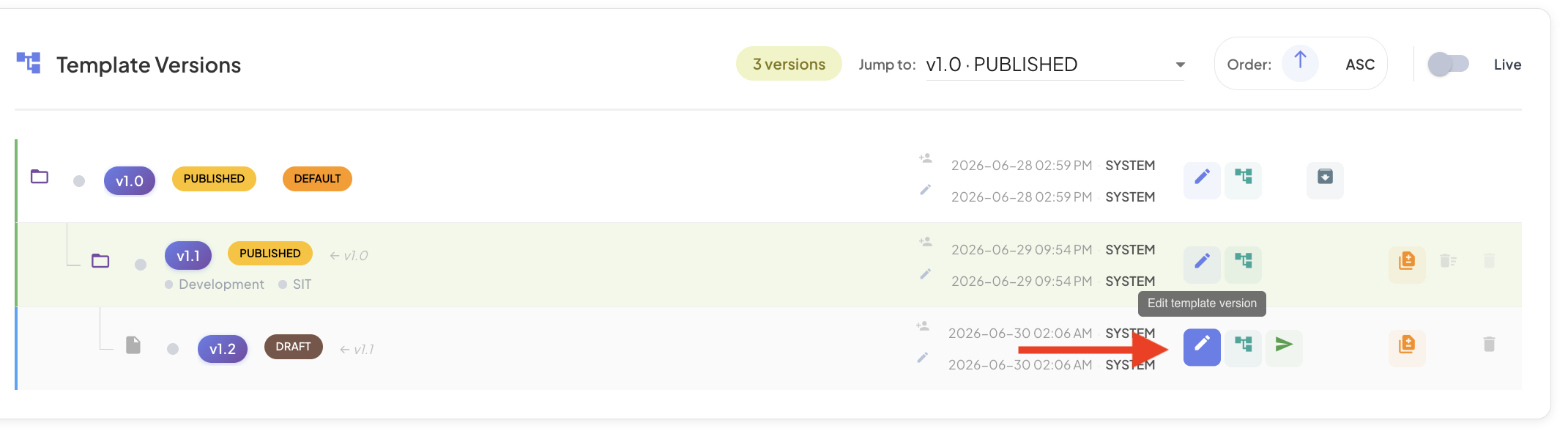
This opens the Edit Template Instance dialog. The header bar displays the template name and the version being edited. The dialog lands directly on the Client Types tab.
Understanding Client Types
In the BizMetry data model, a client type is a taxonomic classification that represents a category of business entities or actors that interact with your resources. Client types group multiple client instances under the same classification for better organization and management, allowing you to define common behavioral patterns and metrics collection strategies across similar clients.
Dialog Tabs
The Edit Template Instance dialog is organized into four tabs, each covering a different aspect of the template configuration:
| Tab | Description |
|---|---|
| Client Types | Manage the client type classifications defined in this template. |
| Resource Types | Configure the resource type definitions. |
| Resource Domain | Configure the domain structure and ASBO definitions. |
| Frame Types | Configure the frame type definitions and their fields. |
The Save Changes and Cancel buttons at the bottom-right are global — they apply to all changes made across any tab.
Client Types Tab
The Client Types tab lists all client types configured for this template version.
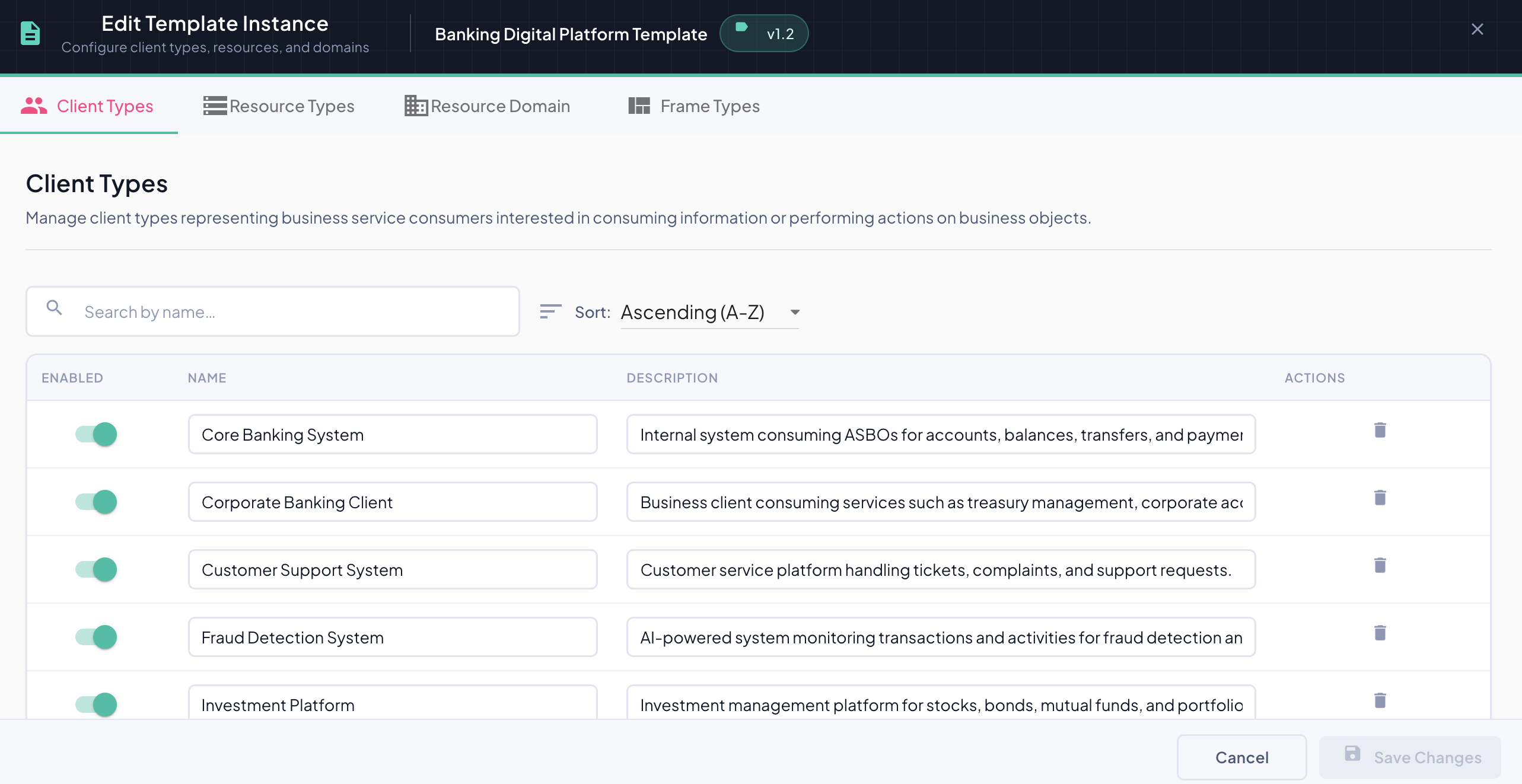
The table has four columns:
| Column | Description |
|---|---|
| Enabled | Toggle to enable or disable metric collection for this client type. |
| Name | The client type name. Editable inline. |
| Description | The client type description. Editable inline. |
| Actions | Contains the delete () icon for removing the client type. |
Search and Sort
Located above the client types table, the search bar and sort dropdown allow you to find and organize client types quickly.
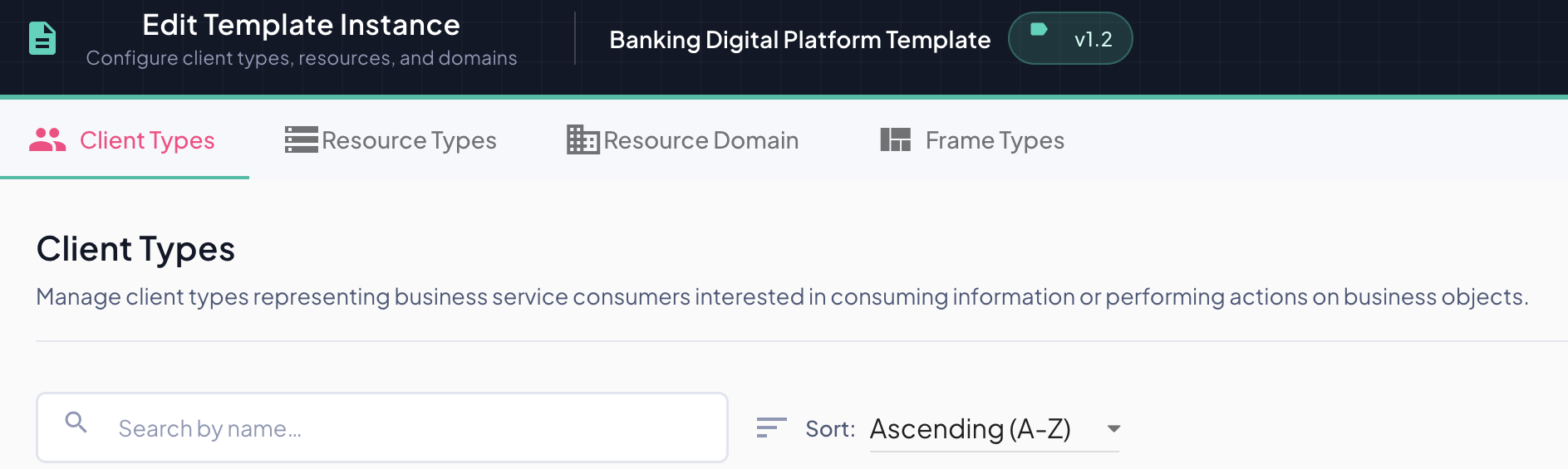
Search
- The search bar placeholder reads "Search by name..." — filtering is applied against the client type name as you type.
- No need to press Enter — results update instantly on each keystroke.
- The search is case-insensitive and performs a partial match.
- Click the icon inside the search bar to clear the filter and restore the full list.
Sort
The Sort dropdown controls the ordering of the list by name:
| Option | Behavior |
|---|---|
| Ascending (A-Z) | Sorts alphabetically from A to Z — default |
| Descending (Z-A) | Sorts alphabetically from Z to A |
The sort is applied instantly when a new option is selected.
Tip
Search and sort work together — you can filter by keyword and apply a sort order simultaneously.
Enabled Toggle
The Enabled toggle controls whether business metrics generated by agents associated with this client type are captured and sent to the BizMetry platform.
| State | Behavior |
|---|---|
| ON | Agents capture and transmit metrics for clients of this type. |
| OFF | Metrics are silenced. Useful for temporarily suppressing a client type without removing it or shutting down any other components. |
Multiple Clients per Type
A client type can encompass multiple client instances. Toggling a client type affects all clients linked to it.
Editing Inline
Both the Name and Description fields are editable directly in the table. Click on any field to activate it and type the new value.
Adding a New Client Type
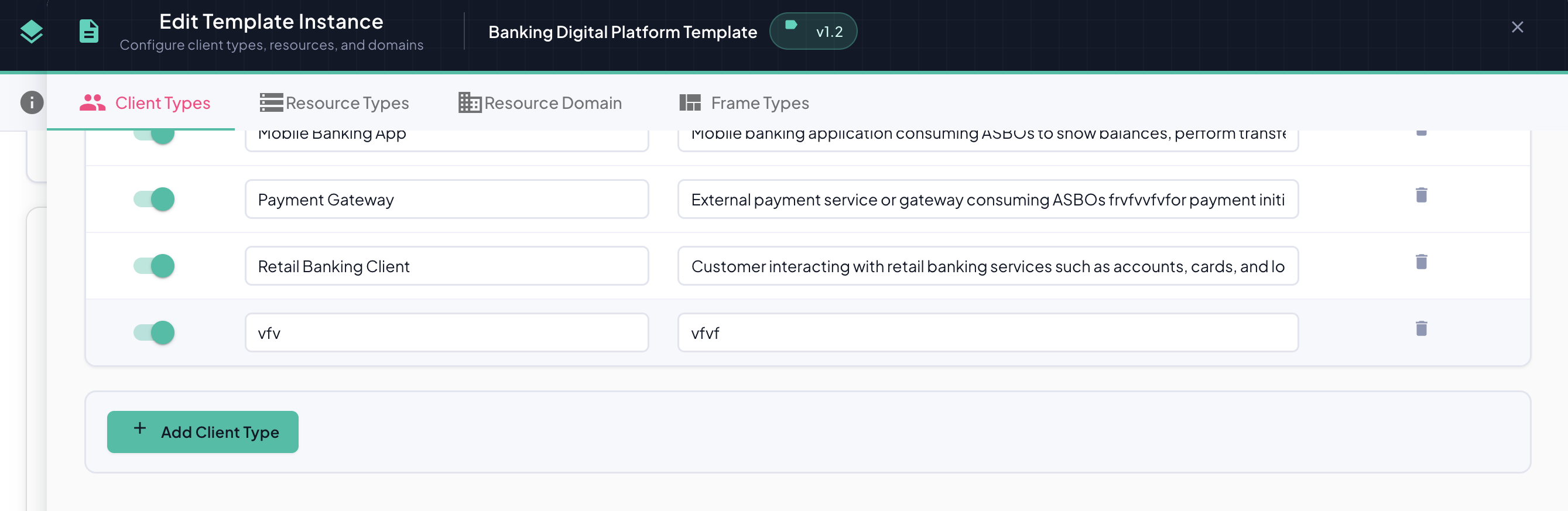
Click the + Add Client Type button located below the client types table to create a new entry.
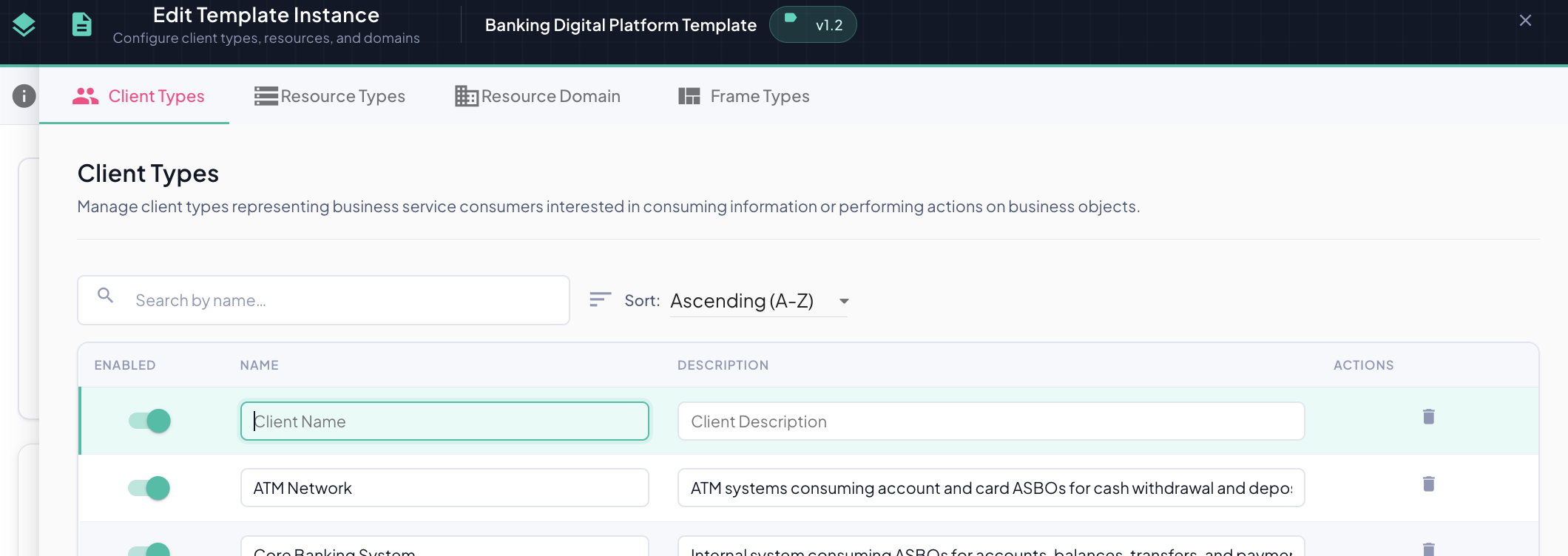
A new blank row is inserted at the top of the list with:
- The Enabled toggle pre-activated.
- An empty Client Name field, ready for input.
- An empty Client Description field, ready for input.
Fill in the name and description inline. The new client type is persisted when you click Save Changes.
Deleting a Client Type
Each row has a trash icon in the Actions column.
Two-Click Deletion
For safety, deletion requires two clicks:
- First click — the icon turns red.
- Second click — the client type is permanently deleted.
Impact of Client Type Deletion
When a client type is deleted, all client instances linked to it are automatically unlinked and deactivated. Deactivated clients are excluded from metrics capture until they are reassigned to a different client type or deleted entirely.
Saving and Cancelling
Save Changes

Persists all changes made across all tabs of the Edit Template Instance dialog — not just the Client Types tab.
Configuration Propagation
Upon saving, the updated template configuration is propagated to all active agents across all associated environments.
Synchronization may take some time depending on the sync interval configured for each agent. During this window, agents may still operate with the previous configuration.
Client Instance Updates
If clients have been created from a modified client type, they are automatically refreshed to reflect the updated name and/or description.
Cancel
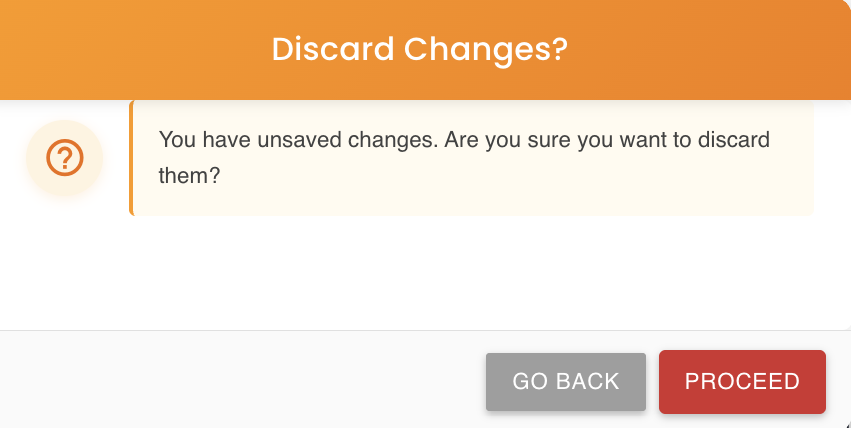
Discards all changes made during the session across all tabs. A confirmation dialog appears allowing you to confirm the discard or return to continue editing.