Importing Resource Types
When clicking the Import Resource Types button while navigating in the resource types editing dialog, the resource type import wizard opens.
Understanding Resource Type Import
The import wizard allows you to automatically create resource types by importing database entities (tables) from configured datasources. This approach ensures direct mapping between logical resource types and physical database entities, facilitating automatic resource creation processes.
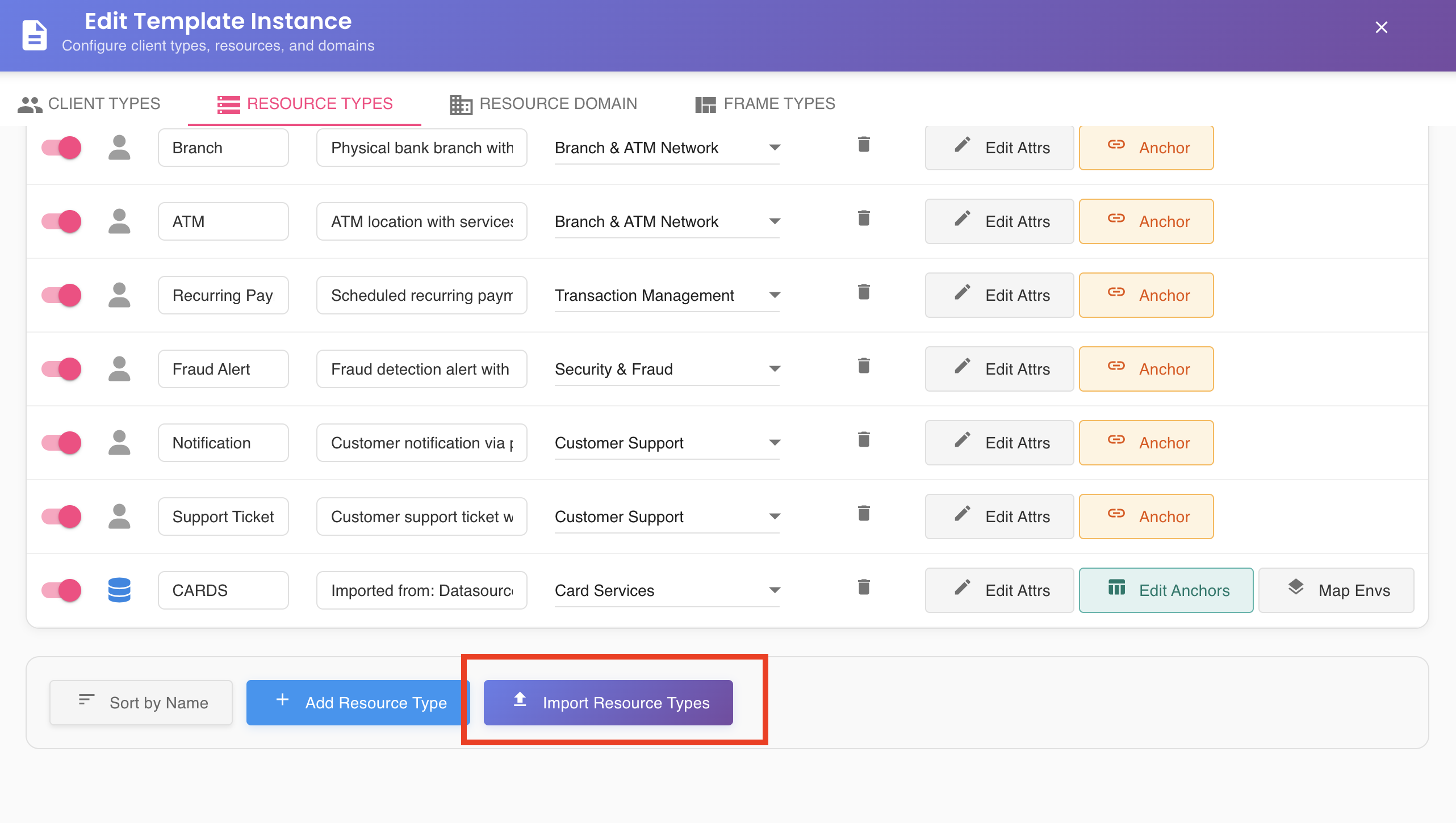
Import Wizard Steps
The import wizard consists of four steps:
Step 1: Datasource Selection
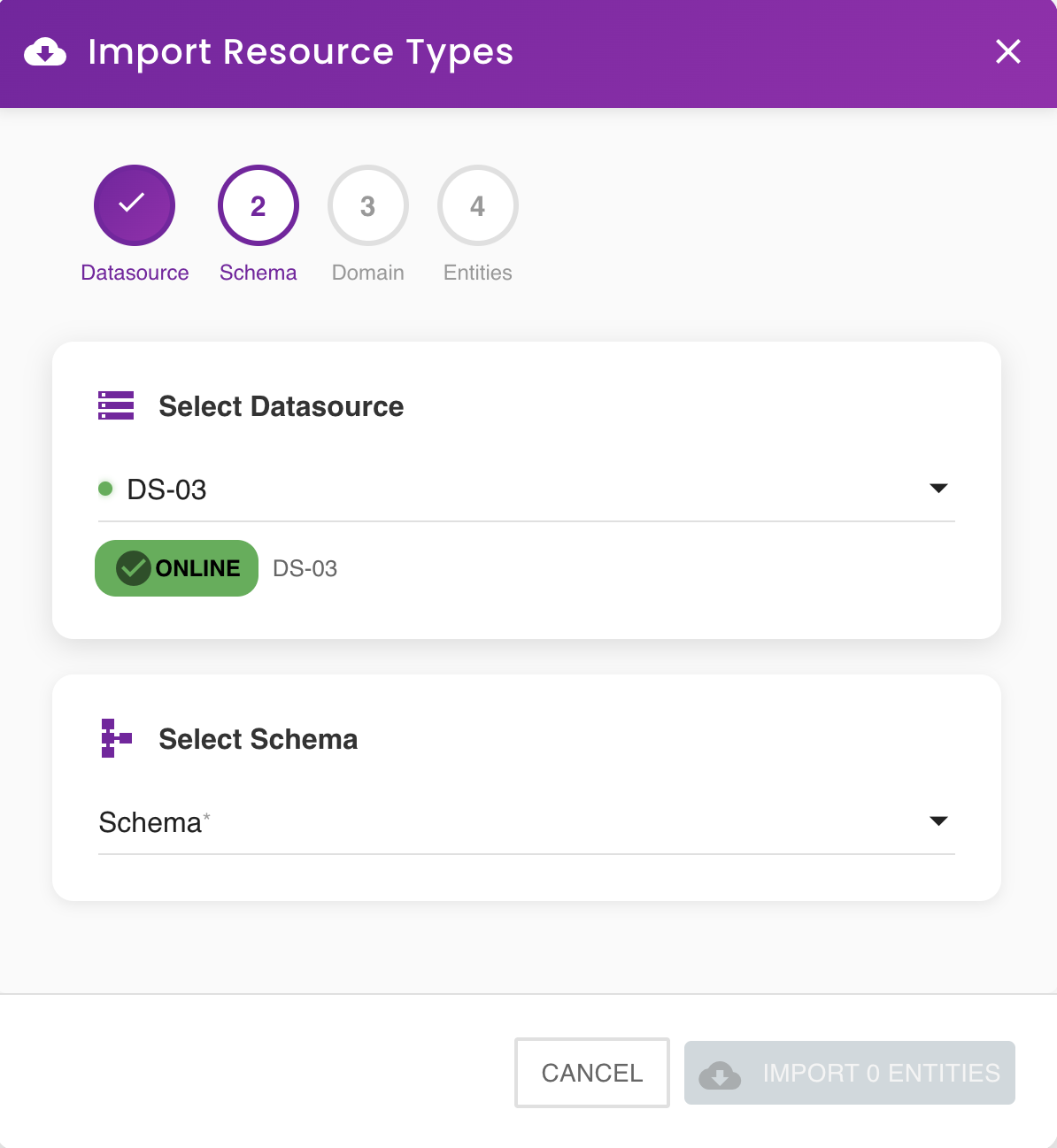
A dropdown is presented with the list of available datasources from which you must select one.
Datasource Availability
Only datasources with ONLINE status are selectable. Datasources in OFFLINE status cannot be used for import operations.
Step 2: Schema Selection
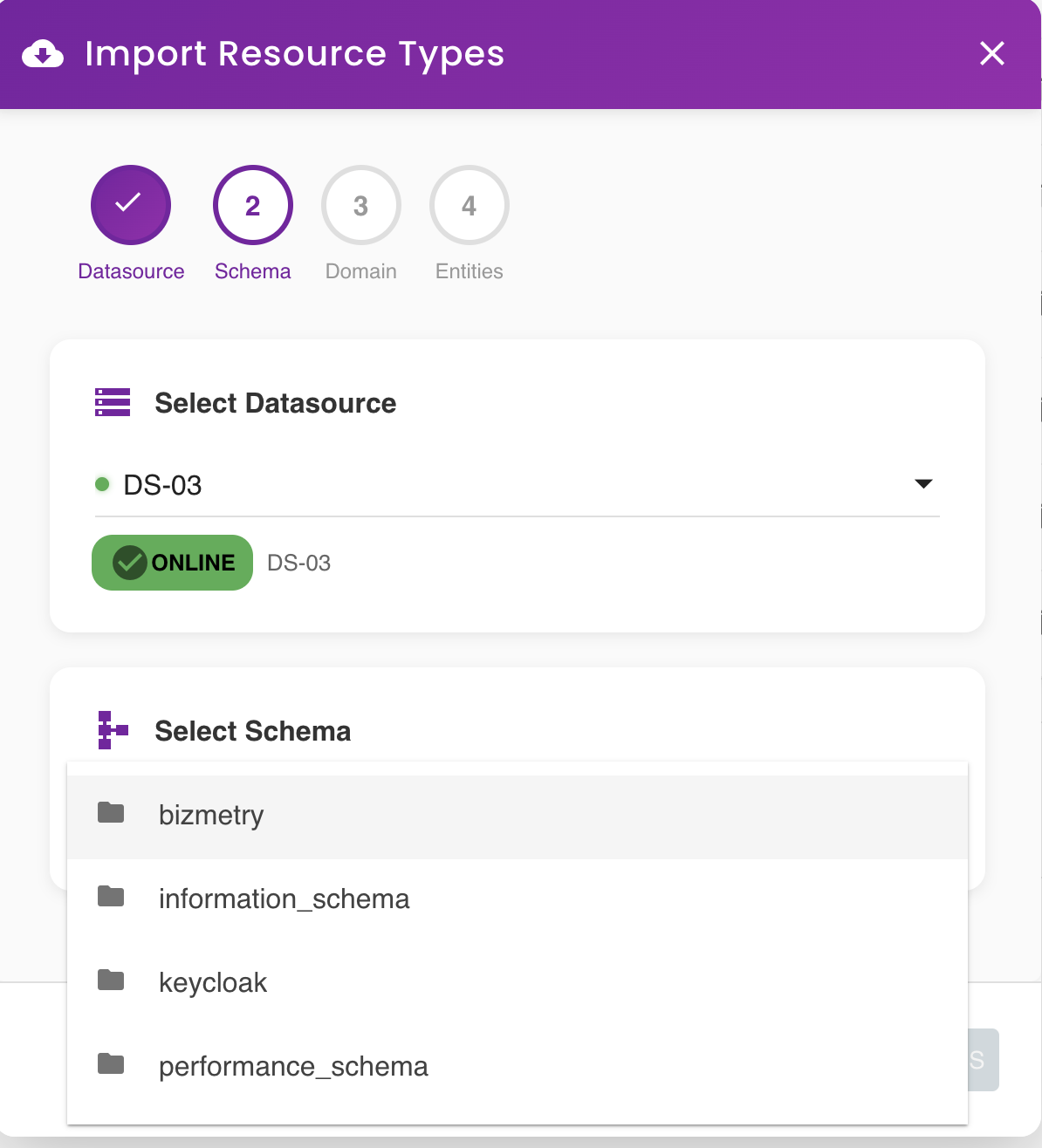
Once the datasource is selected, you must select the database schema. A dropdown presents the database schemas available in the selected datasource.
Step 3: Business Domain Selection
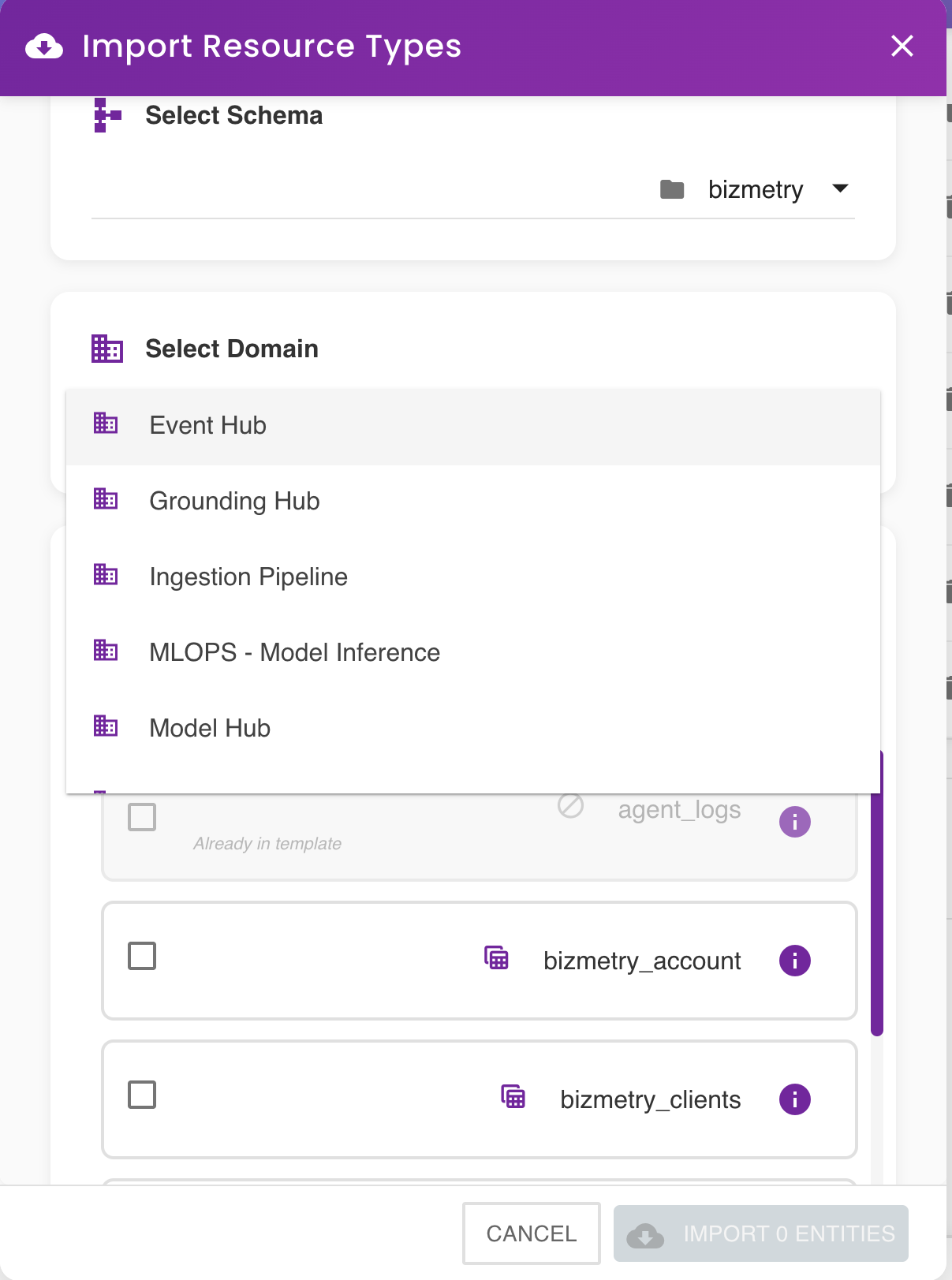
Once the schema is selected, the business domain selection dropdown is displayed. This dropdown shows the domains configured for the template, from which you must select a domain.
Domain Association
The resource types created will be associated with the domain selected here.
Step 4: Entity Selection
A list is presented with all entities (tables) available for import. For each entity, an information icon (i) is displayed.
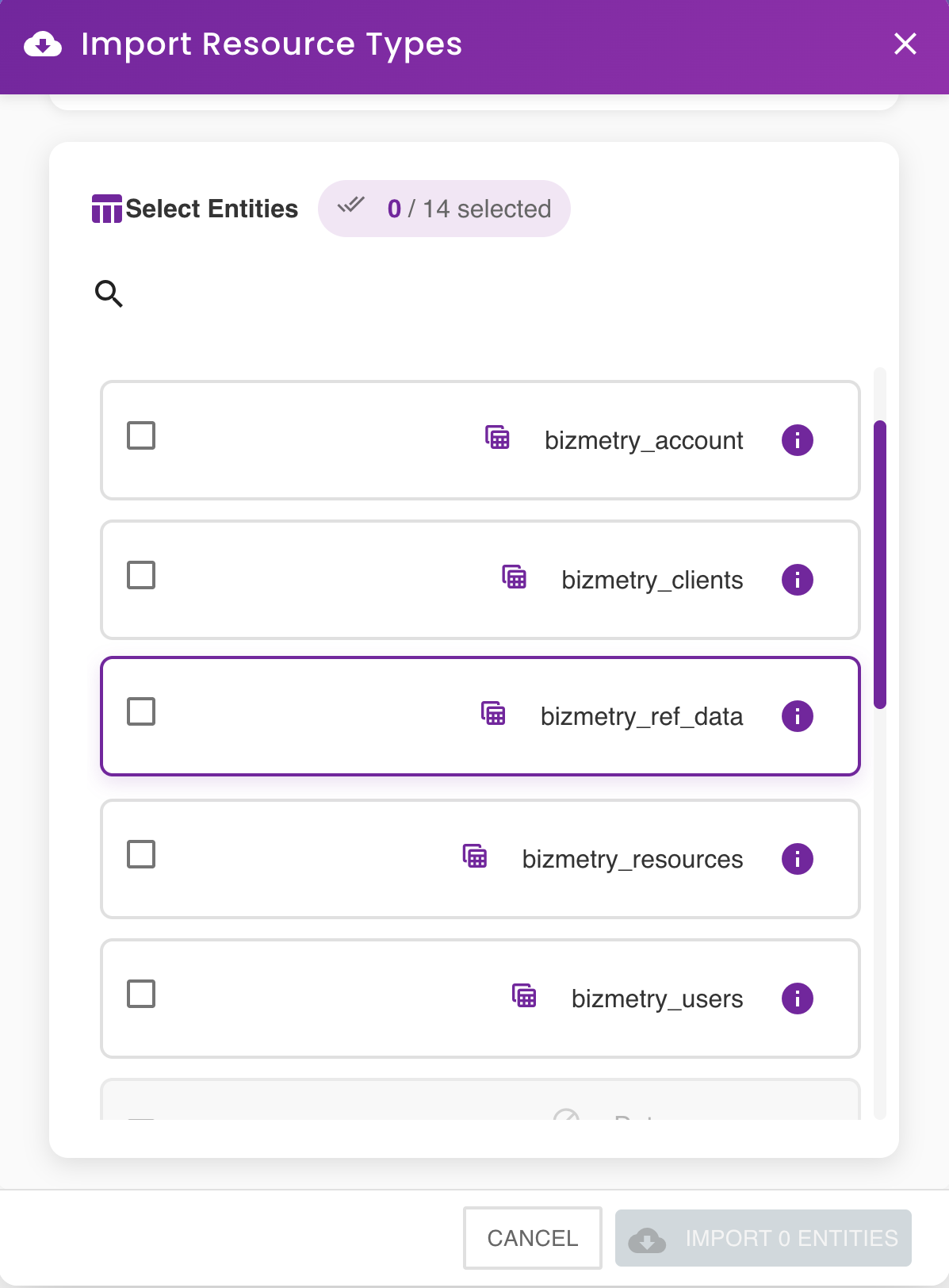
Entity Information
Clicking the information icon opens a dialog where you can view the attributes (columns) associated with that entity.
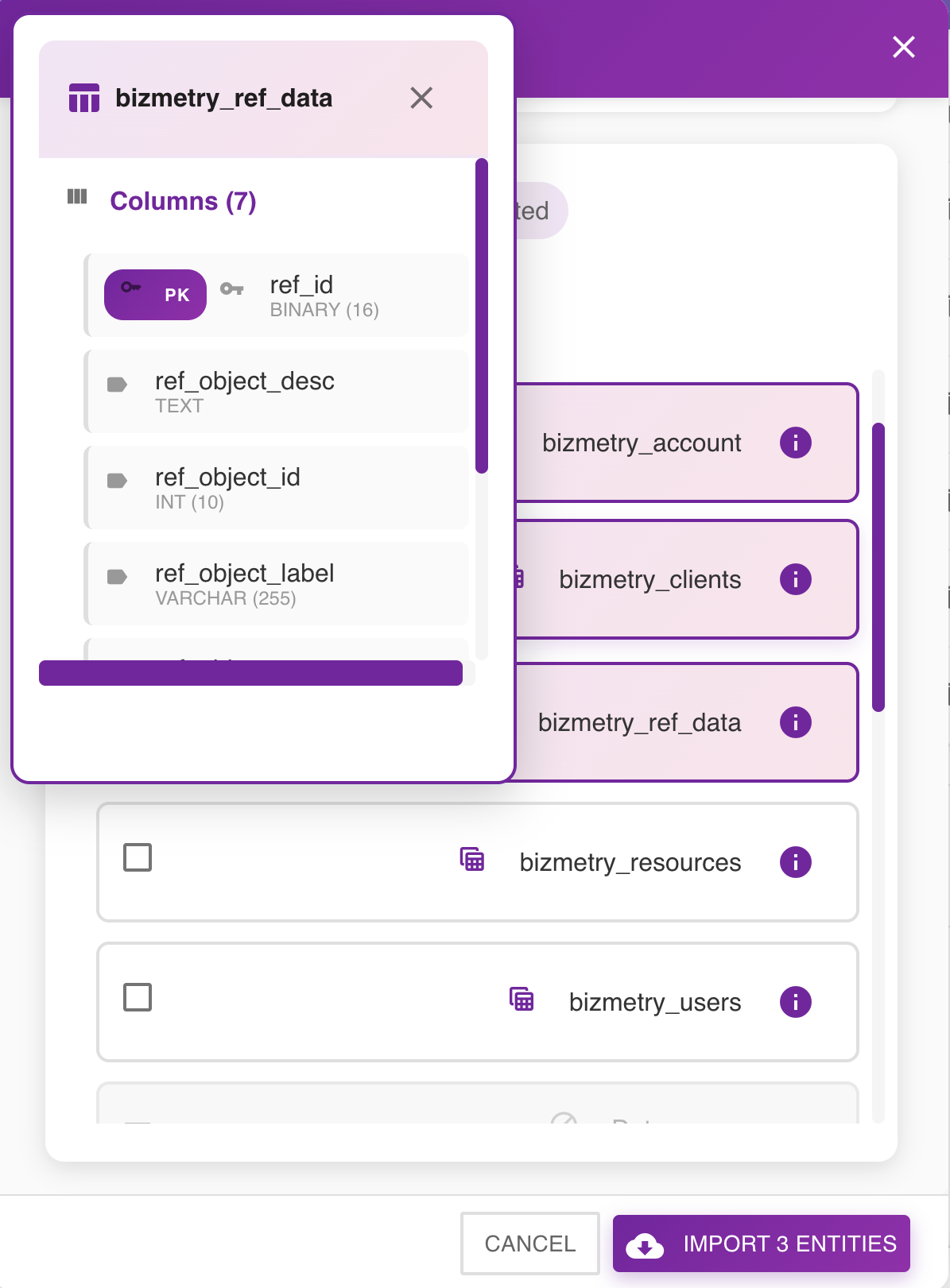
Selecting Entities
You can select one or more entities by checking the corresponding checkboxes.
As entities are selected, a counter indicates the total number of entities to import as a legend within the button displayed at the bottom of the wizard, with the text "Import <n> entities", where <n> is the number of selected entities.
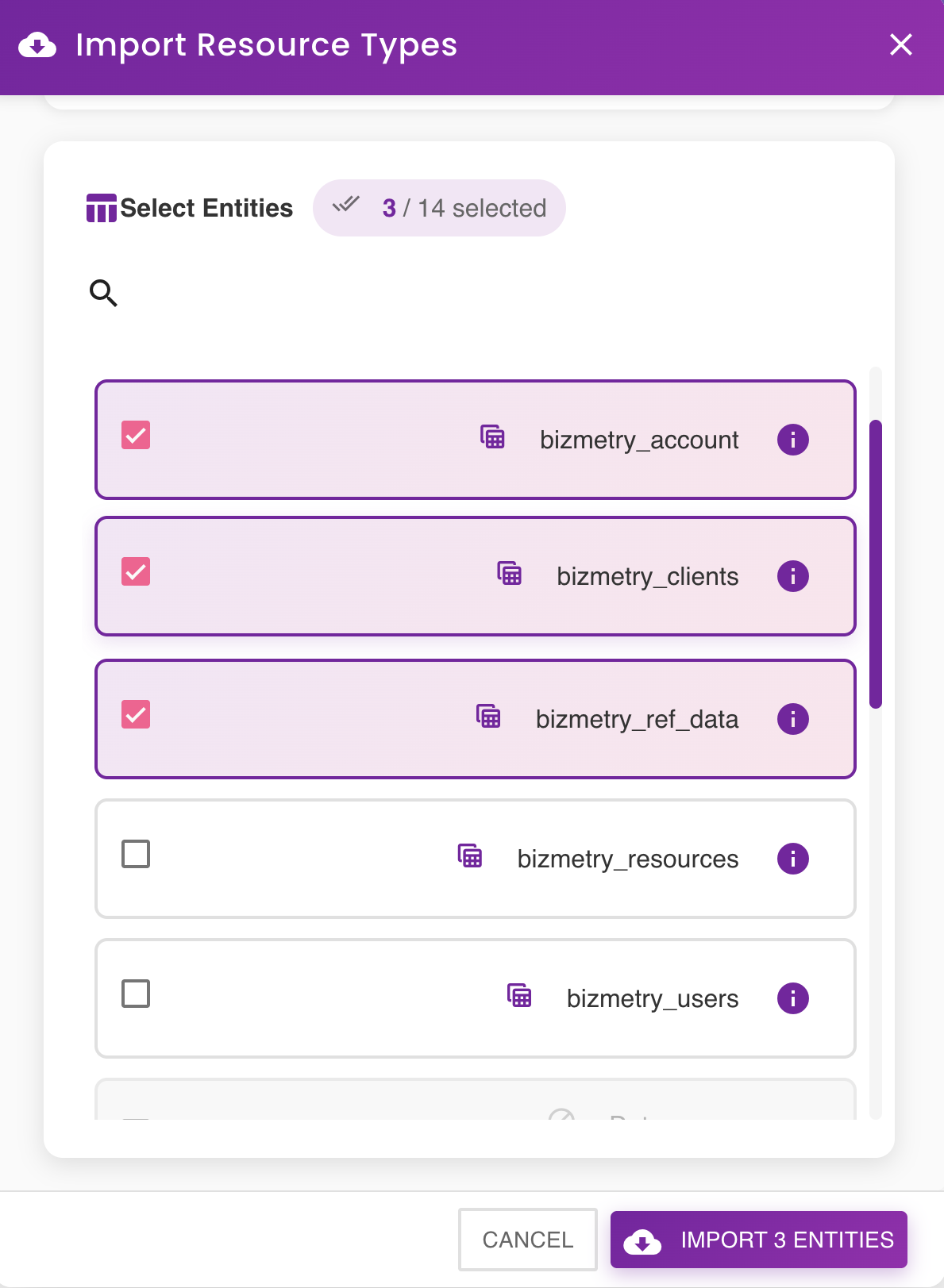
Completing the Import
Import Button
Clicking the Import <n> entities button imports the selected entities as resource types in the selected template. They will appear in the Resource Types tab of the template editing dialog.
Automatic Environment Mapping Creation
When importing a resource type (ASBO) from the database, BizMetry automatically creates a default environment mapping that associates:
- The environment associated with the selected datasource
- The datasource used for the import
- The schema selected during import
- The table (entity) being imported
This default mapping is created and maintained automatically, enabling immediate resource import operations for that environment without requiring manual mapping configuration.
Cancel Button
At any time, you can discard the import process using the Cancel button, which will discard the import process and return to the Resource Types tab of the template editing dialog.
Environment Association
Environment Mapping Details
Resource types can be imported from any available datasource. Since a datasource is associated with an agent, and each agent is associated with a specific environment, the entities that are imported will have the following automatic configuration:
Default Environment Mapping:
Bizmetry automatically creates a default environment mapping that associates the environment selected with the table selected during the import.
- Environment: The environment associated with the datasource's agent
- Datasource: The datasource selected in Step 1
- Schema: The schema selected in Step 2
- Table: The entity (table) selected in Step 4
This default mapping is automatically created and persisted when the import completes.
Additional Environment Mappings:
You can provide additional environment mappings for other environments by:
- Navigating to the imported resource type in the Resource Types tab
- Clicking the Env Mappings button for that resource type
- Adding new mappings for different environments with their corresponding datasources
This automatic default mapping enables seamless resource import operations for the specific environment associated with the datasource used during the import process.
Post-Import Actions
After importing resource types:
- Resource types appear in the Resource Types tab with their imported configuration
- Environment mapping is automatically created for the datasource's environment
- Attributes are automatically imported from the table columns with their corresponding data types
- Primary key detection: BizMetry attempts to identify and mark the primary key attribute
- You can edit the resource type to refine attribute configuration, metadata radio buttons (PK, RN, RD), and toggles
- You can add additional environment mappings for other environments using the Env Mappings button
- Resources can be immediately imported from the database using the automatic mapping
Recommended Post-Import Configuration
After importing resource types, it's recommended to:
- ✓ Review imported attributes to ensure correct data type mapping
- ✓ Configure PK, RN, and RD metadata radio buttons appropriately
- ✓ Set sensitive toggles for attributes containing personal or confidential data
- ✓ Add descriptions to resource types and attributes for documentation
- ✓ Configure additional environment mappings if the resource type exists in multiple environments
- ✓ Test resource import to verify the mapping works correctly