Editing Frame Types
The Frame Types tab is accessed from the Edit Profile dialog by clicking on the Frame Types tab. Once selected, the list of all frame types currently configured for the profile will be displayed.
What is a Frame Type?
A frame type represents the minimum unit of information captured by BizMetry agents when performing business instrumentation.
In general, a frame type captures vital information surrounding a business transaction, also known in BizMetry as a business event — an occurrence within an application that the business wants to track and monitor because it contributes, directly or indirectly, to a business metric or KPI.
Typical examples of business events include:
- A transaction performed by a user at an ATM terminal
- An online purchase made by a user on a retail e-commerce platform
- A new insurance policy taken out by an individual through an insurance solution
- A new appointment registered by an operator in a veterinary hospital system
- A new incident reported by a remote data capture agent on a remote sensing platform
Each frame type provides a named container under which a business telemetry frame is structured, composed of N distinct frame components. Each component represents a specific information header that captures one particular piece of business data needed to fully understand the transaction recorded under that frame type.
BizMetry agents specialize in instrumenting and detecting business events, converting them into frames that are then curated, enriched, and forwarded to the BizMetry platform for normalization, persistence, and downstream consumption.
Frame Types and Business Events
Frame types and business events are closely related but represent different concerns. A frame type defines the structure of the telemetry data to be captured — its components and their layout. A business event defines the trigger and mapping — which API interaction should activate capture, and which frame type should be used to record it. One frame type can be referenced by multiple business events across different environments.
Frame Types Overview
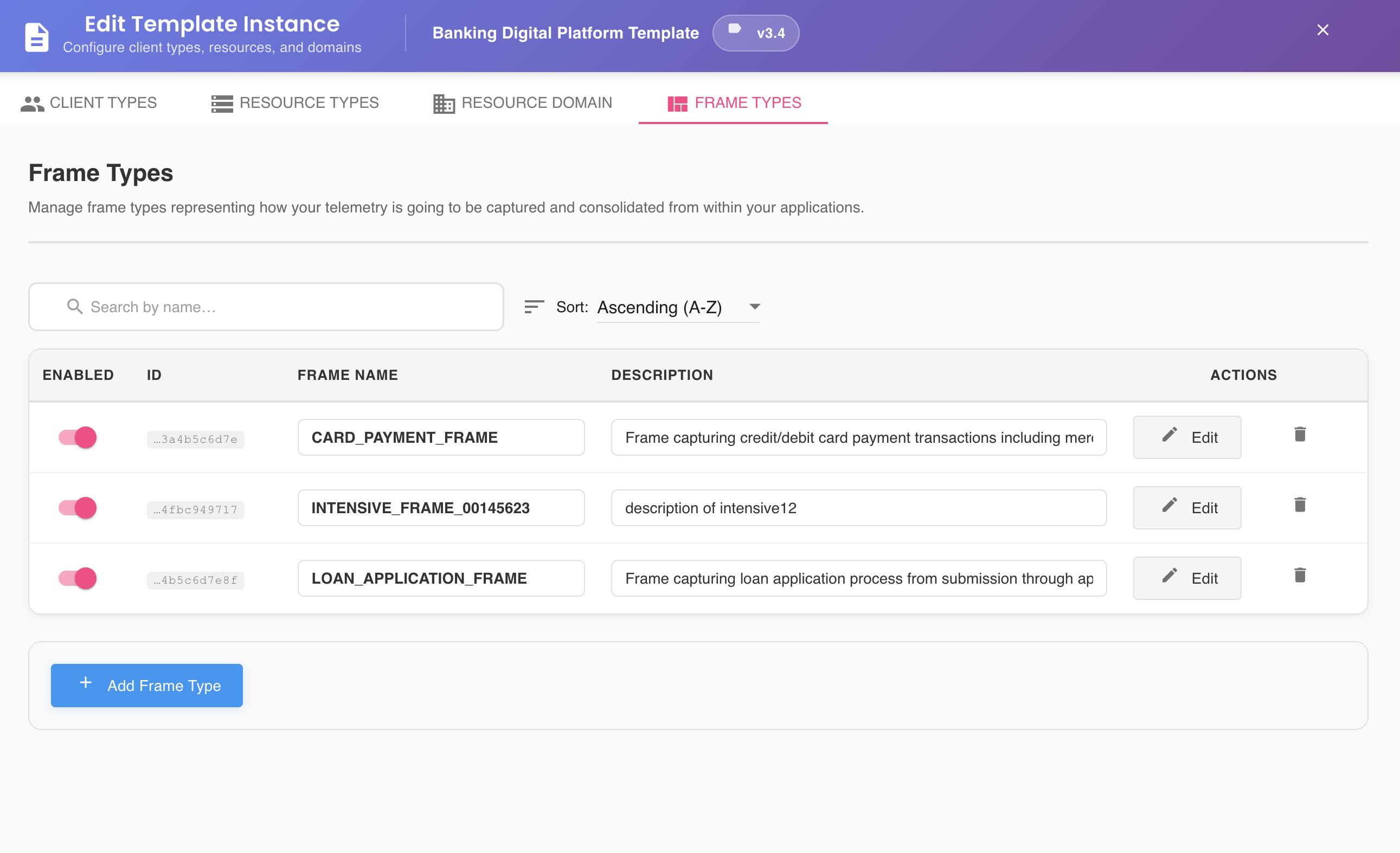
Once the tab is open, a list of all frame types defined for the profile will appear, each showing its name, description, and a set of controls.
List Controls
The Frame Types tab provides two controls to help you navigate and manage large lists of frame types efficiently.
Sort Drop-Down
Allows you to reorder the list alphabetically using the sort criteria drop-down selector:
- Name A → Z: Sorts frame types in ascending lexicographic order by name
- Name Z → A: Sorts frame types in descending lexicographic order by name
Filter Search Bar
Allows you to narrow down the displayed list by typing a search term. The filter applies simultaneously to both the frame name and the frame description, so any frame type whose name or description contains the entered text will be shown.
Combining Sort and Filter
Sort and filter work together. You can filter down to a relevant subset of frame types and then sort the results, making it easy to locate specific frames in profiles with large frame type inventories.
Per-Frame Controls
Each frame type entry in the list exposes the following controls:
Enabled Toggle
Controls whether agents should actively capture telemetry data for this frame type.
- Toggle ON: The frame type is enabled. All active distributed agents across all configured environments will begin collecting business events that are mapped to this frame type.
- Toggle OFF: The frame type is silenced. Agents will stop executing capture rules associated with it.
Platform-Wide Impact
Use this toggle with care. Disabling a frame type affects all business events that have an active API mapping pointing to it — across all environments simultaneously. Any agent currently executing a capture rule for the affected frame type will stop doing so on its next synchronization cycle.
This is useful for emergency suppression of data collection, but should not be used as a selective filter. If you need to stop collection only in a specific environment, consider adjusting the agent configuration at the environment level instead.
Edit Button (Pencil Icon)
Opens the Frame Editor dialog for the selected frame type, where you can view and edit all components declared within it.
From the Frame Editor you can:
- Add, reorder, and delete frame components
- Change component types (CUSTOM, FIELD_REFERENCE, OBJECT_REFERENCE, NESTED_TABLE)
- Configure type-specific component properties
- Validate the overall frame structure before saving
Editing Components
All changes made within the Frame Editor are staged locally and only persisted when you click Save Changes from the main dialog.
Copy Button (Copy Icon)
Creates a complete copy of the frame type, including all its components, as a new entry in the list. See Cloning a Frame Type.
Delete Button (Trash Icon)
Removes the frame type from the profile configuration entirely.
Deletion Precondition
The delete button is only enabled when the frame type is not referenced by any business event. If one or more business events currently map an API to this frame type, the trash icon will appear disabled and cannot be clicked.
To delete a frame type that is still in use, you must first navigate to each referencing business event and remove the mapping to this frame type before the deletion becomes available.
Impact of Frame Type Deletion
Deleting a frame type is irreversible. Once deleted:
- All component definitions associated with the frame type are permanently removed
- Any agent capture rules derived from this frame type will cease to exist
- Historical telemetry data previously captured under this frame type remains in storage but may no longer be queryable through standard views
Inline Name and Description Editing
You can edit the name or description of any frame type directly within the list, without opening the Frame Editor, by clicking on either field. The field becomes editable inline, allowing you to type the new value immediately.
Inline Editing Behavior
Inline edits to name and description are treated as unsaved changes and are only persisted when you click Save Changes. If you navigate away or click Cancel before saving, all inline edits will be discarded.
Adding a New Frame Type
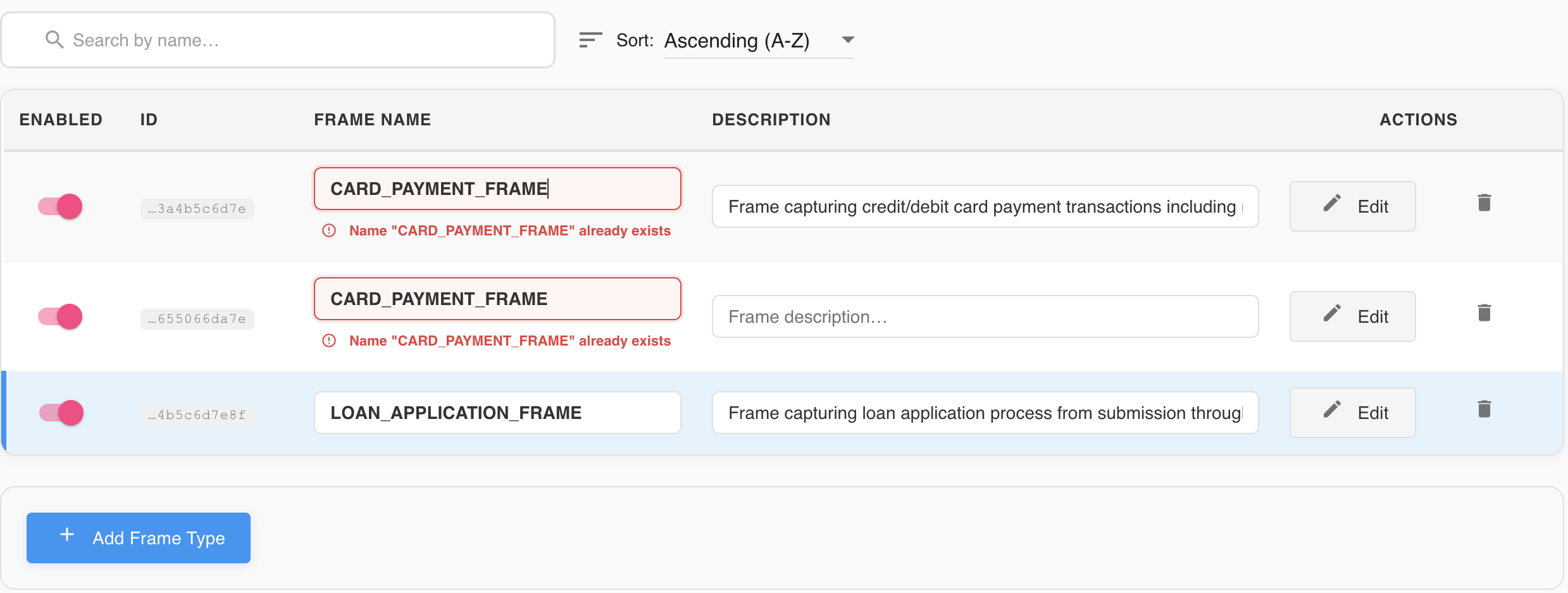
Clicking the + Add Frame Type button creates a new frame type entry inline within the list, without opening a separate dialog. You must provide the following fields before saving:
- Name: Required. Must be unique within the profile — if a frame type with the same name already exists, BizMetry will display an error message and prevent saving until the conflict is resolved.
- Description: Optional but recommended. A short explanation of what business event or transaction this frame type is intended to capture.
Name Uniqueness
Frame type names must be unique within the same profile. If you attempt to save a frame type whose name is already in use, BizMetry will flag the conflict with an inline error message. Rename the new entry to a unique value before proceeding.
Adding Components
A newly created frame type starts with no components. Once saved, you can click the Edit (pencil) button to open the Frame Editor and begin defining the frame components that make up its telemetry structure.
Saving Changes
Any modification made within this tab — toggling the enabled state, editing a name or description, or deleting a frame type — is only persisted to the platform when you click the Save Changes button located at the bottom right of the dialog.
Configuration Propagation
Once saved, the updated configuration will be propagated to all agents connected to this profile. Each agent will pick up the changes on its next synchronization cycle, the frequency of which depends on the sync interval configured for that agent.
During the period between saving and synchronization, agents will continue operating under the previous configuration. Keep this in mind when making time-sensitive changes such as disabling a high-volume frame type.
Discarding Changes
If you click Cancel before saving, a confirmation dialog will appear asking whether you want to discard all pending changes or return to continue editing. No changes are lost until the cancellation is confirmed.