Frame Editor
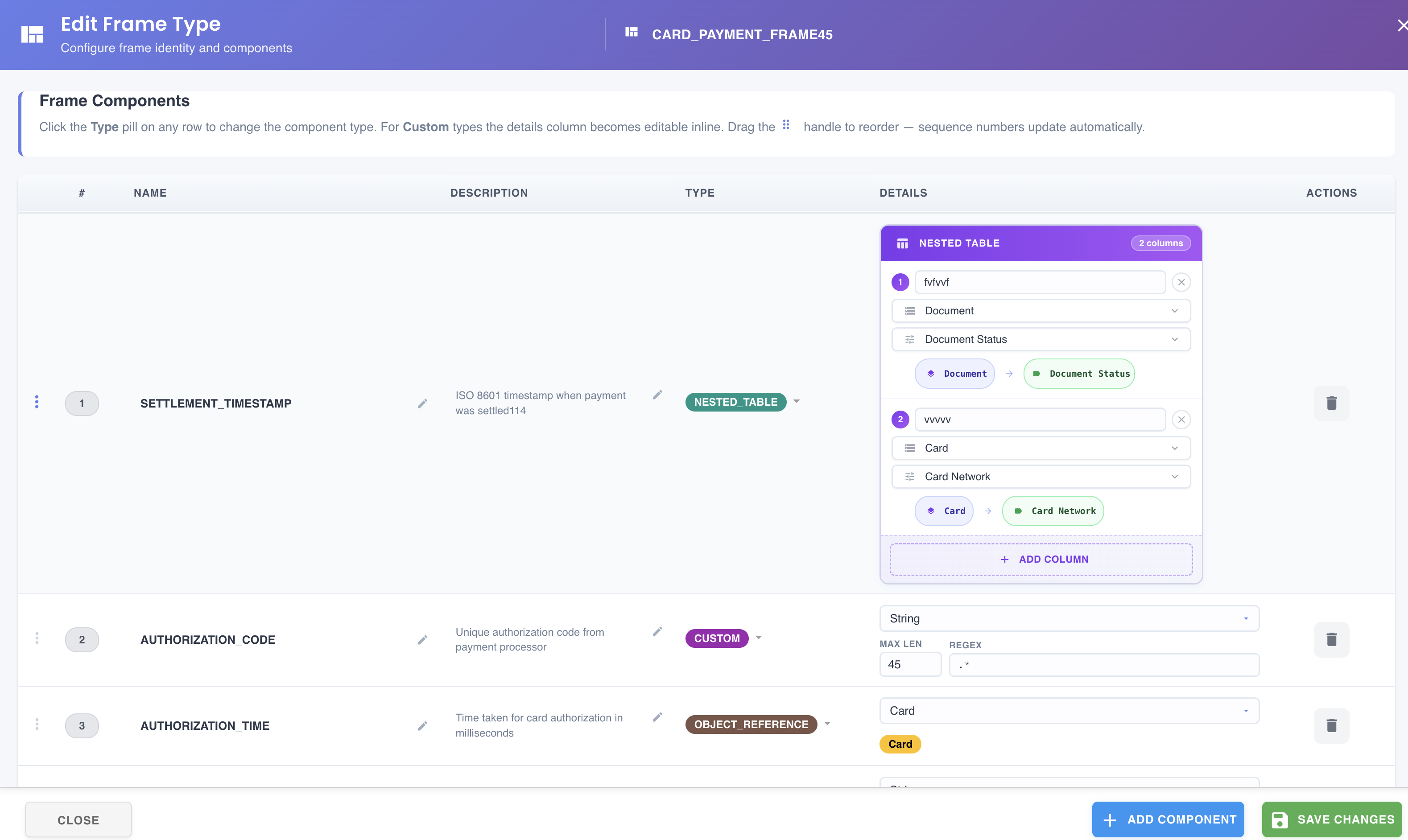
To configure the components of a specific frame type, click the Edit button next to it in the Frame Types tab. BizMetry will open the Frame Editor dialog.
Dialog Layout
The Frame Editor is divided into two areas:
- Header area: displays the frame type name and description
- Component list: displays all frame components belonging to the selected frame type, ordered by sequence number in ascending order.
- Footer Area: displays statistics about the components, including the count for each component type.
Frame Components
Each row in the component list represents a single frame component and displays the following fields:
Sequence Number
An integer that determines the transmission order of the component within an RTMP packet.
RTMP — Real Time Metrics Protocol
RTMP (Real Time Metrics Protocol) is BizMetry's internal wire protocol used by distributed agents to transmit telemetry frames to the central platform. The sequence number controls the position of each component within the binary frame payload, which is relevant for protocol-level parsing and performance optimization.
The sequence number is automatically maintained by BizMetry. When components are reordered via drag-and-drop, all sequence numbers are recalculated to preserve a clean ascending order.
Component Name
A unique identifier for the component within the frame. Component names must be unique per frame type — if a duplicate name is detected, BizMetry will display an inline error and prevent saving.
Component Description
A free-text field describing the purpose and expected content of the component. Although optional, a clear description is strongly recommended as it helps other operators understand the semantics of the captured data.
Component Type
Defines the nature of the information the component captures. BizMetry supports four component types:
CUSTOM
A component that maps to a standalone scalar value not tied to any existing ASBO attribute or instance. CUSTOM components support the following scalar sub-types:
| Sub-type | Description |
|---|---|
| String | Character sequence with configurable maximum length and optional regex validation pattern |
| Integer | Whole number with configurable minimum and maximum boundaries |
| Float | Floating-point decimal value with configurable minimum and maximum boundaries |
| Boolean | Boolean value (true / false) |
| Date | Calendar date |
| Timestamp | Generic date-time value capturing a precise point in time |
| Enum | Enumerated type with a predefined set of allowed values configured by the operator |
CUSTOM components are typically used in manual instrumentation scenarios where a value must be captured that does not correspond to an existing ASBO attribute, but is still meaningful from a business perspective. The value is often the result of a secondary computation performed by the agent at capture time.
CUSTOM Component Example
In a CRM contact frame, you may need to capture a call score derived from an internal scoring algorithm. This score is not directly reported by the business event, but the agent can compute it locally and record it as a CUSTOM component of type Float. The resulting value can later be aggregated to produce call quality KPIs.
OBJECT_REFERENCE
A component that stores the primary key value of an individual ASBO instance — conceptually, a pointer to a specific business object tracked by BizMetry.
OBJECT_REFERENCE Component Example
In a CRM contact frame, if you want to track which customer is associated with the contact, you can add an OBJECT_REFERENCE component pointing to the customer ASBO type. The captured value will be the primary key that uniquely identifies that customer instance within BizMetry.
FIELD_REFERENCE
A component that stores a scalar value corresponding to a specific attribute of an individual ASBO. Unlike OBJECT_REFERENCE, which captures the identity of the object, FIELD_REFERENCE captures one of its attribute values directly.
FIELD_REFERENCE Component Example
In a CRM contact frame, you may want to record the customer's full name alongside the contact event. You can add two FIELD_REFERENCE components: one pointing to the first_name attribute of the customer ASBO, and another pointing to last_name. Both values will be extracted from the matched ASBO instance at capture time.
NESTED_TABLE
A component that captures a two-dimensional matrix of values — rows and columns — effectively embedding a table within the frame. Each column in the nested table is itself a FIELD_REFERENCE pointing to an ASBO attribute, and each row represents one entry in the captured dataset.
NESTED_TABLE components are useful when a single business event encompasses a variable number of related sub-records that need to be captured together.
NESTED_TABLE Component Example
In an online retail purchase frame, you may need to capture the full list of items included in the order. A NESTED_TABLE component can be configured with three columns:
| Column | Type | Description |
|---|---|---|
SKU_ITEM | FIELD_REFERENCE | Inventory SKU number of the purchased item |
ITEM_NAME | FIELD_REFERENCE | Display name of the item |
ITEM_VALUE | FIELD_REFERENCE | Monetary value of the item |
Each row in the nested table corresponds to one product in the order. The resulting data can be used downstream to compute SKU-level KPIs and revenue attribution metrics.
Per-Component Type Configuration
Each component type exposes a different set of configuration fields depending on its nature. These are covered in detail in the Component Type Configuration reference page.
Component Actions
Delete Component (Trash Icon)
Clicking the trash icon on a component row marks it for deletion. As with other BizMetry delete controls, a two-click confirmation is required to prevent accidental removal:
- First click: The button turns red and enters a pending state.
- Second click: The component is permanently removed from the frame.
Deletion Timeout
If the second click is not performed within 4 seconds, the pending deletion is automatically cancelled.
Add Component
Clicking + Add Component appends a new empty row to the component list. You must provide at minimum a name and a component type before the frame can be saved. Description is optional but recommended.
The new component is assigned the next available sequence number and appended at the end of the list. Its position can then be adjusted via drag-and-drop.
Component names must be unique per frame type — if a duplicate name is detected, BizMetry will display an inline error and prevent saving.

Component Ordering and Sequencing
The sequence number of each component determines the order in which it is transmitted within an RTMP frame packet. Maintaining a clean, intentional ordering is important for both protocol efficiency and readability of captured telemetry.
Reordering via Drag-and-Drop
Components can be reordered by dragging a row and dropping it before or after another row. When the drop is confirmed, BizMetry automatically recalculates all sequence numbers to ensure the ascending order is preserved without gaps.
Ordering Best Practices
- Place high-priority or high-frequency components early in the sequence, as they are transmitted first within each RTMP packet.
- Group logically related components together for easier inspection in telemetry dashboards.
- Reserve the last positions for NESTED_TABLE components, as their variable-length payload is more efficient at the tail of the frame.
Saving Changes
All modifications made within the Frame Editor — including component additions, deletions, reordering, and type configuration changes — are applied to the in-memory frame state and only persisted to the platform when Save Changes is clicked from the parent Edit Profile dialog.
Discarding Frame Edits
If you close the Frame Editor without saving the parent dialog, all changes made to the frame will be discarded.
Discarding Changes
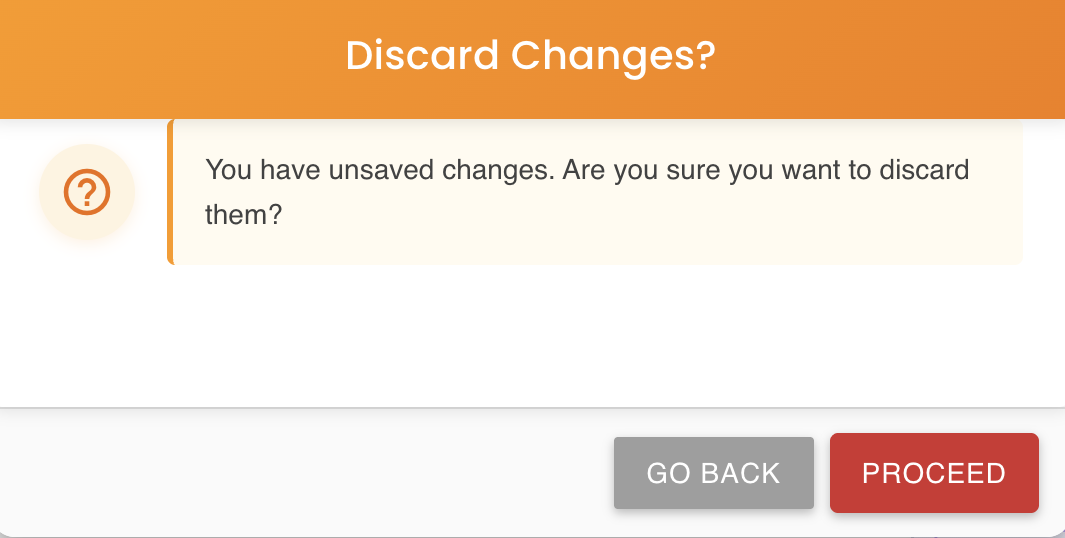
By clicking on the "Cancel" button you can discard all changes made to the components. A confirmation modal prompts about whether confirming the operation, or otherwise, keep editing without losing any change.