Frame Component Types
BizMetry supports different frame component types, aligned with the diverse needs businesses have regarding the information to be instrumented and captured — with the ultimate goal of contributing to KPIs and operational reports.
Each component type enables capturing a specific kind of information. The following sections describe each type in detail, including its configuration options and validation behavior.
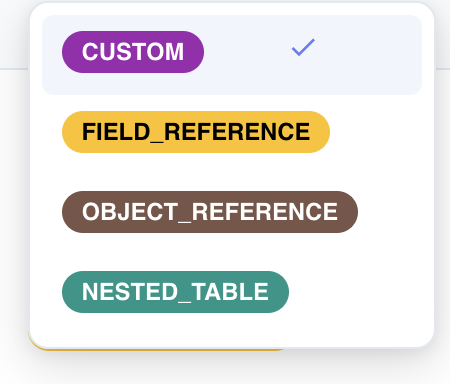
OBJECT_REFERENCE
An OBJECT_REFERENCE component captures a reference to a specific ASBO instance by storing its primary key (PK) value. Rather than embedding the full object data in the telemetry frame, the component records only the identifier — a lightweight pointer that BizMetry can resolve to the full ASBO instance at analysis time.
This design is intentional: it keeps telemetry frames compact while still enabling downstream aggregation, filtering, and KPI computation against the referenced business object.
When to use OBJECT_REFERENCE
In a CRM contact frame, if you need to associate each captured contact event with the customer it belongs to, you would add an OBJECT_REFERENCE component pointing to the Customer ASBO type. At capture time, the agent records the PK value of the matched customer instance — for example, its internal customer ID. BizMetry can later use that reference to enrich reports and correlate contact events with customer-level attributes.
Selecting the Target ASBO Type
When OBJECT_REFERENCE is chosen as the component type, BizMetry displays a dropdown to select which ASBO type the component will point to.

Only ASBO types with a configured primary key appear in the list
BizMetry uses the PK mapping to unambiguously identify which instance of the ASBO is being referenced. If an ASBO type has no attribute designated as its primary key, BizMetry has no reliable way to resolve the reference — so those types are excluded from the dropdown.
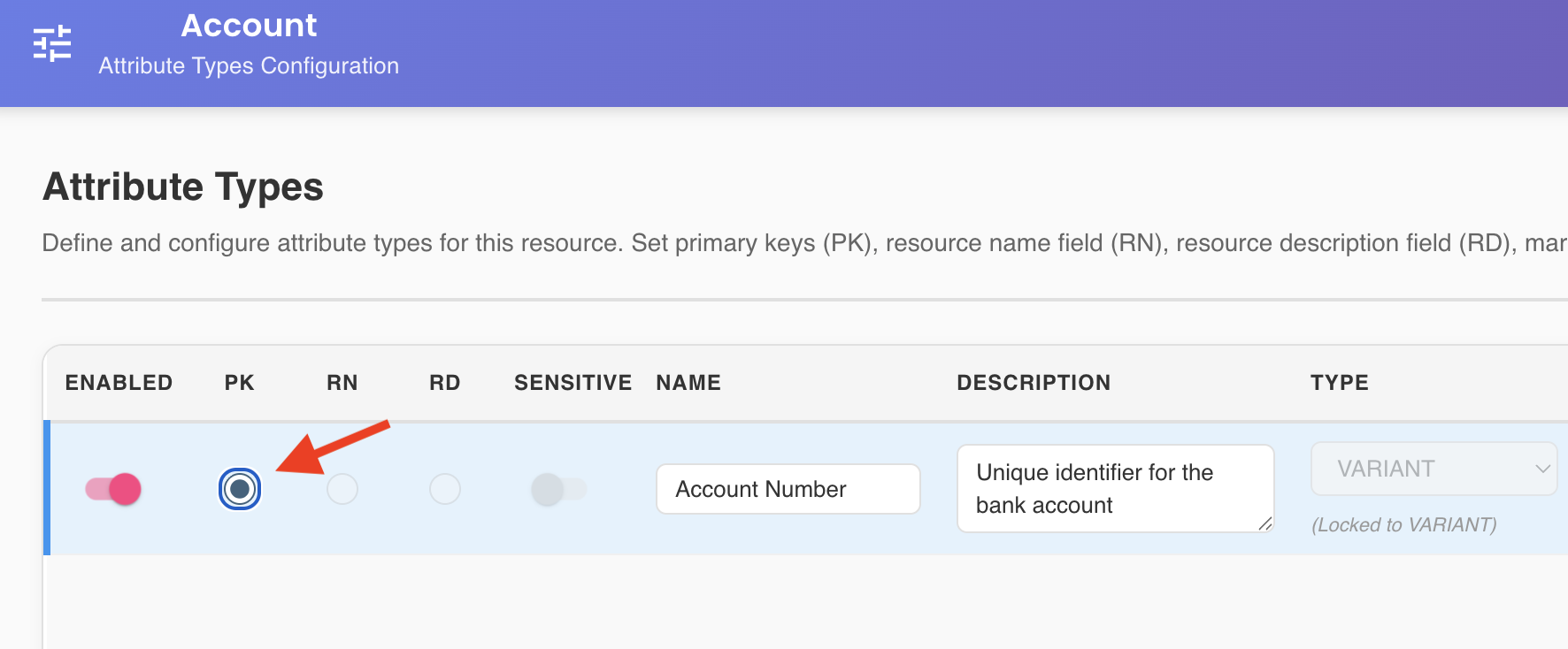
To designate an attribute as a primary key, open the template editor, navigate to the target resource type, and edit its attributes. In the attribute list, select the radio button in the PK column next to the attribute that should serve as the primary key.
How ASBO Instances Are Populated
The actual instances that can be referenced at runtime are managed through the Resources tab of the Profile editor. From there, instances belonging to the profile's configured environments can be imported directly from connected datasources. Once imported, those instances become available for PK-based resolution by the agents deployed across the profile's environments.

CUSTOM
A CUSTOM component captures a standalone scalar value not tied to any existing ASBO attribute or instance. When this type is selected, BizMetry allows the operator to choose a scalar sub-type from the supported set.
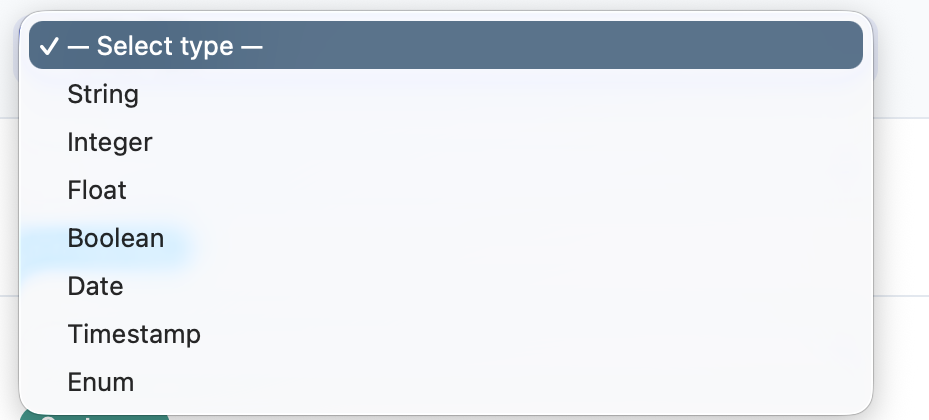
Supported Scalar Sub-types
| Sub-type | Description |
|---|---|
| String | Character sequence with configurable maximum length and optional regex validation pattern |
| Integer | Whole number with configurable minimum and maximum boundaries |
| Float | Floating-point decimal value with configurable minimum and maximum boundaries |
| Boolean | Boolean value (true / false) |
| Date | Calendar date |
| Timestamp | Generic date-time value capturing a precise point in time |
| Enum | Enumerated type with a predefined set of allowed values configured by the operator |
String
Indicates that the value to be captured is a lexicographic character sequence of a given length, conforming to a specified regular expression pattern. The regex pattern acts as a filter, ensuring that values captured through manual or automatic instrumentation match it. If a captured value does not match the pattern, it is automatically discarded from the telemetry frame by the agent during data ingestion and curation.

Integer
Represents a whole number value with configurable lower and upper bound thresholds. Any captured value that falls below the lower bound or exceeds the upper bound is automatically discarded by the agent during data ingestion and curation.

Float
Represents a floating-point decimal value with configurable lower and upper bound thresholds. Any captured value that falls below the lower bound or exceeds the upper bound is automatically discarded by the agent during data ingestion and curation.

Boolean
Represents a binary true / false value. Any captured value other than true or false is automatically ignored by the agent during data ingestion and curation.
Date
Represents a calendar date. The agent validates that the captured value conforms to the expected date format during ingestion.
Timestamp
Represents an exact point in time. The agent validates that the captured value conforms to a valid timestamp format during ingestion.
Enum
Represents a value within a predefined set of allowed enumerated values. BizMetry allows the operator to configure the list of valid values for this sub-type. If a captured value does not match any entry in the configured list, it is automatically ignored by the agent during data ingestion and curation.

FIELD_REFERENCE
A FIELD_REFERENCE component captures the value of a specific attribute from an ASBO type, embedding it directly into the telemetry frame at capture time. Unlike OBJECT_REFERENCE — which stores only the identity of an object — a FIELD_REFERENCE extracts one of its attribute values and records it as part of the frame payload.
The component inherits its data type and validation rules from the source attribute definition. You do not configure the type manually: BizMetry reads it from the attribute's definition in the ASBO, and any future change to that definition is automatically reflected the next time an agent ingests data.
How Values Are Captured at Runtime
It is important to understand that a FIELD_REFERENCE does not read values by querying an ASBO instance directly. Instead, values flow through the Business Event mechanism:
An application defines one or more Business Events, each associated with an API interceptor. When a relevant API call occurs within the instrumented application - either inbound or outbound - , the interceptor intercepts the invocation and translates it into one or more telemetry frames — populating each frame component with the values present in the intercepted call. A FIELD_REFERENCE component is populated from the portion of that payload that corresponds to the mapped ASBO attribute.
This means the agent is not querying a database or a live ASBO registry — it is extracting values from the API interaction itself, as defined by the Business Event configuration.
When to use FIELD_REFERENCE
In a CRM application, a Business Event is configured on the POST /contacts API endpoint. The interceptor translates each invocation into a contact telemetry frame. To record the customer's full name alongside the event, you would add two FIELD_REFERENCE components: one mapping Customer → FirstName, and another mapping Customer → LastName. Each time the endpoint is called, the interceptor extracts those attribute values from the request payload and writes them into the frame.
Configuring the Mapping
Selecting FIELD_REFERENCE reveals a two-step mapping flow:
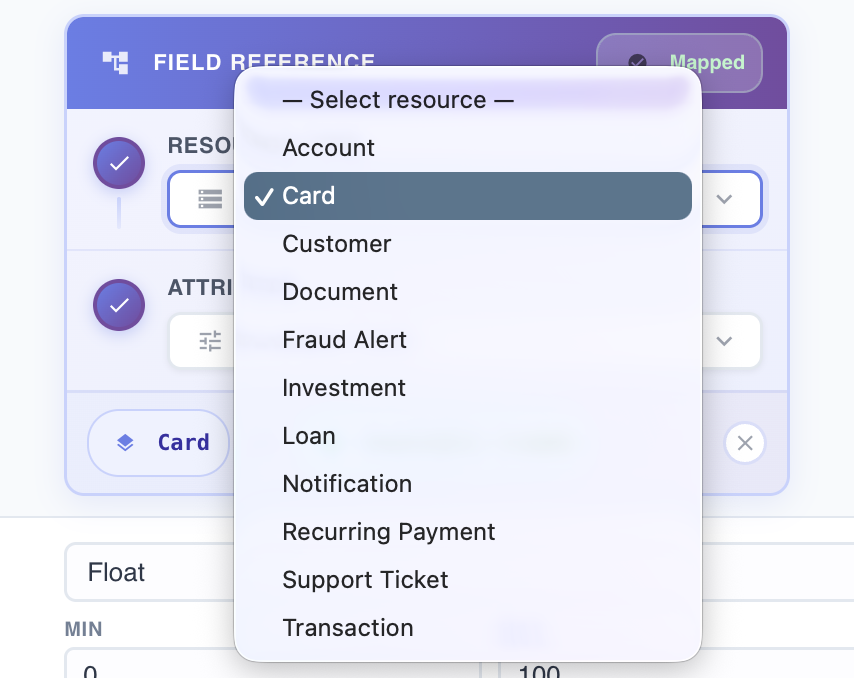
Step 1 — Select the Resource Type
Choose the ASBO type that holds the attribute you want to capture. The dropdown only shows ASBO types that have at least one attribute defined.
Step 2 — Select the Attribute
Once a resource type is selected, a second dropdown appears listing its available attributes. Choose the attribute whose value the component will capture.
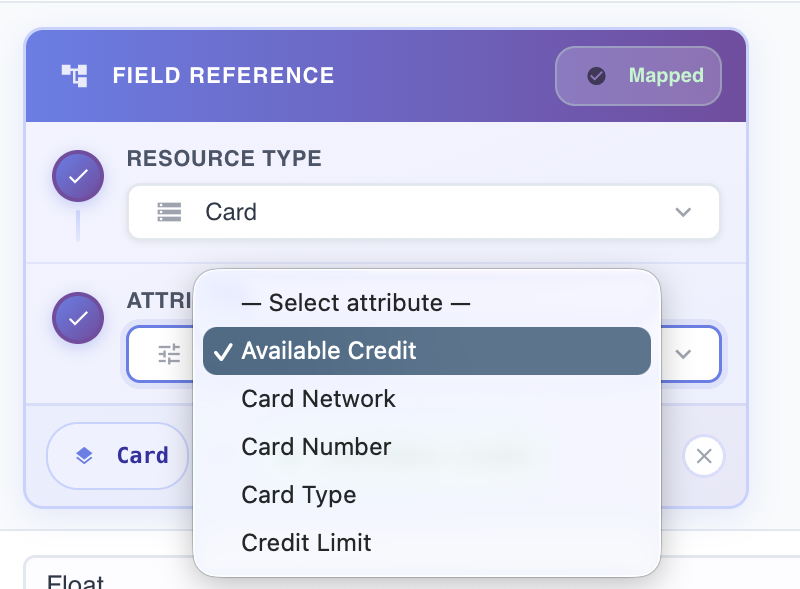
Once both selections are made, the component displays a summary showing the full mapping path — for example, Customer → LastName — confirming the configuration is complete.
Validation follows the source attribute
The captured value is validated against the scalar type configured on the source attribute — for instance, a String attribute with a maximum length of 100 characters. If the source attribute's type or constraints are updated in the template, the component automatically adopts the new rules at the next agent ingestion cycle, without requiring any manual reconfiguration.
NESTED_TABLE
A NESTED_TABLE component embeds a variable-length table directly inside a telemetry frame. Instead of capturing a single value like the other component types, it captures a structured dataset: multiple rows, each sharing the same set of columns. Think of it as attaching a mini-spreadsheet to every frame instance that the agent transmits.
Each column in the nested table is a FIELD_REFERENCE mapping — it points to a specific attribute of an ASBO type, and inherits that attribute's data type and validation rules automatically. The number of rows is not fixed: it depends on how many records the agent finds at capture time.
When to use NESTED_TABLE
In an online retail purchase frame, you need to capture not just that an order occurred, but every item included in it. A NESTED_TABLE component lets you define the column structure once — SKU, item name, unit price — and the agent will populate one row per purchased item at runtime. The resulting data can be used downstream to compute SKU-level KPIs, revenue attribution, and basket analysis metrics.
| Column | Mapped Attribute | Description |
|---|---|---|
SKU_ITEM | Order → SKU# | Inventory SKU number of the purchased item |
ITEM_NAME | Order → ItemName | Display name of the item |
ITEM_VALUE | Order → UnitPrice | Monetary value of the item |
Configuring Columns
When NESTED_TABLE is selected, BizMetry displays an inline column editor. Each column requires three pieces of information:
- Column name — a unique identifier for the column within this component.
- Resource type — the ASBO type that holds the attribute to capture. Only ASBO types with at least one attribute defined are shown.
- Attribute — the specific attribute whose value will populate this column at capture time.
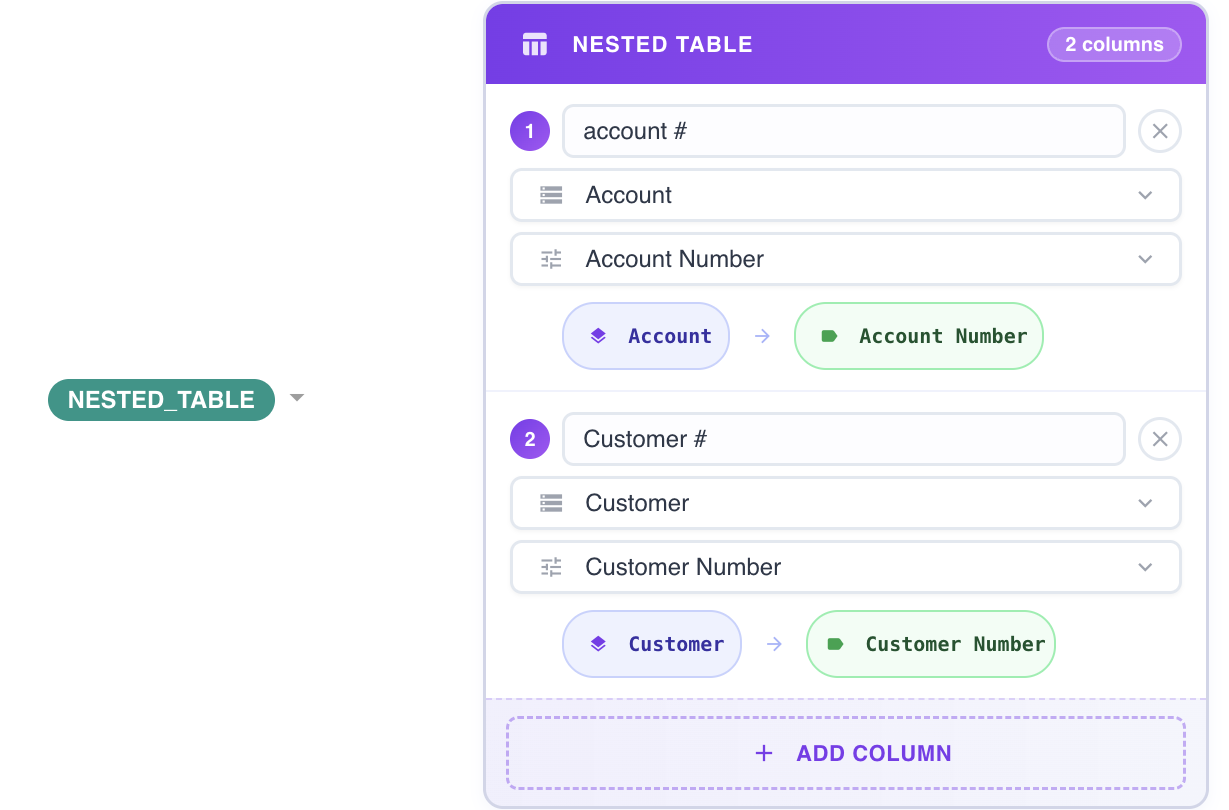
Adding a column
Click the + Add Column button at the bottom of the column editor to append a new empty column entry. Fill in its name, resource type, and attribute to complete the mapping.
Removing a column
Click the × button located to the right of the column entry you want to remove. The column is removed immediately from the component definition.
The component is considered fully configured only when every column has a name, a resource type, and an attribute selected.
Validation follows each column's source attribute
Just like FIELD_REFERENCE, each column inherits its validation rules from the source attribute it maps to. If an attribute's type or constraints change in the template, the corresponding column automatically adopts the updated rules at the next agent ingestion cycle.
Placement recommendation
Because a NESTED_TABLE component carries a variable-length payload — its size depends on the number of rows captured — it is good practice to place it at the end of the component sequence within a frame. This keeps the fixed-size components at the front of the RTMP packet, making frame parsing more predictable and efficient.
Access Control & Data Protection Toggles
Every frame component — regardless of its type — exposes two control toggles that govern its mapping enforcement and data protection behavior: Required and Sensitive. These toggles are configured at component definition time, within the frame type editor.

Required
The Required toggle determines whether a component is mandatory within any Business Event that references the frame type containing it.
When Required is enabled (true)
If a component is marked as required and its parent frame type is referenced by a Business Event, that component must be explicitly mapped to a source field before the Business Event can be saved. BizMetry enforces this constraint at save time: if any required component remains unmapped, the Business Event cannot be persisted and an error is shown indicating which components need to be resolved.
When Required is disabled (false)
The mapping constraint is relaxed. If the frame type is referenced in a Business Event, the component may be left unmapped — making it effectively optional. The Business Event can be saved regardless of whether the component has a source mapping configured.
Use Required to enforce data completeness
Marking a component as required is recommended whenever the absence of its value would compromise the integrity of the captured telemetry frame or make downstream KPI computation unreliable. Required components act as a contract: any Business Event referencing the frame must honor them.
Sensitive
The Sensitive toggle indicates that a component captures protected or confidential information. When enabled, BizMetry activates the necessary data protection mechanisms to prevent unauthorized disclosure of the captured values.
This toggle is relevant when a component captures any of the following categories of information:
- Personal Identifiable Information (PII) — names, email addresses, phone numbers, etc.
- Personal Health Information (PHI/PIH) — medical records, diagnoses, treatment data
- Sensitive personal data — Social Security Numbers (SSN), government IDs, financial account numbers
- Any other category of protected data that must remain confidential under applicable regulations or business policy
Applicability
The Sensitive toggle is available for the following component types:
| Component Type | Sensitive Toggle |
|---|---|
CUSTOM | Configurable freely |
FIELD_REFERENCE | Configurable — with inheritance rules (see below) |
NESTED_TABLE | Configurable freely |
OBJECT_REFERENCE | — Not applicable |
Inheritance from ASBO Attribute Definition (FIELD_REFERENCE)
For components of type FIELD_REFERENCE, BizMetry checks whether the source attribute was already marked as sensitive at the ASBO configuration level. If it was:
- The component automatically inherits the sensitive flag from the source attribute
- The toggle is displayed as enabled and locked — it cannot be disabled at the component level
This ensures that data classified as sensitive at the ASBO layer is always protected when surfaced through a frame component, regardless of individual operator decisions.
For all other cases — either a CUSTOM or NESTED_TABLE component, or a FIELD_REFERENCE whose source attribute is not flagged as sensitive — the toggle can be freely enabled or disabled according to business requirements.
Sensitive flag inherited from ASBO cannot be overridden
If a FIELD_REFERENCE component maps to an attribute that is marked as sensitive in the ASBO definition, the Sensitive toggle on the component will be permanently enabled and cannot be turned off. To change this behavior, the sensitive classification must be removed at the source attribute level within the template editor.
What BizMetry does with sensitive components
When a component is marked as sensitive, BizMetry applies its built-in data protection mechanisms to the captured values throughout the platform — including storage, display, and export. This ensures that sensitive data is handled in accordance with confidentiality requirements and is not inadvertently exposed in reports, dashboards, or API responses without appropriate access controls.