Cloning a Frame Type
When a new frame type is close to one you already have, you don't need to build it from scratch: the Frame Types tab of the template editor lets you clone an existing frame type in one click and then adjust only what's different.
How to Clone a Frame Type
- Open the template editor for the template version you want to change, and select the Frame Types tab (see Editing Frame Types).
- Locate the frame type you want to use as a starting point.
- Click the Copy Frame Type icon () in its Actions column, between the Edit button and the delete icon.
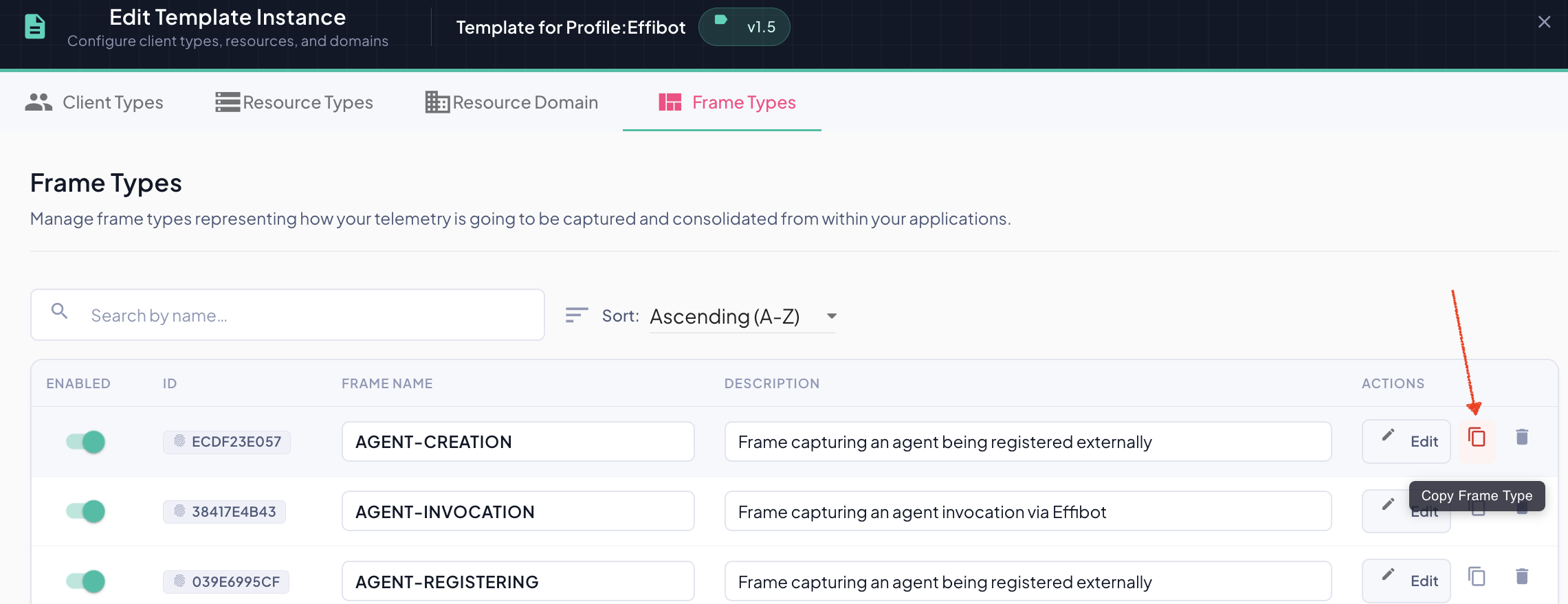
A new row appears in the list immediately, and BizMetry scrolls to it and places the cursor in its name field so you can rename it right away.
What Gets Copied
The clone is a complete, independent copy of the original frame type:
| Copied | Details |
|---|---|
| Description | Same description as the original. |
| Enabled state | Same enabled/disabled toggle as the original. |
| Components | Every frame component, with its type, properties and constraints — including the columns of nested tables. |
The clone does not share anything with the original: editing, renaming or deleting one never affects the other. Business events that use the original frame type keep using it; the clone starts with no business events.
Naming
The clone is named COPY_OF_<original name> — for example, cloning AGENT-CREATION produces COPY_OF_AGENT-CREATION. If that name is already taken in the template, a numeric suffix is added (COPY_OF_AGENT-CREATION_2, COPY_OF_AGENT-CREATION_3, …) so names stay unique.
Rename it before saving
The default name only exists to keep names unique. Give the clone a meaningful name that describes the business event it will capture — the name field is already focused after cloning.
Saving the Clone
Like any other change in the template editor, the clone is only stored when you click Save Changes. If you click Cancel and confirm, the clone is discarded.
Published templates
Cloning a frame type in a Published template version follows the usual rules: saving creates a new child template version in Draft, and the published version stays unchanged. See Version Lifecycle.