Editing an Environment Mapping
Overview
An existing environment mapping can be modified to update the datasource, schema, or table associated with a resource type for a given environment. This is useful when databases are migrated, tables are renamed, or schemas are reorganized.
Master Mapping Cannot Be Edited
The master environment mapping is the source of truth for the ASBO's schema definition and cannot be edited. It can, however, be deleted — which unlinks the ASBO from the database entirely. See Master Mapping Deletion below.
Deletion is Deferred Until Publish
Deleting an environment mapping (including the master) does not take effect immediately after saving. Resources associated with the deleted mapping remain intact until the template is published and assigned to an environment via the Template Release Editor. At that point, BizMetry enforces consistency and permanently removes all resource instances that no longer have an active mapping.
Accessing the Edit Function
- Navigate to the Resource Types tab within the template editor
- Click Env Mappings for the desired resource type
- Locate the mapping you want to modify
- Click the edit icon (pencil) in the Actions column for that mapping

Editing the Mapping Configuration
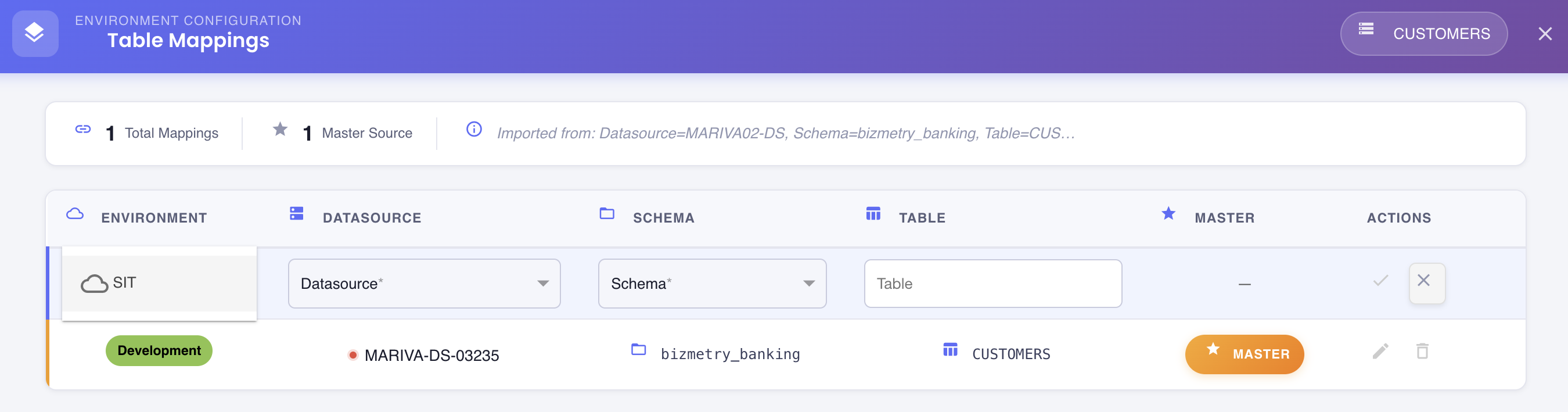
Clicking the edit icon makes all mapping fields editable via dropdown selectors.
Environment
Select the target environment. Changing this effectively moves the mapping to a different environment — make sure this is intentional.
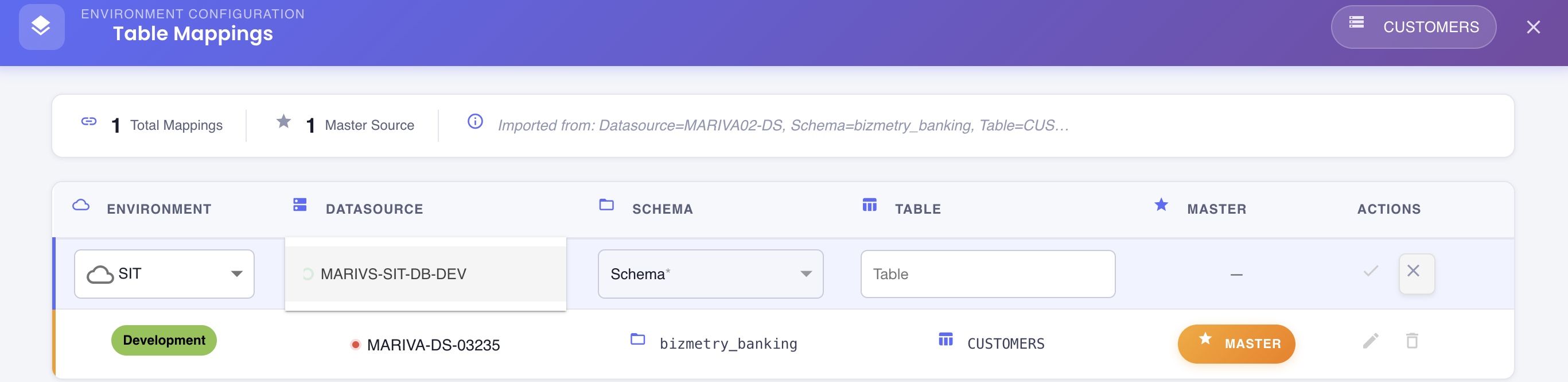
Datasource
Select the datasource that contains the target table. Only active and properly connected datasources are listed.
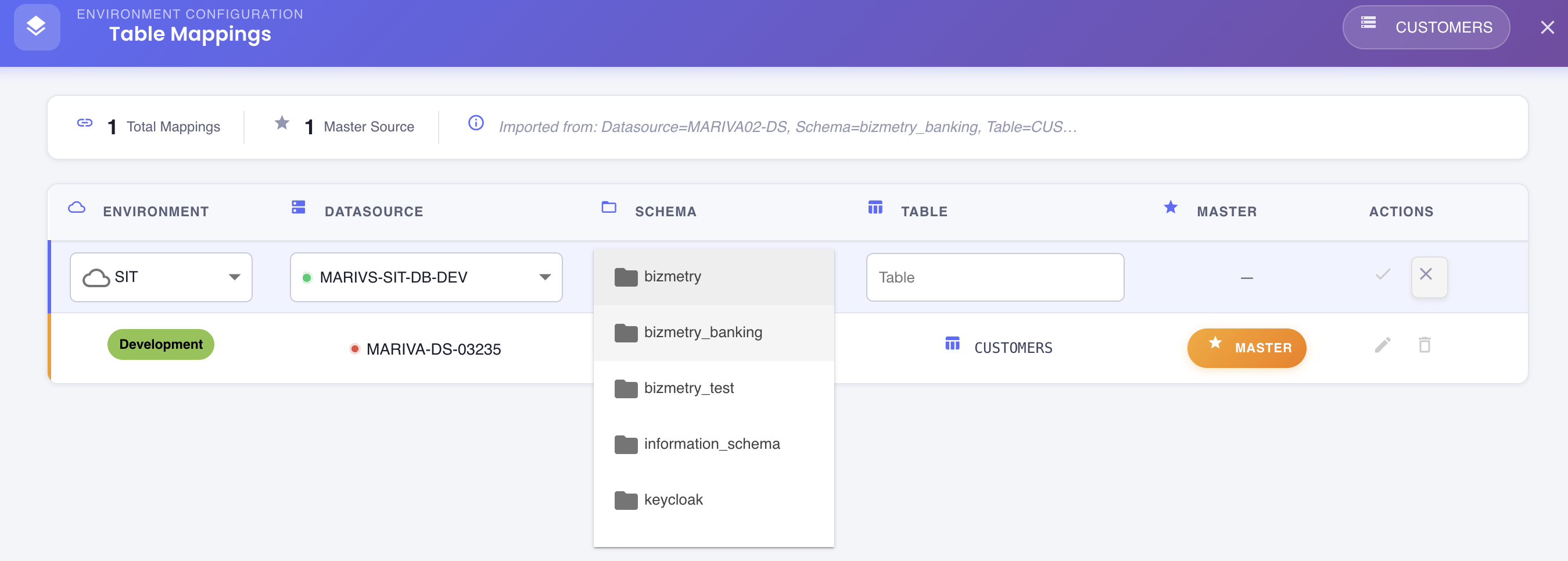
Schema
Select the schema within the chosen datasource. The list is populated dynamically based on the selected datasource.
Table
Select the table to associate with this resource type. The list is populated based on the selected schema.
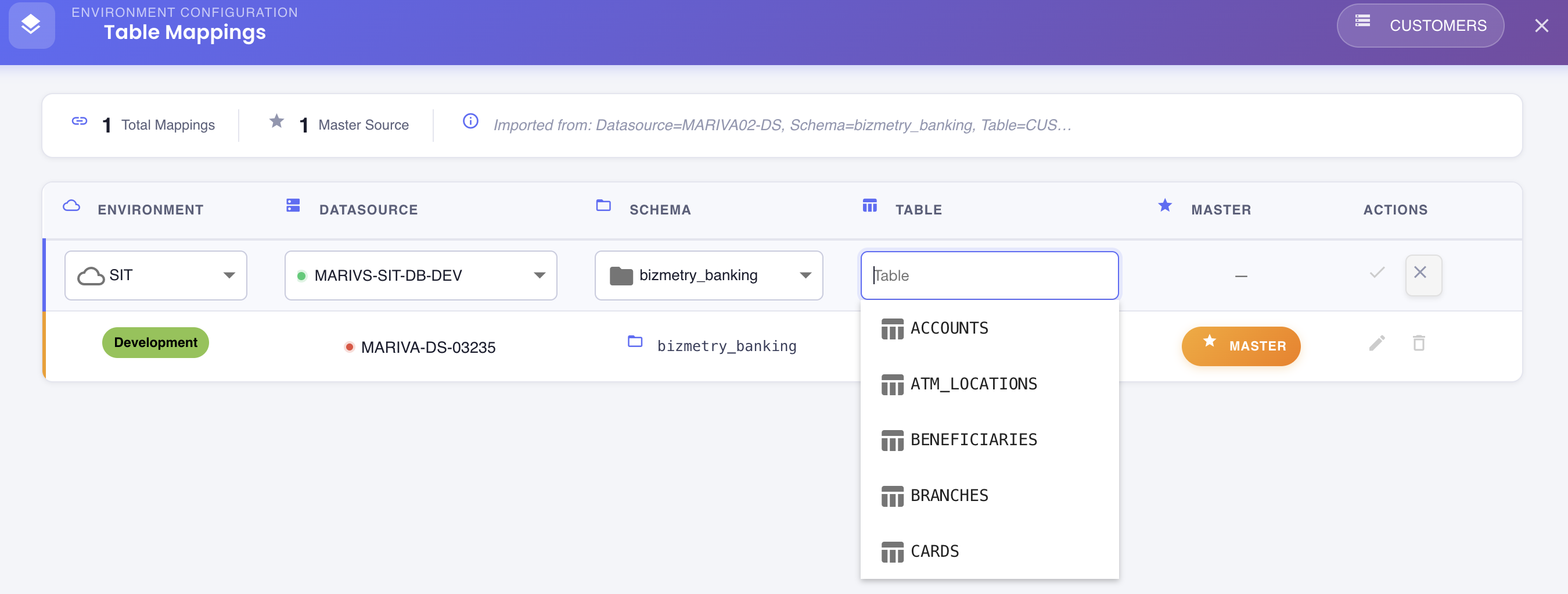
Table Structure Validation
When you confirm the edit, BizMetry validates that the selected table's structure matches the resource type's original schema. See Table Structure Validation below.
Table Structure Validation
When editing a mapping, BizMetry compares the selected table against the resource type's original structure (established at import time). For the mapping to be accepted, the new table must:
- Contain all columns present in the resource type's original structure
- Have matching column names (case-sensitive)
- Use compatible data types for each column
If the table doesn't match, BizMetry blocks the save and displays a validation error. You must select a compatible table before proceeding.
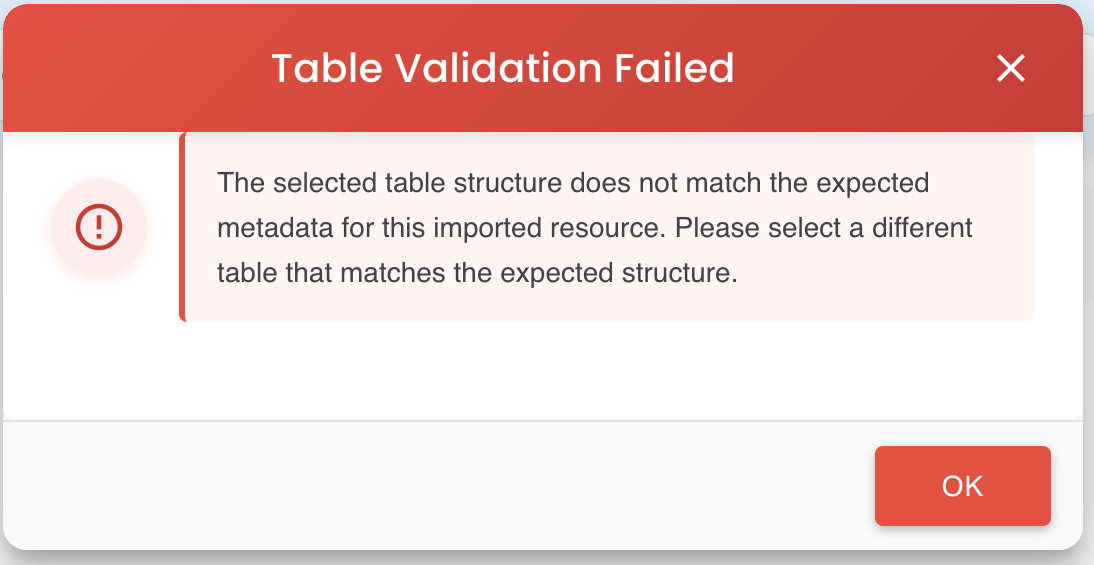
Common causes of validation failure:
- Missing one or more required columns
- Column names don't match exactly (spelling or case)
- Column data types are incompatible
- Table was altered after the original import
- Wrong table selected
Resolving Validation Errors
If the target table has a different structure, options include: adding the missing columns to the table in the database, renaming columns to match, or creating a database view that exposes the expected column names. Once the structure matches, retry the mapping selection.
Confirming or Discarding Changes
Once you have made your changes:
- Click the checkmark () to confirm and stage the changes — validation runs at this point
- Click the () to discard all changes and return to the previous state
Changes Are Staged, Not Yet Saved
Clicking the checkmark only stages the changes in your editing session. You must click Save Changes in the dialog to persist them permanently.
Saving Changes
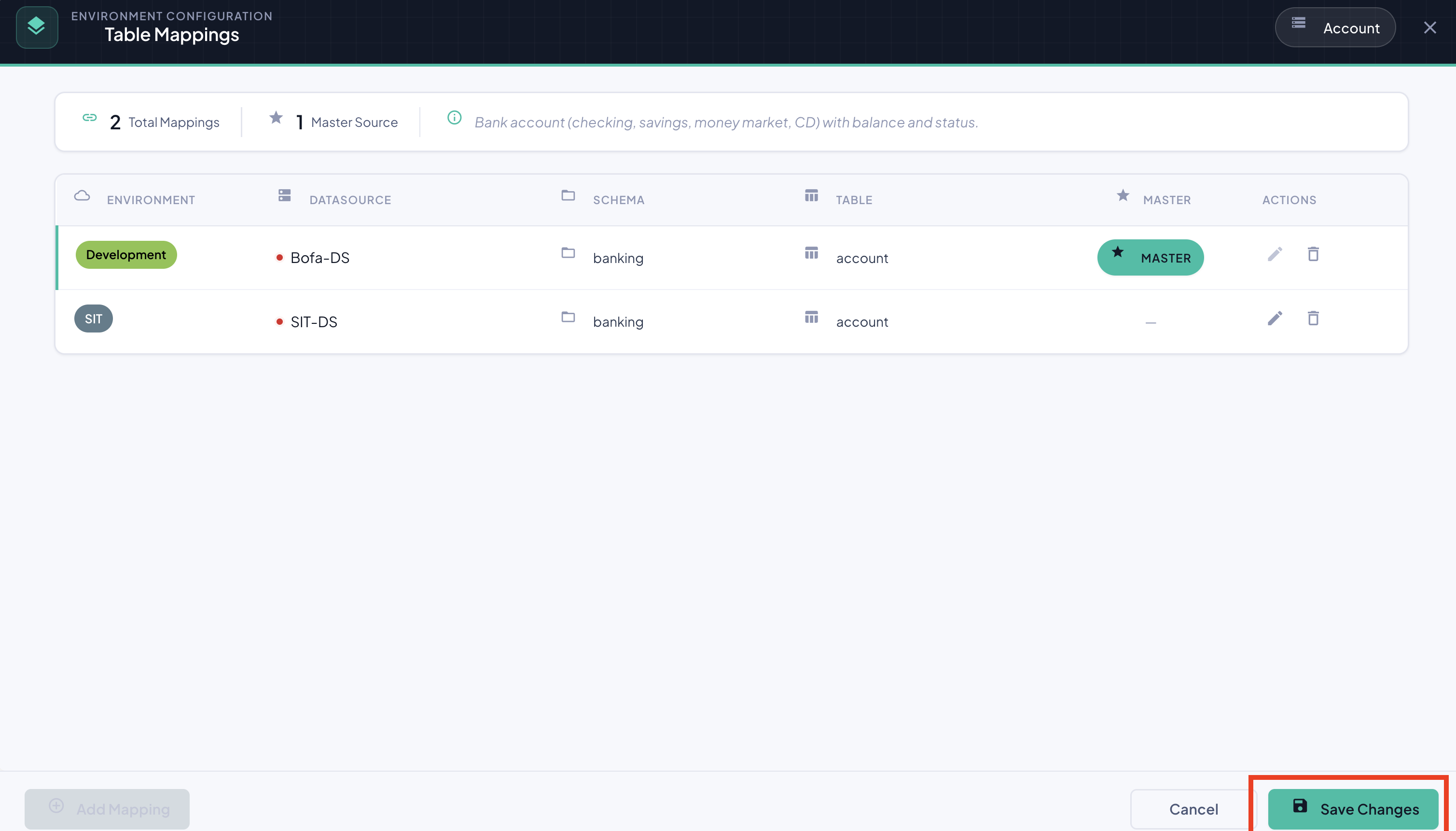
After staging the edits, click Save Changes at the bottom of the Environment Mappings dialog.
Agent Synchronization
After saving, the updated configuration is propagated to active agents for the affected environment. Synchronization timing depends on each agent's configured sync interval — agents may continue using the old configuration until the next sync cycle.
Master Mapping Deletion
Although the master mapping cannot be edited, it can be deleted. A confirmation modal appears before proceeding.
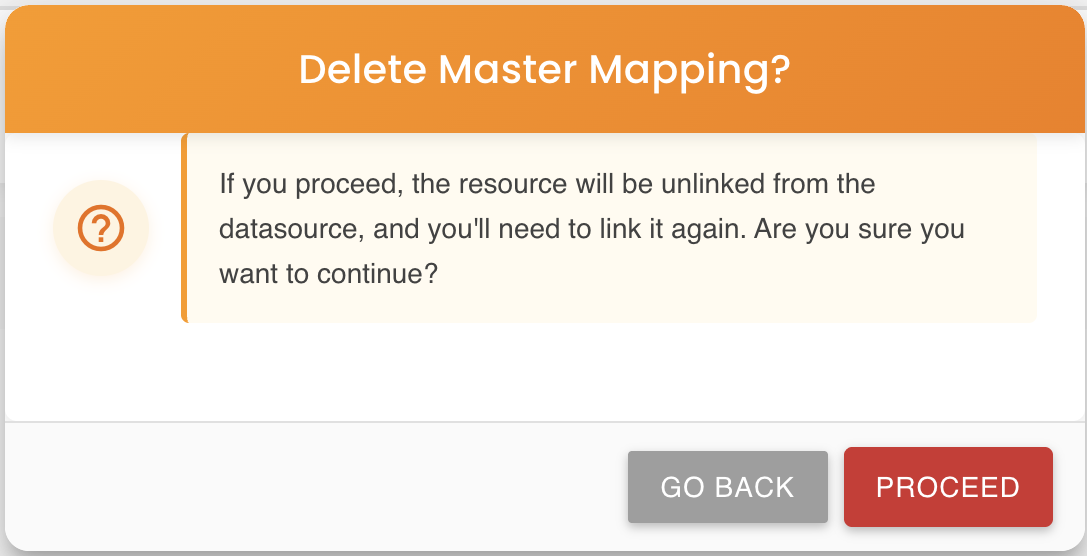
Deleting the master mapping completely unlinks the ASBO from the database. The consequences unfold in two stages:
Immediate effect (upon saving):
- All existing environment mappings for this resource type are removed — including any additional environment mappings previously configured
Deferred effect (once the template is published and assigned to an environment via the Template Release Editor):
- All resource instances across every environment that were associated with this ASBO are permanently deleted
- The ASBO is fully disconnected from any physical table across all environments
This cannot be undone
Recovering from this state requires re-anchoring the ASBO to a database table and re-importing all resources from scratch across every environment. All previously captured telemetry associations are lost.
Do not delete the master mapping unless you intend to fully remove this resource type from the template.
Impact on Existing Resources
Editing a mapping (changing the datasource, schema, or table for a given environment) is performed on a DRAFT template. At the time of saving, no resources are modified or deleted.
The actual impact on existing resources is determined later, during the template release reconciliation process.
Reconciliation at Release Time
When the updated template is published and assigned to an environment via the Template Release Workflow Editor (Environments tab of the profile), BizMetry automatically runs a reconciliation:
- Retrieves all existing PKs from resources currently associated with the resource type and environment
- Queries the new datasource/schema/table configuration to retrieve the current set of PKs
- Compares both sets:
- PKs present in both sets → resource remains intact and remapped
- PKs present only in the old set → resource is permanently deleted
This reconciliation ensures that resources always reflect the actual state of the underlying database table under the new configuration.
Consistency Guarantee
BizMetry guarantees at all times that resources are consistent with the active template configuration. The release reconciliation is the mechanism that enforces this guarantee whenever a mapping change affects an environment.