Creating Environment Mappings
Overview
Environment mappings link a single ASBO to physical database tables across multiple environments (DEV, QA, PROD, etc.). This allows BizMetry to provide a unified cross-environment view of business objects using the appropriate datasource for each deployment context.
What you can do with environment mappings:
- Link the same ASBO to tables in different environments
- Control which datasources and schemas are used per environment
- Enable or stop telemetry ingestion for specific environments
One Datasource Per Environment
Each environment can only have one datasource mapped per ASBO. If you attempt to define two different datasources for the same environment, only one will be accepted as the source of truth.
Understanding Environments and Datasources
A BizMetry profile manages multiple environments representing deployment stages of your business application. Each environment connects to its own set of datasources — configured connections to the physical databases where data entities reside.
Typical environment structure:
| Environment | Datasource | Database Server | Schema |
|---|---|---|---|
| DEV | dev-postgres-ds | dev-db-server.local | public |
| QA | qa-postgres-ds | qa-db-server.local | public |
| PROD | prod-postgres-ds | prod-db-server.local | public |
Environment mappings tell BizMetry: "for this ASBO, use this datasource, this schema, and this table when operating in that environment."
Master Environment Mapping
BizMetry automatically creates a master environment mapping when:
- An ASBO is imported from a database
- An unanchored ASBO is anchored to a table for the first time
Role of the Master Mapping
The master mapping is the canonical definition of the ASBO. It holds:
- Taxonomy — business object classification and categorization
- Schema — structural definition of attributes and types
- Attribution — column-to-attribute mapping configuration
Source of Truth
All additional environment mappings must conform to the table structure defined in the master mapping. BizMetry validates schema compatibility when you add a new mapping.
Master Mapping Protection
The master mapping is displayed with a MASTER badge in the dialog and cannot be deleted from the Environment Mappings interface.
Removing the Master Mapping
The master mapping can only be removed by deleting the ASBO's entire anchor configuration, which breaks the anchoring relationship completely.
Accessing Environment Mappings
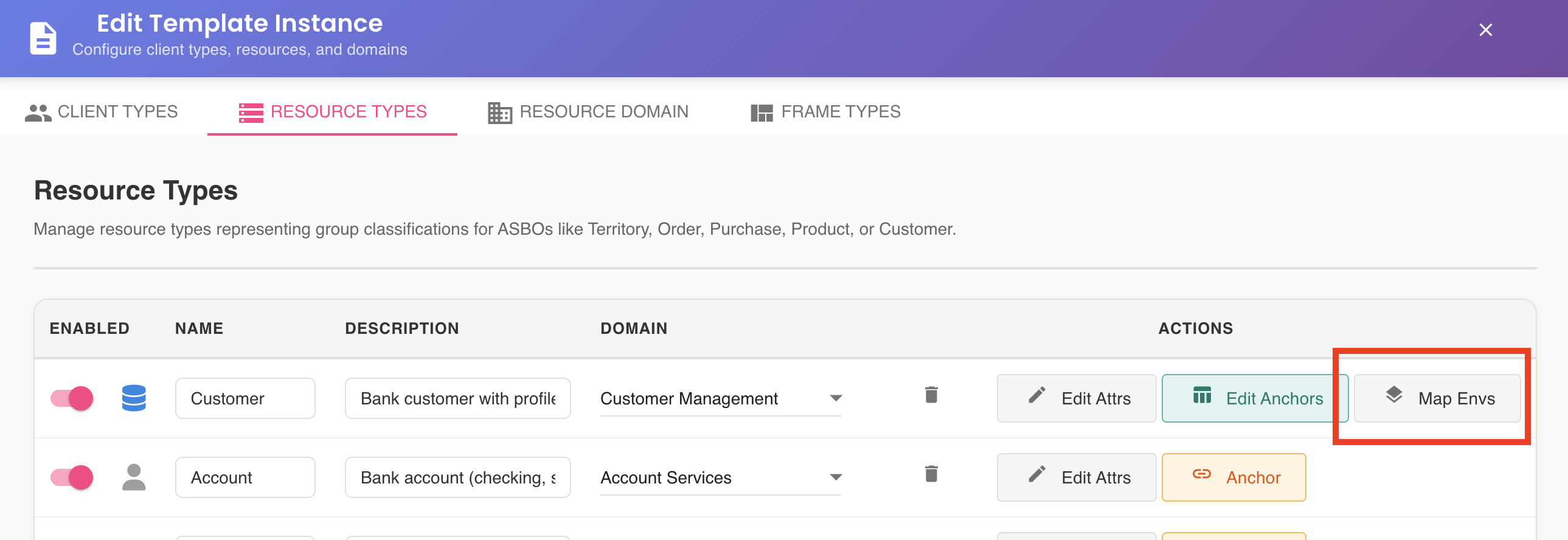
- Open the Template Editor for your template
- Navigate to the Resource Types tab
- Locate the ASBO you want to configure
- Click the "Env Mappings" option for that resource type
Environment Mappings Dialog
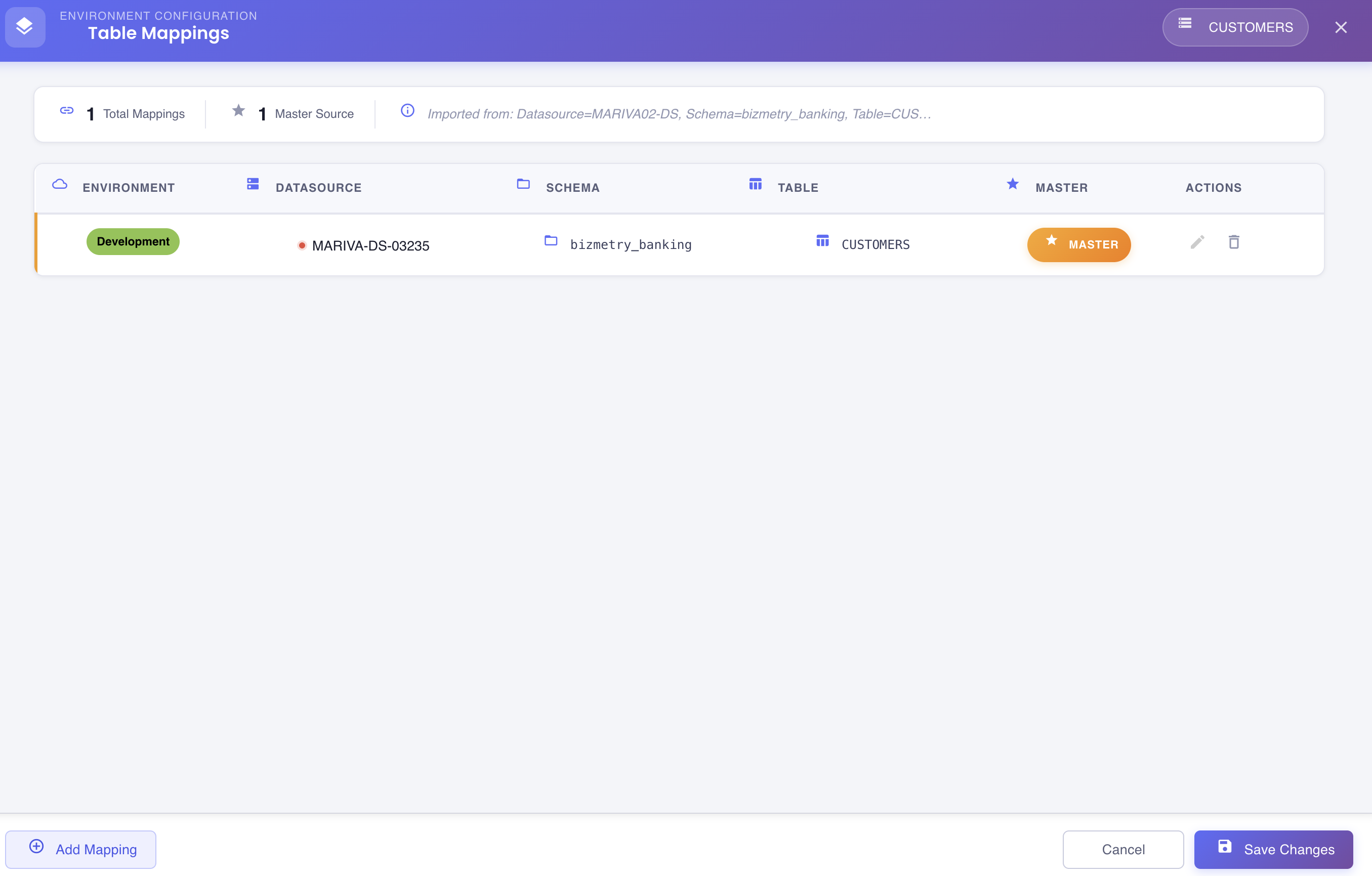
The dialog shows all existing mappings for the ASBO:
- Master mapping — marked with a MASTER badge, created during anchoring
- Additional mappings — environment-specific mappings you have created
Each row displays: Environment, Datasource, Schema, Table, and an Actions column.
Creating a New Environment Mapping
Step 1 — Open the Add Mapping Form
In the Environment Mappings dialog, click "+ Add Mapping".

Step 2 — Select the Environment
Choose the target environment from the dropdown.
- Only active environments are listed.
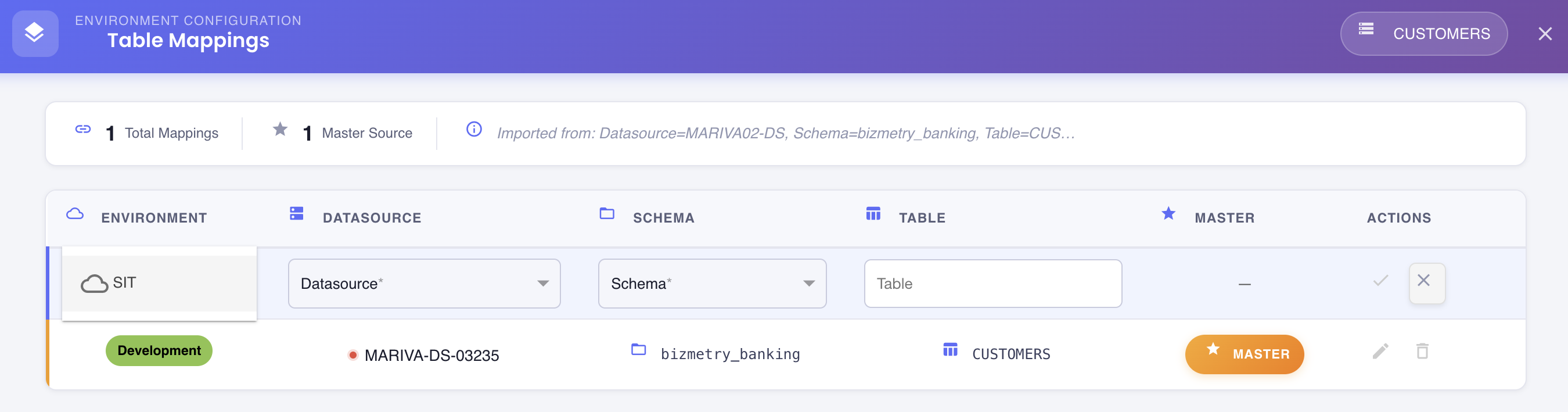
Step 3 — Select the Datasource
Choose the datasource for this environment.
- Only active and online datasources are listed.
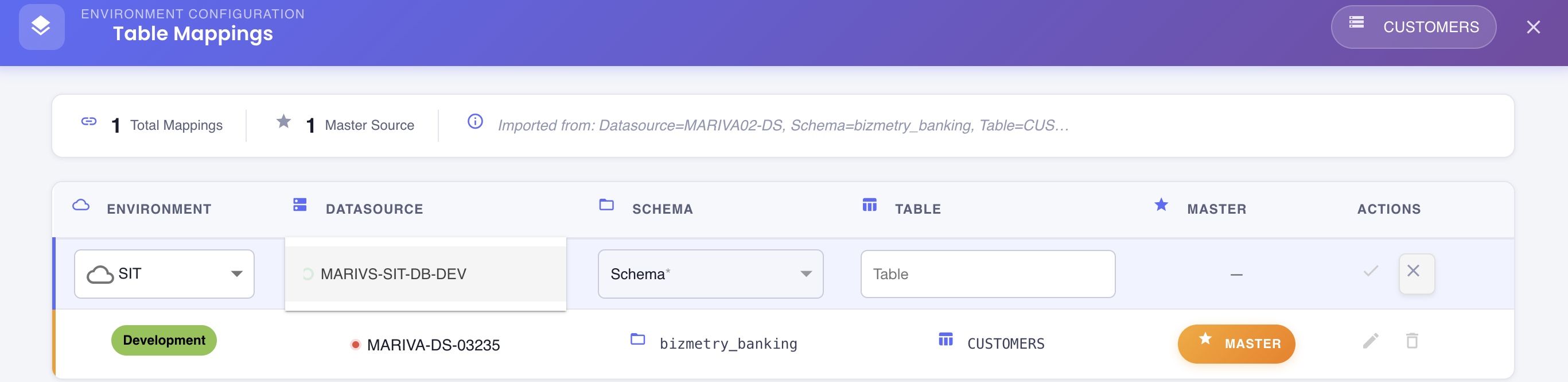
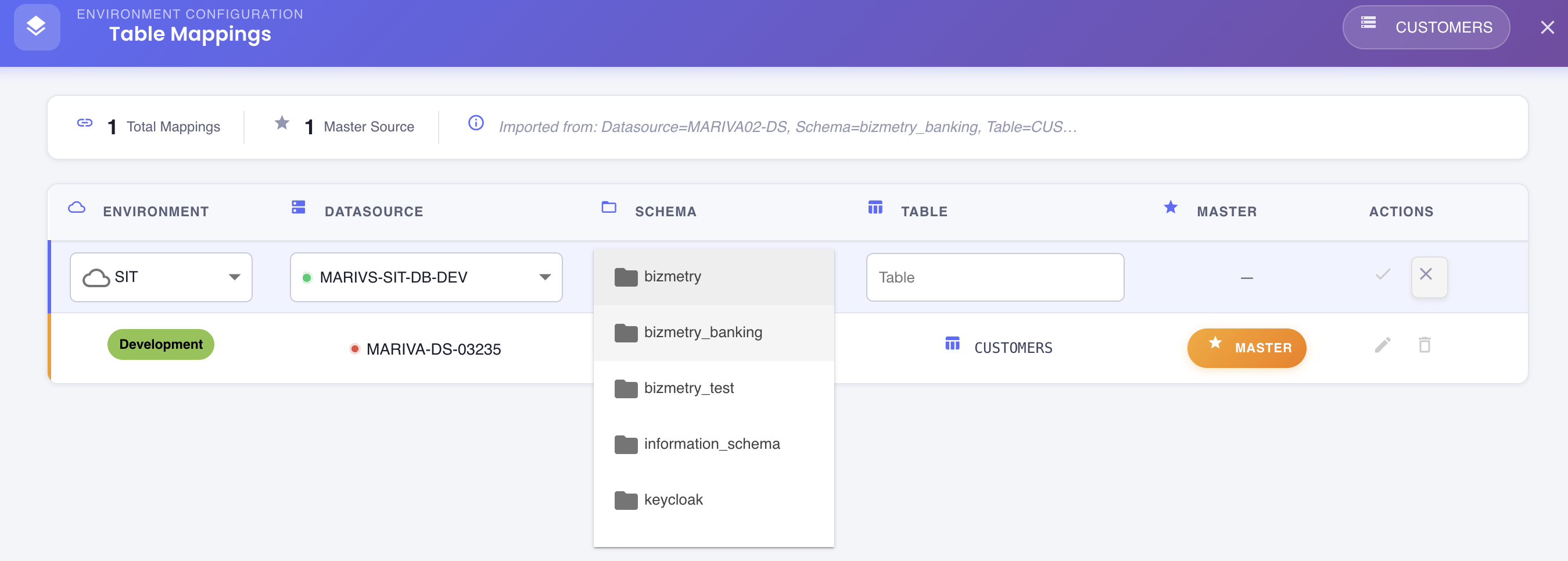
Step 4 — Select the Schema
Choose the database schema within the selected datasource.
- The schema list is populated dynamically based on the selected datasource.
- Only schemas you have permission to access are shown.
Step 5 — Select the Table
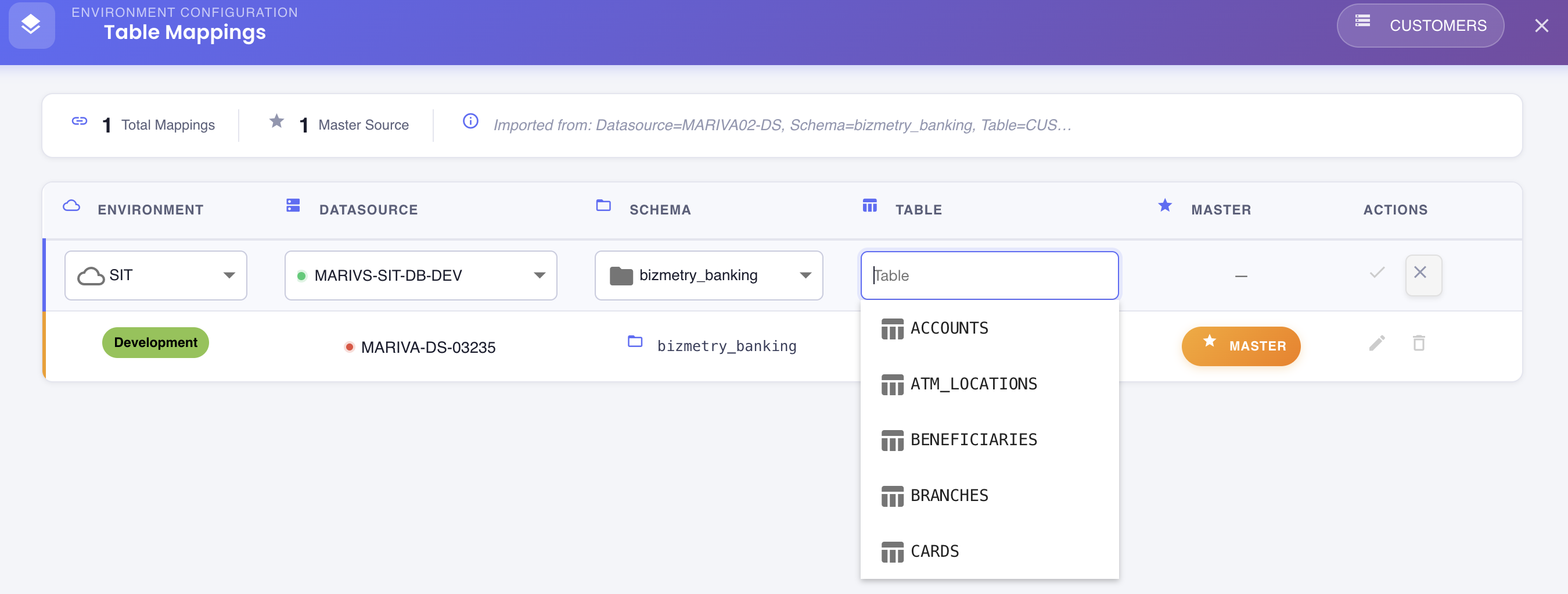
Choose the table to map for this environment.
- The table list is populated based on the selected schema.
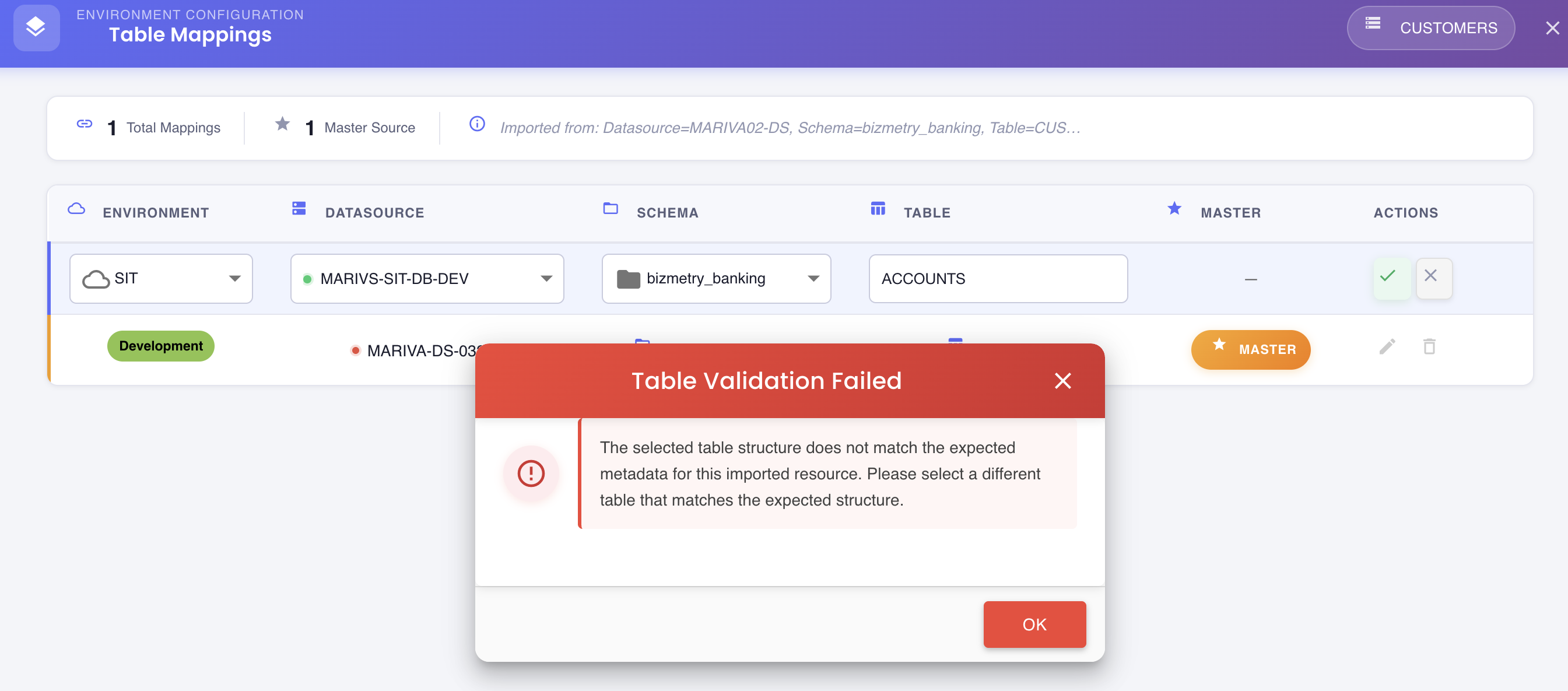
- The selected table's structure must match the master mapping's table metadata. If it does not, BizMetry will reject the mapping and display a validation error.
Step 6 — Confirm the Mapping
- Click the checkmark () to confirm and add the mapping to the list.
- Click (X) to discard without saving.

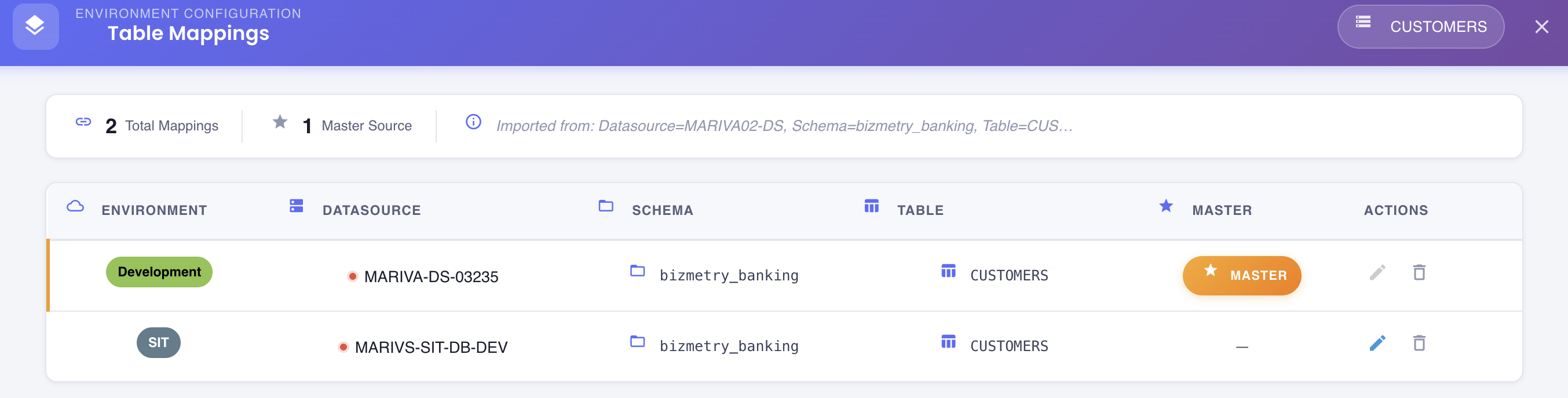
If the schema validation passes, the new mapping appears as a new row in the dialog.
Step 7 — Save Changes (Two Steps Required)
Saving environment mapping changes requires two distinct saves:
7a. Save in the Env Mappings Dialog
Click "Save Changes" at the bottom of the dialog.
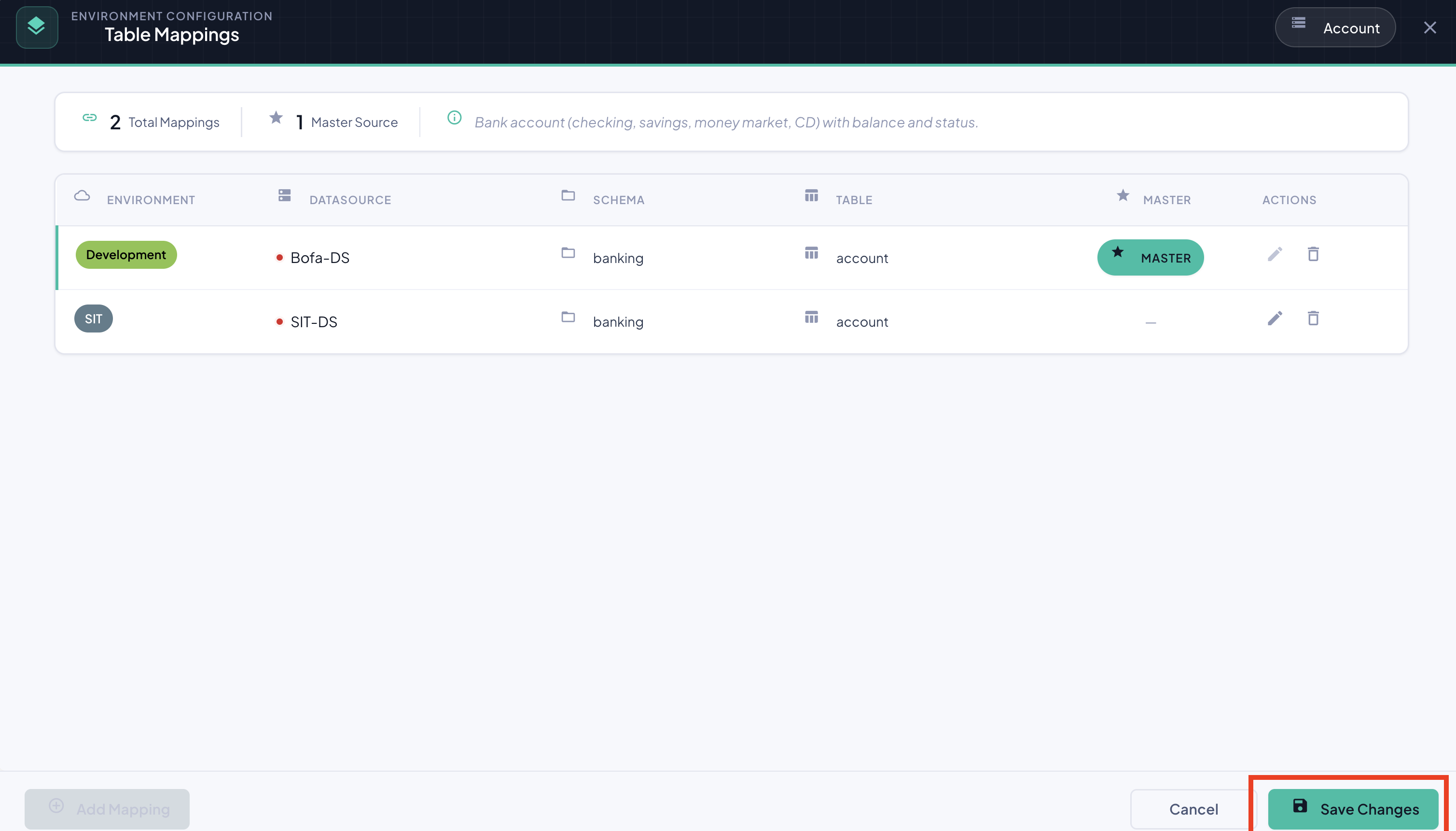
This saves the changes to your current editing session. The dialog closes and you return to the Resource Types tab. Changes are not yet persisted.
7b. Save in the Template Editor
Click "Save Changes" in the Template Editor toolbar.
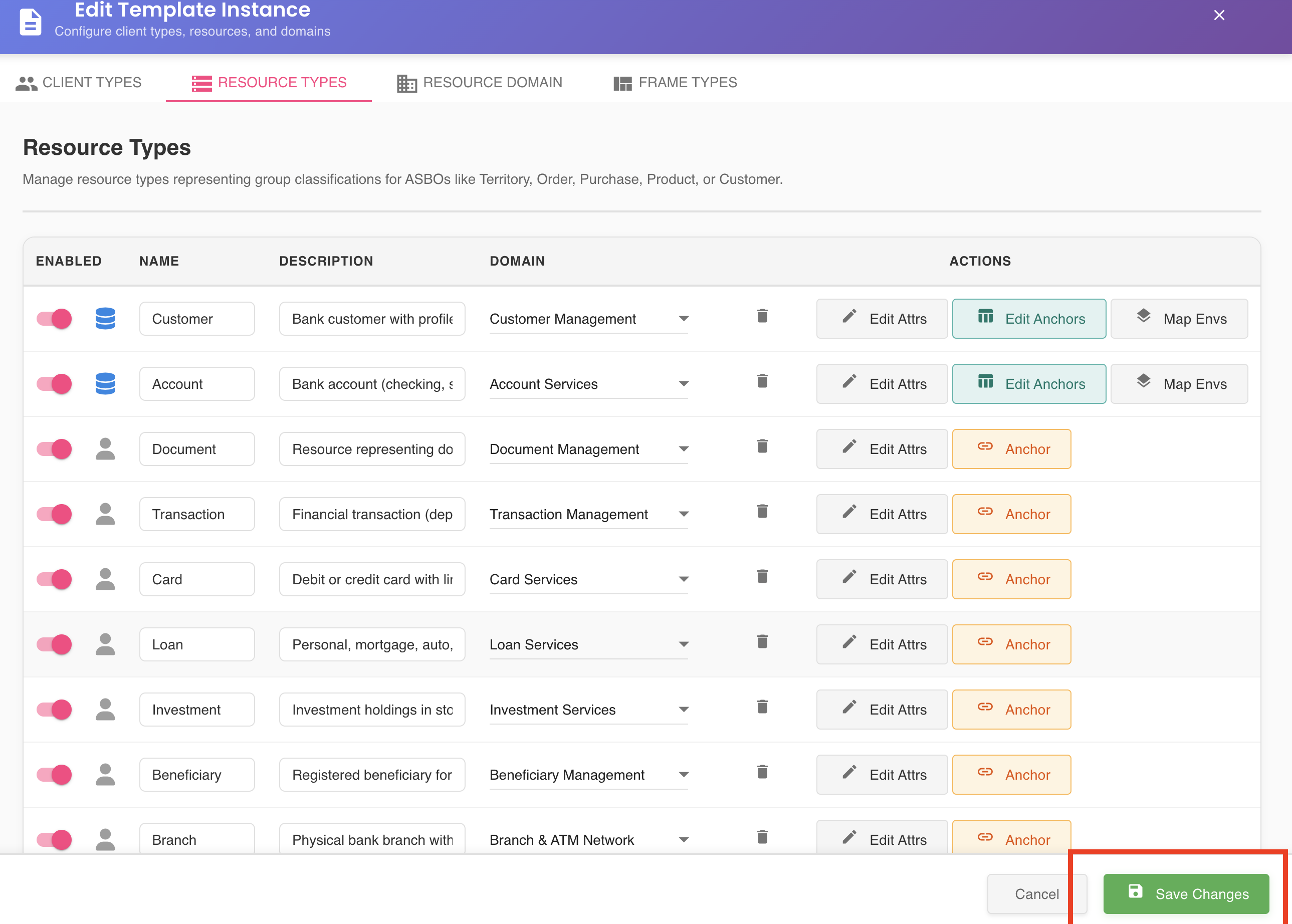
This permanently persists all mapping changes. The new environment mapping becomes active and resources can be imported from it once the template is in published state, and assigned through the template workflow editor to the corresponding environment.
Both saves are required
Skipping Step 7b will result in all mapping changes being lost when you close the editor.
Deleting an Environment Mapping
How to Delete
- In the Environment Mappings dialog, locate the mapping you want to remove.
- In the Actions column, click the delete button for that row.
- Follow the two-step save process to persist the deletion.

Master Mapping Cannot Be Deleted
The master mapping does not have a delete button. It can only be removed by breaking the ASBO's entire anchoring relationship.
Consequences of Deleting a Mapping
Deleting an environment mapping has permanent effects on telemetry and resources:
Telemetry and ingestion stops for that environment:
- Business telemetry can no longer be captured for that ASBO in the deleted environment
- Distributed agents cannot report data for resources in that environment
- Data ingestion from that environment's table stops completely
Resources are updated:
- The environment-specific PK mapping is removed from all resources that were created through that mapping
- Resources lose their association with the database table in that environment
- Resources from other environments remain completely unaffected
Example:
You have a
ClientASBO with mappings for DEV, QA, and PROD. 1,000 client resources have been imported across all three environments. You delete the QA mapping.Result: The QA environment is disassociated from the Client ASBO. All 1,000 resources lose their QA-specific PK mapping. Telemetry agents can no longer capture client data in QA. DEV and PROD continue working normally.
Mappings Can Be Recreated
A deleted mapping can be recreated at any time. New imports and telemetry will resume after the mapping is saved and active again. However, the PK mappings removed from existing resources are not automatically restored.
Impact on Existing vs. New Resources
| Scenario | Existing Resources | New Resources (imported after change) |
|---|---|---|
| New mapping added | Not affected | Can be imported from new environment |
| Mapping modified | Not affected | Use updated mapping configuration |
| Mapping deleted | Lose env-specific PK mapping | Cannot be imported from that env |