Editing Resource Types
The template editing dialog is accessed through the Edit Template button within the Templates tab of the profile details dialog.
When clicking this button, the template editing dialog opens. To edit the resource types associated with the template, click on the Resource Types tab within the template editing dialog.
Understanding Resource Types
In the BizMetry data model, a resource type is a taxonomic classification under which one or more business assets or ASBOs exist, grouping as resource instances under the same name for better administration and management.
Resource Types Overview
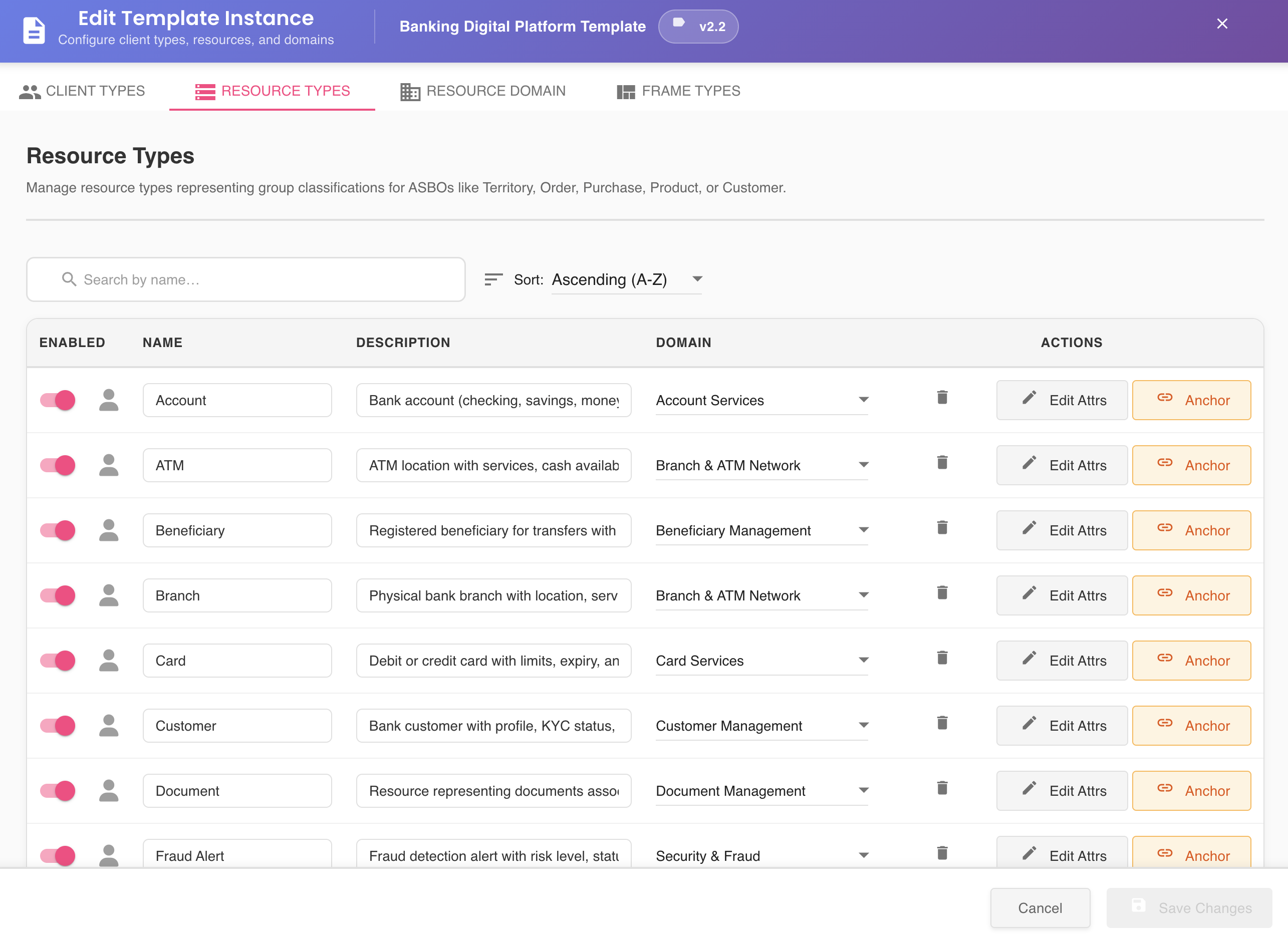
Once clicked, a list of all resource types already defined for the template will appear.
Search, Filter & Sort
Located above the resource types table, the search bar and sort dropdown allow you to find and organize client types quickly.

Search
- Filtering is applied as you type — no need to press Enter
- The search is case-insensitive and performs a partial match, finding any resource type whose name or description contains the typed text anywhere within the value
- A match count hint is displayed below the search bar indicating how many resource types match the current term out of the total
- Click the ✕ icon inside the search bar to clear the filter and restore the full list
| Field | Included in Search |
|---|---|
| Name | ✅ Yes |
| Description | ✅ Yes |
Sort
The Sort Order dropdown controls the ordering of the list by name.
| Option | Behavior |
|---|---|
| Ascending (A-Z) | Sorts alphabetically from A to Z — default |
| Descending (Z-A) | Sorts alphabetically from Z to A |
The sort is applied instantly when a new option is selected. The default on opening the dialog is always Ascending (A-Z).
Tip
Search and sort work together — you can filter by keyword and apply a sort order simultaneously.
Resource Type Configuration
The resource types summary is organized as follows:
Enabled Toggle
Determines whether business metrics will be collected for the resources belonging to the specific resource type across the different available environments.
- Toggle ON: Metrics are captured and sent to the BizMetry platform
- Toggle OFF: Metrics are silenced
Multiple Resources per Type
Remember that a resource type can encompass multiple resources in the BizMetry data model.
Resource Origin Icon
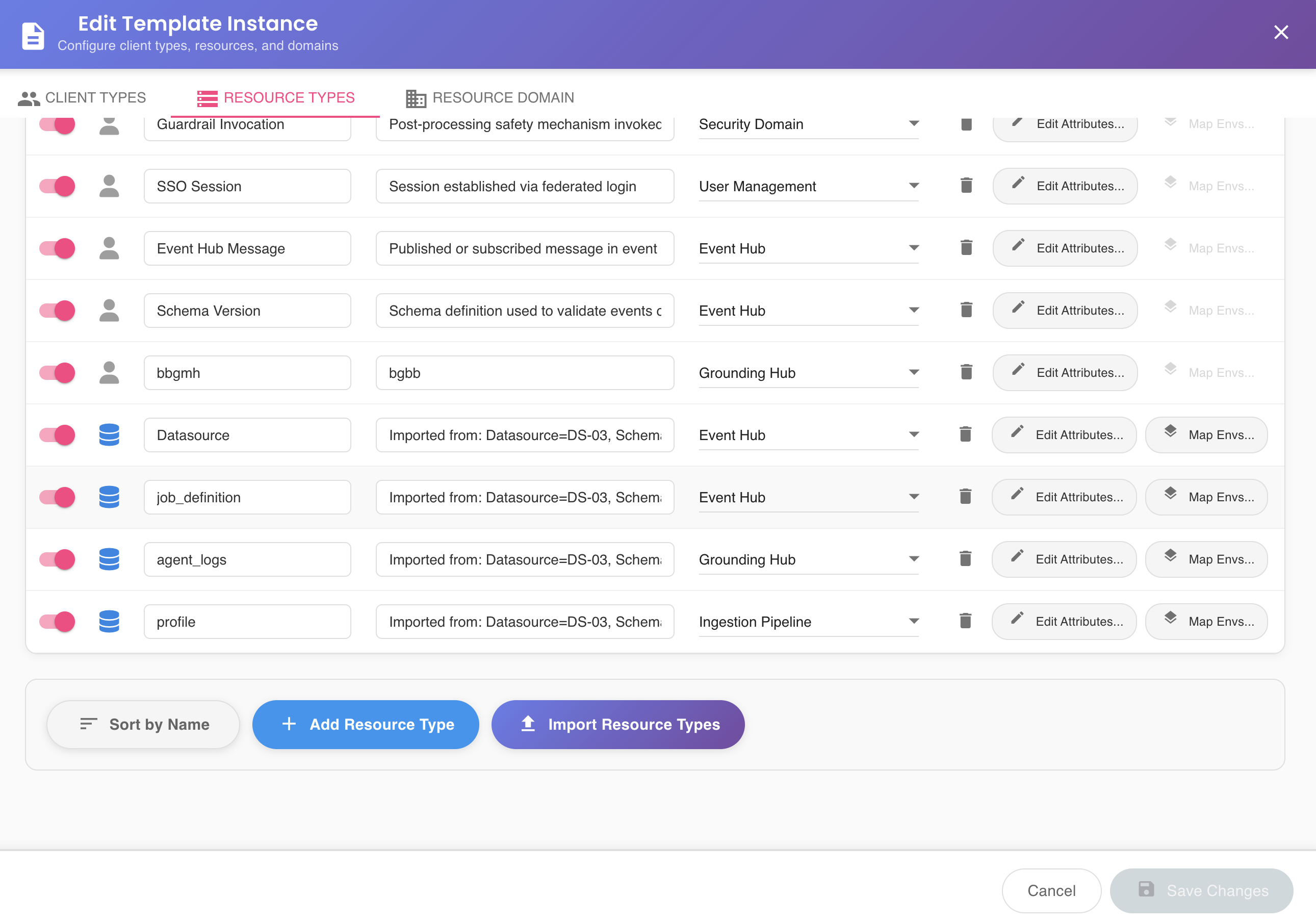
A resource origin icon follows the enabled toggle, indicating whether the resource type has been created by importing from a datasource, or otherwise, has been manually created by the user.
A resource type that has been imported from a datasource appears as a database icon, whereas if created manually, it appears as a persona icon.
Editable Fields
Name
The name of the resource type.
Description
The description of the resource type.
Domain
A dropdown from which you can select the name of the business domain to which the resource type belongs and will be associated. A business domain is a bounded context that can encompass one or more entities (or resources).
Actions Column
The Actions column contains several available actions:
Delete Resource Type (Basket Icon)
Allows you to delete a resource type through a two-step safety validation (first click turns it red, second click deletes it).
Impact of Resource Type Deletion
When deleting a resource type, all resources created under the "Resources" tab are automatically unlinked from the resource type. Consequently, they are transitioned to a disabled state by default and are automatically excluded from metrics capture.
These resources must be edited by assigning them a new resource type to resume metrics capture, or alternatively, they should be deleted.
Edit Attributes Button
This button navigates to the attribute editing dialog associated with the specific resource type.
Env Mappings Button
This button navigates to the environment mapping dialog, from which the resource type can be mapped to a database table for the different environments. This physical mapping of logical entity to physical table allows for automatic resource import later.
Env Mappings Availability
The Env Mappings button is only available for resource types that have been imported from the database. Resource types created manually have this option disabled by default.
Recommendation: Import-Based Creation
It is always recommended to create resources through import to guarantee a direct link between the resource type and the physical entity, which greatly facilitates subsequent automatic resource creation processes.
Bottom Actions
At the bottom of the resource types dialog, the following buttons are available:
Add Resource Type
Allows you to manually add a new resource type. After clicking this button, all necessary fields must be provided before the Save Changes button becomes enabled.
Import Resource Types
Allows you to import resource types directly from a previously defined datasource. Clicking this button opens the resource type import dialog.
Global Dialog Actions
At the bottom right margin, two buttons are always visible across all tabs:
Save Changes
Saves all changes introduced at any time. This button is visible across all template configuration tabs (Client Types, Resources, Attributes, and Domains), allowing you to save all changes made to the template globally.
Configuration Propagation
When clicking this button, the template is persisted and the updated configuration is propagated across all active agents for the different environments.
Synchronization Timing
Configuration synchronization may take some time, depending on the sync interval time configured for the agents. During this period, agents will still see the "old configuration," which may impact metrics collection.
It is important that the refresh time is configured according to the specific use case requirements.
Resource Instance Updates
If any resource has been created as part of the profile from the modified resource type, the resource instance will be refreshed to display the new name and/or description of the resource type accordingly.
Cancel
Discards all changes introduced to the template. When clicking Cancel, a confirmation dialog appears allowing you to:
- Confirm the cancellation and discard all changes
- Go back and continue editing