Business Domains
Overview
BizMetry organizes resources by grouping them under business domains. A business domain represents a bounded context that encompasses one or more resources with high cohesion between them.
Business domains provide:
- Logical organization: Group related ASBOs under meaningful business contexts
- Telemetry aggregation: Capture metrics at the domain level for high-level KPIs
- Hierarchical visualization: Enable structured views like Template Explorer
- Business unit alignment: Map technical resources to business organizational structures
Understanding Business Domains
A business domain is a logical grouping mechanism that reflects how a business is organized and operates.
Domain Examples
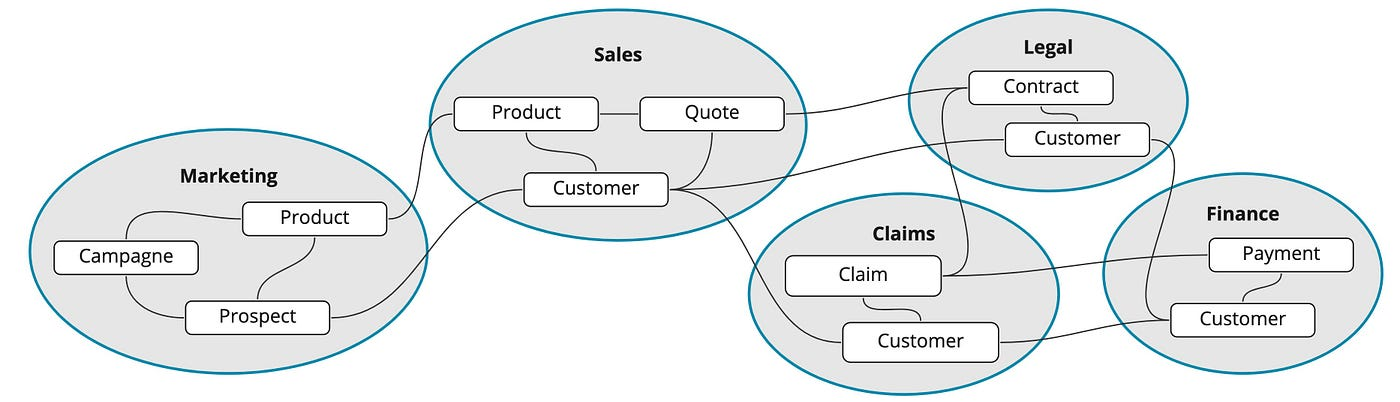
In an online retail business, the organization can be subdivided into different domains:
- Supply Chain Management: Logistics, inventory, distribution
- POS Management: Point-of-sale systems, transactions, payments
- Warehouse Operations: Storage, picking, packing, shipping
- Sales Operations: Orders, customer management, pricing
- Procurement: Purchasing, vendor management, requisitions
- Financial: Accounting, billing, invoicing, revenue
ASBOs Within Domains
Each domain can contain specific business entities (ASBOs):
Supply Chain Management domain: - Purchase Order - Shipping Order - Inventory Item - Supplier
Sales Operations domain: - Sales Order - Customer - Product - Invoice
Financial domain: - Invoice - Payment - Estimate - Account
Benefits of Domain Organization
Telemetry Traceability
Organizing resources through domains facilitates telemetry traceability:
- Group-level metrics: Aggregate metrics across all ASBOs within a domain
- High-level KPIs: Capture business unit or domain-level key performance indicators
- Simplified monitoring: Monitor entire domains rather than individual resources
- Business-aligned reporting: Generate reports organized by business context
Example: - Track total order volume across the entire Sales Operations domain - Monitor warehouse efficiency metrics for the Warehouse Operations domain - Measure financial health indicators for the Financial domain
Logical Business Mapping
Domains enable logical representation of business structure:
- Template Explorer: Hierarchical view showing domains and their ASBOs
- Visual diagrams: Organized charts showing business structure
- Navigation aid: Easily find and manage related resources
- Documentation: Self-documenting template structure
Accessing Business Domains Configuration
To configure business domains:
- Open the Template Editor
- Navigate to the Resource Domains tab
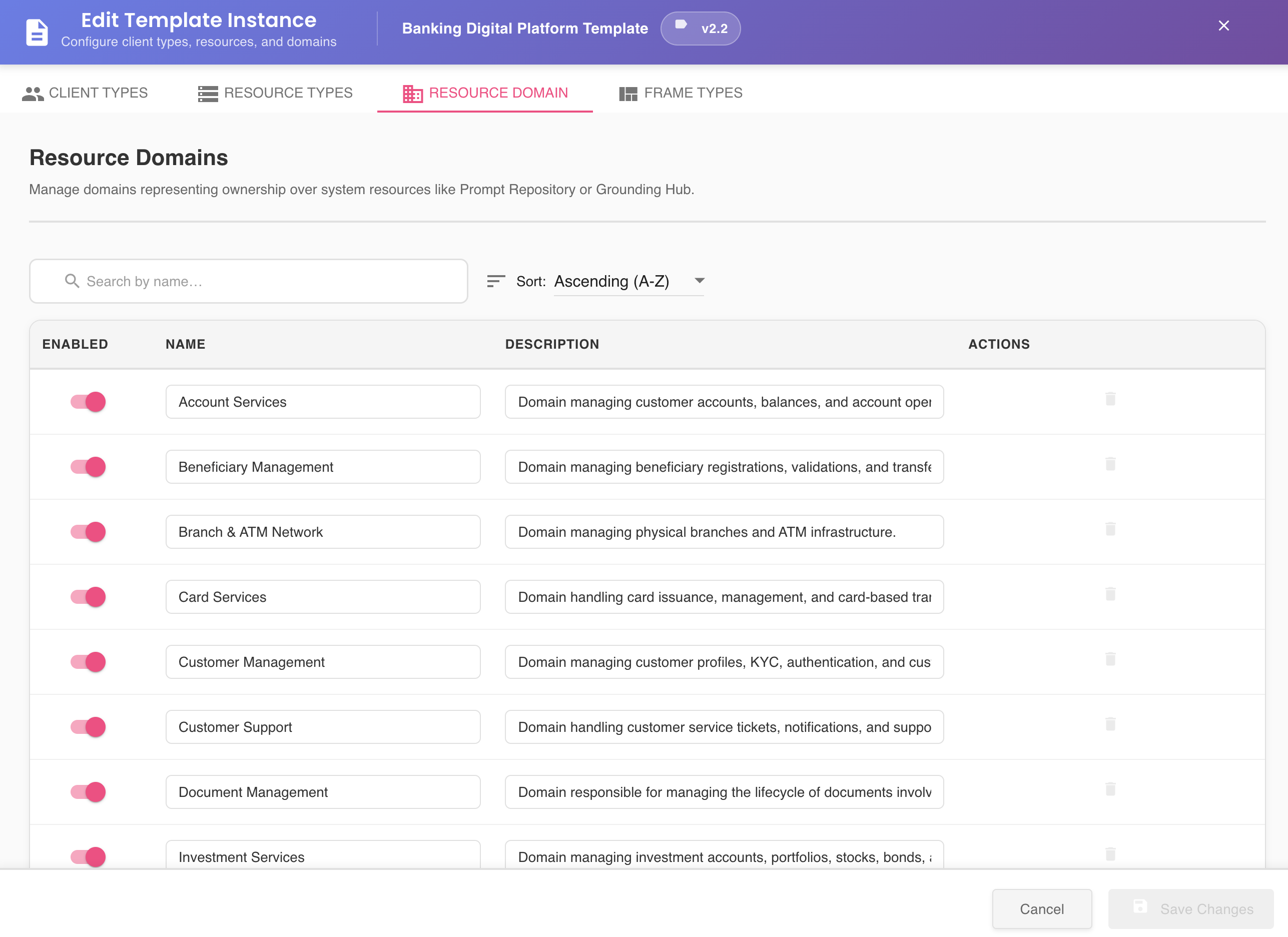
The Resource Domains tab displays all existing domains with their associated ASBOs and management options.
Search, Filter & Sort
Located above the domains table, the search bar and sort dropdown allow you to find and organize client types quickly.

Search
- Filtering is applied as you type — no need to press Enter
- The search is case-insensitive and performs a partial match, finding any domain whose name or description contains the typed text anywhere within the value
- A match count hint is displayed below the search bar indicating how many domains match the current term out of the total
- Click the ✕ icon inside the search bar to clear the filter and restore the full list
| Field | Included in Search |
|---|---|
| Name | ✅ Yes |
| Description | ✅ Yes |
Sort
The Sort Order dropdown controls the ordering of the list by name.
| Option | Behavior |
|---|---|
| Ascending (A-Z) | Sorts alphabetically from A to Z — default |
| Descending (Z-A) | Sorts alphabetically from Z to A |
The sort is applied instantly when a new option is selected. The default on opening the dialog is always Ascending (A-Z).
Tip
Search and sort work together — you can filter by keyword and apply a sort order simultaneously.
Managing Business Domains
Viewing Existing Domains
The Resource Domains tab shows:
- Domain name: The business domain identifier
- Description: Brief description of the domain's purpose
- Associated ASBOs: Number or list of resource types mapped to this domain
- Status: Enabled or disabled state
- Actions: Management buttons (delete, toggle)
Creating a New Domain
To create a new business domain:
- In the Resource Domains tab, click the "Add Domain" button

-
A new blank entry is created to accomodate the new domain
-
Provide the required information:
- Domain Name: Descriptive name for the business domain
-
Description: Brief explanation of the domain's scope and purpose
-
Click "Save" or "Add" to create the domain
-
The new domain appears in the domains list
Example:
- Domain Name: Sales Operations
- Description: Manages all sales-related processes including orders, customers, and product catalog
Deleting a Domain
You can delete existing domains that are no longer needed.
How to Delete a Domain
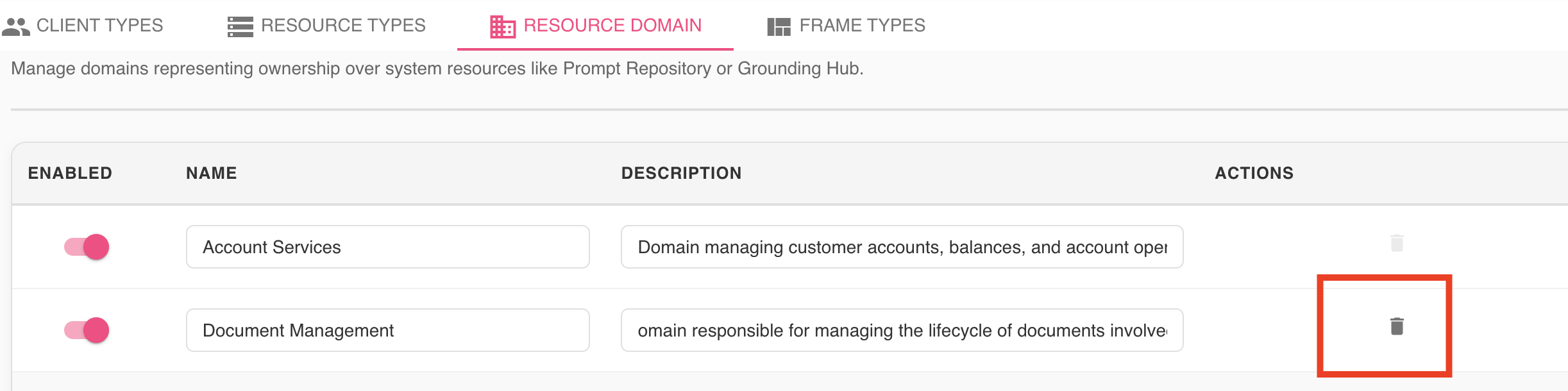
- Locate the domain you want to delete in the Resource Domains tab
- Click the trash icon in the Actions column
Deletion Restrictions
Cannot Delete Domains with Associated ASBOs
A domain can only be deleted if it has no ASBOs mapped to it (no resource types associated).
Domains with associated ASBOs will have the delete button grayed out to prevent accidental deletion.
Workflow to delete a domain with ASBOs:
- First, reassign or remove all ASBOs from the domain
- Once the domain has no associated ASBOs, the delete button becomes active
- Click the trash icon to delete the empty domain
Enabling and Disabling Domains
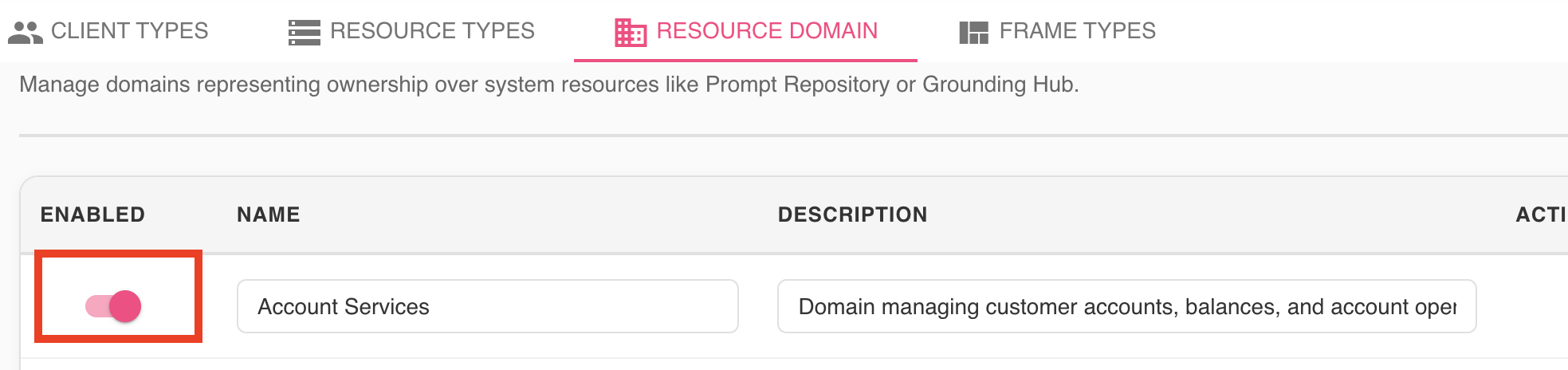
Business domains can be toggled on (enabled) or off (disabled) to control telemetry collection.
How to Toggle Domain Status
- Locate the domain in the Resource Domains tab
- Use the toggle switch to enable or disable the domain
Disabling a Domain
When you disable (toggle off) a domain:
Telemetry Silencing
Disabling a domain silences all metrics associated with ASBOs mapped to that domain.
Consequences:
- ✗ All resources in that domain stop reporting telemetry
- ✗ Distributed BizMetry agents stop capturing real-time data for those resources
- ✗ Metrics and KPIs for that domain are not collected
- ✗ Affects resources across all environments (DEV, QA, PROD, etc.)
Example scenario:
- You disable the Warehouse Operations domain
- All ASBOs in that domain (Shipping Order, Inventory Item, etc.) are silenced
- Resources like shipping orders and inventory items stop reporting telemetry
- This applies to all environments where these resources are deployed
When to Disable a Domain
Appropriate use cases for disabling domains:
- Maintenance periods: Temporarily silence telemetry during system maintenance
- Testing isolation: Disable production domains while testing new configurations
- Resource optimization: Reduce telemetry load by disabling low-priority domains
- Phased rollouts: Control which domains are actively monitored during migrations
Use With Caution
Disabling domains affects telemetry collection across all environments. Use this feature carefully and ensure you understand the impact on monitoring and observability before disabling a domain.
Saving Domain Configuration Changes
After making changes to business domains (creating, deleting, or toggling):
- Review all changes in the Resource Domains tab
- Click the "Save Changes" button to persist the changes
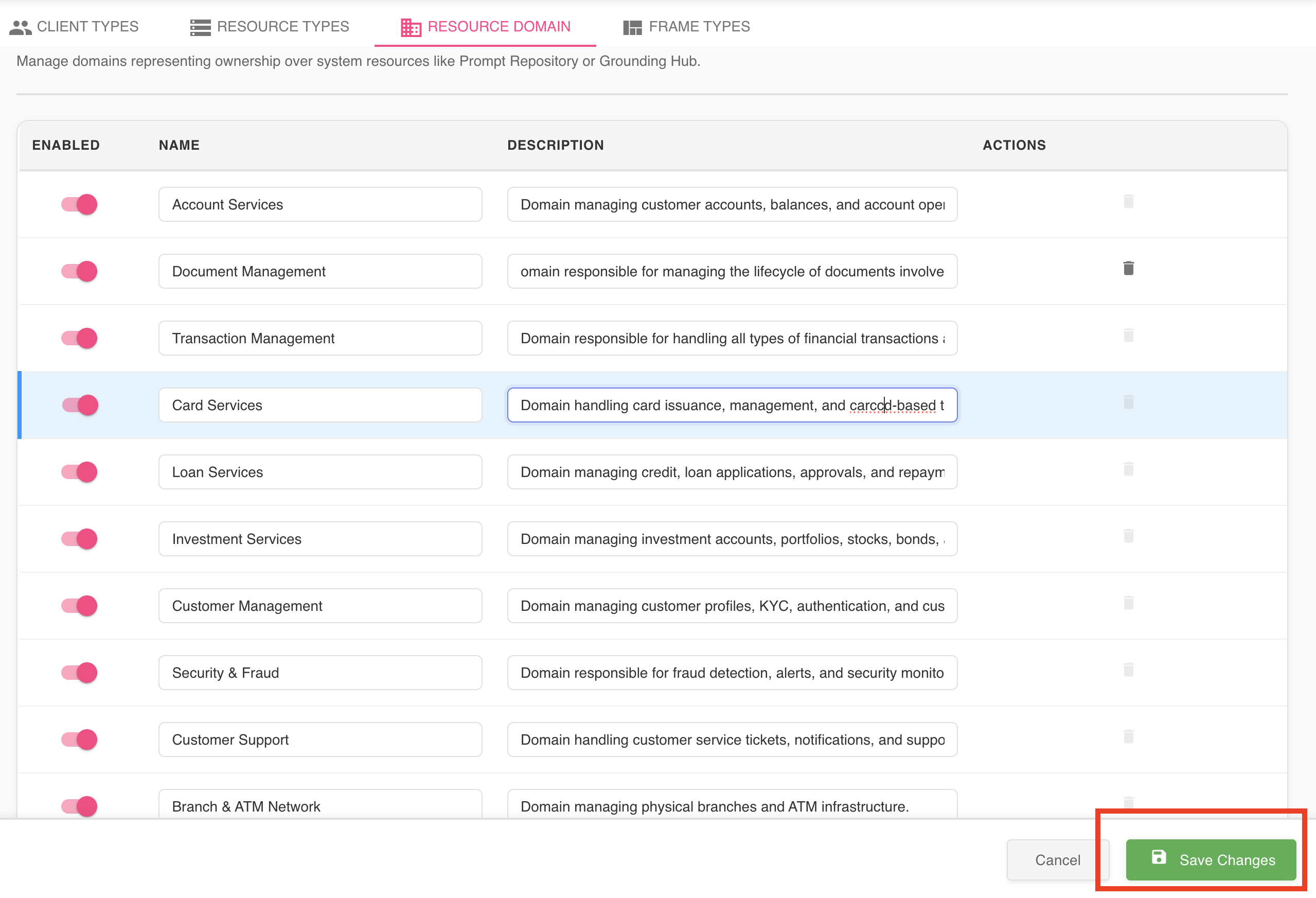
What happens: - Domain configuration changes are saved to the telemetry template - Changes are pushed to distributed agents associated with the profile - Agents receive the updated configuration within their configured sync interval - Once consumed by agents, changes take effect immediately
Configuration Propagation to Agents
Template configuration changes, including domain modifications, are propagated to distributed agents automatically.
Propagation Process
- Save template: You save changes in the template editor
- Configuration push: BizMetry pushes the updated configuration to all agents associated with the profile
- Sync interval: Agents check for configuration updates at their configured sync interval
- Immediate effect: Once an agent consumes the new configuration, changes take effect immediately
Sync Interval
The sync interval is the frequency at which agents check for configuration updates:
- Configured per agent or globally
- Typical values: 30 seconds, 1 minute, 5 minutes
- Shorter intervals = faster propagation, higher network overhead
- Longer intervals = slower propagation, lower network overhead
Example timeline:
- T+0: You disable the "Warehouse Operations" domain and save changes
- T+0: Configuration is pushed to agent queue
- T+30s: Agent checks for updates (assuming 30-second sync interval)
- T+30s: Agent downloads new configuration
- T+30s: Warehouse Operations telemetry collection stops immediately
Quick Reference
Creating a Domain
- Navigate to Resource Domains tab
- Click "Add Domain"
- Provide Domain Name and Description
- Click "Save"
- Click "Save Changes" to persist template changes
Deleting a Domain
- Navigate to Resource Domains tab
- Ensure domain has no associated ASBOs
- Click trash icon for the domain
- Confirm deletion
- Click "Save Changes" to persist template changes
Toggling Domain Status
- Navigate to Resource Domains tab
- Use toggle switch to enable or disable domain
- Click "Save Changes" to persist template changes
- Changes propagate to agents within sync interval
Key Points
- ✓ Domains group related ASBOs by business context
- ✓ Enable domain-level telemetry aggregation and KPIs
- ✓ Facilitate hierarchical visualization and navigation
- ✓ Search by name or description using the search bar
- ✓ Sort ascending or descending alphabetically by name
- ✓ Can only delete domains with no associated ASBOs
- ✓ Disabling silences all metrics for ASBOs in that domain
- ✗ Disabling affects all environments
- ✓ Changes propagate to agents automatically
- ✓ Agent sync interval determines propagation speed