Resource Domains
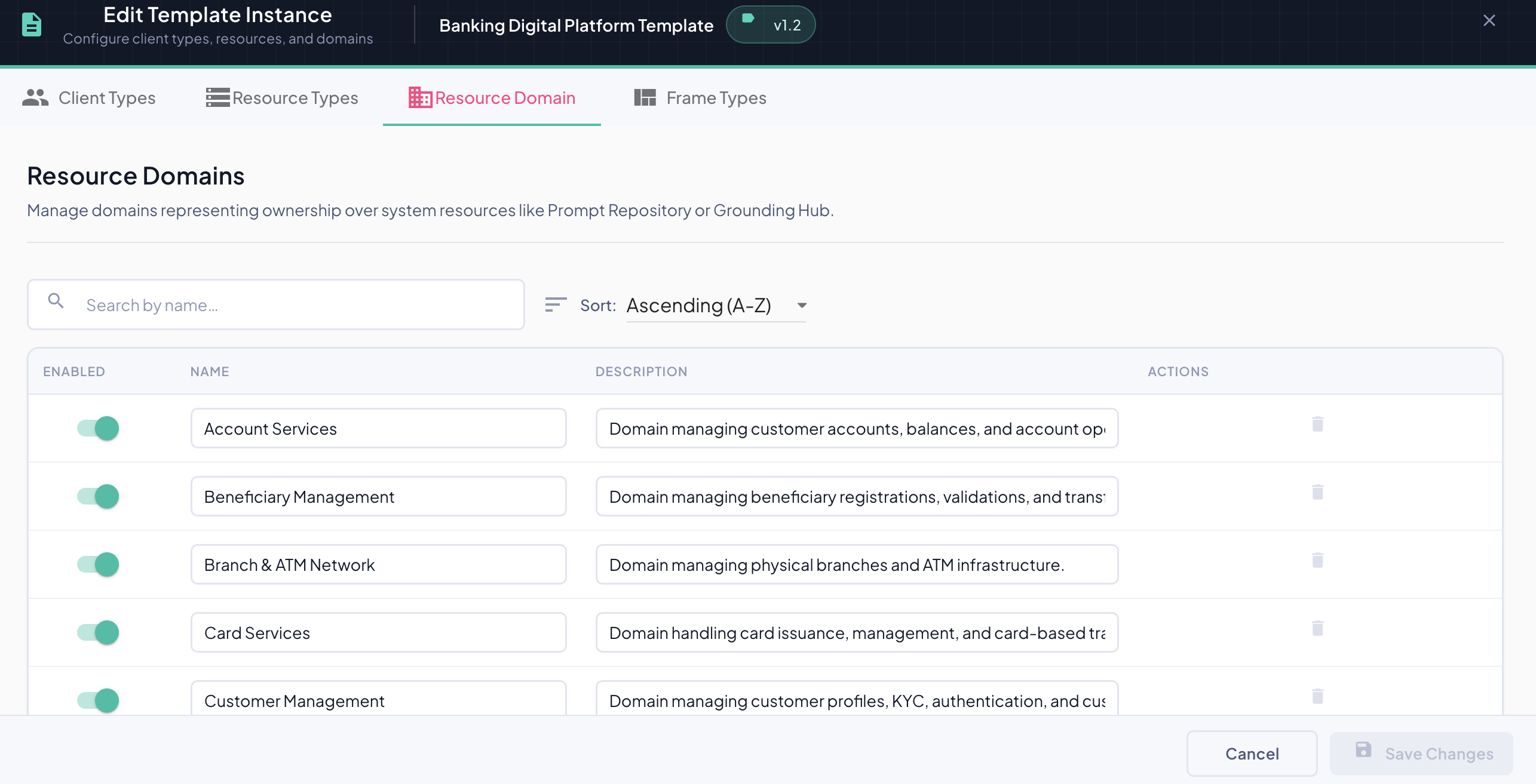
The Resource Domain tab within the Template Editor allows you to define and manage the business domains that organize your resource types. Each domain represents a bounded business context — a logical grouping that gives structure to the ASBOs tracked by BizMetry.
What Is a Business Domain?
A business domain is a named grouping that reflects how a business organizes its operations. Resource types are assigned to domains in the Resource Types tab, giving the template a structured, business-aligned hierarchy.
Domains serve three purposes in BizMetry:
| Purpose | Description |
|---|---|
| Logical organization | Group related ASBOs under meaningful business contexts |
| Telemetry aggregation | Capture metrics at the domain level for high-level KPIs |
| Hierarchical visualization | Power structured views like the Template Explorer |
Domain examples for a banking template
- Account Services — Customer accounts, balances, account operations
- Branch & ATM Network — Physical branches, ATM infrastructure
- Transaction Management — All types of financial transactions
- Security & Fraud — Fraud detection, alerts, security monitoring
Domain Table
The tab displays all domains defined for the template in a flat, editable table.
| Column | Description |
|---|---|
| ENABLED | Toggle that controls whether this domain is active for telemetry collection. |
| NAME | Editable text field — the domain identifier as it appears across BizMetry. |
| DESCRIPTION | Editable text field — brief explanation of the domain's scope and purpose. |
| ACTIONS | Trash icon to delete the domain (disabled if the domain is in use). |
Inline editing
Name and description are edited directly in the table row — there is no separate edit dialog. Click on either field, type your changes, and save with Save Changes when ready.
Search and Sort
A search bar and sort dropdown appear above the table for navigation.
Search
- Filtering applies as you type — no Enter required
- Case-insensitive, partial match against the Name field
- Click inside the search bar to clear the filter
Sort
| Option | Behavior |
|---|---|
| Ascending (A–Z) | Alphabetical, A first — default |
| Descending (Z–A) | Alphabetical, Z first |
Tip
Search and sort apply simultaneously — you can filter by keyword and control the order at the same time.
Adding a Domain
Click the + Add Domain button at the bottom of the list.
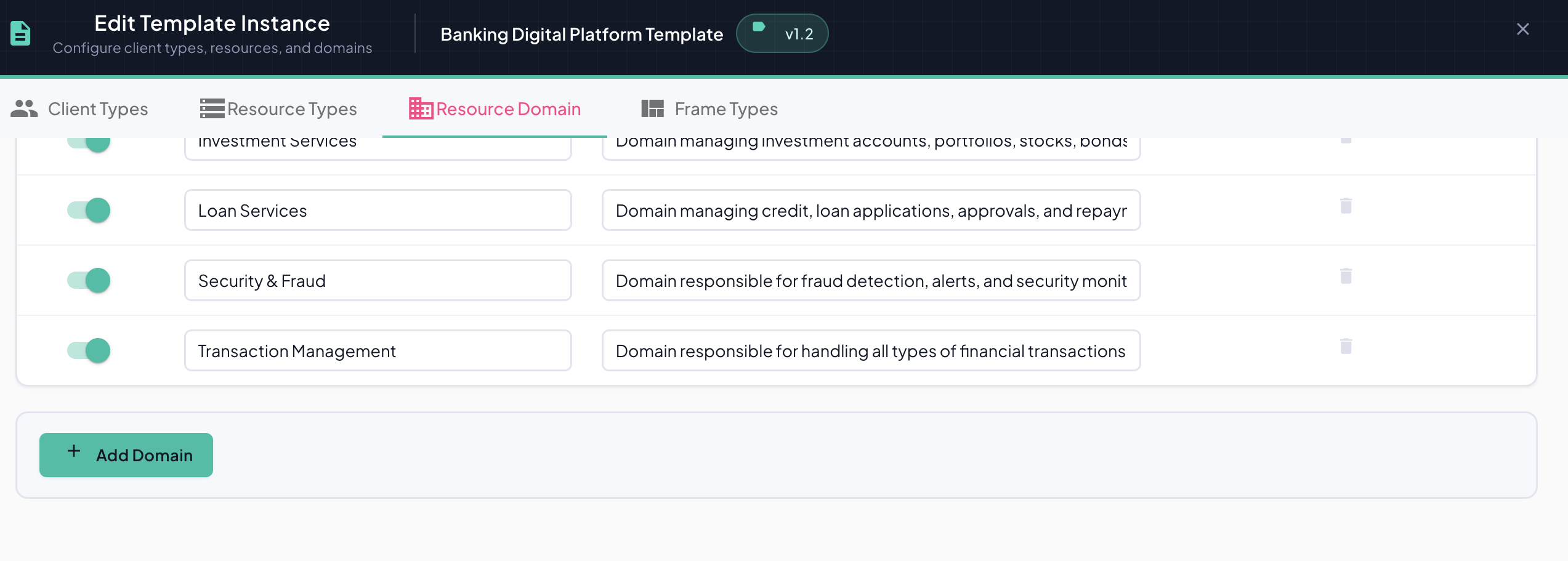
A new blank row is inserted at the bottom of the table with empty Name and Description fields. Fill in both fields inline and click Save Changes to persist the new domain.
Note
The new domain is not saved until you click Save Changes. Navigating away or clicking Cancel will discard it.
Deleting a Domain
Click the trash icon in the Actions column of the domain you want to remove.
Cannot delete domains in use
If a domain has resource types assigned to it, the trash icon is greyed out and hovering over it shows:
"This domain is in use by active resource types and cannot be deleted"
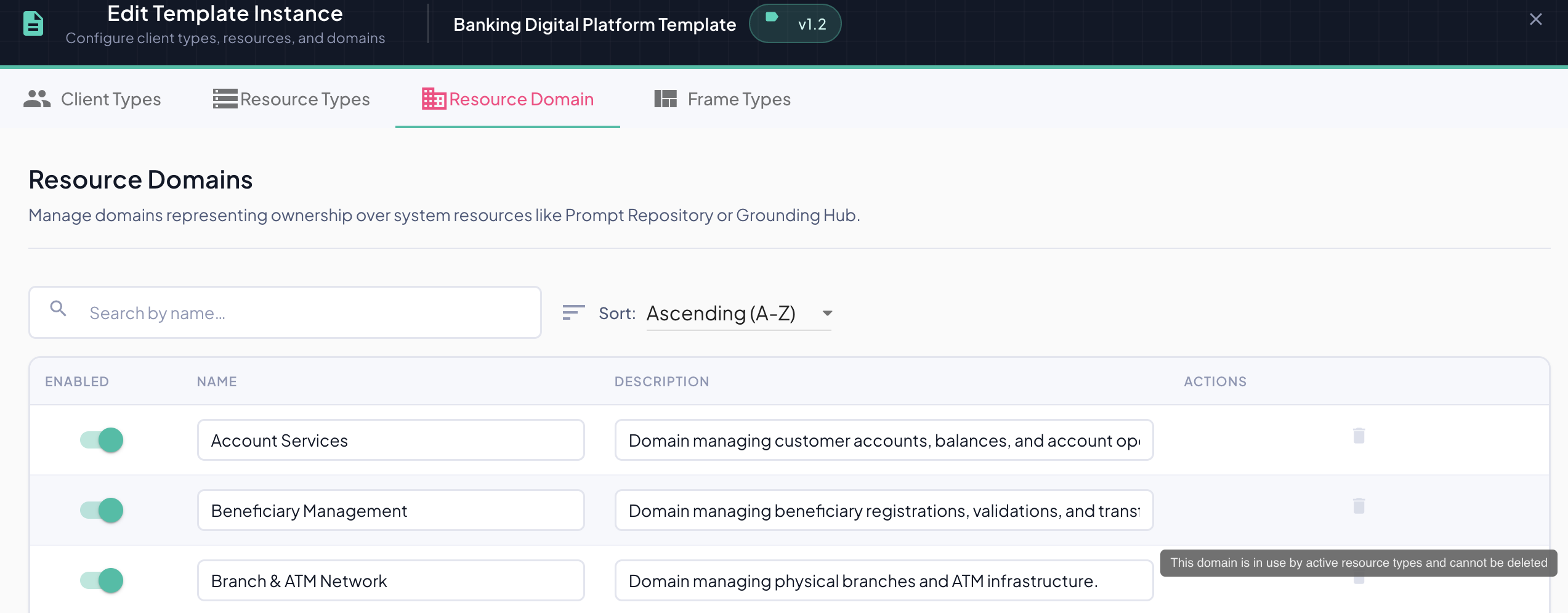
To delete a domain that is currently in use, first reassign all its resource types to another domain in the Resource Types tab, then return here to delete it.
Enabling and Disabling Domains
The ENABLED toggle on each row controls whether that domain participates in telemetry collection.
| State | Effect |
|---|---|
| ON (teal) | Domain is active — all resource types in this domain report metrics normally. |
| OFF (grey) | Domain is silenced — all resource types in this domain stop reporting telemetry across all environments. |
Silencing is global
Disabling a domain affects telemetry collection in every environment — Development, QA, Production, and any others. It is not scoped to a single environment.
Use this for maintenance windows or temporary pauses, not as a long-term configuration strategy.
Saving Changes
After adding, editing, deleting, or toggling domains, click Save Changes in the bottom-right corner of the dialog to persist the configuration.
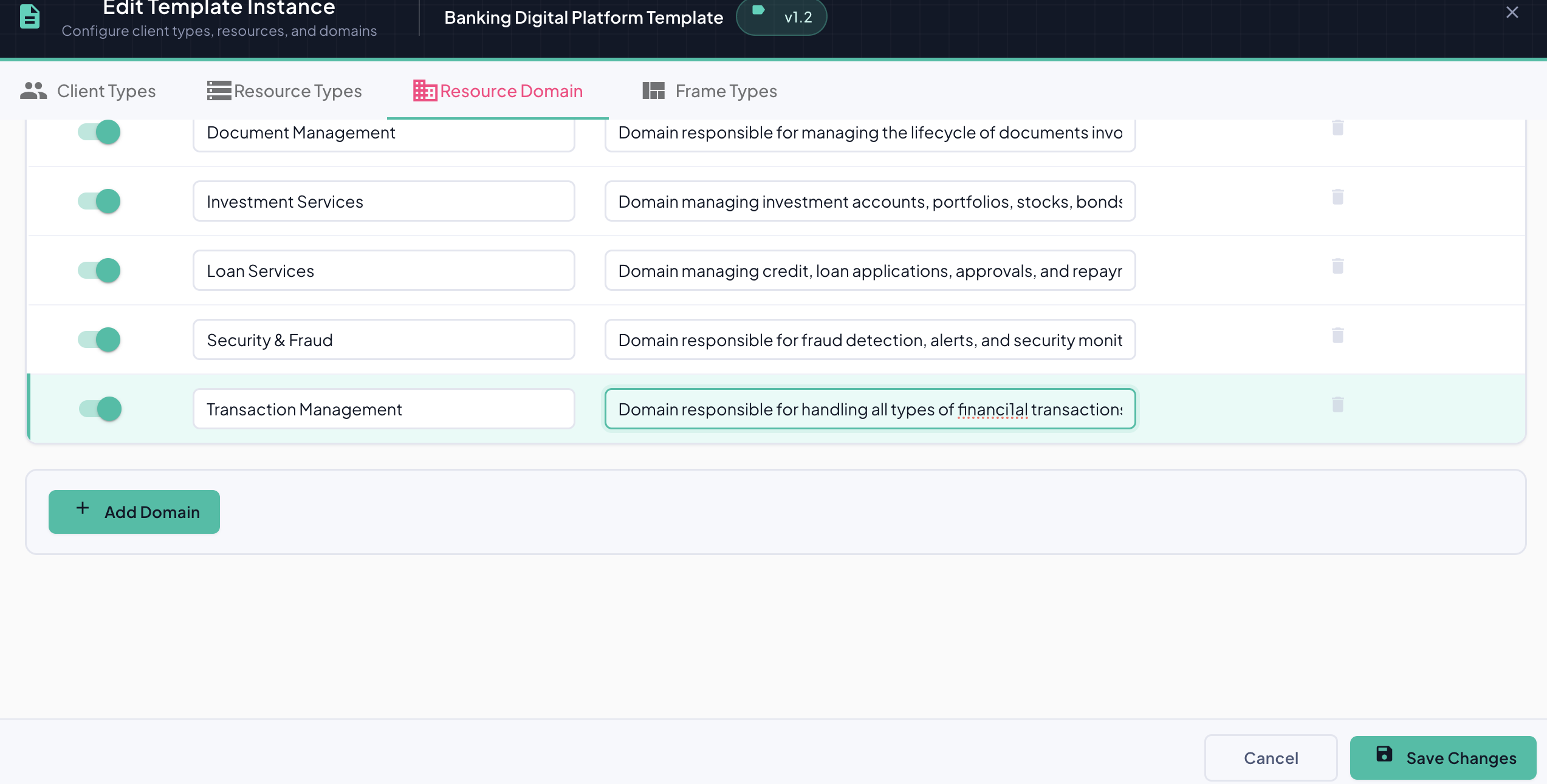
What happens on save:
- Domain configuration is written to the template version
- The updated configuration is pushed to all distributed agents associated with the profile
- Each agent picks up the changes at its next configured sync interval
- Once consumed by the agent, changes take effect immediately
Sync interval
The time between saving and the change taking effect on a running agent depends on that agent's sync interval (typically 30 seconds to 5 minutes). During this window, agents continue operating with the previous configuration.
Related Topics
- Editing Resource Types — Assign resource types to domains
- Template Explorer — Hierarchical domain + ASBO visualization
- What is a BizMetry Resource?
- Distributed Agents Configuration