JSON Path Selector
The JSON Path Selector is a sub-dialog that opens when clicking the RN or RD path buttons on a JSON-type attribute row. It allows you to navigate a real sample JSON document from the datasource and select the exact field path to use as the Resource Name or Resource Description.
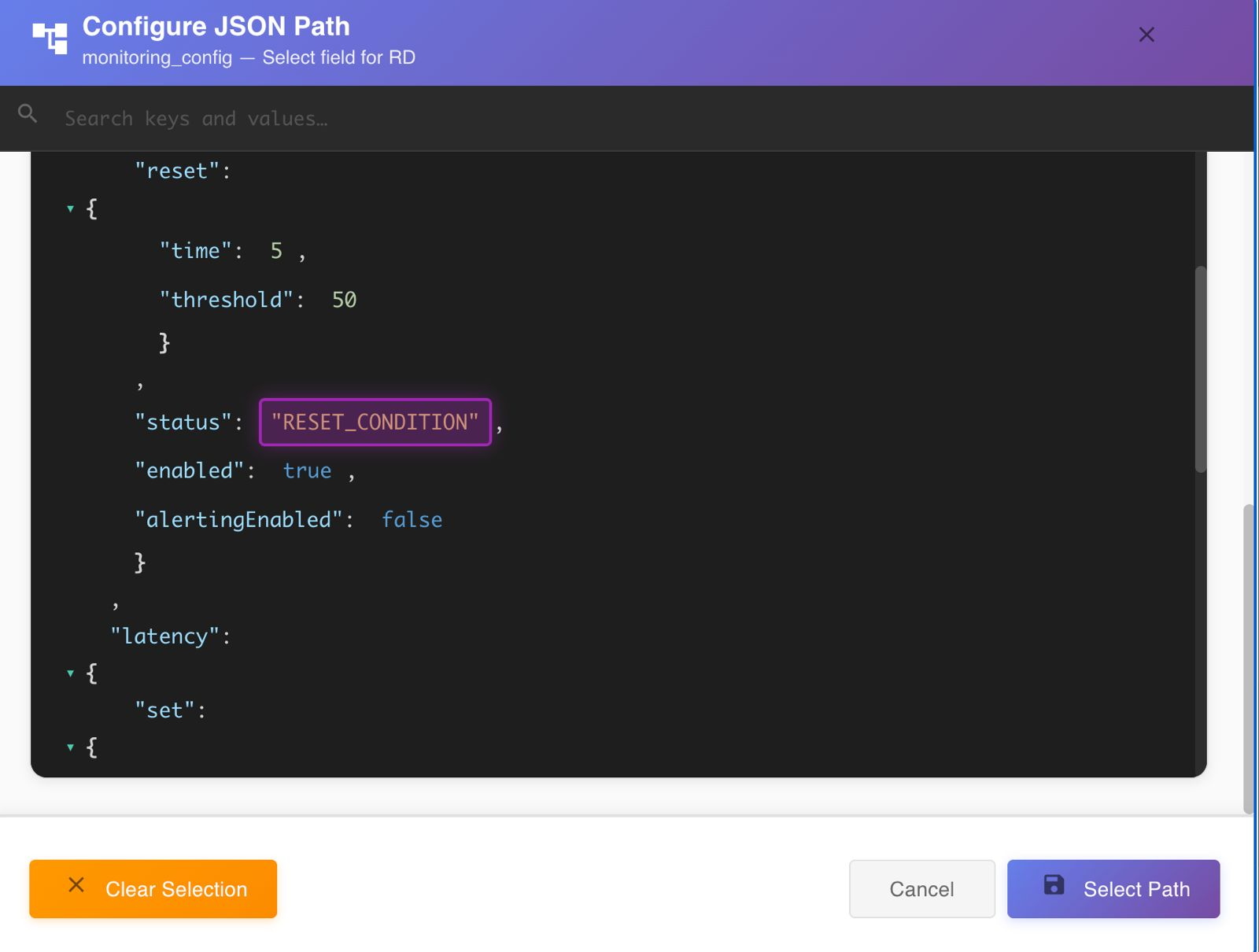
When It Opens
The JSON Path Selector is only available when:
- The attribute type is JSON
- The attribute was imported from a datasource (a real JSON sample exists)
- The attribute row has been designated as RN or RD
The dialog title indicates which mapping is being configured:
<attribute_name> — Select field for RN<attribute_name> — Select field for RD
Dialog Layout
The dialog is organized in three vertical zones from top to bottom.
Search Bar
A full-text search field that filters the JSON tree by matching keys and values. As you type, all matching occurrences are highlighted inline within the document.
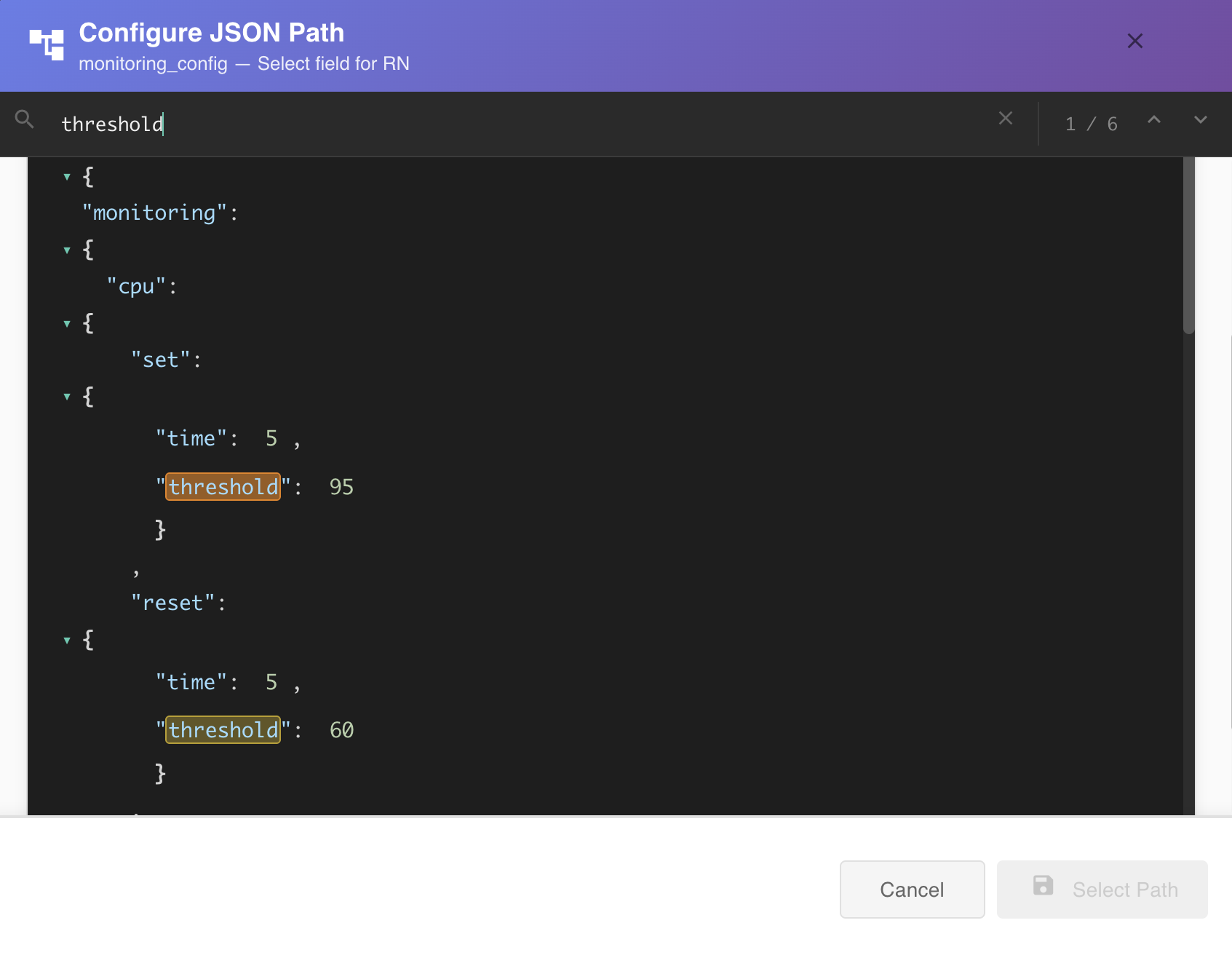
The match counter (1 / 6) shows the current match position and total matches found. Use the up/down arrows to navigate between matches.
Selected Path & Preview
When a field has been selected, this section appears above the JSON tree showing:
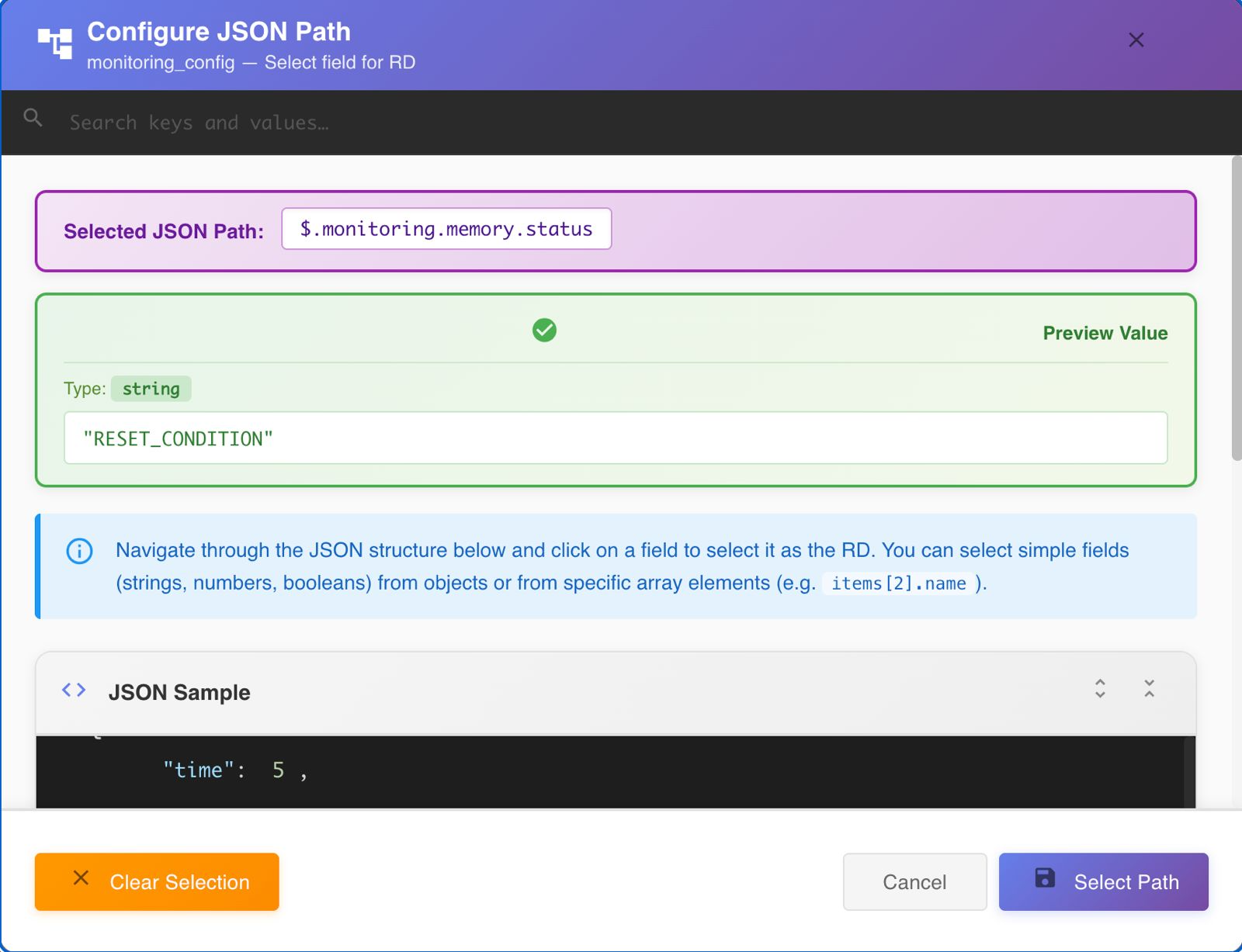
Selected JSON Path
Displays the currently selected path in $.<dot.notation> format, for example:
$.monitoring.memory.status
Preview Value
Shows a live validation of the path against the sample document:
| Element | Description |
|---|---|
| Type badge | The inferred data type of the resolved value (e.g., string, number, boolean) |
| Value preview | The actual value extracted from the sample at that path (e.g., "RESET_CONDITION") |
Validate Before Saving
Always check the Preview Value before confirming. A green success state confirms the path resolves to a valid, non-null scalar value in the sample document.
If the path is invalid or resolves to a complex type (object or array), an error state is shown instead with the specific validation message.
JSON Sample Tree
The lower section displays the full JSON document from the datasource, rendered as an interactive tree with VS Code-style syntax highlighting.
Syntax Highlighting
| Element | Color |
|---|---|
| Object keys | Light blue |
| String values | Orange |
| Number values | Green |
| Boolean values | Blue |
| Array index labels | Teal |
| Brackets and punctuation | Light grey |
Selecting a Field
Click on any scalar value (string, number, or boolean) to select it as the path. The selected value is highlighted with a violet border and glow.
Only scalar values are selectable. Object nodes ({}) and array containers ([]) are non-selectable — clicking them has no effect.
Array Element Paths
You can select fields from within specific array elements. For example, clicking the name field inside items[2] produces the path items[2].name. This is useful when the JSON structure contains arrays of objects and you want to map from a specific index.
Bottom Actions
Clear Selection
Removes the currently selected path without closing the dialog. The Selected Path section disappears and the JSON tree returns to its unselected state.
Note
Clearing the selection does not affect the previously saved path until you click Select Path.
Cancel
Closes the dialog and discards any unsaved selection. The existing path mapping (if any) is preserved unchanged.
Select Path
Confirms the selected path and saves it to the attribute row. The dialog closes and the path is now active as the RN or RD mapping for this attribute.
Select Path is disabled when no field is selected
The button remains greyed out until a valid scalar field is clicked in the JSON tree.