Attribute Configuration Dialog
The attribute configuration dialog opens when clicking Edit Attrs on any resource type row. It displays all attribute types defined for that resource and allows full configuration of each one.
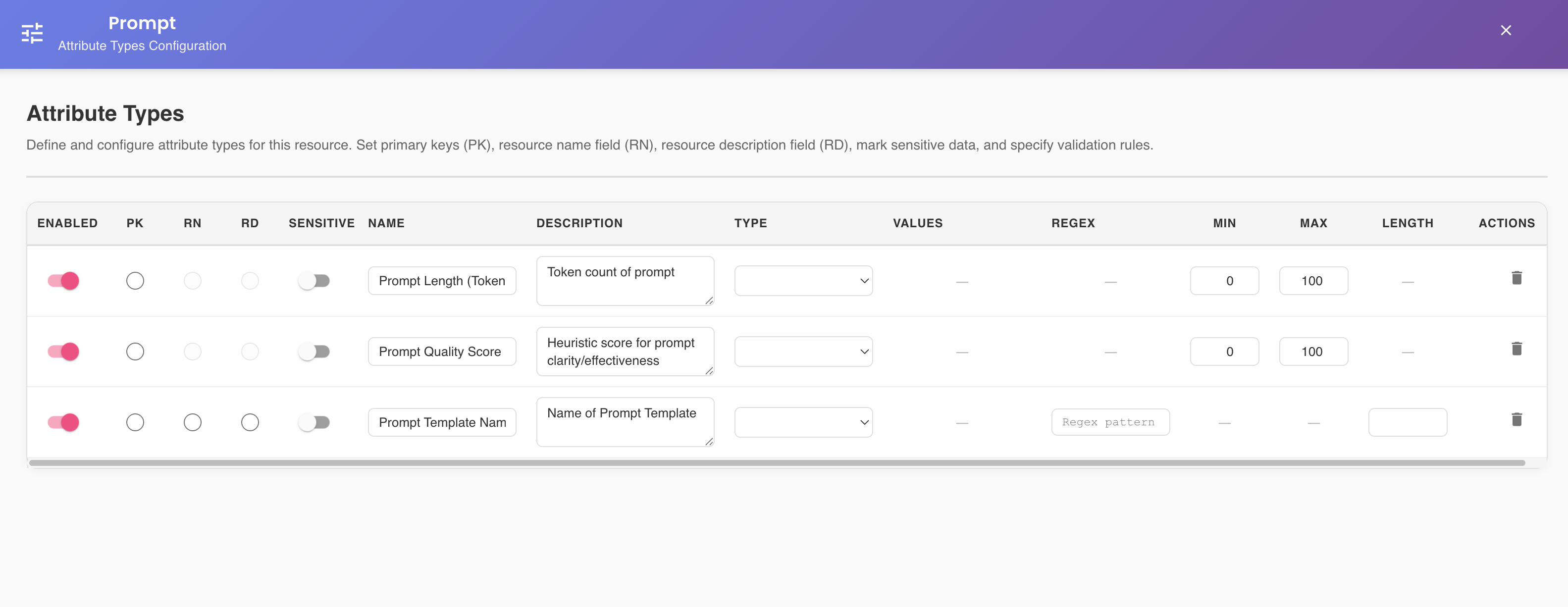
Attribute Table
Each row in the table represents one attribute type. The columns are organized from left to right as follows.
Enabled Toggle
Controls whether the attribute is actively collected by agents.
| State | Behavior |
|---|---|
| ON | The attribute is captured and included in metrics collection. |
| OFF | The attribute is silenced — not captured by agents, but not deleted. |
Non-Destructive Silencing
Use the enabled toggle to temporarily pause collection of specific attributes without removing them from the configuration. This is useful for troubleshooting or optimizing data collection performance.
Identity Metadata — PK, RN, RD
Each attribute row has three radio buttons that define its role in the identity of the ASBO:
| Radio | Role | Description |
|---|---|---|
| PK | Primary Key | Uniquely identifies each ASBO instance. Automatically changes the attribute type to VARIANT. Only one attribute per resource can hold this designation. |
| RN | Resource Name | Provides the human-readable name used to identify an ASBO across environments and in all BizMetry visualizations. |
| RD | Resource Description | Provides supplementary descriptive context about the ASBO instance. |
Selection Rules
- Only one attribute can hold the PK designation at a time. Selecting a new PK automatically removes it from the previous one.
- Only one attribute can hold the RN designation, and only one can hold RD — except for JSON-type attributes (see JSON Attribute Mapping below).
- An attribute cannot hold PK and RN/RD simultaneously.
- When an attribute is marked as PK, its type is locked to VARIANT and cannot be changed.
PK Exclusivity
Setting PK on a new attribute automatically removes it from the previously designated PK attribute. There is no confirmation prompt — the change is immediate in the UI.
Sensitive Toggle
Marks the attribute as containing sensitive information that must be obfuscated when displayed.
| State | Behavior |
|---|---|
| ON | Attribute values are masked in dashboards, reports, and forms. Only users with explicit permissions see unobfuscated values. |
| OFF | Attribute is treated as regular data with no masking. |
Protect Sensitive Data
Mark all attributes that may contain any of the following as sensitive:
- PII — Names, addresses, phone numbers, email addresses
- PHI — Medical records, health insurance data
- Financial Data — Card numbers, bank accounts, salary
- Credentials — Passwords, API keys, tokens
- Regulated Data — Any data subject to GDPR, PCI DSS, or HIPAA
Obfuscation behavior:
- String values are replaced with asterisks:
john.doe@email.com→**** - Numeric values are partially masked:
4532-1234-5678-9010→****-****-****-9010
Name
The attribute name as it appears in metrics, reports, and agent configuration. Required field — must be unique within the resource type.
Description
A free-text description explaining the purpose and expected values of the attribute. Recommended for all attributes, especially those with non-obvious names.
Type
The data type of the attribute. Determines which additional configuration columns are active for that row.
| Type | Description | Additional Columns |
|---|---|---|
| STRING | Text values | REGEX, LENGTH |
| INTEGER | Whole number values (positive or negative) | MIN, MAX |
| FLOAT | Decimal values | MIN, MAX |
| BOOLEAN | True/false values | — |
| DATE | Calendar date values | — |
| TIMESTAMP | Date and time values | — |
| BINARY | Binary content | — |
| JSON | A full JSON document | RN/RD path buttons (if imported from datasource) |
| VARIANT | Reserved for PK attributes — set automatically | — |
| ENUM | A fixed set of predefined values | VALUES |
VARIANT is automatic
You cannot manually select VARIANT. It is applied automatically when an attribute is designated as PK.
Type-Specific Columns
VALUES (ENUM only)
Displays when the type is ENUM. Allows you to define the set of valid values for the attribute, entered one at a time as chips.
ENUM Example
For a payment_status attribute: PENDING · PAID · OVERDUE · CANCELLED
REGEX (STRING only)
A regular expression pattern against which string values are validated at collection time.
REGEX Example
For an email attribute: ^[a-zA-Z0-9._%+-]+@[a-zA-Z0-9.-]+\.[a-zA-Z]{2,}$
LENGTH (STRING only)
Sets the maximum number of characters allowed for the attribute value. Values exceeding this limit are rejected at collection time.
LENGTH Example
For a description attribute: LENGTH 500
MIN / MAX (INTEGER and FLOAT only)
Numeric bounds for the attribute value. Both fields accept decimal input for FLOAT types.
Numeric Range Example
For an age attribute of type INTEGER: MIN 0, MAX 120
JSON Attribute Mapping
JSON-type attributes that were imported from a datasource expose up to three action buttons in the type cell. These are only visible on rows where the type is JSON (Only from DB).
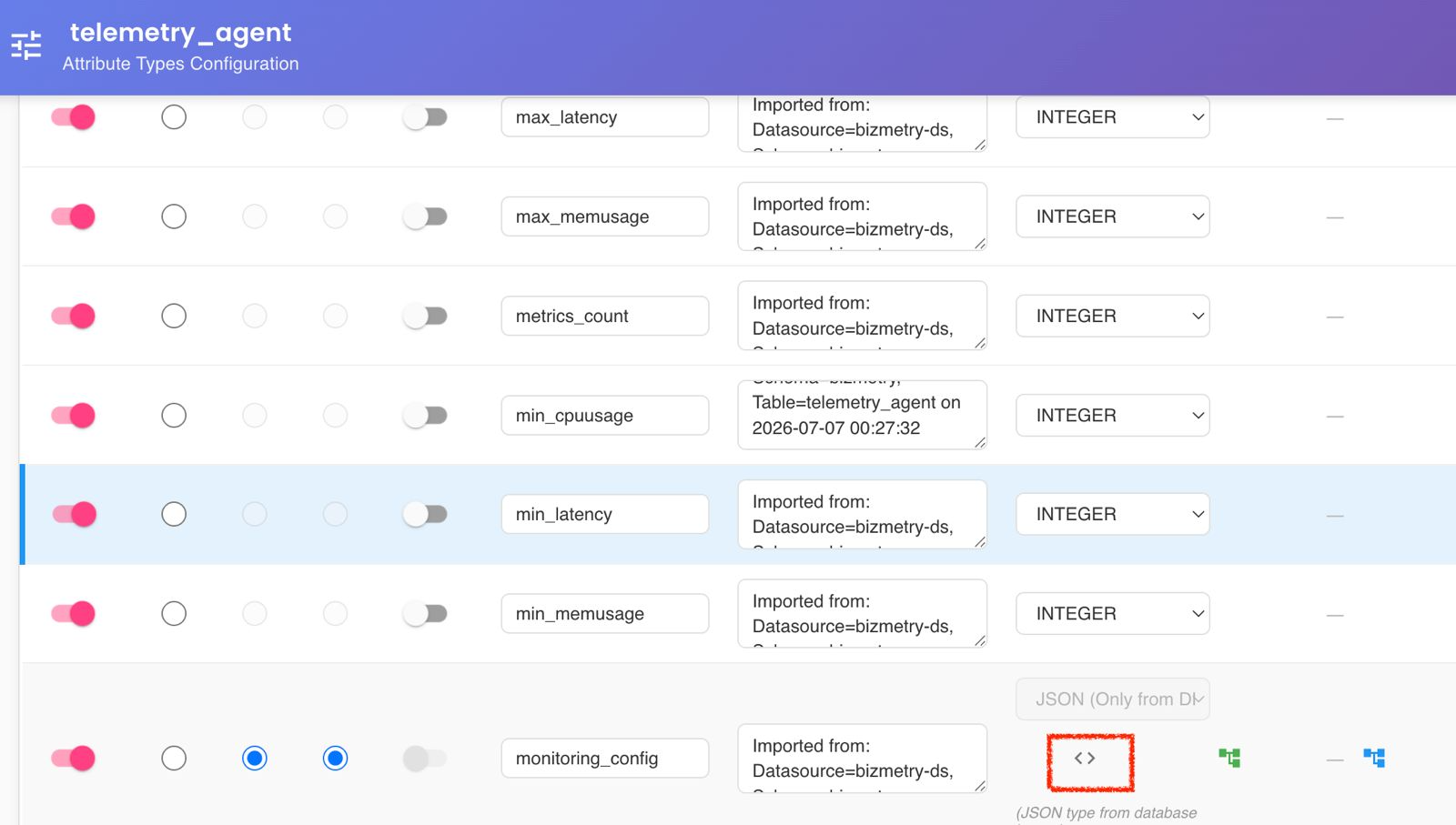
| Button | Purpose |
|---|---|
| JSON Sample Preview | Opens a floating panel showing the full raw JSON sample document for this attribute, as captured from the datasource. |
| RN path button | Opens the JSON Path Selector to select which field provides the Resource Name value. |
| RD path button | Opens the JSON Path Selector to select which field provides the Resource Description value. |
JSON Sample Preview
The < > button opens an inline floating panel anchored to the attribute row. It displays the full JSON document captured from the datasource for that attribute, rendered with syntax highlighting.
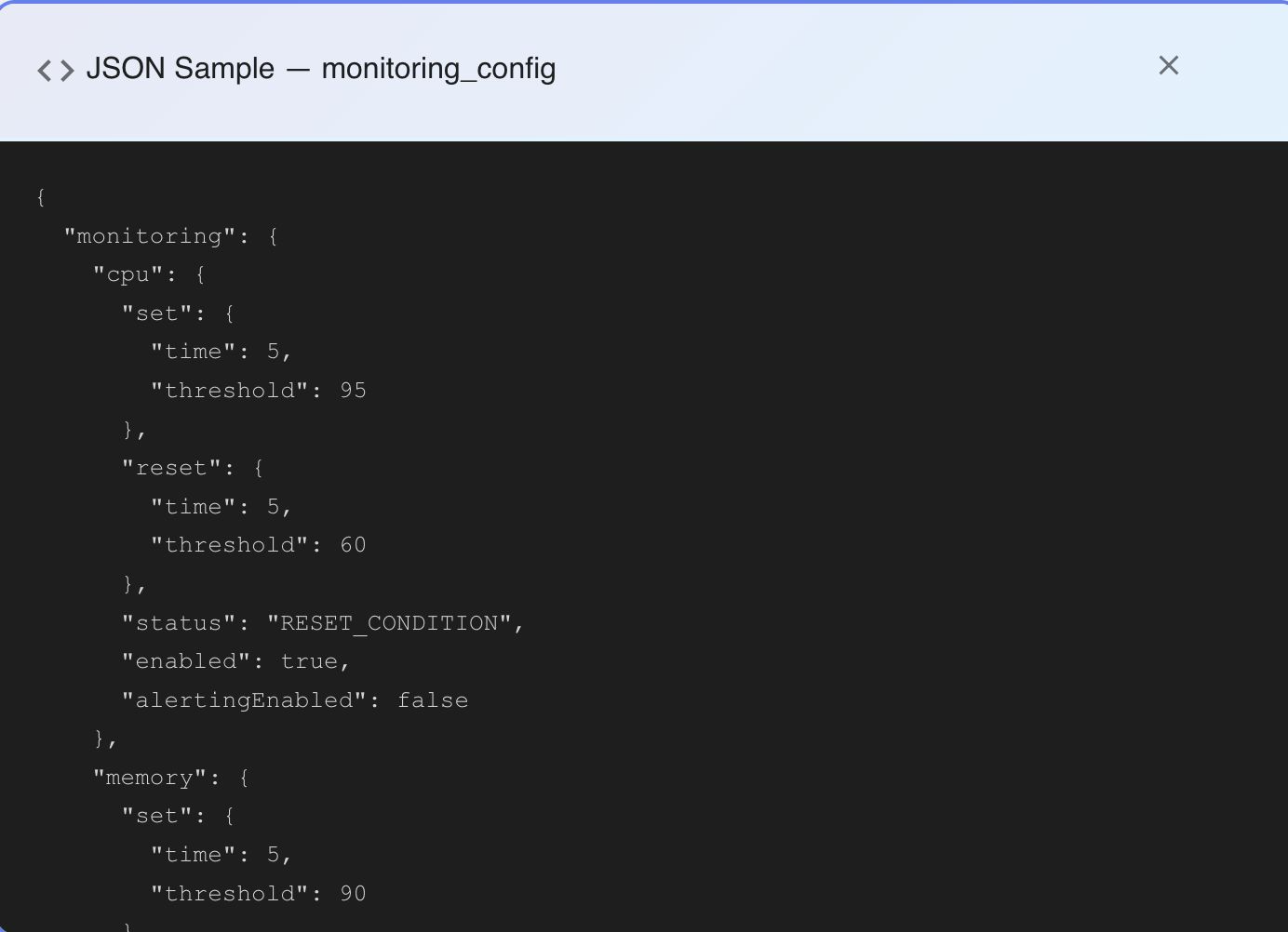
This panel is read-only. Use it to:
- Inspect the full JSON structure before deciding which field to map
- Verify the actual data shape and nesting from the datasource
- Check available keys and value types before opening the path selector
Click the × in the panel header to dismiss it.
Only available for database-imported attributes
All three buttons — preview, RN path, and RD path — are only shown when the attribute was imported from a datasource. Manually-created JSON attributes do not have an associated sample document.
JSON Special Case — Dual Mapping
A single JSON-type attribute can hold both RN and RD simultaneously by mapping each to a different field path within the same JSON document. This is the only scenario where the exclusivity rule for RN/RD does not apply.
Actions Column
Delete Attribute
The trash icon initiates a two-step deletion to prevent accidental removal:
- First click — Marks the attribute for deletion. The button turns red with a pulsing animation.
- Second click — Confirms and permanently removes the attribute.
4-Second Timeout
If you do not confirm within 4 seconds, the pending deletion is automatically cancelled. You must click again to restart the process.
Impact of Attribute Deletion
Deleting an attribute:
- Removes it from all future metrics collection
- Invalidates any metrics rules that reference it
- Historical data associated with the attribute remains in storage but becomes inaccessible through standard queries
This action cannot be undone from the UI.
Bottom Actions
Add Attribute Type
Opens an inline configuration row (or dialog) to manually define a new attribute. Required fields:
- Name — unique identifier within the resource type
- Type — determines which additional fields appear
Optional but recommended:
- Description
- Type-specific constraints (REGEX/LENGTH for STRING, MIN/MAX for numeric, VALUES for ENUM)
Sort by Sequence
Reorders the attribute list in ascending sequence number order. This is the default sorting applied when the dialog first opens.
Global Dialog Actions
These two buttons are always visible at the bottom-right of the dialog and operate across all unsaved changes made during the session.
Save Changes
Persists all attribute configuration changes and propagates the updated template to all active agents across configured environments.
Propagation Timing
Configuration synchronization depends on the sync interval configured for each agent. During the sync window, agents continue using the previous configuration. Ensure the agent refresh interval matches your deployment requirements.
Resource Instance Updates
If resource instances have already been created from this resource type, they are refreshed to reflect the updated attribute configuration. Newly added attributes become available for collection; deleted attributes are no longer tracked.
Cancel
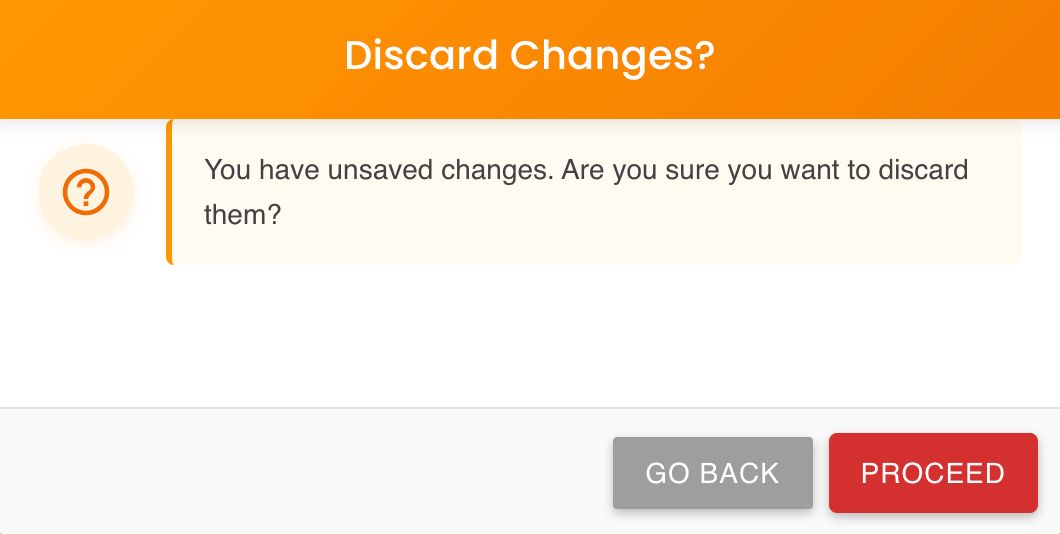
Discards all unsaved changes. A confirmation dialog appears with two options:
- Proceed — discards all changes and closes the dialog
- Go back — returns to the attribute table to continue editing
Resource Identifier Propagation
When PK, RN, or RD designations change after resource instances have already been imported, BizMetry automatically triggers a re-synchronization process.
What triggers a re-sync
Any change to which attribute holds the PK, RN, or RD designation, saved via Save Changes.
What the re-sync does
- Identifies all imported resource instances of this type across all environments
- Re-queries the original datasource(s) to extract values from the newly designated attributes
- Updates internal identifier mappings
- Re-establishes cross-environment groupings based on the new RN values
- Preserves all historical metrics — only the identifier mappings are updated
Re-synchronization Duration
Processing time scales with the number of imported instances, number of environments, datasource query performance, and network latency. Plan identifier remapping changes during low-traffic windows for large datasets.
Best Practices
- Choose stable, business-meaningful attributes for PK, RN, and RD from the start
- Prefer business keys over surrogate or auto-generated keys for RN
- Verify attribute uniqueness before designating as PK
- Test mappings with a small import before committing to full-scale production imports
- Document all identifier remapping changes and the rationale behind them