Editing Resource Attributes
The attribute editing dialog is accessed through the Edit Attributes button within the Resource Types tab of the template editing dialog.
When clicking this button, the attribute configuration dialog opens for the selected resource type.
Understanding Resource Attributes
In BizMetry, a resource can be associated with one or more entity attributes. These attributes represent characteristics of an Application-Specific Business Object (ASBO) such as an invoice, work order, or fleet, which the business is interested in tracking, accounting for, and monitoring as they directly or indirectly contribute to high-level business KPIs.
Attributes Overview
Once opened, a list of all attributes already defined for the resource type will appear.
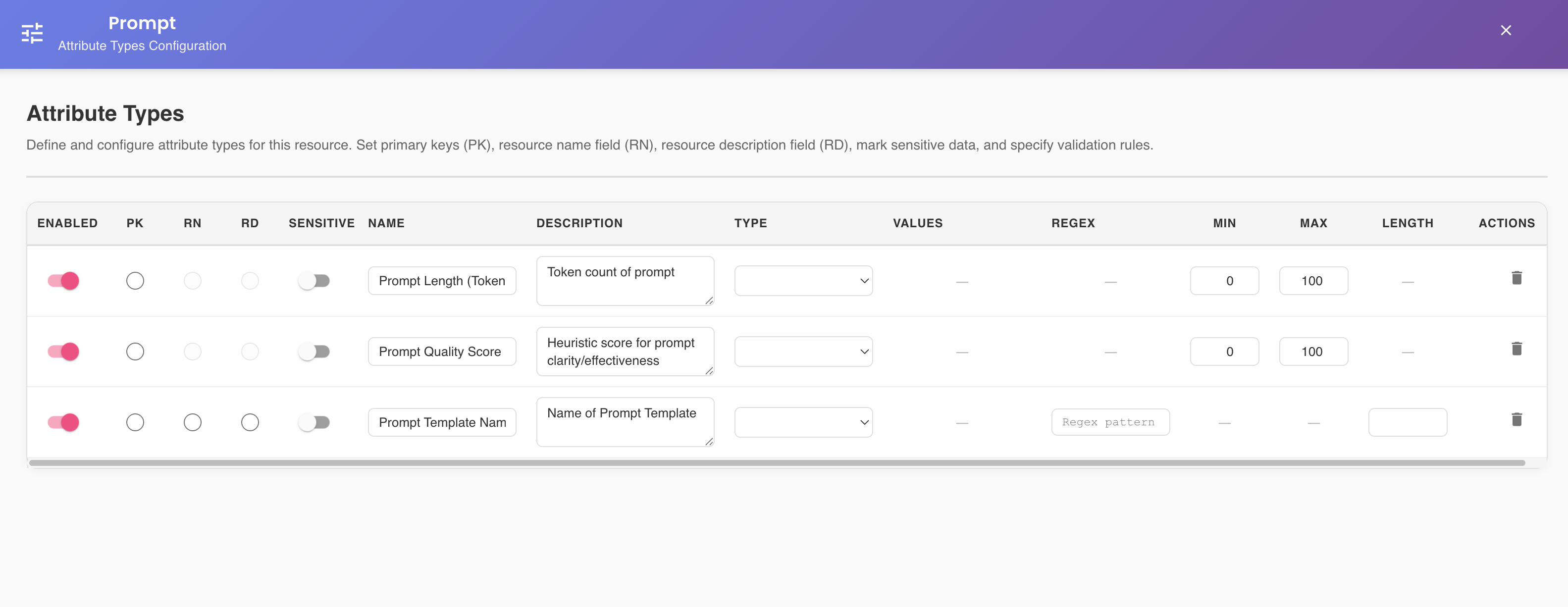
Attribute Configuration
The attributes summary is organized as follows:
Enabled Toggle
Controls whether the attribute will be included in data collection by agents.
- Toggle ON: The attribute is captured and included in metrics collection
- Toggle OFF: The attribute is silenced and not captured by agents
Selective Data Collection
Use the enabled toggle to temporarily disable collection of specific attributes without deleting them from the configuration. This is useful for troubleshooting or optimizing data collection performance.
Sensitive Toggle
Identifies when an attribute represents sensitive information that could compromise security if disclosed.
- Toggle ON: The attribute is marked as sensitive and will be obfuscated
- Toggle OFF: The attribute is treated as regular data
Protecting Sensitive Data
It is strongly recommended to apply the sensitive toggle to all attributes that may represent sensitive information such as:
- PII (Personally Identifiable Information): Names, addresses, phone numbers, email addresses
- PHI (Protected Health Information): Medical records, health insurance information
- Financial Data: Credit card numbers, bank account numbers, salary information
- Credentials: Passwords, API keys, tokens
- Personal Data: Any data protected by GDPR, PCI DSS, HIPAA, or other applicable standards
When an attribute is marked as sensitive, BizMetry automatically obfuscates its value when presented to users through various forms, dashboards, and reports, protecting security and compliance.
Obfuscation Behavior:
- String values are replaced with asterisks (e.g.,
john.doe@email.combecomes****) - Numeric values are masked (e.g.,
4532-1234-5678-9010becomes****-****-****-9010) - Only users with explicit permissions can view unobfuscated values
Attribute Name
The name of the attribute as it will appear in metrics and reports.
Attribute Description
A detailed description explaining the purpose and meaning of the attribute.
Attribute Type
Indicates the data type of the attribute. Available types include:
- STRING: Text-based values
- INTEGER: Positive or negative whole number values
- FLOAT: Floating-point decimal values
- BOOLEAN: Truth values (TRUE or FALSE)
- DATE: Date values
- TIMESTAMP: Date-time values capturing a point in time
- BINARY: Binary content
- JSON: The attribute contains a JSON document
- VARIANT: Reserved for attributes marked as PK (Primary Key). When an attribute is marked as PK, it automatically changes to type VARIANT
- ENUM: Enumerative type that can have multiple predefined values. Values are specified through the VALUES column and entered manually one by one
Type-Specific Configuration Columns
Depending on the attribute type selected, additional configuration columns will appear:
Numeric Types (INTEGER, FLOAT)
When selecting INTEGER or FLOAT types, the following columns appear:
- Minimum Value: Determines the minimum value that can be assigned to the attribute
- Maximum Value: Determines the maximum value that can be assigned to the attribute
Numeric Range Example
For an age attribute of type INTEGER, you might set:
- Minimum Value:
0 - Maximum Value:
120
ENUM Type
When selecting ENUM type, the following column appears:
- VALUES: Allows you to configure the multiple values that the attribute can have. Values are entered manually one by one.
ENUM Values Example
For a status attribute of type ENUM, you might configure values:
PENDINGIN_PROGRESSCOMPLETEDCANCELLED
STRING Type
When selecting STRING type, the following columns appear:
- REGEX: Specifies the regular expression pattern against which the value will be validated
- LENGTH: Specifies the maximum length of the string
STRING Configuration Example
For an email attribute of type STRING, you might set:
- REGEX:
^[a-zA-Z0-9._%+-]+@[a-zA-Z0-9.-]+\.[a-zA-Z]{2,}$ - LENGTH:
255
Other Types
The remaining types (DATE, TIMESTAMP, BINARY, JSON, VARIANT) do not require additional configuration.
Attribute Metadata Radio Buttons
Each attribute has three radio buttons that control specific metadata properties: PK, RN, and RD. These buttons define how the attribute relates to the Application-Specific Business Object (ASBO) identity and representation.
PK (Primary Key)
When the PK radio button is selected for an attribute, it indicates that this attribute represents the primary key metadata of the ASBO, which uniquely identifies it.
Primary Key Constraint
Only one attribute can be marked as PK per resource type. If you select PK for a different attribute, the previous PK designation will be automatically removed.
Automatic Type Conversion
When an attribute is marked as PK, its type automatically changes to VARIANT to accommodate different primary key formats.
RN (Resource Name)
When the RN radio button is selected for an attribute, it indicates that this attribute represents the name metadata of the ASBO, which serves to visually identify it from other instances.
Resource Name Purpose
The RN attribute is used throughout the BizMetry platform to display human-readable identifiers for business objects in lists, reports, and visualizations.
Critical Role in Resource Import
The Resource Name (RN) is essential when importing resources from databases, as it enables grouping instances of the same Application-Specific Business Object (ASBO) across different environments under a common name.
How RN Enables Multi-Environment Association:
- When importing resource instances from different environments, BizMetry uses the RN value to associate instances that represent the same business object
- While the PK (Primary Key) uniquely identifies each instance within its environment, the RN (Resource Name) groups these instances together across environments
- This allows you to track how the same business object (e.g., "Customer-12345") exists and behaves differently across Development, QA, and Production environments
Example:
Consider a customer resource imported from three environments:
| Environment | PK (customer_id) | RN (customer_name) | Status |
|---|---|---|---|
| Development | cust_dev_001 | "Acme Corporation" | Active |
| QA | cust_qa_789 | "Acme Corporation" | Testing |
| Production | cust_prod_456 | "Acme Corporation" | Active |
Even though each environment has different primary keys, BizMetry groups all three instances under the same business object because they share the same RN value: "Acme Corporation".
Best Practices:
- Always ensure the RN attribute contains consistent, business-meaningful values across all environments
- Use stable identifiers (like customer names, account numbers, or product codes) rather than environment-specific IDs
- Avoid using auto-generated or environment-specific values as RN
- The RN should be human-readable and meaningful to business users
Required for Database Import
When a resource type is marked for database import (is_resource_imported: true), it must have at least one attribute designated as RN (Resource Name). Without an RN attribute, the resource type cannot be used for importing instances from databases, as BizMetry cannot determine how to group instances across environments.
RD (Resource Description)
When the RD radio button is selected for an attribute, it indicates that this attribute represents the description metadata of the ASBO, providing additional context about the object.
Radio Button Selection Rules
The following rules govern how these radio buttons can be set:
- Primary Key Exclusivity: Only one attribute can have the PK mark, and no more than one
- Name and Description Uniqueness: Only one attribute can have the RN mark and only one can have the RD mark, except for JSON type attributes (see below)
- Mutual Exclusivity: An attribute cannot be mapped to PK and RN/RD simultaneously
- JSON Special Case: When an attribute is of type JSON, it can be mapped to both RN and RD by selecting appropriate JSON fields, provided the resource has been imported from a datasource
JSON Attribute Mapping
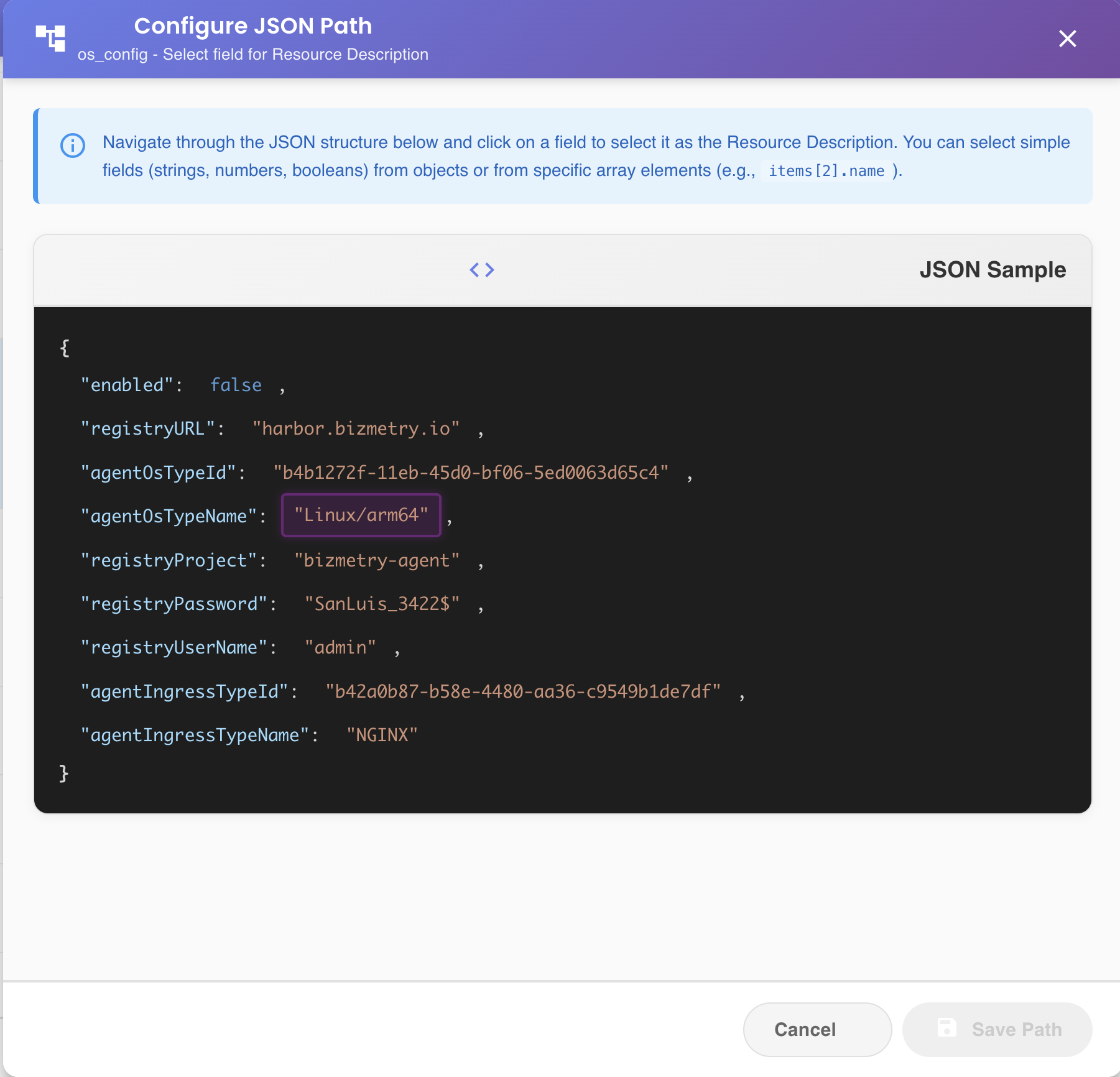
When a JSON-type attribute is selected for RN or RD mapping, two additional buttons become available that allow you to choose the associated JSON fields through a select-by-example approach:
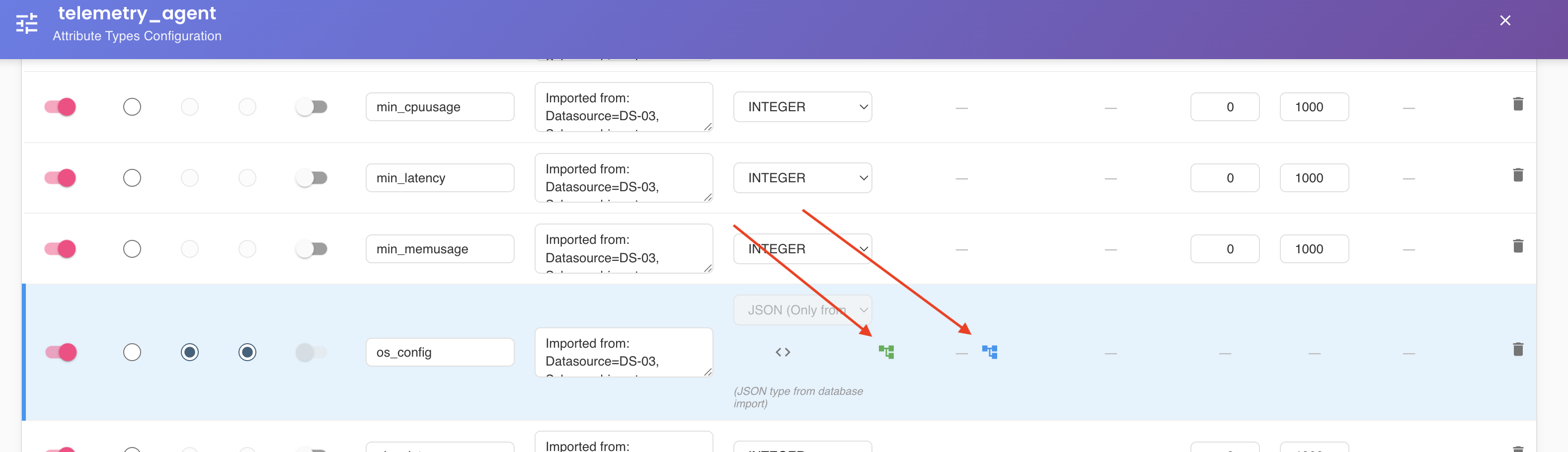
These buttons open a dialog where you can:
- View a sample JSON document from the datasource
- Select which JSON path corresponds to the resource name (RN)
- Select which JSON path corresponds to the resource description (RD)
- Validate the selection with real data examples
JSON Mapping Best Practice
When working with JSON attributes, always use the select-by-example feature to ensure you're mapping to the correct JSON paths. This prevents errors from typos or incorrect path specifications.
Resource Identifiers Propagation
When attributes are designated as PK (Primary Key), RN (Resource Name), or RD (Resource Description), they establish the foundational identity mapping for imported ASBO instances. Understanding how these mappings propagate and update is critical for maintaining data integrity across your BizMetry environment.
Initial Import and Identifier Anchoring
When resources are first imported from a datasource, BizMetry anchors each ASBO instance to its corresponding identifiers in the database based on the current PK, RN, and RD mappings:
- Primary Key Anchoring: The attribute marked as PK is used to extract the unique identifier from each database record
- Resource Name Anchoring: The attribute marked as RN is used to extract the business-meaningful name that will group instances across environments
- Resource Description Anchoring: The attribute marked as RD (if configured) is used to extract descriptive information about each instance
Example of Initial Anchoring:
Given a customer table with the following attributes marked: - PK → customer_id column - RN → company_name column - RD → description column
When imported, each database record is mapped as follows:
| Database Record | BizMetry Resource Instance |
|---|---|
customer_id: 12345company_name: "Acme Corp" description: "Premium client" | PK: 12345RN: "Acme Corp" RD: "Premium client" |
Identifier Remapping and Re-synchronization
After the initial import, you may need to change which attributes are designated as PK, RN, or RD. This could happen for several reasons:
- Business Logic Changes: The business decides to use a different field as the primary identifier
- Data Quality Improvements: A more stable or meaningful attribute is identified for resource naming
- Schema Evolution: Database schema changes require different mapping strategies
- Multi-Environment Alignment: Need to use different fields to properly group instances across environments
What Happens When You Change Identifier Mappings:
When you modify the PK, RN, or RD designation from one attribute to another and save the template configuration, BizMetry automatically triggers a re-synchronization process that:
- Identifies All Affected Resources: Locates all imported resource instances of the modified ASBO type across all environments
- Re-extracts Identifier Values: Queries the original datasource(s) to extract the new identifier values from the newly designated attributes
- Updates Internal Mappings: Updates BizMetry's internal identifier mappings to reflect the new attribute associations
- Preserves Cross-Environment Groupings: Ensures that instances representing the same business object across different environments remain properly grouped
- Maintains Historical Data: Preserves all historical metrics and data while updating only the identifier mappings
Example Scenario:
Initial Configuration: - PK → internal_id - RN → customer_code - RD → notes
After 100 customer resources are imported from Development and Production environments
Configuration Change: - PK → customer_id (changed from internal_id) - RN → company_name (changed from customer_code) - RD → description (changed from notes)
Re-synchronization Process:
Step 1: Detect configuration change
  → PK mapping changed: internal_id → customer_id
  → RN mapping changed: customer_code → company_name
  → RD mapping changed: notes → description

Step 2: Identify affected resources
  → Found 100 customer instances across 2 environments

Step 3: Re-query datasources
  → Development DB: Extract new identifiers for 60 instances
  → Production DB: Extract new identifiers for 40 instances

Step 4: Update identifier mappings
  → Remap PKs using customer_id values
  → Remap RNs using company_name values
  → Remap RDs using description values

Step 5: Re-establish cross-environment groupings
  → Group instances with matching company_name values
  → Verify all instances properly associated

Step 6: Complete synchronization
  → All 100 instances successfully remapped
Re-synchronization Duration
The re-synchronization process duration depends on several factors:
- Number of Imported Resources: More resource instances require more time to process
- Number of Environments: Resources across multiple environments must all be re-synchronized
- Datasource Performance: Query performance on the source databases affects extraction speed
- Network Latency: Connection speed to datasources impacts overall processing time
- Complexity of Mappings: JSON path extractions may take longer than simple column mappings
Best Practices for Identifier Mapping
To minimize the need for identifier remapping and ensure smooth operations:
Initial Planning: - Choose stable, meaningful attributes for PK, RN, and RD from the start - Prefer business keys over surrogate keys when possible - Select attributes that are unlikely to change over time - Ensure chosen attributes exist in all target environments
Data Quality: - Verify attribute uniqueness for PK selections - Ensure RN attributes provide meaningful, human-readable values - Check that all target attributes are properly indexed in source databases - Validate that JSON paths (if used) are correct and consistent
Testing Strategy: - Test identifier mappings with a small dataset first - Import a subset of data and verify correct grouping across environments - Validate that all identifier extractions produce expected values - Confirm that changes propagate correctly before full-scale import
Change Management: - Document the rationale for any identifier mapping changes - Maintain a change log of all PK, RN, and RD modifications - Establish approval processes for identifier remapping in production - Plan maintenance windows for large-scale re-synchronization operations
Actions Column
The Actions column contains the following action:
Delete Attribute (Trash Icon)
Allows you to delete an attribute through a two-step safety validation:
- First click: Marks the attribute for deletion (button turns red with pulsing animation)
- Second click: Confirms and deletes the attribute
Deletion Timeout
If you don't confirm the deletion within 4 seconds, the pending deletion is automatically cancelled and you'll need to click again.
Impact of Attribute Deletion
When deleting an attribute:
- All metrics collection rules referencing this attribute will be affected
- Historical data associated with this attribute remains in the system but may become inaccessible through standard queries
- Any resources using this attribute will lose this data point
Important: Deleting an attribute is a significant action that can impact your metrics collection and reporting. Ensure you understand the implications before proceeding.
Bottom Actions
At the bottom of the attributes dialog, the following buttons are available:
Sort by Sequence
Allows you to sort the attributes in ascending order by their sequence number. This is the default sorting behavior.
Add Attribute
Allows you to manually add a new attribute to the resource type. After clicking this button, a configuration dialog opens where you must provide:
- Attribute Name: Required field
- Attribute Description: Optional but recommended
- Attribute Type: Required field (select from available data types)
- Type-Specific Configuration: Depending on the selected type, additional fields may be required (MIN/MAX for numeric types, VALUES for ENUM, REGEX/LENGTH for STRING)
Once all required fields are completed, the attribute can be saved.
Global Dialog Actions
At the bottom right margin, two buttons are always visible across all tabs:
Save Changes
Saves all attribute changes introduced at any time. This button is visible across all template configuration tabs (Resource Types, Attributes, Client Types, and Domains), allowing you to save all changes made to the template globally.
Configuration Propagation
When clicking this button, the template is persisted and the updated configuration is propagated across all active agents for the different environments.
Synchronization Timing
Configuration synchronization may take some time, depending on the sync interval configured for the agents. During this period, agents will still see the "old configuration," which may impact metrics collection.
It is important that the refresh time is configured according to the specific use case requirements.
Resource Instance Updates
If any resource instances have been created from the modified resource type, these instances will be refreshed to reflect the new attribute configuration. Any newly added attributes will be available for data collection, while deleted attributes will no longer be tracked.
Cancel
Discards all changes introduced to the attributes. When clicking Cancel, a confirmation dialog appears allowing you to:
- Confirm the cancellation and discard all changes
- Go back and continue editing
Best Practices
Naming Conventions
- Use clear, descriptive names that reflect the business meaning
- Follow consistent naming patterns across your organization
- Avoid abbreviations unless they are widely understood
- Use lowercase with underscores (snake_case) or camelCase consistently
Attribute Organization
- Keep the number of attributes manageable (typically 10-20 per resource type)
- Group related attributes logically
- Place the most important attributes first
- Remove unused or deprecated attributes to maintain clarity
Data Type Selection
- Choose the most specific data type possible for better data validation
- Use FLOAT for monetary values when precision is critical
- Use TIMESTAMP instead of DATE when time precision matters
- Consider using ENUM for fields with a fixed set of values
- Use JSON for complex, nested data structures
Validation and Constraints
- Always set MIN/MAX values for numeric types to prevent invalid data
- Define comprehensive ENUM value lists to ensure data consistency
- Use REGEX patterns for STRING types to enforce format requirements
- Set appropriate LENGTH limits for STRING types to optimize storage
Security and Privacy
- Mark all sensitive attributes with the Sensitive toggle
- Use the Enabled toggle to temporarily disable problematic attributes
- Regularly audit which attributes are marked as sensitive
- Document the reason for marking attributes as sensitive
Documentation
- Always provide meaningful descriptions for attributes
- Document the business purpose and expected values
- Include examples of valid values in the description
- Note any dependencies or relationships with other attributes
Common Use Cases
Financial Attributes
For invoice or payment resources:
invoice_amount(FLOAT): Total invoice value with MIN: 0.00invoice_date(DATE): Date the invoice was issuedpayment_status(ENUM): Current payment status (PENDING, PAID, OVERDUE, CANCELLED)currency_code(STRING): ISO currency code with REGEX:^[A-Z]{3}$and LENGTH: 3
Operational Attributes
For work order or task resources:
estimated_hours(FLOAT): Estimated completion time with MIN: 0.0, MAX: 1000.0actual_hours(FLOAT): Actual time spent with MIN: 0.0priority_level(INTEGER): Priority ranking with MIN: 1, MAX: 5completion_status(ENUM): Current status (NOT_STARTED, IN_PROGRESS, COMPLETED, BLOCKED)
Customer Attributes
For customer or account resources:
customer_name(STRING): Full customer name with LENGTH: 200account_balance(FLOAT): Current account balanceregistration_date(DATE): Date of account creationis_active(BOOLEAN): Account active statuscustomer_email(STRING, Sensitive): Email address with REGEX validation
JSON Attributes
For complex data structures:
order_details(JSON): Complete order information including line items, shipping address, and payment detailsmetadata(JSON): Additional flexible metadata that may vary by instance