API Collections Tab
The API Collections tab of the template editor defines which API Collection versions a template version is linked to. Business Events created for this template version can only use operations from the API Collections listed here. For the concepts behind it, see API Collections and Lifecycle Management.
Accessing the Tab
- Open the profile and go to the Template tab.
- In the template tree, click Edit on the template version you want to configure.
- In the Edit Template Instance dialog, select the API Collections tab, after Frame Types.
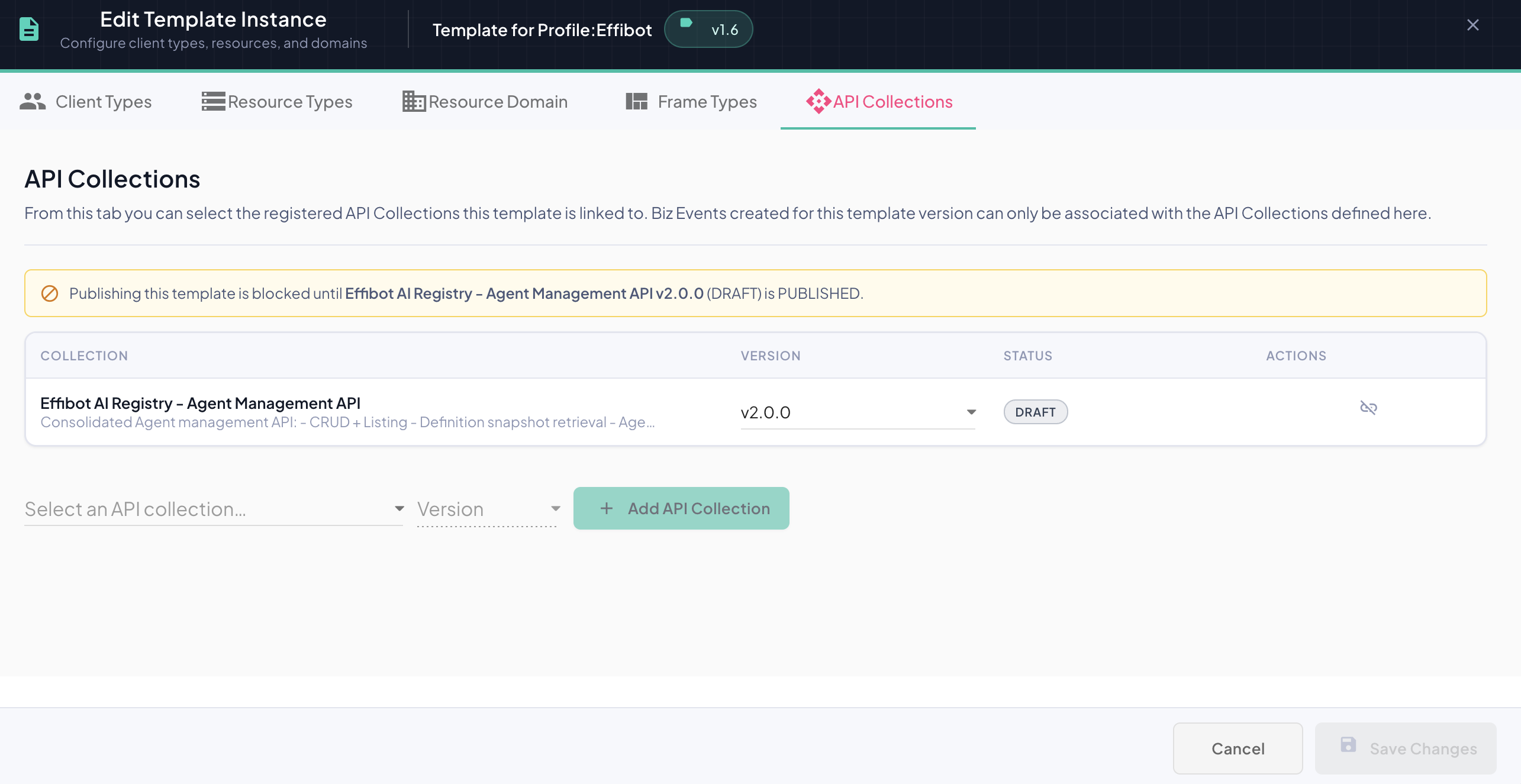
Linked Collections Table
Each row is an API Collection linked to this template version:
| Column | Description |
|---|---|
| Collection | Name and description of the API Collection. |
| Version | The linked version. Use the drop-down to switch to another version of the same collection. |
| Status | Lifecycle state of the linked version (for example DRAFT or PUBLISHED). |
| Actions | Remove from this template. |
When the tab has no rows yet, the template version can't be used to create Business Events. It won't appear in the Business Event wizard until at least one API Collection is linked.
Linking an API Collection
At the bottom of the tab:
-
Open Select an API collection… and choose the collection. Collections already linked to this template aren't listed, since a template links only one version of each collection.
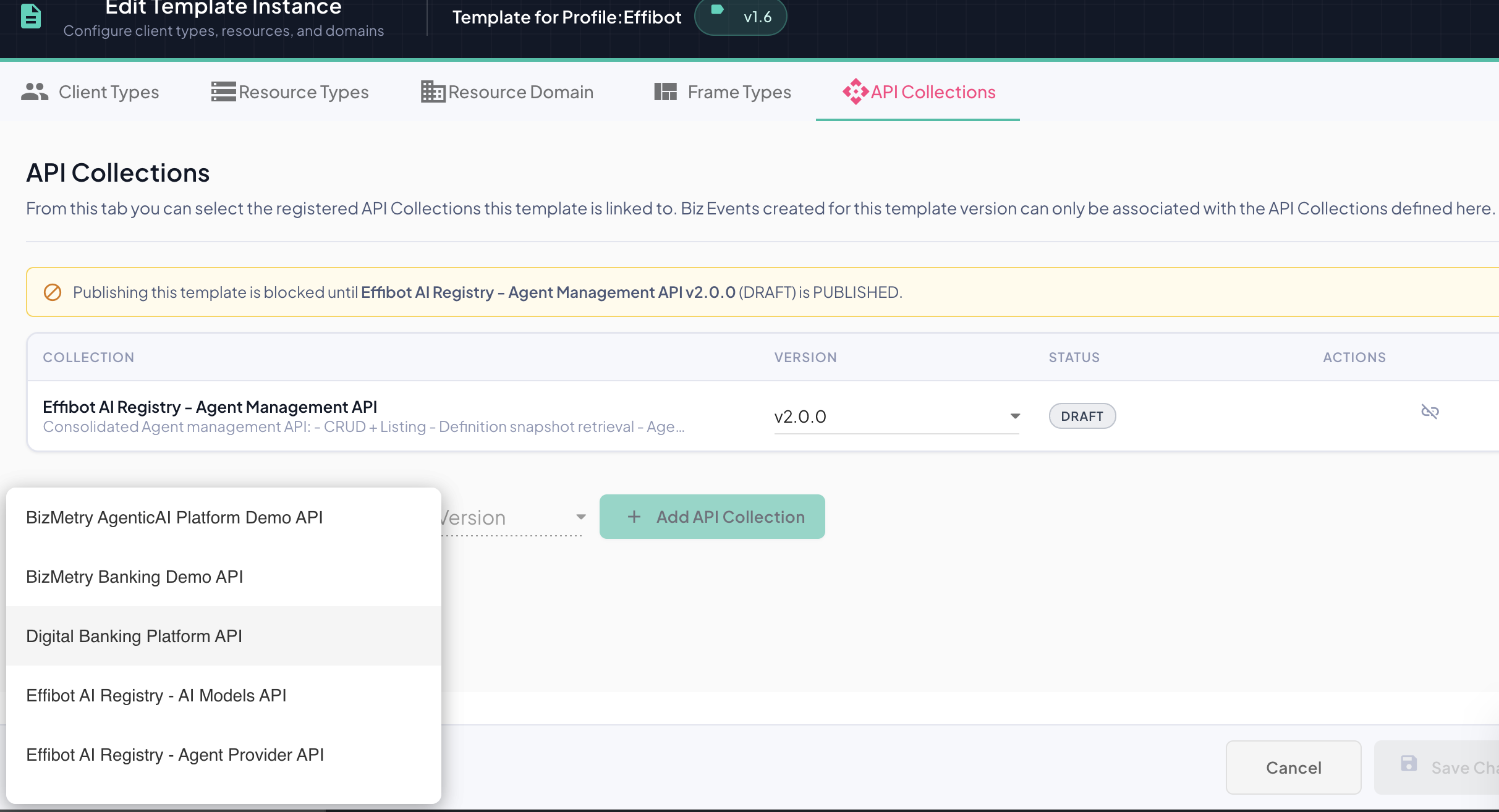
-
The Version drop-down preselects the newest version. Change it if you need another one. Each option shows the version and its status; retired versions aren't offered.
-
Click + Add API Collection.
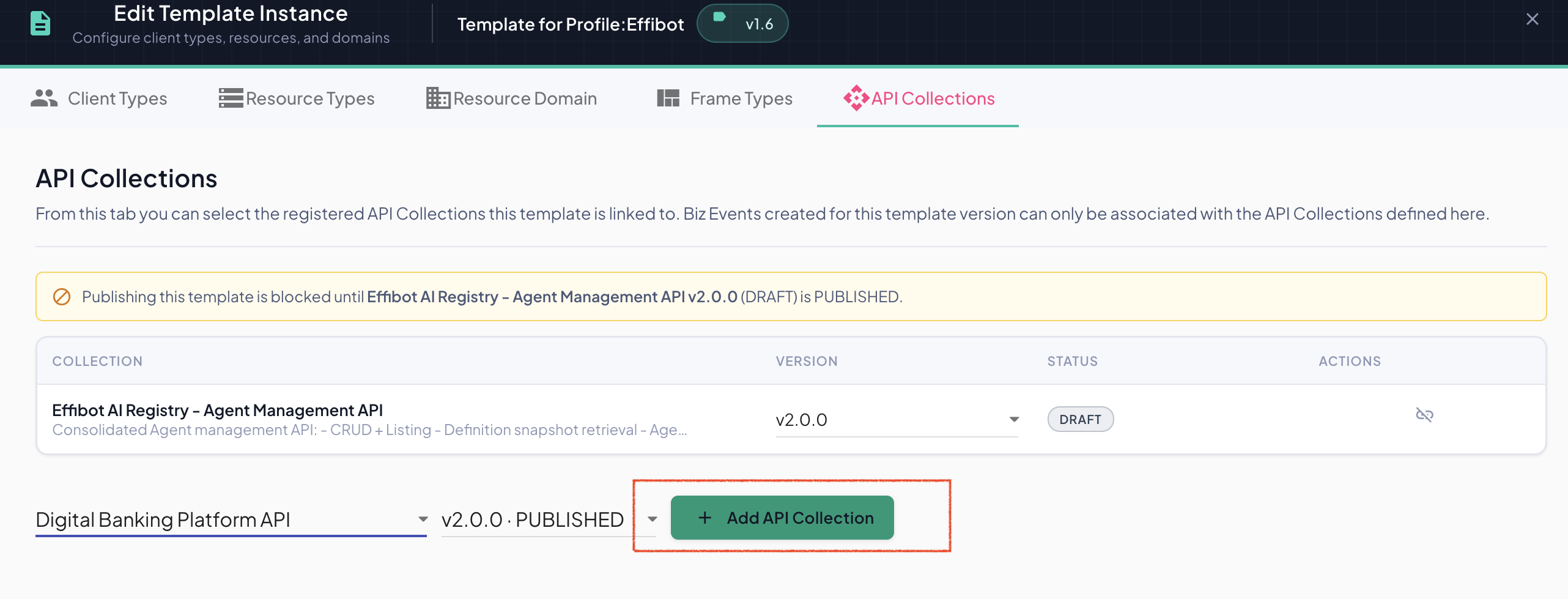
The collection is added to the table.
Changing the Linked Version
To move the template to another version of a collection that's already linked, for example after the application's Swagger contract changed, pick the new version in the row's Version drop-down. The template can only be linked to one version per collection, so the new version replaces the previous one.
The drop-down is disabled while Business Events use the linked version (see Collections in use by Business Events).
Removing an API Collection
Click Remove from this template on the row.
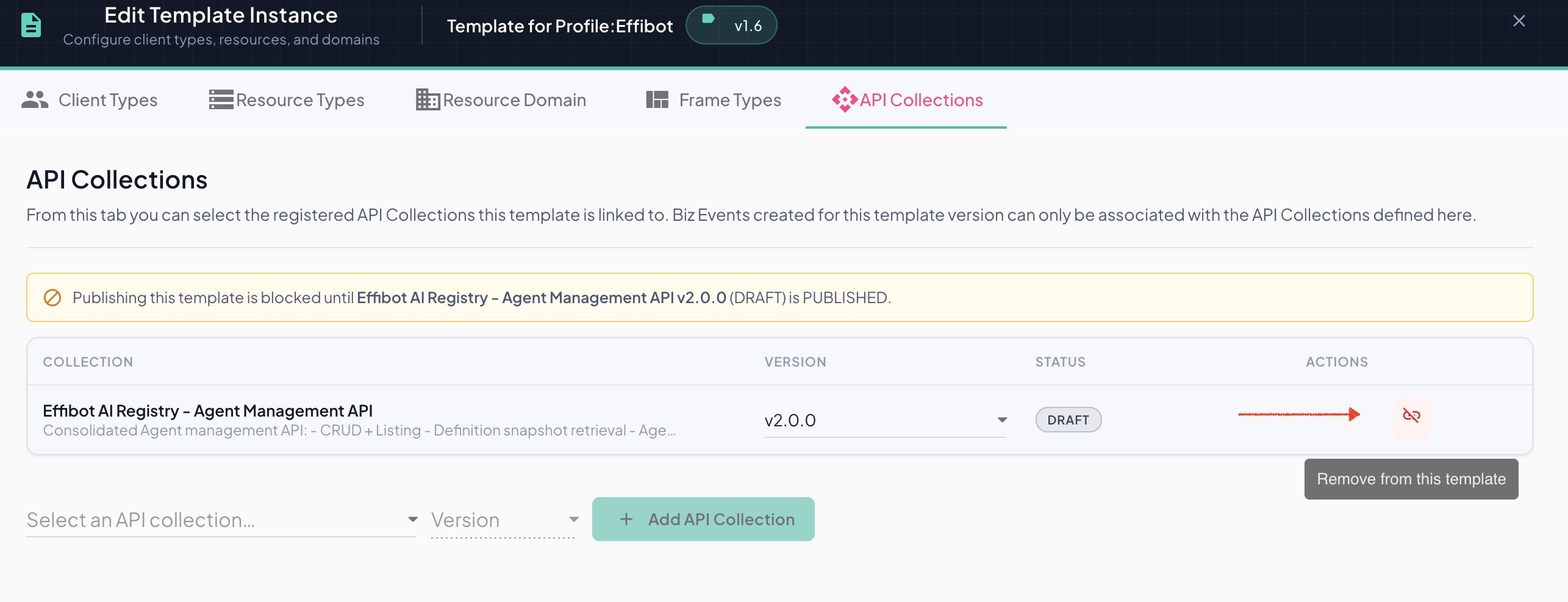
This only removes the link: the API Collection itself is not deleted and stays available for other templates.
Collections in Use by Business Events
A linked API Collection version can't be removed from the template, and its version can't be changed, while any Business Event of this template version uses it, whatever the state of the template, the collection or the Business Event. Only Retired Business Event versions don't count.
In that case the icon and the Version drop-down are greyed out, and hovering over them names the Business Events that use the collection, for example:
This API collection is being actively referenced from Biz Events Effibot-AGENT-INVOCATION v2.0. Please unlink the API collection from the given biz event(s) in order to delete this API collection link
Change those Business Events so they no longer use the collection, or retire them, and then remove the link or change its version.
Published templates
This restriction doesn't apply when editing a Published template version. Saving creates a new template version with your changes, which has no Business Events yet, and the published version keeps its links, so its Business Events are not affected.
Publish Warning Banner
If any linked collection version isn't PUBLISHED, a banner at the top of the tab names it:
Publishing this template is blocked until Collection version (status) is PUBLISHED.
The template version can still be edited, reviewed and linked to more collections, but it can't be published until every linked collection is published. See Publishing a template requires published API Collections.
Saving Changes
Like the other tabs of the template editor, changes on this tab are only stored when you click Save Changes. Cancel discards them.
Published templates
If the template version is Published, saving creates a new child version in Draft with your changes, and the published version keeps its original API Collections. See Version Lifecycle.