Resources
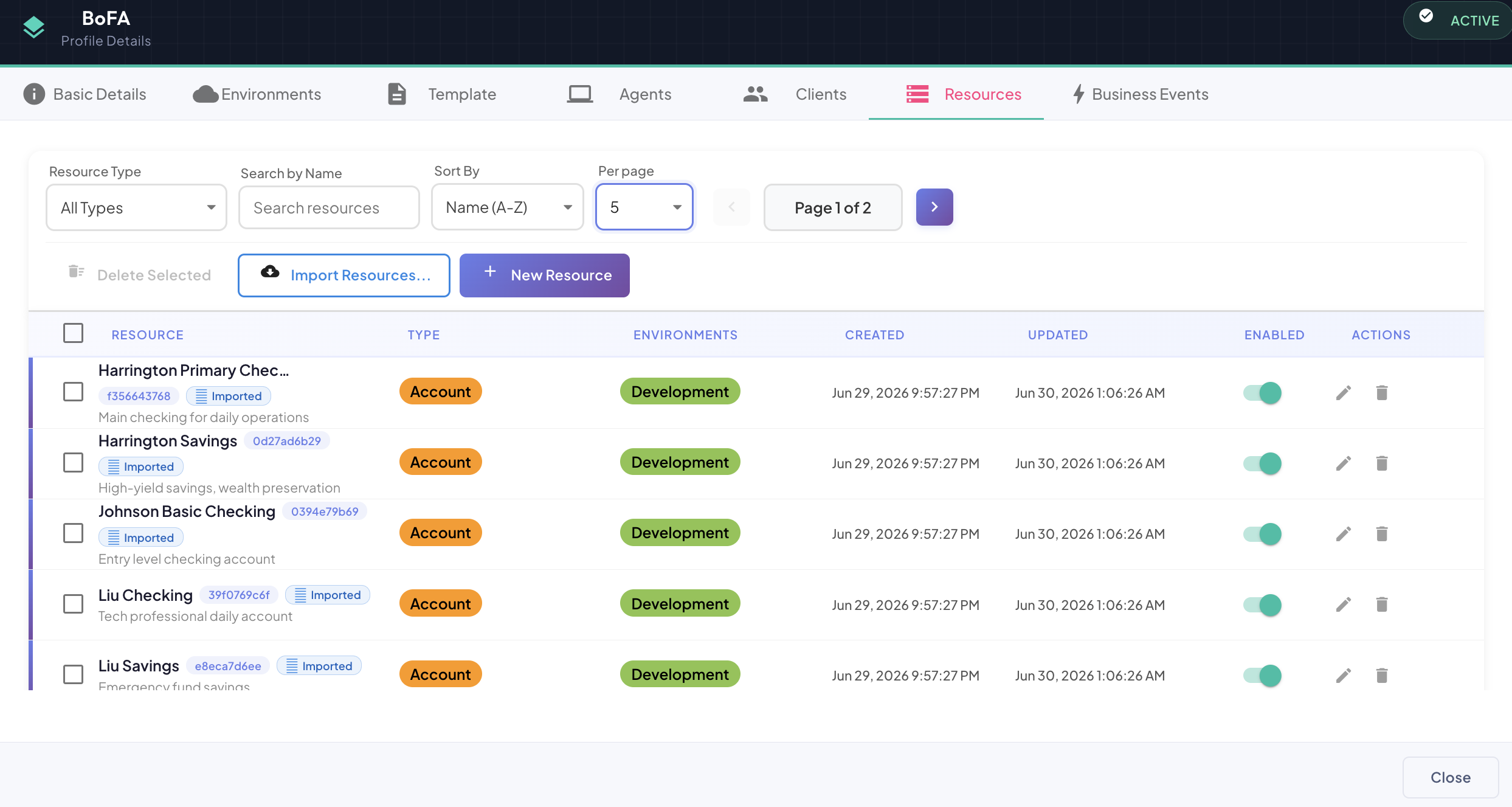
The Resources tab within a Profile displays all ASBO instances registered for that profile — the concrete business objects being monitored, such as specific bank accounts, ATMs, or loan applications.
Each resource is an instance of a Resource Type defined in the profile's template, linked to one or more environments where the data lives.
Accessing the Resources Tab
Open a Profile from the Home Screen, then click Resources in the secondary navigation menu.

Resource Table
The tab displays all resources in a paginated table with the following columns:
| Column | Description |
|---|---|
| RESOURCE | Resource name, unique ID (truncated hash), origin badge (Imported or blank for manual), and description below. |
| TYPE | The Resource Type this instance belongs to, shown as a colored badge. |
| ENVIRONMENTS | The environment(s) where this resource is mapped (e.g., Development, SIT, Production). |
| CREATED | Timestamp when the resource was first registered. |
| UPDATED | Timestamp of the last modification. |
| ENABLED | Toggle to activate or silence this resource for telemetry collection. |
| ACTIONS | edit and delete buttons. |
Filtering, Searching and Sorting
Four controls sit above the table:
| Control | Description |
|---|---|
| Resource Type | Dropdown — filter the list to show only resources of a specific type. Defaults to All Types. |
| Search by Name | Text input — partial, case-insensitive match against resource name. Filters as you type. |
| Sort By | Dropdown — order by Name A–Z (default), Name Z–A, Created, or Updated. |
| Per page | Dropdown — number of rows per page (5, 10, 25, 50). Pagination controls appear to the right. |
Toolbar Actions
Three buttons appear below the filter bar:
| Button | Description |
|---|---|
| Delete Selected | Bulk-deletes all checked resources. Active only when at least one checkbox is selected. |
| Import Resources… | Opens the import wizard to pull resources from a connected datasource. |
| + New Resource | Opens the Create New Resource dialog to manually register an ASBO instance. |
In This Section
- Creating a Resource — manually register a new ASBO instance
- Editing a Resource — update name, description, type, and environment mappings
- Deleting a Resource — remove a resource with confirmation