Resource Explorer
The Resource Explorer lets you browse every resource imported from a DataSource — together with the data stored for it when it was imported — across profiles, resource types and environments. Where the Resources tab manages resources, the Resource Explorer is read-only: it shows what each imported record holds, column by column, so you can check prices, limits, flags or any other imported value without opening the source database.
Permission
The Resource Explorer requires the Browse Resources permission. Without it, the button in the Resources tab is disabled and the main menu entry reports that the permission is missing.
Refreshing schema and restoring imported values
Entering Resources refreshes the environment and resource-type dropdowns so they reflect current assignments. The table displays imported records for the selected environment; a datasource's live Record Viewer is not proof that a removed column has been restored to these stored records.
Applying a Template without an attribute removes that imported column. Returning to a version with its valid physical mapping re-reads and restores the values. Removing an anchor or ASBO removes its imported resources for that environment; returning to an anchored definition re-imports them. Other environments retain their own assignments and data.
Restoration requires an appropriate anchor/environment mapping and the attribute's datasource column metadata. Creating an attribute with the same name alone does not recreate its physical mapping. If a pull is required, the agent must be ONLINE and REACHABLE; see environment preflight.
Opening the Resource Explorer
From the Resources tab
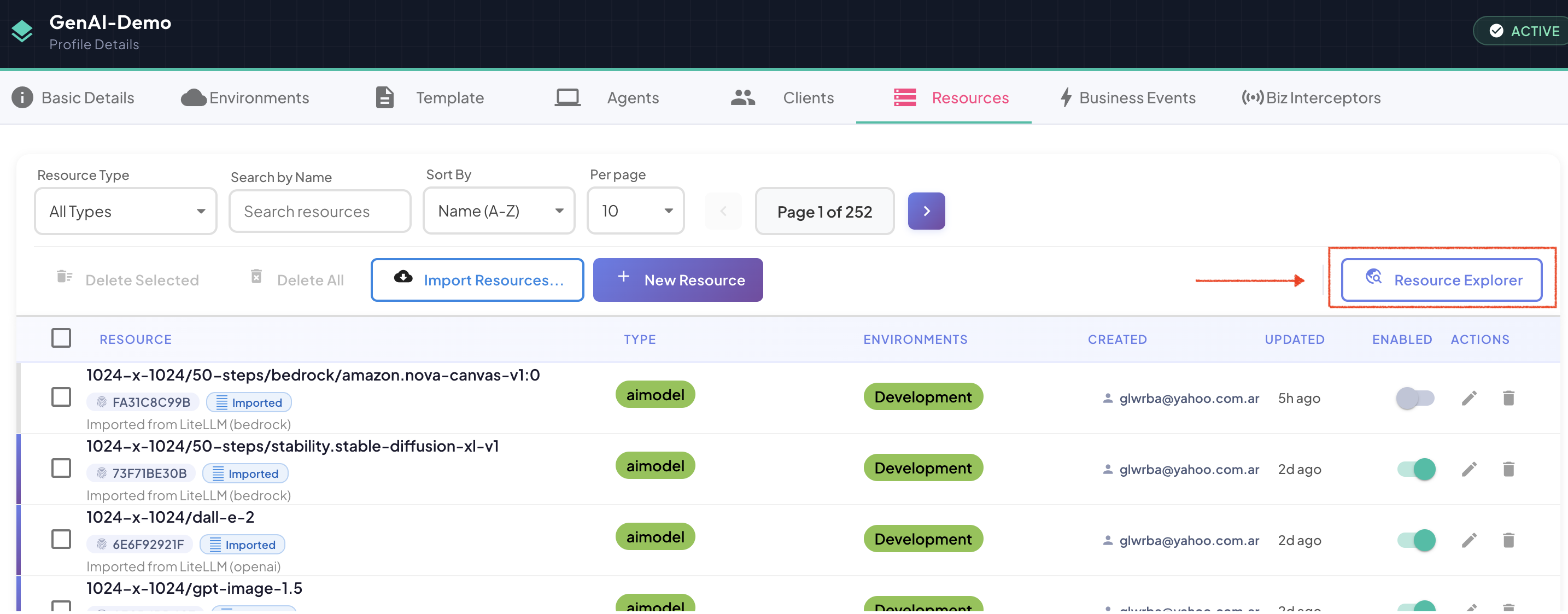
Open a Profile, go to the Resources tab and click Resource Explorer, at the right end of the action bar. The explorer opens on the current profile and on the resource type selected in the tab.
From the main menu
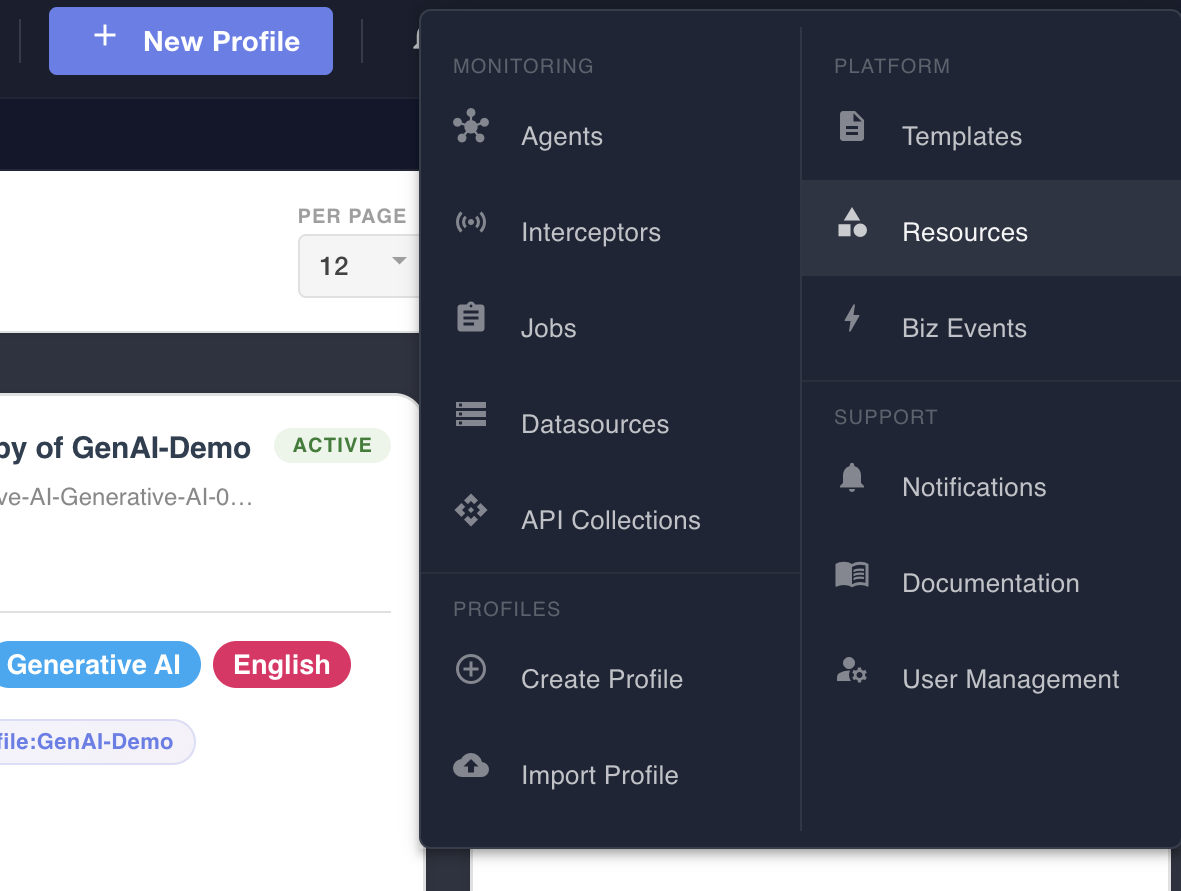
Open the main menu and choose Platform › Resources. The explorer opens on the first profile, with every resource type; pick another profile from the Profile selector.
Reading the table
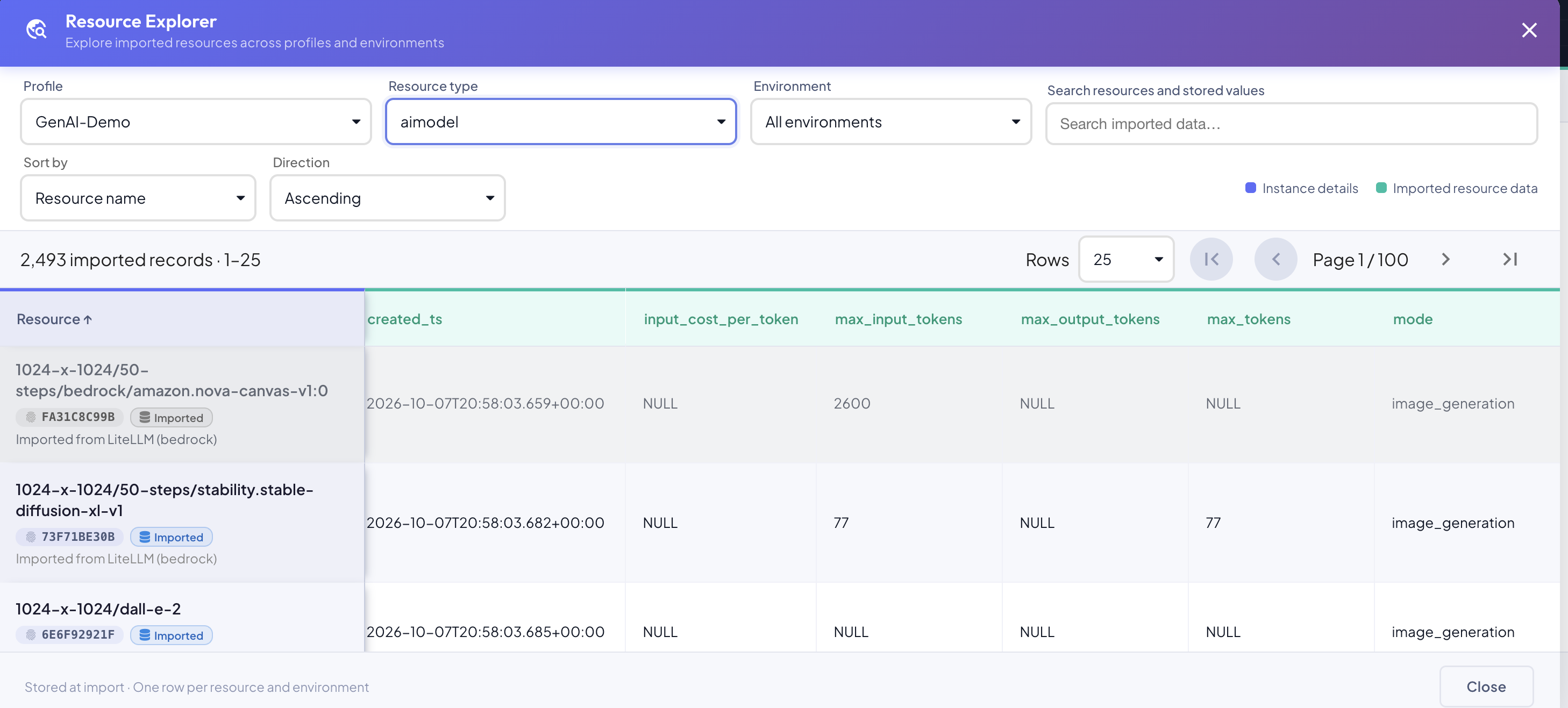
The table shows one row per resource and environment: a resource imported into two environments appears twice, once with each environment's stored record. Columns come in two groups, identified by the legend above the table:
| Group | Columns |
|---|---|
| Instance details (indigo) | Enabled, Resource (name, unique ID, Imported badge and description), Environment, Resource type, Created and Updated. |
| Imported resource data (teal) | One column per field of the imported record, named as in the source table (e.g. input_cost_per_token, max_tokens, mode). Empty values show as NULL. |
The Resource column stays pinned at the left while you scroll horizontally through the imported columns. Disabled resources are shown in grey but can still be inspected.
Filtering
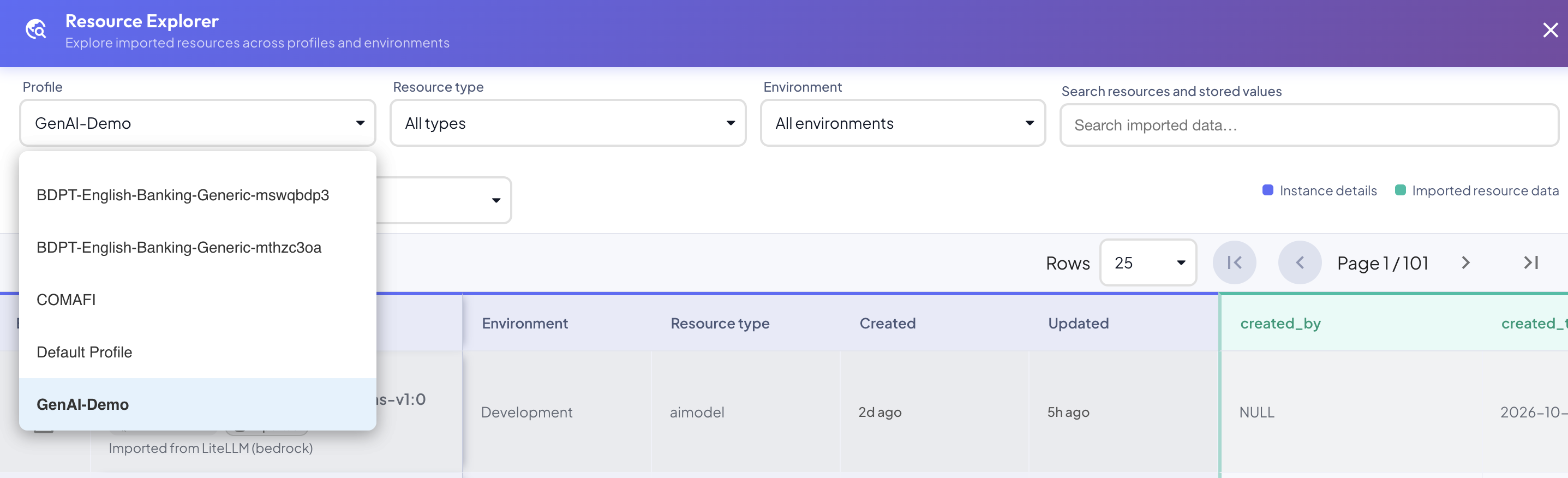
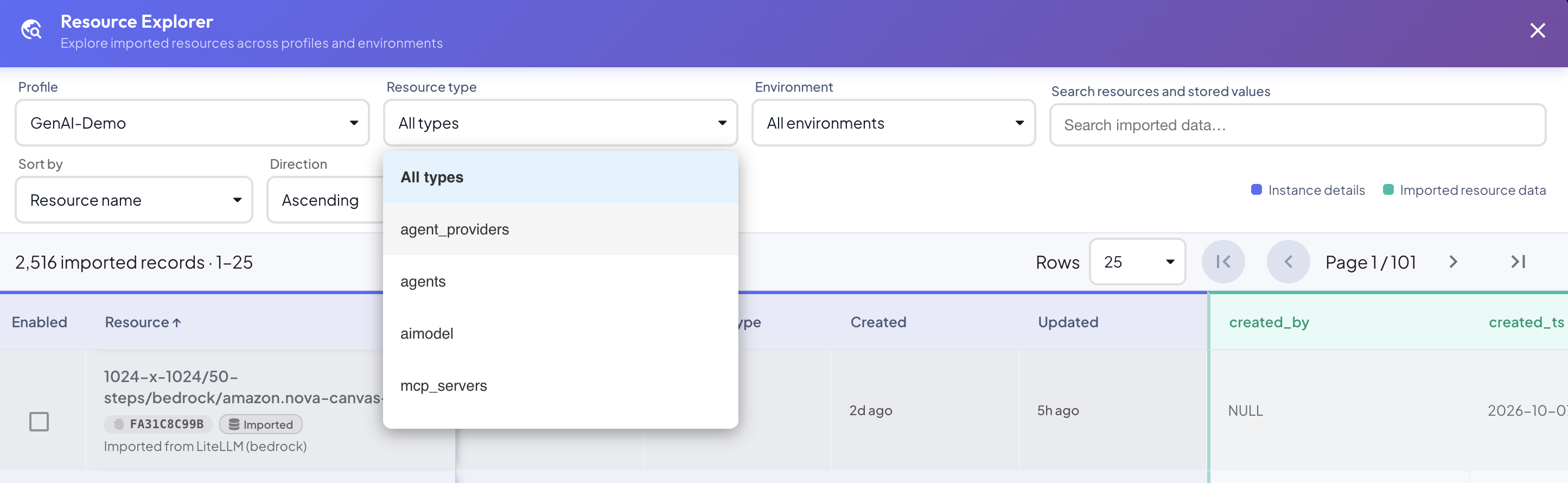
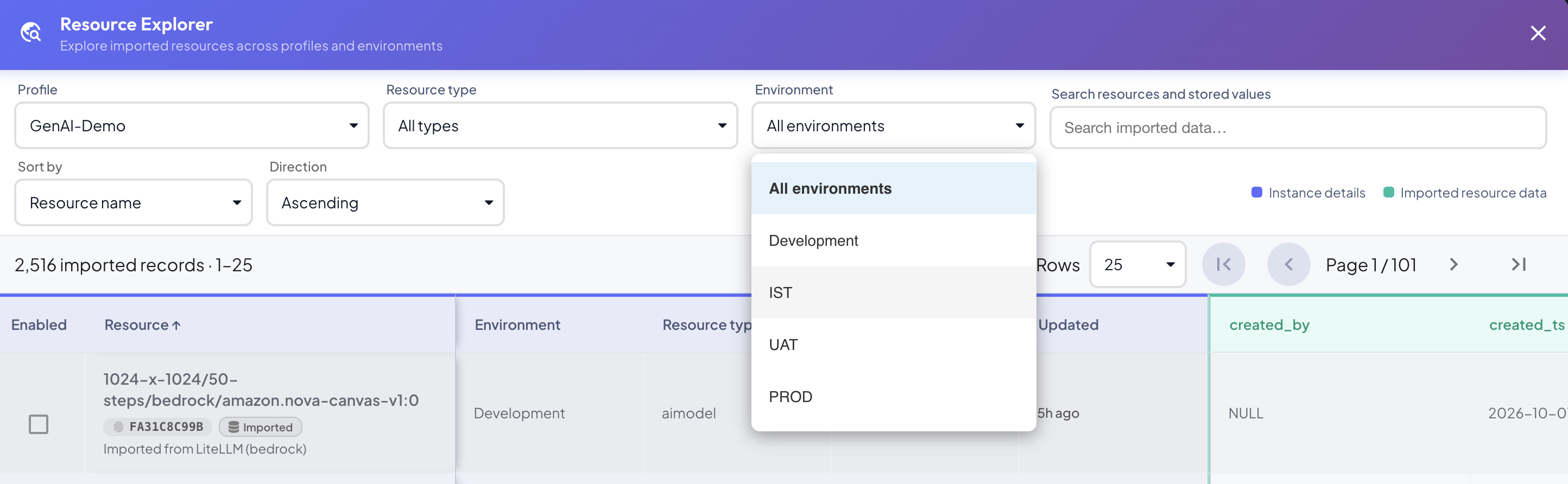
Three selectors narrow the list. Every change runs the search again from the first page.
| Selector | Description |
|---|---|
| Profile | The profile whose resources are listed — any profile you can access. Changing it resets the resource type and environment filters. |
| Resource type | One resource type of the profile, or All types. |
| Environment | One environment of the profile, or All environments. |
Searching
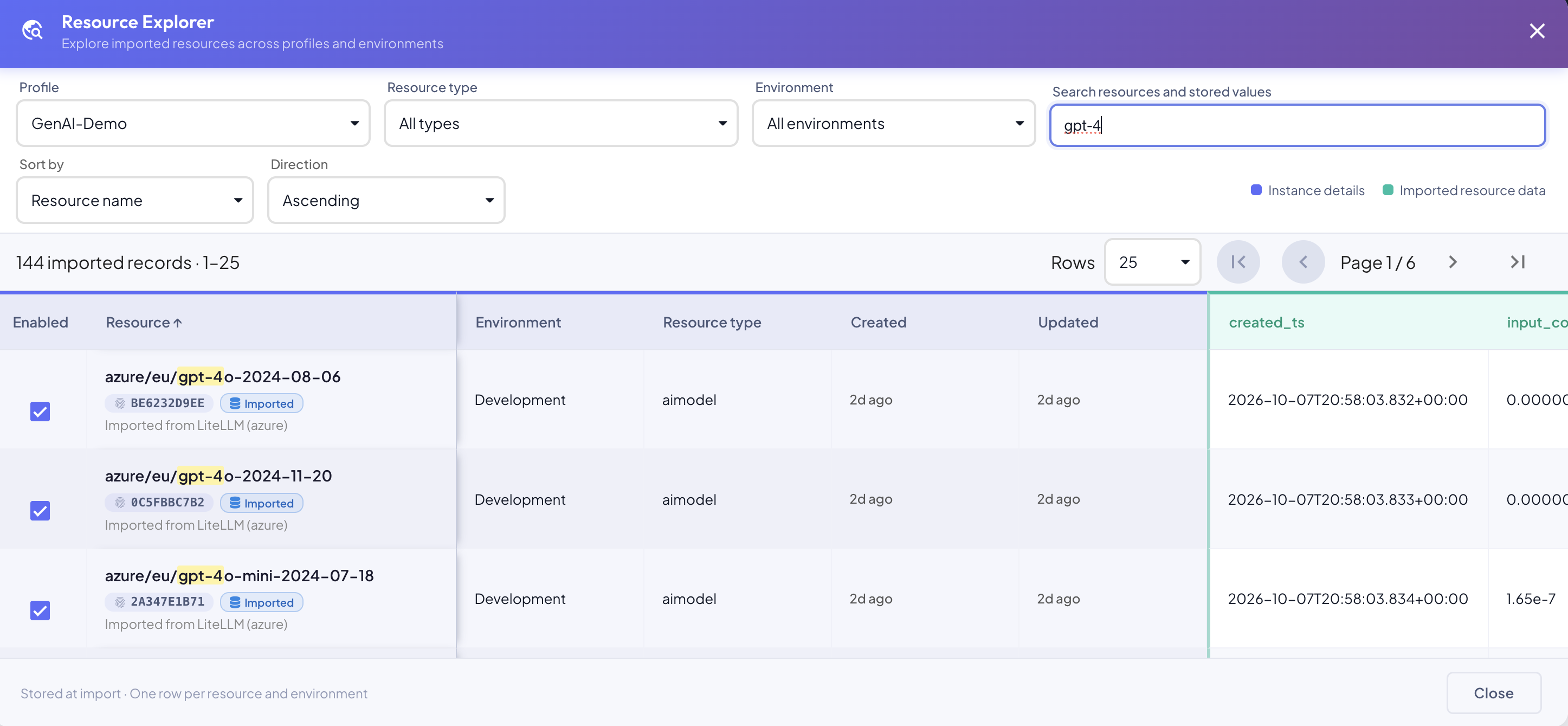
Search resources and stored values matches, case-insensitively, against the resource name, description, resource type, environment and every value stored in the imported record — including values nested inside JSON fields. The search runs as you type.
Matches are highlighted in the results, so you can see why each row was found. A match inside a JSON value is marked on the whole cell — open it in the JSON viewer to see where.
Sorting
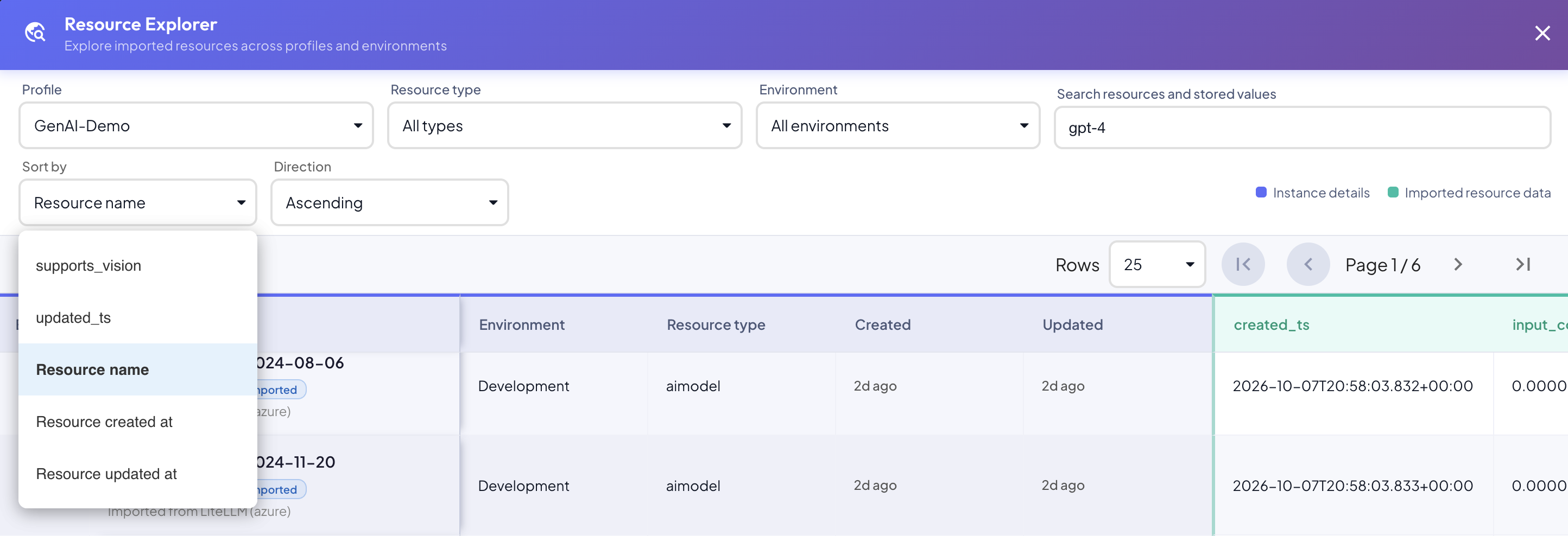
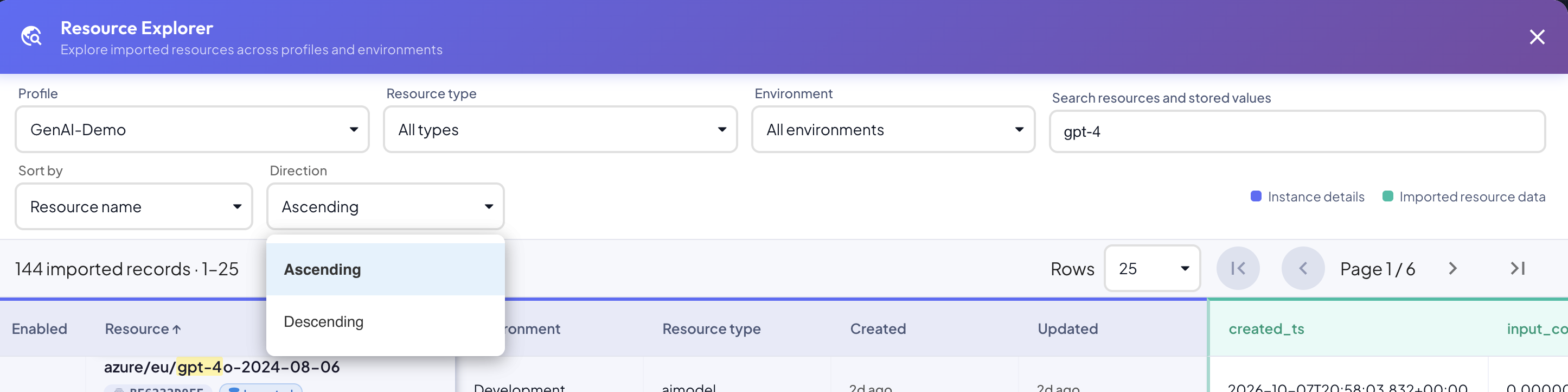
Sort by orders the results by any column — the resource name, its creation or update date, or any of the imported columns of the listed resources — and Direction sets ascending or descending order. You can also click a column header to sort by it; clicking it again reverses the direction.
Pagination
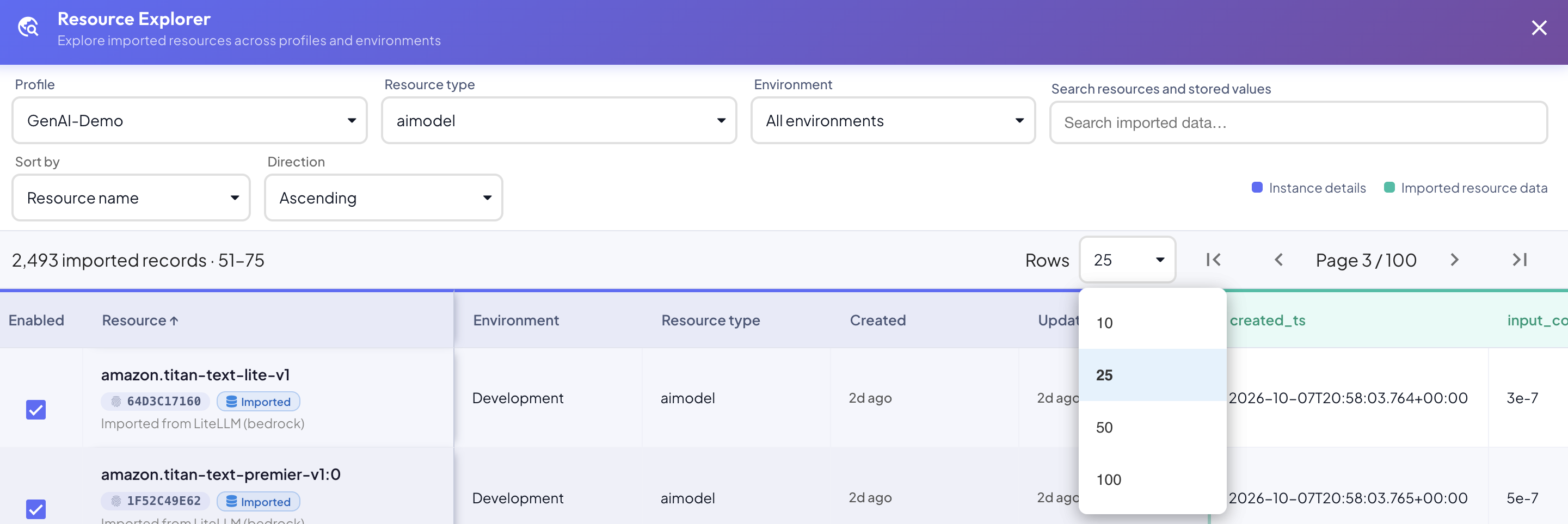
The bar above the table shows the number of matching records and the range on screen. Rows sets the page size (10, 25, 50 or 100), and the arrows move to the first, previous, next and last page.
Viewing JSON values
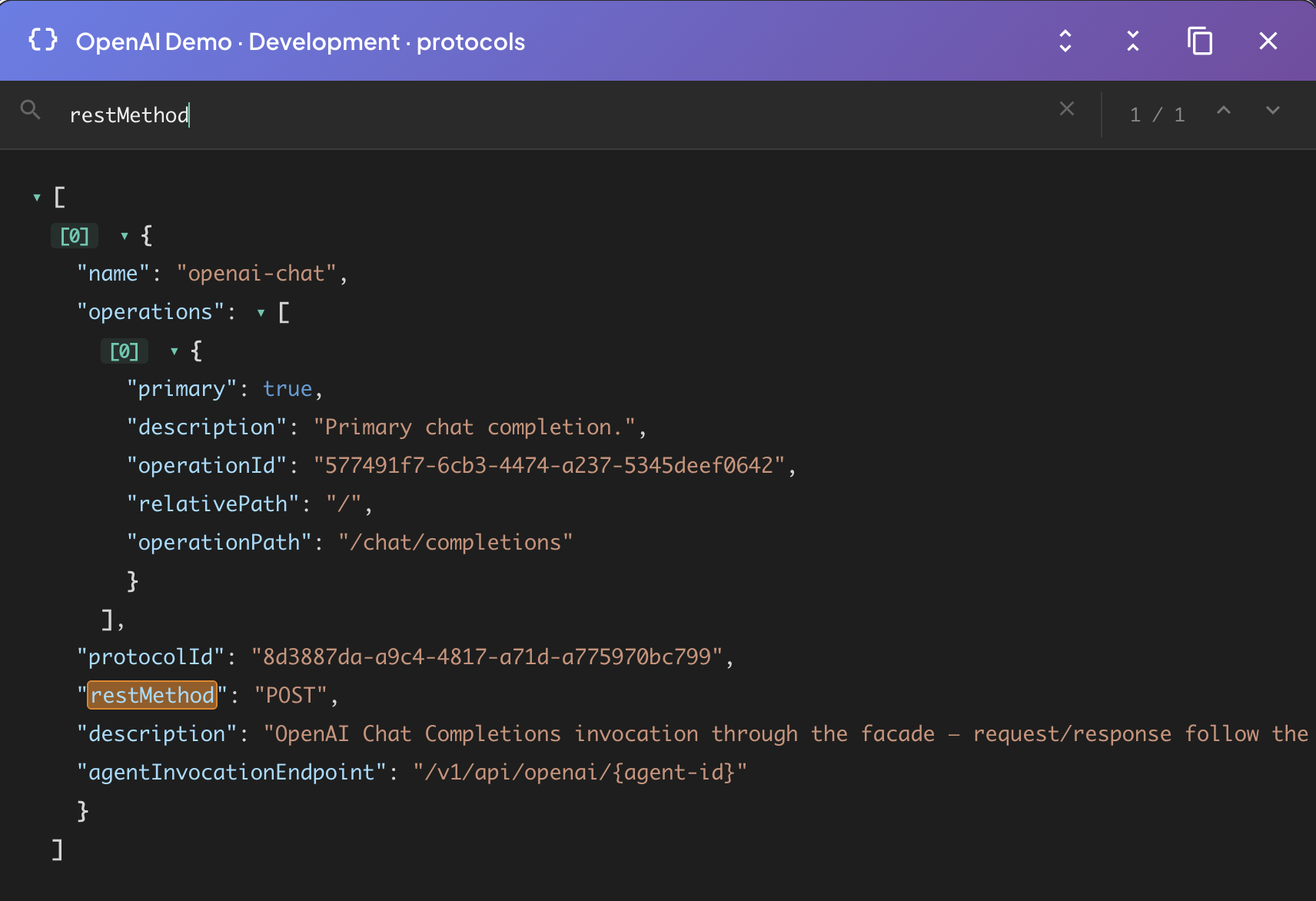
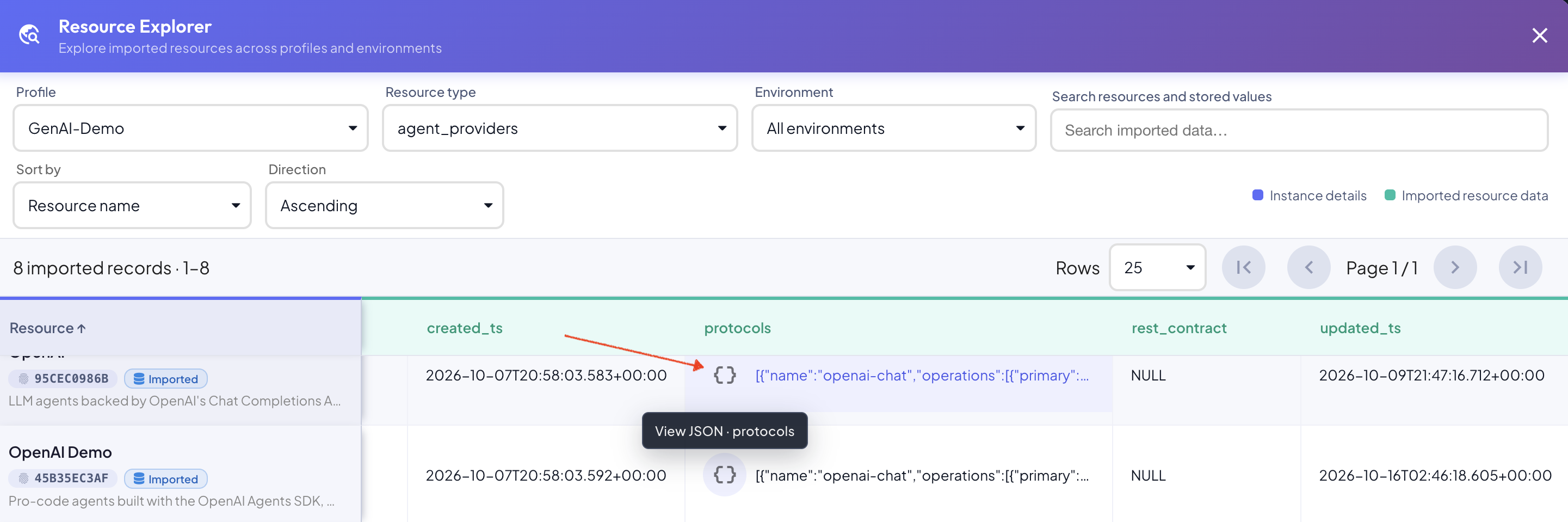
A cell that holds a JSON object or array shows a { } button before its preview. Click it to open the value in the JSON viewer; the tooltip names the column.
The viewer shows the value as an expandable tree, titled with the resource, the environment and the column. Use the expand / collapse buttons to open or fold every level, and the copy button to copy the JSON.
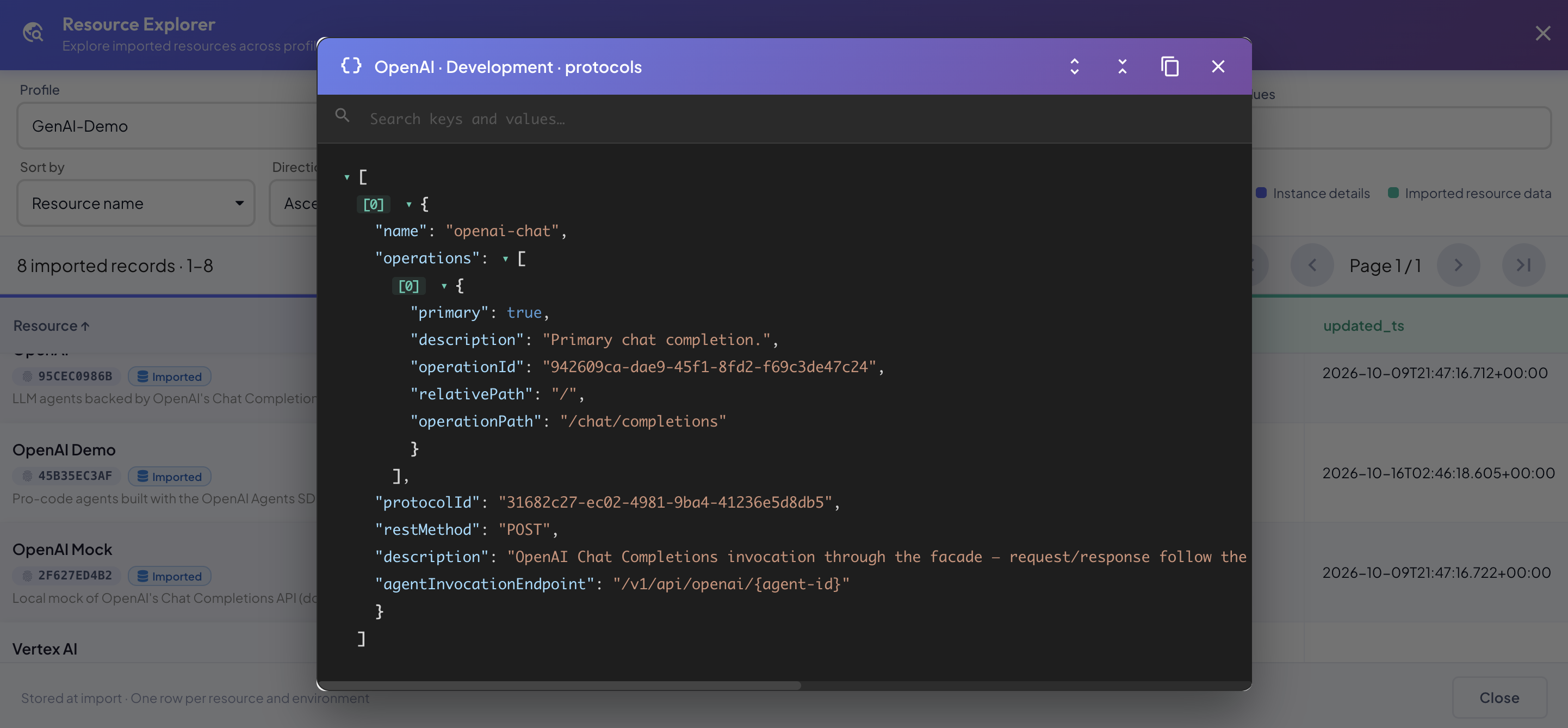
The viewer has its own search: type a term to highlight every key and value that contains it, and move between matches with the arrows. When the explorer already has a search, the viewer opens with it. Esc closes the viewer and returns to the explorer.