Importing Resources from a Database
Instead of creating Resources one by one, BizMetry lets you import existing records directly from a mapped database table and turn them into Resource instances in a single operation.
This is the fastest way to onboard a Resource Type into BizMetry when the underlying business entities already exist in a source system — for example, importing all active clients, products, or accounts already stored in your database.
Prerequisites
Before a Resource Type can be imported, it must meet all of the following conditions:
- It is anchored to a physical table — either because it was imported from a database, or because it was manually anchored afterwards using the Anchor button. Resource Types that only exist as a logical definition, with no table anchored, cannot be imported.
- It has a Resource Name column defined, so BizMetry knows which column to use as the display name for each imported record.
- It has at least one Environment Mapping pointing to a datasource, schema, and table.
- The target environment's agent must be online and its template version must be Published.
If any of these conditions are not met, the Resource Type or the Environment will not appear as selectable options in the import dialog.
Opening the Import Resources Dialog
From the Resources tab of your profile, click Import Resources in the top toolbar.
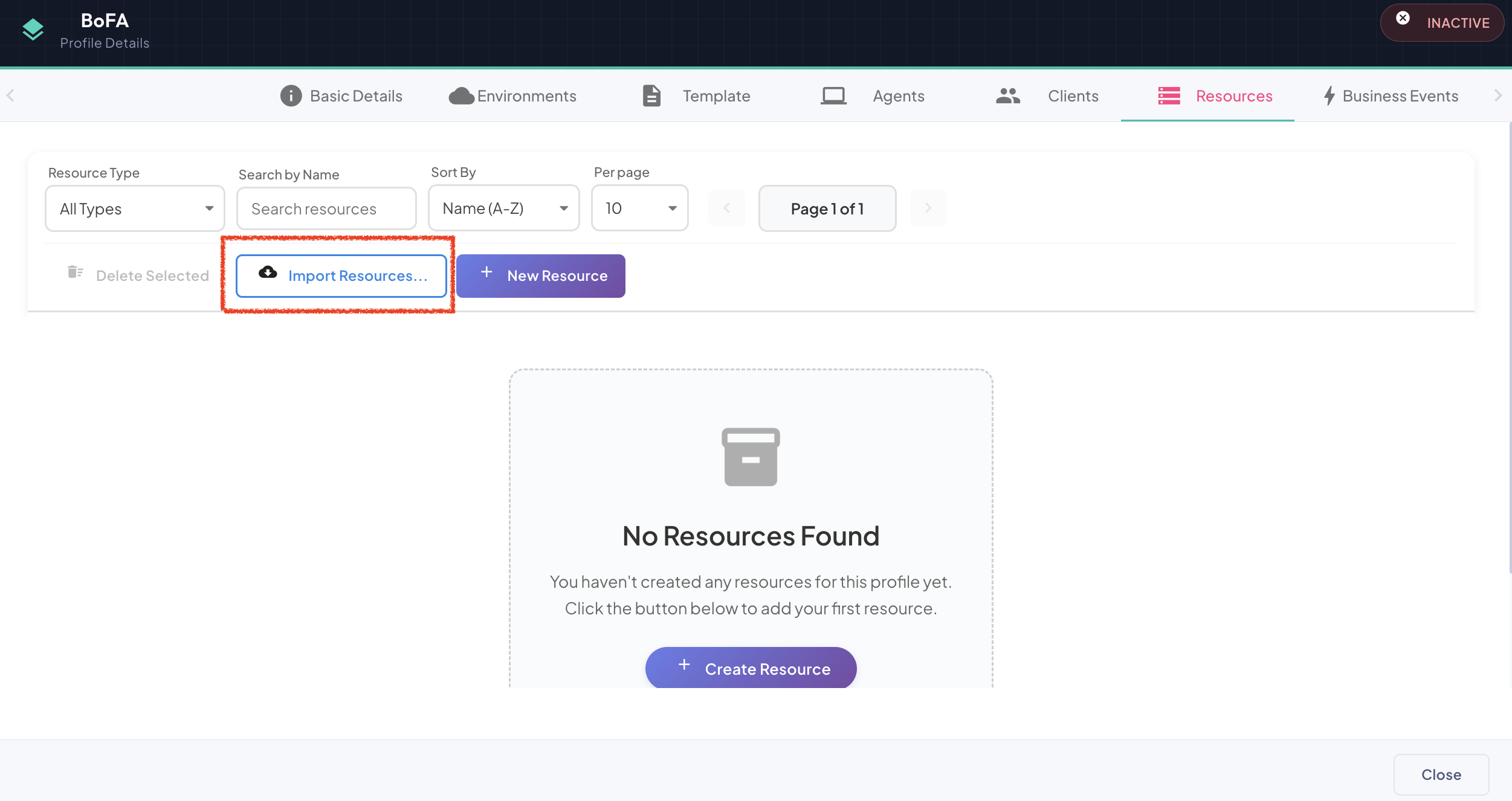
This opens the Import Resources from Database dialog, which walks you through selecting an environment, a resource type, and the specific records to bring into BizMetry.
Step 1: Select Environment and Resource Type
Pick the Environment you want to import from, then pick the Resource Type you want to import records for.
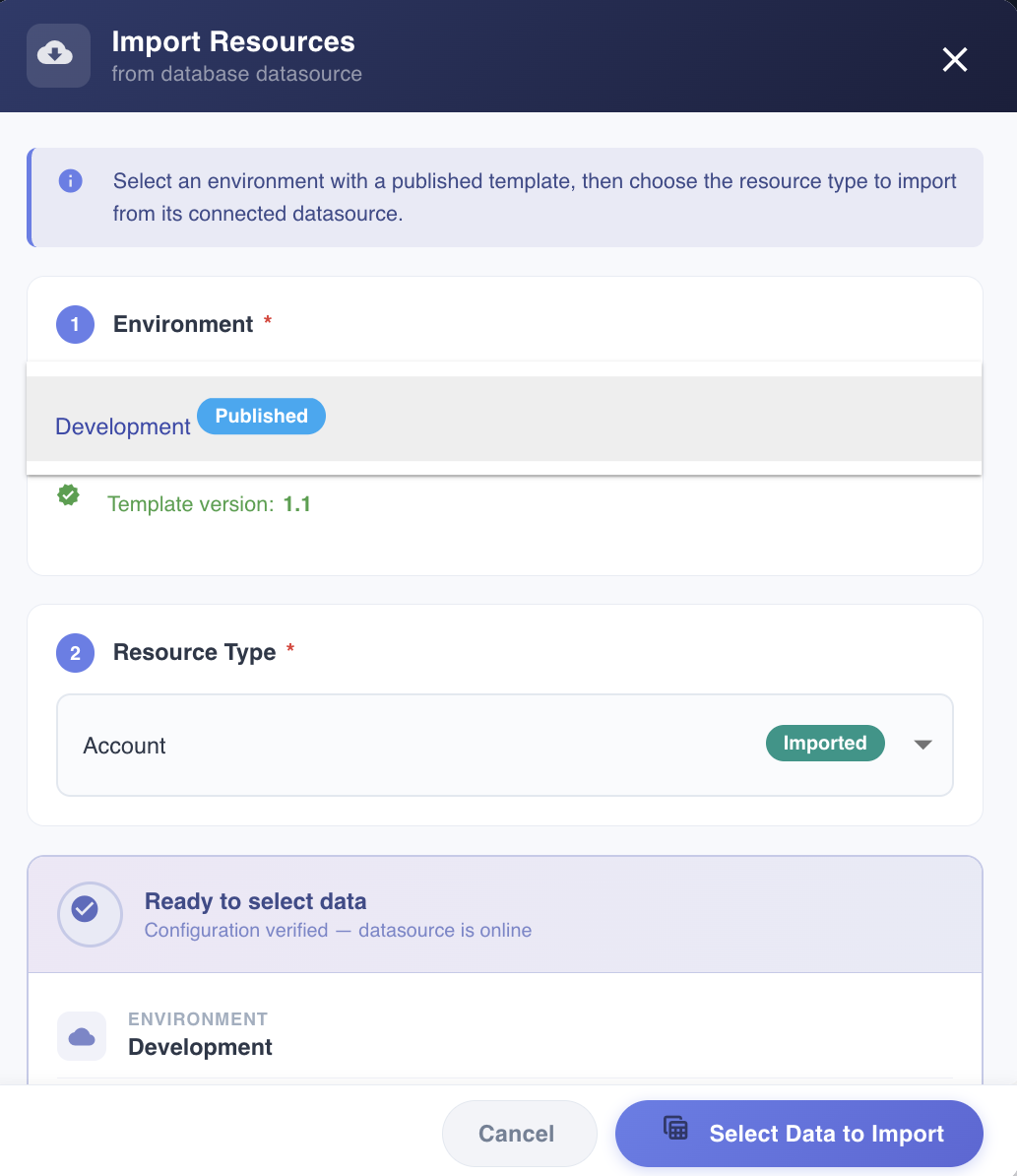
The Resource Type dropdown only lists resource types that are anchored to a physical table for the selected environment — that is, resource types linked to an actual datasource, schema, and table, whether that link was created automatically on import or set up manually via the Anchor button. Resource types with no physical anchor are not listed, since there is no table for BizMetry to pull records from. Each option displays an Imported pill to distinguish resource types anchored via import from those created manually.
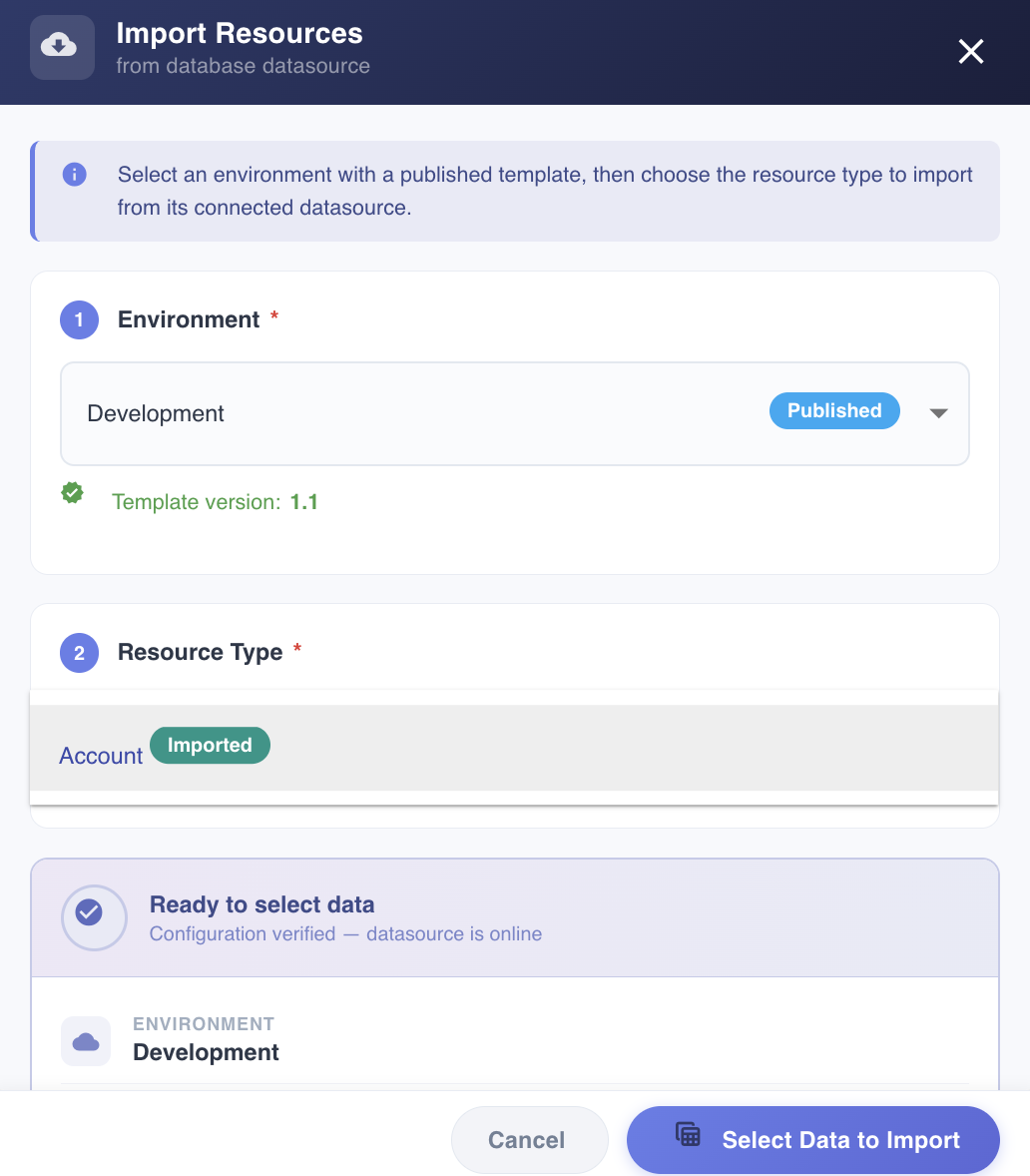
Resource Type missing from the list?
If a Resource Type you expect to import doesn't appear in the dropdown, check whether it's anchored to a table:
- If it isn't anchored at all, anchor it to a table first — either by importing it from a database or by anchoring it manually using the Anchor button — and it will then become available for import.
- If it should already be anchored, verify the Environment Mapping for the environment you selected, and confirm the agent is online and the template is Published.
Only valid environments are shown
An environment only appears in this list if its agent is online and it has a Published template version. This guarantees that BizMetry can actually reach the database and that the resource type structure used for the import is stable.
Confirm the Import Configuration
As soon as both an Environment and a Resource Type are selected, BizMetry displays a confirmation panel summarizing the configuration that will be used to pull data:
- Environment
- Template Version (and its Published status)
- Resource Type
- Datasource (with its online/offline status)
- Target Table
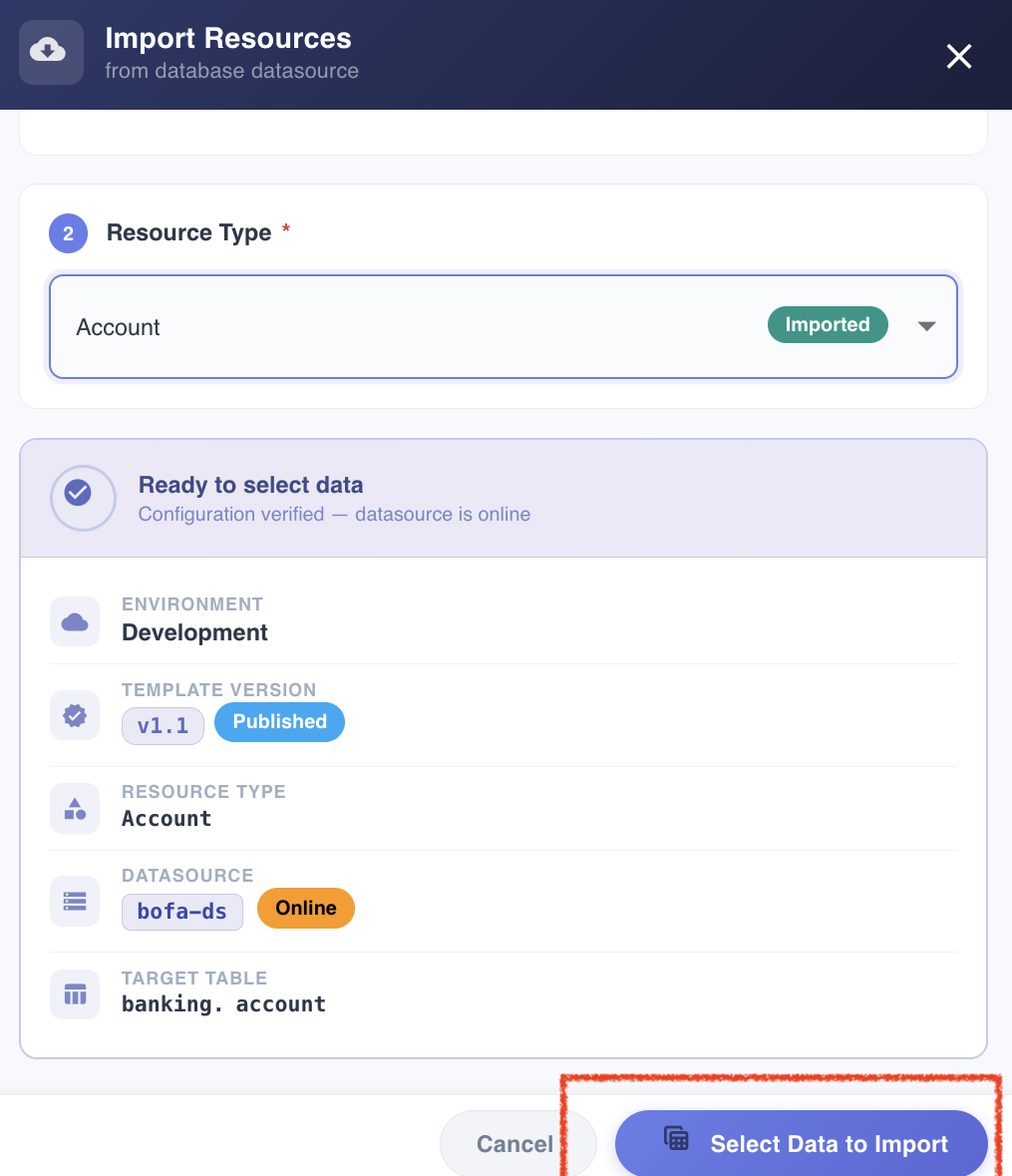
Review the details and click Select Data to Import to move on to the DB Picker Tool.
Step 2: Pick Records with the DB Picker Tool
Clicking Select Data to Import opens the DB Picker Tool — the same tool used when importing Resource Types from a database. It queries the mapped table directly and displays its rows so you can choose exactly which records to bring in.
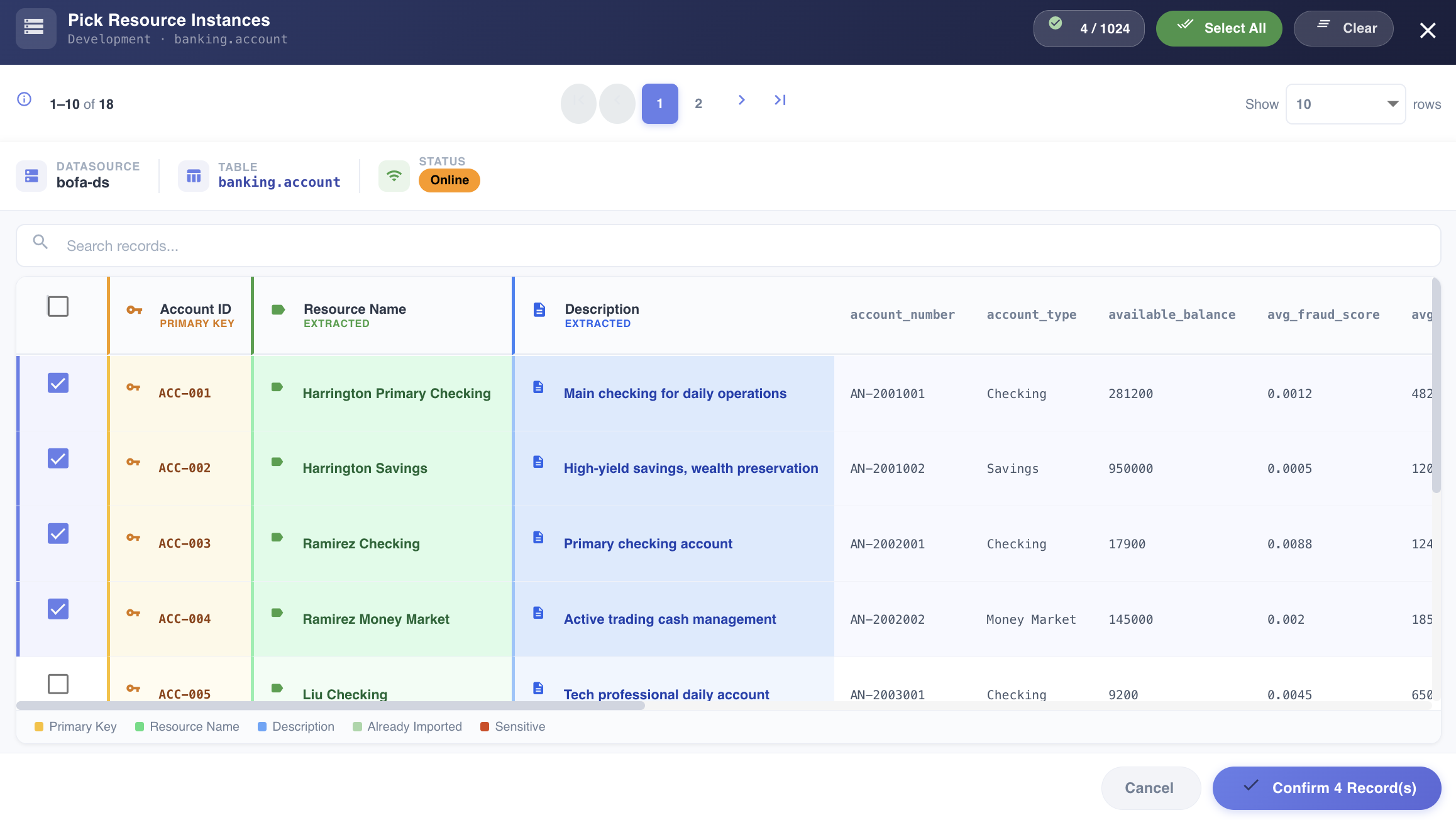
Use the search box to filter rows, and select individual records with their checkboxes, or use Select All / Clear to manage the whole page or the whole result set at once. The legend at the bottom identifies the Primary Key, Resource Name, and Description columns, along with rows that are Already Imported or contain Sensitive data.
Duplicate detection
Records whose primary key already exists as a Resource in BizMetry are shown as Already Imported and appear disabled in the table — they cannot be selected. This prevents the same record from being imported twice.
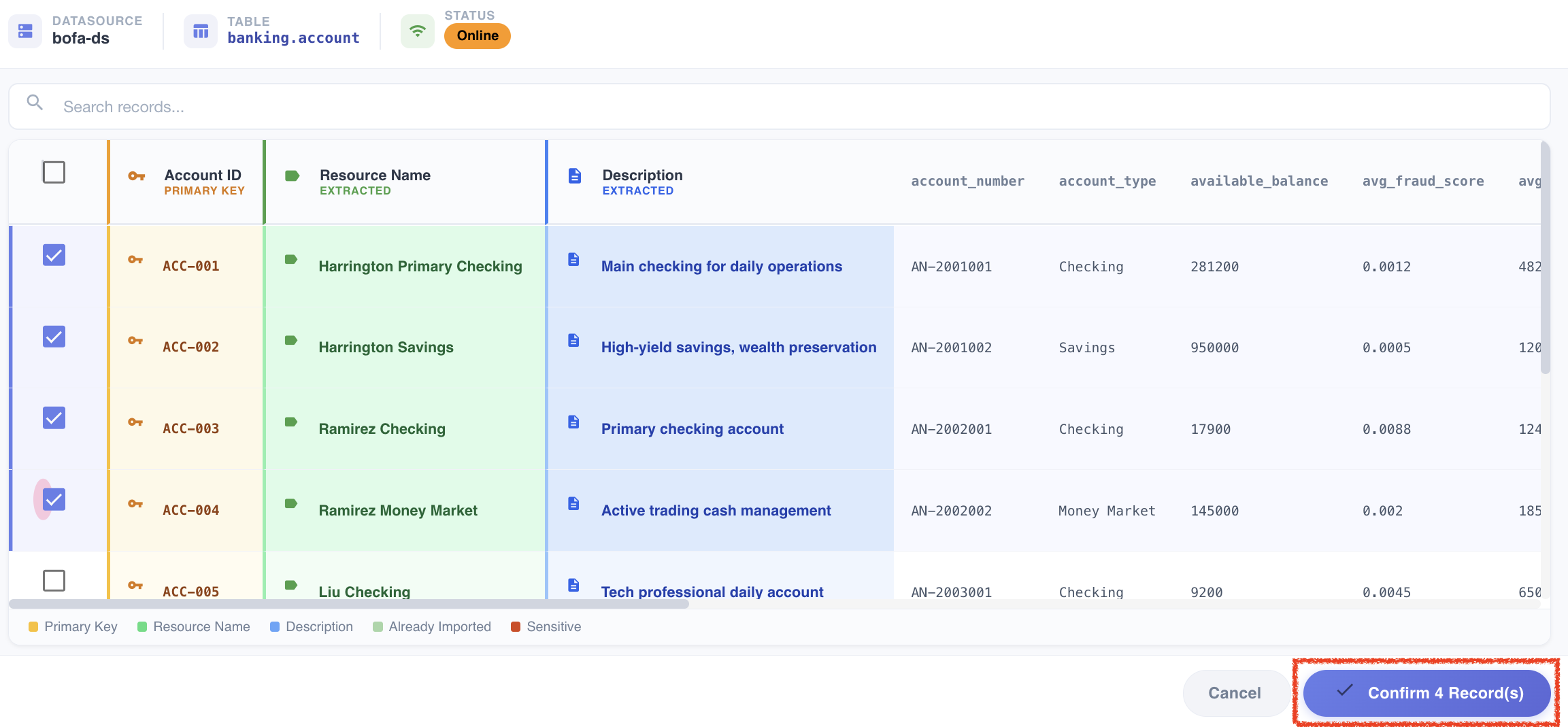
Once you've selected the records you want, click Confirm N Record(s) to close the DB Picker Tool.
Step 3: Review and Import
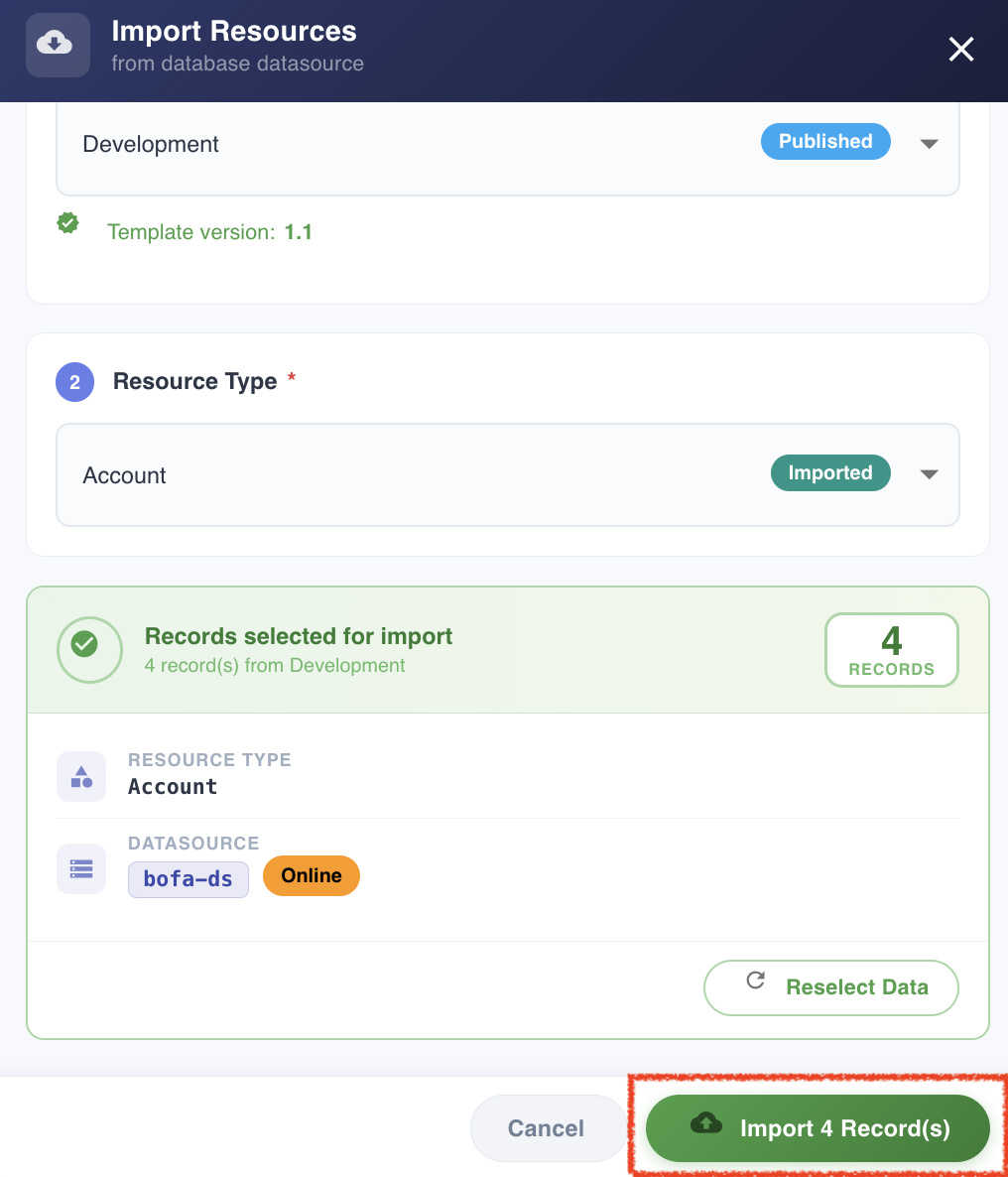
Back in the Import Resources dialog, the selected records are now summarized in a green Records selected for import panel, showing the record count, Resource Type, and Datasource status.
From here you can:
- Click Reselect Data to go back to the DB Picker Tool and change your selection.
- Click Import N Record(s) to create the Resources.
BizMetry creates a new Resource for each confirmed record, automatically populating its attributes from the source row and establishing the Environment Mapping between the new Resource and its physical primary key.
Verifying the Imported Resources
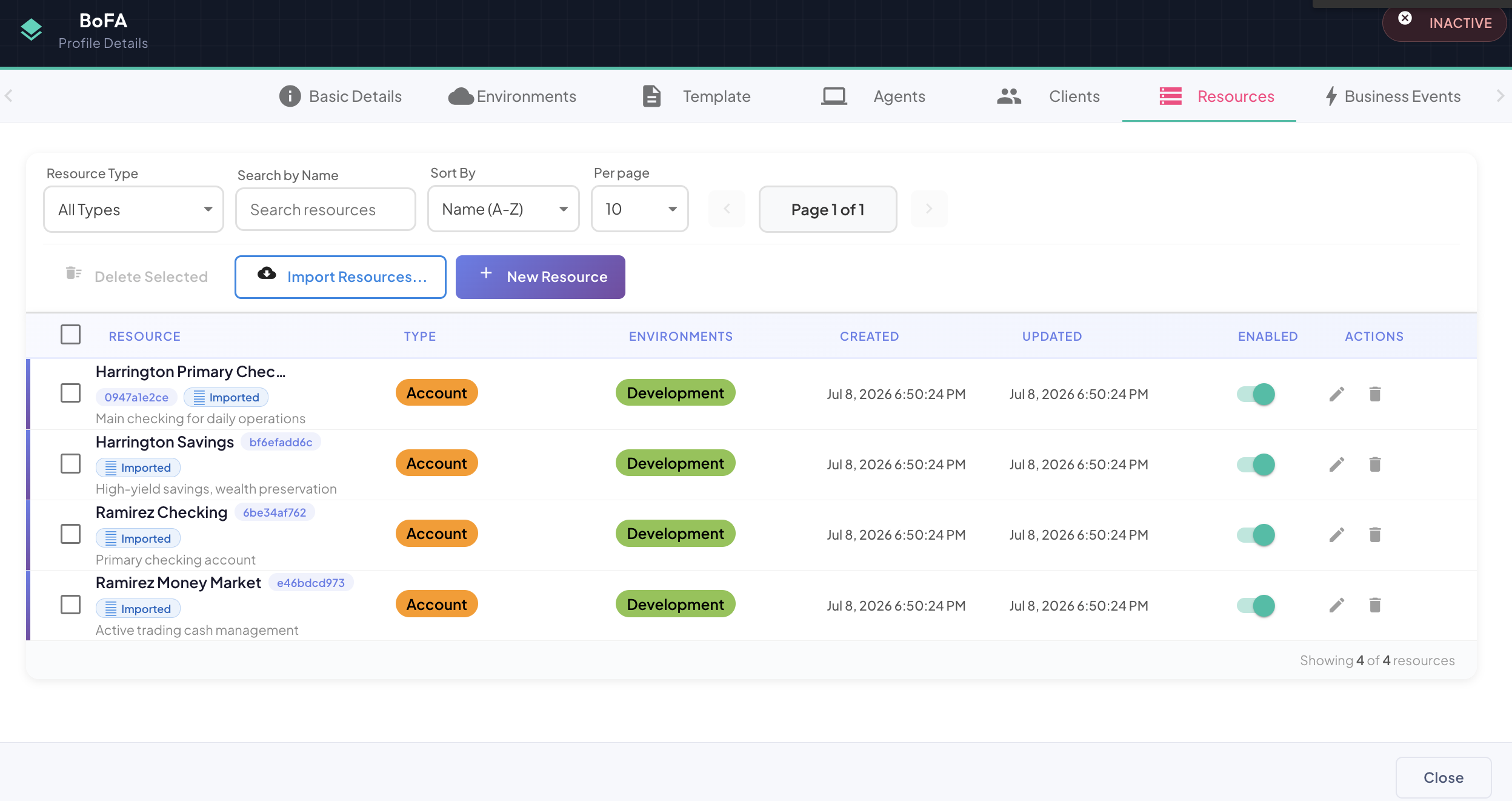
The newly imported Resources appear immediately in the Resource Summary list, already mapped to their environment.
Keeping resources in sync
Imported Resources remain linked to their physical primary key for the environment they were imported into. Running the import again for the same environment will only let you select new records — records already imported appear disabled in the DB Picker Tool and cannot be selected again.