Creating a Resource
A Resource is a concrete ASBO instance — a specific bank account, ATM, order, or any other business object you want BizMetry to monitor. Resources are created manually here or imported in bulk from a datasource via Import Resources.
Opening the Dialog
From the Resources tab, click + New Resource.
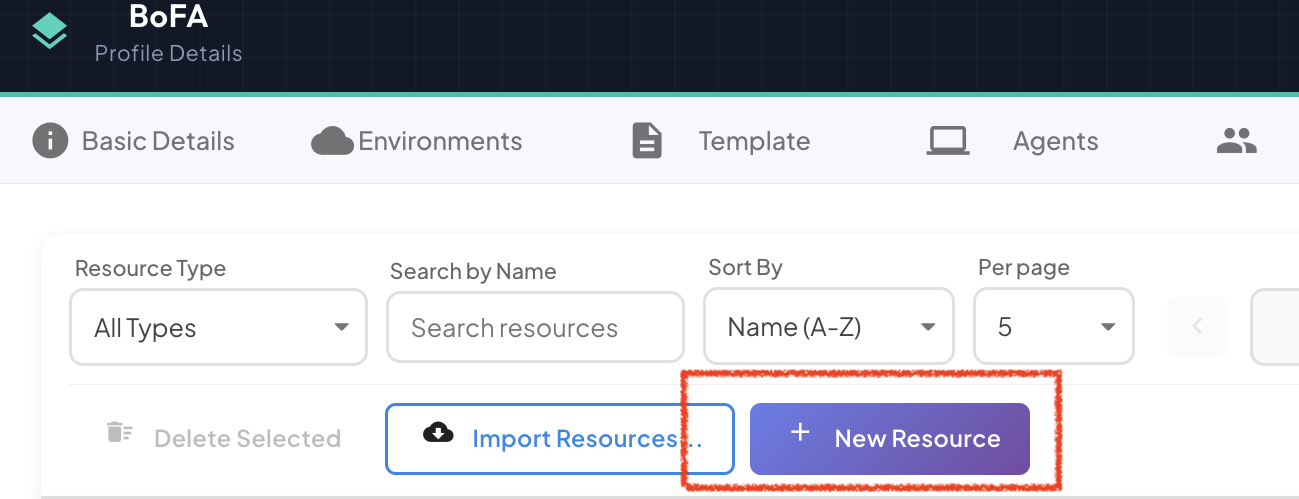
The Create New Resource dialog opens with two tabs: GENERAL and ENVIRONMENTS.
GENERAL Tab
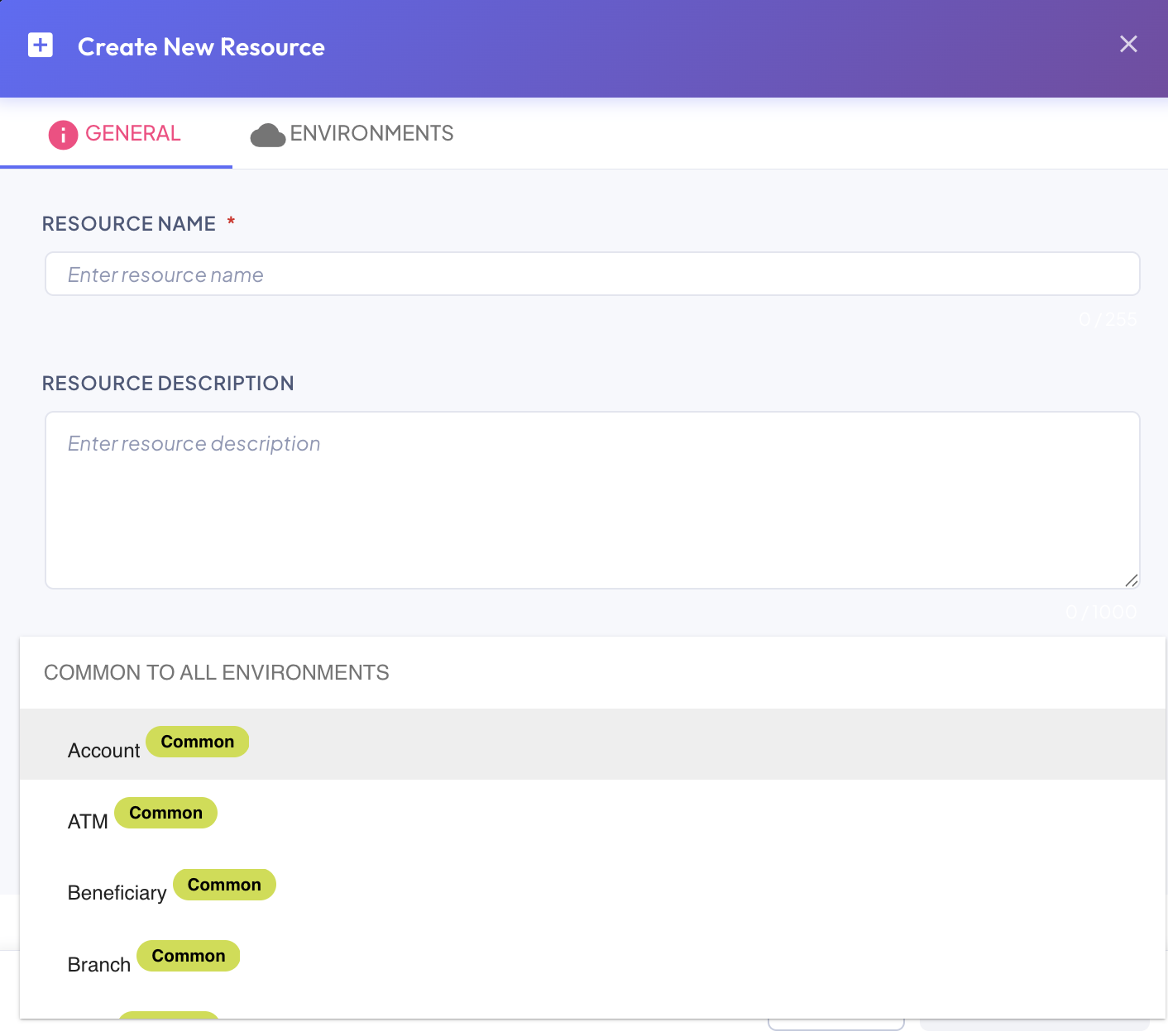
| Field | Required | Description |
|---|---|---|
| Resource Name | The display name for this ASBO instance. Must be unique within the profile. | |
| Resource Description | Optional free-text description providing business context for this instance. | |
| Resource Type | Select the Resource Type from the template that this instance belongs to. Shown with a Common badge for types shared across all environments. |
Resource Types must exist first
The Resource Type dropdown is populated from the types defined in the profile's template. If no types are available, configure them first in Editing Resource Types.
ENVIRONMENTS Tab
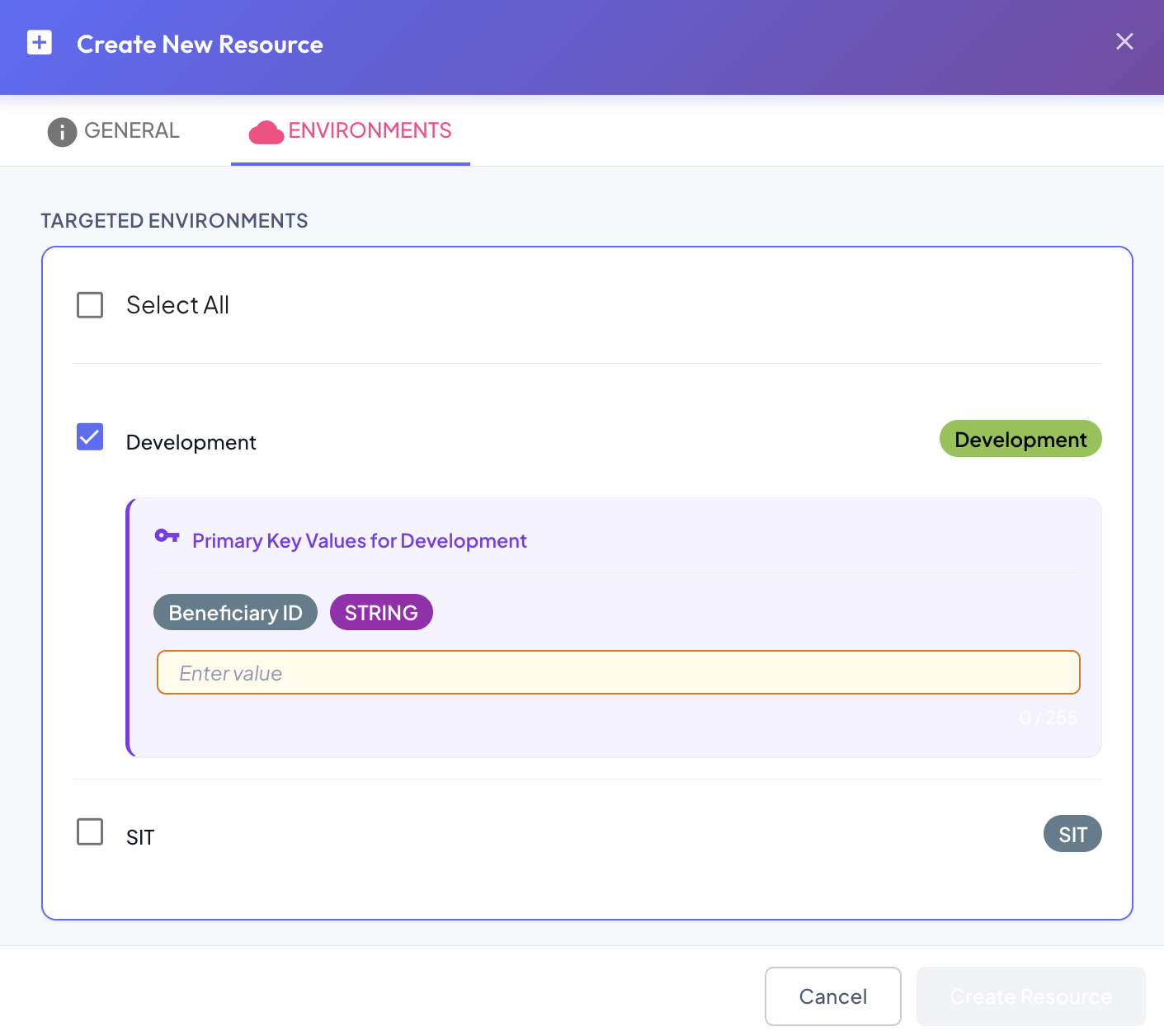
The Environments tab shows all environments configured for this profile as a checklist.
To map an environment:
- Check the checkbox next to the environment name
- A Primary Key Values section expands below it
- Enter the primary key value for this resource instance in that environment
| Element | Description |
|---|---|
| Select All | Checkbox at the top to select all environments at once |
| Environment row | Name + colored badge (e.g., Development, SIT) |
| Primary Key Values | Shows the PK attribute name and its data type as badges, with an input field to enter the value for this specific instance |
Primary Key Values
The primary key is defined on the Resource Type's attribute configuration (the attribute marked as PK). Each environment can have a different PK value for the same logical resource — this is how BizMetry tracks the same business object across environments even when internal identifiers differ.
Tip
You can skip environment mapping at creation time and configure it later through Edit Resource. The Create Resource button is available regardless of whether environments are mapped.
Creating the Resource
Once the required fields in the GENERAL tab are complete, click Create Resource.
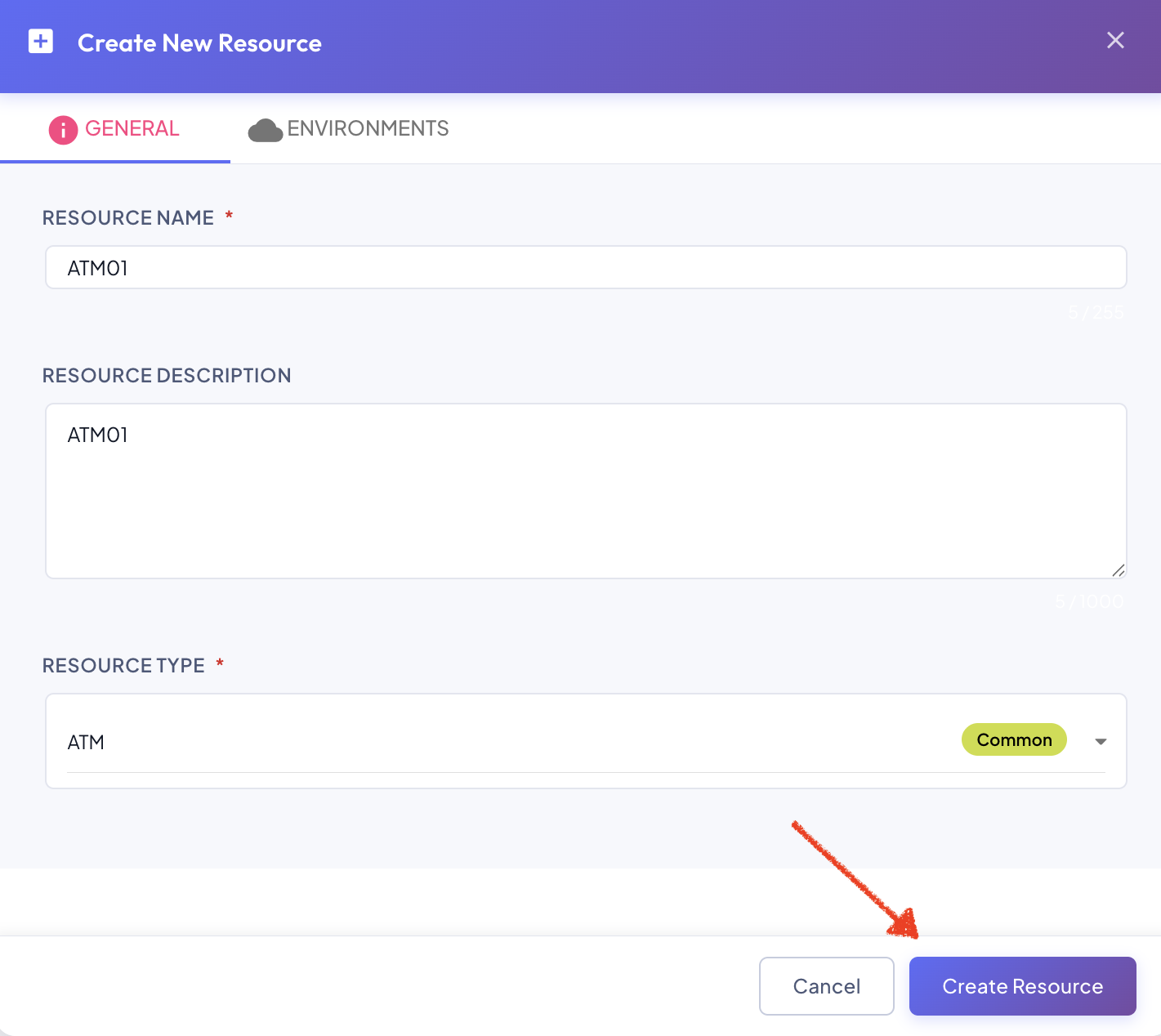
The dialog closes and the new resource appears in the Resources table.