Bumping, Downgrading and Promoting Versions
Use these actions to change the Template version assigned to an environment. Bump and downgrade change the card you click; promote copies that card's version to the next environment. These actions select existing Template versions—they do not create a new Template release.
Find the version controls
- Open the Profile's Environments tab.
- Click Edit Release Pipeline.
- Locate the environment card and check its current Template Version pill before choosing an action.
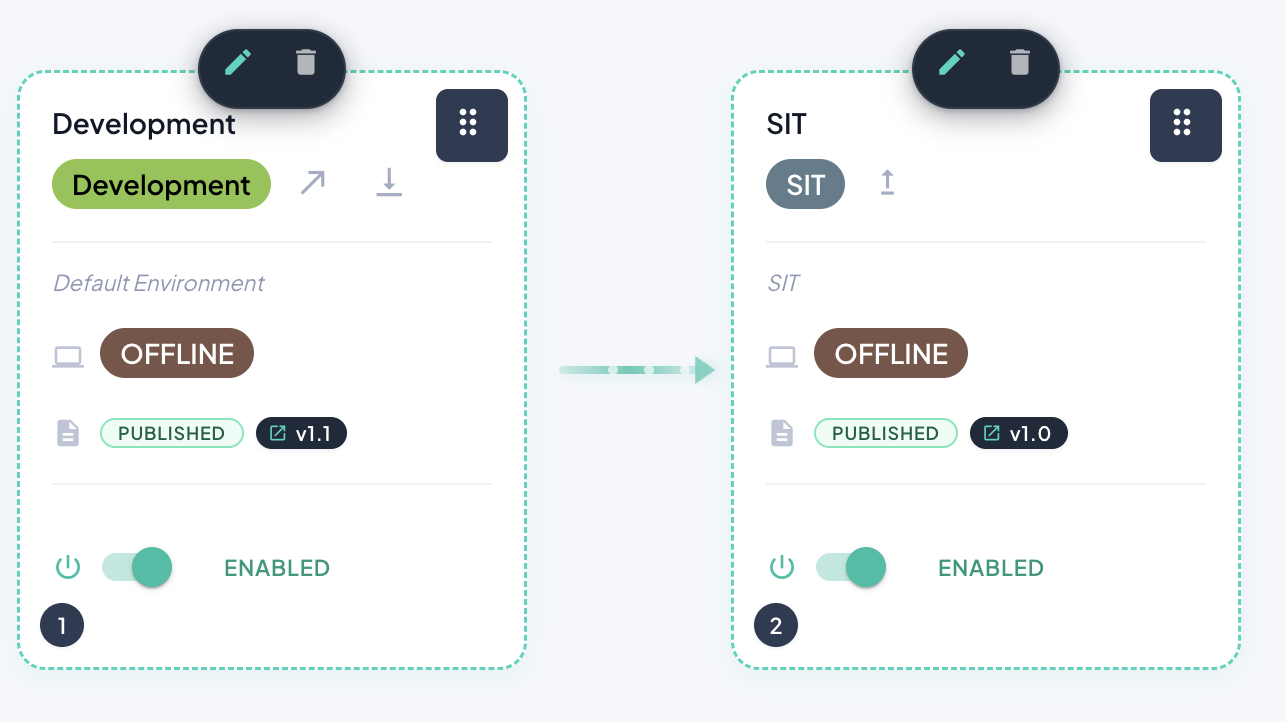
In this example, Development is at v1.1 and SIT is at v1.0. The controls sit beside the environment-type pill; the current version appears lower on each card.
| Icon | Action | Assignment changed |
|---|---|---|
| ↑ | Bump Version | The card you click, to its next available higher version |
| ↓ | Downgrade Version | The card you click, to its next available lower version |
| ↗ | Promote to Next | The next environment, to the version of the card you click |
Only available actions are shown. An absent arrow can mean there is no higher/lower version or no next environment. A proposed assignment must also pass the lifecycle and ordering rules.
Bump Version
Use ↑ on the environment whose assignment you want to advance. BizMetry selects the next available higher Template version, following major.minor ordering. If no higher version exists, the button is hidden.
For example, with Development at v1.1, clicking its bump arrow selects v1.2 if that is the next available version. If the next release is v2.0, that is the candidate instead. SIT keeps its current assignment; use Promote to Next when you want to advance SIT too.
Check the changed version pill before saving. The candidate still has to be eligible for this environment and preserve the pipeline's version order.
Downgrade Version
Use ↓ on the environment you want to return to its next available lower Template version. If no lower version exists, the button is hidden.
In the screenshot, Development's downgrade arrow can return it from v1.1 to v1.0, provided the assignment passes validation. This changes Development's assignment, not the Template definition or SIT's version.
A downgrade can restore schema as well as change the version number. If the destination restores an anchored ASBO or a mapped resource attribute, BizMetry may need to pull its values from the datasource again. The affected agent must then be ONLINE and REACHABLE.
Promote to Next
Use ↗ on the source environment after validating its Template there. BizMetry copies that version to the next environment in pipeline order; the source keeps its version.
For the example above:
| Environment | Before promotion | After promoting Development to SIT |
|---|---|---|
| Development | v1.1 | v1.1 |
| SIT | v1.0 | v1.1 |
The pipeline editor shows the resulting assignments on both the sequence diagram and the cards:
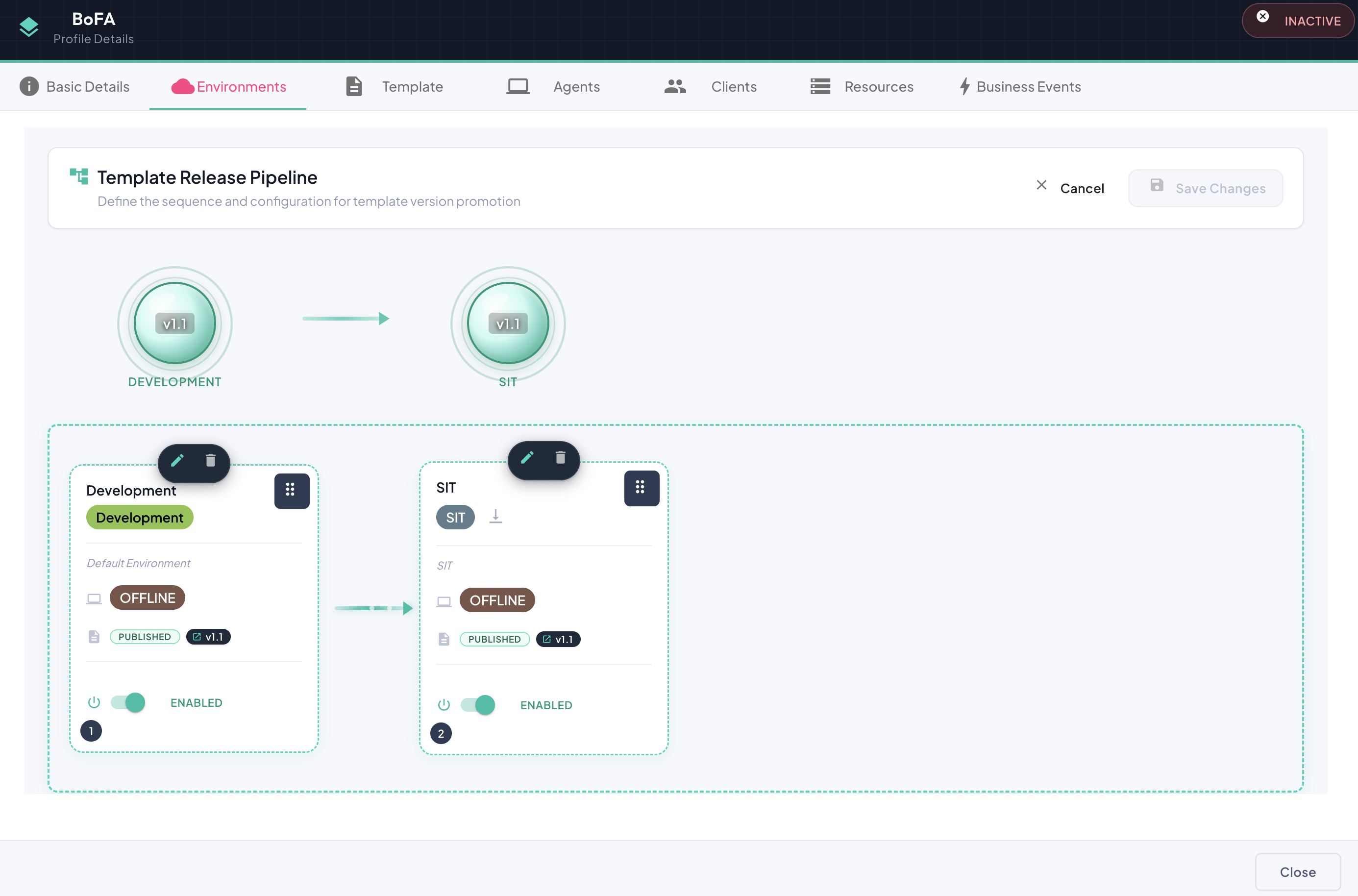
This screenshot illustrates the resulting version layout. It is not a confirmation that the changes have been saved. Promotion remains subject to the destination's lifecycle restrictions—for example, a Draft cannot be promoted to SIT.
Agent preflight for data reconciliation
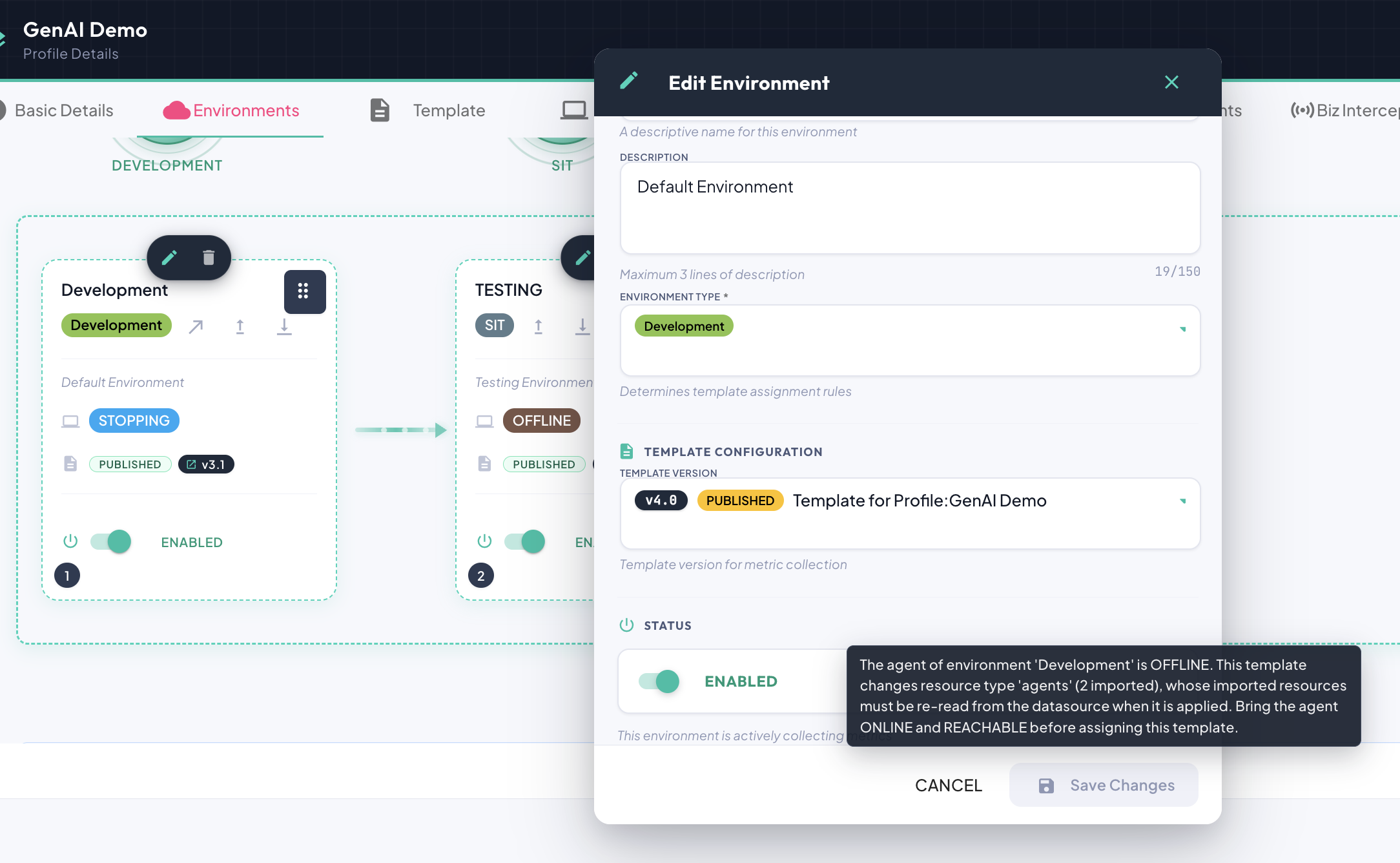
Bump, downgrade, promote and roll-up/down check whether the proposed Template assignment requires a datasource pull. If imported resources must be re-read, the environment's agent must be both ONLINE and REACHABLE. This includes restoring an ordinary mapped attribute, an anchor, or an ASBO after a version change—not only identity-field changes.
In Edit Environment, Save Changes is disabled while the assignment is blocked. Hover over the disabled action to read the affected resource type and connectivity requirement:
The workflow also validates the plan before it can be applied. A rejected operation displays Invalid Workflow Configuration and leaves the assignment unapplied:
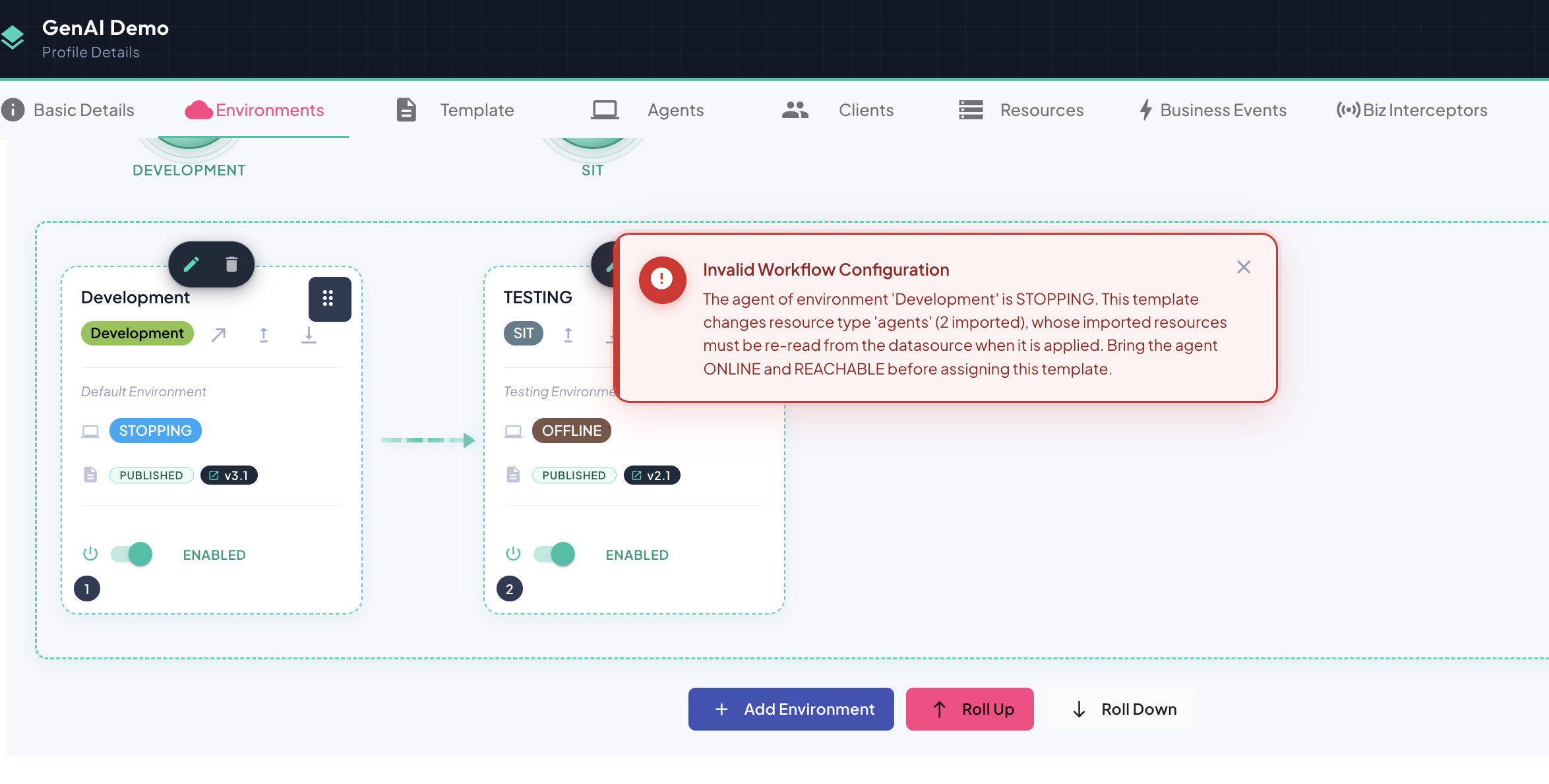
Restore the agent's connectivity and retry the intended assignment. An ONLINE status alone does not establish that the platform can reach its external gateway.
Review and apply the change
- Check the proposed version on each affected card.
- Resolve any assignment error. If imported resources must be re-read, bring the affected agent ONLINE and REACHABLE before retrying.
- Click Save Changes, review the confirmation, and confirm to persist the plan. Cancel discards pending edits.
For a coordinated shift across multiple environments, use Rolling Operations.