Editing and Reordering the Pipeline
Enter edit mode to plan changes before saving them. Card controls apply to one environment; rolling operations apply to the pipeline.
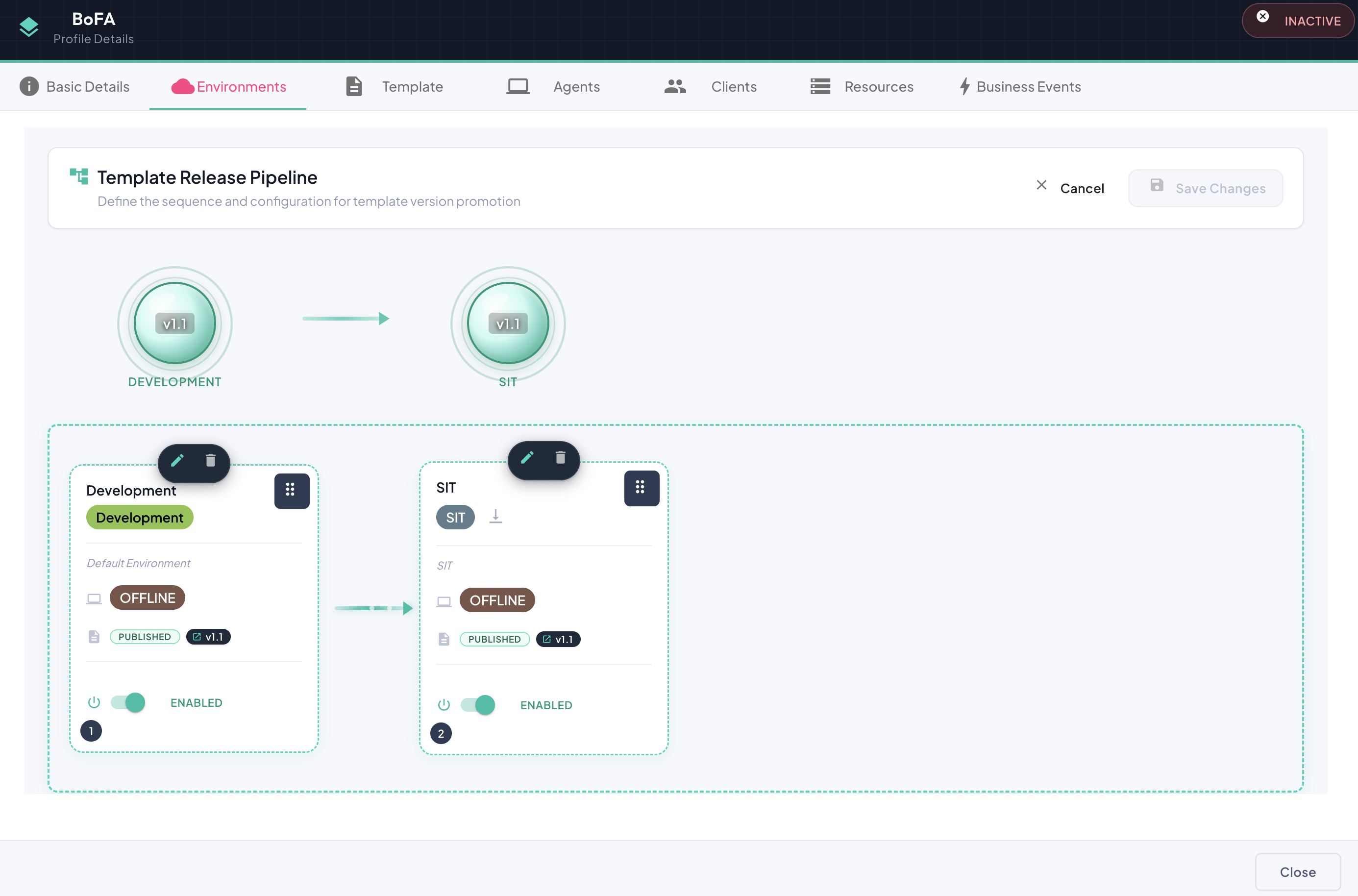
To modify the workflow, click the Edit Release Pipeline button in the top-right corner of the tab. This activates Edit Mode.
Tip
All changes made in edit mode are held in memory for the duration of the session and are not persisted immediately. This allows you to freely adjust the pipeline configuration and review the result before committing.
Per-Card Controls
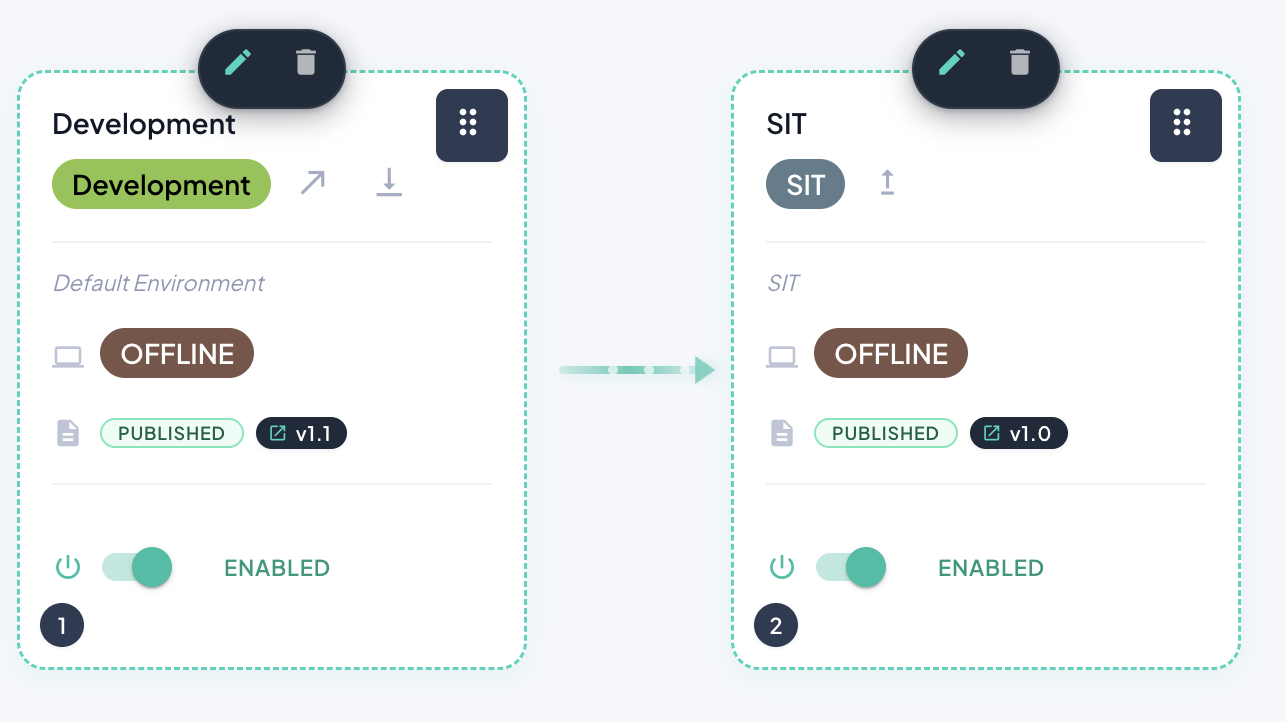
In edit mode, each environment card exposes a set of individual action controls. The table below summarizes each control, its icon, and its effect:
| Icon | Control | Description |
|---|---|---|
| Edit (pencil) | Opens the Edit Environment Dialog to modify the environment's properties. | |
| Delete (trash) | Marks the environment for removal when the pipeline is saved. | |
| ⠿ | Drag Handle (six dots) | Click and hold to reorder the environment within the pipeline via drag & drop. |
| Promote to Next (diagonal arrow) | Copies this environment's template version to the next environment in the pipeline. | |
| ↑ | Bump Version (upward arrow) | Increments the template version to the next available version. |
| ↓ | Downgrade Version (downward arrow) | Decrements the template version to the next lower available version. |
Tip
The drag handle (⠿) is only visible when hovering over a card in edit mode. The Bump and Downgrade arrow buttons are hidden automatically when no higher or lower version is available, respectively.
Reordering Environments via Drag & Drop
In edit mode, environments can be repositioned within the pipeline using drag and drop:
- Click and hold the environment card you wish to move.
- Drag it to the desired position within the pipeline.
- Release to drop it in place.
Warning
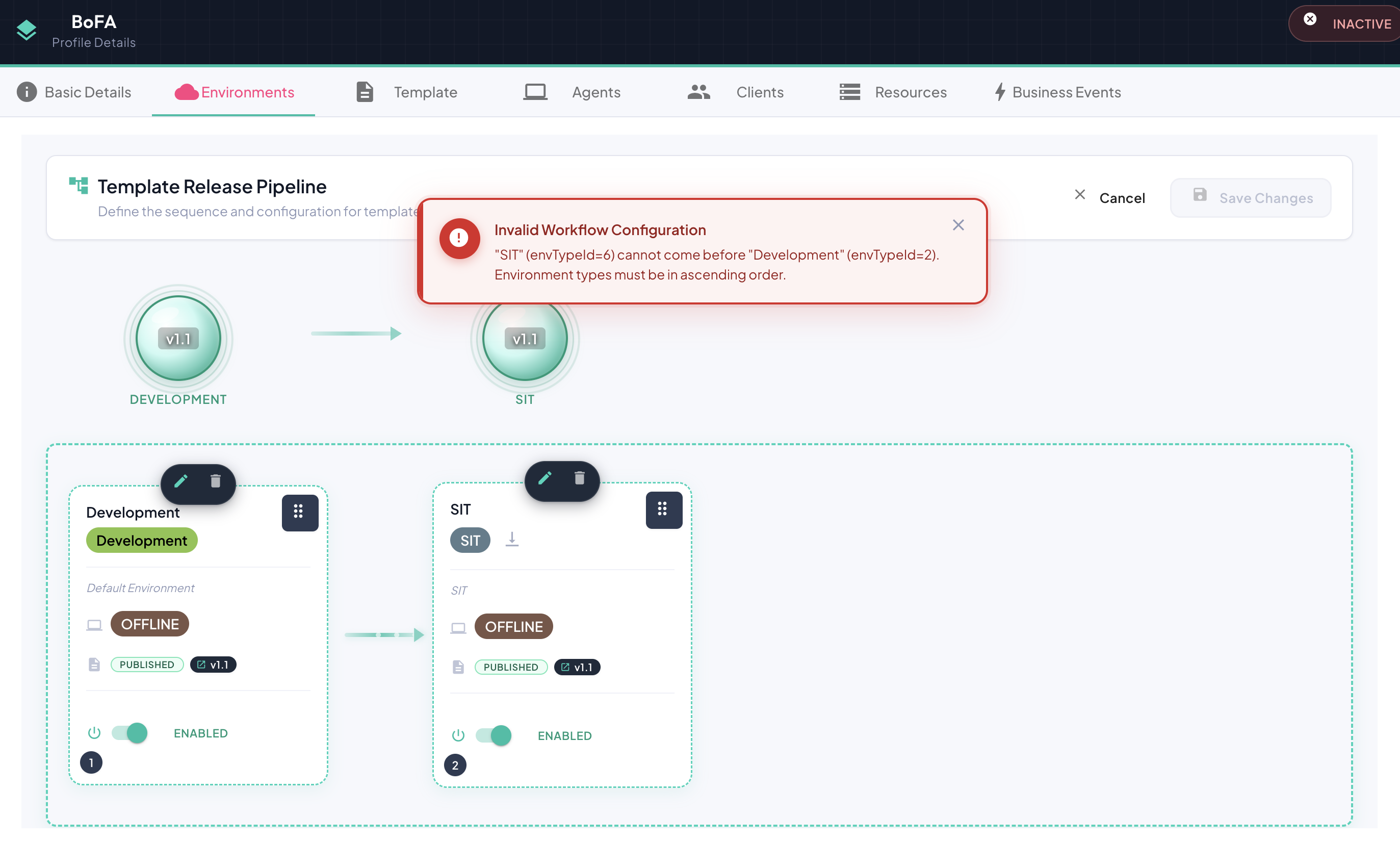
Drag and drop operations are subject to the same promotion rules in Assignment Rules — particularly the master environment type ordering and the version ordering constraints. If the resulting position would violate any of these rules, the operation will be rejected and an error banner will be displayed indicating the reason.