Creating, Editing and Deleting Environments
Open Edit Release Pipeline before changing an environment. Environment properties and Template assignments are applied when you save the pipeline.
Edit an environment
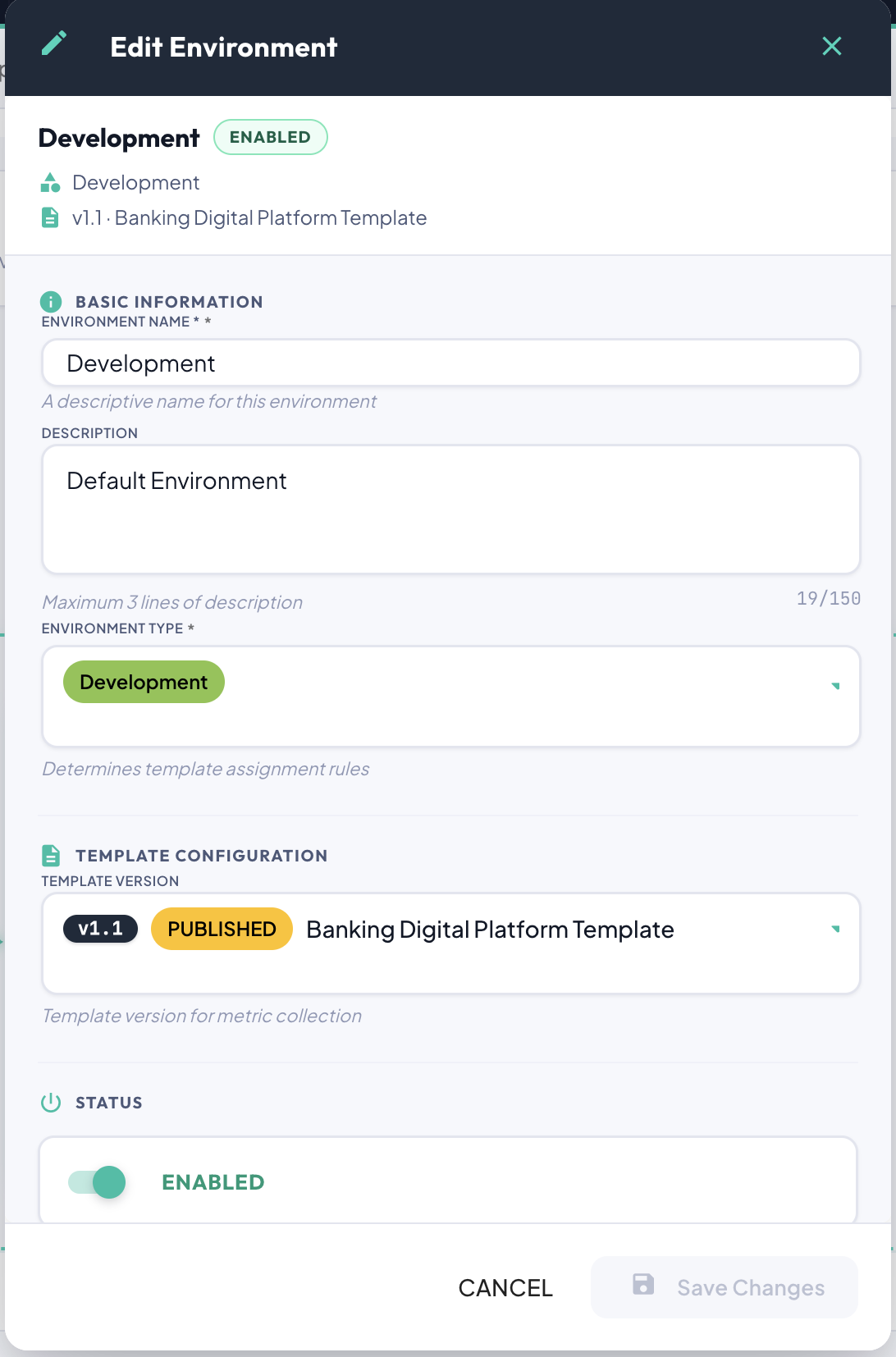
Clicking the pencil icon opens the Edit Environment Dialog, where you can modify:
- Name — The environment's display name.
- Environment Type — The lifecycle stage (Development, QA, UAT, etc.).
- Template Version — The telemetry template assigned to this environment.
DEVELOPMENTenvironments may be assigned any template version, includingDRAFTversions. All other environments may only be assigned published and approved (PUBLISHED) template versions. - Description — A free-text description of the environment's purpose.
- Enabled / Disabled — Whether metric collection is active for this environment.
Delete an environment
Click the trash icon to remove the environment from the pending workflow. Review the change before saving; Cancel discards pending edits. Once the removal is saved, it cannot be undone through this action.
Create an environment
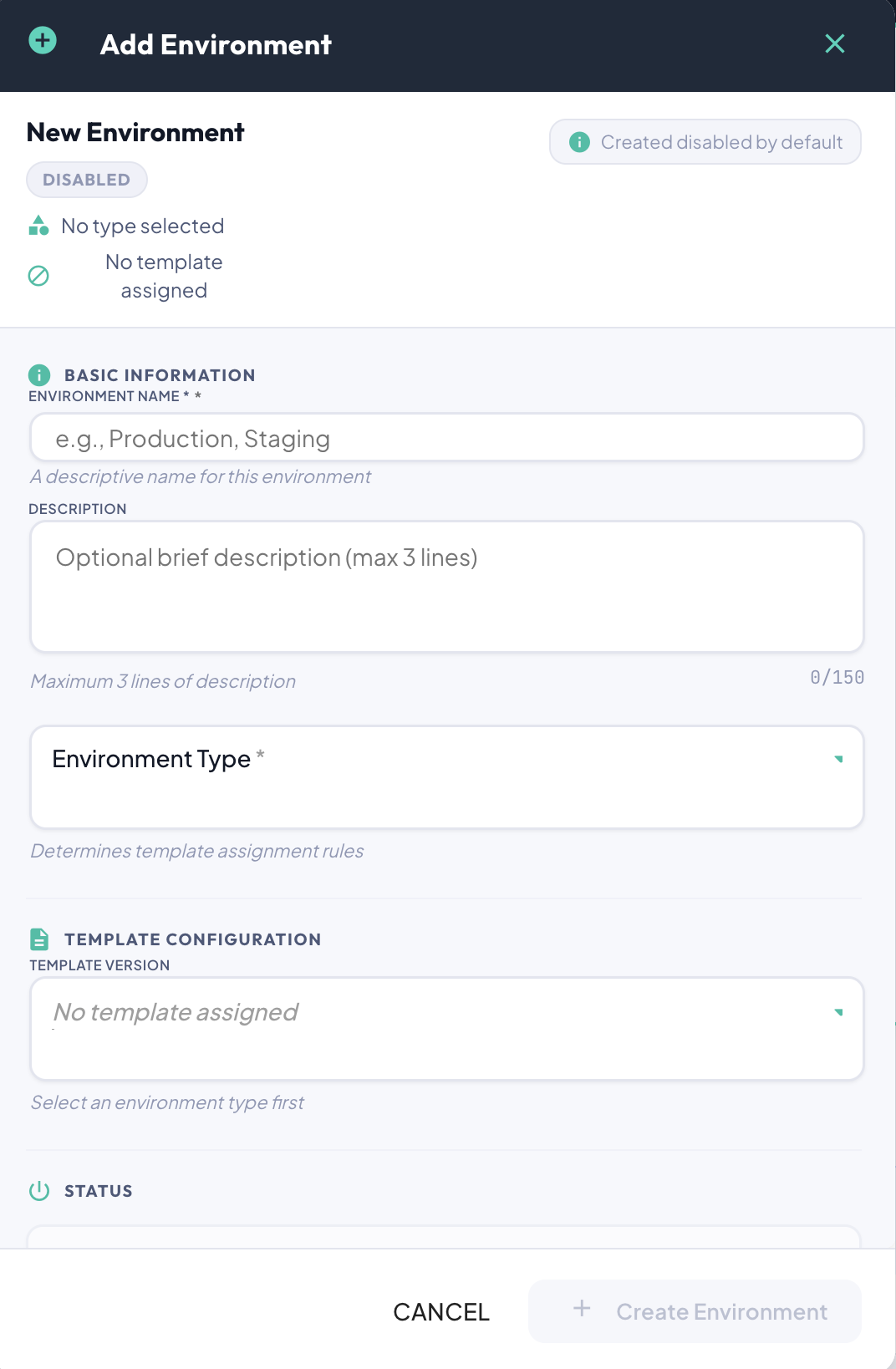
Use this button to create a brand new environment. When you click this button, the create new environment dialog is presented, where you can configure it:
- Name — The environment's display name.
- Environment Type — The lifecycle stage (Development, QA, UAT, etc.).
- Template Version — The telemetry template assigned to this environment.
DEVELOPMENTenvironments may be assigned any template version, includingDRAFTversions. All other environments may only be assigned published and approved (PUBLISHED) template versions. - Description — A free-text description of the environment's purpose.
- Enabled / Disabled — Whether metric collection is active for this environment. The environment is disabled by default. You can change the status once the environment is rendered into the canvas after clicking on "Create Environment".
After you click on "Create Environment", the brand new environment will be positioned within the pipeline canvas, according to the promotion rules, in the right position.