Clients
A client represents an external entity interested in consuming one or more ASBOs belonging to one or more domains of a profile. A client is typically an external system or a person/entity with sufficient permissions to invoke business services and consume information.
Specifying which clients will consume business services is essential so that BizMetry can identify them at the moment of capturing business telemetry and account for them accordingly. BizMetry makes client configuration fast and straightforward.
Concepts
Client Types
Client taxonomies are not defined directly on the profile — they are defined at the template level, as part of a template version. Because each environment in a profile has exactly one template version assigned to it, the set of client types available in a given environment is determined by the template version that environment is running.
The following diagram illustrates how environments map to template versions, how different template versions may expose different sets of client types, and how individual clients are registered under each client type:
graph TD
    Profile[Profile]

    DEV[DEV Environment]
    IST[IST Environment]
    UAT[UAT Environment]

    TV20[Template Version 2.0]
    TV11[Template Version 1.1]
    TV10[Template Version 1.0]

    ATM_20[ATM]
    CRM_20[CRM]
    FD_20[Fraud Detection]

    ATM_11[ATM]
    CRM_11[CRM]
    FD_11[Fraud Detection]

    ATM_10[ATM]
    CRM_10[CRM]

    ATM01[ATM01]
    ATM02[ATM02]
    CRM01[CRM01]
    CRM02[CRM02]
    FRAUD01[FRAUD01]
    FRAUD02[FRAUD02]

    Profile --> DEV
    Profile --> IST
    Profile --> UAT

    DEV --> TV20
    IST --> TV11
    UAT --> TV10

    TV20 --> ATM_20
    TV20 --> CRM_20
    TV20 --> FD_20

    TV11 --> ATM_11
    TV11 --> CRM_11
    TV11 --> FD_11

    TV10 --> ATM_10
    TV10 --> CRM_10

    ATM_20 --> ATM01
    ATM_20 --> ATM02

    CRM_20 --> CRM01
    CRM_20 --> CRM02

    FD_20 --> FRAUD01
    FD_20 --> FRAUD02
Note
Individual client instances are registered at the profile level and shown once in the diagram for clarity. A client's effective environment scope is determined by the client type it is mapped to — see Clients below.
As template versions evolve over time, the set of client types across a profile's environments may diverge. This gives rise to two categories of client types:
| Category | Definition | Scope |
|---|---|---|
| Common | The client type exists in all template versions currently assigned to the profile's environments. | Available across all environments. |
| Specific | The client type exists only in some template versions assigned to the profile's environments. | Available only in the environments running a version that includes it. |
In the example above, ATM and CRM are common client types — they are present in all three template versions (1.0, 1.1, and 2.0). Fraud Detection is specific — it was introduced in version 1.1 and is not available in UAT, which is still running version 1.0.
Tip
Whether a client type is common or specific is not a fixed attribute — it is a consequence of the template versions currently in use across the profile's environments. As environments are promoted to newer template versions, a previously specific client type may become common, or vice versa.
Clients
A client is a concrete instance registered under a specific client type. When creating a client, it is mapped to one of the available client types. This mapping determines which environments the client can be associated with:
- A client mapped to a common client type can be associated with all environments of the profile.
- A client mapped to a specific client type can only be associated with the environments whose template version includes that client type.
Individual clients can also be independently enabled or disabled. When a client is disabled, all telemetry frames originating from ASBO consumption by that client are automatically silenced — regardless of the environment in which the activity occurs.
Hierarchy
The full conceptual hierarchy from profile down to individual client instances is as follows:
graph TD
    Profile[Profile]
    Environment[Environment]
    TemplateVersion[Template Version]
    ClientType[Client Type\ncommon or specific]
    Client[Client\nindividual registered instance]

    Profile --> Environment
    Environment --> TemplateVersion
    TemplateVersion --> ClientType
    ClientType --> Client
This model gives BizMetry the precision needed to correctly identify the origin of every business telemetry frame at capture time — attributing it to the right client, under the right taxonomy, in the right environment.
Accessing the Clients Summary
The client summary for a profile can be opened from two different locations within BizMetry.
Option A — From the Profile Card Secondary Menu

From the Home screen, locate the target profile card, open its secondary menu (ellipsis icon), and select Clients.
Option B — From the Profile Clients Tab
Navigate to the relevant profile card from the Home screen and open it. Inside the profile view, select the Clients tab.
Clients Summary

The Clients summary lists all clients registered for the selected profile. Each row displays the following information:
| Column | Description |
|---|---|
| Name | The display name assigned to the client within BizMetry. |
| Type | The client type (taxonomy) this client belongs to. |
| Environments | The environments in which the client is available. A client may be present in all or only some of the environments defined for the profile, depending on whether its client type is common or specific. |
| Status | Whether the client is currently enabled or disabled. When a client is disabled, all telemetry frames originating from ASBO consumption by that client are automatically silenced. |
| Created / Updated | Timestamps recording when the client was first registered and when it was last modified. |
Each row also includes a checkbox that can be selected individually. This allows multiple clients to be selected simultaneously in order to perform a bulk delete operation.
For individual clients, two action buttons are available directly on the row:
- Edit — Opens the edit dialog to modify the client's configuration.
- Delete — Removes the client from the profile.
Toolbar Controls
The upper section of the Clients summary provides a set of controls for filtering, searching, sorting, and navigating the client list.
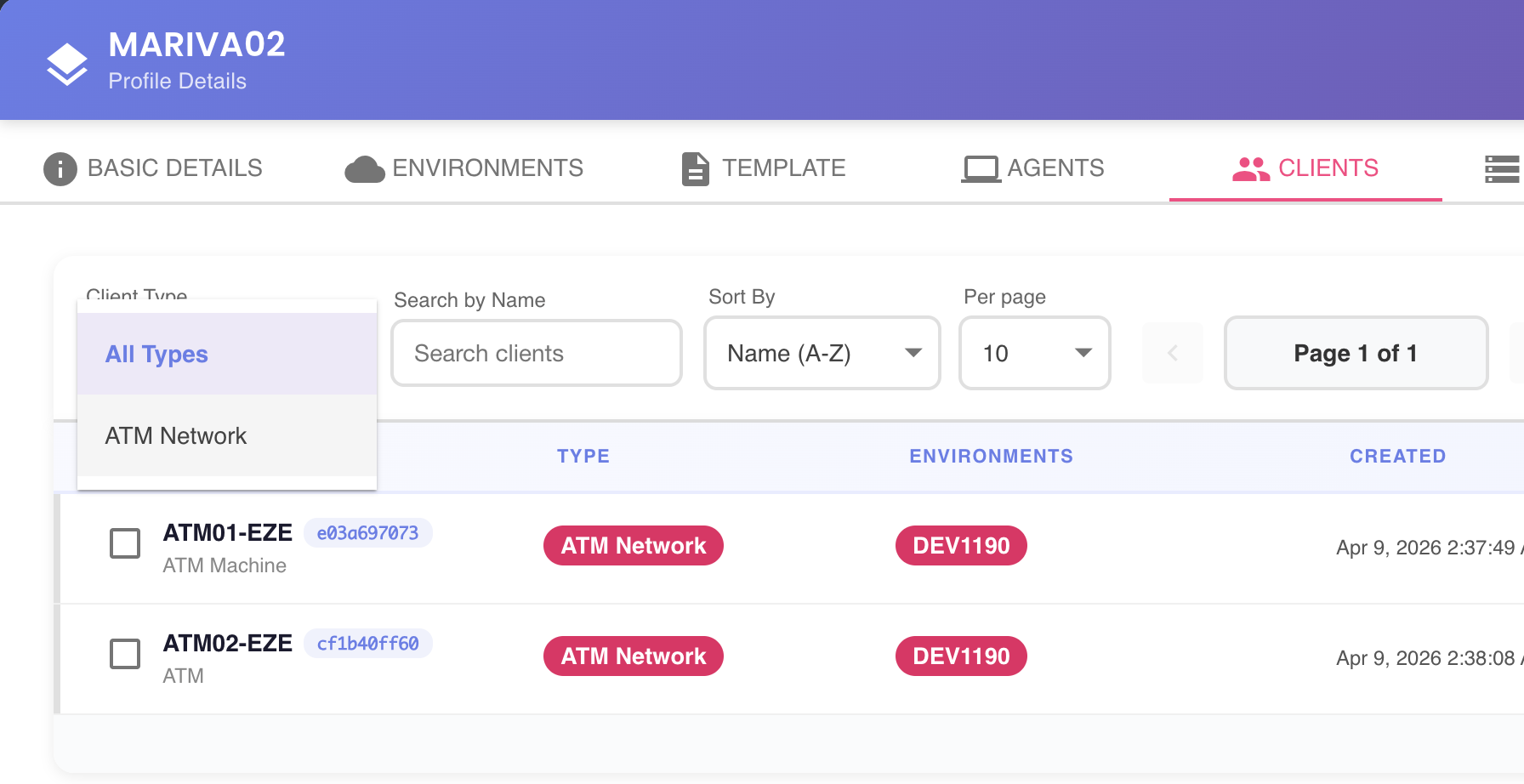
1 — Filter by Client Type
A dropdown control that filters the list by client type. Clicking it opens a drop-down populated with all client types in use for this profile. Selecting a type restricts the summary to clients belonging to that taxonomy only.
2 — Type-ahead Search
A search panel that performs a partial lexicographic search across client names and descriptions. Results are filtered automatically as the user types, with no need to submit the query explicitly.
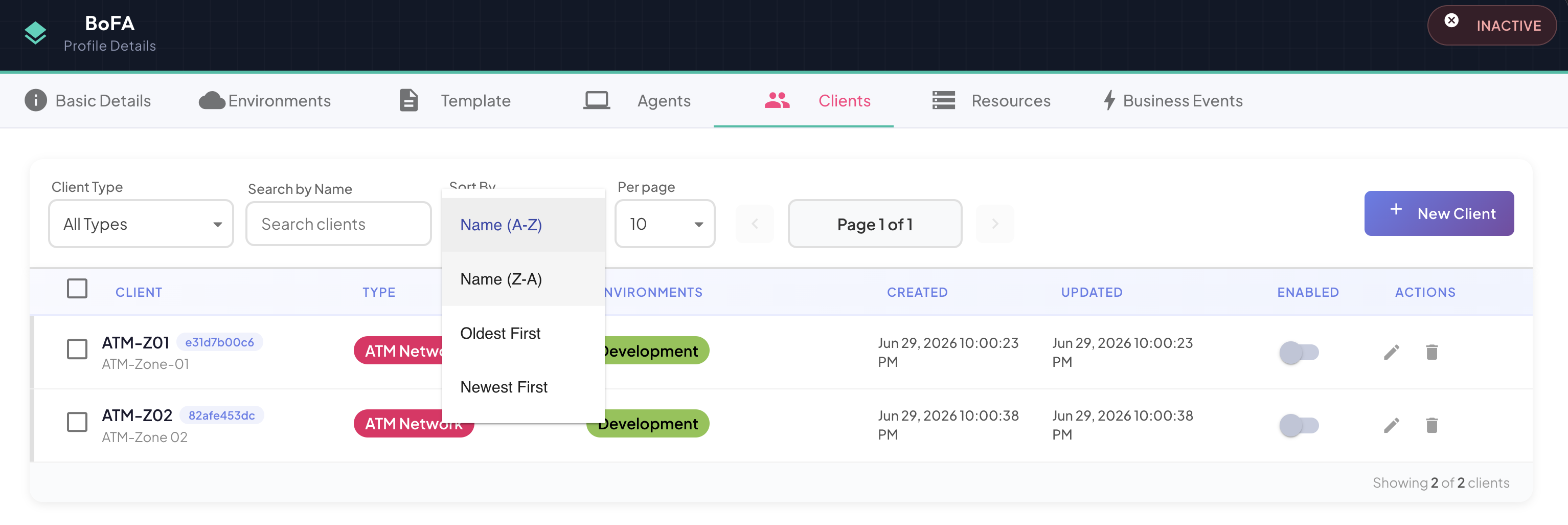
3 — Sort Order
A dropdown control for selecting a predefined sort criterion. The available options are:
- Name — ascending
- Name — descending
- Creation date — ascending
- Creation date — descending
4 — Pagination
A pagination panel with navigation controls for moving between pages, along with a page size selector that lets the user choose how many clients are displayed per page.

Creating a New Client
A + New Client button is displayed in the upper-right corner of the summary. Clicking it opens the client creation dialog, where a new client can be registered and associated with the current profile.
