Edit Client
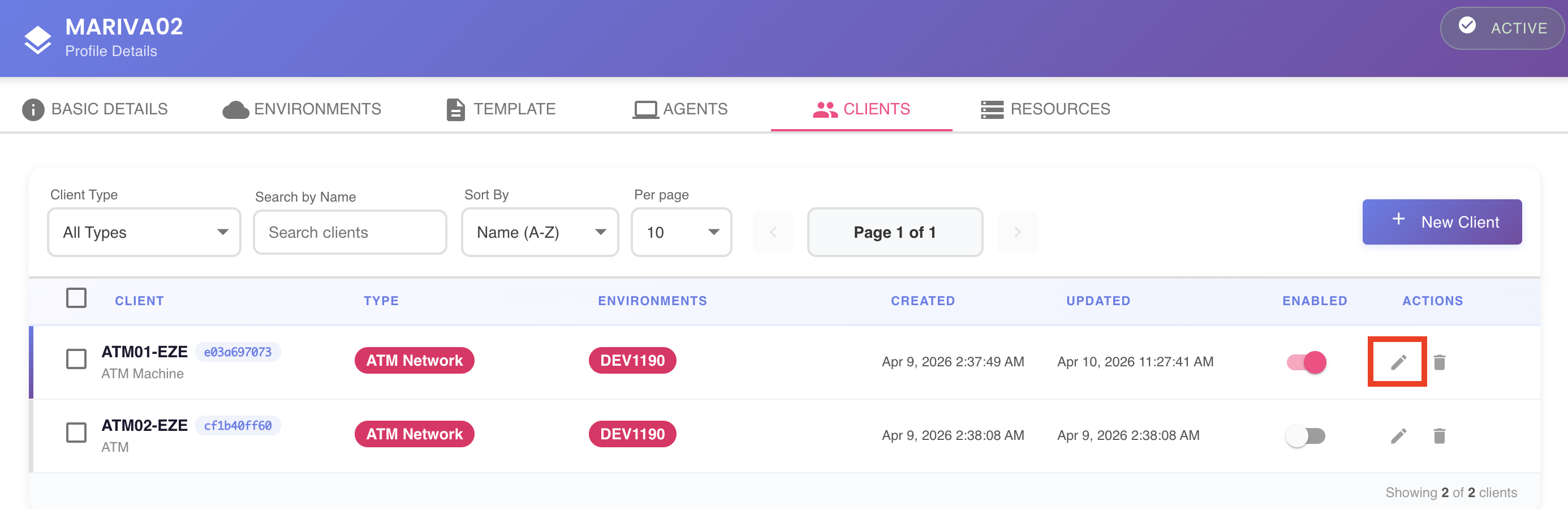
An existing client can be edited from the Clients Summary by clicking the pencil icon on the right side of the client's row. This opens the Edit Client dialog, which exposes the same configuration sections available during client creation: General and Mappings.

General Tab
The General tab allows modifying the core identity of the client and its association with the profile's environments.
The following fields can be updated:
- Client Name — the display name shown across the platform.
- Client Description — optional free-text providing additional context about this client.
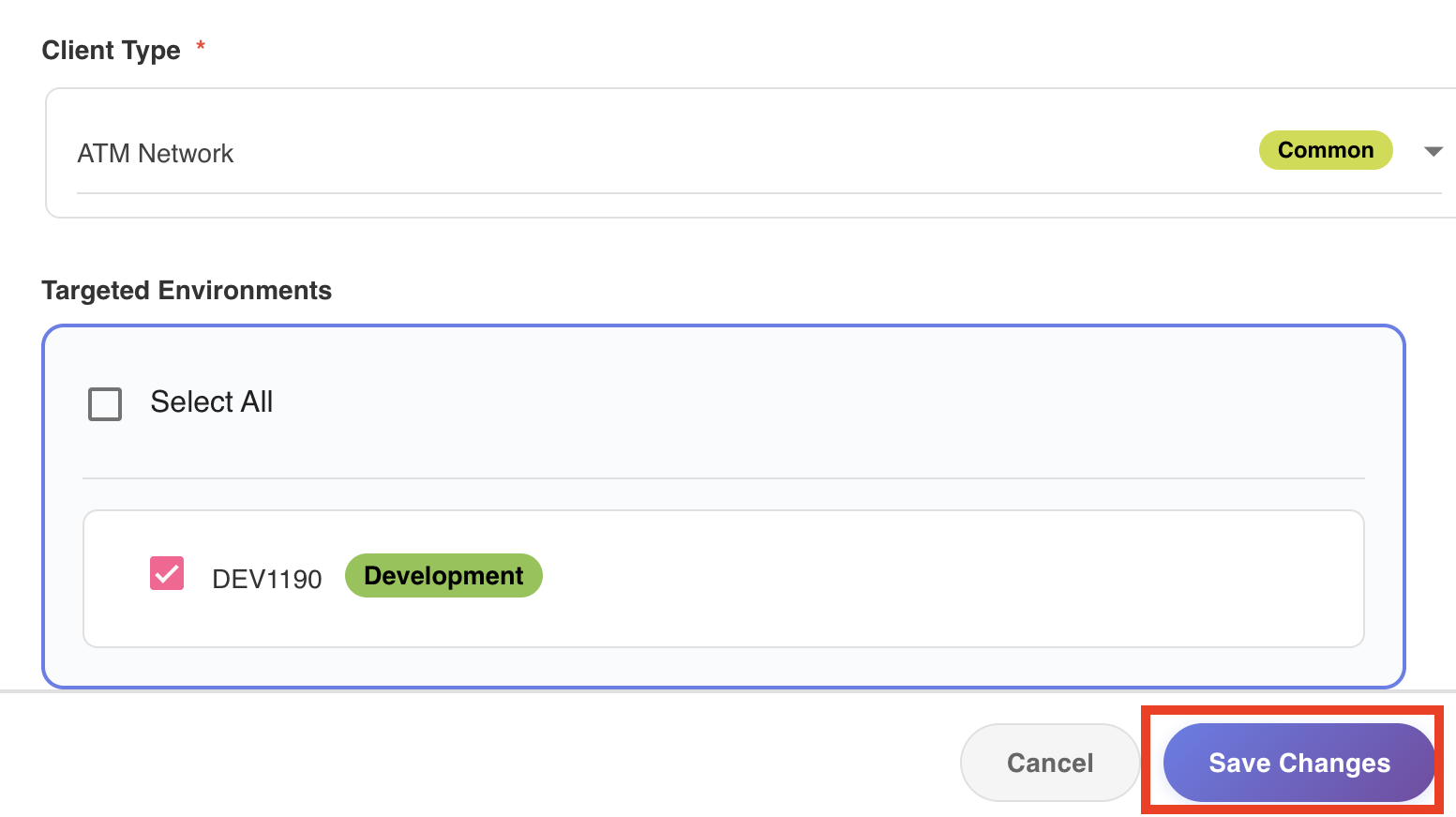
- Client Type — the type that determines which environments the client is compatible with. Changing the client type will reset the environment selection, as compatibility is re-evaluated based on the new type.
- Targeted Environments — the set of environments this client instance is active in. Only environments compatible with the selected client type are available for selection.
Refer to Create Client — General Tab for a full description of each field and the environment compatibility rules.
Mappings Tab
The Mappings tab allows updating the identification criteria BizMetry uses to recognize this client across incoming business events.
The following mappings can be modified:
- IP Address mapping — the CIDR range used to match the originating IP of the service invocation.
- HTTP Header mapping — the standard header and its matching regular expression.
- Custom HTTP Header mapping — the application-defined header name and its matching regular expression.
- JSON Payload Field mapping — the dot-notation path within the request body and the regular expression applied to its value.
Refer to Create Client — Mappings Tab for a full description of each mapping type and configuration options.
Saving Changes
Once all modifications have been made, click the Save Changes button at the bottom of the dialog to apply them.
Changes take effect immediately
Saved changes apply instantly to all environments the client is currently targeted to. This directly affects how incoming telemetry is processed and filtered in BizMetry from that moment forward. Ensure the updated configuration is correct before saving.