Delete Client
An existing client can be permanently deleted from the Clients Summary. BizMetry provides two ways to perform this operation depending on whether you want to remove a single client or several at once.
Option A — Individual Deletion
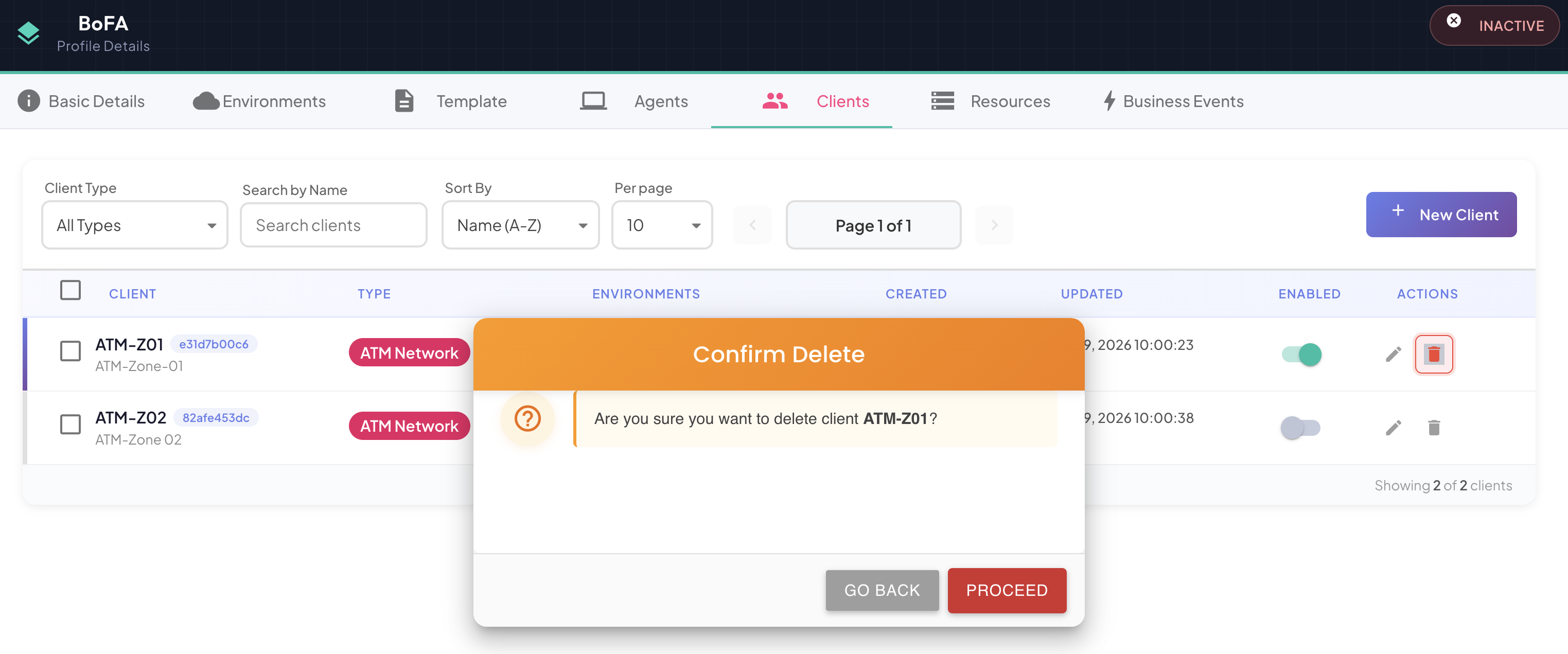
From the Clients tab, locate the client you want to remove and click the trash icon on the right side of its row.
Individual deletion follows a two-step confirmation mechanism designed to prevent accidental deletions:
- First click — the trash icon turns red, signaling that the action is armed and awaiting confirmation.
- Second click — the deletion is triggered after a short delay, giving you a brief window to abort if the action was unintentional.
If you do not click a second time, the icon resets to its default state and no deletion occurs.
Option B — Bulk Deletion
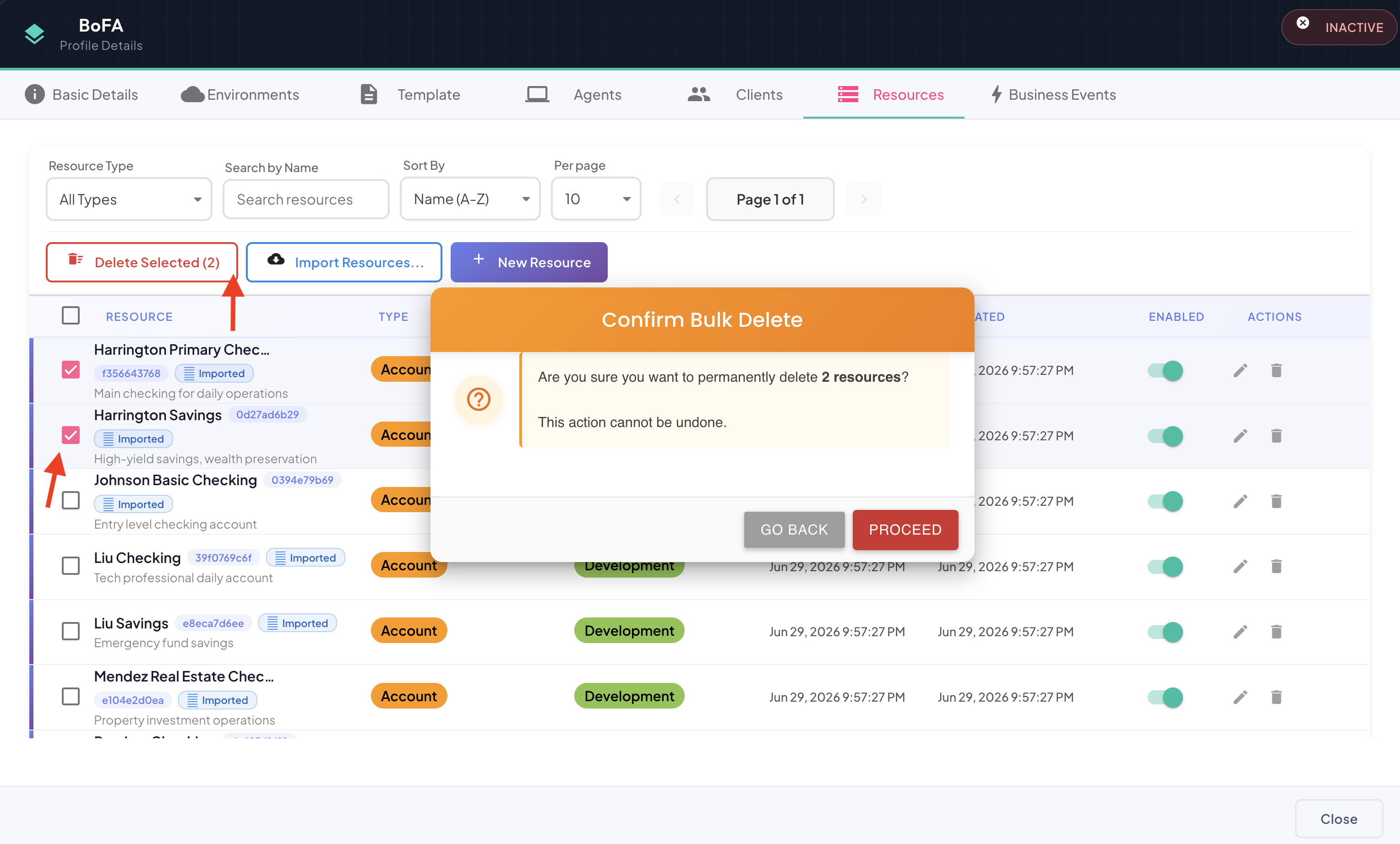
From the Clients tab, select one or more clients using the checkboxes on the left side of each row. Once at least one client is selected, the Delete button becomes available in the toolbar at the top. Click it and confirm the action to delete all selected clients at once.
Alternatively, you can click the checkbox in the header column. This will select all client items on the current page automatically.
Impact of Deleting a Client
Destructive and Immediate Action
Deleting a client is irreversible and takes effect instantly. From the moment of deletion, BizMetry will no longer be able to identify that client through either automatic or manual instrumentation. Use this action with care.
Deleting a client has the following consequences:
- The client is removed from all environments it was associated with, regardless of how many environments were targeted at the time of deletion.
- For each impacted environment, BizMetry loses the ability to match incoming telemetry to that client — through any of the configured identification methods (IP address mapping, HTTP header matching, or JSON payload field matching).
- Any telemetry data previously captured and attributed to that client remains in the system and is not deleted, but no new telemetry will be attributed to it going forward.
Because the effect is immediate, it is recommended to verify the client is no longer active before proceeding.
Audit Notification
After a client is deleted, BizMetry automatically generates an audit notification. This notification is available through the Notifications panel, accessible from the main navigation menu, and serves as a permanent record of the deletion event for auditing and traceability purposes.
