Create Client
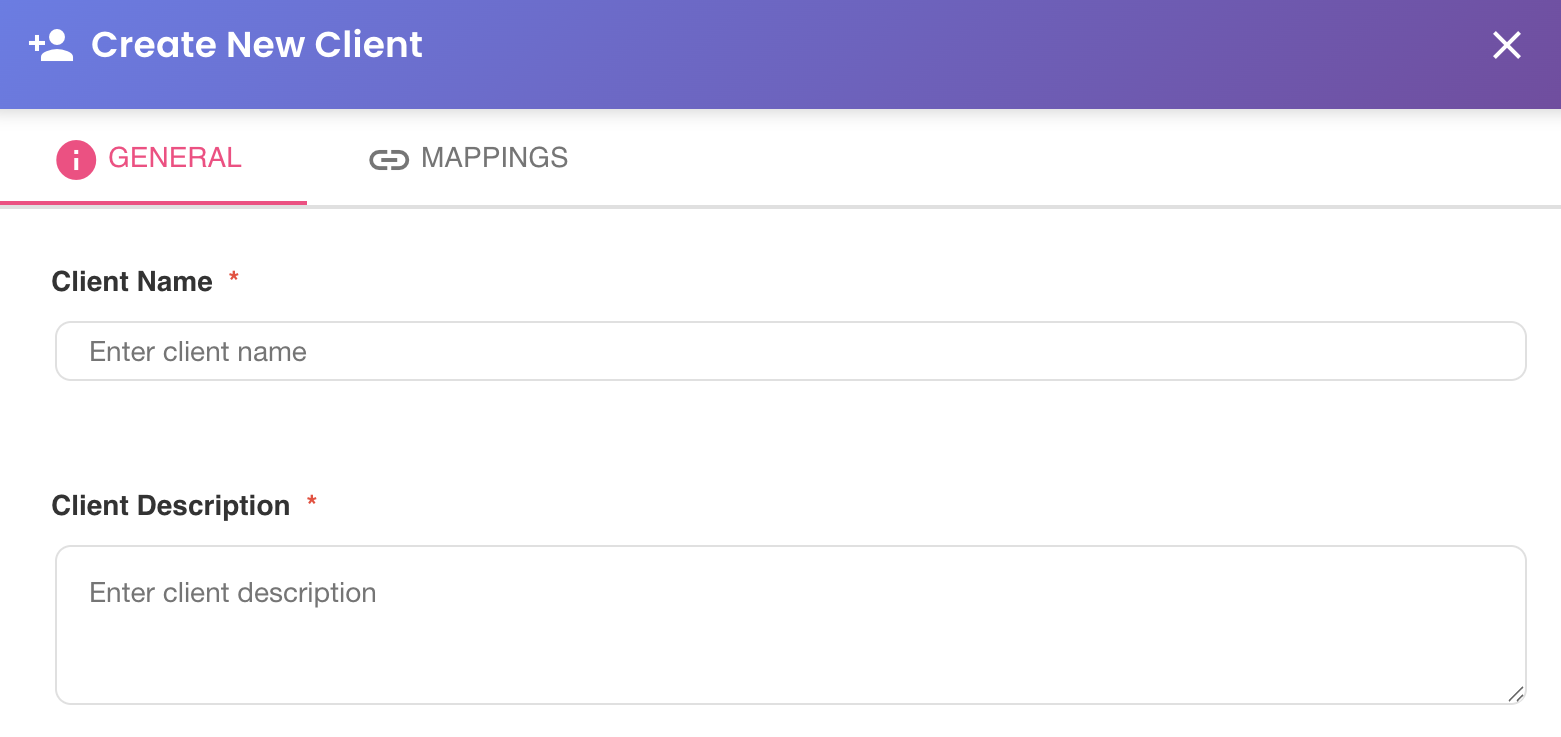
A new client can be registered from the Clients Summary by clicking the + New Client button in the upper-right corner. This opens the New Client dialog, which is organized into two tabs: General and Mappings.
General Tab

The General tab collects the core identity of the client and establishes its relationship with the profile's environments.
Client Name
The display name assigned to this client within BizMetry. This name is shown across the platform — in the client summary, telemetry frames, and notification messages. Choose a name that clearly identifies the external entity this client represents.
Client Description
An optional free-text description providing additional context about this client — its purpose, the system it represents, or the team responsible for it.
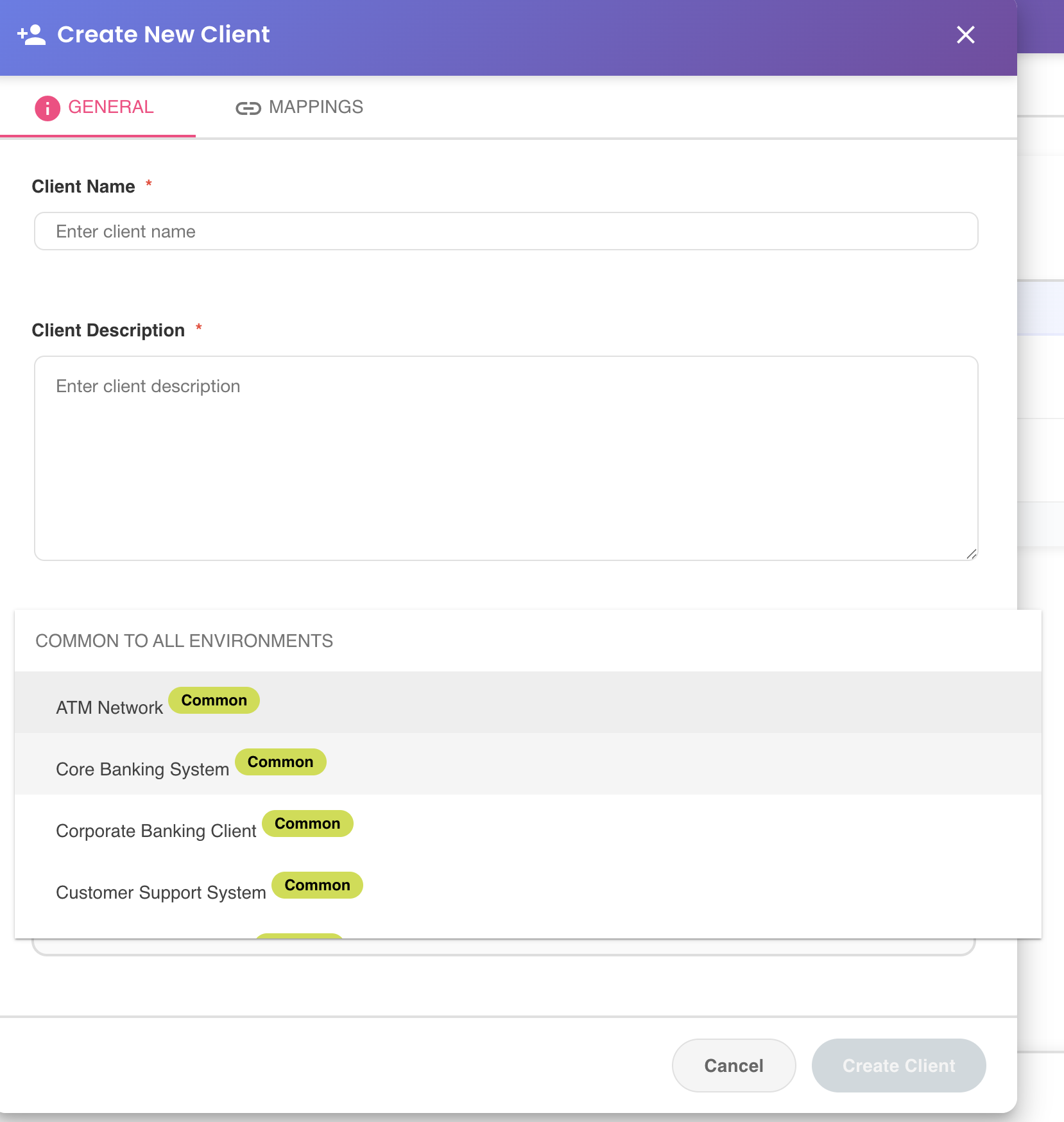
Client Type
A dropdown control that lists all client types available for this profile. Client types are grouped into two sections depending on their scope:
| Section | Indicator | Description |
|---|---|---|
| Common types | common pill | The client type exists in all template versions currently assigned to the profile's environments. A client registered under a common type will be available across all environments. |
| Specific types | Environment pills | The client type exists only in some template versions. Each specific type displays pills indicating the environments where it is available. A client registered under a specific type will be scoped to those environments only. |
Tip
The distinction between common and specific client types is determined by the template versions currently assigned to each environment. Refer to Client Type Concepts for a full explanation.
Targeted Client Environments
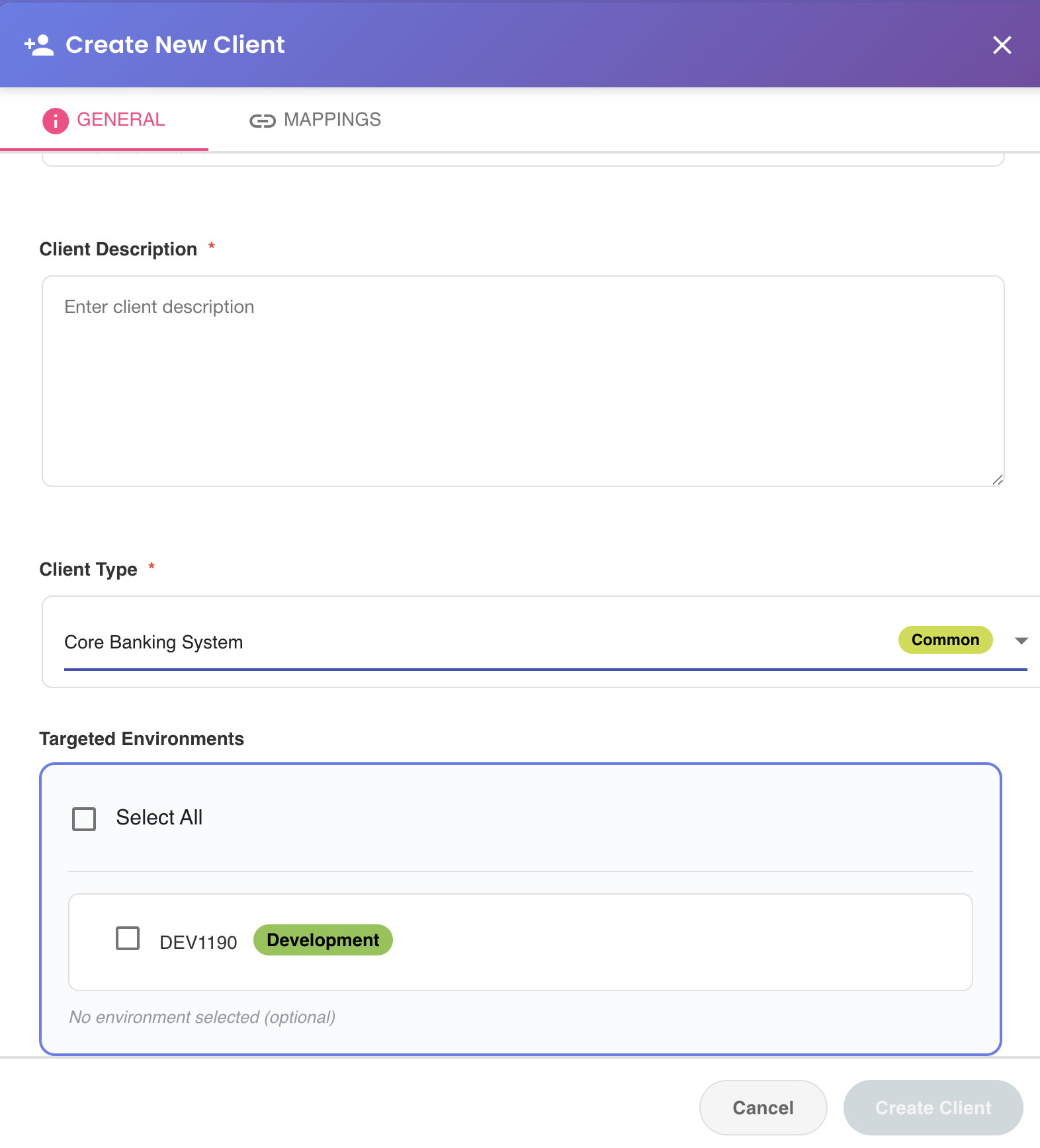
The Targeted Environments section is located at the bottom of the General tab and becomes active only after a client type has been selected.
Once a client type is chosen, BizMetry evaluates which environments are compatible with that type — based on whether those environments are running a template version that includes it — and restricts the environment list accordingly. Only compatible environments are presented for selection.
This section allows selecting which of those compatible environments this specific client instance should be associated with. A client does not need to be active in all compatible environments — it can be scoped to a subset.
Environment Association Lifecycle
The association between a client and its environments is first established during client creation. However, this association is not static — it evolves automatically as the template configuration and environment topology of the profile change over time.
BizMetry runs a reconciliation process that keeps client-environment mappings consistent whenever structural changes occur. The reconciliation handles two scenarios automatically:
graph TD
    Change{Change Type}

    Change --> ER[Environment deleted]
    Change --> CTR[Client Type removed\nfrom Template Version]

    ER --> ER1[All client-environment associations\nfor that environment are removed\nacross all client types]
    CTR --> CTR1[Client-environment associations\nfor that client type are removed\nfor all affected environments]

    ER1 --> Consistency[Profile remains consistent]
    CTR1 --> Consistency
The reconciliation for a client type removal is triggered by a specific sequence of events:
- A client type is removed from a template version.
- The template is published.
- The published version is assigned to one or more environments via the Template Workflow Editor and the workflow is saved.
At that point, BizMetry automatically removes all existing client mappings for that client type in the affected environments.
Reconciliation is automatic
No manual intervention is required. BizMetry guarantees that client-environment associations remain coherent with the template configuration and environment topology as template versions progress through their lifecycle.
Mappings Tab

The Mappings tab configures the identification criteria BizMetry uses to recognize this client across incoming business events.
Background
A business event represents the occurrence of an action within a business application that exposes one or more ASBOs — an action the business is interested in capturing because it contributes to one or more KPIs. At the telemetric level, this action is typically represented by the invocation of a business service via a webhook or REST API, though it may also originate from other transports such as JMS queues, MQTT queues, or communication sockets.
The following diagram illustrates the logical layers a business service invocation traverses from its origin until the client is identified on the BizMetry platform:
graph LR
    API[API Invocation\nWebhook / REST]
    App[Business Application]
    SDK[BizMetry SDK]
    Agent[BizMetry Agent]
    Raw[Raw Telemetry Frame]
    Platform[BizMetry Platform]
    Curation[Raw Frame Curation]
    Mapping[Client Mapping]

    API --> App
    App --> SDK
    SDK --> Agent
    Agent --> Raw
    Raw --> Platform
    Platform --> Curation
    Curation --> Mapping
The Mappings tab allows configuring an assertion that uniquely identifies this client given a business service invocation. Multiple filters can be combined — they are evaluated as a logical AND condition, meaning all active filters must match simultaneously for the client to be identified.
Map Client to IP Address
Identifies the client based on the originating IP address of the service invocation. Enable this filter by checking its checkbox, then enter an address in valid CIDR notation.
CIDR notation expresses an IP address together with its routing prefix. The table below shows common examples:
| CIDR Value | Matches |
|---|---|
192.168.1.100/32 | Exactly the single host 192.168.1.100 |
192.168.1.0/24 | Any address in the range 192.168.1.0 – 192.168.1.255 |
10.0.0.0/8 | Any address in the range 10.0.0.0 – 10.255.255.255 |
172.16.0.0/12 | Any address in the range 172.16.0.0 – 172.31.255.255 |
This filter is most useful when the client's originating IP is fixed and known — for example, a dedicated server or a corporate egress gateway with a static address.
Map Client to HTTP Header

Identifies the client based on the value of a standard HTTP header. Enable this filter by checking its checkbox, then select the target header from the dropdown and enter a regular expression that defines the matching rule.
Regular expressions allow specifying dynamic and complex matching patterns — including matching against multiple fixed values, string patterns, or numeric ranges. The following examples use the X-Client-Id header:
b1 — Match against multiple fixed values
To match requests where X-Client-Id is exactly CRM01 or CRM02, use an alternation pattern anchored at both ends with the two literal values separated by a pipe character: ^(CRM01|CRM02)$.
b2 — Match against a string pattern
To match any value that starts with the prefix CRM, use a pattern anchored at the start followed by the prefix and a wildcard: ^CRM.*.
b3 — Match against a range of integer values
To match numeric client IDs between 100 and 199, use a pattern anchored at both ends that matches exactly three digits starting with 1: ^1\d{2}$. For IDs between 1000 and 1999, extend the pattern to four digits: ^1\d{3}$.
b4 — Match against a suffixed identifier pattern
To match values following the pattern CLIENT- followed by exactly four digits (e.g. CLIENT-0042), use a pattern anchored at both ends combining the literal prefix with a digit quantifier: ^CLIENT-\d{4}$.
Map Client to Custom HTTP Header

Similar to the standard HTTP Header filter, but allows specifying an arbitrary, application-defined header name — useful when the business application propagates client identity through a proprietary header not included in the standard header list.
Enable this filter by checking its checkbox, then enter both the header name and the matching regular expression.
Match by API key
The most common use case: the calling system passes a unique API key in a custom header (e.g. X-Api-Key) that unambiguously identifies the consumer. Each client is mapped to its own specific key value, so BizMetry can pinpoint exactly which client originated the invocation.
To match a specific known key exactly, use a pattern anchored at both ends with the full literal key value, e.g. ^ak_live_4f8c2d19a6b7e035$. To match an entire key space following a naming convention — for example, all keys prefixed with ak_live_ followed by a fixed-length alphanumeric string — combine the literal prefix with a character class and a length quantifier: ^ak_live_[A-Za-z0-9]{16}$.
Match a specific tenant key
To match a single known tenant key such as TENANT-ACME, use a pattern anchored at both ends with the full literal value: ^TENANT-ACME$.
Match any tenant key following a naming convention
To match values like TENANT-ACME, TENANT-GLOBEX, or TENANT-INITECH, use a pattern anchored at both ends combining the literal prefix TENANT- with a character class that matches one or more uppercase letters: ^TENANT-[A-Z]+$.
Match a UUID-formatted tenant key
To match a standard UUID (e.g. 550e8400-e29b-41d4-a716-446655440000), use a pattern anchored at both ends that matches the canonical 8-4-4-4-12 hexadecimal group structure separated by hyphens: ^[0-9a-f]{8}-[0-9a-f]{4}-[0-9a-f]{4}-[0-9a-f]{4}-[0-9a-f]{12}$.
Map Client to JSON Payload Field

Identifies the client based on the value of a field within the JSON request payload. This filter is useful when the invocation body carries client identity information — for example, a clientId field embedded in the request.
Enable this filter by checking its checkbox, then provide:
- JSON Path — the dot-notation path to the target field within the payload (e.g.
request.client.clientId). - Regular Expression — the matching rule applied to the value found at that path.
Example
Consider the following JSON request payload:
{
  "request": {
    "transactionType": "WITHDRAWAL",
    "client": {
      "clientId": "ATM-0042",
      "region": "EMEA"
    },
    "amount": 500.00
  }
}
To identify the client based on the clientId field, set the JSON Path to request.client.clientId and use a pattern that matches the prefix ATM- followed by exactly four digits — ^ATM-\d{4}$ — this will match values such as ATM-0001, ATM-0042, or ATM-9999.
The following additional examples apply to the same payload structure:
Match a specific client ID exactly — JSON Path: request.client.clientId — use a pattern anchored at both ends with the full literal value, e.g. ^ATM-0042$.
Match any ATM client — JSON Path: request.client.clientId — use a pattern anchored at the start with the literal prefix ATM- followed by a wildcard: ^ATM-.*.
Match clients in the EMEA region — JSON Path: request.client.region — use a pattern anchored at both ends with the literal value EMEA: ^EMEA$.
Match clients in either EMEA or APAC — JSON Path: request.client.region — use an alternation pattern anchored at both ends with the two literal region values separated by a pipe character: ^(EMEA|APAC)$.