Step 3 — Tuning
Enable this interceptor per environment and, optionally, fine-tune its buffering, batching, and network behavior for that specific environment — a setup that works for DEV can be wrong for PROD.
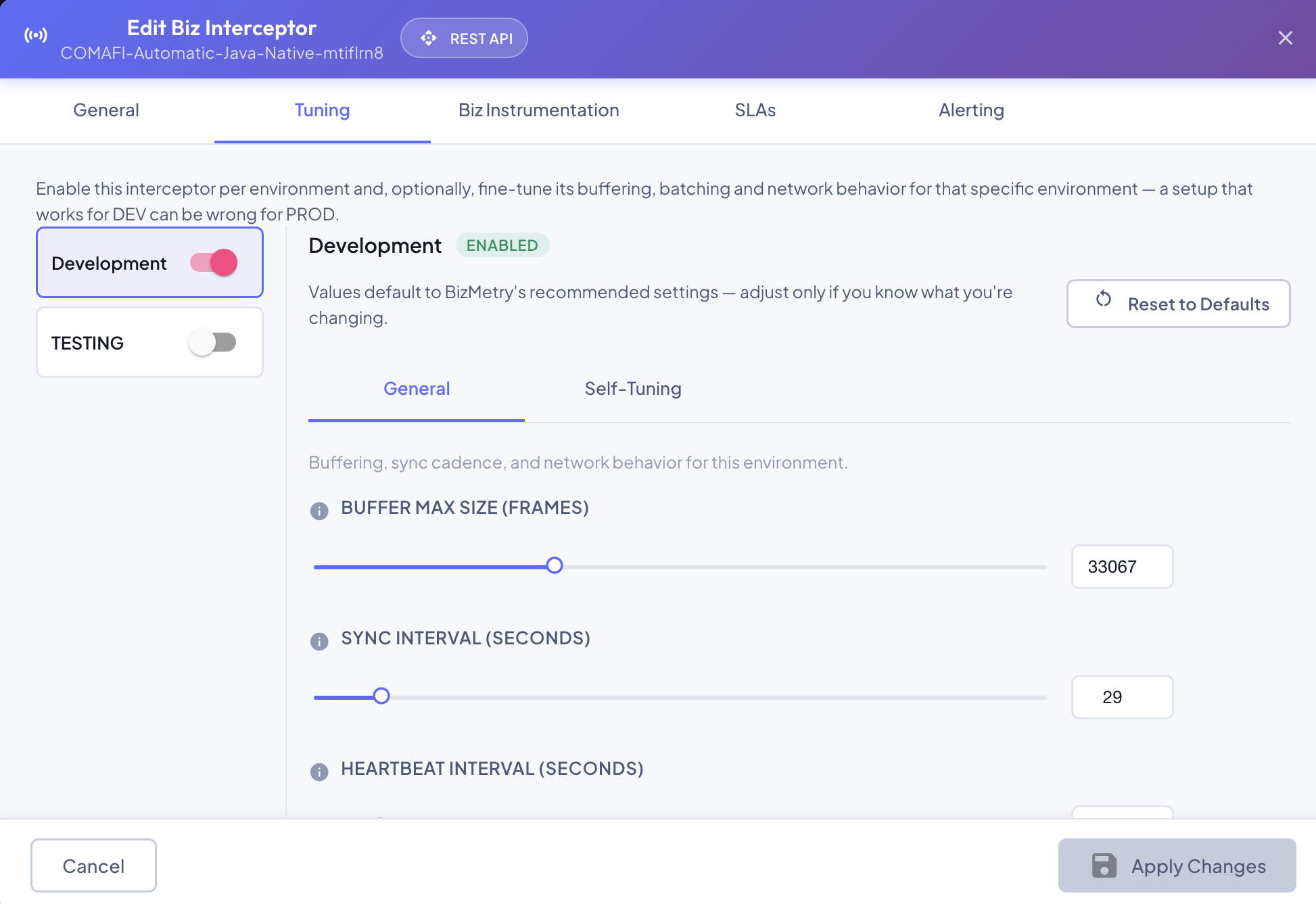
Shown in the Edit dialog, which uses exactly the same layout as this step.
Layout
The step is split into two panes:
- Left — environment list: one row per Profile environment, each with its own enable switch. Click a row to view/configure it on the right.
- Right — selected environment's configuration: the enabled state and every tunable parameter for whichever environment is currently selected on the left.
If the Profile has no environments configured yet, this step shows a warning instead — add an environment to the Profile first.
Enabling an Environment
Toggling an environment's switch (either in the sidebar or in the detail header) controls whether this interceptor is active there at all. A disabled environment's configuration fields are dimmed and locked — the values are preserved, just not editable, until you re-enable it.
Tunable Parameters
All values default to BizMetry's recommended settings. Click Reset to Defaults at any time to discard your changes for the currently-selected environment and restore those recommended values. The right-hand pane groups them into two sub-tabs: General and Self-Tuning.
General Tuning Parameters
| Parameter | Description | Default |
|---|---|---|
| Buffer Max Size (Frames) | Max number of frames the in-memory store-and-forward buffer holds while the Agent is unreachable. | 10,000 |
| Sync Interval (seconds) | Time between syncs with the Agent. | 60 |
| Heartbeat Interval (seconds) | Time between heartbeats sent to the platform to signal this interceptor is alive. | 60 |
| Reconnect Interval (seconds) | Time between reconnection attempts to the Agent after a disconnect is detected. | 15 |
| Data Retention (days) | How long time-series capture stats (frames dropped/processed/uploaded and request sizes) are kept for this environment before being purged. | 30 |
Self-Tuning Parameters
Six fields that feed the interceptor's own backpressure auto-tuner rather than being applied as-is — see Interceptor Fine-Tuning and Auto-Tuning for the full explanation and the mechanism these drive.
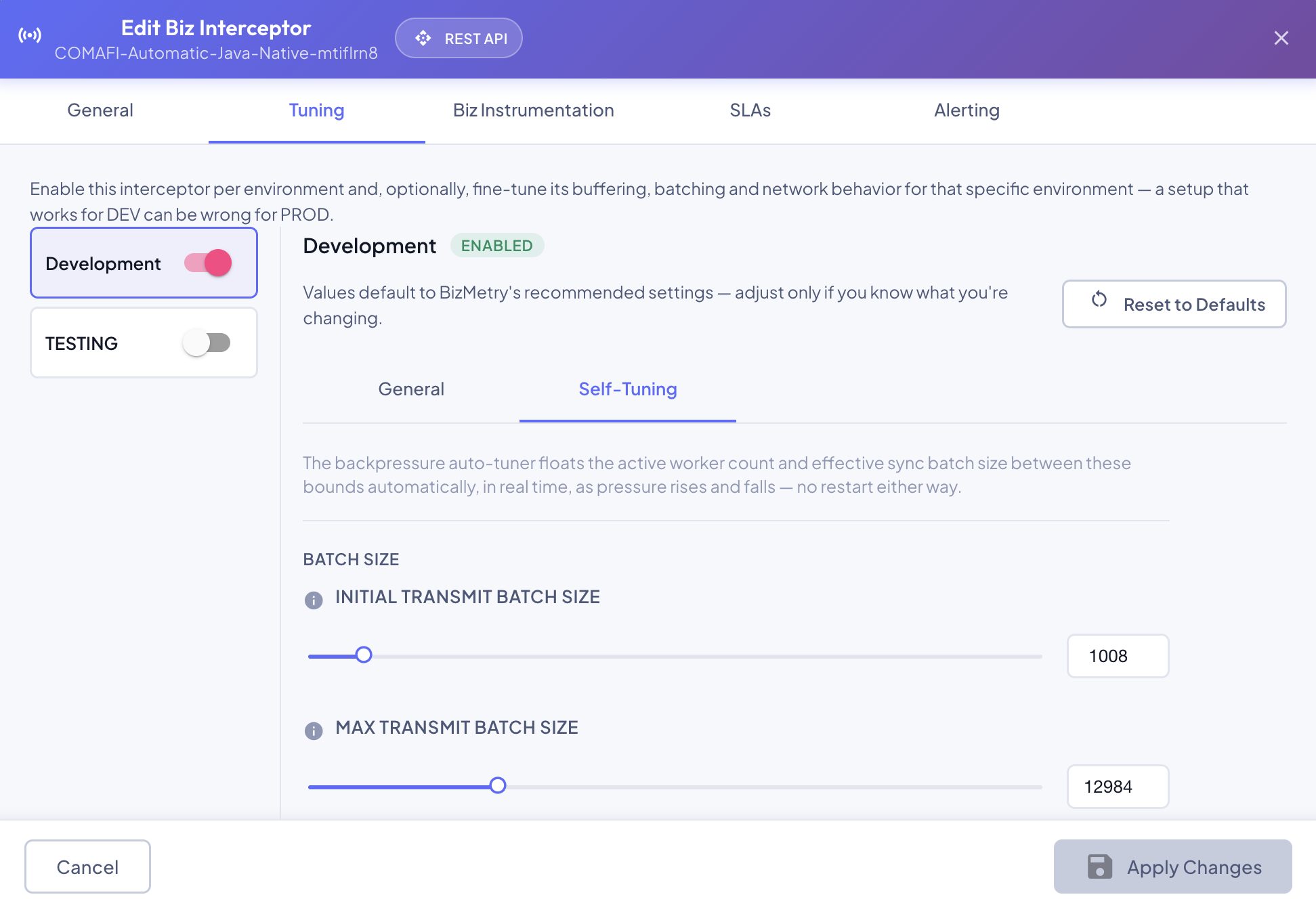
Shown in the Edit dialog, which uses exactly the same layout as this step.
| Parameter | Description | Default |
|---|---|---|
| Initial Sync Batch Size (Frames) | Starting number of frames sent per batch on each sync with the Agent. Can't exceed Buffer Max Size. | 1,024 |
| Max Sync Batch Size (Frames) | Ceiling the auto-tuner won't scale the effective sync batch size past. Can never be set below Initial. | 10,240 |
| Initial Transmit Worker Count | Number of parallel workers transmitting batches to the Agent when the interceptor process starts. | 4 |
| Max Transmit Worker Count | Ceiling the auto-tuner won't scale the active worker count past. Can never be set below Initial. | 16 |
| Worker Scale-Down Pressure Threshold (%) | Pressure level at or below which the auto-tuner targets its floor (the two "Initial" values above). | 20 |
| Worker Scale-Up Pressure Threshold (%) | Pressure level at or above which the auto-tuner targets its ceiling (the two "Max" values above). Can never be set below the scale-down threshold. | 70 |
Each parameter, on both the General and Self-Tuning sub-tabs, can be set either by dragging its slider or typing an exact value directly into the number field next to it — both stay in sync.
The actual worker count and batch size move on their own between these bounds
The Initial values above are starting points, not fixed values — the interceptor's own backpressure auto-tuner raises both automatically under sustained load, up to their paired Max value, and resets them back down once load recovers, with no restart involved either way. See Interceptor Fine-Tuning and Auto-Tuning for the full mechanism.
Timeouts and proxy settings are configured on the Agent
Connection timeouts and any HTTP proxy are configured once per environment on the environment's Agent, and shared by every interceptor of that environment — there is nothing to set for them here. See Agent Tuning — Network.
Click Next to continue to Step 4 — Biz Instrumentation.