Step 2 — General
Set the interceptor's identity and choose how it will actually capture traffic from your applications.
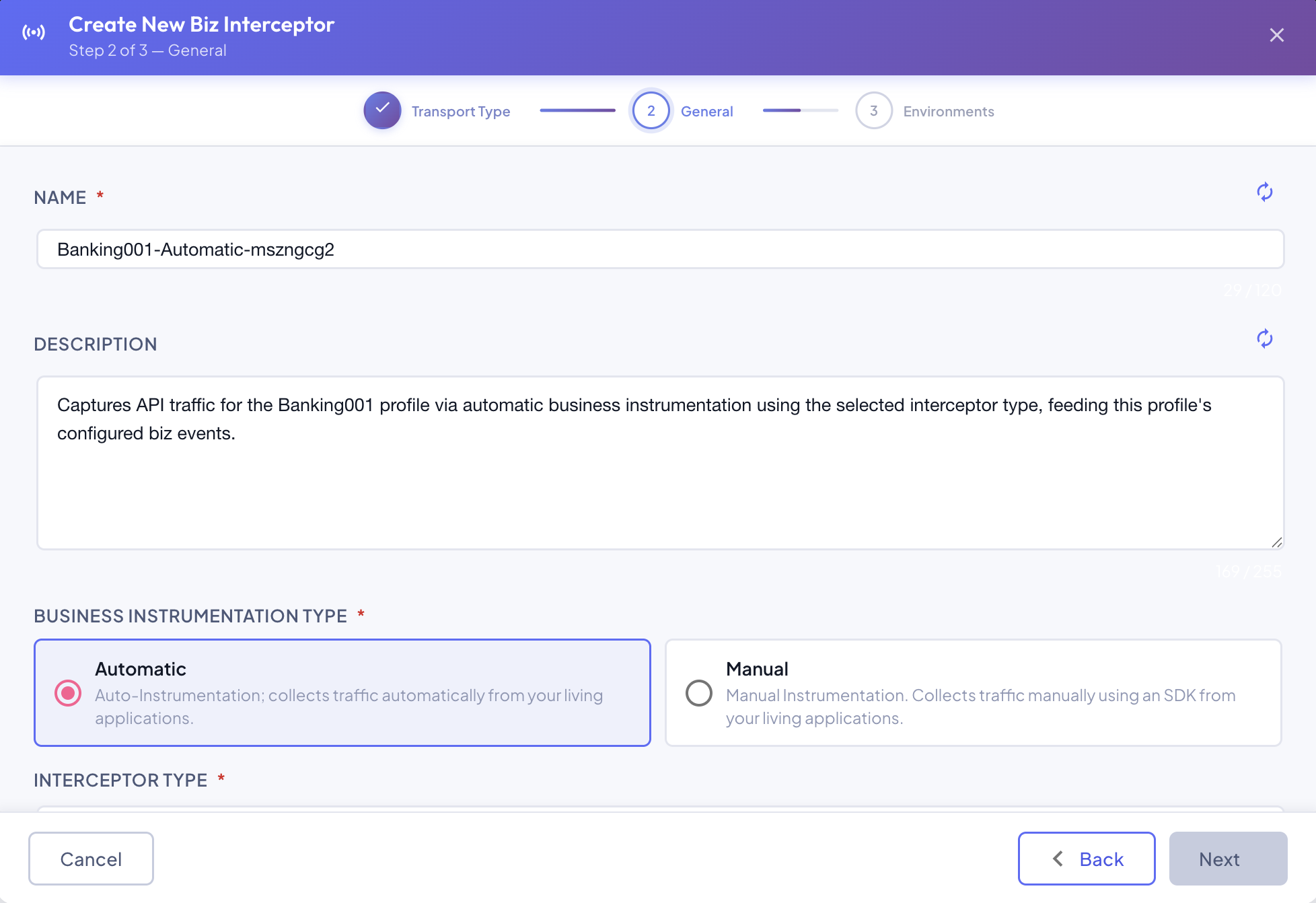
Name and Description
Both fields are auto-generated as soon as you land on this step (Name follows a <Profile>-<InstrumentationType>-<random suffix> pattern; Description summarizes what the interceptor will do) — you don't have to write anything yourself, though both remain fully editable.
Click the icon next to either field to regenerate a fresh suggestion without retyping by hand. Name is validated against existing interceptors on this Profile as you type — a duplicate is flagged immediately, with the field highlighted and an inline error message.
Business Instrumentation Type
Choose one of the two instrumentation types. This choice determines which field appears next, and — like Transport Type — is fixed for the interceptor's lifetime: create a new interceptor if you need to switch later.
Automatic — Auto-Instrumentation
The no-code option: requires no code written by a developer at all.
It works by intercepting traffic against a supported API Gateway / management platform, and forwarding the captured packets up to the BizMetry platform through the Agent associated with that environment. From there, BizMetry automatically correlates those packets to specific API operations and Telemetry Frames — based on whichever Business Events are already defined for the Profile and their currently live endpoints. Nothing about the correlation itself needs to be hand-configured on the interceptor side.
Automatic is generally the preferred option: it means minimal setup time and no ongoing involvement from the development team once the interceptor is deployed.
Manual — Manual Instrumentation
The low-code option: a developer integrates the BizMetry SDK directly into the business application's own codebase, and customizes it by calling the interceptor's own API to specify exactly which Telemetry Frames to generate, and when.
Reach for Manual when a Frame needs precision that automatic correlation can't give it — for example, when generating it requires computation more involved than a straightforward field mapping: evaluating several business conditions together, or pulling in data from an external system the platform has no visibility into on its own.
Manual generally costs more setup time and more development-team involvement than Automatic, since the SDK has to be explicitly customized to the specific business need and use case at hand.
Interceptor Type (Automatic only)
A dropdown of every API Gateway / management platform — plus the two native SDKs, offered here too as a zero-config auto-instrumentation agent rather than a hand-called SDK — BizMetry can auto-instrument against:
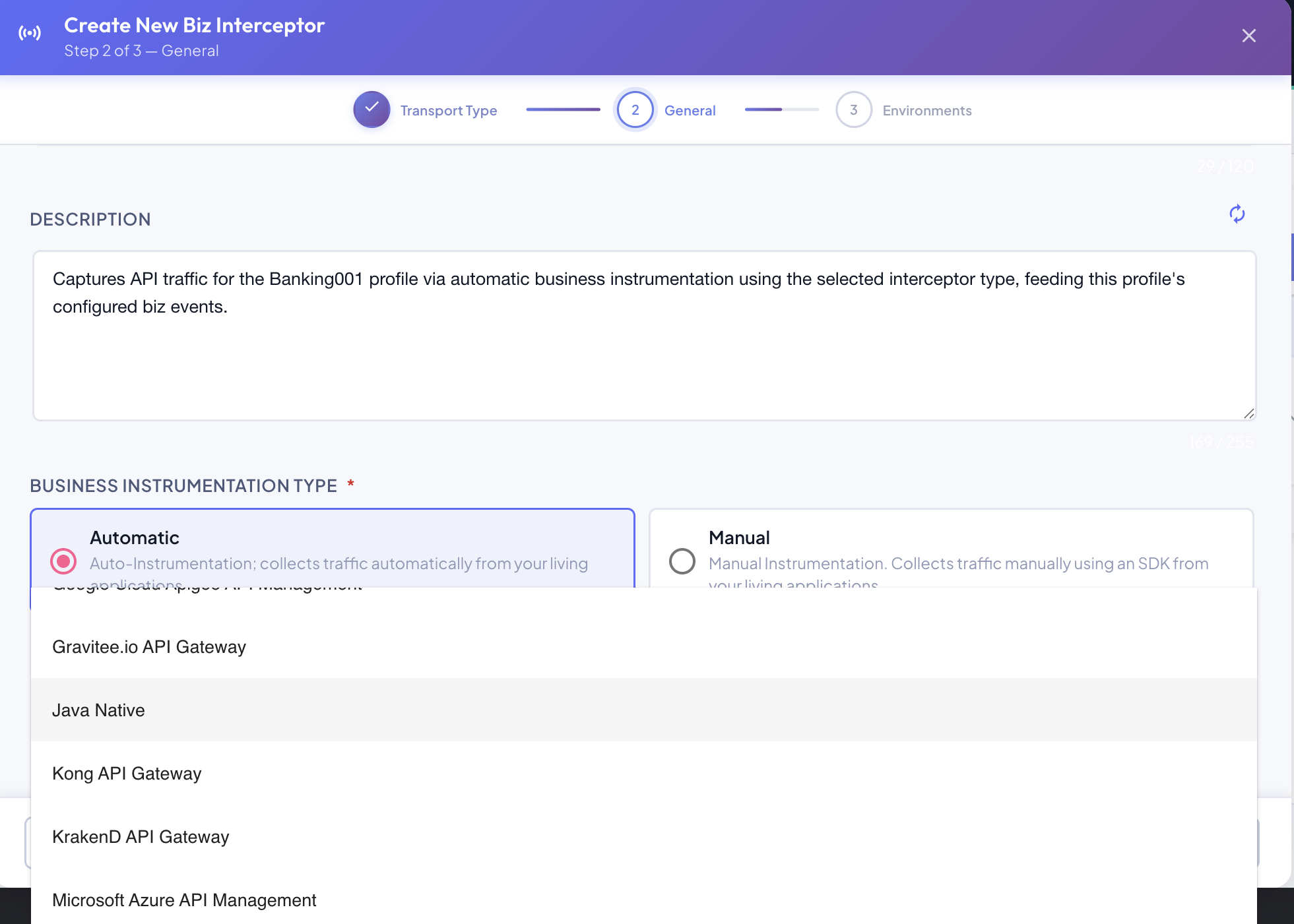
| Interceptor Type | Description |
|---|---|
| Amazon Web Services API Gateway | AWS's own managed API gateway service. Choose this when the traffic you want captured already passes through an AWS API Gateway in front of your application. |
| Apache APISIX API Gateway | Open-source, cloud-native API gateway built on NGINX/OpenResty. Choose this when your application sits behind an APISIX deployment. |
| Envoy Proxy | A widely-used open-source edge and service proxy, often deployed as a sidecar or ingress in Kubernetes environments. Choose this when your application's traffic is proxied through Envoy. |
| Google Cloud Apigee API Management | Google Cloud's full-lifecycle API management platform. Choose this when your APIs are managed and exposed through Apigee. |
| Gravitee.io API Gateway | Open-source API management platform. Choose this when your application sits behind a Gravitee.io gateway. |
| Java Native | Auto-instruments a Java application directly, attaching to its own JVM — no separate API Gateway required. Choose this for a Java application you want instrumented at the application level rather than at a gateway in front of it. |
| Kong API Gateway | Popular open-source and enterprise API gateway built on NGINX. Choose this when your application sits behind Kong. |
| KrakenD API Gateway | High-performance, stateless open-source API gateway. Choose this when your application sits behind KrakenD. |
| Microsoft Azure API Management | Azure's own managed API gateway service. Choose this when your APIs are exposed through Azure API Management. |
| NGINX / NGINX Ingress Controller | The widely-used web server and reverse proxy, whether deployed standalone or as a Kubernetes Ingress Controller. Choose this when your application's traffic passes through NGINX. |
| Python Native | Auto-instruments a Python application directly, attaching to its own runtime — no separate API Gateway required. Choose this for a Python application you want instrumented at the application level rather than at a gateway in front of it. |
| Red Hat 3scale API Management | Red Hat's API management platform. Choose this when your APIs are managed and exposed through 3scale. |
| Spring Cloud Gateway / Netflix Zuul | Java-based API gateways commonly used in Spring Boot microservice stacks. Choose this when your application sits behind either one. |
| Traefik API Gateway / Ingress Controller | Cloud-native reverse proxy, whether deployed standalone or as a Kubernetes Ingress Controller. Choose this when your application's traffic passes through Traefik. |
| Tyk API Gateway | Open-source and enterprise API gateway. Choose this when your application sits behind Tyk. |
| WSO2 API Manager | WSO2's full-lifecycle API management platform. Choose this when your APIs are managed and exposed through WSO2. |
Java Native / Python Native appear in both lists
These two also appear under SDK Type below — there, they're the SDK you call explicitly from application code; here, they're the same runtime deployed as a zero-code auto-instrumentation agent instead. Same underlying technology, different instrumentation mode.
SDK Type (Manual only)
A choice between the SDKs available for embedding directly into your application's own codebase:
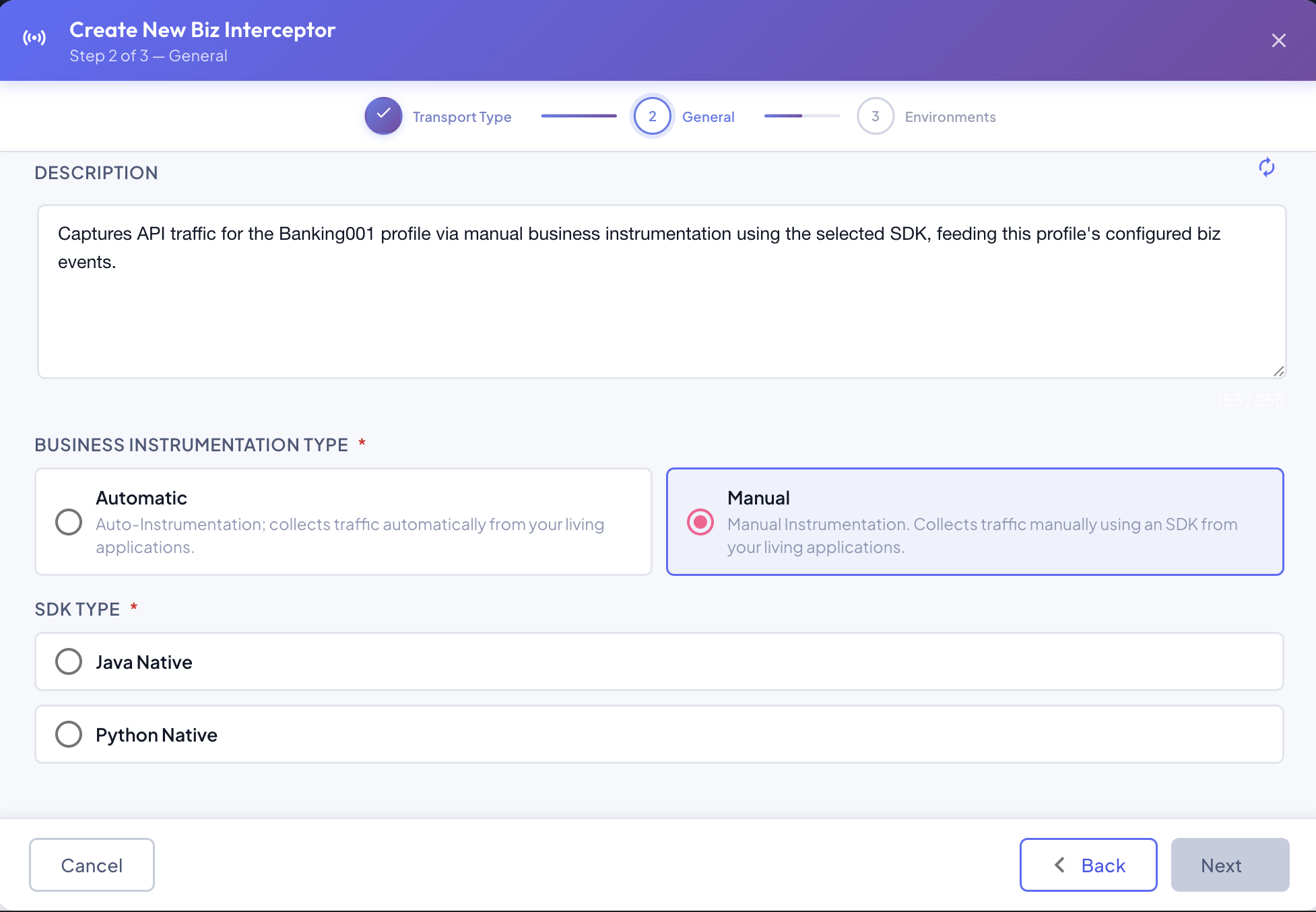
| SDK Type | Description |
|---|---|
| Java Native | The same underlying library as the Automatic Java Native option, but called explicitly from your Java application's own code — the developer decides exactly which Telemetry Frames to generate and when, instead of it running as a zero-config auto-instrumentation agent. |
| Python Native | The same underlying library as the Automatic Python Native option, but called explicitly from your Python application's own code — the developer decides exactly which Telemetry Frames to generate and when, instead of it running as a zero-config auto-instrumentation agent. |
Fixed for the interceptor's lifetime
Business Instrumentation Type and the Interceptor/SDK Type chosen here can't be changed later — they're shown read-only in the Edit dialog. Everything else on this step (Name, Description) stays editable after creation.
Click Next to continue to Step 3 — Tuning.