Business Interceptors
A Biz Interceptor is an artifact — a library — that gets deployed directly into the business application it instruments, either embedded in the application's own codebase (Java, Python, or another supported language) or as a plugin to an API Gateway sitting in front of it. Either way, its job is the same: intercept the application's traffic at the source and forward what it captures up to the BizMetry platform.
If a Business Event is the definition of what matters ("a payment was confirmed," "a loan application was created"), a Biz Interceptor is the sensor that makes that definition observable in the first place — without it, a Business Event has nothing to fire on.
Concept Overview
Business Events and Biz Interceptors solve two different halves of the same problem:
| Answers | ||
|---|---|---|
| Biz Interceptor | How do we see the traffic at all? | Captures raw API calls — request/response, timing, size — from one or more environments of a Profile. |
| Business Event | What does that traffic mean? | Maps specific API operations to a Frame Type, extracting and interpreting the fields that matter. |
A Biz Interceptor mostly doesn't need to know or care what a Business Event is. By default it captures traffic for whichever operations end up being live — i.e. currently sourced by at least one published Business Event on its Profile — and reports what it captured back to the platform. Turn off every Business Event sourced from an operation, and the interceptor simply stops uploading frames for it; no reconfiguration needed on the interceptor side.
The one place it can be told to care is Biz Instrumentation — an optional, per-interceptor restriction to a specific subset of the Profile's Business Events, for when "capture everything" is broader than intended (e.g. one interceptor per application module). Left alone, an interceptor stays unrestricted and the paragraph above holds exactly as written.
Interceptor vs. Event — which one do I configure first?
Order doesn't matter functionally, but in practice a Biz Interceptor is usually set up once per application/environment (it's infrastructure), while Business Events are added and iterated on much more often (they're business logic). See Downloading a Biz Interceptor for how a configured interceptor actually gets deployed alongside the application it instruments.
Business Instrumentation Types
A Biz Interceptor captures traffic in one of two modes, chosen when it's created (see Step 2 — General) and fixed for its lifetime — it cannot be switched later without creating a new interceptor.
Automatic — Auto-Instrumentation
The no-code option: requires no code written by a developer at all.
It works by intercepting traffic against a supported API Gateway / management platform (Kong, KrakenD, Microsoft Azure API Management, Google Cloud Apigee, Gravitee.io, and others), and forwarding the captured packets up to the BizMetry platform through the Agent associated with that environment. From there, BizMetry automatically correlates those packets to specific API operations and Telemetry Frames — based on whichever Business Events are already defined for the Profile and their currently live endpoints. Nothing about the correlation itself needs to be hand-configured on the interceptor side.
%%{init: {"themeVariables": {"fontSize": "16px"}}}%%
flowchart LR
    A["Business Application"] -->|traffic| G["API Gateway"]
    G -->|captured packets| AG["BizMetry Agent"]
    AG -->|forwarded| P["BizMetry Platform"]
    P -->|"correlated via Business Events\n+ Live Endpoints"| F["Telemetry Frames"]
Automatic is generally the preferred option: it means minimal setup time and no ongoing involvement from the development team once the interceptor is deployed.
Manual — Manual Instrumentation
The low-code option: a developer integrates the BizMetry SDK directly into the business application's own codebase, and customizes it by calling the interceptor's own API to specify exactly which Telemetry Frames to generate, and when.
Reach for Manual when a Frame needs precision that automatic correlation can't give it — for example, when generating it requires computation more involved than a straightforward field mapping: evaluating several business conditions together, or pulling in data from an external system the platform has no visibility into on its own.
Manual generally costs more setup time and more development-team involvement than Automatic, since the SDK has to be explicitly customized to the specific business need and use case at hand.
| Automatic | Manual | |
|---|---|---|
| Developer code required | None | Yes — SDK integration in application code |
| Setup effort | Minimal | Higher — needs custom SDK integration |
| Frame generation | Fully automatic, correlated from captured traffic | Explicit — driven by SDK calls in application code |
| Best suited for | Standard traffic capture behind a supported API Gateway | Frames needing custom computation, multi-condition logic, or external-system integration |
Both modes report through the exact same runtime model — heartbeats, sync intervals, buffering, live status — so everything documented below (Consolidated Stats, Metrics Explorer, Live Endpoints) behaves identically regardless of which one you picked.
Deployment Model
One Interceptor, Many Environments
Because a Biz Interceptor is deployed inside the application it instruments — not as a separate service the platform runs on your behalf — it inherits that application's own footprint. A business application typically runs in more than one environment (DEV, SIT, UAT, PROD, ...), so wherever it's deployed, its interceptor goes with it. The same interceptor definition ends up active in several environments at once — which is exactly why it's configured independently per environment rather than treated as one environment-less entity. See Interceptor and Business Application Lifecycle for the recommended interceptor-to-application mapping and what to expect at runtime once instances are actually deployed.
An Interceptor Only Talks to Its Own Environment's Agent
A Biz Interceptor deployed for a given environment communicates exclusively with the Agent deployed for that same environment — never any other.
For example: the application CustomerOrderProcessor has a CustomerOrderInterceptor deployed as part of it in the DEV environment. That interceptor captures DEV traffic and uploads it only to the Agent associated with DEV — never to the Agent for SIT, UAT, or PROD, even if those exist on the same Profile.
Cross-environment traffic is banned by default
BizMetry validates that traffic captured for one environment can only ever reach the Agent of that same environment — cross-fire (DEV → IST, IST → UAT, DEV → PROD, or any other mismatched pairing) is rejected outright, not just discouraged. If an interceptor is ever misconfigured to point at the wrong environment's Agent, the Agent refuses the connection rather than silently accepting it.
This exists to protect the integrity of business observability itself: without it, a misconfigured interceptor could silently push one environment's metrics into another's — corrupting both, with no visible error, for as long as it went unnoticed.
When this happens, the affected environment shows as Unreachable rather than Online — see Environment Status for how to recognize and diagnose it.
Per-Environment Configuration
A single Biz Interceptor is defined once, then enabled independently per environment (DEV, SIT, PROD, ...) — each environment gets its own buffering, batching, sync and network tuning, since a setup that's right for a low-traffic DEV environment can be wrong for PROD. See Interceptor Fine-Tuning and Auto-Tuning for the full list of tunable parameters, plus how the built-in auto-tuner adjusts worker count and batch size on its own between them.
Runtime Status
Every environment a Biz Interceptor is enabled for is, at any moment, in one of four statuses — Online, Standby, Unreachable, or Offline — driving the colored dots on the Biz Interceptor Summary table and the status badges throughout Consolidated Stats. See Environment Status for what each one means, what the hover tooltip says, and what the click-through detail dialog shows for each.
Accessing Biz Interceptors
There are two ways to reach the interceptors you've configured, depending on whether you want a single Profile's view or an account-wide one:
Scoped to one Profile
- Open a Profile from the Home Screen.
- From the Profile's tab bar, click on Biz Interceptors.
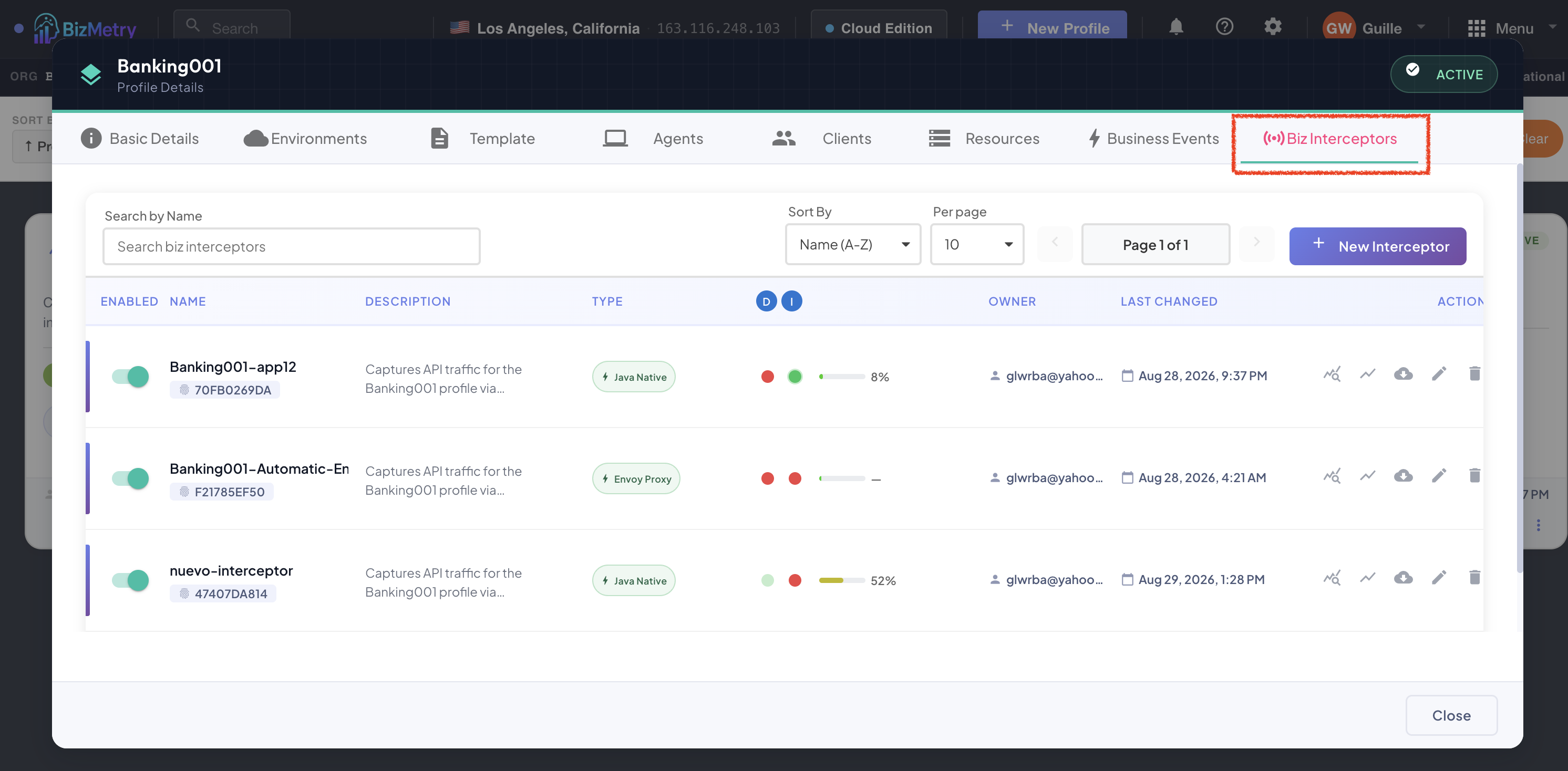
The Biz Interceptors tab opens, showing every interceptor defined for this Profile. See Biz Interceptor Summary for a full walkthrough of this view.
Across every Profile at once
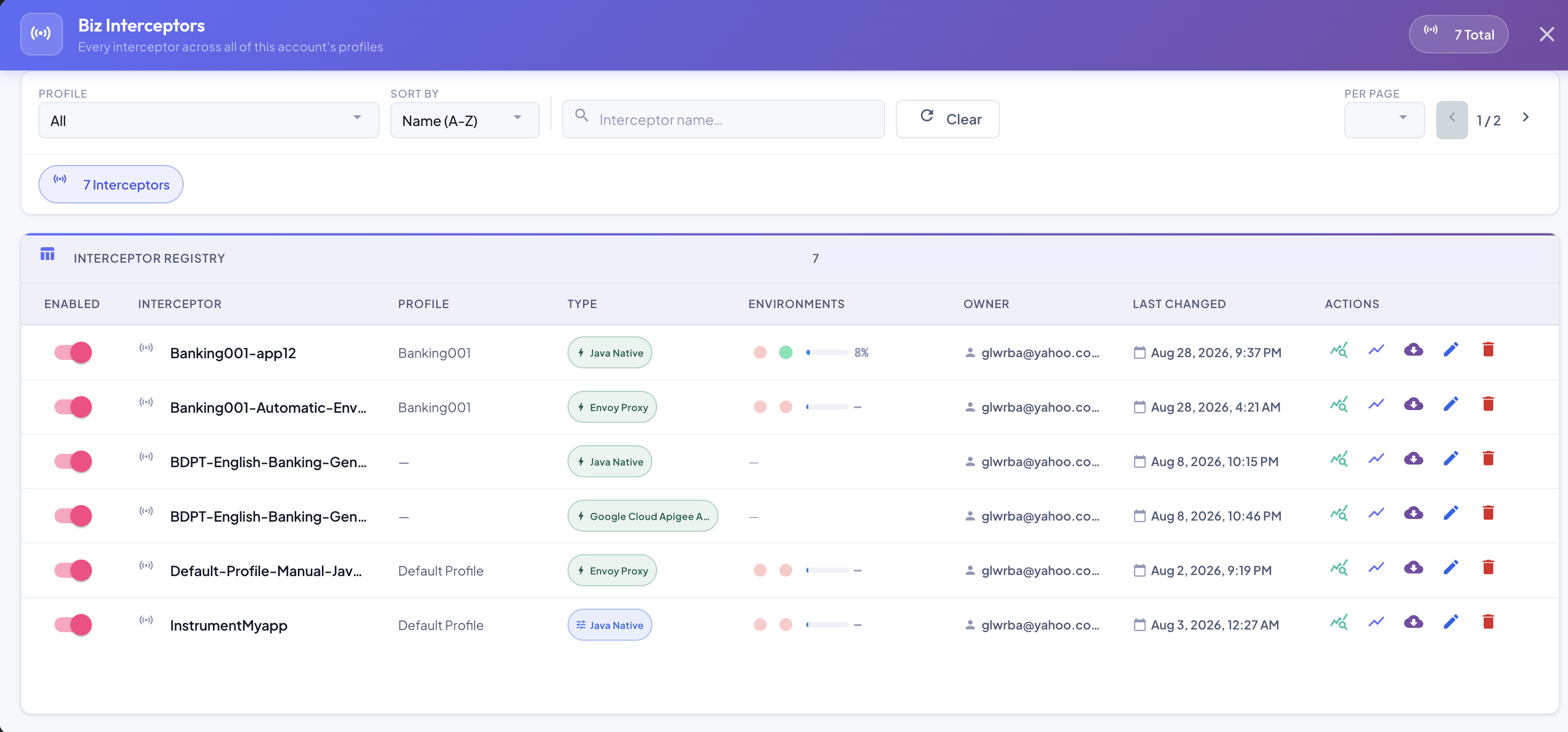
From the Main Menu, select Interceptors to open the Interceptors Panel — every interceptor across every Profile in the account, in one filterable, searchable list. Useful for an at-a-glance account-wide health check without having to open each Profile individually.
In This Section
- Understanding Interceptor Topology — where an interceptor sits relative to the application, the customer's Agent, and the platform
- Interceptor and Business Application Lifecycle — how many interceptors to configure, and what to expect once they're running
- Biz Interceptor Summary
- Environment Status
- Creating a New Interceptor
- Reconfiguring (Editing) an Existing Interceptor
- Interceptor Fine-Tuning and Auto-Tuning
- Live Discovery Mode — capture all of an application's API traffic to find unregistered or unused APIs
- Understanding Interceptor Synchronization with the BizMetry Platform
- Consolidated Stats
- Metrics Explorer
- Live Endpoints
- Downloading a Biz Interceptor
- Deleting an Existing Interceptor
- Interceptors Panel — the account-wide, cross-Profile view