IntelliSense Auto-Mapping
IntelliSense is BizMetry's assistant for setting up a Business Event faster. Instead of picking every API operation or drawing every field mapping by hand, you can ask IntelliSense to look at what you're working with and do the matching for you — leaving you to review and adjust rather than start from a blank canvas.
IntelliSense shows up in two places in the Create Business Event wizard:
- Step 3 — Select Operations, where it suggests which API operations best match your target Frame Type. This one runs as a two-pass process: it discovers candidate operations first, then — only if you deselected any of them — automatically refines its field matches to whichever operations you end up keeping.
- Step 6 — Configure Mapping, where it suggests field-level mappings between your selected operations and the target Frame's components.
This page focuses on the mapping use case, since that's where most of the review work happens.
How It Works, at a Glance
IntelliSense compares the names, types, and descriptions of your source fields against the target Frame's components, and proposes the matches it's most confident about. For a target component where the right value has to be computed or combined from more than one source field, IntelliSense can also generate the BMEL expression for you, instead of leaving it blank.
You don't need to understand how the matching happens under the hood — what matters is that after running it, the mapper canvas comes back populated with suggested connectors for you to review, adjust, or leave as-is.
Running IntelliSense
- In the mapping canvas (Step 6 of the wizard), click the IntelliSense button in the toolbar.
- BizMetry analyzes your selected operations and the target Frame's components — this takes a few seconds.
- The canvas is populated with the suggested connectors.
Reviewing Auto-Mappings
After running IntelliSense, it's worth going through the result before creating the event:
- Scan all connectors — check that each suggested mapping makes sense for your business domain, not just that the field names look similar.
- Check generated BMEL expressions — click the
ƒicon on any BMEL-backed connector to review the expression IntelliSense wrote. - Remove anything wrong — unlink a connector the same way you would any other mapping.
- Fill in what's missing — IntelliSense won't always find a match for every component; map the rest manually.
- Refine expressions — open the BMEL editor on any connector to adjust a suggested expression instead of accepting it as-is.
Re-running IntelliSense
You can run IntelliSense more than once on the same mapping. Doing so replaces the connectors IntelliSense generated previously, but leaves alone anything you mapped or adjusted manually — your own work is never silently overwritten by a re-run.
Nested Array Fields
Source fields that live inside an array (for example, a total field inside a list of orders) are handled a little differently:
- The array itself is listed as a source, with a badge showing how many fields it contains.
- Its child fields are shown nested underneath it, and can be mapped individually.
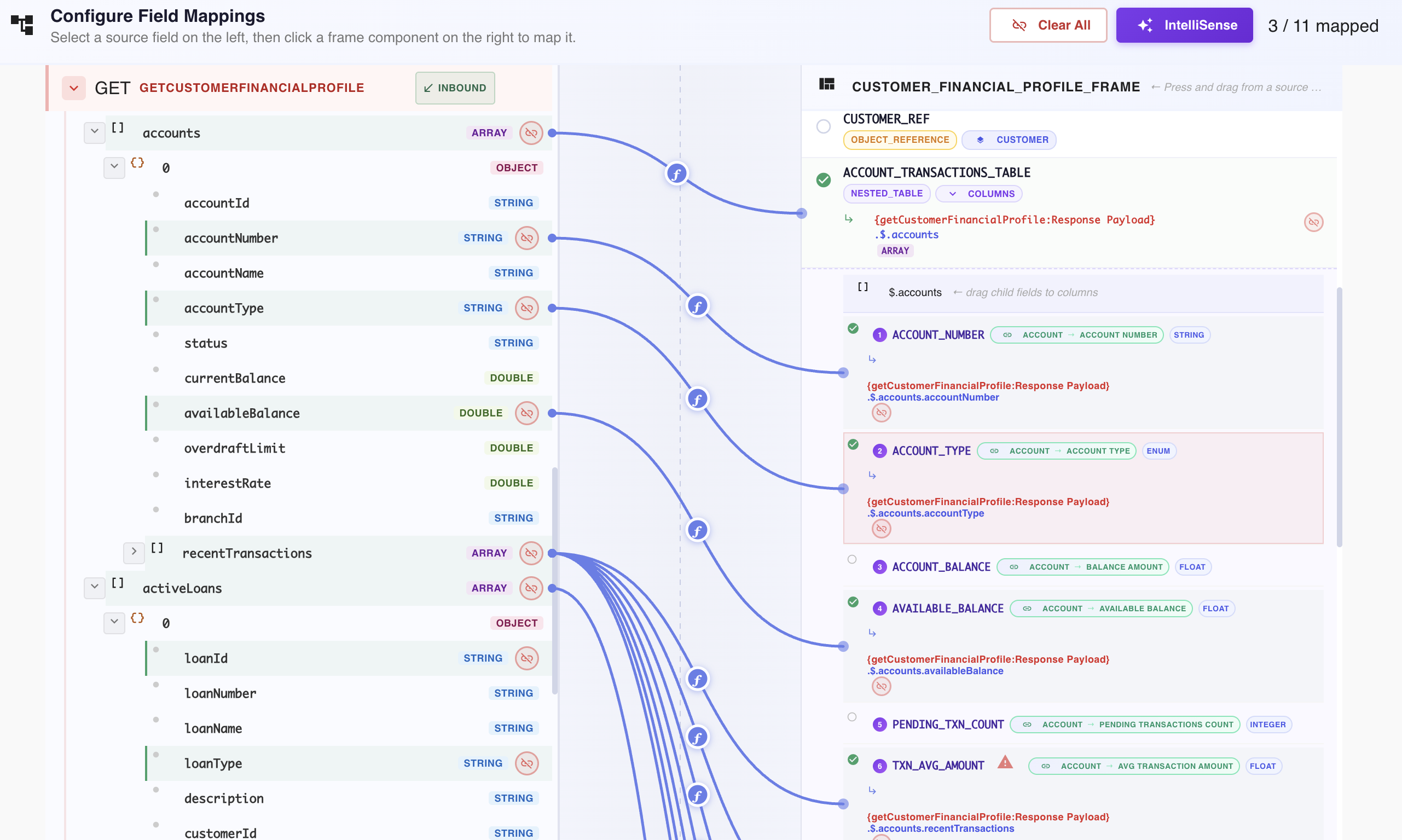
IntelliSense can map a source array directly onto a Nested Table target component, and — at the same time — map the array's child fields onto that Nested Table's individual columns, using BMEL aggregation expressions (avg, max, min, sum). A source array holds one value per element, but a Nested Table column holds a single value; an aggregation expression is what bridges the two, reducing a column's values across every element of the array down to the one scalar that column expects.
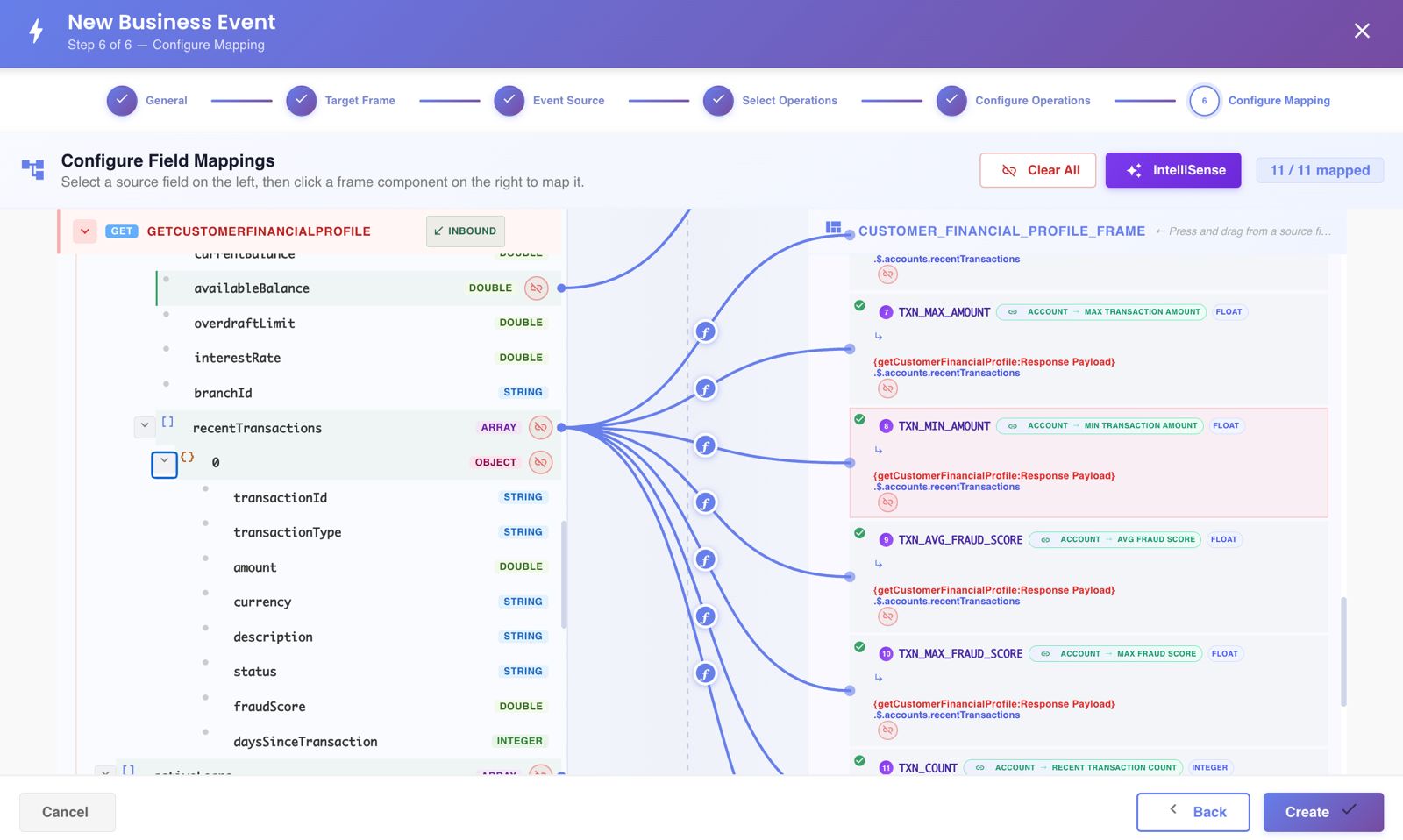
For every array-to-column mapping, IntelliSense picks whichever combination of source array, column, and aggregation function produces the best fit — weighing the descriptions of the attributes, arrays, Nested Tables, and Nested Table columns involved, together with the metadata attached to each BMEL function (what it computes, and what kind of input and output it expects).
This is what makes IntelliSense more than an operation-to-component matcher: it also works out the BMEL expression behind each mapping and assigns it automatically, instead of leaving that logic for you to write by hand. That adds up to a substantial cut in configuration time — and a considerably faster path from API operations to usable business metrics.
Known limitation
For fields nested more than a couple of levels deep inside arrays, IntelliSense may only surface the parent array as a source rather than reaching all the way down automatically. In that case, open the BMEL editor and write the field reference yourself to reach the deeper field.