Editing a Business Event
This page walks through what happens when you edit an existing Business Event version — the two entry points into editing, what each one actually lets you change, which version states allow it, and what "saving" does depending on where the version started.
Two ways to edit
Both actions live on the version row in the Business Events tab (expand an event to see its versions):
| Action | Icon | Opens | Use it when... |
|---|---|---|---|
| Edit | The Edit Business Event wizard | You need to change the event's core configuration — target frame/version, API collection, selected operations, or operation settings — and remap fields to match. | |
| Edit Mappings | The Edit Mappings dialog | You only need to touch the field mapping — nothing about the target frame, operations, or their configuration is changing. |


Flow 1 — Edit: the full wizard
Clicking Edit opens the Edit Business Event wizard. Unlike the Create wizard, which has 6 steps, editing only exposes 4:
| Step | Name | What you configure |
|---|---|---|
| 1 | Target Frame | The Template version + Frame Type this version targets |
| 2 | Select Operations | The API Collection and operations to intercept |
| 3 | Configure Operations | Interception mode, correlation source, and filters per operation |
| 4 | Configure Mapping | Field mappings and BMEL expressions |
%%{init: {"themeVariables": {"fontSize": "18px"}}}%%
flowchart TB
    A["1 · Target Frame"] --> B["2 · Select Operations"]
    B --> C["3 · Configure Operations"]
    C --> D["4 · Configure Mapping"]
    D --> E["Apply Changes"]
Identity and Source Type are not editable here
Event Identity (name, description, interception mode at the event level) and Source Type (the transport — REST API, Kafka Topic, MQTT Queue, or Webhook) are set once at creation and carried over unchanged. The wizard header shows them read-only for context (event name, version, and source type badge), but there's no step to change them — this is why the edit wizard starts directly on Target Frame instead of Step 1 of the create wizard.
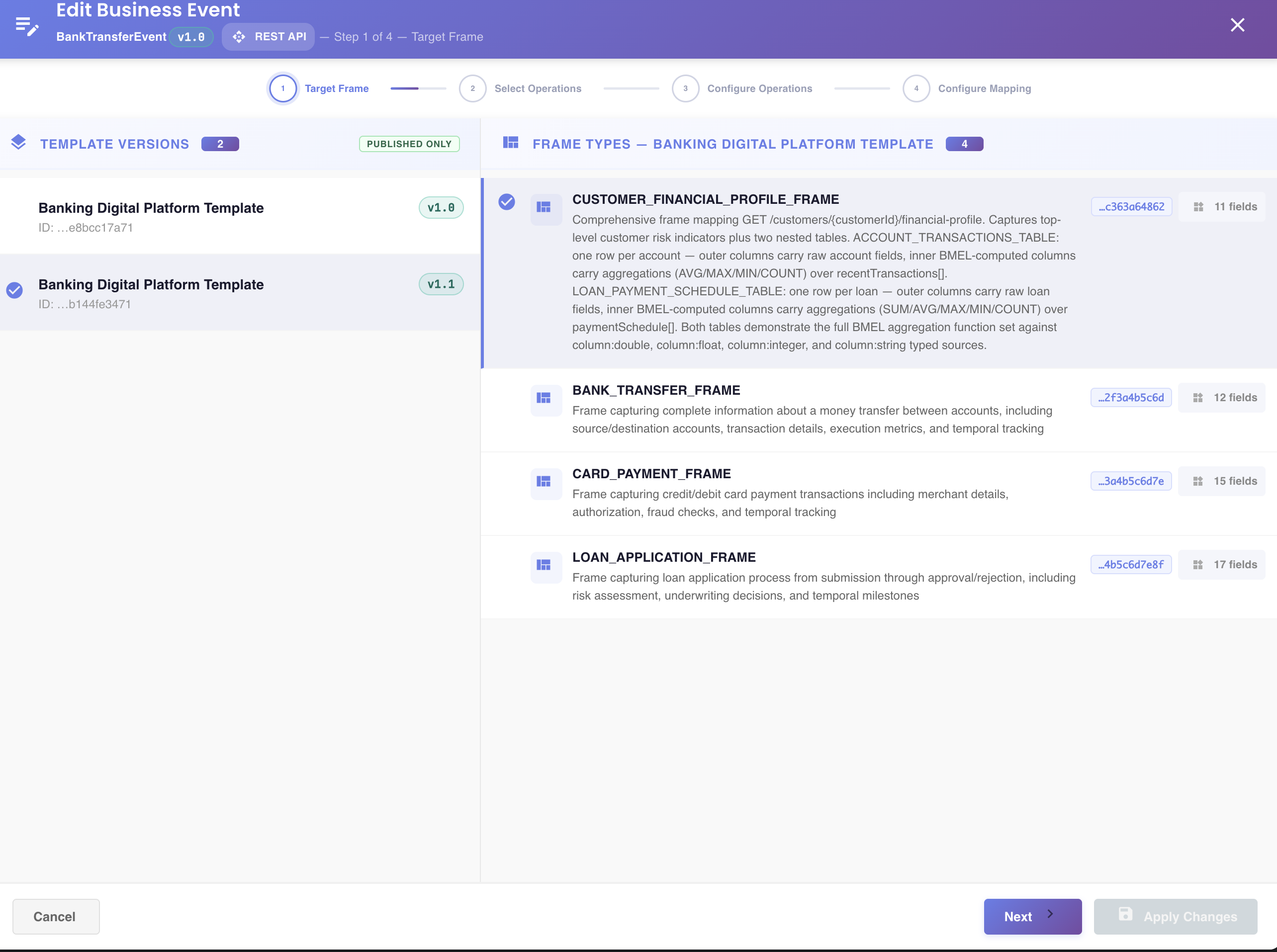
Step 1 — Target Frame
Pick a different Template version and/or Frame Type for this version to target. Only PUBLISHED Template versions are offered.
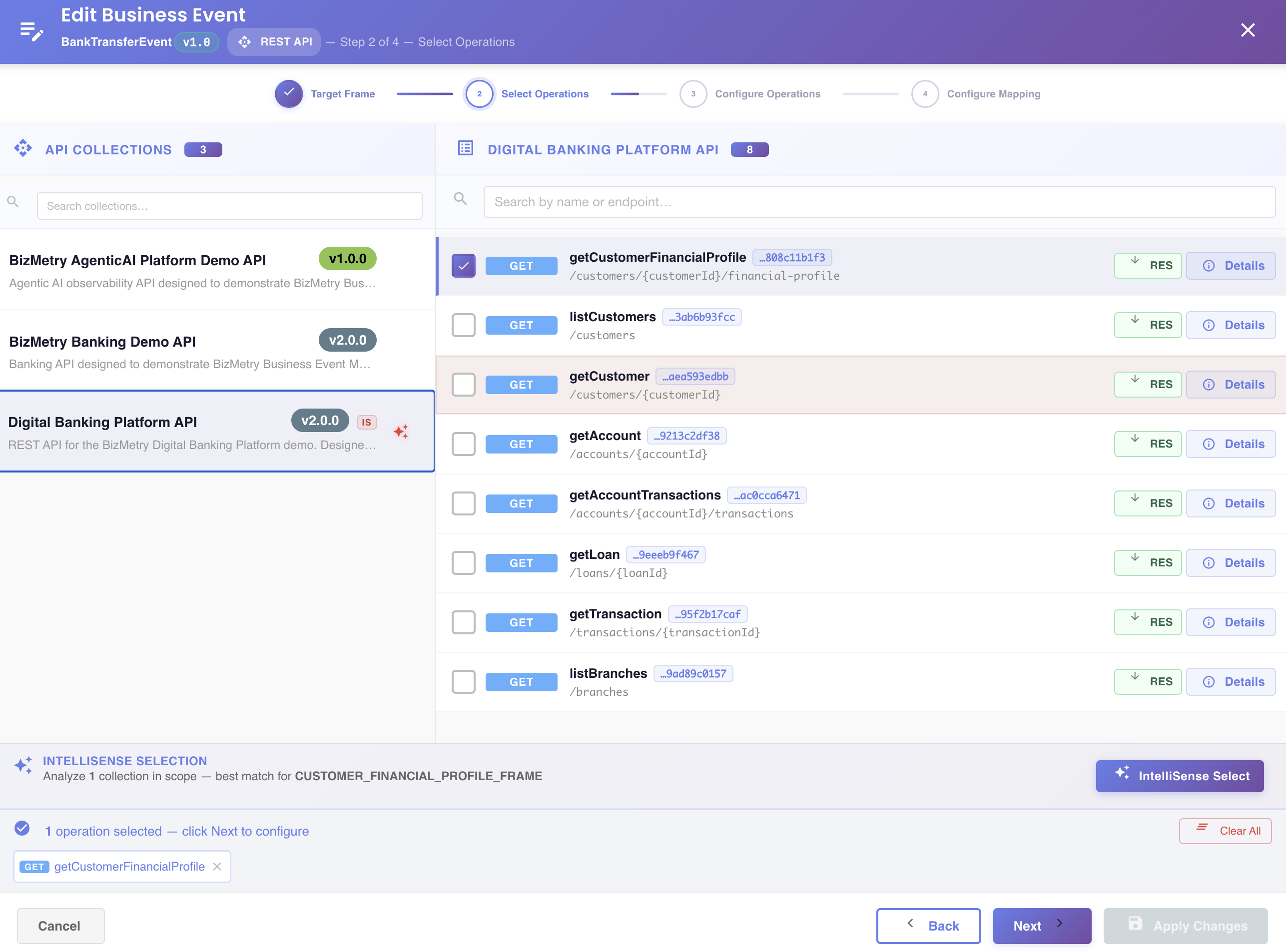
Step 2 — Select Operations
Change the API Collection and/or the specific operations this version intercepts — same picker, search, and IntelliSense-assisted selection as Step 3 of the create wizard.
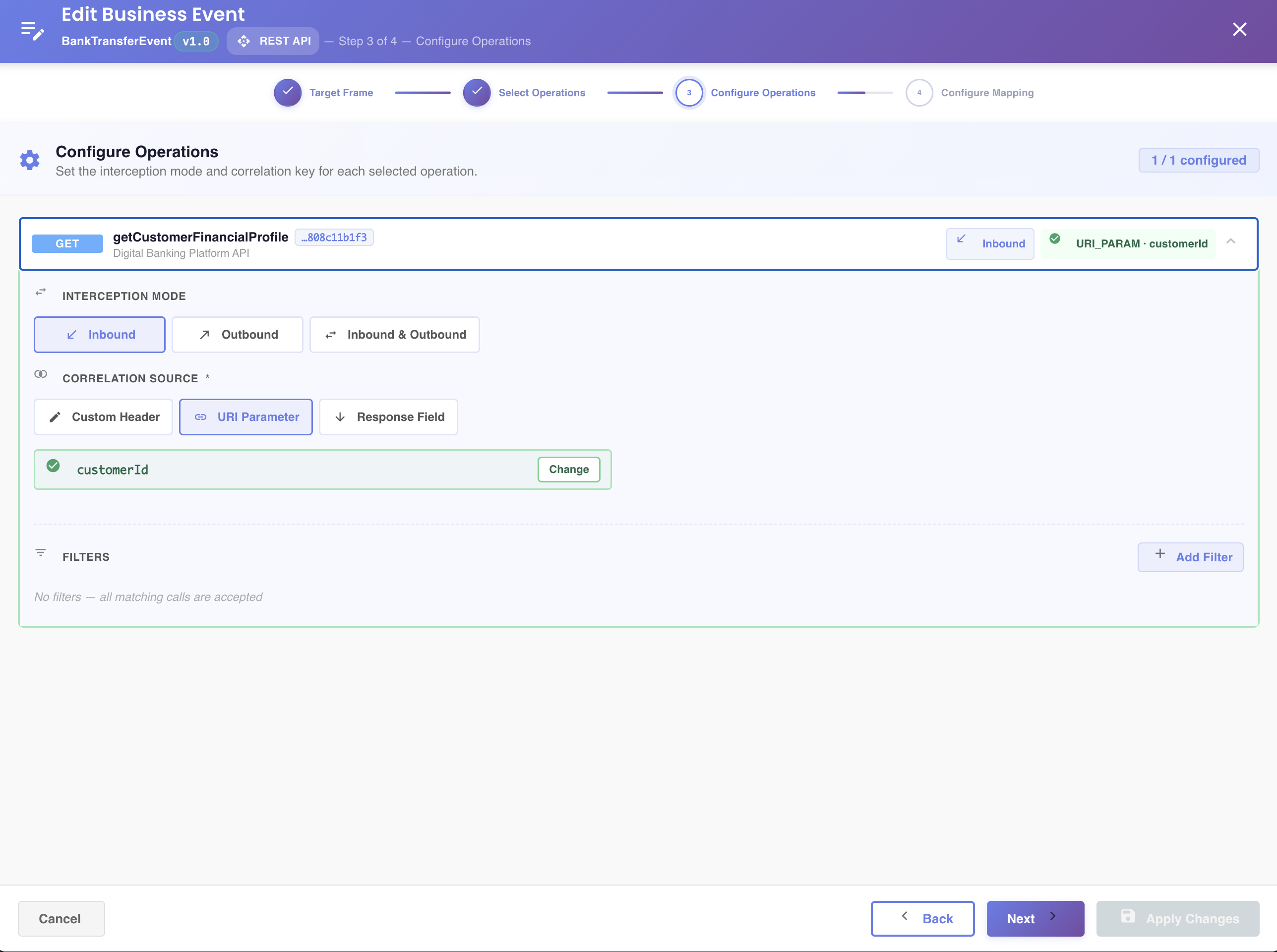
Step 3 — Configure Operations
Adjust interception mode (Inbound/Outbound/Inbound & Outbound), correlation source, and filters for each selected operation — same as Step 4 of the create wizard.
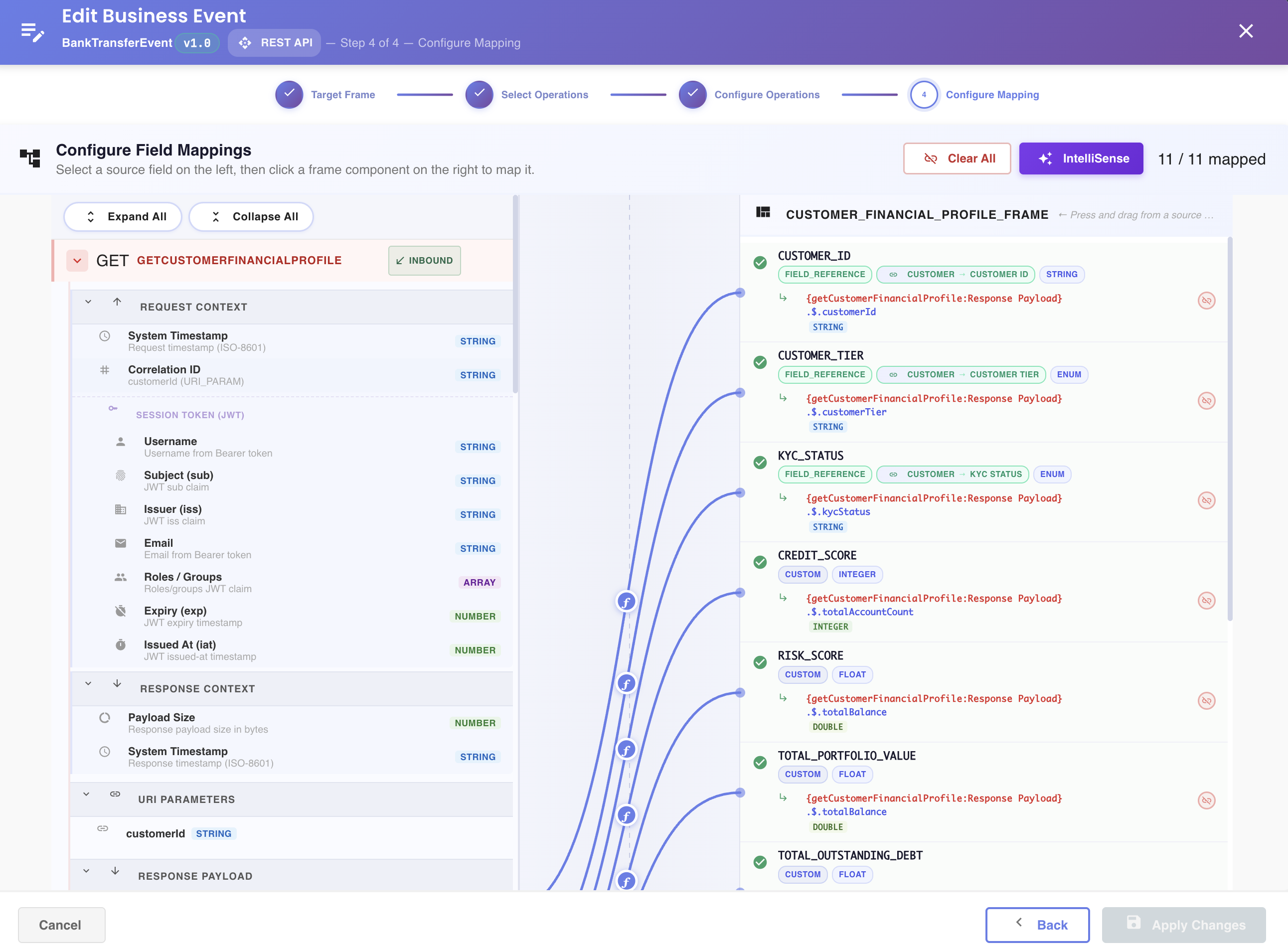
Step 4 — Configure Mapping
The same Business Event Mapper described in Configure Mapping — drag and drop source fields onto target components, run IntelliSense, or write BMEL expressions. If you changed the target frame or operations in the earlier steps, this is where you reconcile the mapping to match.
Applying the changes
Instead of Create, the last step's button is Apply Changes. It stays disabled until you've actually modified something in the wizard — simply stepping through without changing anything leaves it greyed out, since there'd be nothing to save.
Flow 2 — Edit Mappings: the shortcut
Clicking Edit Mappings skips the wizard entirely and opens the Configure Field Mappings canvas directly, in a standalone dialog — no stepper, no other steps. The dialog header shows the event name, version, and current status, and the save action is labeled Save Mappings.
This is the fastest path when only the mapping needs a change: nothing about the target frame, API collection, operations, or their configuration is touched. It's the same drag-and-drop canvas as Step 4 of the Edit wizard / Configure Mapping — drag source fields onto target components, run IntelliSense, or open the BMEL editor for computed values.
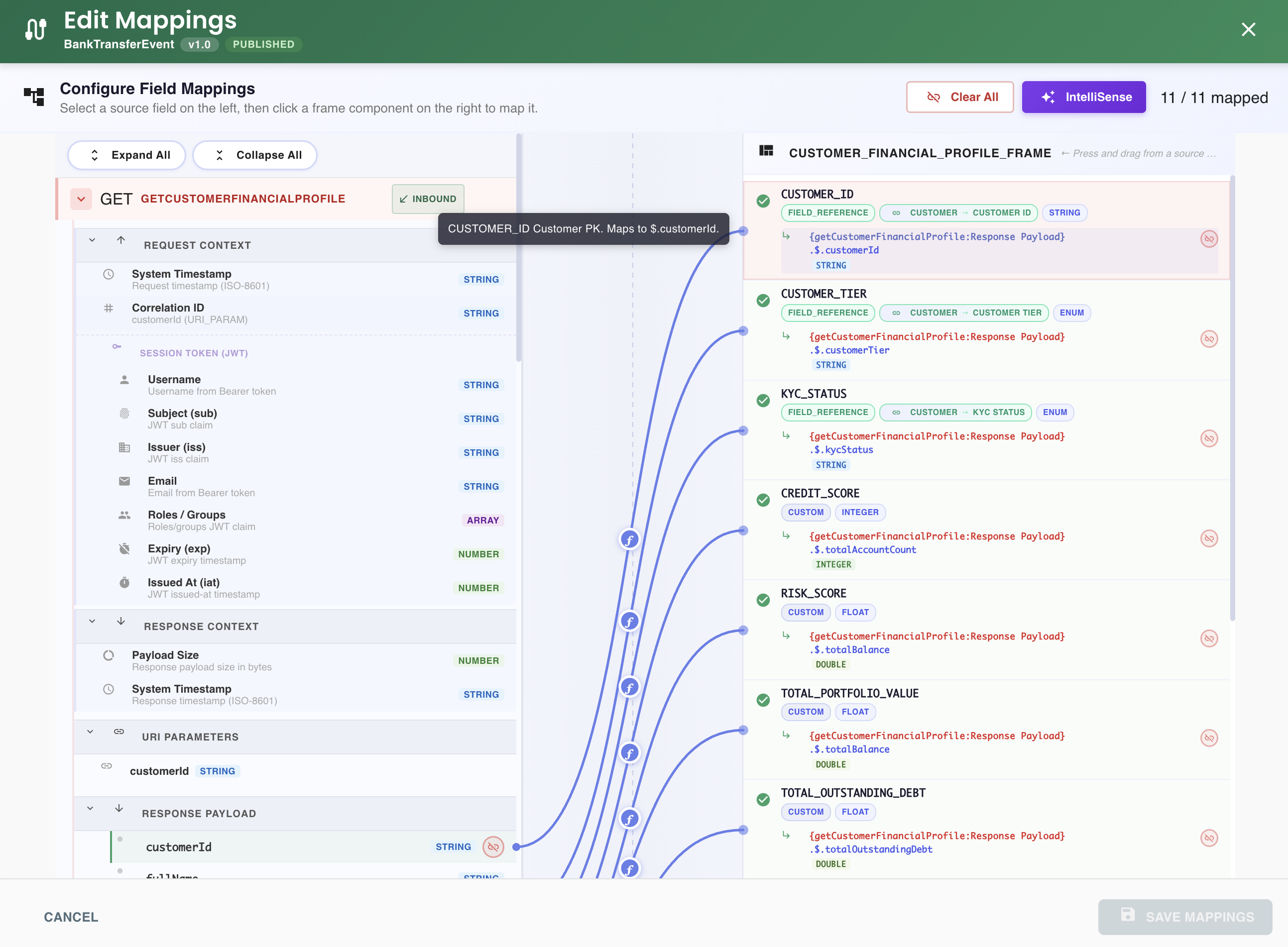
Just like Apply Changes in the full wizard, Save Mappings stays disabled until you actually change at least one mapping — opening the dialog and closing it without touching anything leaves nothing to save.
Which versions can be edited
A version can be edited — via either Edit or Edit Mappings — in any state except DEPRECATED and RETIRED:
| Status | Edit available? |
|---|---|
DRAFT | |
PENDING_REVIEW | |
APPROVED | |
REJECTED | |
PUBLISHED | |
DEPRECATED | |
RETIRED |
DEPRECATED and RETIRED versions are historical — reactivate a DEPRECATED one via Reinstate instead, since there's no path back from either state through editing.
What happens when you save
Saving behaves differently depending on the version's status when you opened it — this applies identically whether you used Edit or Edit Mappings:
%%{init: {"themeVariables": {"fontSize": "18px"}}}%%
flowchart TB
    A["Apply Changes / Save Mappings"] --> B{"Version status?"}
    B -->|"DRAFT, PENDING_REVIEW,\nAPPROVED, or REJECTED"| C["Same version updated in place\nStatus → DRAFT"]
    B -->|"PUBLISHED"| D["New DRAFT version forked\n(number auto-calculated)"]
    D --> E["Original PUBLISHED version\nuntouched — still live"]
Editing a DRAFT, PENDING_REVIEW, APPROVED, or REJECTED version
Saving updates that same version, in place — no new version number is created. Regardless of which of these four states it started in, its status always becomes DRAFT afterward, which restarts the review cycle: Submit → Approve/Reject.
Editing a PUBLISHED version
A PUBLISHED version is never modified in place — it's actively capturing telemetry and must keep doing so uninterrupted. Instead, saving:
- Forks a new version — copying the current configuration, operations, and mappings — created in
DRAFTstatus. - Auto-calculates its version number based on the scope of what changed (major bump if the target Template version changed, otherwise a minor bump — see Versioning & Fork-on-Bump for the full table).
- Leaves the original
PUBLISHEDversion untouched, still live and capturing telemetry for every environment scoped to it.
From there, the new DRAFT follows the normal lifecycle — review it, submit it, and publish it when it's ready. Until you do, the PUBLISHED original keeps serving telemetry exactly as before.
Existing DRAFT blocks a new fork
A Business Event can only have one DRAFT version at a time. If one already exists, editing the PUBLISHED version isn't available until that DRAFT is published, submitted, or deleted.