Step 5 — Event Identity
By the time you reach this step, BizMetry already knows everything it needs to identify the Business Event you're creating — the Profile, the target Frame Type and Template version from Step 2, and the operations selected in Step 3. So instead of asking you to type a name up front, BizMetry generates one automatically the first time you land on this step.
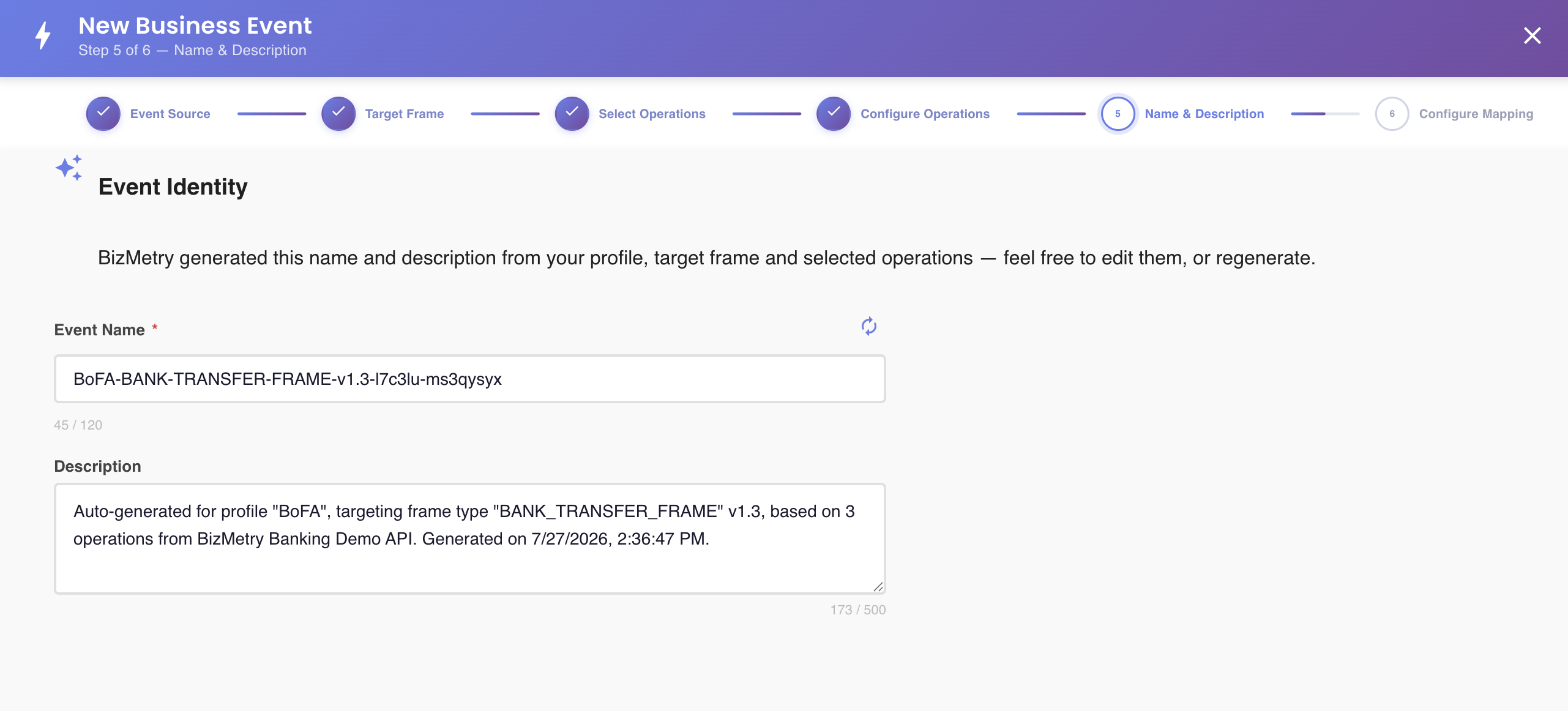
What gets generated
| Field | How it's generated |
|---|---|
| Name | {profile}-{frame-type}-v{version}-{operations-hash}-{time-serial} — built from the Profile's name, the target Frame Type's name and Template version (from Step 2), a deterministic hash of the operations selected in Step 3, and a short time-based serializer. |
| Description | A sentence summarizing the same inputs — Profile, target Frame Type + version, operation count, and source API Collection(s) — plus the generation timestamp. |
Why a hash and a timestamp
The operations hash alone isn't enough to guarantee a unique name: two Business Events can legitimately target the same Profile, Frame Type/version, and even the exact same set of operations, while still mapping those operations to different Frame components in Step 6. The time-based serializer is what keeps their names apart in that case.
You can still edit it
The generated name and description are just a starting point — edit either field the same way you would type any other value. Once you do, BizMetry stops touching it: going back to an earlier step and forward again won't overwrite an edit you already made.
If you want to discard your edits and get a fresh auto-generated value instead — for example after changing the target Frame Type or the selected operations — click the Regenerate icon next to the Name field.
Unique name validation
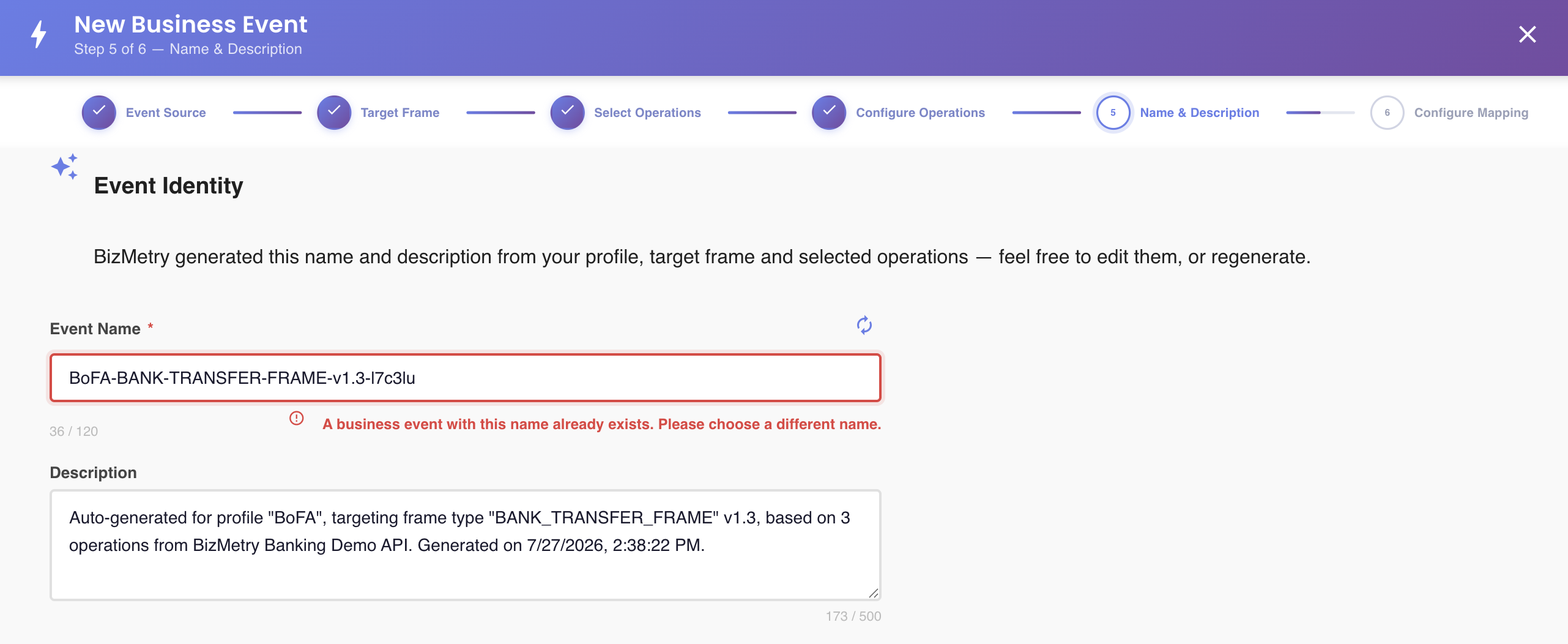
The Event Name must be unique across the current Profile. This is checked continuously as you type (or immediately after a regeneration); if the name is already in use by another Business Event in this Profile, BizMetry blocks you from continuing until you choose a different one:
Click Next to continue to Step 6 — Configure Mapping.
Click Back to return to Step 4 — Configure Operations.