Step 5 — Configure Operations
For each operation selected in Step 4, configure how it should be filtered and correlated.
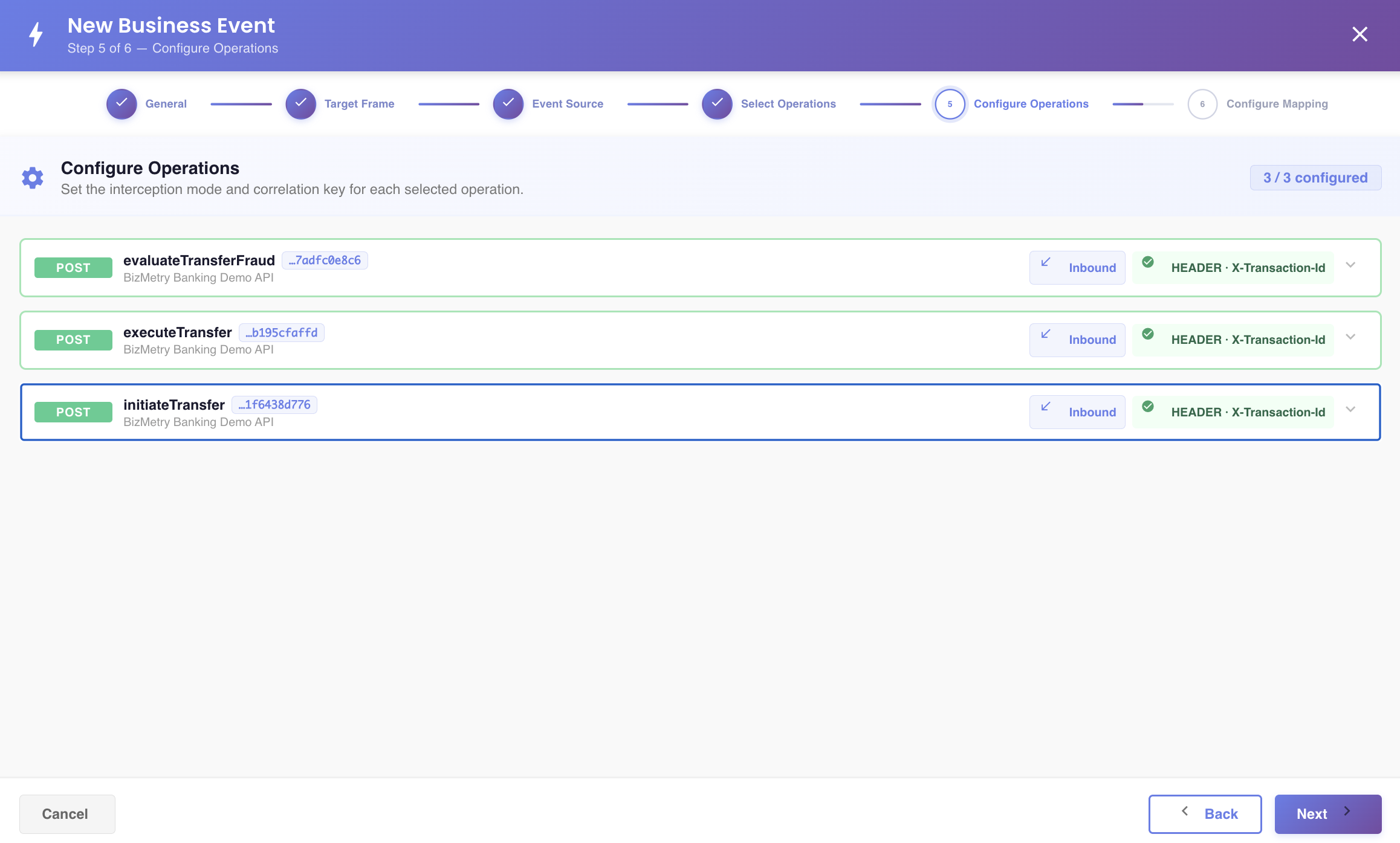
Each selected operation is listed as a collapsed row. Expand one to access its configuration:
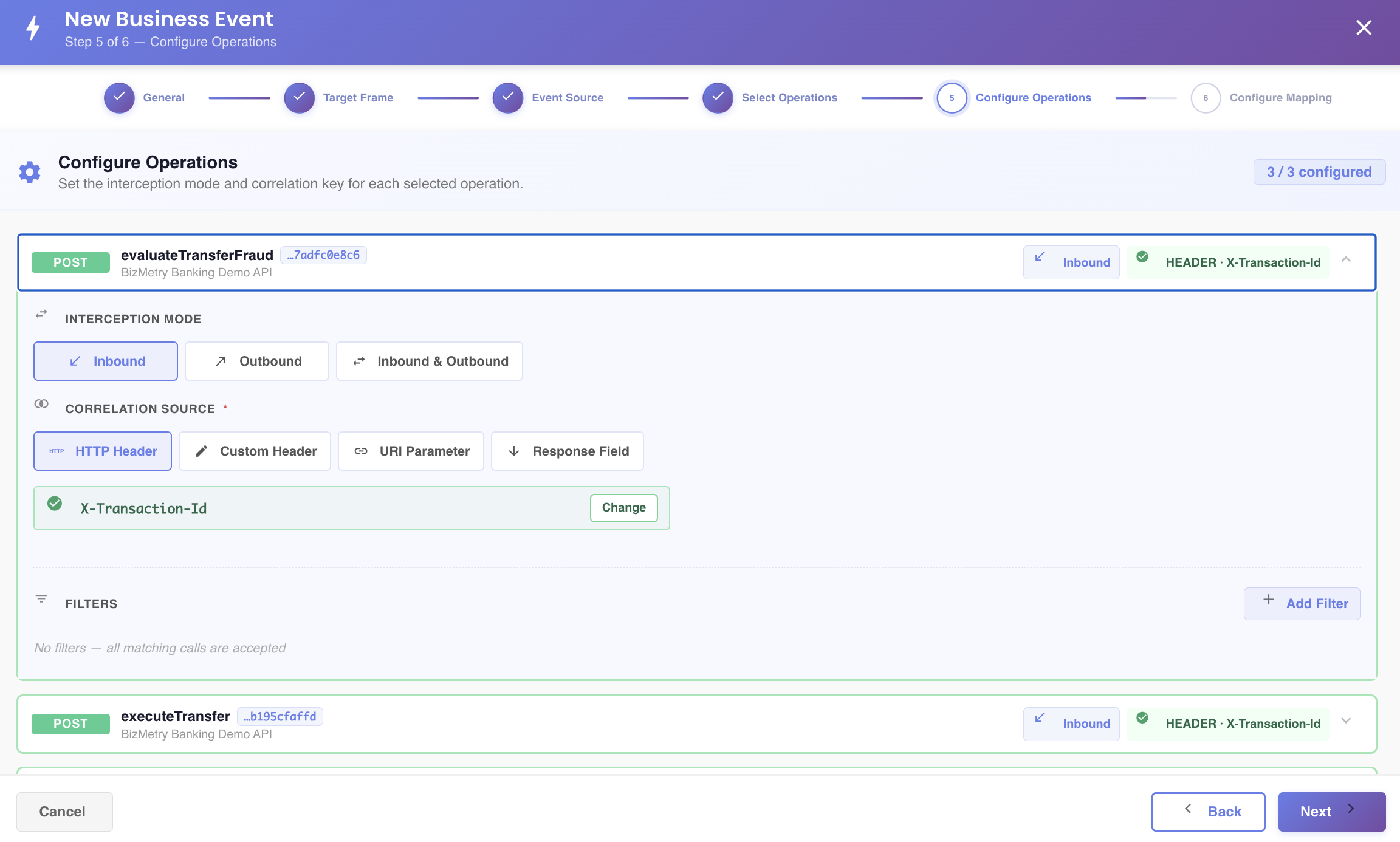
Interception mode
For each operation, choose when it should be intercepted:
| Mode | Description |
|---|---|
| Inbound | Intercept the incoming request — captures data as it arrives, before your service processes it. |
| Outbound | Intercept the outgoing response — captures data as it leaves your service, after processing. |
| Inbound & Outbound | Intercept both the request and the response for this operation. |
Note
Interception mode is set per operation, not once for the whole Business Event — different operations selected in Step 4 can each use a different mode.
Source types
Both Filters and Correlation Source (below) let you pick a value from the same four kinds of source:
| Source type | Description |
|---|---|
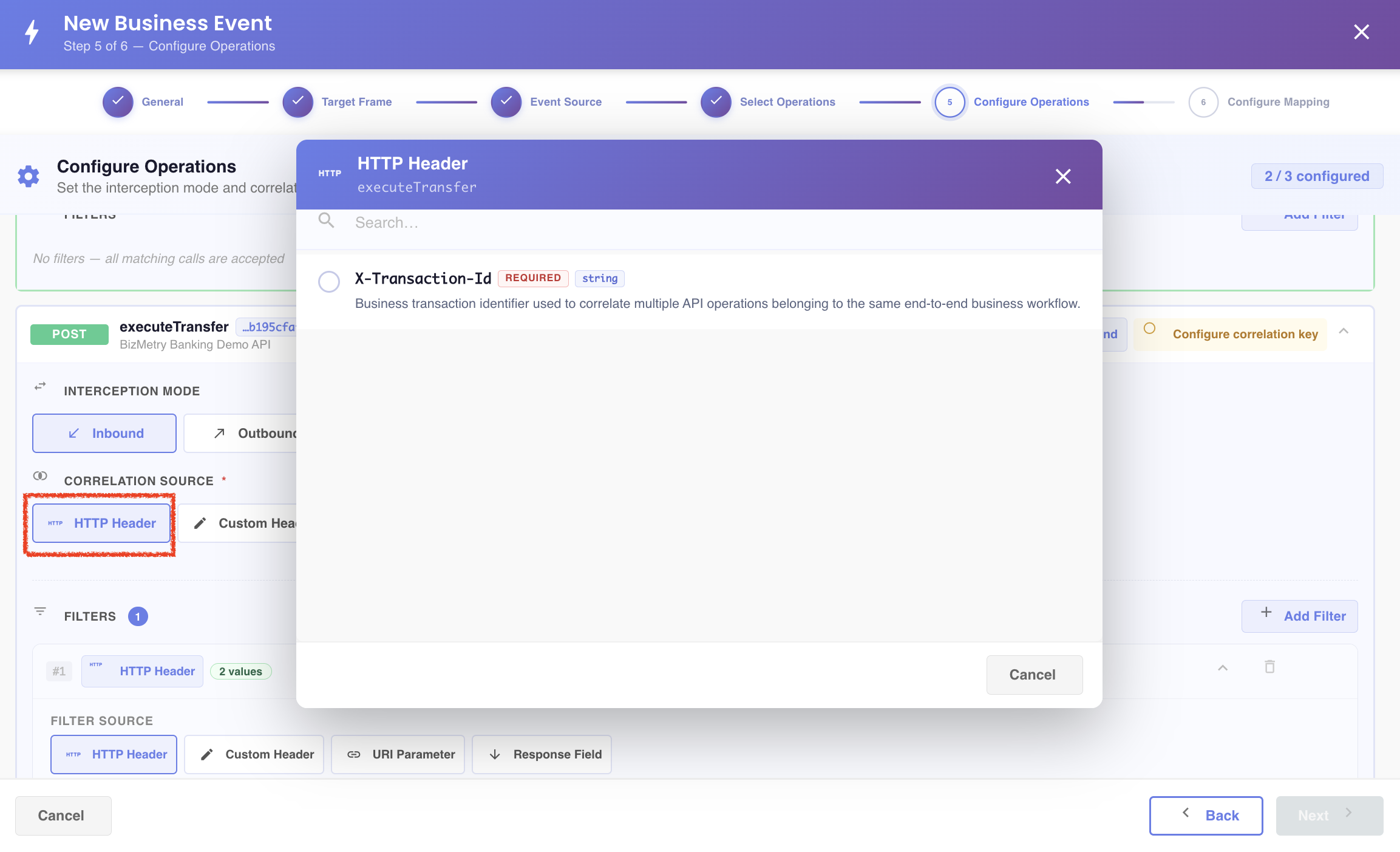
| HTTP Header | Pick from the HTTP headers already declared for this operation at the Swagger/OpenAPI level. |
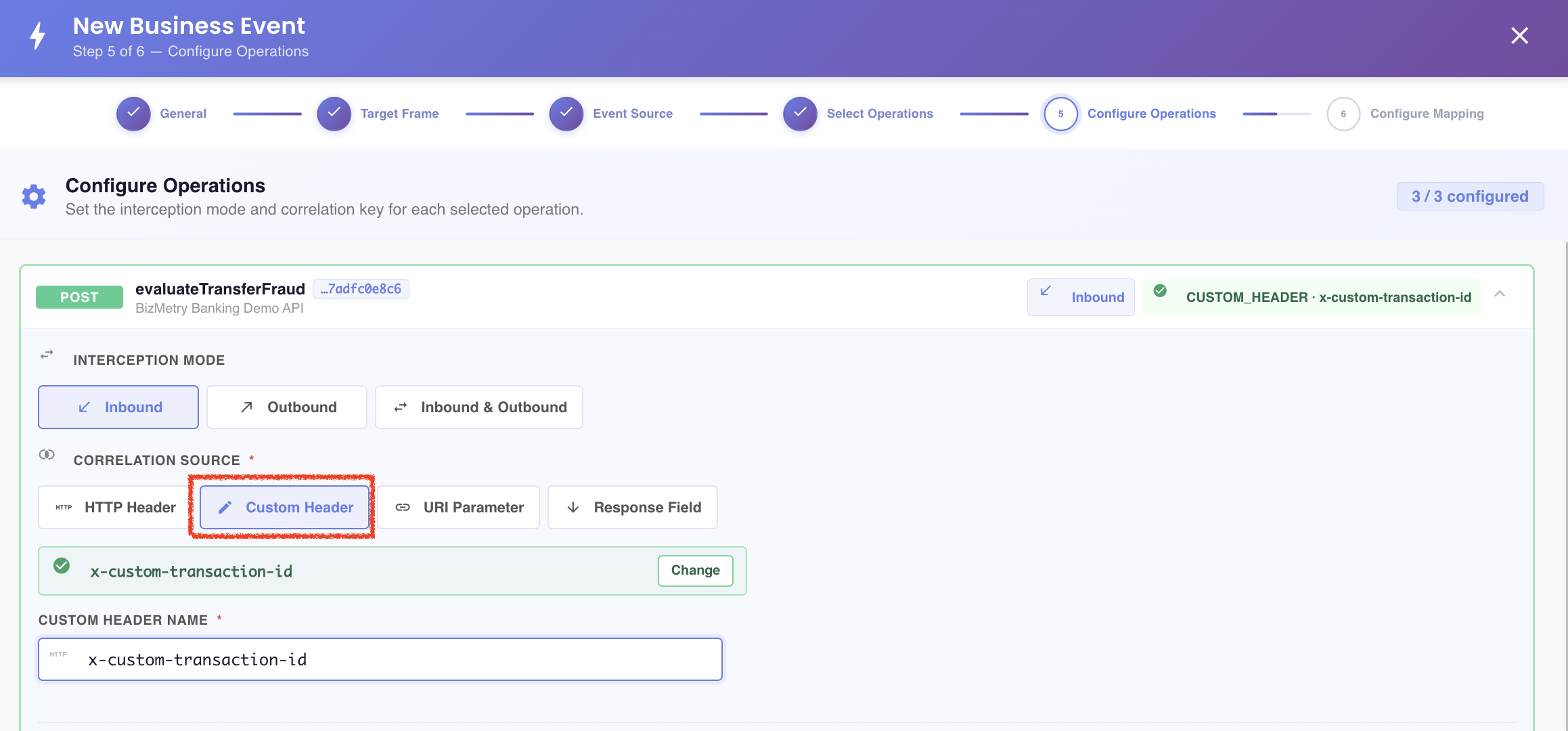
| Custom Header | Manually provide a specific header name that isn't declared in the Swagger definition. |
| URI Parameter | Pick from the URI (path) parameters declared for this operation at the Swagger/OpenAPI level. |
| Response Field | Pick a specific field from the operation's response payload. |
Once you've picked a source of any of these four types — for a Filter or for the Correlation Source — click Change to reconfigure it and pick a different value.
Correlation source
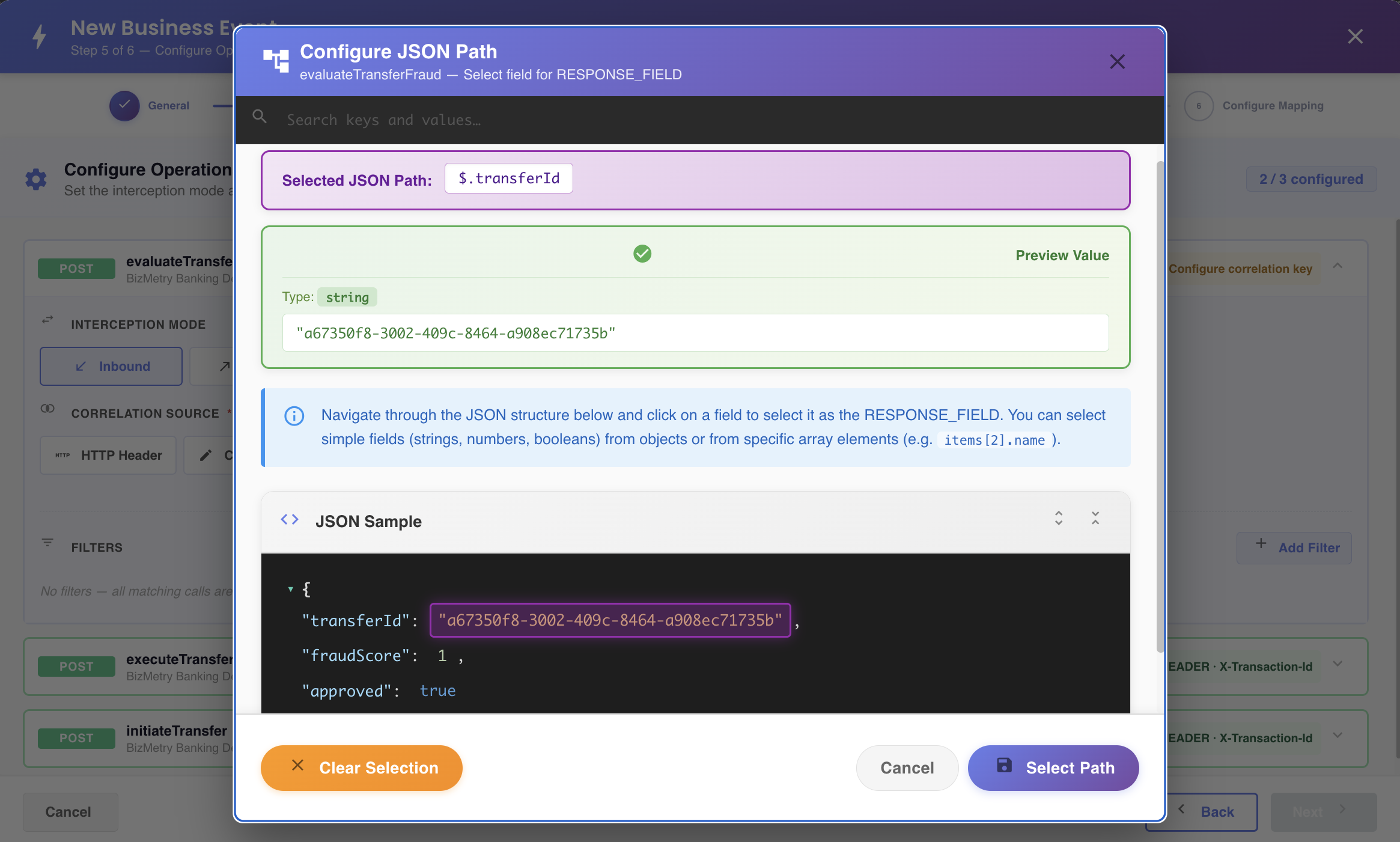
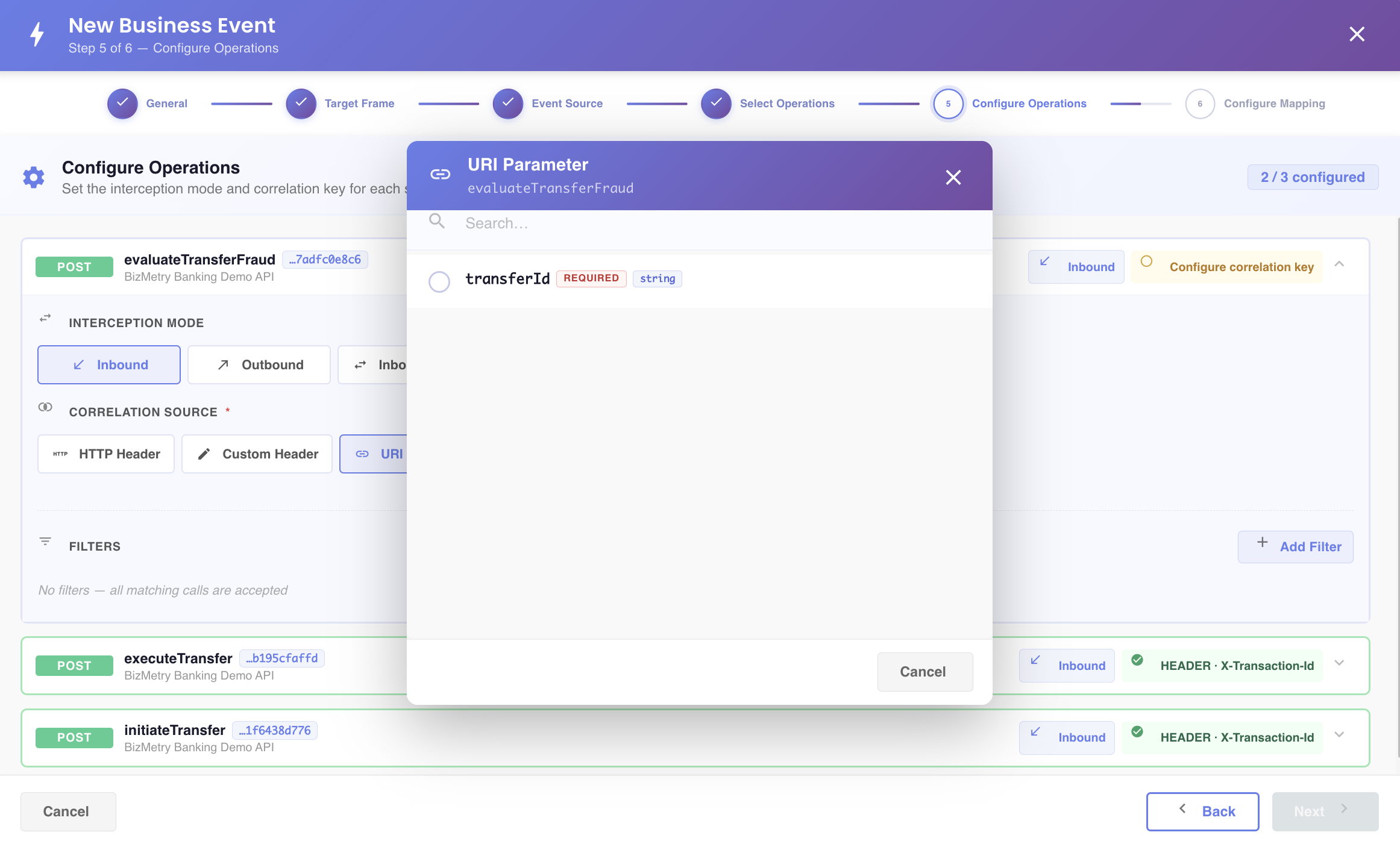
The correlation source tells BizMetry which value identifies/correlates this event's occurrences (e.g. to tie a request to its response, or to a business transaction). It can come from any of the four source types described above:
An HTTP Header
A custom header
A response field
A URI parameter
Automatic detection
By default, BizMetry tries to auto-detect a correlation source common to all selected operations, by looking at their URI Parameters and HTTP Headers. If every selected operation shares the same one — for example, they all declare the X-Transaction-Id HTTP header — it's pre-selected as the Correlation Source automatically.
Tip
You can always override the auto-detected correlation source: click Change and pick a different HTTP Header, Custom Header, URI Parameter, or Response Field instead.
Filters
Filters let you restrict when the Business Event actually fires for a given operation — e.g. only when a header matches a value, or only when a response field falls within an expected set of values. Like the Correlation Source, a filter's value can come from any of the four source types above.
Click Add Filter to start:
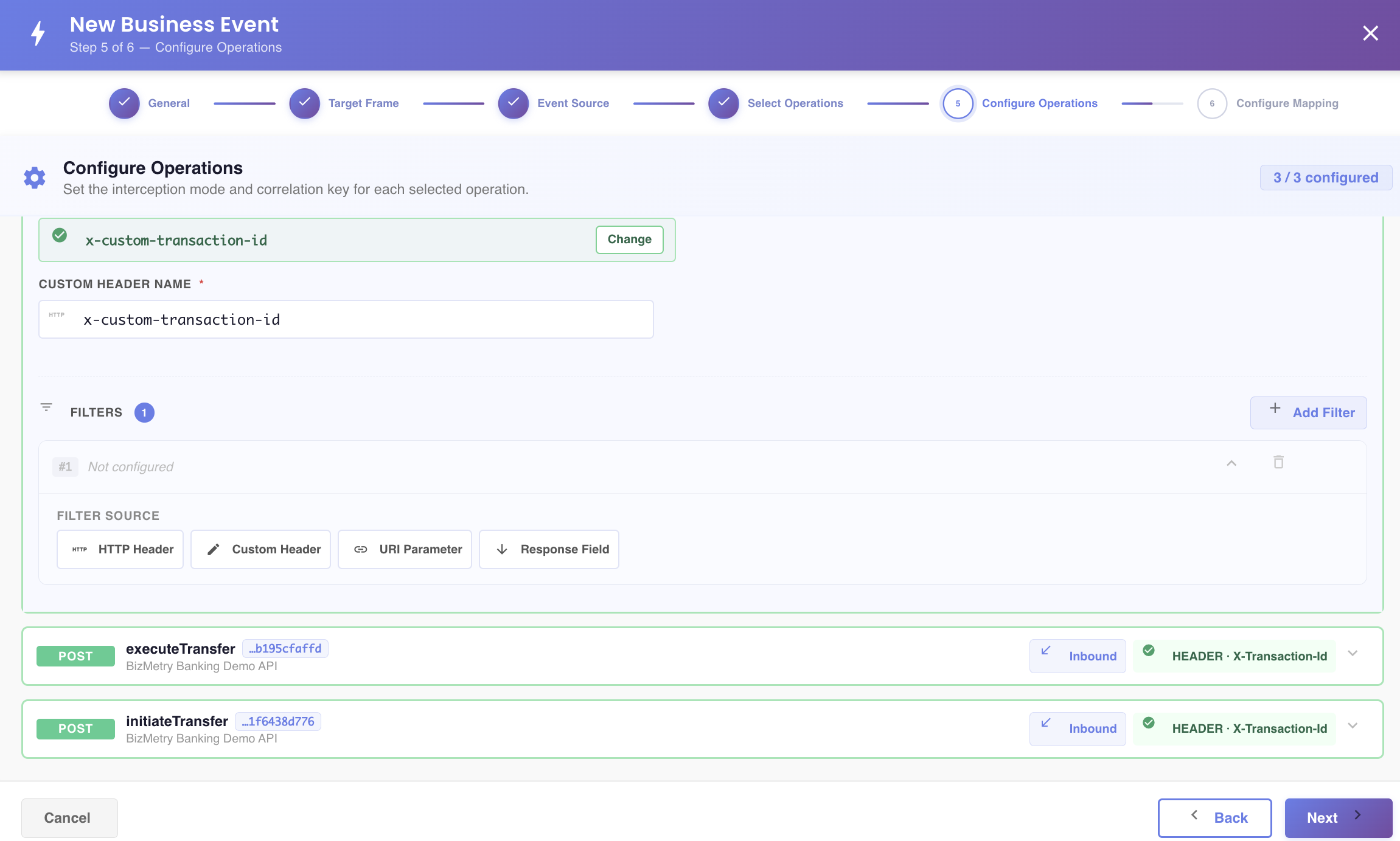
Filter by HTTP header
Match on a request or response header name and expected value:
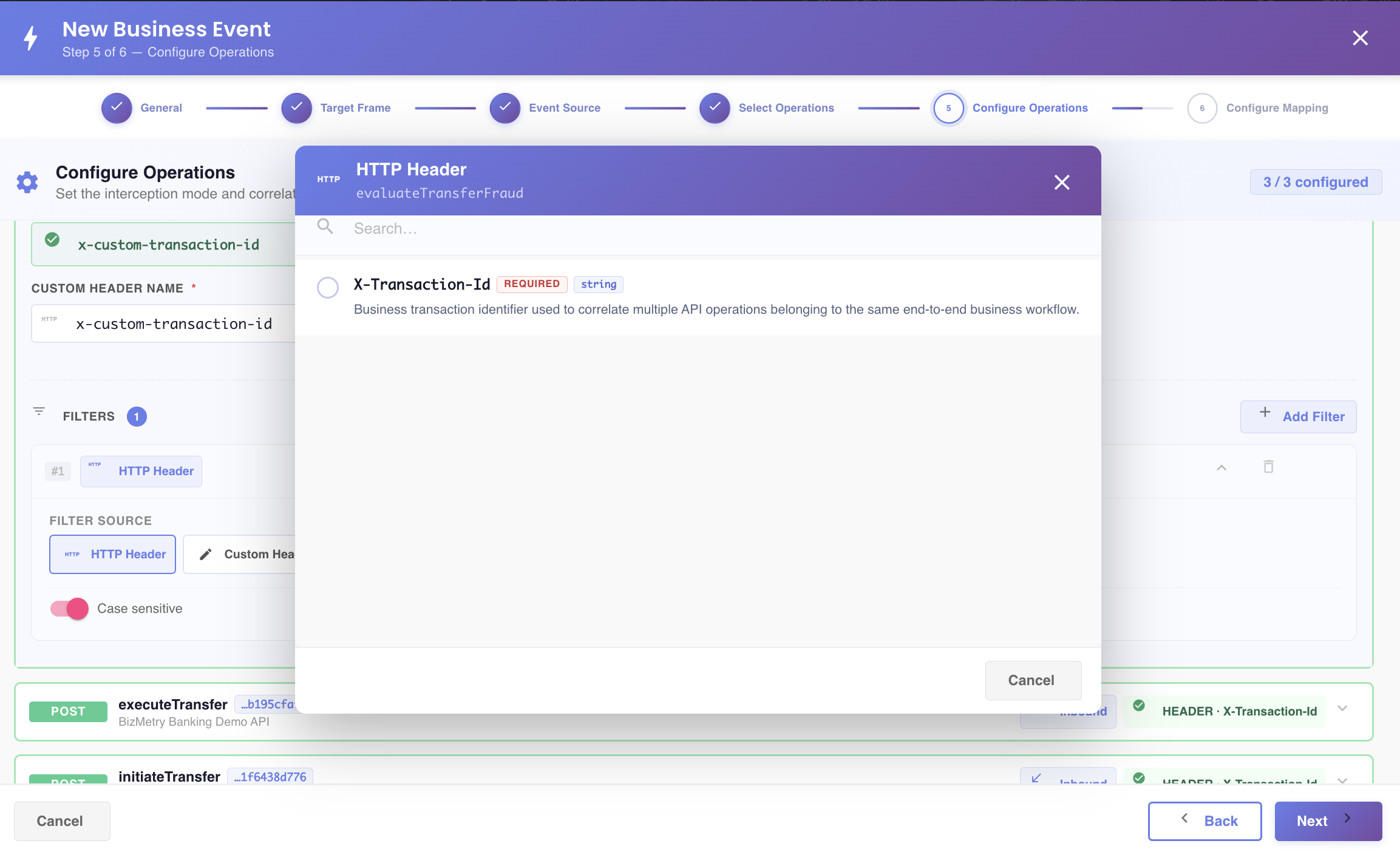
Filter by response field values
Match on a specific field in the response payload, restricting to one or more allowed values:
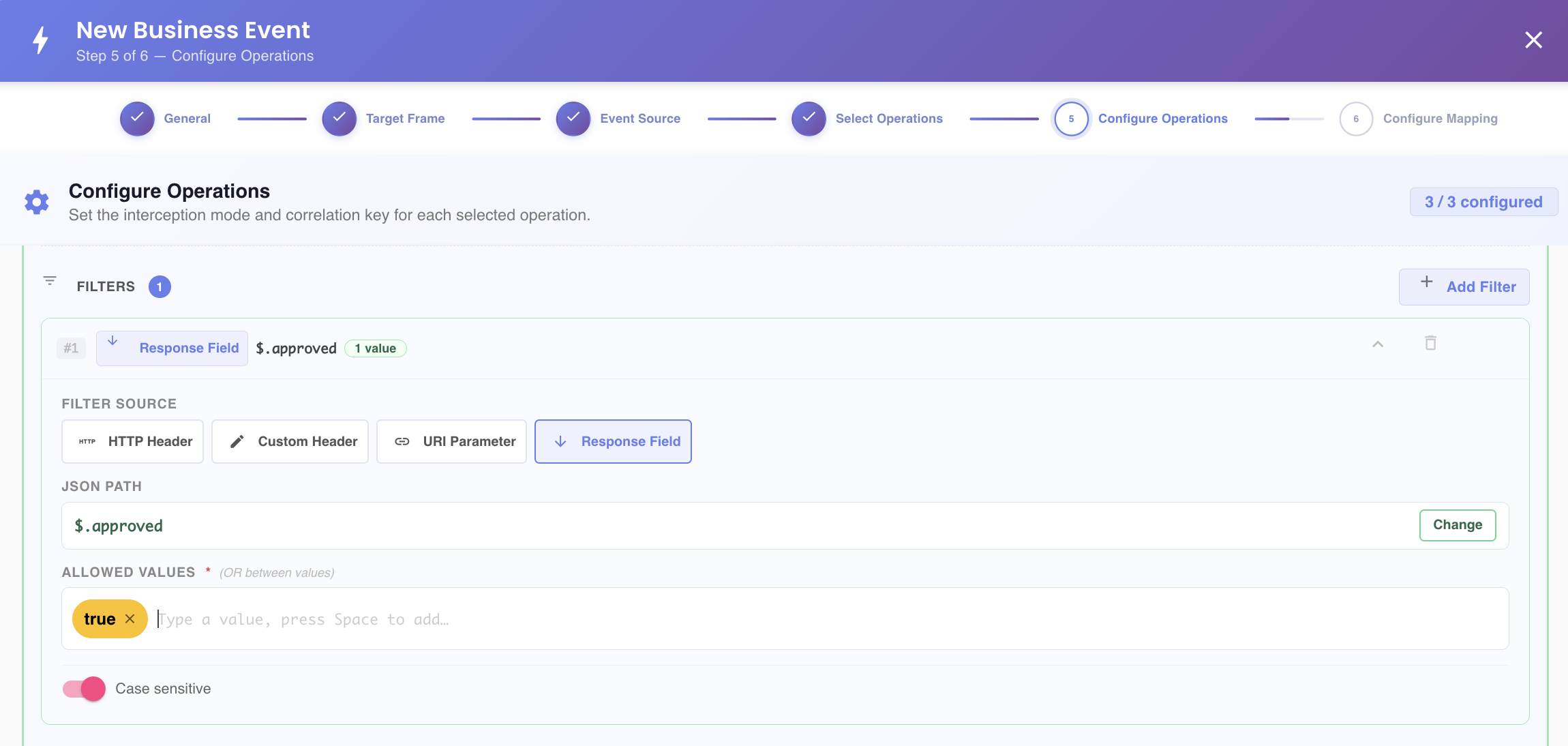
Case sensitivity
Every filter has a Case sensitive toggle. When enabled, the filter only matches values with the exact same casing; when disabled, matching ignores case. This applies regardless of which of the four source types the filter value comes from.
Click Next to continue to Step 6 — Configure Mapping.
Click Back to return to Step 4 — Select Operations.