Step 4 — Select Operations
Browse the API Collection(s) exposed on the Profile and pick the specific operations (endpoint + HTTP method) this Business Event should intercept.
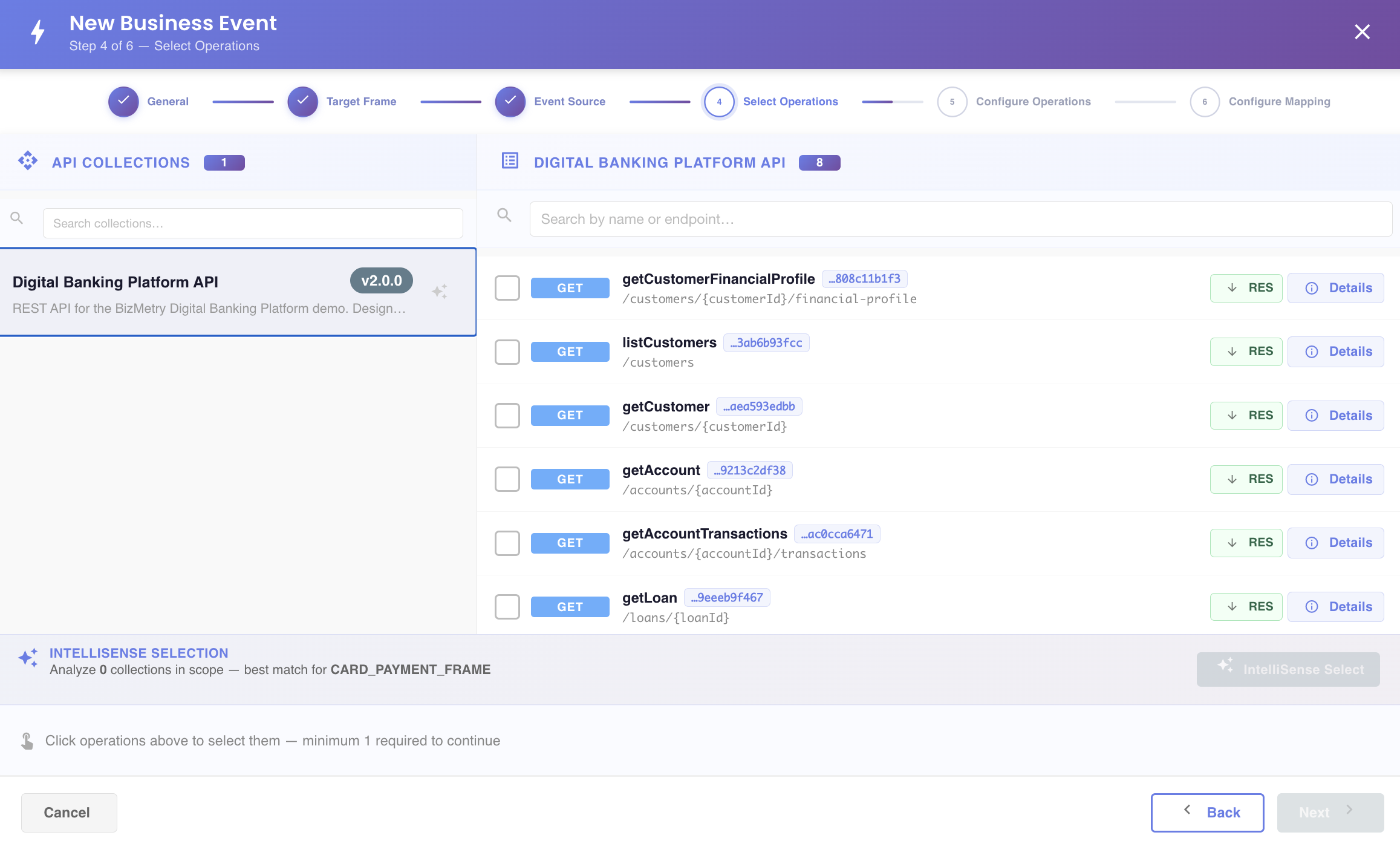
Browsing and searching
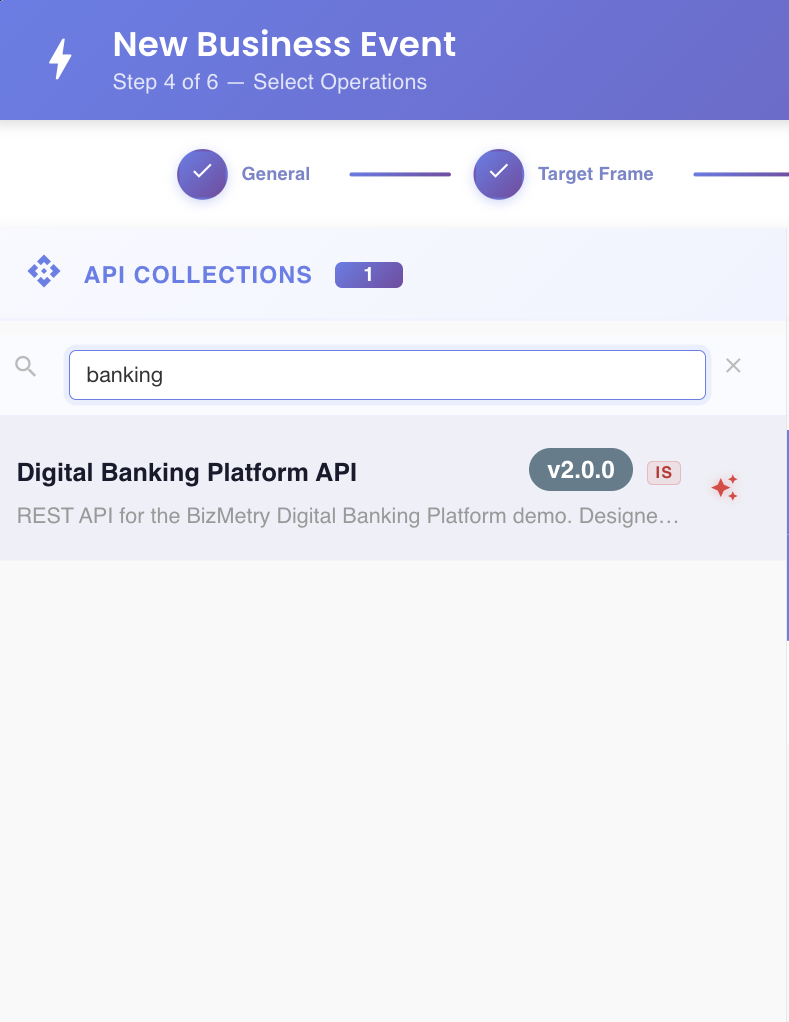
Use the search box to filter the list of API Collections:
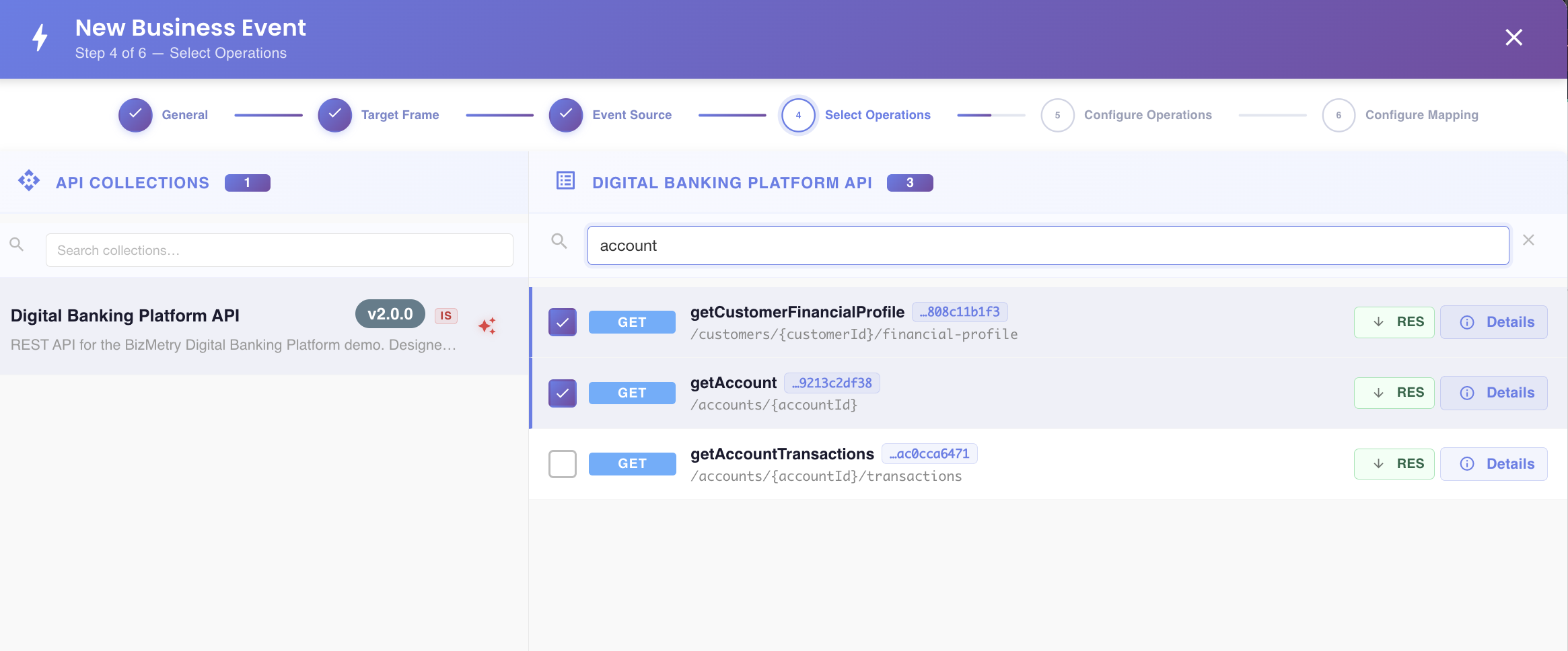
Once a collection is expanded, search again to filter its operations:
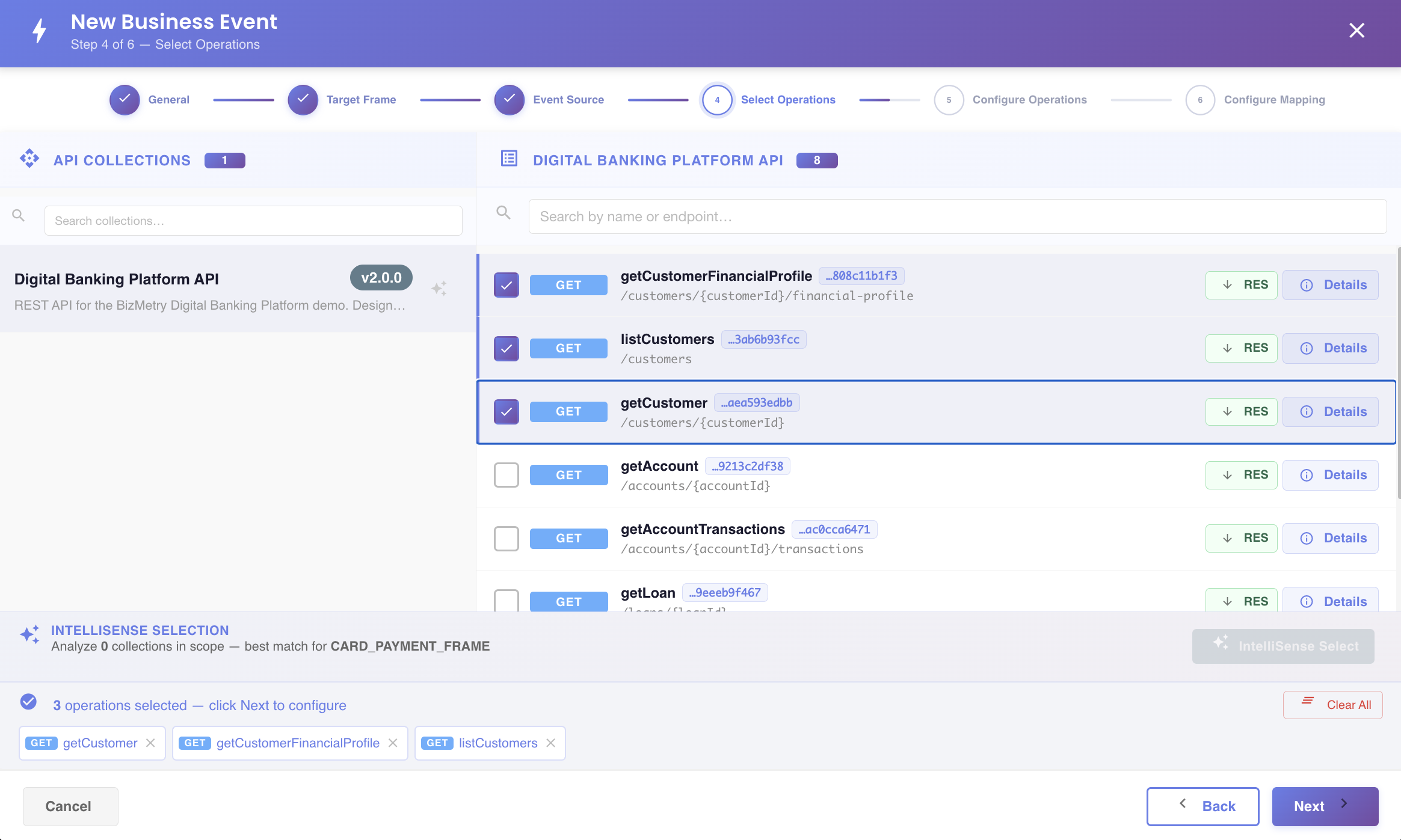
Selecting operations
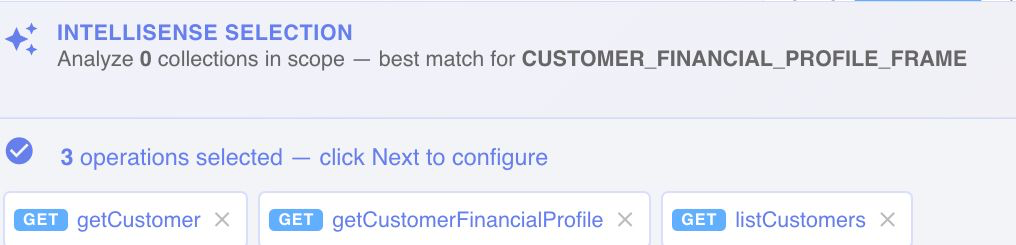
Check the box next to each operation you want this event to intercept. A running counter shows how many are currently selected, and a bottom panel lists each selected operation as a removable chip:
Removing individual operations
To deselect a single operation without clearing the whole selection, click the × icon on its chip in the bottom panel — this removes just that operation, leaving the rest of your selection intact.
Inspecting an operation before selecting it
Each operation row has two buttons on the right for inspecting its payloads, plus a Details button:
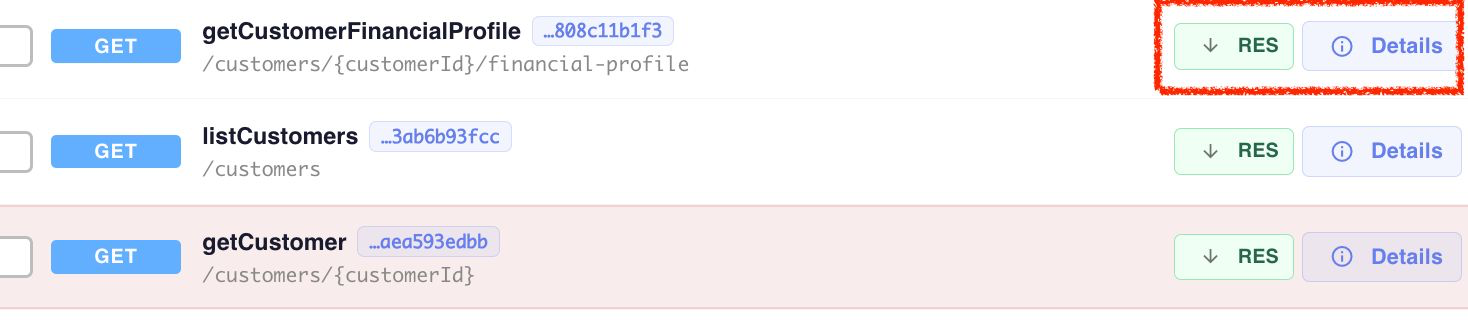
- REQ — opens a viewer with the operation's request schema/sample payload.
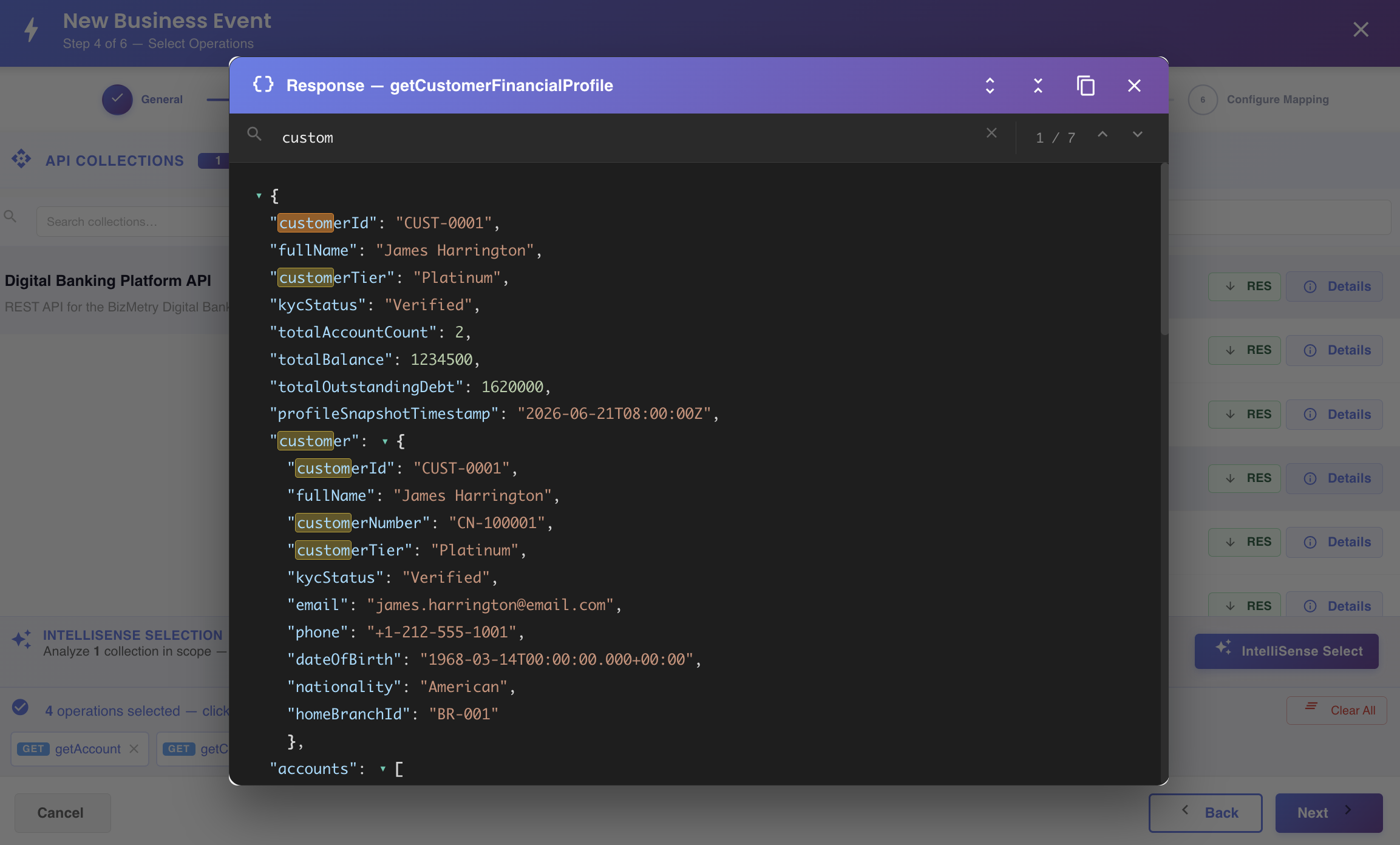
- RES — opens a viewer with the operation's response schema/sample payload.
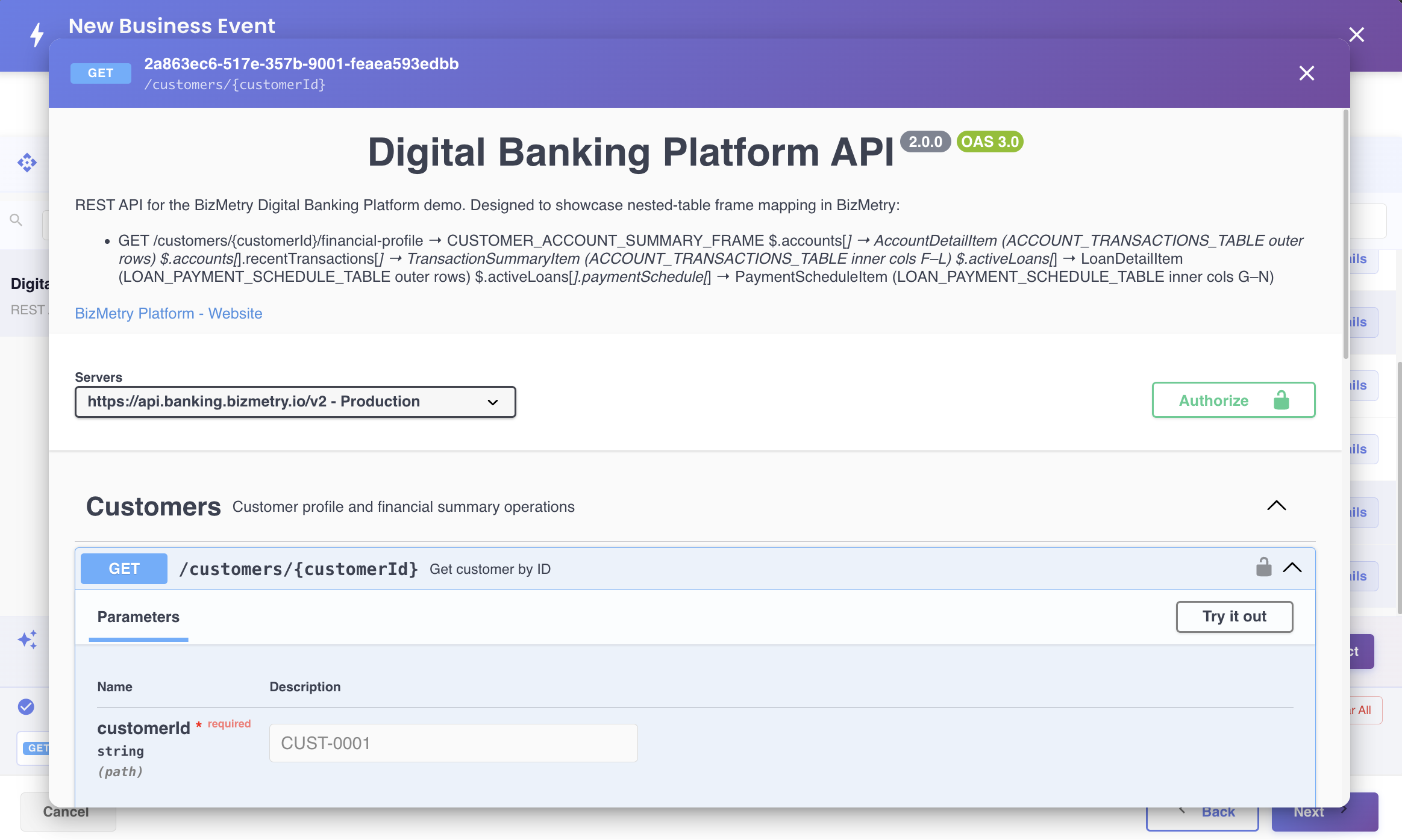
- Details — opens the full Swagger Viewer for that specific operation (description, parameters, servers, etc.).
The response viewer (opened via RES) is useful for inspecting a sample payload before deciding which fields you'll later map or filter on:
Selecting operations with IntelliSense
Instead of selecting operations manually, you can let IntelliSense suggest operations based on the target Frame Type chosen in Step 3.
Running it here is a two-pass process — the second pass happens automatically, and only when it's actually needed, so most of the time you won't notice it as a separate step.
Pass 1 — Discovery
Enable IntelliSense-assisted selection:
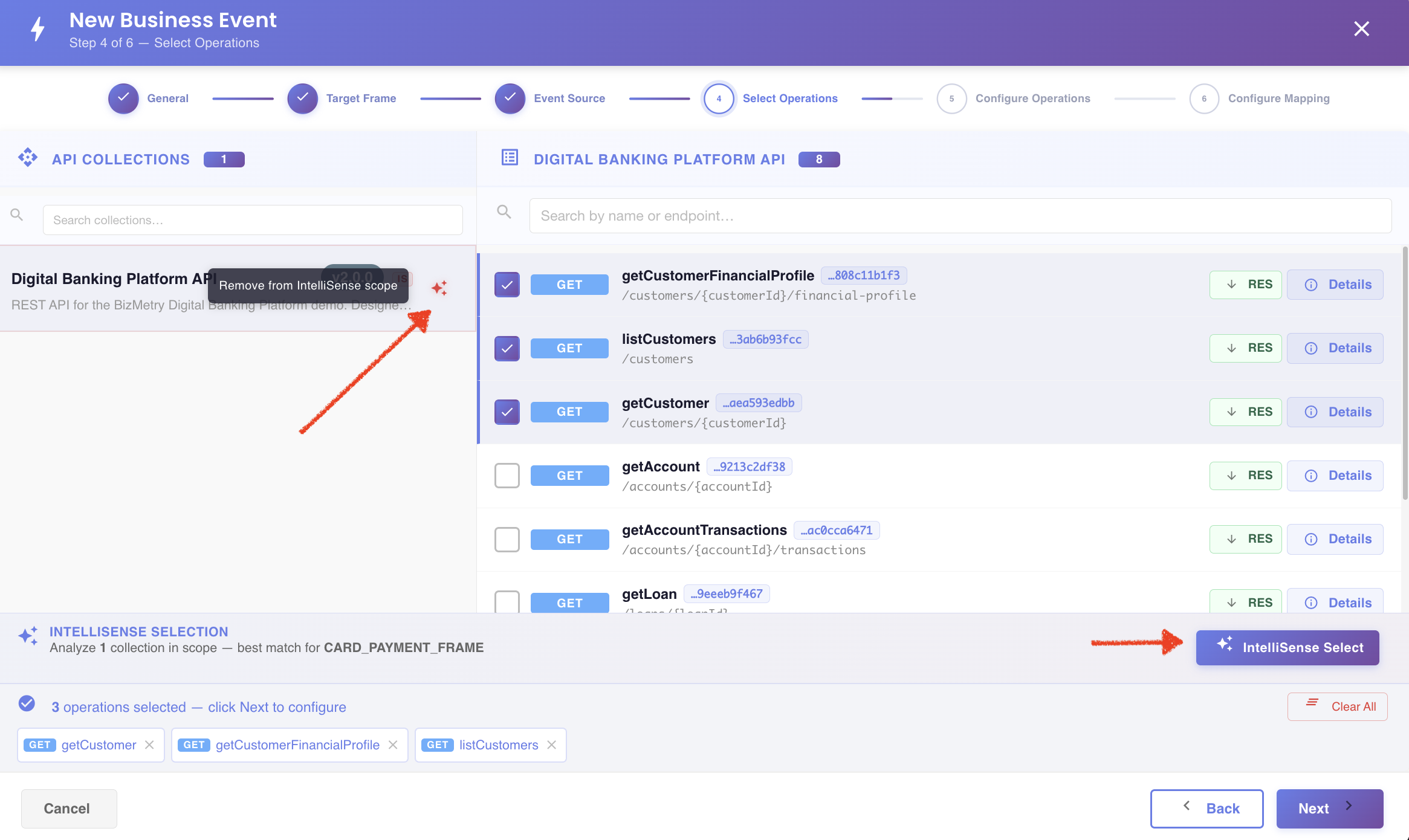
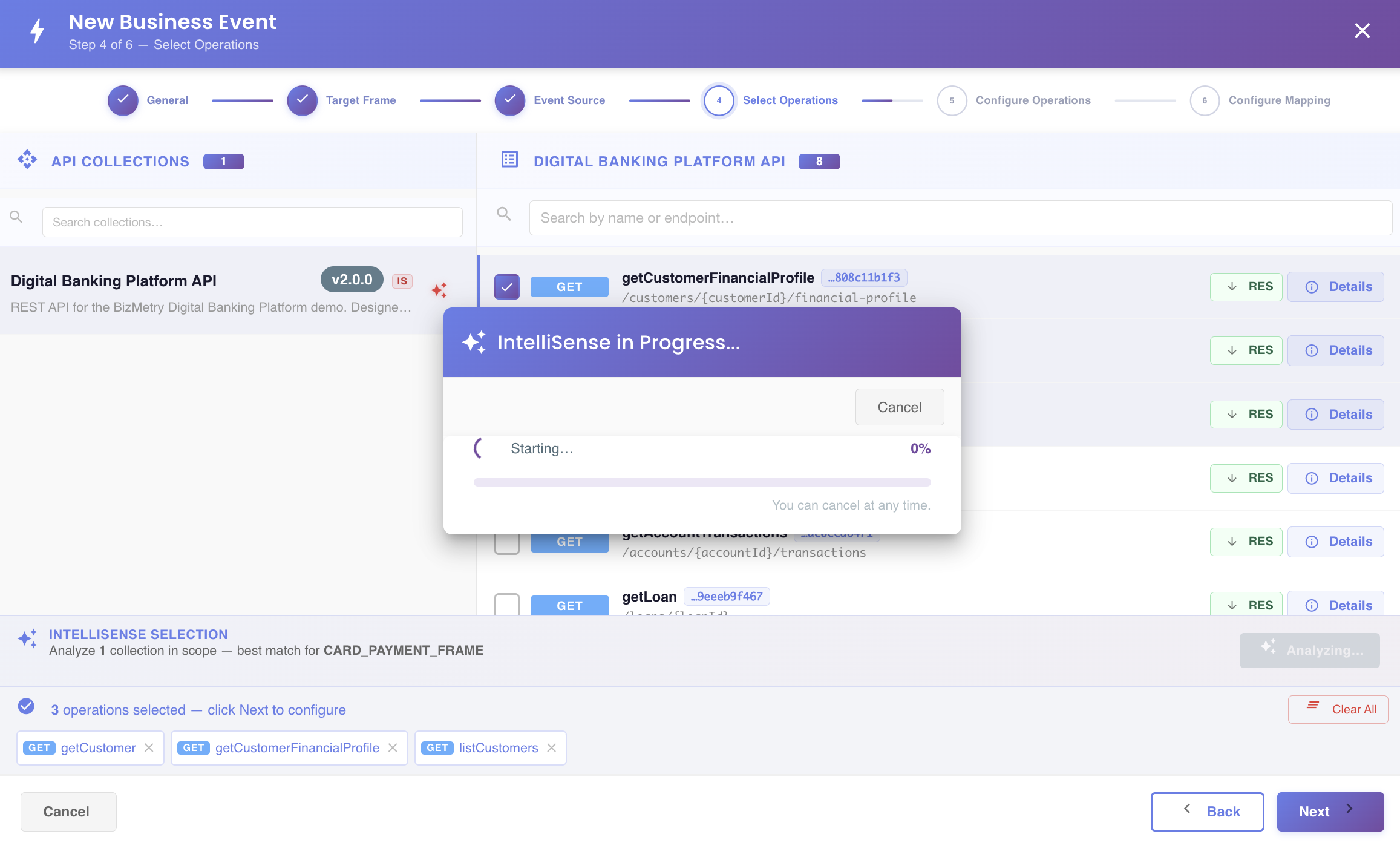
After clicking on the "Intellisense Select" button, IntelliSense analyzes every operation across all the API Collection(s) you've browsed so far, together with the target Frame Type's components:
Review the suggested operations before accepting them:
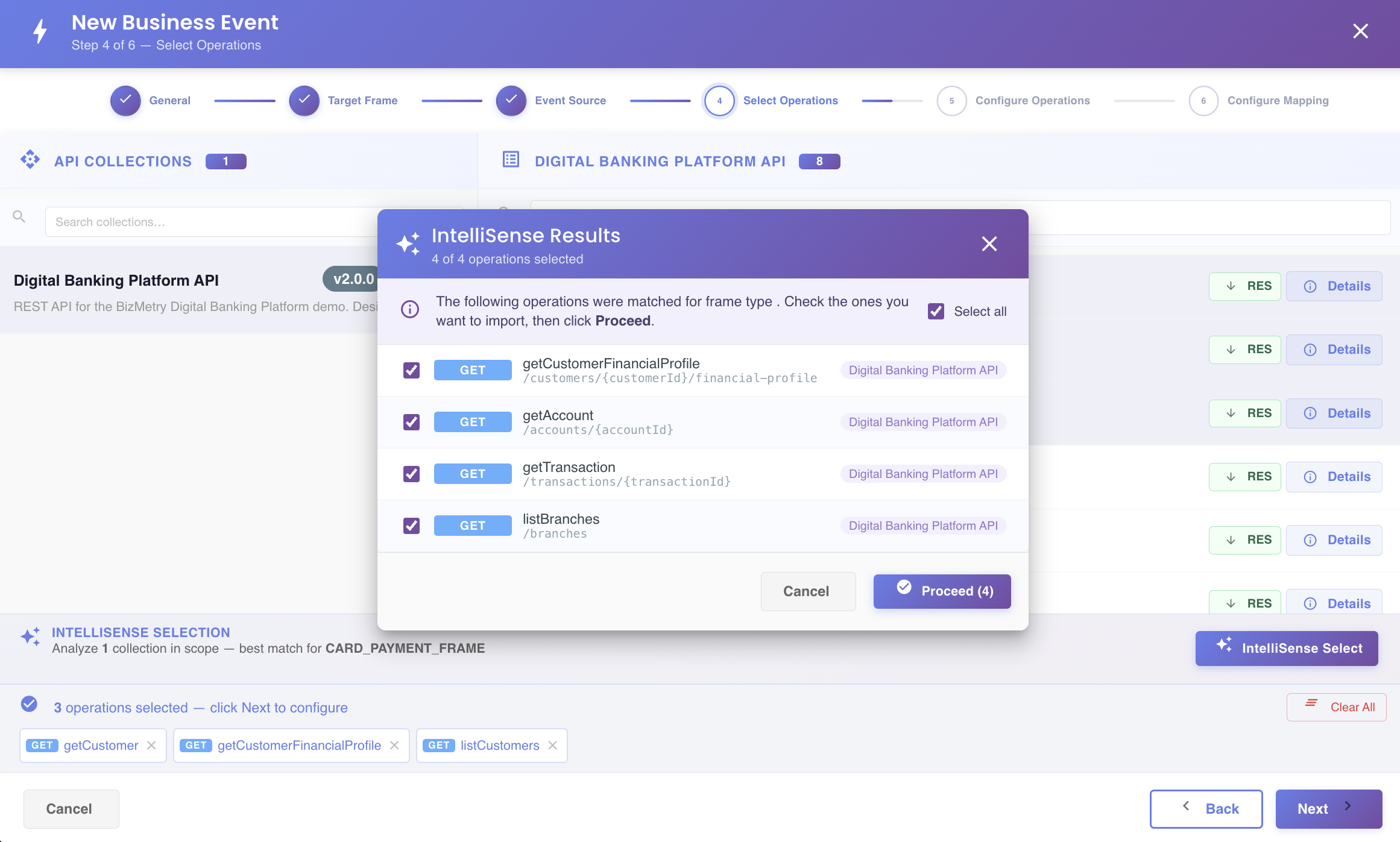
You can deselect any of the resulting matches from this dialog — this excludes that individual operation upon confirmation. Click Proceed to add the selected operations to the list.
Pass 2 — Refining your final selection
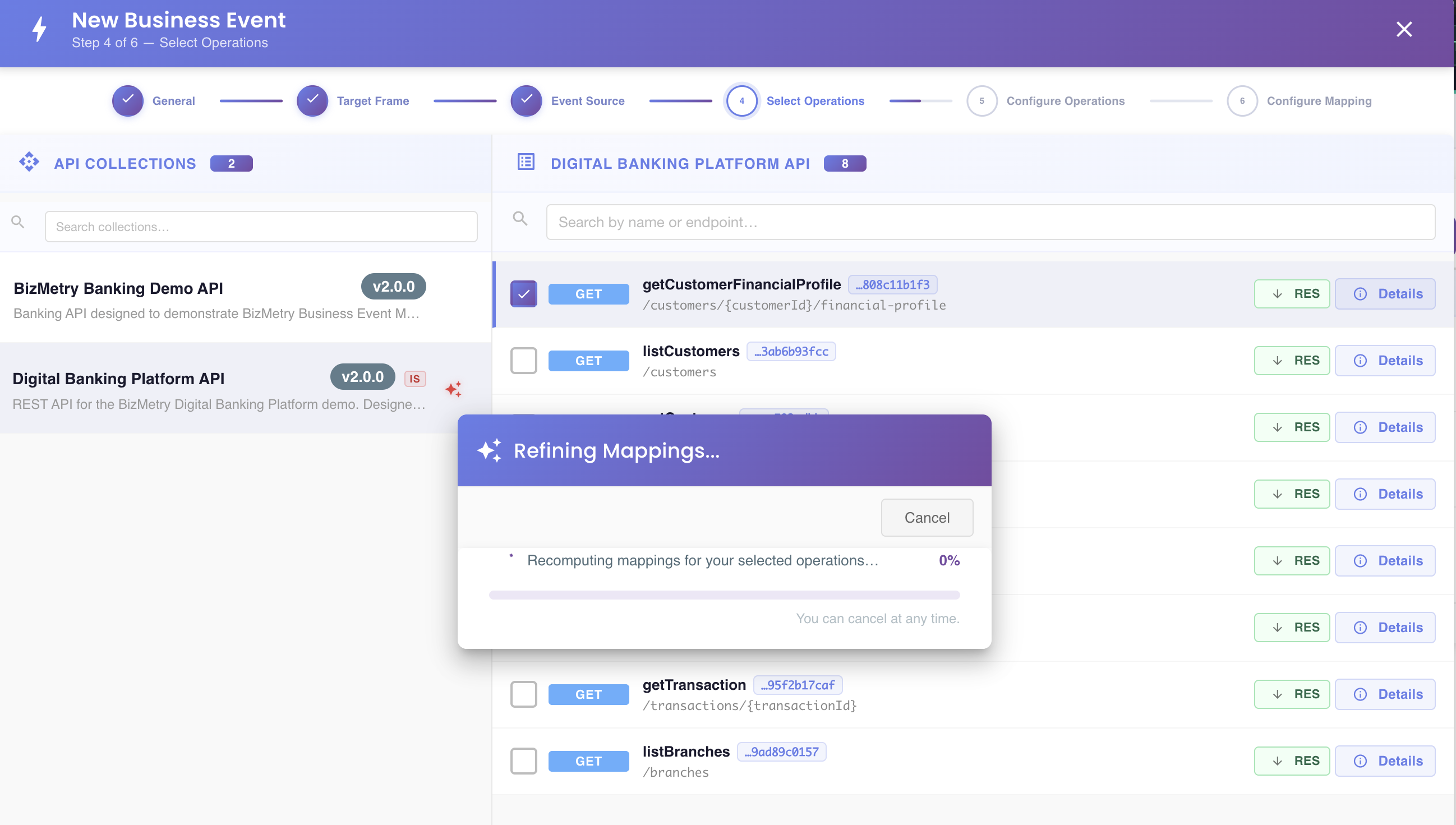
If you deselected at least one suggested operation before clicking Proceed, BizMetry automatically re-runs IntelliSense's field-matching a second time — this time scoped to only the operations you actually kept:
Info
If you didn't deselect anything — you kept every suggested operation — this second pass is skipped entirely, since the Pass 1 result is already guaranteed to be valid for that set. You'll only see the "Refining Mappings…" dialog when something was actually discarded.
The mappings this process produces are what you'll see pre-filled when you reach Step 6 — Configure Mapping.
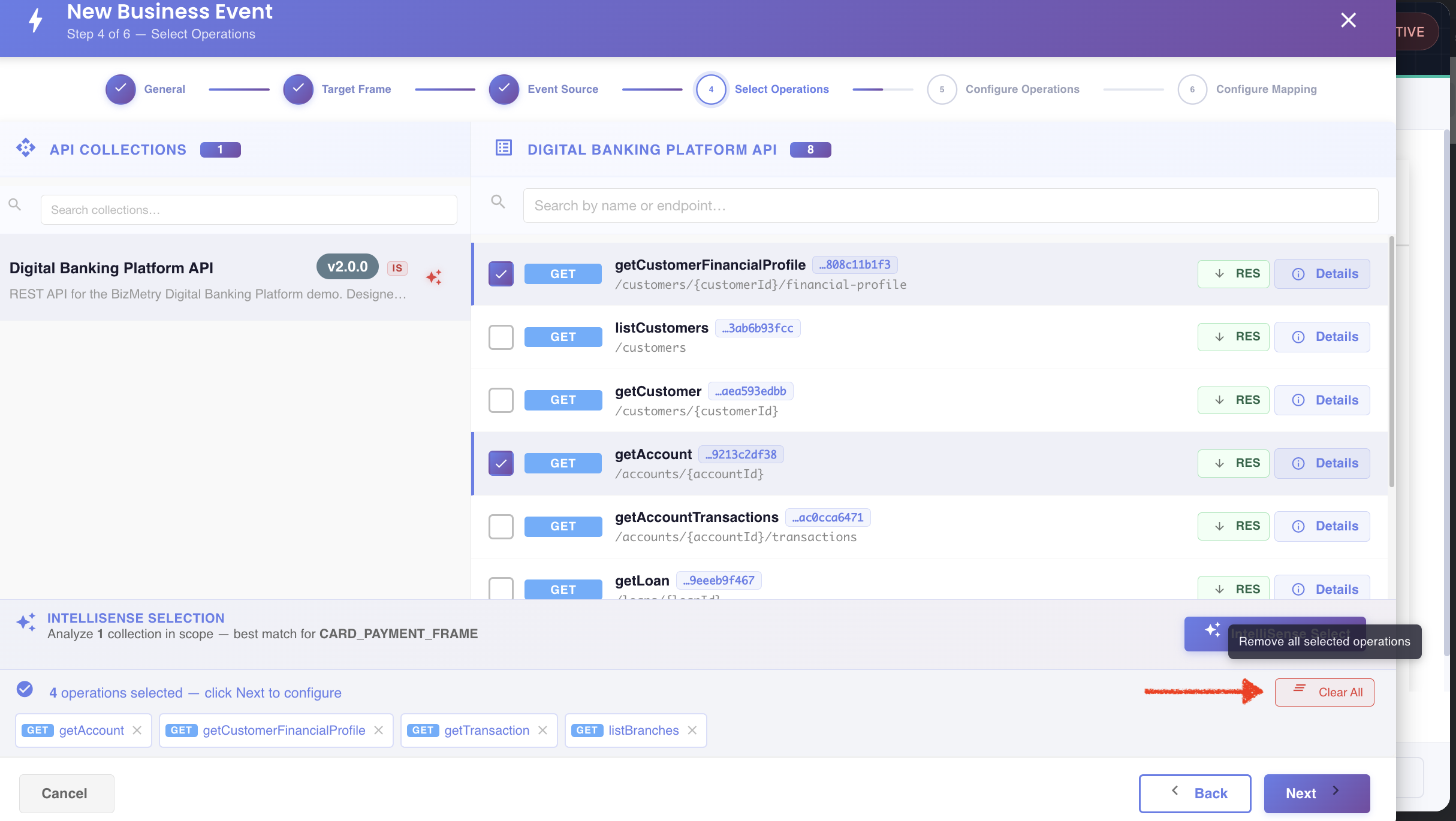
Clearing your selection
Clear All removes every selected operation in one action. To remove a single operation instead, use the × icon on its chip as described in Removing individual operations above.
Warning
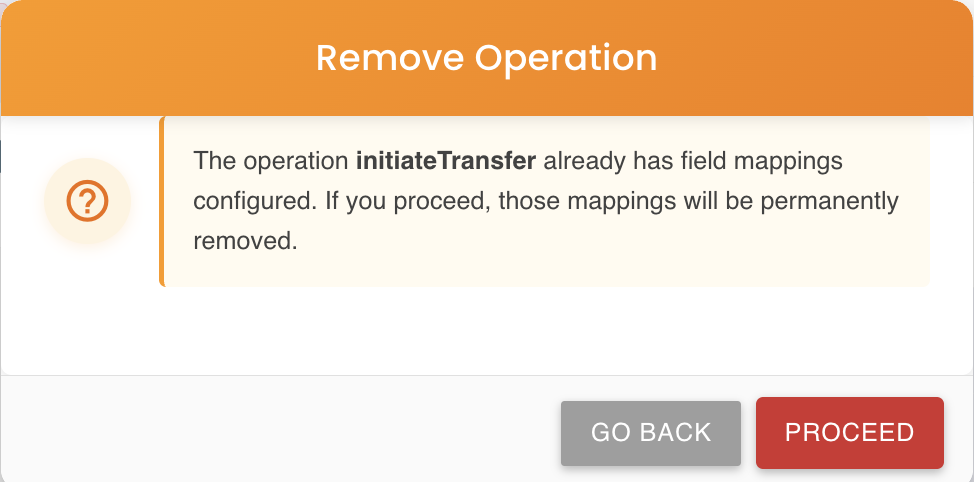
If any of the selected operations already have field mappings configured further along in the wizard, you'll be warned those mappings will be permanently removed. Removing an operation that has active mappings causes all of its mappings to be automatically removed from the mapping editor in Step 6.
Click Next to continue to Step 5 — Configure Operations.
Click Back to return to Step 3 — Select Target Frame.