Filters
Filters let you restrict when the Business Event actually fires for a given operation — e.g. only when a header matches a value, or only when a response field falls within an expected set of values. Like the Correlation Source, a filter's value can come from any of the source types above. With no filters, every matching call is accepted.
Click Add Filter to start:
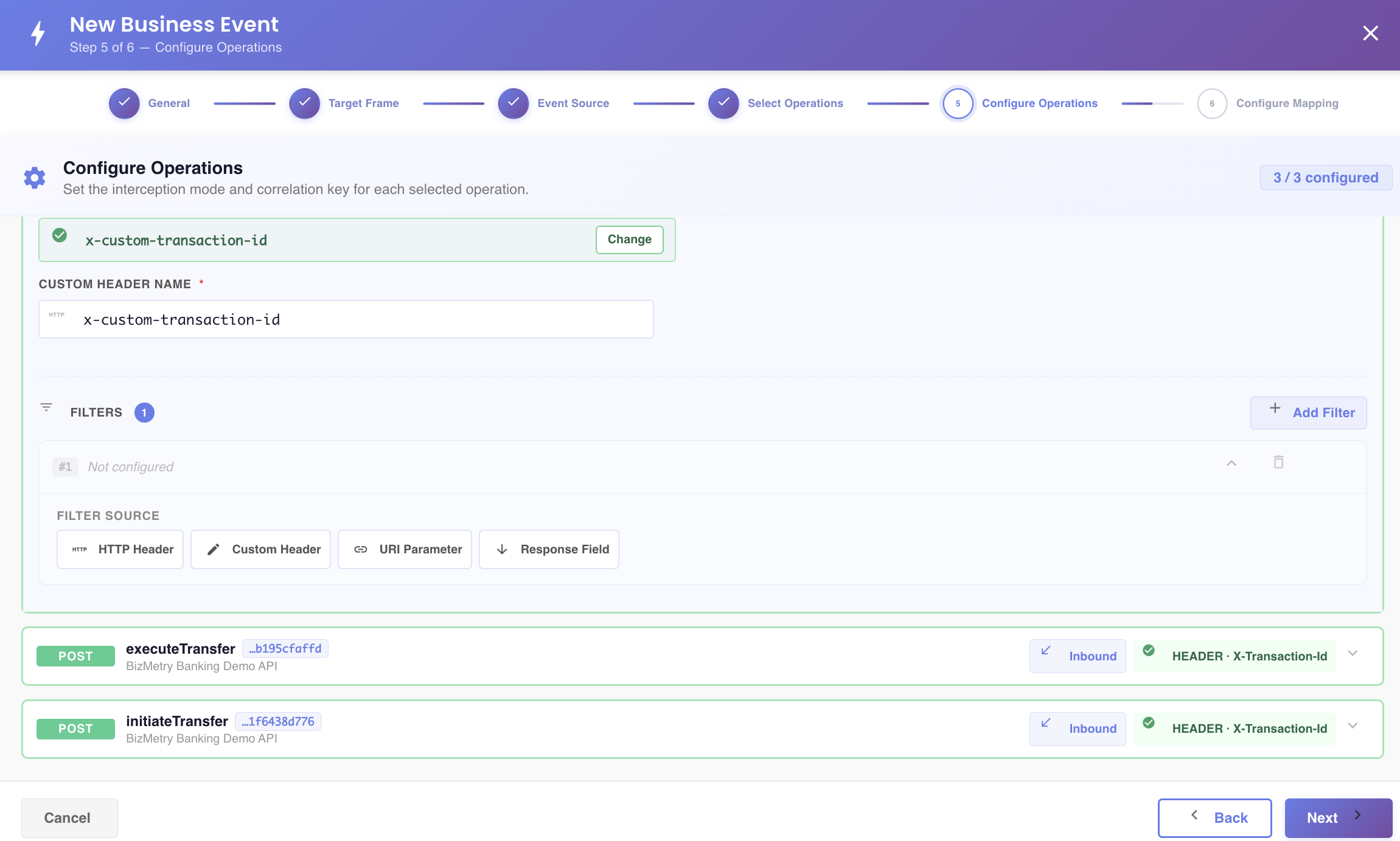
Filter by HTTP header
Match on a header name and expected values. The header list works as in the correlation source: the operation's Swagger headers first, in red, then the rest of the catalog.
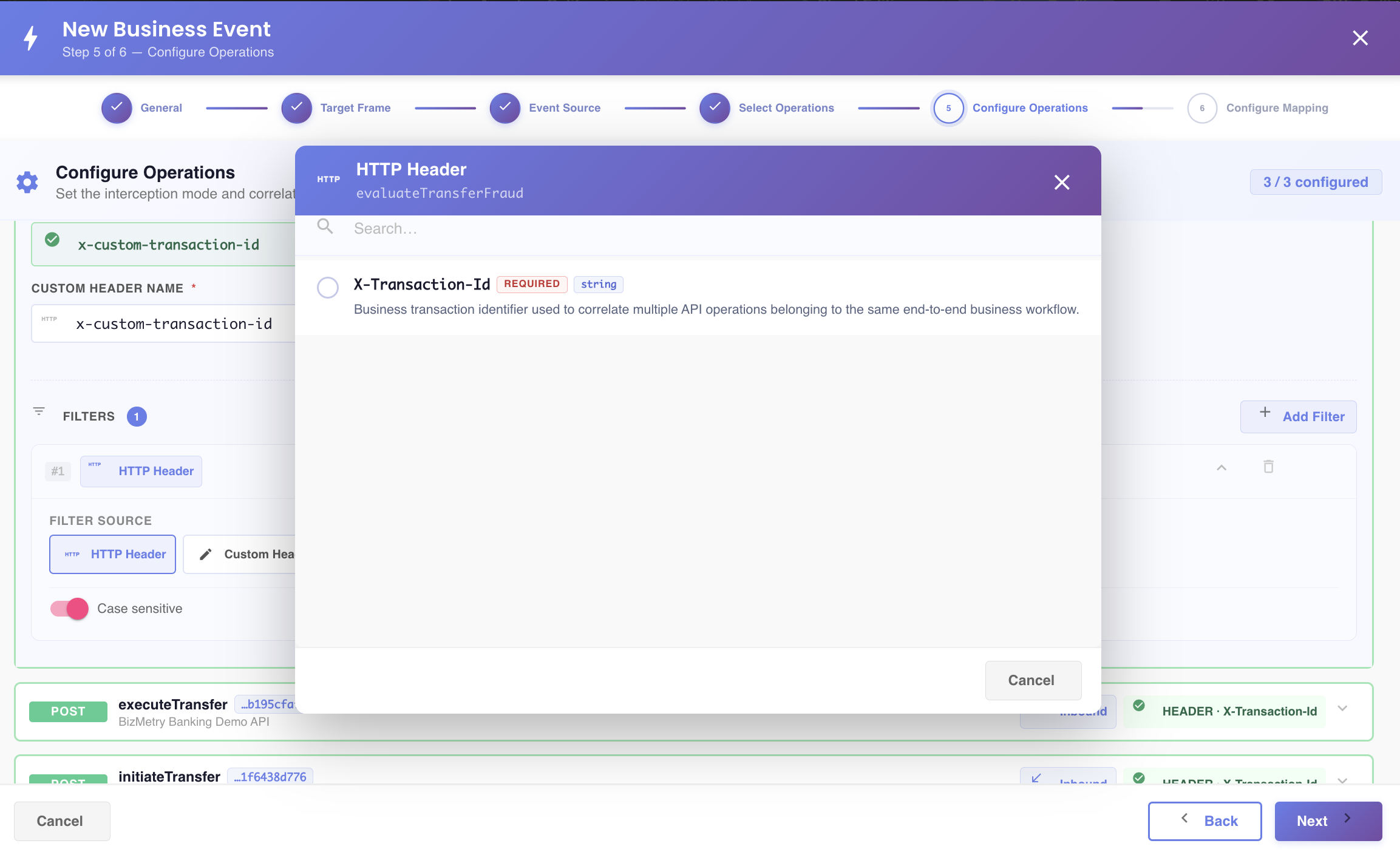
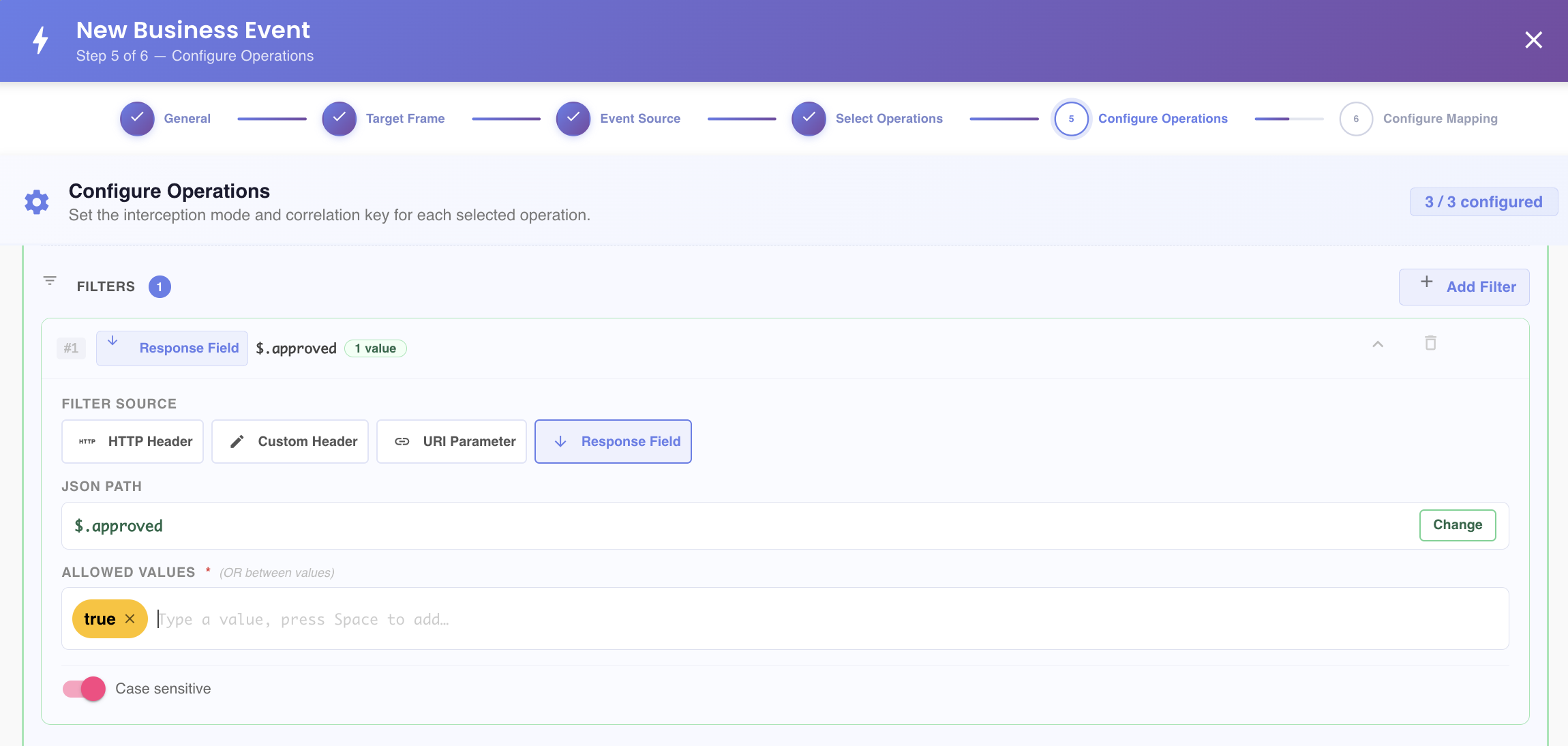
Filter by response field values
Match on a specific field in the response payload, restricting to one or more allowed values:
Filter by HTTP status code
Choose HTTP Status Code as the Filter Source. The value comes from the response's HTTP status, not a response header. In Allowed Values, type a code or description to search (for example, 404 or not found), then select a suggestion. Each suggestion shows the code with its reason phrase below it. Selected codes become removable pills; codes from 100–599 are available, including unassigned codes for custom APIs.
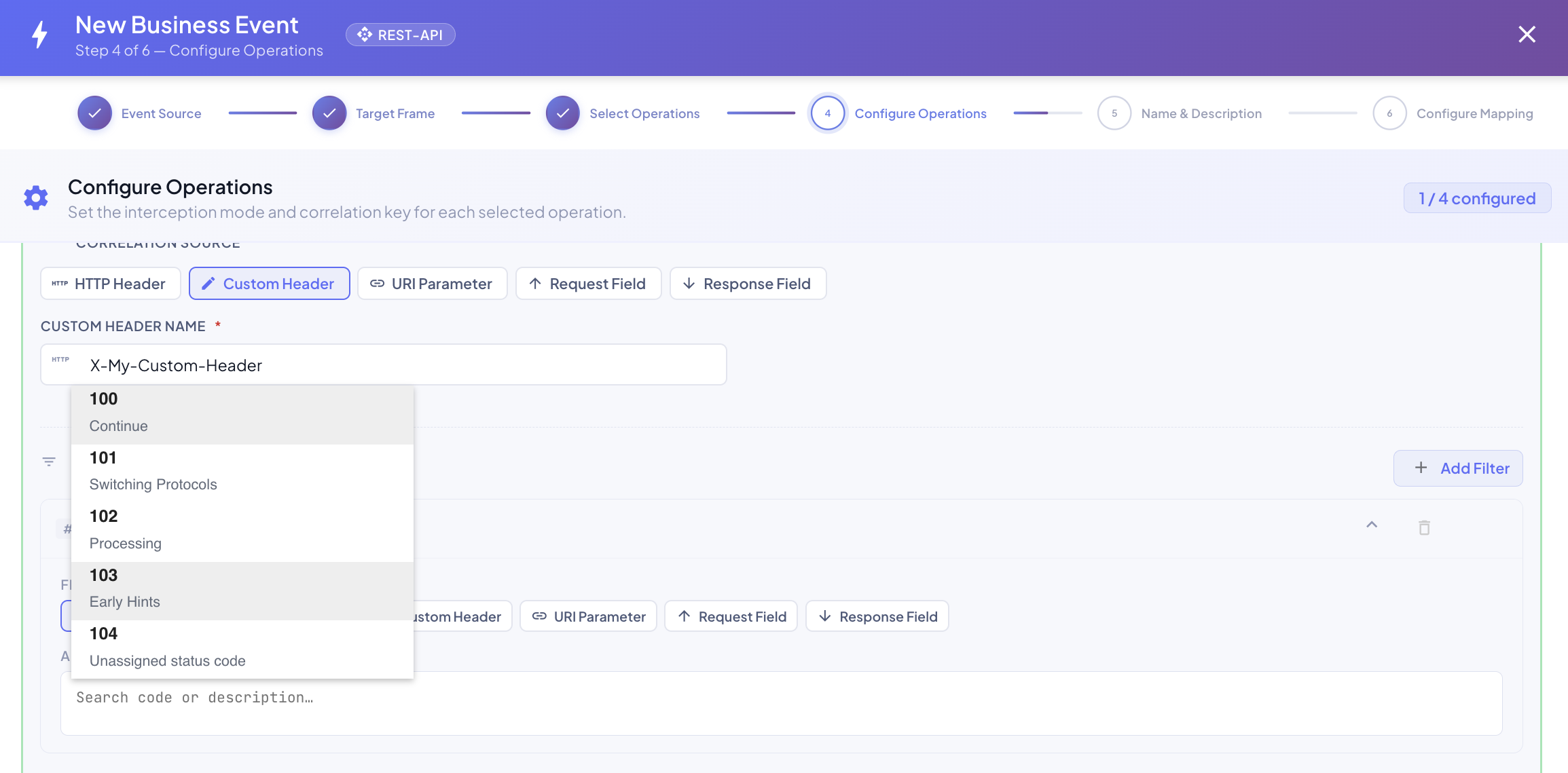
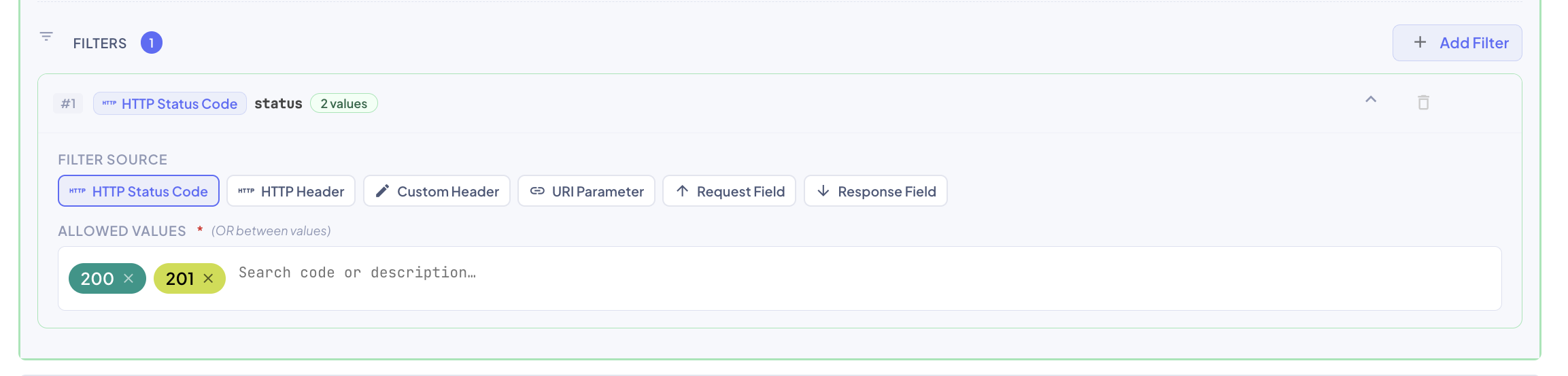
The same selector is available in creation and editing.
Values within one filter use OR (404 or 429); distinct filters on the same operation use AND. A source with no filters accepts every otherwise matching call. For example, to monitor failures only, select the specific failure codes you want to capture.
The interceptor evaluates all eligible Biz Event versions independently after the response is available. A call must match at least one configured source's complete filter set to enter event capture. If it matches none, it is ignored for that capture path; Discovery, when enabled, continues capturing independently. See Version-specific packets.
Case sensitivity
Text filters have a Case sensitive toggle. When enabled, the filter only matches values with the exact same casing; when disabled, matching ignores case. HTTP status codes are numeric, so their filters do not use case sensitivity.
Click Next to continue to Step 5 — Name & Description. It's enabled once every operation has a correlation source and one operation is Primary. If you picked your operations with IntelliSense, this is when the IntelliSense agent builds the mappings — see Mappings built by IntelliSense:
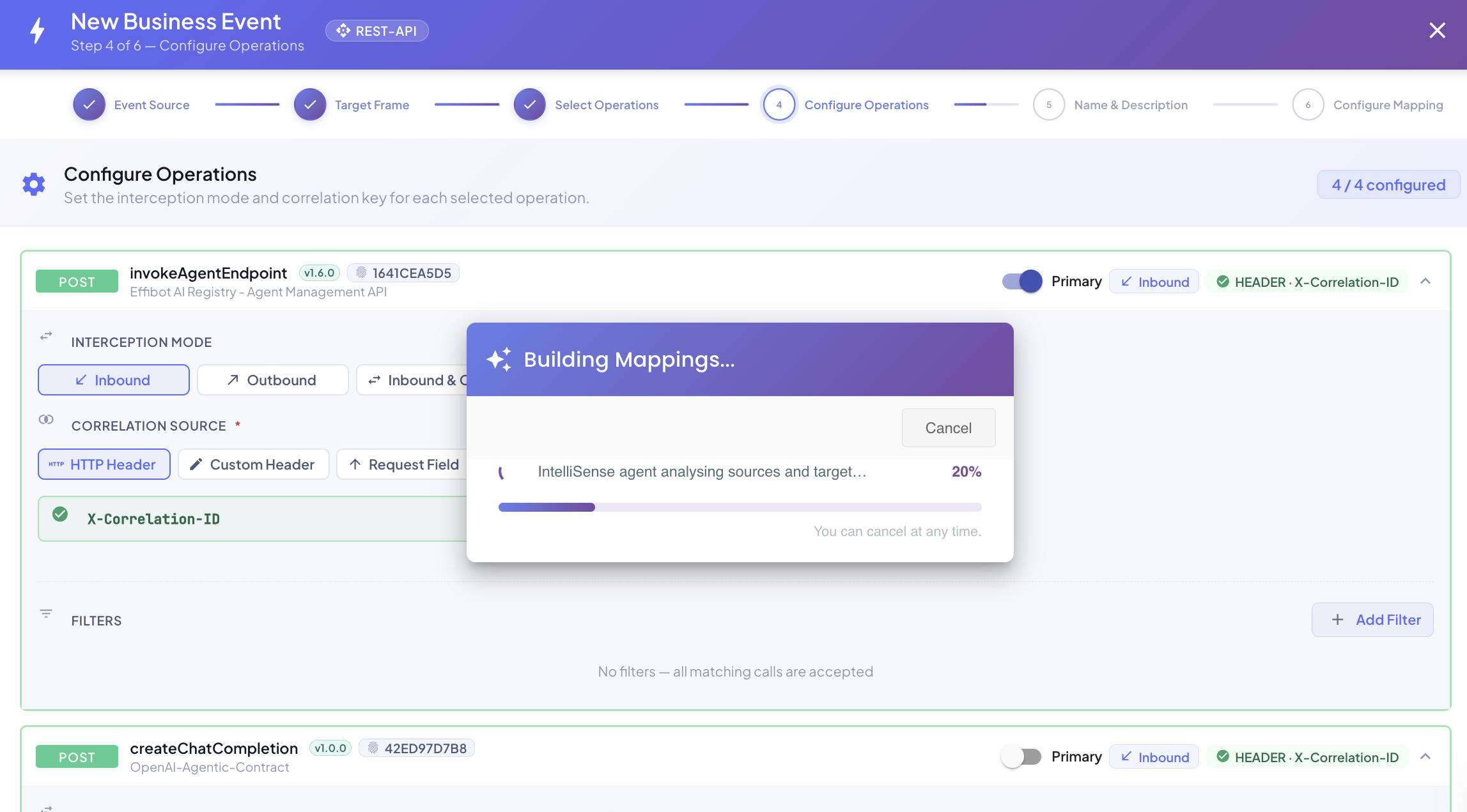
Click Back to return to Step 3 — Select Operations.
Back to Step 4 — Configure Operations.