Step 2 — Select Target Frame
Pick the Template version and, within it, the single Frame Type that this Business Event will populate every time it fires.
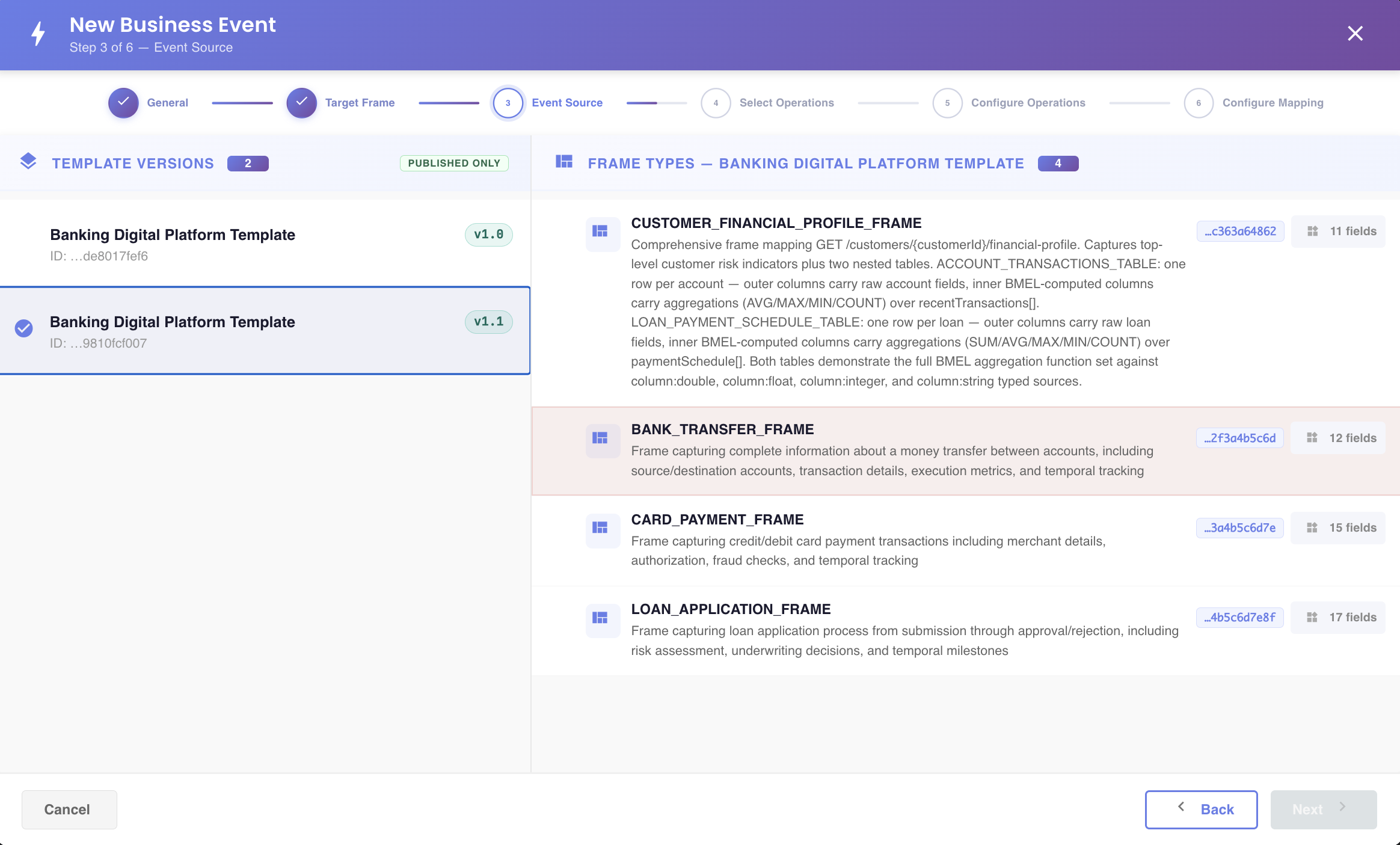
Layout
The screen is split into two panels:
- Left — Template Versions. Lists the versions of the Profile's Template that can be targeted: those in any state except Retired that have at least one API Collection linked in their API Collections tab. Versions that don't qualify but have qualifying child versions are still shown, for context, but can't be selected.
- Right — Frame Types. Once you pick a Template version on the left, this panel lists all the Frame Types defined in that specific version.
Unpublished template versions
You can build a Business Event on a template version that isn't published yet. The Business Event itself can only be published once that template version is published. See Biz Event Lifecycle Management.
When no template version is listed
If no template version has an API Collection linked, the left panel shows No template versions with API collections. A Business Event can only target a template version with at least one API Collection. Open the template editor, go to the API Collections tab, and link the API Collections this template works with. See API Collections Tab.
Selecting
- There is no search box on this screen — selection is fully manual: click a Template version on the left, then click a Frame Type on the right.
- You can only select one Template version at a time.
- Within that version, you can only select one target Frame Type — the Business Event maps to exactly one Frame Type.
The Frame Type you select here defines the set of components you'll map source fields onto in Step 6 — Configure Mapping. Its name and the Template version you picked are also two of the ingredients BizMetry uses to auto-generate the event's name in Step 5 — Event Identity.
Click Next to continue to Step 3 — Select Operations.
Click Back to return to Step 1 — Source Type.