Cloning a Business Event
The Clone action creates a new Business Event identical to an existing one, including all its versions. It's useful when you need a variant of an event, want to try changes without touching the original, or want to start a similar event from a configuration that already works.
How to Clone a Business Event
- Open the profile and go to the Business Events tab.
- Find the Business Event you want to copy.
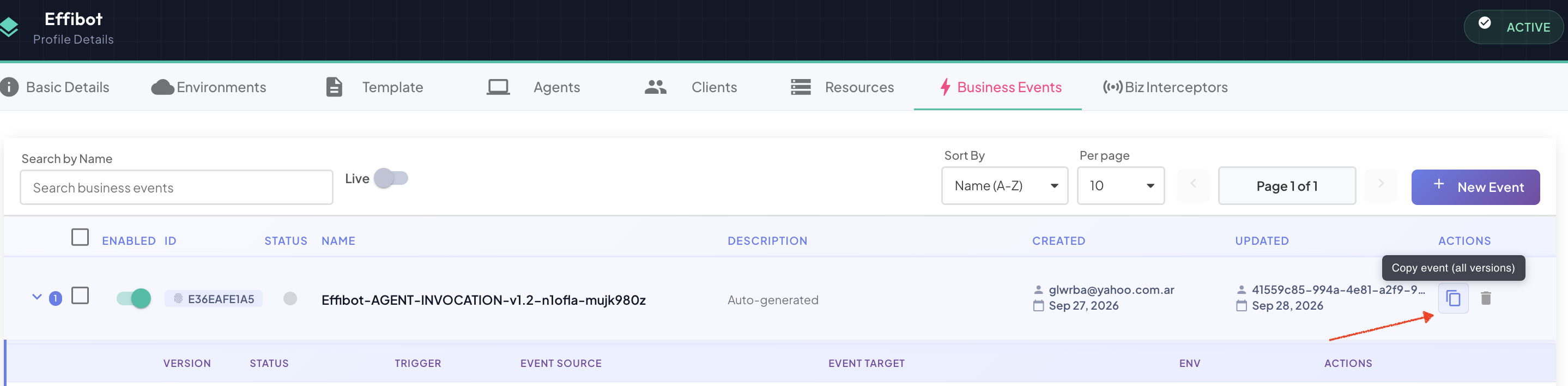
- Click the Copy event (all versions) icon () in its Actions column, next to the delete icon.
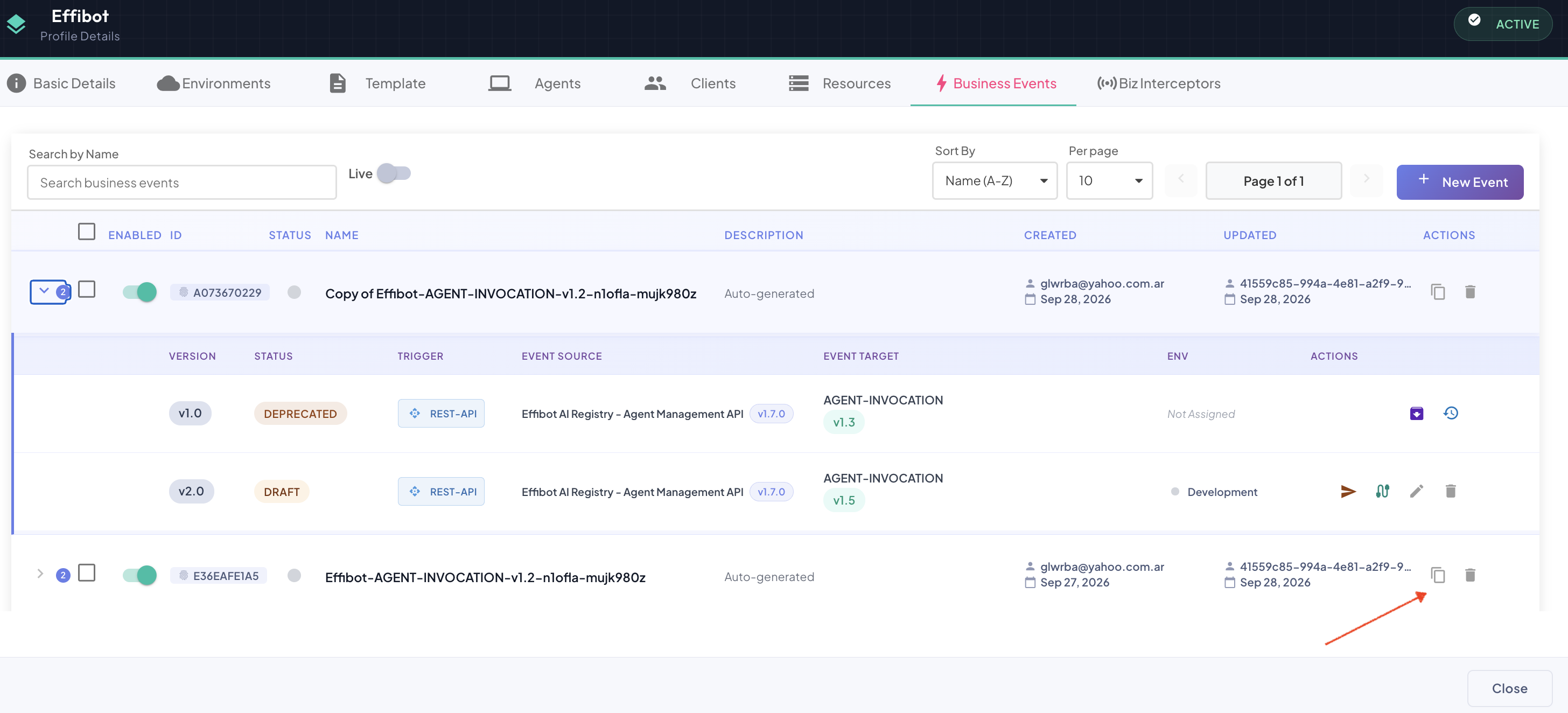
The copy appears in the list right away, with all the versions of the original.
What the Clone Contains
| Clone | |
|---|---|
| Name | Copy of <original name>. If that name is taken, a number is added: Copy of <original name> (2), (3), … |
| Description | Same as the original. |
| Versions | Every version of the original, with the same version numbers, states, history order and parent/child relationships. |
| Configuration of each version | Same trigger, event sources and operations, target template version and Frame Type, and mappings. |
| Enabled | Off, always. |
The clone is fully independent: editing, publishing or deleting it never affects the original, and vice versa.
Why the Clone Starts Disabled
A clone of a published Business Event has published versions too, so if it were enabled it would capture the same traffic as the original and duplicate its metrics. For that reason every clone is created disabled.
Before enabling the clone, change what makes it different from the original: its operations, filters, target or mappings. Then turn on its Enabled toggle.
Biz Interceptors that list specific Business Events
A Biz Interceptor configured for a specific list of Business Events doesn't include the clone automatically. To capture traffic for the clone with such an interceptor, add the clone to it in the interceptor's Biz Instrumentation tab. See Reconfiguring (Editing) an Interceptor.