Restarting an Agent
In certain situations, restarting a BizMetry agent for a given environment may be necessary. The most common reasons are:
Configuration changes
Some configuration changes need the agent to be restarted before they take effect. When one is pending, BizMetry flags it on the agent's card with a Restart Required indicator, as a reminder that the new settings have been saved but are not yet active. See When Do Changes Take Effect? below for which changes need a restart, which apply on their own, and which need a full reinstall.
Unresponsive agent
If an agent becomes unresponsive due to overload or misconfiguration, a restart is the standard recovery procedure to return it to normal operation.
Sanitary restart
As part of routine operational maintenance, it is good practice to perform periodic restarts — for example, daily or weekly — to ensure long-term agent stability and operational continuity. This is especially relevant for agents running in high-throughput environments.
When Do Changes Take Effect?
Not every configuration change needs a restart. Changes are grouped into hot changes (applied immediately), cold changes (applied at the next restart) and breaking changes (applied by reinstalling the agent). Only cold changes are resolved by restarting the agent: they show the Restart Required indicator on the agent's card.
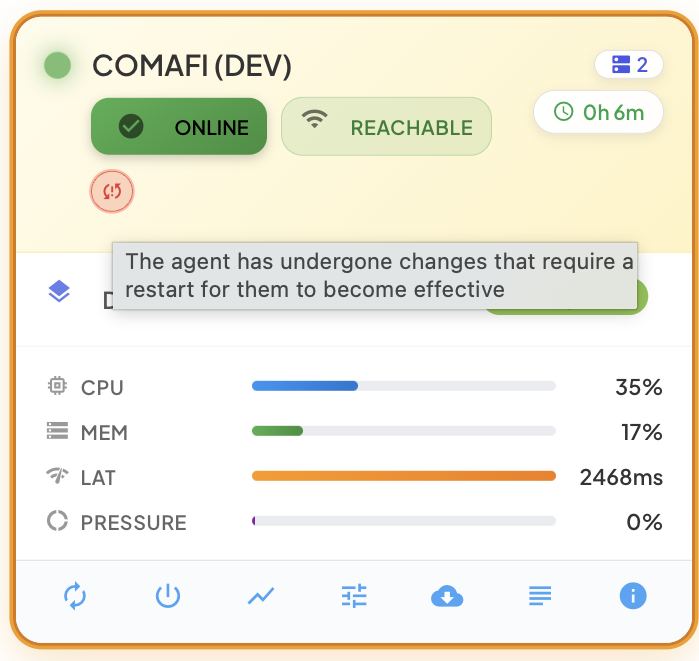
Hover over the icon to read its description: The agent has undergone changes that require a restart for them to become effective. The Agent Details dialog shows the same condition as a banner with a Restart Now button.
See Breaking vs Non-Breaking Changes for the full classification, with the parameters that fall into each category.
Restart Procedure
An agent can be restarted from two different locations within BizMetry. Both lead to the same result — choose whichever is more convenient for your current context.
Option A — From the Profile Agent Tab
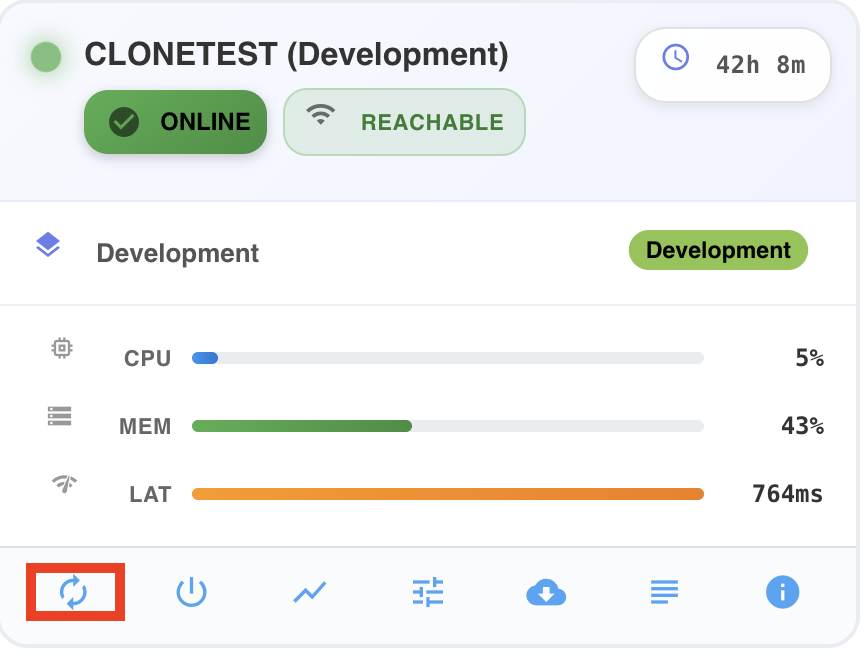
Navigate to the relevant profile card from the Home screen, open the secondary menu, and select Agents. In the Agents tab, locate the agent and click the restart icon on its row.
Option B — From the Main Agents Menu
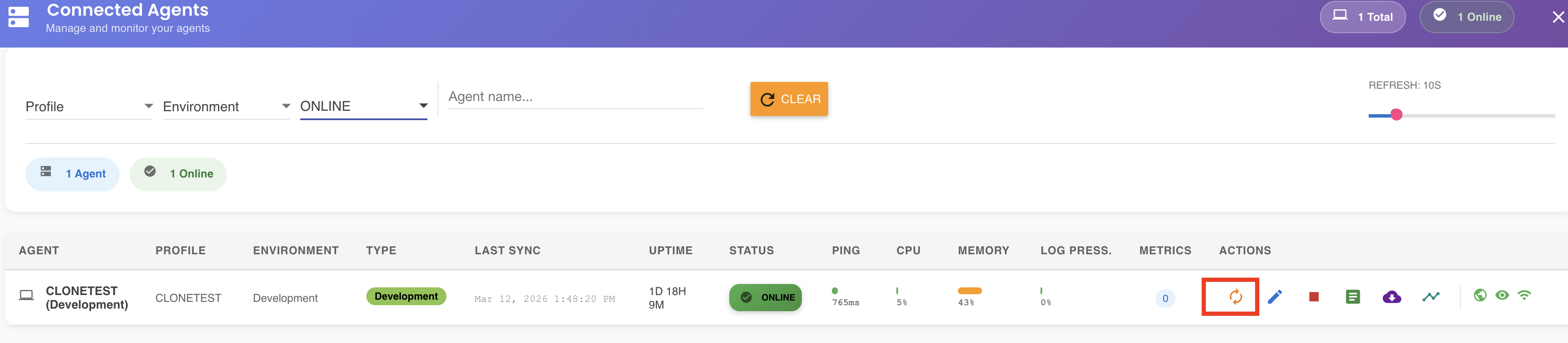
From the Home screen, open the main menu and select Agents. Locate the agent in the global agent list and click the restart icon on its row.
Confirming the Restart
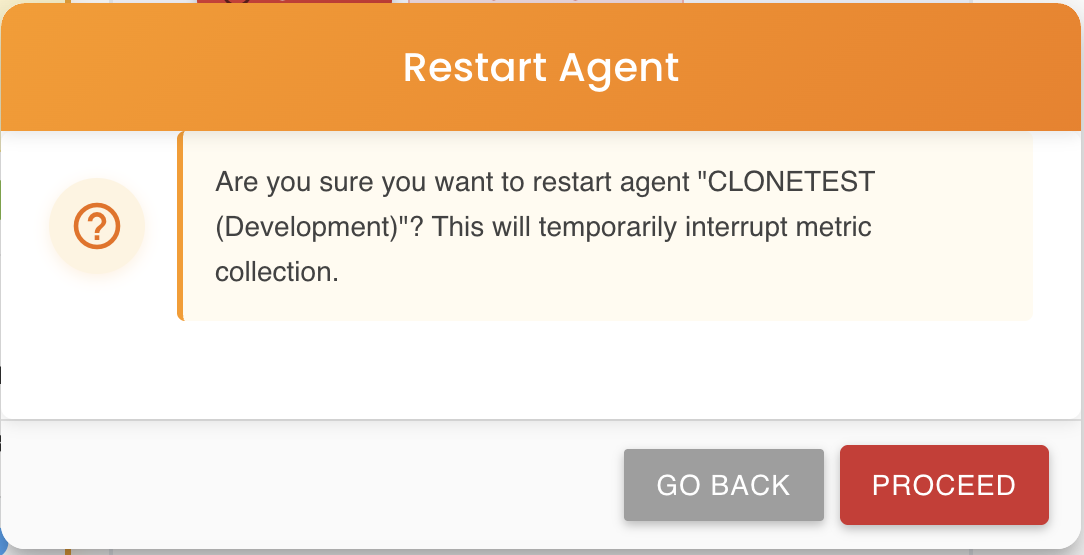
In both cases, BizMetry displays a confirmation modal before proceeding. This step exists to prevent accidental restarts in production environments. Review the agent details shown in the modal and confirm to initiate the restart.
Restart Lifecycle
Once confirmed, BizMetry transitions the agent through the following sequence of states:
RESTARTING → OFFLINE → ONLINE
| State | Meaning |
|---|---|
| RESTARTING | BizMetry has acknowledged the restart request and is signaling the agent to stop. |
| OFFLINE | The agent process has stopped. BizMetry is waiting for it to come back up. |
| ONLINE | The agent has restarted successfully and is fully operational. |
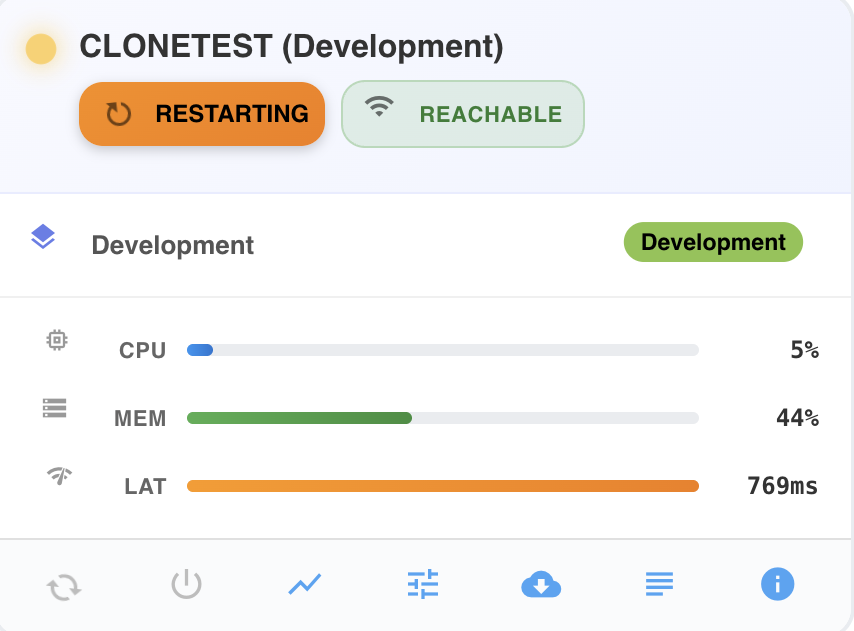
Under normal conditions, the full cycle completes within a couple of minutes.
Restart time depends on the sync interval
The speed at which BizMetry detects each state transition is tied to the agent's configured synchronization interval. An agent that syncs every 30 seconds will be detected as ONLINE much faster than one that syncs every 5 minutes. If a restart appears to be taking longer than expected, check the agent's sync interval in its configuration.
Verify agent reachability before restarting
Before initiating a restart, confirm that the agent shows REACHABLE status. This indicates that the BizMetry platform can actively communicate with the agent. Attempting to restart an agent that is not reachable may result in the restart command never being received, leaving the agent in an inconsistent state.
After the restart completes, it is strongly recommended to review the agent logs for any error conditions — particularly if the restart was triggered by a configuration change that might have introduced an invalid value.
Impact on Datasources
Restarting an agent has cascading effects on all datasources associated with it. It is important to understand these impacts before performing a restart in a production environment.
Temporary Datasource Unavailability
All datasources linked to the restarting agent will transition to OFFLINE for the duration of the restart — from the moment the agent stops until it returns to ONLINE. During this window, the following operations are unavailable:
- Importing new resources into the profile from the affected datasource.
- Editing ASBO anchors for resource types that have an environment mapping associated with the affected datasource.
- Browsing resources for the environment linked to the datasource, including PK lookup for manual ASBO association.
These restrictions are automatically lifted once the agent returns to ONLINE.
Notifications
BizMetry automatically generates notifications as the agent transitions through each state. These are visible in the Notifications panel, accessible from the main menu under Notifications. This allows operators to track restart progress without having to actively monitor the agent card.
Telemetry Accumulation — Store and Forward (SAF)
This is the most operationally critical side effect of an agent restart, and it requires careful attention.
While the agent is in any state other than ONLINE, telemetry metrics collected by BizMetry — whether from the API Gateway or from instrumented applications via the BizMetry SDK — are not discarded. Instead, they are buffered locally at the point of capture using a Store and Forward (SAF) mechanism. Once the agent returns to ONLINE, the buffered metrics are automatically forwarded to the platform and processed normally.
This means that a brief, clean restart — one that completes within a few minutes — will generally result in no metric loss whatsoever.
However, if the agent remains OFFLINE for an extended period, the SAF persistent storage buffer may reach its capacity limit. Once that happens, incoming metrics begin to be silently dropped — no error is shown to the operator, and the lost data cannot be recovered.
Extended OFFLINE time causes permanent, silent metric loss
If an agent is expected to remain OFFLINE for more than a few minutes — for example, due to a failed restart, an infrastructure issue, or a planned maintenance window — do not leave the environment running in that state.
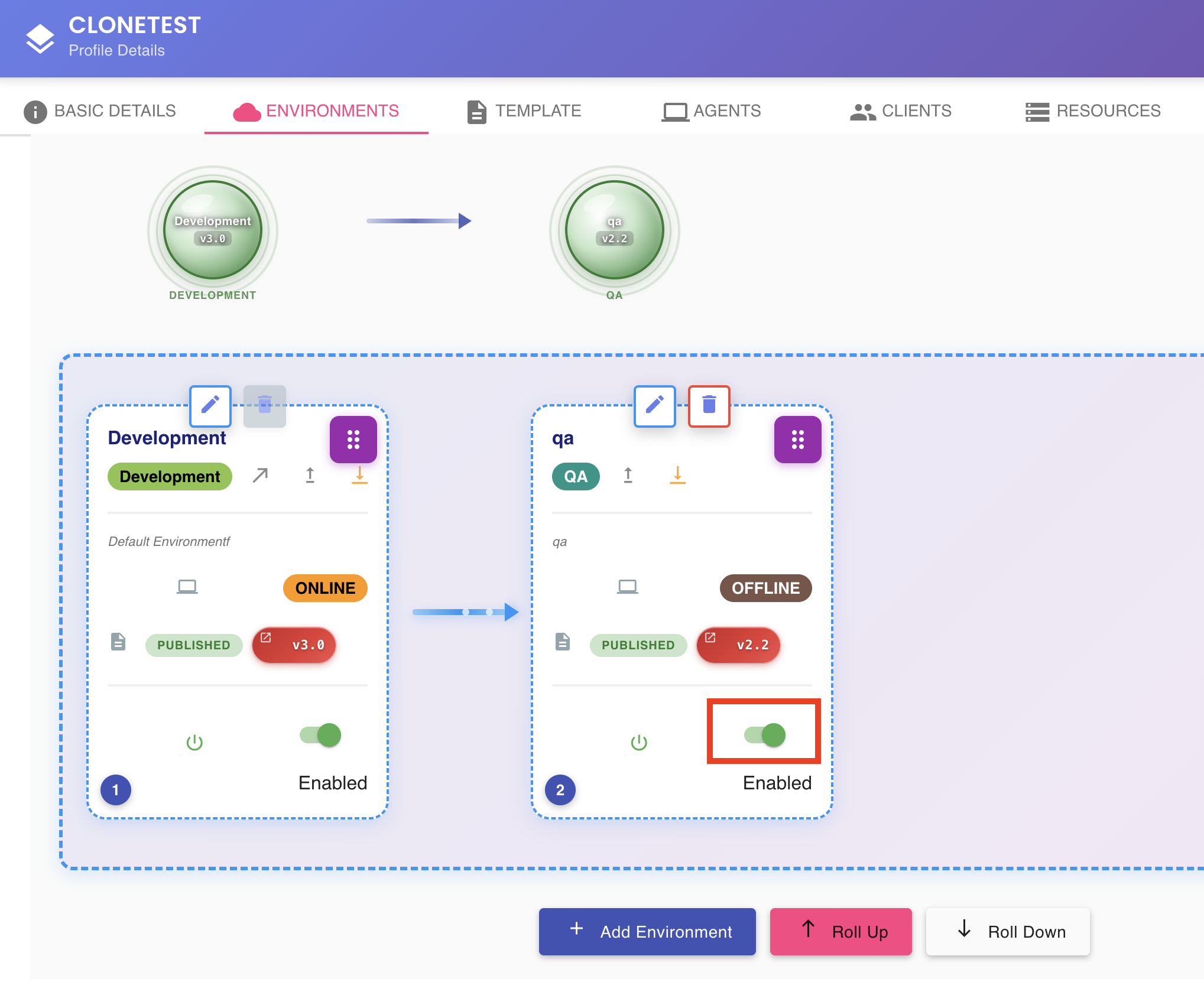
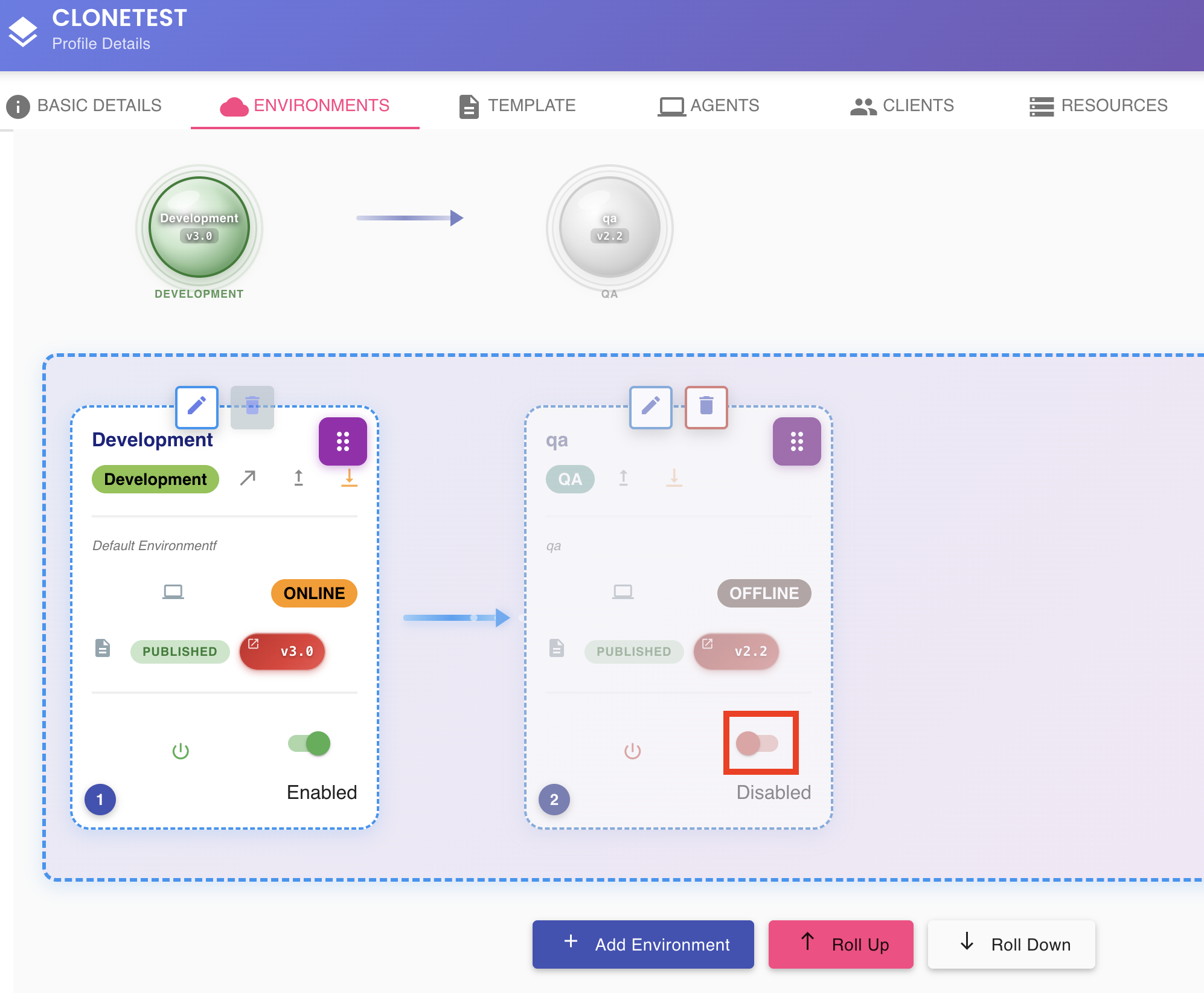
The recommended course of action is to disable the associated environment from the Environments tab of the profile. Disabling the environment instructs BizMetry to stop capturing metrics at the source entirely. Metrics are discarded at origin rather than buffered, which prevents the SAF storage from saturating and eliminates the risk of silent data loss.
Re-enable the environment once the agent is back ONLINE and confirmed healthy.
The images below illustrate the environment before and after disabling:
Before — Environment enabled (metrics being captured and buffered):
After — Environment disabled (metric capture stopped at source):
Quick Reference — Restart Checklist
Before restarting an agent in a production environment, use this checklist to minimize operational risk:
- Confirm the agent is in REACHABLE status before initiating the restart.
- If the restart is due to a configuration change, double-check the new values before proceeding.
- Notify any teams that depend on the affected datasources that a brief interruption is expected.
- Monitor the agent card until it returns to ONLINE.
- Review agent logs after restart, especially if the trigger was a configuration change.
- If the restart does not complete within a few minutes, consider disabling the environment to prevent SAF buffer saturation.