Downloading and Installing an Agent
Once an agent has been fully configured, it can be downloaded from the BizMetry platform and installed locally within the infrastructure where metrics will be captured.
Deployment Topologies
A BizMetry agent can be deployed in two ways relative to the business applications it serves. The choice is made on the Security Internal tab of the agent's configuration, and it affects what the installer includes and what you must prepare before running it. See Understanding Agent Deployment Topology for the full comparison.
Co-Located Topology
The agent is deployed in the same cluster as the applications it serves. Applications reach it directly inside the cluster, so no ingress controller needs to be chosen for that traffic and no internal certificate is needed. In this mode, instrumentation can be captured either automatically — via auto-instrumentation — or manually using the BizMetry SDK.
Decentralized Topology
The agent is deployed in its own cluster, separate from the applications (or from the remote sensors and processes) that generate the metrics. Applications reach it through an ingress load balancer secured with TLS, so the installer needs to know the ingress controller in use and includes the internal certificate. As with the co-located topology, both automatic and manual instrumentation are supported.
Agent Packaging
BizMetry delivers the agent as a Docker image, bundled together with automation scripts that handle its deployment onto an existing Kubernetes cluster. Once installed, the agent begins synchronizing with the platform autonomously — no additional configuration steps are required.
Deployment Parameters
Depending on how the agent was configured, installation parameters are provided in one of two ways:
- Defined at configuration time — all required parameters were entered when the agent was set up in BizMetry. The installer will use them automatically.
- Provided at deploy time — when the agent was configured with the "I will provide deployment parameters at deploy-time" option selected, the required parameters must be entered manually when the installer is executed.
In either case, the following information must be available for the agent to be installed successfully.
Image Registry
| Parameter | Description |
|---|---|
| Registry URL | The URL of the container image registry |
| Project name | The project or namespace within the registry where the image will be pushed |
| Username | Registry authentication username |
| Password | Registry authentication password |
The installer uses these credentials to push the agent Docker image to your registry before deploying it to the cluster.
Ingress Controller
Decentralized Topology only
An ingress controller only needs to be selected when the agent runs in a different cluster than your applications. For a Co-Located agent, the installer does not ask for one.
In a decentralized deployment the agent is exposed through an ingress so that business applications can communicate with it during manual or automatic instrumentation. BizMetry supports the following ingress technologies:
| Option | Description |
|---|---|
| NGINX Ingress Controller | Use when the agent is exposed through NGINX |
| Kong Ingress Controller | Use when the agent is exposed through Kong |
| Traefik Ingress Controller | Use when the agent is exposed behind Traefik |
| HAProxy Ingress Controller | Use when the agent is exposed via HAProxy |
| Istio Ingress Gateway | Use when the agent is exposed via an Istio service mesh |
| Contour Ingress Controller | Use when the agent is exposed via Contour |
| Apache APISIX Ingress Controller | Use when the agent is exposed behind APISIX |
Target Architecture
Before downloading the agent, verify that the target architecture configured in the Deployment tab matches the architecture of the Kubernetes nodes where the agent will actually run. The agent image is compiled specifically for the selected architecture — if there is a mismatch, the container will fail to start after deployment.
Architecture mismatch
Downloading and deploying an agent built for the wrong architecture will cause the agent pod to crash immediately on startup. Always confirm the target node architecture before downloading.
BizMetry currently supports the following target architectures:
| Architecture | Description |
|---|---|
Linux/amd64 | Linux 64-bit AMD/Intel (x86_64) system |
Linux/arm64 | Linux 64-bit ARM (AArch64) system |
Linux/arm/v7 | Linux 32-bit ARMv7 system |
Linux/386 | Linux 32-bit Intel/AMD (x86) system |
Linux/ppc64le | Linux 64-bit PowerPC Little Endian system |
Linux/s390x | Linux 64-bit IBM Z mainframe (s390x) system |
Windows/amd64 | Windows 64-bit AMD/Intel (x86_64) system |
Windows/arm64 | Windows 64-bit ARM (AArch64) system |
Darwin/amd64 | macOS 64-bit Intel (x86_64) system |
Verifying node architecture
If you are unsure of your cluster's node architecture, run the following command against your cluster before proceeding:
kubectl get nodes -o jsonpath='{range .items[*]}{.metadata.name}{"\t"}{.status.nodeInfo.architecture}{"\n"}{end}'
Downloading the Agent
Before downloading the agent, ensure that all configuration sections have been reviewed and completed — in particular the internal and external security sections, where the respective URLs are specified so that the agent can be reached both from the BizMetry platform (external URL) and from the instrumented applications (internal URL).
To download the agent, click the Download icon on the corresponding agent card.
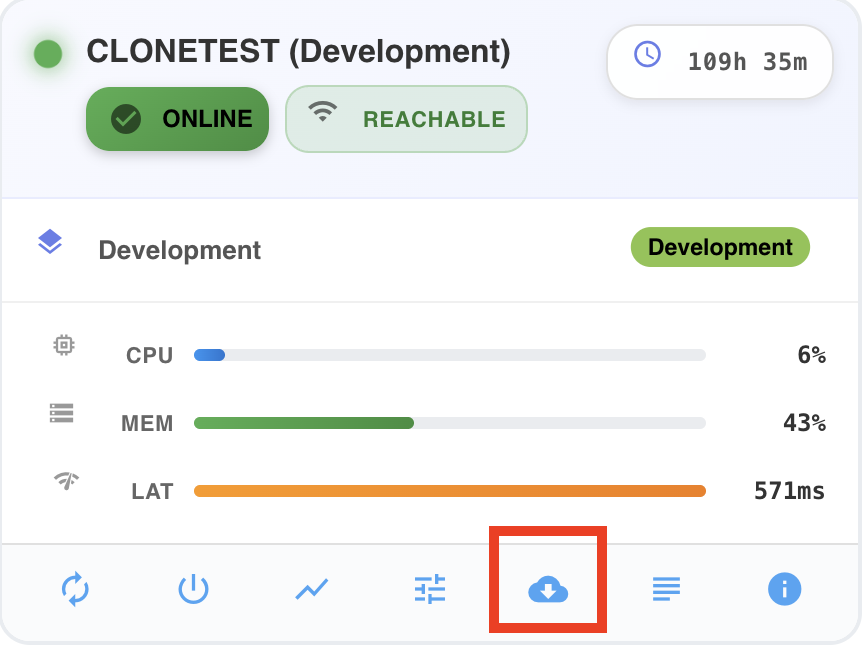
This will initiate the download process, which may take several minutes depending on your connection speed.
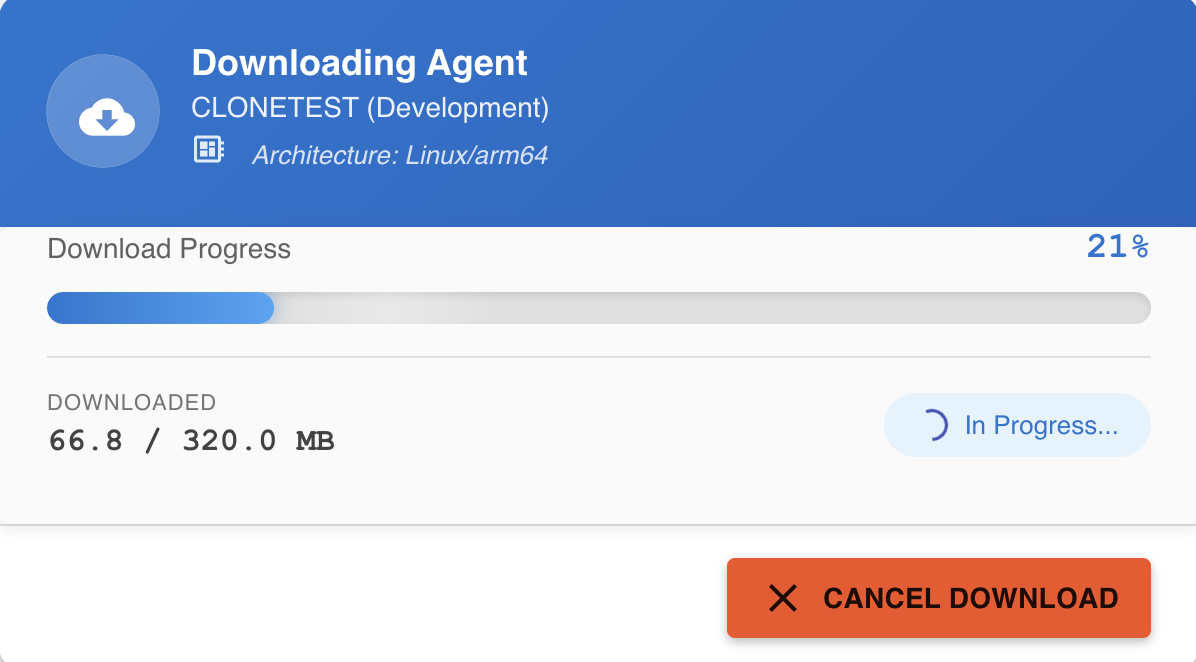
A progress bar indicates how much of the download has completed. Once it reaches 100%, the download is finished and a .ZIP file — referred to as the agent installer — will appear in your browser's downloads folder.
You can cancel the download process by clicking on the "Cancel Download" button.
Pre-Installation Checklist
Before running the installer, verify that your infrastructure meets the requirements for your deployment topology. Skipping this step is the most common cause of failed installations.
Co-Located Topology
In a co-located deployment, the agent runs in the same cluster as the business applications, which reach it directly inside the cluster. The agent must also be reachable by the BizMetry platform, so the following network path must be in place before installation:
BizMetry Platform
       │
       ▼  (HTTPS/TLS — agent external gateway address)
 External Load Balancer  ◄── DMZ, strict security rules
       │
       ▼  (TLS forwarding — internal network)
  Ingress Load Balancer  ◄── Kubernetes cluster ingress
       │
       ▼
   Agent Pod
External Load Balancer
An external load balancer must be in place and configured to listen on the URL you specified as the Agent External Gateway Address in the Security — External tab when configuring the agent in BizMetry. Any traffic arriving at that URL must be forwarded to the internal ingress load balancer. This load balancer is typically positioned in the organizational DMZ and should be governed by strict security rules.
Cluster Ingress
The ingress load balancer of the cluster must be configured to accept TLS traffic. TLS termination at the ingress level maximizes the security of communications between the DMZ and the internal cluster network.
Gateway address mismatch
If the external load balancer is not listening on the exact URL configured as the Agent External Gateway Address, the BizMetry platform will be unable to reach the agent after installation. Verify this URL carefully before proceeding.
Pre-installation checks — Co-Located
- A Kubernetes cluster is available and accessible from the host running the installer.
- The host running the installer has network access to the image registry you intend to use.
- An external load balancer is configured and listening on the Agent External Gateway Address.
- The cluster's ingress load balancer is configured to accept TLS traffic.
- The business applications run in the same cluster as the agent.
Decentralized Topology
In a decentralized deployment, the agent runs in its own cluster, which may be located close to the application, sensor, or client that generates the metrics.
The agent is reached in two ways: by the BizMetry platform through the external gateway, and by your applications through the internal gateway.
External Gateway
The Agent External Gateway Address must match the URL configured on the proxy or load balancer that fronts the agent. This endpoint must listen over TLS using the certificate you configured during agent setup in BizMetry.
Internal Ingress
The external gateway must forward traffic to the internal ingress load balancer, which must support TLS traffic. Applications reach the agent through the Agent Internal Address you configured, which must resolve inside your private network.
Pre-installation checks — Decentralized
- A Kubernetes cluster is available and accessible from the host running the installer.
- The ingress controller type selected during agent configuration matches the ingress controller deployed in the target cluster. A mismatch will cause the installation to fail.
- The host running the installer has network access to the image registry you intend to use.
- The external proxy or load balancer in front of the agent is configured to listen on the Agent External Gateway Address over TLS, using the certificate configured in BizMetry.
- The internal ingress load balancer is configured to accept TLS traffic forwarded from the external gateway.
Installation Steps
Step 1 — Transfer the installer to a secure location
Copy the downloaded .ZIP file to a secure location with access to your Kubernetes cluster. It is strongly recommended to use a bastion server that has authenticated, restricted access to the cluster.
Step 2 — Extract the archive
Unzip the archive. This will produce a directory with the following structure:
agent-install.sh
agent-uninstall.sh
agent.docker.tar
k8s.template.apisix.yaml
k8s.template.contour.yaml
k8s.template.haproxy.yaml
k8s.template.istio.yaml
k8s.template.kong.yaml
k8s.template.nginx.yaml
README.txt
tls_external_cert.pem
tls_external_key.pem
tls_internal_cert.pem   (Decentralized Topology only)
tls_internal_key.pem    (Decentralized Topology only)
The contents are described below:
| File | Description |
|---|---|
agent-install.sh | Main installation script. Deploys the agent onto the Kubernetes cluster. |
agent-uninstall.sh | Uninstallation script. Removes the agent from the cluster when no longer needed. |
agent.docker.tar | Docker image of the agent, ready to be loaded and pushed to your registry. |
k8s.template.*.yaml | Kubernetes manifests for each supported ingress controller. For a decentralized agent, the installer selects the template that matches the ingress type provided. |
README.txt | Informational file containing agent metadata (organization, account, profile, environment, agent) and detailed installation and uninstallation instructions. |
tls_external_*.pem | TLS certificate chain for external communication (BizMetry platform → agent, via the external load balancer). |
tls_internal_*.pem | TLS certificate chain for internal communication (business applications → agent, via the internal load balancer). Included only for the Decentralized Topology; a Co-Located agent has no internal certificate. |
Read the README first
Before running the installer, review README.txt. It contains agent-specific details and any instructions that may be relevant to your deployment environment.
Step 3 — Run the installer
Start the installation by executing the install script:
./agent-install.sh
The installer starts by printing the agent's identifying information — organization, account, profile, environment, agent name and ID, and the time the installer was generated — so you can confirm at a glance that you are installing the intended agent:
**********************************************************************
| Field                | Value
**********************************************************************
| Account Organization | Acme Corp
| Account Name         | Jane Doe
| Account ID           | ccedf19a-e021-40bc-86ad-f0d644bf0158
| Profile Name         | COMAFI
| Environment Name     | DEV
| Agent Name           | COMAFI (DEV)
| Agent ID             | 30ff65e6-0e8c-4a8e-97d8-5663e2dbddd9
| Timestamp            | 2026-09-24T02:08:21Z
**********************************************************************
If the agent was configured with the "I will provide deployment parameters at deploy-time" option enabled, the installer will interactively prompt for the following:
- Image registry URL — where the agent image will be pushed
- Image registry credentials — username and password
- Registry project — the target project or namespace within the registry
- Ingress controller type — the load balancer technology through which the agent will be exposed (asked only for the Decentralized Topology)
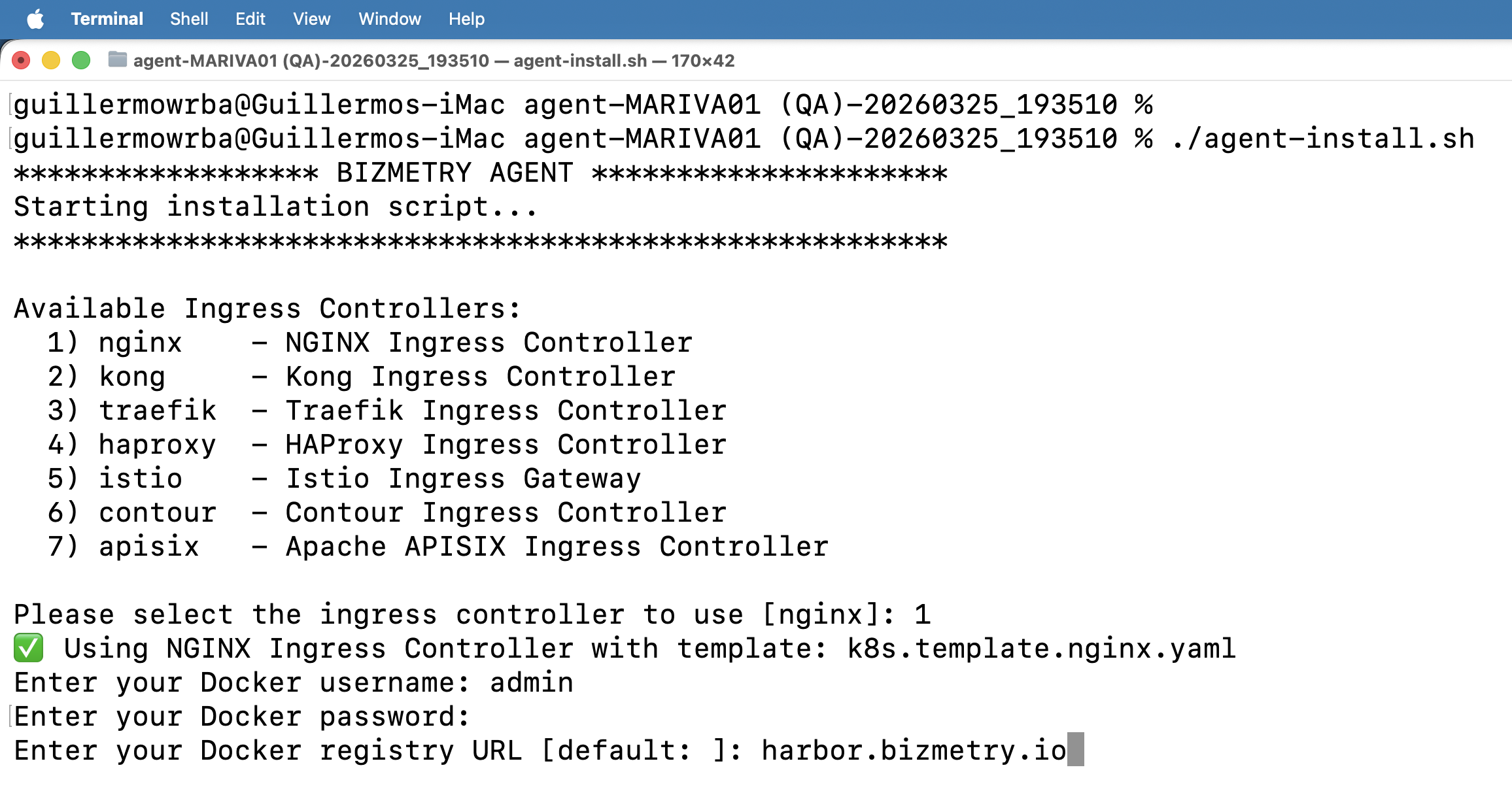
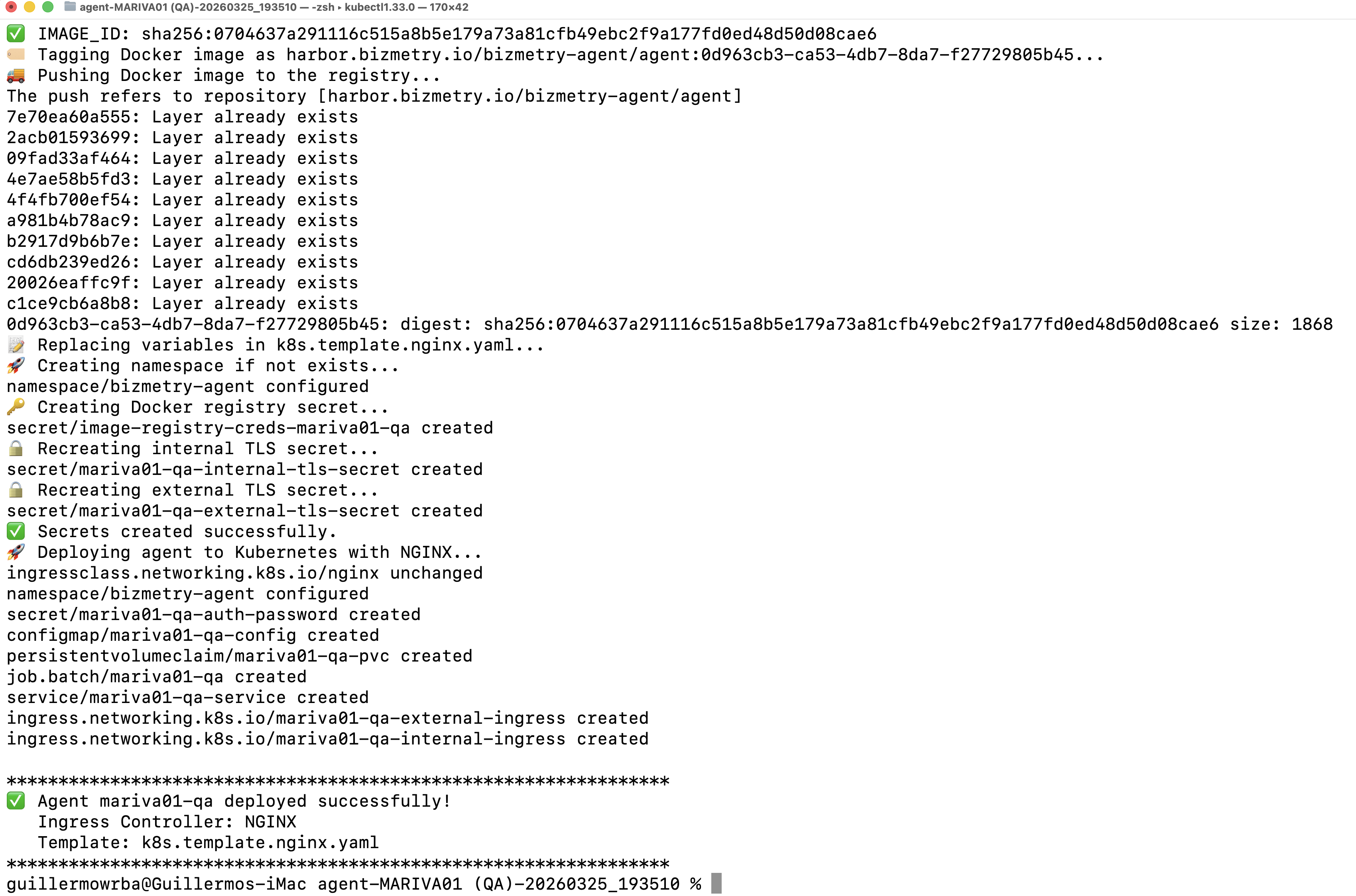
Once all parameters have been confirmed, the installer will push the Docker image to your registry and apply the appropriate Kubernetes manifests to complete the deployment.
Autonomous Synchronization
After a successful installation, the agent will automatically establish a connection with the BizMetry platform and begin synchronizing its configuration. No manual intervention is required.
Install each agent only once
An agent belongs to a single environment and must run in one place. If the same agent is installed a second time while the first installation is still running — for example, in another cluster, or by running the installer twice — BizMetry does not accept the second copy: it fails to start and cannot connect to the platform, while the original installation keeps working normally. To move an agent to a different cluster, uninstall it from the original one first (see Uninstalling the Agent).
The number of replicas is configured on the agent
Running several replicas of the same agent inside one installation is expected — that is what the Number of Replicas setting in Capacity Configuration controls. The restriction above applies to installing the agent a second time, not to its replicas.
Reinstalling after configuration changes
When the agent's card shows the Redeploy Required indicator, download a fresh installer and run it again to apply the pending changes. The indicator clears once the reinstalled agent connects to BizMetry. See Breaking vs Non-Breaking Changes.
Uninstalling the Agent
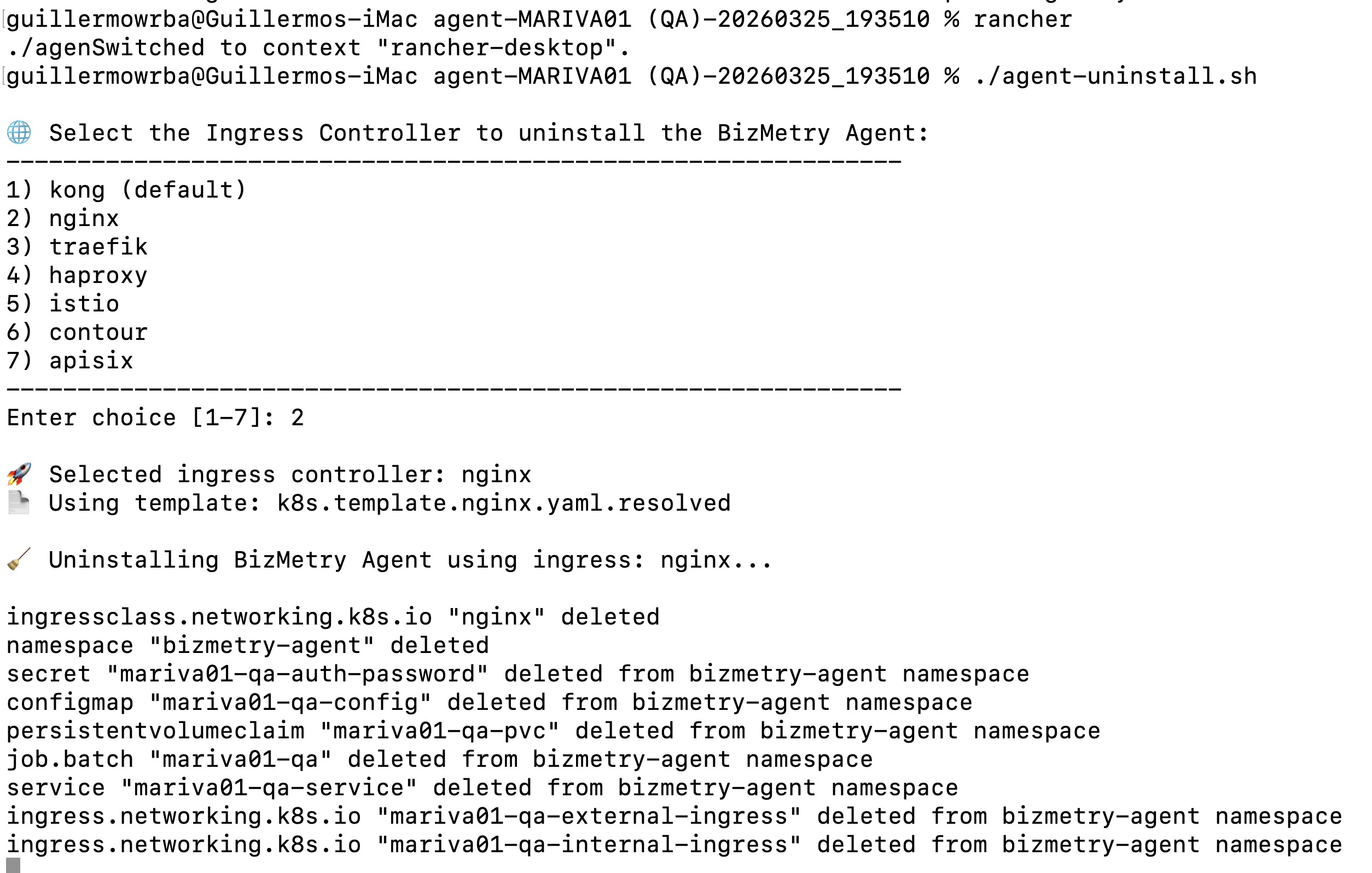
To remove a previously installed agent from your cluster, run the uninstall script from the same extracted directory:
./agent-uninstall.sh
This will remove all Kubernetes resources associated with the agent deployment.
If the agent was configured with the "I will provide deployment parameters at deploy-time" option enabled, the installer will interactively prompt for the following:
- Ingress controller type — the load balancer technology through which the agent was exposed (asked only for the Decentralized Topology)
Configuration Preservation
Uninstalling the agent from your cluster does not delete its configuration from the BizMetry platform. The agent profile, assigned templates, and environment mappings are preserved and can be used to generate a new installer at any time.