Viewing Agent Logs
BizMetry collects and centralizes execution logs from all deployed agents, making them accessible directly from the platform at any time. Agent logs are invaluable for debugging agent behavior, diagnosing connectivity issues, and understanding metric collection activity in any environment.
Accessing the Log Viewer
Agent logs can be accessed from the Agent Summary:
- Navigate to the Agents tab of the desired profile.
- Locate the agent card you wish to inspect.
- Click the View Logs button (
subjecticon) in the agent card's action toolbar.
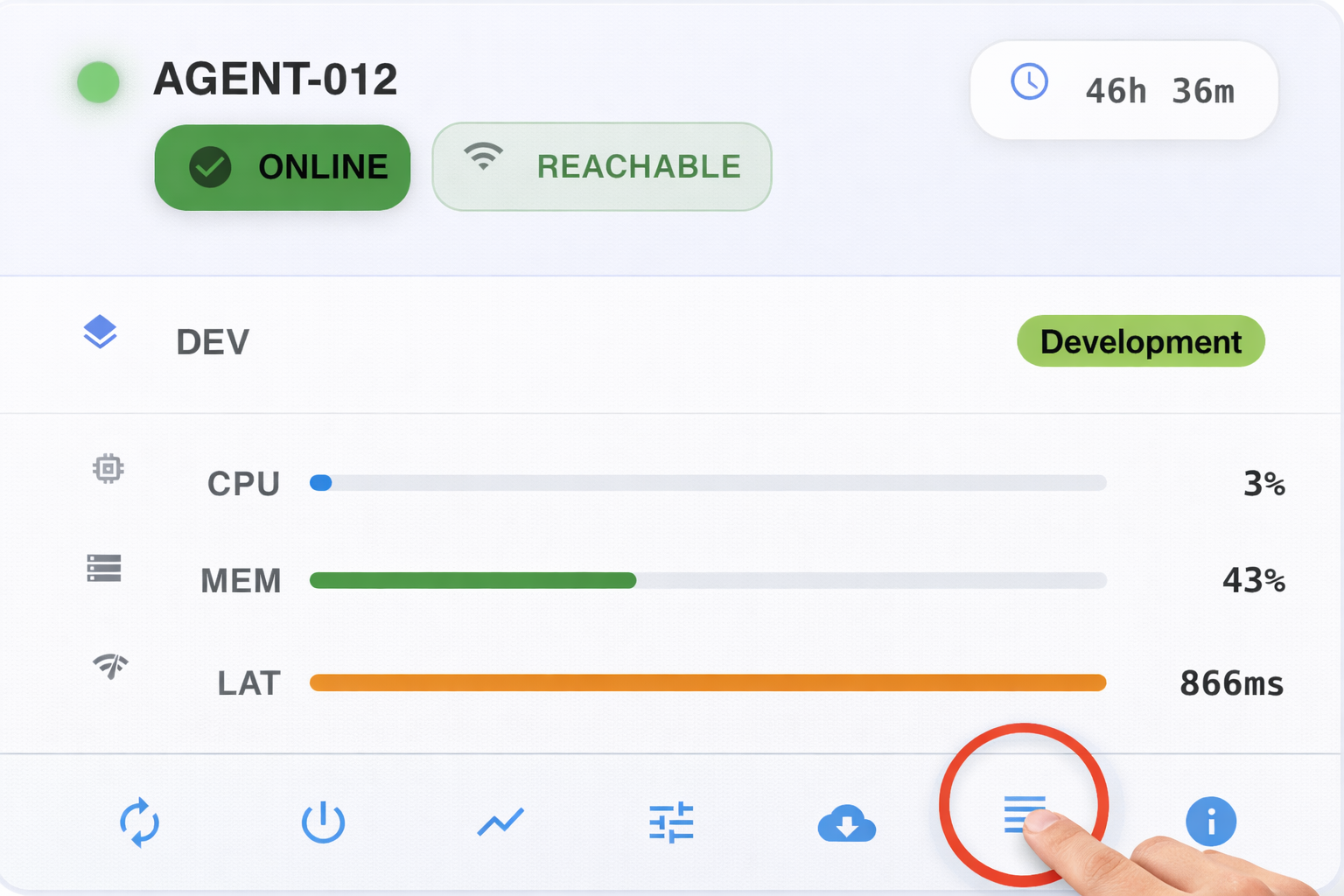
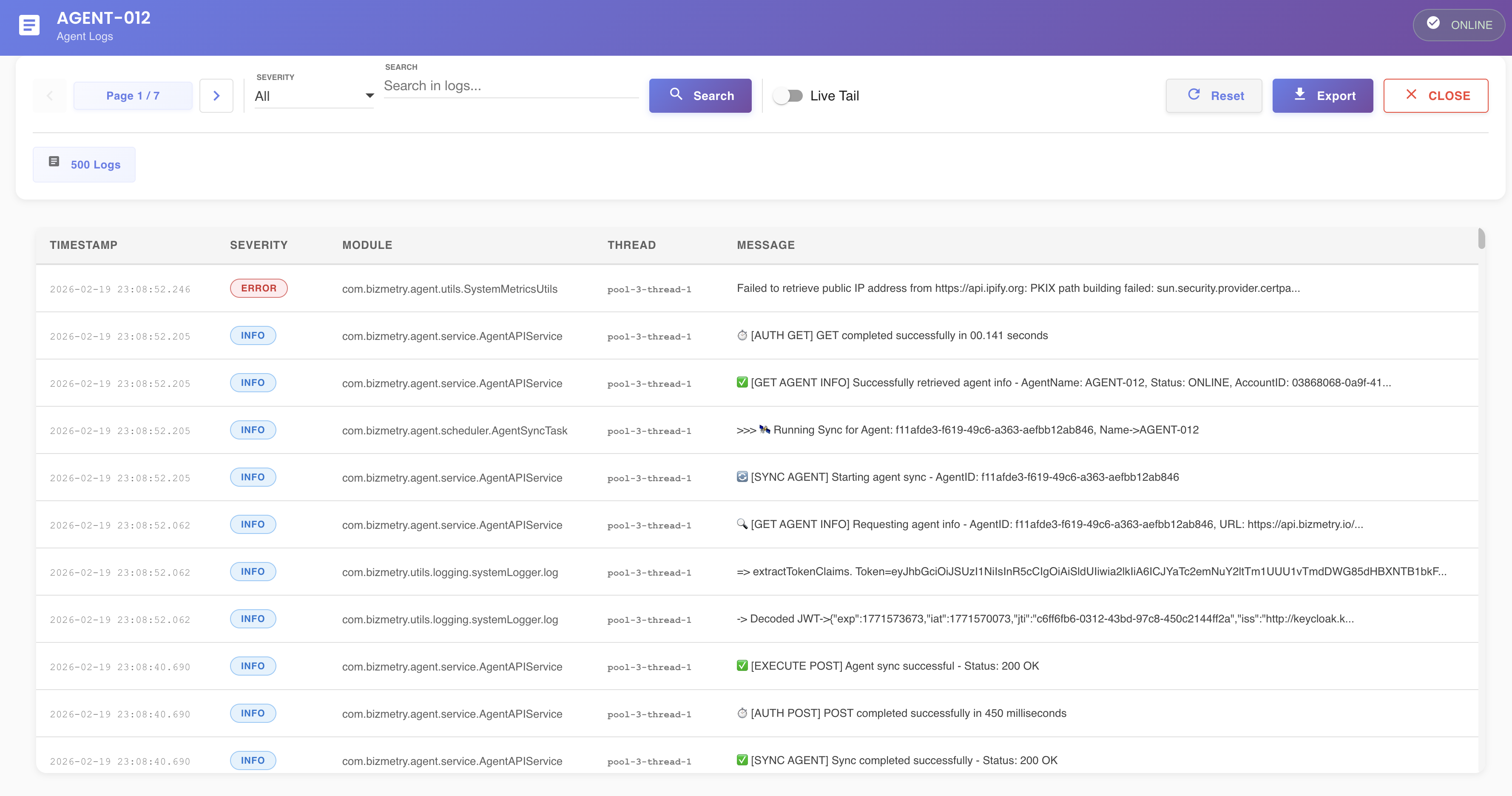
The Agent Log Viewer opens in full view, with the agent's name and current connection status (e.g. ONLINE) shown in the header, displaying the logs collected from that agent.
How Agent Logs Work
Agents transmit their execution logs to the BizMetry platform with each synchronization cycle. The volume of log data uploaded per synchronization, the amount retained locally on the agent, and the log level used for filtering are all governed by the agent's configuration settings.
Note
Log Retention: BizMetry performs periodic housekeeping, automatically purging older log entries to maintain a manageable number of records. This defines a log retention time window — preconfigured by BizMetry according to best practices — always balancing performance and storage usage. Log entries older than this window are permanently removed from the platform.
Filter & Control Bar
The upper section of the Log Viewer contains a set of controls for filtering and navigating log entries:
| Control | Description |
|---|---|
| Pagination | Page indicator (e.g. Page 1 / 238) with previous/next arrow buttons for moving through pages of log entries. |
| Per Page | A dropdown to choose how many log entries are displayed per page (e.g. 50). |
| Severity | A dropdown that filters entries by severity level (e.g., DEBUG, INFO, WARN, ERROR, or All). Only entries at or above the selected level are displayed. |
| Search Bar | A free-text field for searching within log messages. |
| Search | Button that applies the text entered in the search bar, updating the log list to show only entries whose content matches the search term. |
| Live Tail | A toggle that activates live tailing mode — the log viewer automatically refreshes at regular intervals, always displaying the most recent entries. Useful for monitoring agent activity in real time. When active, a visual indicator is displayed confirming that live tailing is enabled and logs are being updated automatically. To stop live tailing, switch the toggle back to the off position. |
| Reset | Clears all active filters (severity, search text) and restores the full unfiltered log view. |
| Export | Downloads the currently visible log entries to a local file in JSON format for offline analysis, archival, or sharing with support teams. |
Below the control bar, two informational badges summarize the current view:
- Logs badge (e.g.
50 Logs) — the number of log entries shown on the current page. - Per page badge (e.g.
50 per page) — the configured page size, mirroring the Per Page selector above.

Export Format
The exported file contains one JSON object per log entry, with the following structure:
{
  "seq":        1969195,
  "timestamp":  "2026-02-19 23:23:16.062",
  "agentId":    "f11afde3-f619-49c6-a363-aefbb12ab846",
  "accountId":  "03868068-0a9f-410e-b13b-4df8be33aa4c",
  "logLevel":   "INFO",
  "module":     "com.bizmetry.agent.service.AgentAPIService",
  "thread":     "pool-3-thread-1",
 "logMessage": ":material-magnify: [GET AGENT INFO] Requesting agent info - AgentID: f11afde3-f619-49c6-a363-aefbb12ab846, URL: https://api.bizmetry.io/v1/api/bizmetry-agents/agents/f11afde3-f619-49c6-a363-aefbb12ab846",
  "size":       186,
  "agentName":  "AGENT-012"
}
| Field | Description |
|---|---|
seq | Sequential identifier of the log entry. |
timestamp | Date and time when the entry was captured, in YYYY-MM-DD HH:mm:ss.SSS format. |
agentId | Unique identifier of the agent that generated the entry. |
accountId | Unique identifier of the BizMetry account the agent belongs to. |
logLevel | Severity level of the entry (DEBUG, INFO, WARN, ERROR, etc.). |
module | Fully qualified class or module name that produced the entry. |
thread | Name of the agent thread that generated the entry. |
logMessage | The full, untruncated log message body. |
size | Size of the log message in bytes. |
agentName | Human-readable name of the agent. |
Tip
Only the entries currently visible (i.e., matching the active filters) are included in the export. To export all available logs, click Reset before exporting.
Live tail mode active, visual indicator:

Log Entry List

The lower section of the dialog displays the filtered log entries as a table, with one row per entry:
| Column | Description |
|---|---|
| Timestamp | The exact date and time when the log entry was captured by the agent. |
| Severity | The log level of the entry (DEBUG, INFO, WARN, ERROR, etc.). |
| Module | The internal agent module that generated the log entry. |
| Thread | The agent thread from which the log entry originated. |
| Message | A summary of the log message body. Long messages may be truncated in the list view. |
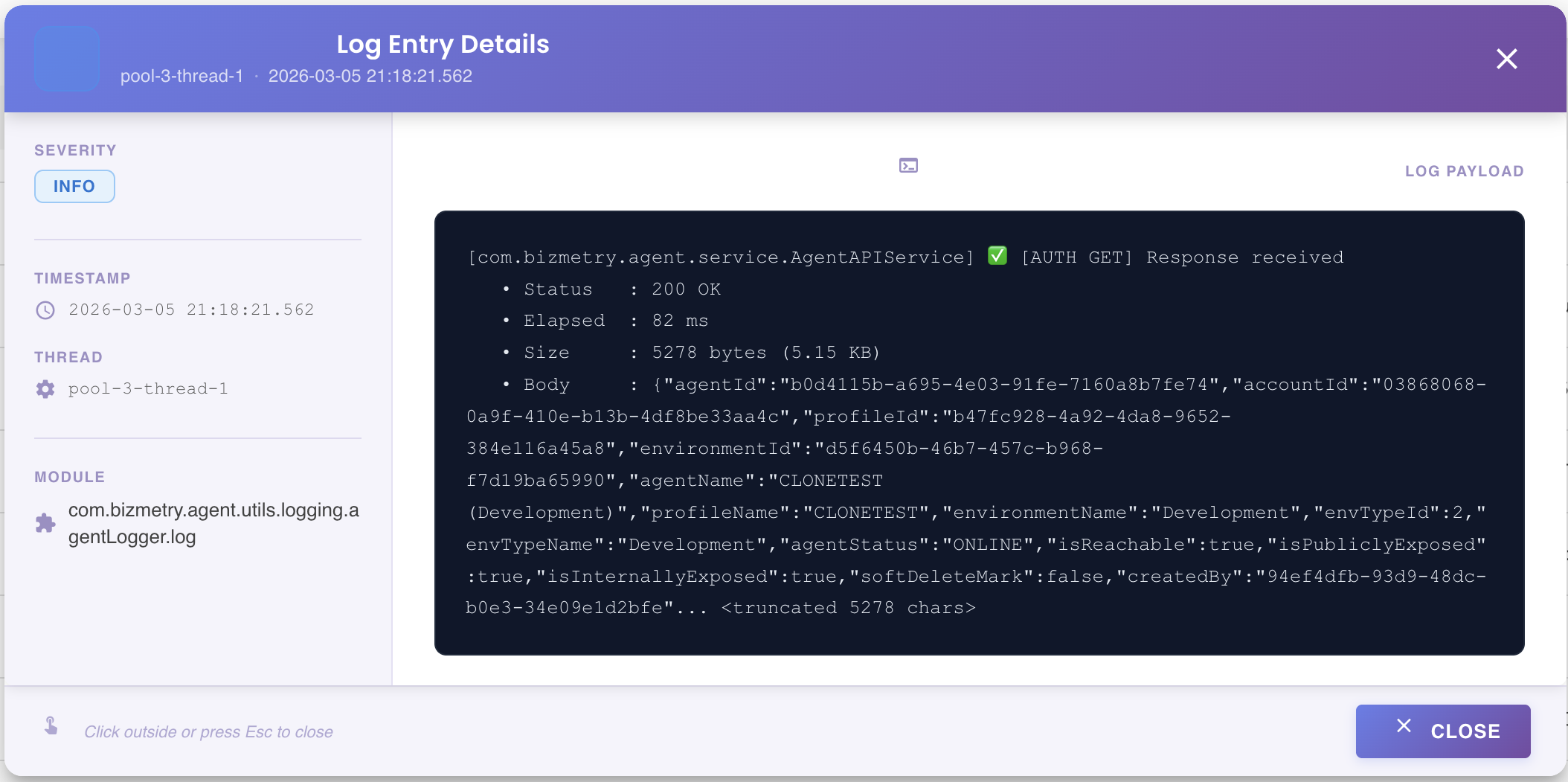
Viewing the Full Message
Clicking on any log entry opens a dedicated message viewer, displaying the complete, untruncated content of the log message.
Log Retention Policy
BizMetry automatically manages log storage through a background housekeeping process that periodically purges entries older than the configured retention window. This policy is preconfigured by BizMetry according to operational best practices, ensuring a consistent balance between:
- Performance — Keeping query and display times fast.
- Storage efficiency — Avoiding unbounded growth of log data.
Log entries that fall outside the retention window are permanently deleted and cannot be recovered. For long-term log archiving needs, use the Export function to save logs locally before they age out.
Summary
The Agent Log Viewer allows you to:
- Access execution logs from any agent directly within BizMetry.
- Filter log entries by severity level and free-text search.
- Navigate paginated log results, choosing how many entries to display per page.
- Tail live log output with automatic periodic refresh, with a clear visual indicator while the mode is active.
- Inspect the full content of individual log entries in a dedicated viewer.
- Export logs to a local file in JSON format for offline analysis or archival.
- Understand log retention boundaries to plan data archiving accordingly.