Tuning Configuration — Network
The Network sub-tab of the Tuning tab defines how the Biz Interceptors of this agent's environment connect to BizMetry and to the agent: how long they wait before giving up on a connection, and whether their traffic must be routed through an HTTP proxy.
To access it, open the Agent Configuration dialog, select Tuning, then Network.
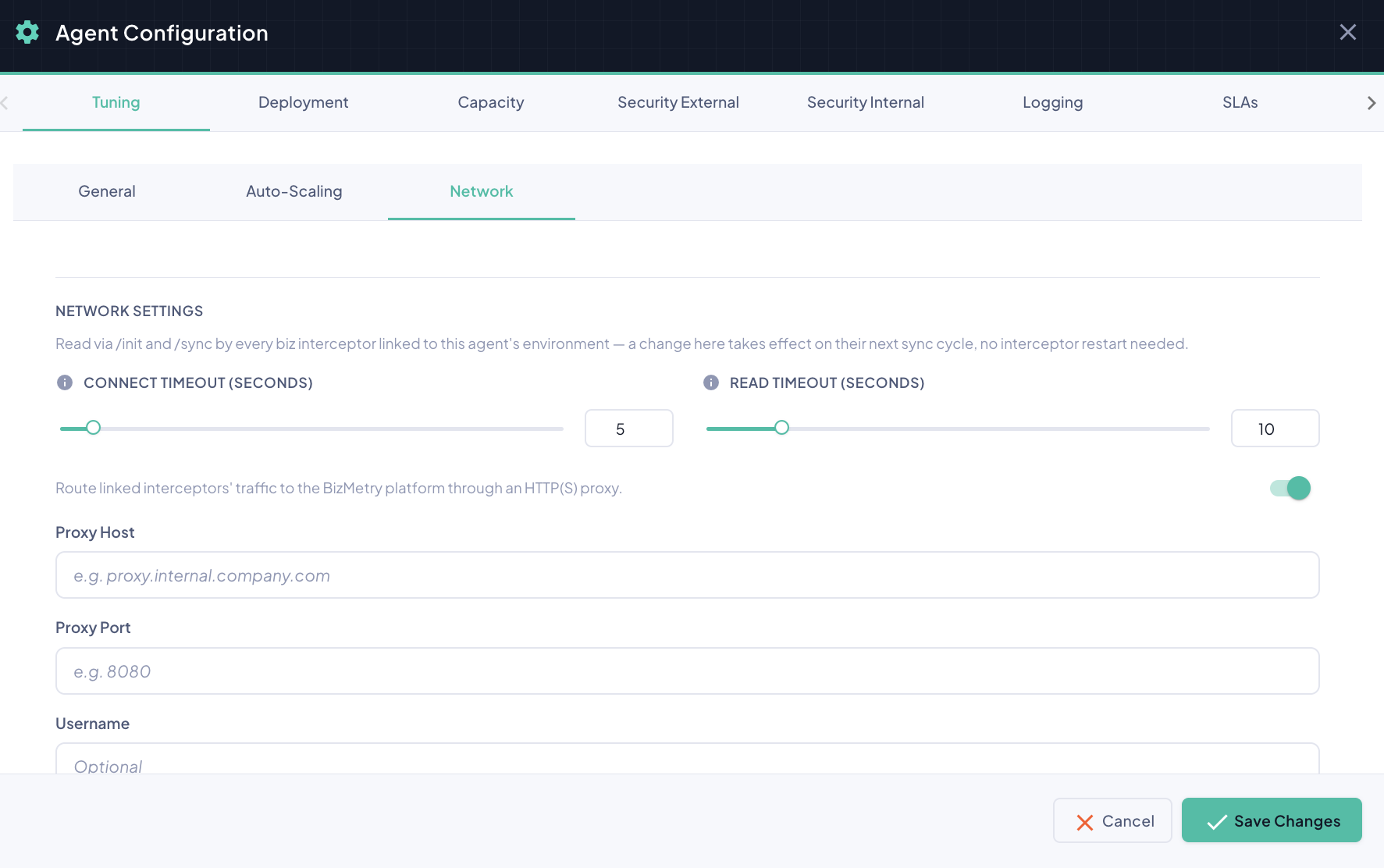
Configured once per environment, shared by every interceptor
Network settings live on the agent, not on individual interceptors. Every interceptor linked to this agent's environment uses the same values, so a proxy or timeout only needs to be set up once for the whole environment — you no longer have to repeat it on each interceptor.
Connection Timeouts
| Parameter | Description | Default |
|---|---|---|
| Connect Timeout (seconds) | How long an interceptor waits to establish a network connection before giving up. | 5 |
| Read Timeout (seconds) | How long an interceptor waits for a response, once connected, before giving up. | 10 |
Set them with the slider or by typing an exact value in the field next to it.
Choosing values
Increase the timeouts on slow or high-latency networks — for example, when traffic crosses a proxy or a long network path — so healthy connections aren't abandoned too early. Keep them as low as your network allows so that a genuinely unreachable destination is detected quickly.
Proxy Settings
Many corporate networks only allow outbound traffic through an HTTP proxy. Turn on the switch Route linked interceptors' traffic to the BizMetry platform through an HTTP(S) proxy to have every interceptor of this environment send its traffic through the proxy you describe below. The switch is off by default.
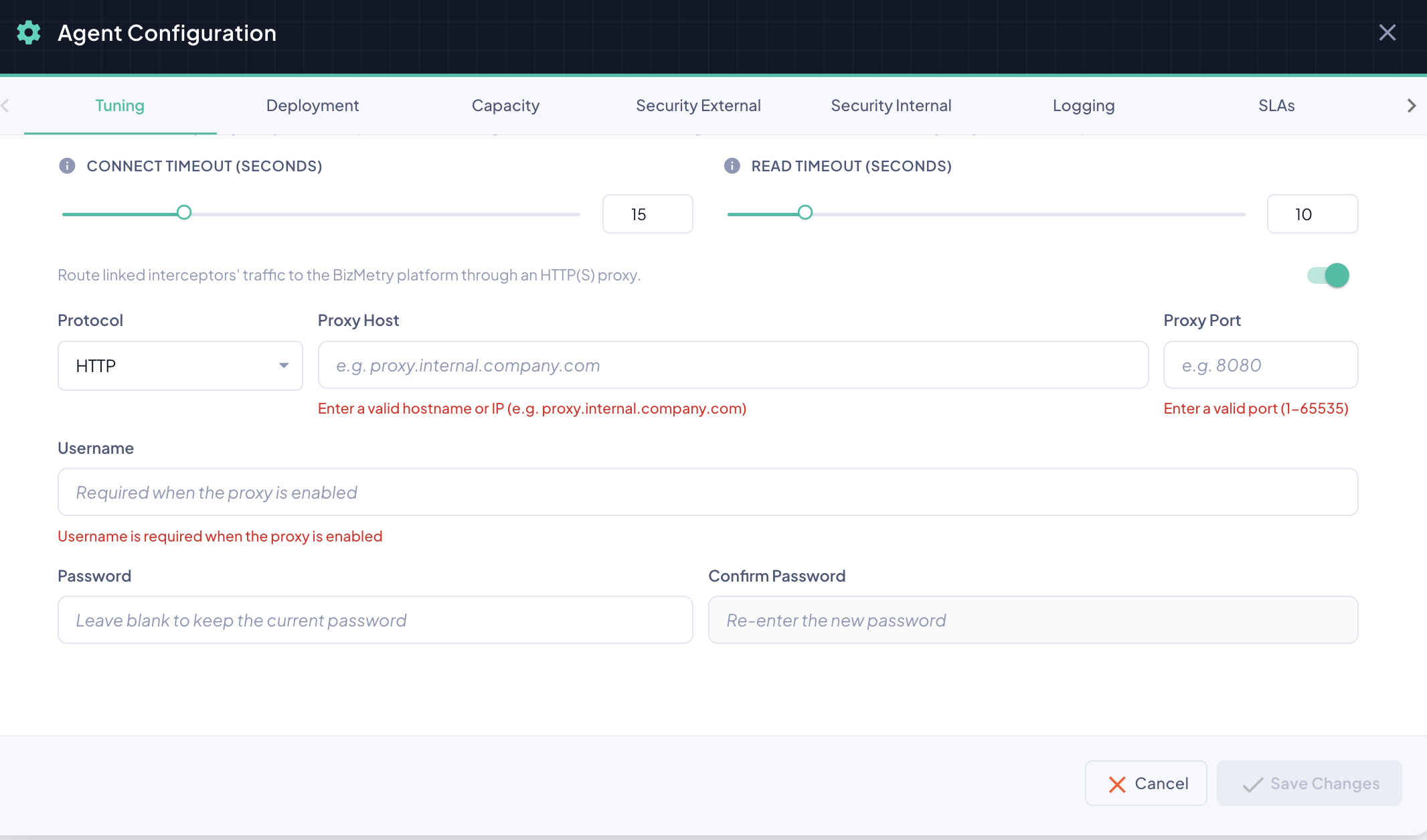
| Field | Description |
|---|---|
| Protocol | The proxy's protocol. HTTP is currently supported; HTTPS is shown in the list but is not available yet. |
| Proxy Host | The proxy server's hostname or IP address. |
| Proxy Port | The port the proxy listens on (1–65535). |
| Username | The account used to authenticate with the proxy. Required while the proxy is enabled. |
| Password | The account's password. |
| Confirm Password | Re-enter the password to avoid typing mistakes. It must match the Password field. |
Passwords are never shown again
For your protection, a saved proxy password is not displayed when you reopen the dialog.
Validation
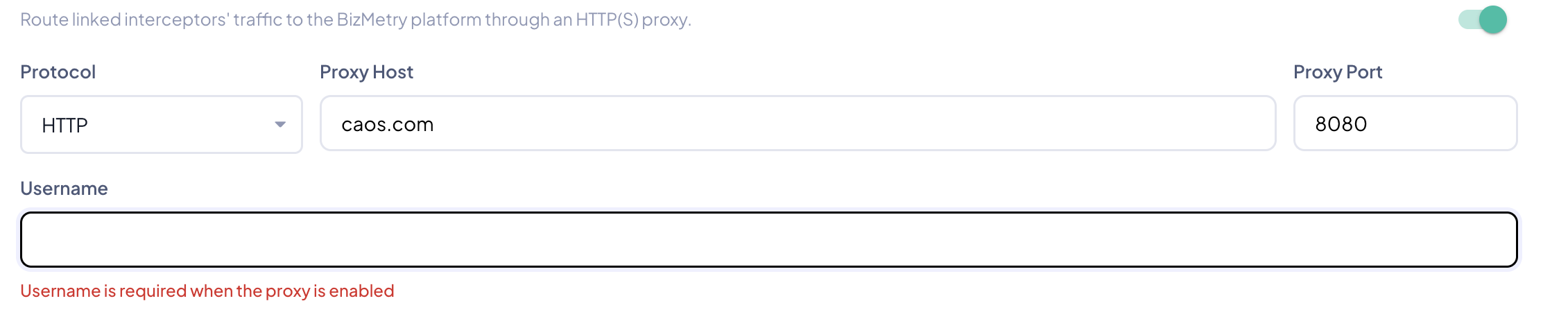
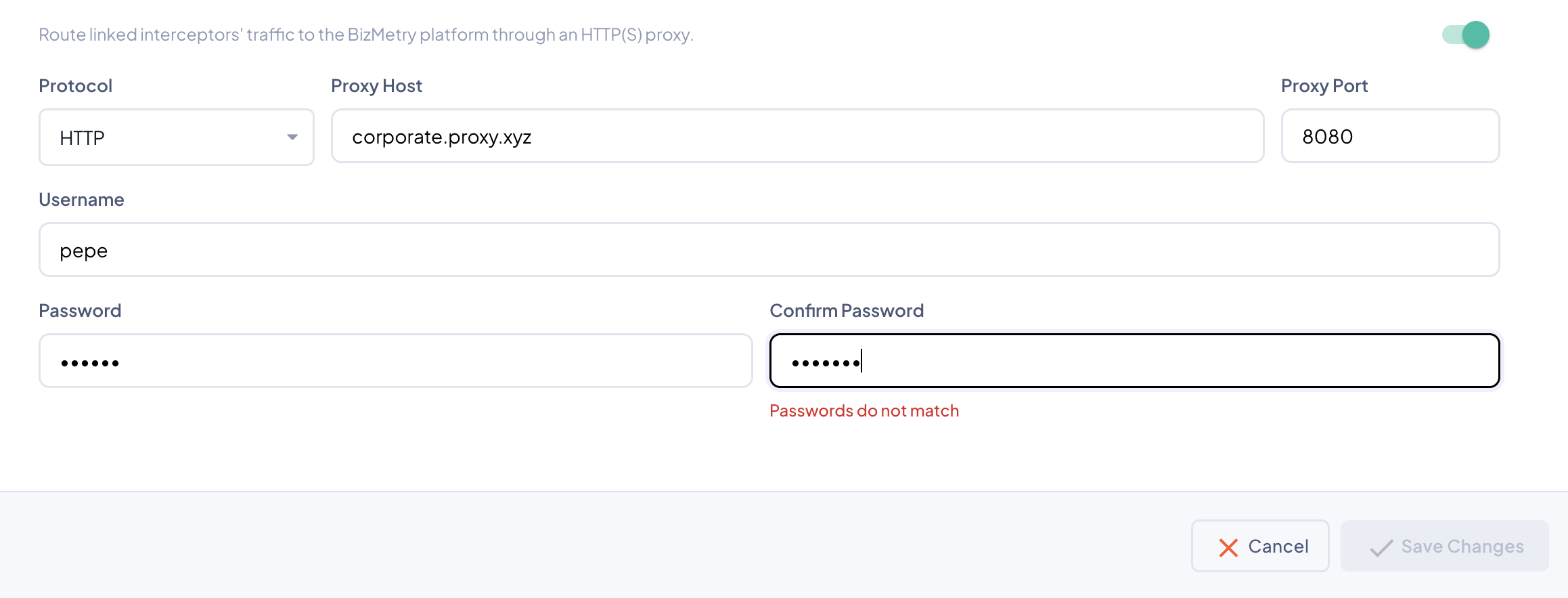
The dialog checks your entries as you type and keeps Save Changes disabled until the proxy settings are valid. Any problem is reported in red directly below the field:
| Problem | Message |
|---|---|
| The host is not a valid hostname or IP address. | Enter a valid hostname or IP (e.g. proxy.internal.company.com) |
| The port is outside the allowed range. | Enter a valid port (1–65535) |
| The username is empty. | Username is required when the proxy is enabled |
| The two passwords differ. | Passwords do not match |


When Do Changes Take Effect?
Network settings are applied automatically. After you save, every running interceptor of this environment picks up the new timeouts and proxy on its next synchronization with BizMetry — no restart of the interceptor or of your business application is needed, and the agent does not show a Restart Required or Redeploy Required indicator. These are hot changes — see Breaking vs Non-Breaking Changes.
The proxy must be reachable and allowed
Make sure the proxy accepts connections from the network where your business applications run and that it permits traffic to the BizMetry platform. An incorrect proxy prevents interceptors from reaching BizMetry, and they will appear Offline until the settings are corrected.