Logging Configuration
The Logging tab controls how much the agent logs and how it handles log data on its way to BizMetry. It groups three settings:
| Setting | What it controls |
|---|---|
| Agent Logging Level | How verbose the agent's logging is. |
| Log Buffer Size (KB) | How much log data the agent can hold while waiting to deliver it. |
| Log Batch Size (KB) | How much log data the agent sends to BizMetry per synchronization. |
Choosing the right values balances operational visibility with performance — particularly in production environments, where high log volumes can affect throughput.
To access this tab, open the Agent Configuration dialog and select Logging from the tab bar.
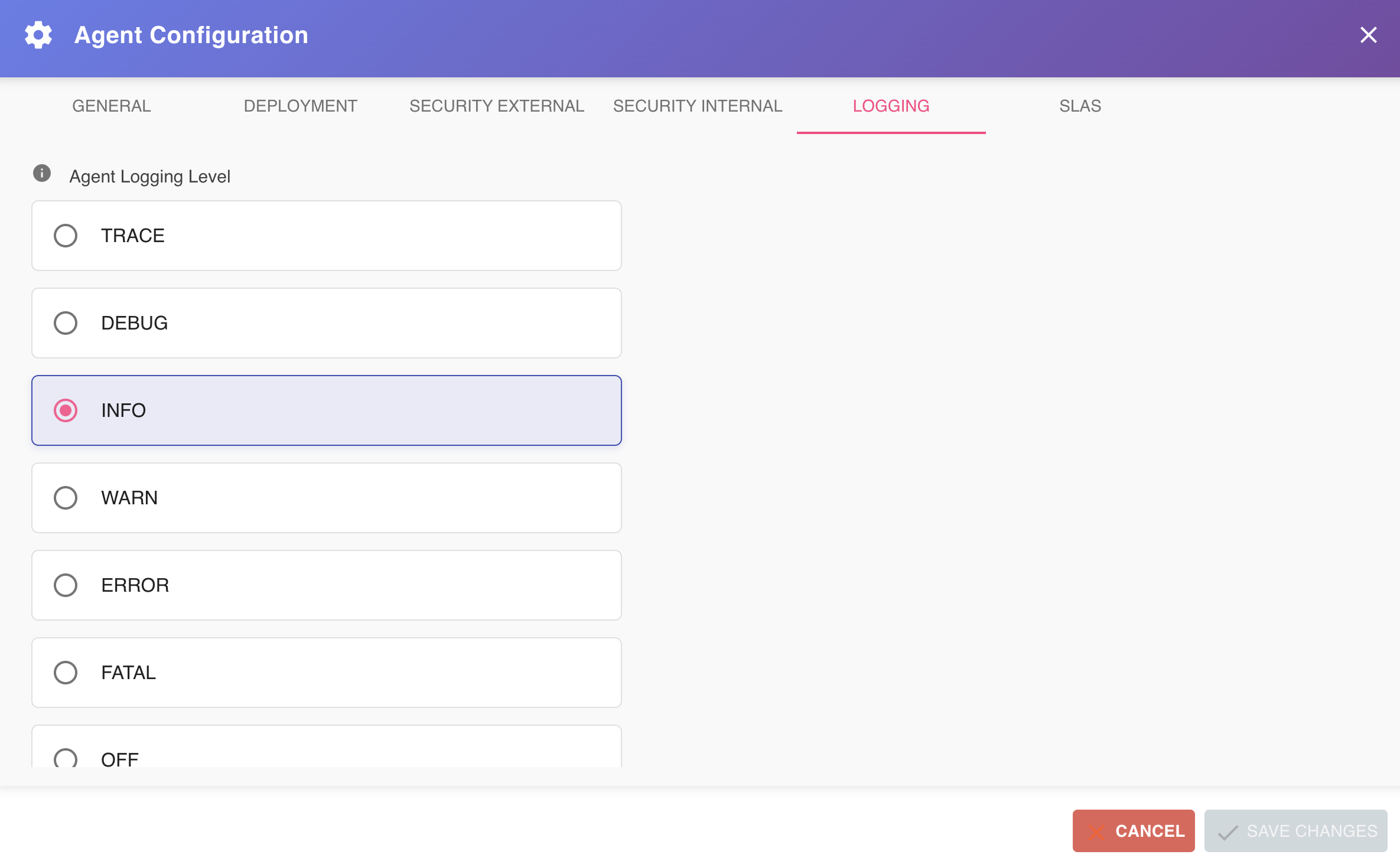
Log Levels
Use the Agent Logging Level drop-down to choose the level.
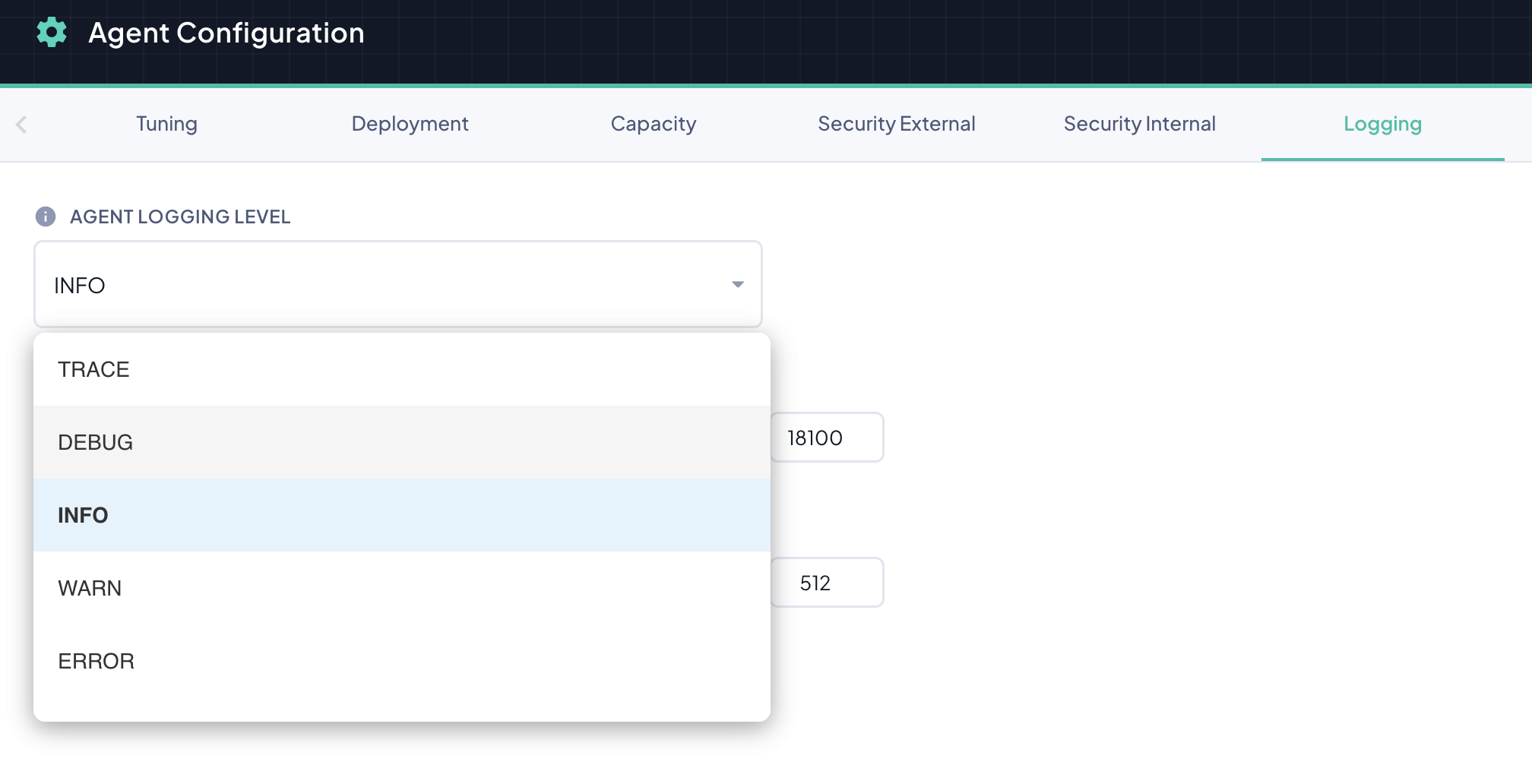
BizMetry supports the following logging levels, from most to least verbose. Each level includes all messages from the levels above it in severity — for example, WARN also captures ERROR and FATAL messages.
TRACE
The most granular logging level available. Captures every internal operation the agent performs, including low-level execution paths, internal state transitions, and detailed protocol-level events.
When to use: Only for deep troubleshooting scenarios where DEBUG alone does not provide enough context to diagnose a problem. Expect very high log volume — do not use in production. Always revert to a higher level once the investigation is complete.
DEBUG
Detailed diagnostic information useful for understanding the agent's internal behavior during development or troubleshooting. Includes information about metric pipeline operations, sync cycles, connection attempts, and internal decision logic.
When to use: When investigating a specific issue in a non-production environment and you need more context than INFO provides. Acceptable for short periods in staging or QA environments. Avoid in production unless strictly necessary and for the shortest possible time.
INFO
General operational messages that describe the normal lifecycle of the agent — startup, sync cycles, configuration reloads, and connectivity events. This is the recommended level for all environments under normal operating conditions.
When to use: Always, unless you have a specific reason to change it. INFO provides enough context to understand the agent's operational state without generating excessive log volume.
WARN
Captures warning messages that indicate something unexpected occurred, but the agent was able to continue operating normally. Examples include temporary connectivity issues, near-capacity buffer usage, or configuration values approaching their limits.
When to use: When you want to reduce log noise in a stable production environment while still retaining visibility into conditions that may require attention before they escalate into errors.
ERROR
Captures only error-level events — conditions that caused an operation to fail but did not stop the agent from running. Examples include failed sync attempts, metric transmission errors, or rejected configuration updates.
When to use: In mature production environments where the agent is stable and you only want to be alerted to actual failures. Combine with a log monitoring tool that triggers alerts on ERROR entries.
FATAL
The most restrictive error level. Only captures critical failures that cause the agent to terminate or enter an unrecoverable state.
When to use: Rarely chosen directly. Appropriate only when you are confident the environment is fully stable and you want to minimize logging to the absolute minimum while still capturing crash-level events.
OFF
Disables all logging entirely. No log output is produced by the agent.
When to use: Not recommended for any operational environment. May be appropriate in highly constrained resource scenarios where storage is extremely limited, but note that any issue that occurs while logging is off will produce no evidence for diagnosis.
ALL
Enables all logging levels simultaneously — equivalent to TRACE but making the intent explicit. Captures every possible log entry the agent can produce.
When to use: Only during controlled debugging sessions in isolated, non-production environments. Log volume will be very high. Always revert to INFO or higher once the session is complete.
Recommendations
Use INFO as your baseline Under normal operating conditions, INFO is the recommended level for all environments. It provides a clear picture of the agent's lifecycle without generating log pressure.
Never run TRACE or DEBUG in production long-term These levels generate high log volumes that increase disk I/O, consume Log Buffer space faster, and can degrade agent throughput. If you need to activate them in a production agent for diagnostic purposes, do so for the shortest possible window and revert immediately.
Use ERROR or WARN in stable production environments Once an agent has been running reliably for an extended period, raising the log level to WARN or ERROR reduces log pressure and frees up Log Buffer capacity for metric-intensive workloads.
Match the log level to the environment type As a general rule of thumb, align log levels with environment tiers:
| Environment | Recommended Level |
|---|---|
| Development | DEBUG or TRACE |
| QA / Staging | DEBUG or INFO |
| UAT | INFO |
| Production | INFO → WARN or ERROR in stable deployments |
Monitor Log Pressure Regardless of the level chosen, always keep an eye on the Log Pressure indicator in the Agent Monitoring view. A rising Log Pressure value means the agent is generating logs faster than it can flush them. If this occurs while running at INFO, consider raising the level to WARN or reviewing the Log Batch Size configuration.
Rotate log levels during incident response When an incident occurs in production, the recommended approach is to temporarily lower the log level to DEBUG for the affected agent, capture the diagnostic information needed, and then revert to INFO or higher once the investigation is complete. Avoid leaving the agent at a verbose level after the incident is resolved.
Avoid OFF in any monitored environment Disabling logs entirely means losing all observability into the agent's behavior. If storage is a concern, prefer raising the level to FATAL rather than disabling logging altogether.
Log Buffer Size (KB)
The amount of memory the agent reserves to accumulate log entries before they are delivered to BizMetry.
| Value | Behavior |
|---|---|
| High | A larger buffer. Greater resilience during connectivity loss — logs are held until the connection is restored. Uses more memory. |
| Low | A smaller buffer. Uses less memory, but if the agent loses connectivity for an extended period the buffer may fill up and the agent starts dropping log entries, causing permanent log loss. |
Log Batch Size (KB)
The maximum size of each batch of log data delivered to BizMetry per synchronization.
| Value | Behavior |
|---|---|
| High | More log data delivered per cycle. Higher log throughput, at the cost of more memory and network bandwidth. |
| Low | Less log data delivered per cycle. Lower resource usage, but reduced throughput. If the agent generates logs faster than they can be delivered, a log bottleneck can develop, filling the buffer and causing log entries to be dropped. |
Tuning Guidance
The Log Pressure metric, visible in the Agent Monitoring view, is the primary indicator of the health of the logging pipeline. It shows how full the log buffer is, as a percentage.
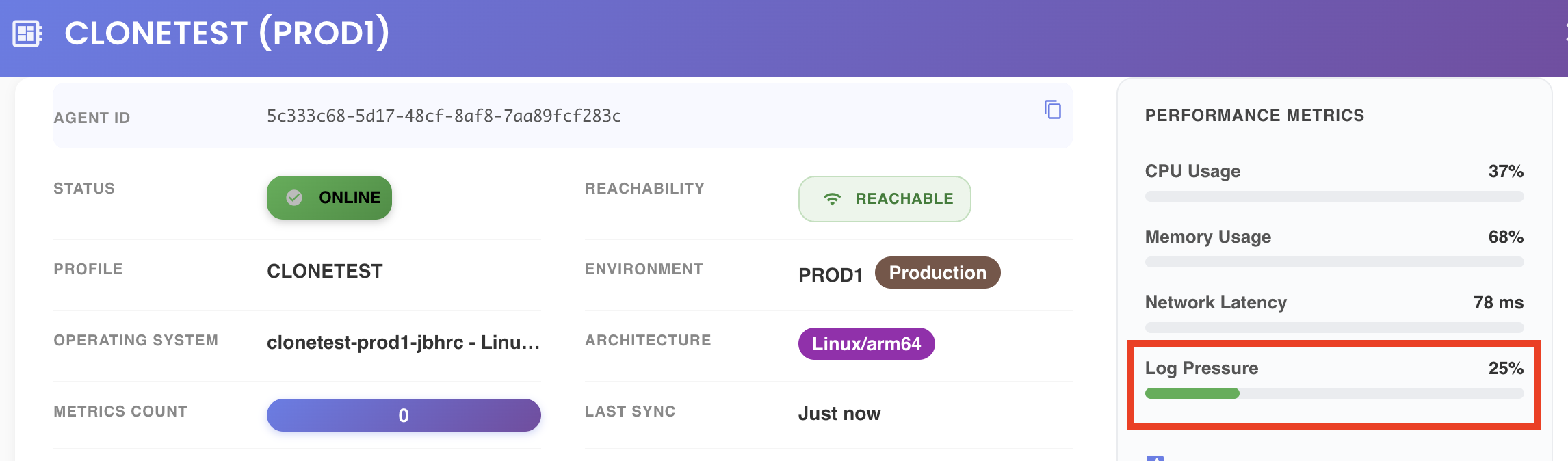
Log Pressure should remain stable and low at all times. A rising trend means the agent cannot deliver logs as fast as they are generated. If this happens, apply these corrective actions in order:
- Increase Log Batch Size — the first and most effective lever: a larger batch delivers more log data per cycle.
- If throughput is still insufficient, increase Log Buffer Size — more headroom reduces the risk of losing logs while the throughput issue is resolved.
- Reduce the Sync Interval (see Tuning — General) — logs are delivered more often, so they spend less time in the buffer.
- Raise the log level — for example from
INFOtoWARN— so the agent produces fewer entries.
Never ignore a rising Log Pressure
A sustained increase in Log Pressure is a leading indicator of impending log loss. Once the buffer is full, the agent silently drops new log entries — no error is raised and the lost data cannot be recovered. Address the condition before the buffer saturates.
When Do Changes Take Effect?
Changes on this tab are not applied to a running agent the moment you save them:
| Setting | After saving, you need to… |
|---|---|
| Agent Logging Level | Restart the agent. |
| Log Batch Size (KB) | Restart the agent. |
| Log Buffer Size (KB) | Reinstall the agent with a fresh installer (the agent shows Redeploy Required). |
Until then the agent keeps running with its previous values, and its card shows the corresponding indicator. See Breaking vs Non-Breaking Changes and Restarting an Agent for the procedures.